


WordPress security comes down to keeping core, plugins and themes up to date, protecting administrator accounts with a long, unique password and two-factor authentication (2FA), limiting login attempts, setting file permissions correctly and taking regular off-server backups. A web application firewall (WAF), malware scanning and log monitoring turn this foundation into a layered defense.
Summary
- Old versions do not receive security updates. As of November 2026, the latest stable release is WordPress 7.1.5, a security release published on November 18, 2026.
- Since WordPress 5.6, core automatic updates are enabled by default on new installations; automatic updates for plugins and themes are disabled by default.
- WordPress core has no two-factor authentication; enable it for every administrator with a trusted plugin or identity provider.
- The most efficient way to limit login attempts is to enforce the limit at the server or WAF level.
DISALLOW_FILE_EDITdisables the file editor in the dashboard, but on its own it does not prevent malicious file uploads.- Recommended WordPress file permissions: folders 755 or 750, files 644 or 640, wp-config.php 440 or 400. Never give any folder 777 permanently.
- If you do not use XML-RPC, disable it; if you do, restrict it and rate-limit it.
- If your site has been compromised: document it, take a backup, reset passwords and security keys, replace core with a clean copy and then update everything to the latest version.
WordPress security checklist: where to start?
The table orders the steps by ease; the last row requires file or server access.
| Priority | Action | Why it matters |
|---|---|---|
| Right now (5-10 min.) | Update core, plugins and themes; delete the ones you do not use | Updates close known vulnerabilities |
| Right now | Reset administrator passwords with a password manager and enable 2FA | Defeats brute force and leaked-password attempts |
| Today (30 min.) | Take an off-server backup and test a restore once | Gives you a clean point to return to if everything goes wrong |
| This week | Review user roles and enforce HTTPS | Reduces the attack surface and the risk of session hijacking |
| Advanced | wp-config.php constants, file permissions, uploads and XML-RPC rules, WAF | Makes a vulnerability harder to exploit even if one is found |
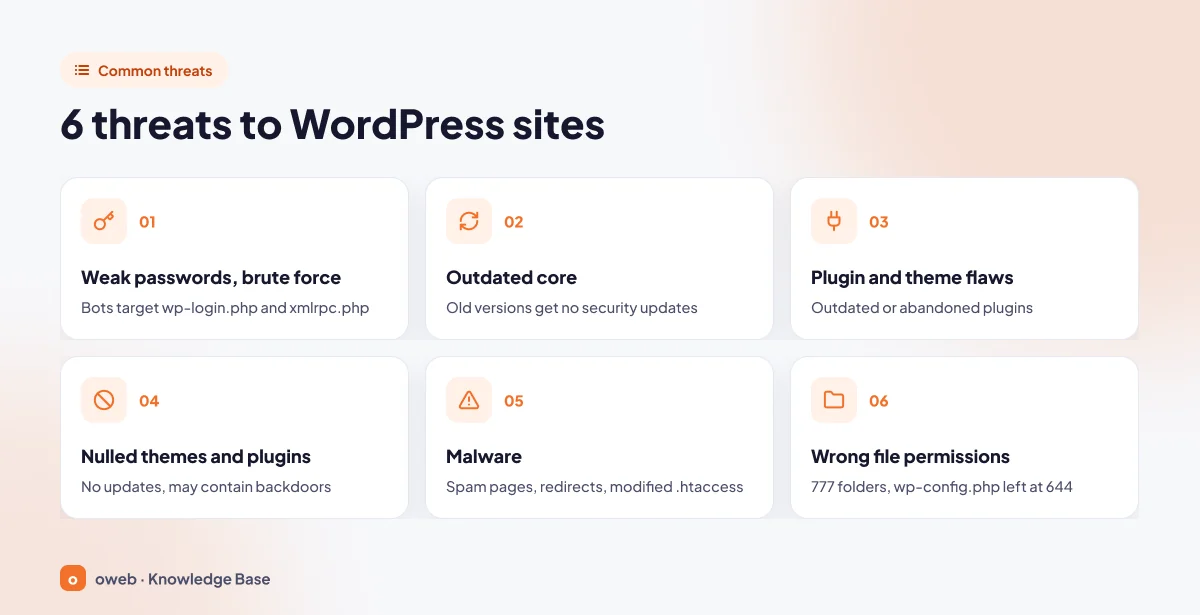
Why are WordPress sites targeted? Common threats
Most attacks do not target a specific site. Bots scan addresses one by one, looking for the wp-login.php and xmlrpc.php files that sit in the same place on every installation, or for plugin versions with known vulnerabilities. That is why even a small site is a target, and the goal of WordPress security measures is to make automated attacks fail.
In the 2025 edition of the OWASP Top 10, "Software Supply Chain Failures", which expands the 2021 category "Vulnerable and Outdated Components", ranks third. In WordPress terms, this means every plugin and theme you install is a link in your security chain.
1. Weak passwords and brute force attempts
Bots try large numbers of usernames and passwords through wp-login.php and xmlrpc.php. The "admin" username and passwords reused on other sites make their job easier; even failed attempts put load on the server.
2. Outdated core
The official Hardening WordPress guide states that old versions do not receive security updates. Once a fix is published, the vulnerability also becomes public, and sites that have not updated become targets.
3. Plugin and theme vulnerabilities
Plugins that are not updated, have been abandoned, or were deactivated but never deleted are a common weak link; the files of a deactivated plugin remain on the server.
4. Nulled themes and plugins
Cracked, pirated copies of premium products receive no official updates and may contain backdoors. Free GPL-licensed themes do not fall into this group; the problem is an unauthorized copy of a paid product.
5. Malware
Compromised sites typically show spam pages, redirects to other addresses and modified .htaccess or index.php files. The goal is usually to exploit your site's reputation and server resources for spam.
6. Incorrect file permissions
Folders set to 777 or a wp-config.php left at 644 can allow another account on a shared server to read your files, and with 777 even modify them. wp-config.php, which contains the database password, is the most sensitive file.
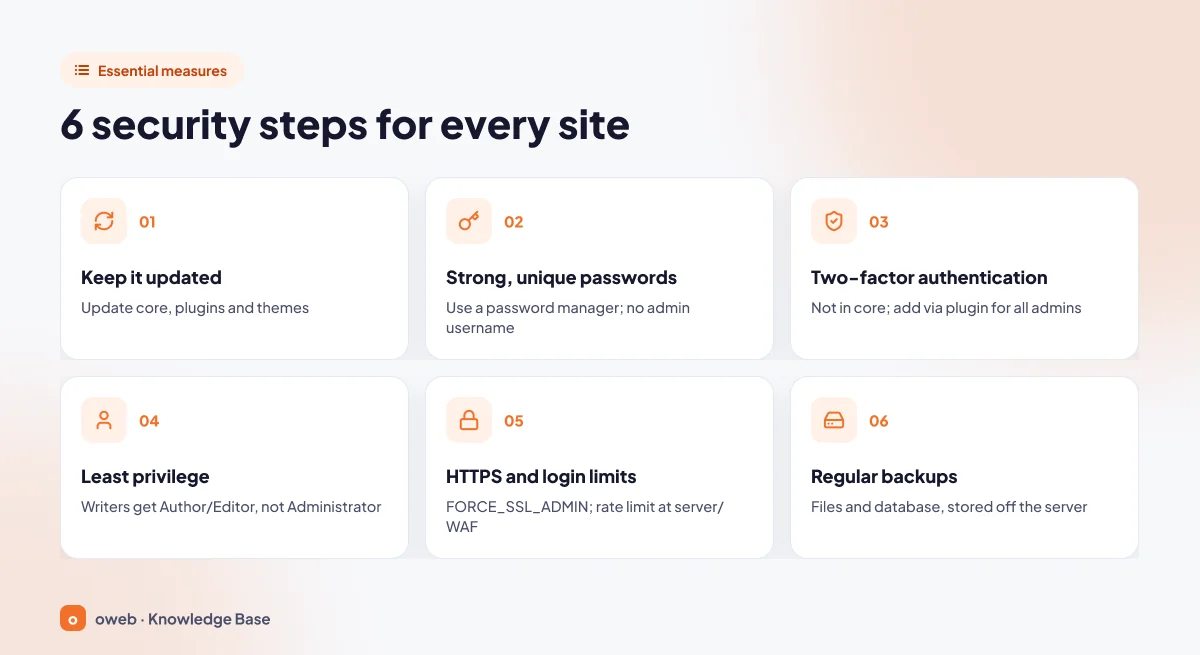
How to secure WordPress: essential measures
The steps are ordered from simplest to most advanced; most can be done directly from the admin dashboard.
Take a full backup before changing any file, database or server setting. If needed, follow our WordPress backup guide first; if a change breaks the site, you can restore the backup to return it to its previous state.
1. Manage updates and automatic updates
Updating is the single most effective action for WordPress security. You can see pending updates on the Dashboard > Updates screen; on large sites, test them on a staging copy first.
Core automatic updates
On new installations made with WordPress 5.6 or later, minor and major version updates are automatic by default; older installations keep their previous behavior. You can control this from the Updates screen or with a constant in wp-config.php:
| Value | Result |
|---|---|
define( 'WP_AUTO_UPDATE_CORE', true ); | Minor and major version updates are automatic |
define( 'WP_AUTO_UPDATE_CORE', 'minor' ); | Only minor (maintenance and security) releases are automatic |
define( 'WP_AUTO_UPDATE_CORE', false ); | All core automatic updates are disabled |
define( 'AUTOMATIC_UPDATER_DISABLED', true ); | All automatic updates are disabled (not recommended) |
Keep at least the 'minor' value; security fixes arrive through this channel. Both 7.1.4 on October 28, 2026 and 7.1.5 on November 18, 2026 were security releases.
Plugin and theme automatic updates
Since WordPress 5.5, plugins and themes can also be updated automatically; the feature is disabled by default and must be enabled by an administrator. Use the "Enable auto-updates" link in the "Automatic updates" column on the Plugins screen, or the bulk actions. For themes, the setting is made one by one in each theme's details window under Appearance > Themes. Automatic updates run twice a day; if something goes wrong, check the Tools > Site Health screen (official documentation).
To make sure your site runs on a supported PHP version, see our how to change the WordPress PHP version guide and the php.net support schedule.
2. Use strong, unique passwords
The official brute force attacks documentation recommends long, unique passwords or passphrases stored in a password manager. Length and uniqueness are what count: a password leaked from another site will be tried on yours too, no matter how complex it is.
- Do not use the "admin" username. If you have one, create a new administrator account, log in with it and attribute the old account's content to the new account when deleting it.
- Your hosting control panel, SFTP/FTP and database passwords should also differ from your WordPress password and be just as strong.
3. Enable two-factor authentication in WordPress
WordPress core does not include two-factor authentication (2FA). The official documentation recommends adding it with a trusted plugin or identity provider for all administrators and privileged users. As of November 2026, core has no passkey support either; the WordPress.org directory offers a separate WebAuthn plugin that adds passkey and hardware key support to the Two Factor plugin.
When choosing a two-factor authentication plugin, look for authenticator app (TOTP) or hardware key support, backup codes and recent updates. Set up a second verification method (backup codes or a second key) for each administrator and store the backup codes in your password manager; if you lose your phone, this is how you get back into the dashboard.
Application Passwords, introduced in WordPress 5.6, are separate credentials for applications that connect to the REST API (and to XML-RPC if enabled). They cannot be used to log in to the dashboard through wp-login.php, each can be revoked individually, and by default they work only over HTTPS. Delete unused ones in the Application Passwords section on the Users > Profile page (official documentation).
4. Assign user roles with least privilege
Give each user the lowest level of access they need to do their job. A compromised author account can misuse its own posts and media uploads; an administrator account can install plugins and take full control of the site. The default roles are:
- Administrator: Has access to all administration features of a single site; an account with this role is created during installation.
- Editor: Can publish and manage all posts, including those of other users.
- Author: Can publish and manage only their own posts.
- Contributor: Can write and manage their own posts but cannot publish them.
- Subscriber: Can only manage their own profile.
- Super Admin: Manages the network, only on Multisite networks.
List administrators regularly on the Users screen; an administrator account you do not recognize is one of the clearest signs of a compromise. Delete temporary accounts created for developers once the work is done.
5. Limit login attempts: how to stop brute force attacks
The official documentation recommends limiting login attempts at the edge (WAF or CDN) or on the web server where possible, because a plugin still has to run PHP to process every request, whereas the server or WAF stops requests before they reach WordPress. This is the most efficient layer of WordPress brute force protection.
Server-level rate limiting (Nginx)
The Nginx example in the official documentation defines a shared rate-limit zone for login and XML-RPC. This setting requires server access; on shared hosting, ask your hosting provider. Do not make changes without backing up the configuration file.
# inside the http { } block
limit_req_zone $binary_remote_addr zone=logins:10m rate=10r/m;

# inside the server { } block
location = /wp-login.php {
    limit_req zone=logins burst=20 nodelay;
    include fastcgi_params;
    # your PHP-FPM / upstream lines (fastcgi_pass etc.)
}

location = /xmlrpc.php {
    limit_req zone=logins burst=20 nodelay;
    include fastcgi_params;
    # your PHP-FPM / upstream lines (fastcgi_pass etc.)
}
After the change, test with nginx -t and reload the server; if the PHP lines are missing, the login page will not work. For what the burst value means and how to tune it, see the ngx_http_limit_req_module documentation.
Limiting logins with a plugin
If you do not have access to server settings, an actively maintained plugin that temporarily blocks an IP address after failed attempts is a reasonable start. The official documentation considers password-protecting the entire wp-admin folder an outdated approach; if you need an extra password, apply it only to wp-login.php.
6. Use SSL/HTTPS
Without HTTPS, login credentials and session cookies travel unencrypted; the Hardening guide recommends enforcing HTTPS for the admin area. You can learn how certificates work in our what is an SSL certificate guide. Once the certificate is installed, check that the site addresses on the Settings > General screen start with https and add the FORCE_SSL_ADMIN constant to wp-config.php (see below).
Add the FORCE_SSL_ADMIN constant only after https://yourdomain.com/wp-admin/ opens without problems over HTTPS. If the site is behind a reverse proxy or CDN and traffic reaches the server over HTTP, a redirect loop can occur; in that case, follow the "Using a Reverse Proxy" note in the official HTTPS documentation so that WordPress recognizes the HTTP_X_FORWARDED_PROTO header. If you cannot log in to the dashboard, remove the line using SFTP or the file manager.
7. Take regular, off-server backups
A backup is your way back when other measures fail. The Hardening guide recommends:
- Back up both the files and the MySQL/MariaDB database regularly.
- Encrypt backups, keep an independent record of their MD5 hashes, or store them on read-only media.
- Keep periodic snapshots of the installation (the guide gives weekly as an example) so that you still have a clean backup even if an attack is noticed late.
Do not keep backups only on the same server; increase the frequency on sites that take orders, and occasionally test a restore in a staging environment.
8. Install plugins and themes from trusted sources and delete unused ones
The Hardening guide recommends deleting unused plugins and consulting a trusted source before installing a plugin that requests write access. Practical criteria:
- Download WordPress only from wordpress.org, and plugins from wordpress.org or the developer's official site. Do not use nulled copies.
- On the WordPress.org page, check the last updated date and the version it has been tested up to.
- Delete deactivated plugins and themes; alongside your active theme, one default theme is enough for troubleshooting.
- If a plugin has changed owners or has not been updated for a long time, look for an alternative.
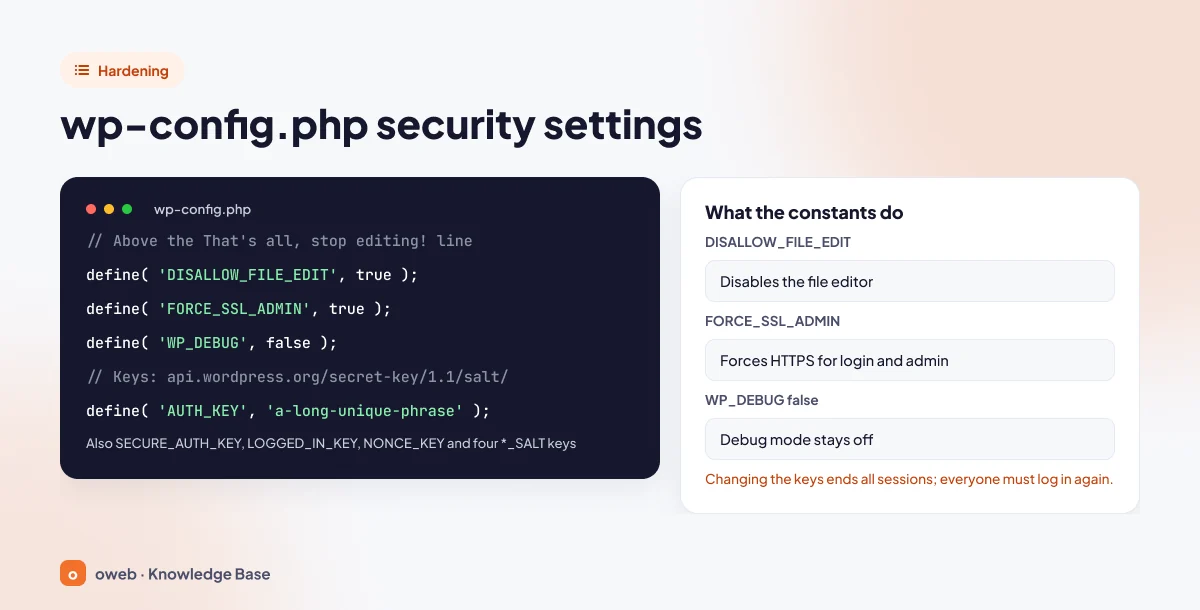
WordPress security settings: hardening
Hardening covers settings that make a vulnerability harder to exploit even if one is found. For most of these steps, your hosting control panel's file manager or SFTP is enough; Nginx settings and database privileges require server access or help from your hosting provider.
How do you protect wp-config.php?
wp-config.php contains your database credentials and security keys. Add the lines below above the comment line that starts with /* That's all, stop editing!. Use straight quotes ('); curly quotes pasted from a word processor cause a PHP error and a white screen.
// Disables the theme and plugin file editor in the dashboard
define( 'DISALLOW_FILE_EDIT', true );

// Forces HTTPS for login and the admin area
define( 'FORCE_SSL_ADMIN', true );

// Keeps debug mode off (the default value)
define( 'WP_DEBUG', false );- DISALLOW_FILE_EDIT: Disables the built-in file editor by removing the edit_themes, edit_plugins and edit_files capabilities from all users. According to the official documentation, it does not stop malicious file uploads. Some plugins that check
current_user_can('edit_plugins')may not work with this setting. - DISALLOW_FILE_MODS:
define( 'DISALLOW_FILE_MODS', true );also prevents installing and updating plugins and themes from the dashboard, and therefore blocks automatic updates as well. Because it also disables the file editor, DISALLOW_FILE_EDIT is not needed alongside it. Do not use it unless you handle updates some other way. - FORCE_SSL_ADMIN: Prevents passwords and cookies from being sent over an unencrypted connection. The old FORCE_SSL_LOGIN constant was deprecated in WordPress 4.0.
- WP_DEBUG: The value false keeps debug mode off; to make sure error details are not printed on screen, PHP's display_errors setting should also be off on the server. If you need to debug a live site,
WP_DEBUG_DISPLAYmust be false. By default,WP_DEBUG_LOGwrites to /wp-content/debug.log, which anyone can access; turn it off when you are done and delete the file.
Security keys and salts
wp-config.php contains four keys (AUTH_KEY, SECURE_AUTH_KEY, LOGGED_IN_KEY, NONCE_KEY) and four salts (AUTH_SALT, SECURE_AUTH_SALT, LOGGED_IN_SALT, NONCE_SALT), eight constants in total. Get new values from the official generator and paste them over the eight lines. When the values change, all cookies are invalidated and everyone has to log in again; this is also how stolen sessions are terminated.
// New values: https://api.wordpress.org/secret-key/1.1/salt/
define( 'AUTH_KEY',         'put-a-long-unique-phrase-here' );
define( 'SECURE_AUTH_KEY',  'put-a-long-unique-phrase-here' );
define( 'LOGGED_IN_KEY',    'put-a-long-unique-phrase-here' );
define( 'NONCE_KEY',        'put-a-long-unique-phrase-here' );
// ... and AUTH_SALT, SECURE_AUTH_SALT, LOGGED_IN_SALT, NONCE_SALT
If WP-CLI is available on your server, you can do the same with a single command: wp config shuffle-salts (WP-CLI command documentation).
Blocking direct access to wp-config.php
On Apache servers, you can add this rule from the Hardening guide to the .htaccess file in the root directory:
<Files "wp-config.php">
    Require all denied
</Files>
This is Apache 2.4 syntax. The commonly seen order allow,deny / deny from all lines belong to Apache 2.2 and return a 500 error if the compatibility module is not loaded. According to the guide, the benefit of moving wp-config.php one folder up is debatable; done carelessly, it can open new vulnerabilities.
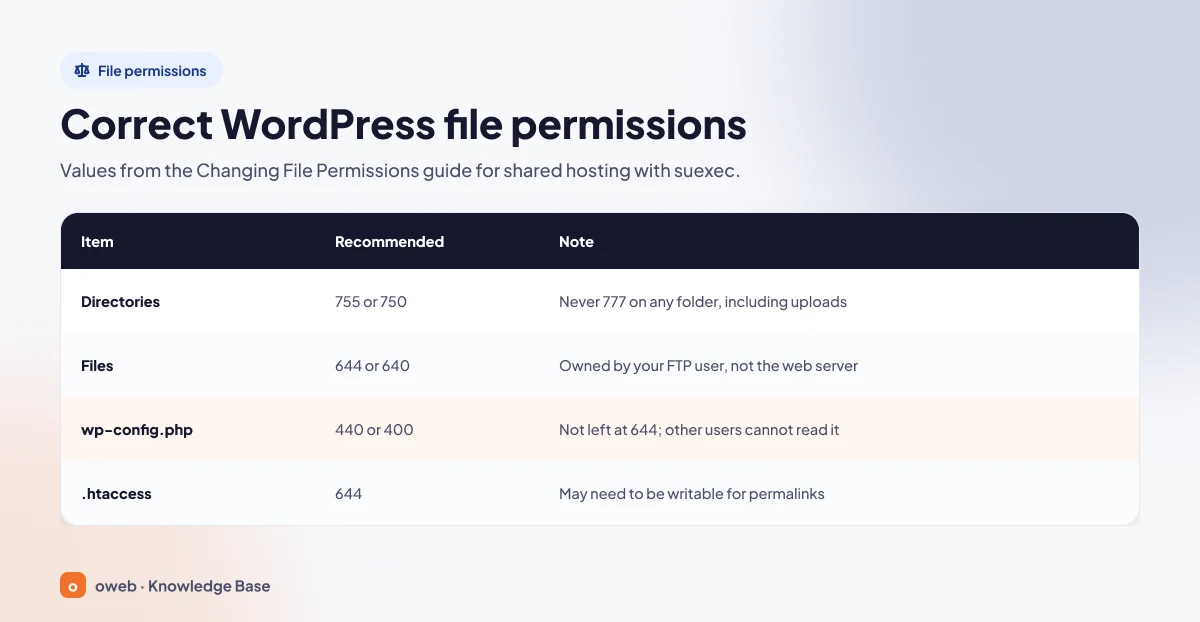
What should WordPress file permissions be?
These are the values the Changing File Permissions documentation recommends for shared hosting that uses suexec:
| Item | Recommended permission | Note |
|---|---|---|
| Folders (directories) | 755 or 750 | No folder gets 777, including uploads |
| Files | 644 or 640 | Files should be owned by your FTP/hosting user, not by the web server |
| wp-config.php | 440 or 400 | Do not leave it at the default 644; other users on the server must not be able to read it |
| .htaccess | 644 | If WordPress needs to write its own permalink rules, it must be writable (temporarily if necessary) by the user PHP runs as |
According to the Hardening guide, the root directory, wp-admin and wp-includes should be writable only by your account (except .htaccess if WordPress manages rewrite rules), while wp-content should be writable by both your account and the web server. Take a backup before changing permissions in bulk; run the commands only inside the WordPress folder. If you have SSH access, first change to the WordPress root folder and confirm you are in the right place, then fix the permissions:
cd /home/username/public_html   # your WordPress root folder
pwd                             # confirm you are in the right folder
find . -type d -exec chmod 755 {} \;
find . -type f -exec chmod 644 {} \;
chmod 440 wp-config.phpWhether 400 or 440 works for wp-config.php depends on which user your hosting provider runs PHP as. If the site shows an error after this change, set the permission back to 640 or 644 and contact your hosting provider. Never give any folder 777 permanently; if a task absolutely requires it, set the permission back to 755 as soon as the task is done.
Blocking PHP execution in the uploads folder
PHP does not need to run in the wp-content/uploads folder; if a PHP file is uploaded there through a vulnerability, this rule prevents it from executing. It is a common practice that does not appear on the official Hardening page; after adding it, test the site and image uploads.
Apache (.htaccess)
Create a .htaccess file in the wp-content/uploads folder with the following content:
<FilesMatch "\.php$">
    Require all denied
</FilesMatch>
Nginx
Nginx does not read .htaccess files. The rule must be added to the site's server block, before the location block that handles PHP:
location ~* ^/wp-content/uploads/.*\.php$ {
    deny all;
}
Should you disable XML-RPC?
xmlrpc.php is a legacy interface for remote publishing and a frequent target of brute force attempts. The official documentation recommends disabling it if you do not use it, and restricting and rate-limiting it if you do. Jetpack, some mobile apps and remote publishing tools may need XML-RPC.
A widely used example rule for Apache servers, which does not appear in the official documentation, goes in the .htaccess file in the root directory:
<Files "xmlrpc.php">
    Require all denied
</Files>
On Nginx, the official documentation applies rate limiting with a location = /xmlrpc.php block that uses the logins zone, as shown in the example above. After disabling it, a 403 response from https://yourdomain.com/xmlrpc.php shows that the rule works.
Disabling directory listing
If a folder has no index file, Apache can display its contents as a list when Options Indexes is enabled. This can expose your plugin and backup files. Add this line to the root .htaccess file:
Options -IndexesType the directive exactly as shown; Apache returns a 500 error for a directive it does not recognize. If the site returns a 500 error after adding the line, delete it; your server may not allow the Options directive in .htaccess (directory listing may already be disabled on the hosting side). In that case, contact your hosting provider. On Nginx, directory listing is disabled by default; if your configuration does not contain an autoindex on; line, no further action is needed.
Restricting the database user
According to the Hardening guide, the SELECT, INSERT, UPDATE and DELETE privileges are enough for normal WordPress operation. DROP, ALTER and GRANT can be revoked; however, because some updates change the schema, the guide warns against doing this without a tested backup plan. Giving each site its own database and user is an easy starting point.
WordPress firewall (WAF) and malware scanning
A web application firewall (WAF) inspects incoming requests against rules and blocks those that look malicious. The Hardening guide lists three types: security plugins, server-level WAFs (for example ModSecurity) and reverse proxy services (for example Cloudflare, Sucuri).
| Layer | Where it runs | Advantage | Watch out for |
|---|---|---|---|
| Edge / reverse proxy WAF | Before traffic reaches your server | Malicious requests do not consume server resources | Requires DNS changes; rules must be configured correctly. If the server's real IP address is known, an attacker can bypass the WAF; where possible, open the server only to the proxy's IP addresses |
| Server WAF | On the web server, before PHP | Protects all sites together | Usually managed by the hosting provider |
| Security plugin | Inside WordPress | Easy to set up; also provides scanning and notifications | PHP runs on every request; multiple security plugins can conflict |
According to the official documentation, a managed WAF such as Cloudflare can filter automated logins at the edge and add rate limiting and CAPTCHA or Turnstile challenges to login and XML-RPC requests. According to the Cloudflare WAF documentation, as of November 2026 the free plan includes custom rules, one rate limiting rule and the "Free Managed Ruleset".
Criteria for choosing a WordPress security plugin
- It should be updated regularly and tested with the current WordPress version.
- It should clearly state the difference between the free and paid versions (for example, when rule updates arrive).
- It should not conflict with a WAF or scanner already provided by your host; do not install two security plugins that do the same job.
Malware scanning
Plugin-based scanners check files against signatures, while remote scanners examine the site as it appears from the outside; the two complement each other. If WP-CLI is available on your server, you can compare core and WordPress.org plugin files against official checksums (WP-CLI command documentation):
wp core verify-checksums
wp plugin verify-checksums --all
wp user list --role=administrator
The first two commands show modified files, and the third shows administrator accounts. Plugins from outside WordPress.org are not covered by this check. Themes, the uploads folder and wp-config.php are not covered by these commands either; since backdoors are often hidden in these locations, check them with a scanner and by hand.
Monitoring your site: logs and notifications
Spotting an attack early reduces the damage. According to the Hardening guide, server logs record IP addresses, timestamps and actions (not usernames) and can reveal brute force, directory traversal, XSS and file inclusion attempts.
- Access and error logs: Look for heavy traffic to wp-login.php and xmlrpc.php and for requests to unexpected PHP files.
- Site Health: The Tools > Site Health screen shows outdated components, HTTPS status and failed automatic updates.
- File change monitoring: The guide suggests tools such as OSSEC, inotify, Git or diff; notifications from security plugins do the same job.
- Activity logging: An audit log plugin that records who changed which setting makes tracing easier on multi-user sites.
- Google Search Console: Verify your site; if Google detects a security issue, it appears in the Security Issues report and you receive a notification.
What should you do if your WordPress site is hacked?
The official "My site was hacked" page lists symptoms such as being blacklisted by Google or Bing, your hosting provider taking the site offline, antivirus warnings for visitors and users created without authorization.
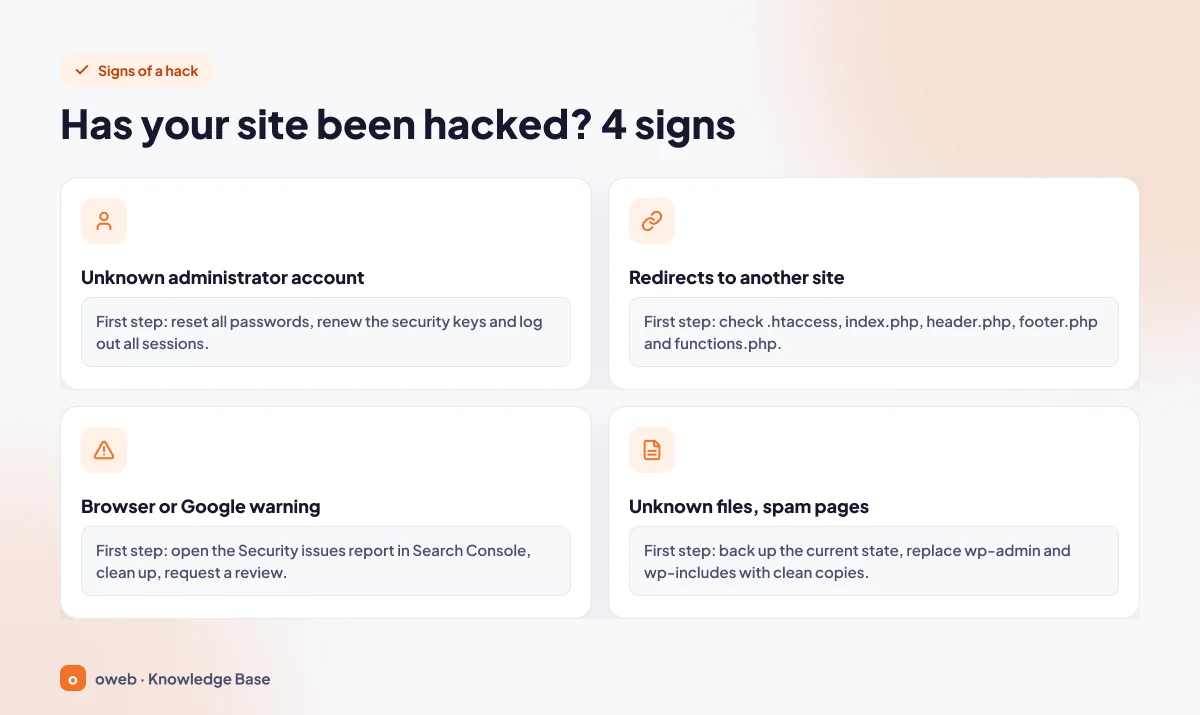
If your WordPress site has been hacked, do not panic; follow these steps in order:
- Document it: Note what you saw and when, and take screenshots.
- Back up the current state: The compromised state is both evidence for investigation and a fallback point if something breaks during cleanup.
- Notify your hosting provider: On shared servers, an attack can affect more than one site. A site used for spam can also get the server's IP address listed on email blacklists.
- Scan your computer: Your passwords may have been stolen by malware on your own device.
- Change all access passwords: Set long, unique passwords for SFTP/FTP, wp-admin, the hosting control panel and the database, and enable 2FA. Force a password reset for all users.
- Regenerate the security keys: Change the eight keys and salts in wp-config.php to end all open sessions.
- Scan and clean: Find malicious files with plugin-based and remote scanners. Delete administrator accounts you do not recognize.
- Replace core with a clean copy: Download the exact version you use from wordpress.org and upload it via SFTP. The reinstall option in the dashboard usually only overwrites existing files and does not delete newly added ones. wp-admin and wp-includes can be replaced safely; do not overwrite the wp-content folder or the wp-config.php file, and replace only wp-admin, wp-includes and the core files in the root directory. Carefully inspect the .htaccess, index.php, header.php, footer.php and functions.php files.
- Reinstall plugins and themes: Install current versions from official sources and remove any nulled components.
- Update: After cleanup, update core to the latest version (7.1.5 as of November 2026) and plugins and themes to their current versions; staying on an old version leaves the vulnerability open.
- Request a review from Google: Check the Security Issues report in Search Console and submit a review request after cleanup. Register with Bing Webmaster Tools as well.
- Change passwords again and harden: After cleanup, change the passwords once more, investigate the source of the breach and apply the hardening steps.
If you cannot log in to the dashboard after an attack, the steps in our cannot log in to WordPress admin guide will help you regain access.
If your site holds personal data such as memberships or orders, a breach may trigger notification obligations under Turkey's Personal Data Protection Law No. 6698 (KVKK) and other applicable laws such as the GDPR; review the deadlines with a legal advisor without delay.
Security layers on the hosting side
WordPress measures are only as strong as the server underneath them. When evaluating hosting, look for these layers:
- Account isolation: Separating accounts on shared servers makes it harder for an attack on one site to spread to others.
- Server-level WAF and rate limiting: Brute force and known attack patterns are stopped before they reach PHP.
- Supported PHP versions: Being able to choose the PHP version from the control panel and move off old versions matters.
- Automatic, off-server backups: A hosting backup does not replace your own, but it provides a second safety net.
- Scanning and SFTP/SSH access: Using SFTP instead of unencrypted FTP protects your credentials on the network.
Ask your hosting provider which layers are included in your service, and find out whether there will be a conflict before installing a plugin that does the same job.
Frequently asked questions
Do I need a WordPress security plugin?
It is not required, but it is useful for most sites. Updates, strong passwords, 2FA and backups always come first; do not install more than one security plugin at the same time.
Should I disable xmlrpc.php?
If you do not use Jetpack, a mobile app or a remote publishing tool, disabling it reduces the attack surface. If you do, restrict access and add rate limiting instead of disabling it; details are in the XML-RPC section above.
Does changing the login URL (wp-login.php) help?
It keeps some bots away, but it is not real protection; the real protection comes from 2FA, strong passwords and server-level login limits. Restricting the entire wp-admin folder by IP can break front-end forms that use admin-ajax.php.
Should I change the database prefix (wp_)?
No. Changing the prefix on an existing site also requires updating some option and user records; done incorrectly, administrator privileges can be lost. What really reduces the risk of SQL injection is updating vulnerable plugins and using a WAF.
Is using a nulled theme dangerous?
Yes. Pirated copies receive no official updates and may contain backdoors. For free alternatives, use the WordPress.org directories.
What happens if I change the security keys?
All sessions end and everyone, including you, has to log in again; content and passwords are not affected. It is one of the first things to do after a suspicious login.
Should WordPress automatic updates be enabled?
Minor core updates should always stay enabled. Automatic updates for major versions and plugins are beneficial for most sites; on sites with heavy custom development, test them in a staging environment first.
What does a hosting provider offer for WordPress security?
It varies by provider and plan; account isolation, a server-level WAF, PHP version selection, backups and SFTP access are common layers. Ask your hosting provider which ones are included in your service; updates, passwords and permissions inside WordPress remain your responsibility in every case.
After applying the settings in this guide, open the Tools > Site Health screen, run the wp core verify-checksums command if WP-CLI is available, and check that the xmlrpc.php address returns the response you expect.
Conclusion
WordPress security is not a one-time task; it is a habit made up of updates, strong authentication, least privilege, correct permissions, backups and monitoring. Apply the quick steps in the checklist first, then the hardening and WAF steps; take a backup before every change and test afterwards.
If you are looking for a hosting environment suited to WordPress, take a look at the Oweb WordPress hosting page. For official sources, WordPress's Hardening WordPress and wp-config.php documentation are the most reliable references.
