


cPanel is a web-based hosting control panel built for Linux servers. It lets you manage the website files, email accounts, databases, domains and SSL certificates of a hosting account from your browser, without typing commands. It is licensed together with WHM, which handles the server side, under the name "cPanel & WHM".
cPanel at a glance:
- What it does: Manages the files, email, databases, domains, SSL and backups of a single hosting account through a graphical interface.
- Developer: cPanel, L.L.C.; since 2018 it has been part of the WebPros group, which also owns Plesk and WHMCS.
- Operating system: Linux only (AlmaLinux, CloudLinux and Ubuntu); it does not run on Windows.
- Ports: cPanel 2083 (SSL) / 2082 (non-SSL), WHM 2087 / 2086, Webmail 2096 / 2095.
- License: Paid per server and priced by the number of accounts. Shared hosting customers do not buy a separate license.
- Trial: A 15-day trial license, which cannot be extended, is available for anyone installing it on their own server.
- Interface: The default theme is Jupiter; version 138 introduced the optional Meridian theme.
- Free SSL: AutoSSL automatically installs and renews Let's Encrypt certificates.
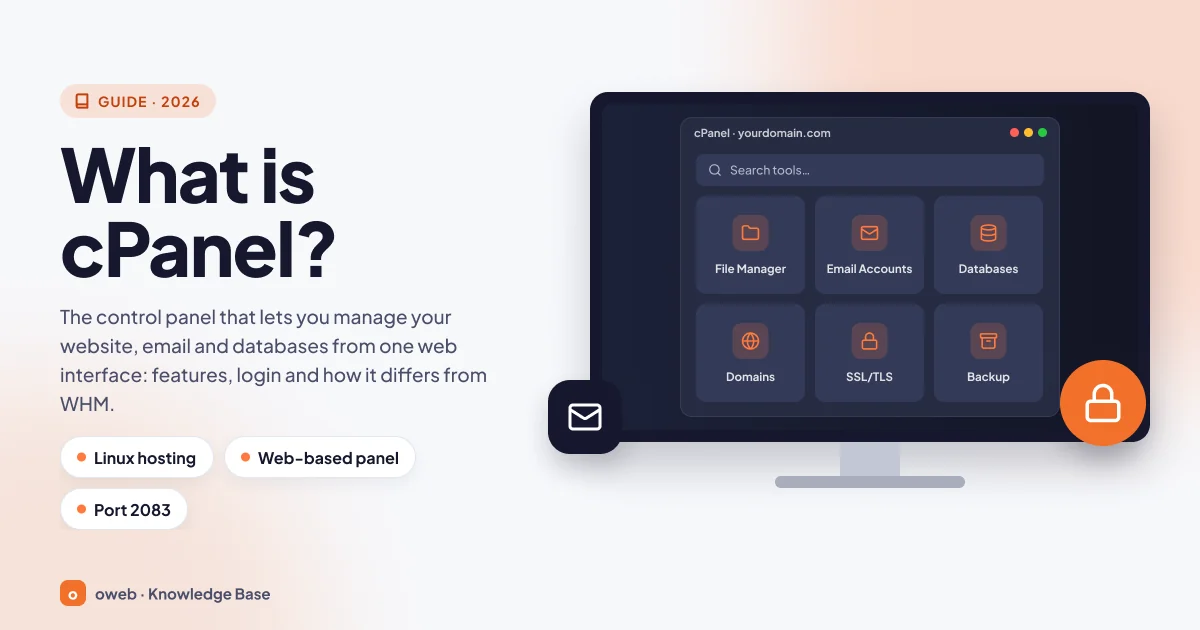
What is cPanel?
For a website to stay online, many services such as web, email, database and DNS have to run together on a server. Managing them from the command line takes knowledge and time. cPanel turns most of these tasks into buttons, forms and wizards. If the concept of a server is new to you, you can start with our Linux VPS server page.
The first version of cPanel was written in 1996 by J. Nick Koston for a hosting company called Speed Hosting, and over time it became one of the most widely used panels in the industry. In August 2018, the WebPros group acquired cPanel, L.L.C., the company that owns cPanel. Plesk had joined the same group in 2017 and WHMCS followed in 2019, so today cPanel and its strongest rival, Plesk, sit under the same roof.
cPanel is closed-source commercial software made up of two interfaces: cPanel, used by the hosting account owner, and WHM (WebHost Manager), used by the server administrator.
Which operating systems does cPanel run on?
Today cPanel & WHM runs only on Linux; it cannot be installed on Windows servers. Enkompass, the company's separate product for Windows, was discontinued in 2014. The officially supported distributions for the latest version (138) are:
- AlmaLinux 8, 9 and 10
- CloudLinux 8, 9 and 10 (CloudLinux 10 requires cPanel version 134 or later)
- Ubuntu 24.04 LTS
Rocky Linux support was removed in version 134. The last version to support Ubuntu 22.04 is 134 (LTS): support for this distribution was deprecated in version 132 and removed entirely in version 136. Servers running Ubuntu 22.04 cannot be upgraded to 136 or later; by staying on 134 LTS they can receive support until approximately June 2027. Version 136 and later run only on Ubuntu 24.04. CentOS 7 and CloudLinux 7 can only use version 110 LTS; standard support for this version ends in December 2026 and can be extended to January 1, 2028 with Extended Lifecycle Support (ELS). ARM processors are not supported.
What is the current version of cPanel?
Even-numbered cPanel versions are intended for production environments, while odd-numbered versions are development (EDGE) releases. As of October 2026, the long-term support (LTS) version is 134, and the newest major version is 138, released in July 2026.
The default theme is Jupiter, and the menu paths in this guide are written for it. The optional Meridian theme introduced in version 138 groups the tools into six workspaces called Websites, Email, Files, Databases, Security and Performance; if the server administrator enables it, it also offers a built-in AI assistant. Because both themes use the same data, switching between them does not affect your account.
What is cPanel used for?
cPanel makes the day-to-day management of a hosting account possible without advanced technical knowledge. As the account owner, you can:
- Create professional email addresses on your domain and set up forwarders and autoresponders
- Upload and edit site files from your browser and change their permissions
- Create MySQL or MariaDB databases and access their tables with phpMyAdmin
- Add new domains and subdomains and edit DNS records
- Install SSL certificates and monitor their status
- Create and restore backups
- Install WordPress, choose the PHP version and set up scheduled tasks (cron jobs)
- Track disk usage, bandwidth and visitor statistics
cPanel does not eliminate the command line; it simply makes it optional. If your provider allows it, you can also reach the command line through the Terminal and SSH Access tools. cPanel hosting is the name given to hosting plans that offer cPanel as the control panel: installing and updating the server is the hosting provider's responsibility, and the license belongs to the provider; you only use the panel for your own account.
What is the difference between cPanel and WHM?
WHM (WebHost Manager) is the server management side of the product. An administrator with root privileges uses WHM to create accounts, define hosting packages, configure services and manage updates. cPanel, on the other hand, is the individual panel of each hosting account created through WHM and manages only that account.
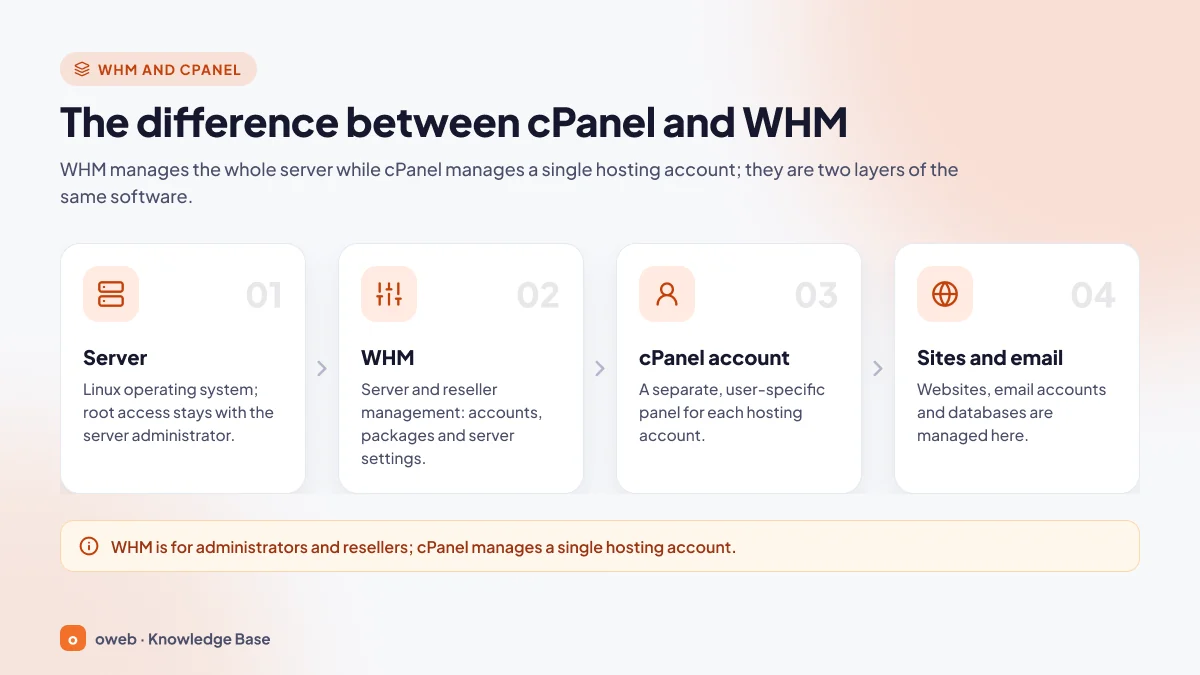
- Server: The Linux operating system and root access; cPanel & WHM is installed here.
- WHM: The root user, that is, the server's fully privileged administrator, has access to all settings. Reseller users can also log in to WHM, but they manage only their own accounts, within the privileges granted by the server administrator.
- cPanel account: Created through the Create a New Account screen in WHM. Limits such as disk space and bandwidth come from the package assigned to the account.
- Websites and email: The account owner manages sites, mailboxes and databases from cPanel.
| Criterion | cPanel | WHM |
|---|---|---|
| Who uses it? | Site owner, hosting customer | Server administrator (root) and resellers |
| Scope | A single hosting account | The server and all accounts |
| Typical tasks | Email, files, databases, SSL, backups | Creating accounts and packages, service settings, security, updates |
| Default port | 2083 (SSL), 2082 | 2087 (SSL), 2086 |
| Where will you encounter it? | Shared hosting, reseller customers | VPS, dedicated servers, reseller plans |
If your shared hosting panel is cPanel, you only see the cPanel screen. Agencies and designers who want to sell hosting to their own clients choose the reseller hosting model; cPanel-based reseller plans usually include a WHM with restricted privileges, and a separate cPanel account can be created for each client.
How do you log in to cPanel?
To log in to cPanel, type yourdomain.com/cpanel or https://yourdomain.com:2083 into your browser and enter your cPanel username and password. These details are usually included in the welcome email sent when your hosting account is created. If you would rather not type a port, the address https://cpanel.yourdomain.com also works on most servers.
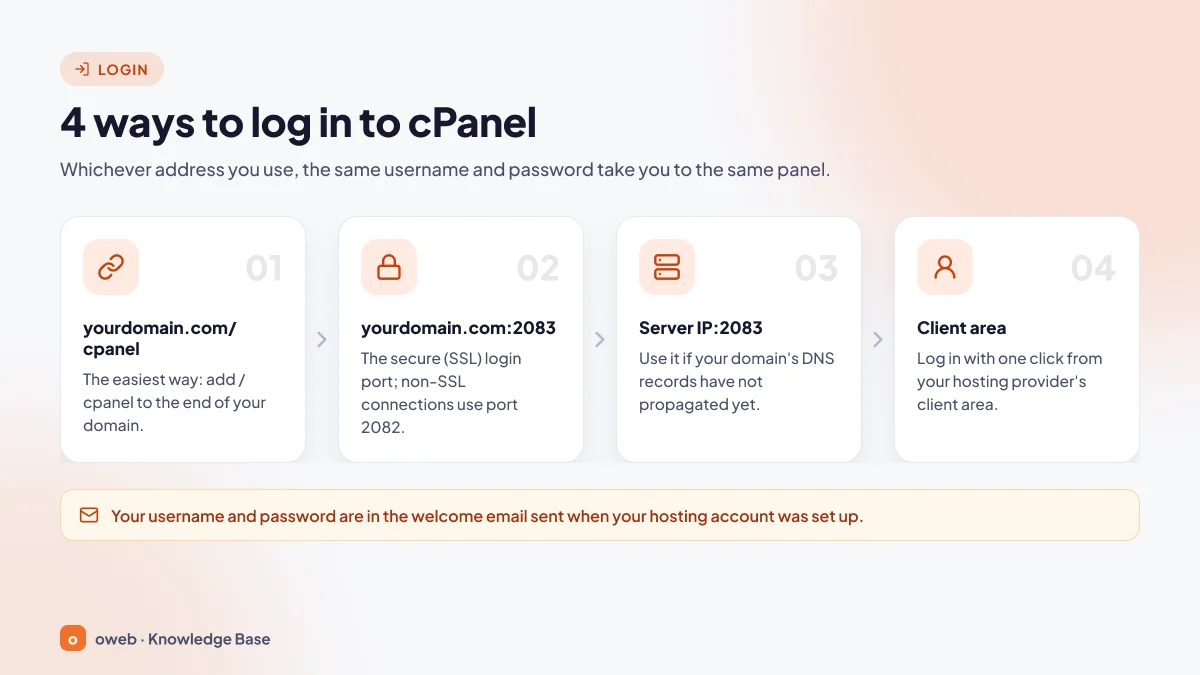
cPanel login addresses
- yourdomain.com/cpanel: The easiest option; with default settings it redirects you to the secure
https://yourdomain.com:2083address. If there is no valid certificate for your domain, you may be redirected to the server's hostname instead (e.g. server.provider.com:2083); this is normal. Likewise,/webmailtakes you to Webmail and/whmtakes you to WHM. - https://yourdomain.com:2083: Connects directly to the SSL-secured cPanel port. Port 2082 is the unencrypted port for the same panel; with default settings, requests to it are automatically redirected to 2083, and many providers keep it closed entirely.
- https://server-ip-address:2083: Used when DNS has not propagated yet (this can take 48-72 hours) or the site is being migrated. Because the certificate does not match the IP address, your browser may show a warning.
- One-click login from the client area: Most hosting providers offer a link in their client area that opens cPanel without typing a password.
Thanks to service subdomains, which are enabled by default, the addresses https://cpanel.yourdomain.com and https://webmail.yourdomain.com also let you log in without typing a port.
Step-by-step cPanel login
- Type
yourdomain.com/cpanelinto the address bar. - Enter the cPanel username and password from the welcome email. The username is usually a short account name, not your email address.
- If two-factor authentication is enabled, enter the six-digit code from your authenticator app.
- Once logged in, reach the tools through the sections or the search box at the top.
cPanel ports table
| Service | SSL (recommended) | Non-SSL | Who uses it? |
|---|---|---|---|
| cPanel | 2083 | 2082 | Hosting account owner |
| WHM | 2087 | 2086 | Server administrator and resellers |
| Webmail | 2096 | 2095 | Email users |
| Web Disk | 2078 | 2077 | Users who access files like a network drive |
| Calendars and Contacts (CalDAV/CardDAV) | 2080 | 2079 | Users who sync calendars and contacts |
These are cPanel's official default ports; your server administrator may have closed some of them. cPanel recommends using the SSL ports. The "Require SSL" setting, which is enabled by default, redirects requests on the unencrypted ports (2082, 2086, 2095) to the SSL ports. If the administrator has disabled this setting, your username and password travel across the network unencrypted (in plain text), so always use the SSL ports.
For the full list, see cPanel's port and firewall documentation; for login methods, see the official login guide.
Webmail login
To read your email in a browser, go to yourdomain.com/webmail or https://yourdomain.com:2096 and enter your full email address and that mailbox's password. In current versions the Webmail client is Roundcube; Horde was removed in version 108. If you are already logged in to cPanel, the Check Email button in the Email Accounts list opens Webmail without asking for a password.
cPanel login problems and solutions
- Forgotten password: The Reset Password link on the login screen is enabled by default, but your hosting provider may have disabled it, and it only works if a contact email address is set on the account. If the link is missing or does not work, reset the password from your hosting provider's client area.
- The page does not load or times out: Corporate, school and hotel networks may block ports such as 2083. Try
https://cpanel.yourdomain.comor switch to a different internet connection (for example, mobile data). The /cpanel redirect also leads to port 2083, so it will not help if that port is blocked. - Cannot log in with the correct password: Repeated failed attempts can cause cPHulk, which protects against brute-force attacks, to temporarily block your IP address. Wait, or ask your provider to remove the block.
- The interface is in the wrong language: Use the Change Language tool in the Preferences section to switch to English or another available language.
Bookmark the login address, and keep your password in a password manager instead of saving it in a shared browser. If you logged in from someone else's computer, always log out from the menu at the top right when you are done.
What sections does the cPanel interface have?
In the Jupiter theme, the home page groups tools by topic. Hosting providers may hide or rename some tools or add their own plugins, so your screen may look slightly different from this list.
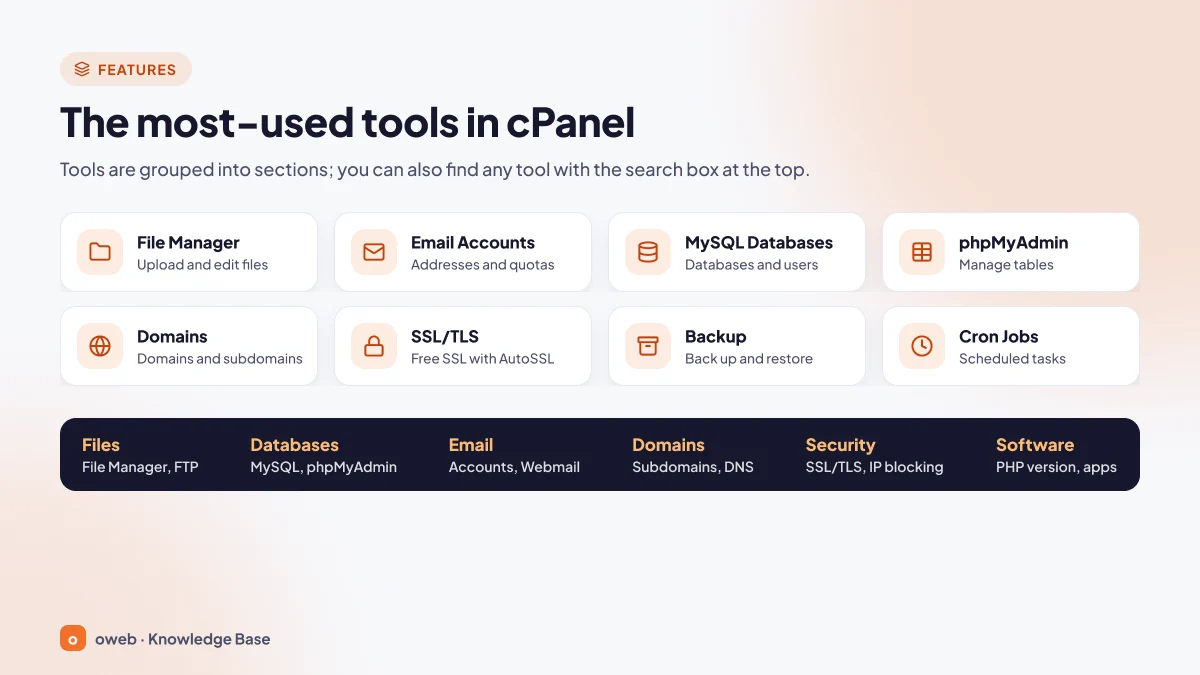
| Section | Key tools | What is it used for? |
|---|---|---|
| Email Accounts, Forwarders, Email Deliverability | Mailboxes, forwarding, SPF and DKIM checks | |
| Files | File Manager, Backup, FTP Accounts, Git Version Control | File uploads, backups, FTP access |
| Databases | MySQL Databases, Database Wizard, phpMyAdmin | Creating databases and users |
| Domains | Domains, Redirects, Zone Editor | Adding domains, DNS records |
| Metrics | Visitors, Errors, Bandwidth | Traffic and error logs |
| Security | SSL/TLS, IP Blocker, SSH Access, Two-Factor Authentication | Certificate and access security |
| Software | MultiPHP Manager, MultiPHP INI Editor, Application Manager | PHP settings, Node.js and Python applications |
| Advanced | Cron Jobs, Terminal, Error Pages | Scheduled tasks, advanced settings |
| Preferences | Password & Security, Change Language, Contact Information | Account password, language, notification address |
The Statistics area in the right-hand column shows package limits such as disk usage and the number of databases and email accounts. File count (inode) usage also appears here; on CloudLinux servers you will additionally see CPU, memory, entry process and disk I/O limits. This is the first place to look when your site slows down.
Basic tasks in cPanel: step by step
The steps are based on the Jupiter theme, and tool and button names are given as they appear in the English interface; they may differ slightly depending on your hosting provider or interface language.
How do you create an email account in cPanel?
- Open the Email Accounts tool in the Email section and click Create.
- If you have more than one domain, select the domain for the new address.
- Enter the username: if you type "info", the address becomes [email protected].
- Set a strong password and enter the storage quota.
- Click Create. Then get the IMAP and SMTP settings for Outlook or your phone from the Connect Devices screen.
To keep your messages out of spam folders, use the Email Deliverability tool to check that your SPF and DKIM records are valid; if there is a problem, the tool shows the suggested record. For DMARC, create a TXT record named _dmarc in the Zone Editor tool.
How do you upload files with File Manager?
- Open the File Manager tool in the Files section.
- Go to the
public_htmlfolder, which holds the files of your main domain. - Select your files with Upload. If you have many files, first pack them into a ZIP archive and upload it as a single file.
- Right-click the ZIP file, unpack it with Extract, then delete the archive.
- Check the permissions: 755 is usually enough for folders and 644 for files; 777 creates a security hole.
For large migrations, FTP is more practical. With the FTP Accounts tool you can create users who can access only a specific folder; for example, you can give a designer access to just the relevant subfolder.
How do you create a database in cPanel?
- Open the MySQL Database Wizard tool in the Databases section.
- Enter the database name. With default settings, cPanel adds your account name as a prefix: if you type "wp", the full name becomes
accountname_wp. - Create a database user with a strong password; the same prefix is added to the username.
- On the privileges screen, if no special restriction is needed, tick All Privileges and finish.
- Use the phpMyAdmin tool to view tables and to import or export SQL files.
You then enter these details in the application's configuration file. In WordPress's wp-config.php file, the relevant lines look like this:
define( 'DB_NAME', 'accountname_wp' );
define( 'DB_USER', 'accountname_wpuser' );
define( 'DB_PASSWORD', 'a-strong-password' );
define( 'DB_HOST', 'localhost' );
If the database is on the same server, the host is usually localhost. As of October 2026, current cPanel versions support releases such as MySQL 8.0 and 8.4 and MariaDB 10.11, 11.4 and 11.8; the list varies by operating system, and MariaDB 10.11 is the default on many new installations. Because vendor support for MySQL 8.0 ended in April 2026, choose MySQL 8.4 or MariaDB 11.x for new projects. You can see the installed version on the phpMyAdmin home screen.
How do you add a domain or subdomain in cPanel?
- Open the Domains tool in the Domains section and click Create A New Domain.
- Enter the domain (example.com) or the subdomain (blog.yourdomain.com).
- If you are setting up a separate site, untick Share document root and check the folder name.
- Click Submit to complete the process.
- If you added a new domain, go to the panel of the company where the domain is registered and change its nameservers to the ones provided by your hosting provider. If DNS is managed on this server, subdomains need no further action; if it is managed elsewhere, such as Cloudflare or your domain registrar, add an A or CNAME record for the subdomain there.
The number of domains you can add depends on your plan. You change A, CNAME, MX or TXT records with the Zone Editor; for example, this is where you update MX records for Google Workspace or Microsoft 365.
How do you install a free SSL certificate (AutoSSL) in cPanel?
AutoSSL automatically obtains free domain-validated (DV) certificates for the domains on your account and renews them before they expire. The default provider is Let's Encrypt, which is included in the cPanel license at no extra cost. The old Sectigo AutoSSL provider has not worked in any version since December 31, 2024.
- Open the SSL/TLS Certificates tool in the Security section. Added in version 136 and backported to version 134, this interface brings the SSL/TLS, SSL/TLS Status and SSL/TLS Wizard tools together on a single tabbed page and is enabled by default on most installations. On older versions, or if your hosting provider has disabled this interface, use the separate SSL/TLS Status screen instead.
- Check the certificate status of each domain.
- If a domain has no certificate or its certificate is about to expire, start AutoSSL manually from the cPanel » Security » SSL/TLS Status screen rather than the unified page: select the domains and click Run AutoSSL. AutoSSL actions are hidden in the Status tab of the unified SSL/TLS Certificates page. The button appears only if your hosting provider has enabled the SSL Host Installer and AutoSSL features in WHM and selected Let's Encrypt as the AutoSSL provider; if you cannot see it, ask your provider to run AutoSSL for you.
- If a certificate cannot be issued, the cause is usually DNS: if the domain does not point to this server, validation fails.
Under a CA/Browser Forum decision, the maximum validity of publicly trusted TLS certificates has been 200 days since March 15, 2026; it will drop to 100 days on March 15, 2027 and to 47 days on March 15, 2029. That is why keeping AutoSSL enabled is safer than renewing certificates manually. If you need an OV or EV certificate that validates your organization's identity, you can install a paid certificate from the same screen.
How do you back up and restore in cPanel?
The Backup tool in the Files section offers two types of backup:
- Full backup: Collects files, databases, email and settings into a single archive; it can be saved to the home directory, a remote FTP server or another server via SCP.
- Partial backup: The home directory, MySQL databases, email forwarders and filters are downloaded as separate .gz files and can be restored from the same screen.
- In the Backup tool, click the Download a Full Account Backup link.
- Choose Home Directory as the destination and enter the email address that should receive the notification.
- Click Generate Backup; how long it takes depends on the size of the account.
- Download the finished archive to your computer, then delete it from the server so it does not fill up your disk quota.
A full backup cannot be restored automatically through cPanel; restoring it requires WHM privileges and is done by the server administrator or your hosting provider. For a quick recovery, also download partial backups and keep at least one copy off the server.
Tools such as JetBackup, offered by some providers, make it easier to restore a single file from automatic backups, but they do not replace your own copy. For details, see the cPanel backup documentation.
How do you install WordPress with cPanel?
cPanel's official WordPress tool is WP Toolkit, which according to cPanel is included in the license at no extra cost; even so, your hosting provider may need to enable it on your account. Softaculous and Installatron are not part of cPanel; they are third-party installers that some providers offer separately. On accounts that include Softaculous (for example, Oweb web hosting plans), you can also install WordPress in one click through Softaculous.
- Open the WP Toolkit tool (usually found in the Domains section or under a WordPress management heading) and click Install.
- Select the domain. To install in the site's root directory (yourdomain.com), leave the path field empty; for a subfolder (for example, /blog), enter the folder name.
- Enter the site title, language and administrator details; avoid a predictable username such as "admin".
- Start the installation; the database and its user are created automatically.
- After installation, apply WP Toolkit's security hardening recommendations, configure the update settings and, if needed, create a staging copy.
How do you change the PHP version in cPanel?
In the MultiPHP Manager tool in the Software section, tick the domain, choose the PHP version from the drop-down menu and click Apply. You can change PHP settings such as memory_limit or upload_max_filesize with the MultiPHP INI Editor; on CloudLinux servers, the Select PHP Version tool does the same job. Before switching, make sure your theme and plugins are compatible with the new version.
How do you add a cron job (scheduled task) in cPanel?
- Open the Cron Jobs tool in the Advanced section.
- Choose a preset schedule from the Common Settings list, or fill in the Minute, Hour, Day, Month and Weekday fields individually.
- Enter only the command to be run in the Command field and click Add New Cron Job.
For example, to run a PHP script every 15 minutes, enter */15 in the Minute field and * in the other time fields. In the Command field, enter only the following:
/usr/local/bin/php /home/accountname/public_html/task.php >/dev/null 2>&1The >/dev/null 2>&1 part at the end of the command discards the output and prevents a notification email from being sent on every run. Do not put the schedule values in the Command field; if you do, the job will not run correctly. The full path to PHP may vary by server (for example, on servers that use CloudLinux PHP Selector); if you are not sure, ask your provider.
cPanel license: is it free, and how is the price set?
cPanel is paid software, but who pays for the license depends on the type of service:
- Shared or reseller hosting: The license belongs to the hosting provider and its cost is included in the plan price; you do not buy a separate license.
- VPS or dedicated server: The server needs its own cPanel license, which you can buy directly from cPanel or from your provider.
cPanel changed its licensing model in 2019: licenses are still sold per server, but the price is determined by the number of cPanel accounts on the server. Since then, prices have gone up almost every year. The 2026 increase took effect on December 16, 2025 for new licenses and on January 1, 2026 for existing ones. In October 2026, another increase was announced, effective December 16, 2026; according to industry news, the Solo license will rise to about $32.99 per month and the Premier license to about $76.99 per month.
| License | Account limit | Server type | Monthly list price (until December 16, 2026) |
|---|---|---|---|
| Solo | 1 account | Cloud/VPS | $29.99 |
| Admin | Up to 5 accounts | Cloud/VPS | $35.99 |
| Pro | Up to 30 accounts | Cloud/VPS | $53.99 |
| Premier | 100 accounts included, then $0.49 per additional account | VPS and dedicated servers | $69.99 |
These are list prices from cPanel's official page, excluding taxes; for Solo, Admin and Pro, annual billing is slightly cheaper. Providers, including those in Turkey, may resell licenses under their own pricing, in local currency such as Turkish lira or in US dollars. Before buying, check the current price on the cPanel pricing page.
cPanel trial license
If you are installing cPanel on your own server, you can use a free trial license valid for 15 calendar days. The trial supports up to 30 accounts, is issued only once per public static IP address, and cannot be renewed or extended. Shared hosting customers do not need a trial license, because the license belongs to the provider.
Renting a VPS for a single site and paying separately for a cPanel license often costs more than shared hosting. If you do not want to deal with server maintenance, an Oweb web hosting plan, with the cPanel license and maintenance included, can be a more economical way to start; you can move to a VPS as your needs grow.
How do you install cPanel on your own server?
To install cPanel & WHM yourself, you need a Linux virtual server (VPS) or a dedicated server with root access. The official minimum requirements are:
- Operating system: A clean installation of a supported distribution (for example, AlmaLinux 9 or 10)
- Processor: 1.1 GHz, 64-bit
- Memory: At least 2 GB, 4 GB recommended (at least 3 GB with ClamAV)
- Disk: At least 20 GB, 40 GB recommended; at least 5 GB of free space under
/usr/local/cpanel - Hostname: A fully qualified domain name (FQDN) that resolves to the server's IP address and does not match any domain to be hosted on the server (e.g. server.yourdomain.com); if no such name is set, cPanel assigns one automatically.
The installation is run as the root user with the official script from the cPanel documentation:
cd /home && curl -o latest -L https://securedownloads.cpanel.net/latest && sh latestBecause the installation can take a long time, run the command inside a screen or tmux session. When it finishes, log in to WHM as root at https://server-ip-address:2087, accept the license agreement in the initial setup wizard, and set the contact email address and nameservers; you can then create your first package and cPanel account. Before installing, check the current system requirements.
Advantages and disadvantages of cPanel
Advantages
- Popularity: There are plenty of resources about it, and if you change providers, you are likely to find the same interface.
- Easy migration: Accounts can be moved in their entirety to another cPanel server using full backups or WHM transfer tools.
- Clear separation of roles: Keeping WHM and cPanel separate makes administrator, reseller and customer privileges clear.
- Automation: AutoSSL, automatic updates and WP Toolkit reduce the maintenance burden.
- Broad ecosystem: It works with tools such as CloudLinux, Imunify360, JetBackup and Softaculous.
Disadvantages
- Cost: Per-account pricing and price increases almost every year quickly drive up license costs on servers that host many accounts.
- Linux only: It is not suitable for projects that require ASP.NET, IIS or MSSQL.
- Resource usage: It needs at least 2 GB of memory; on small servers the panel itself uses a significant share of resources.
- Closed source: The source code cannot be inspected, and the roadmap depends on a single company's decisions.
What are the alternatives to cPanel?
Depending on your budget, operating system and technical knowledge, another panel may be a better fit.
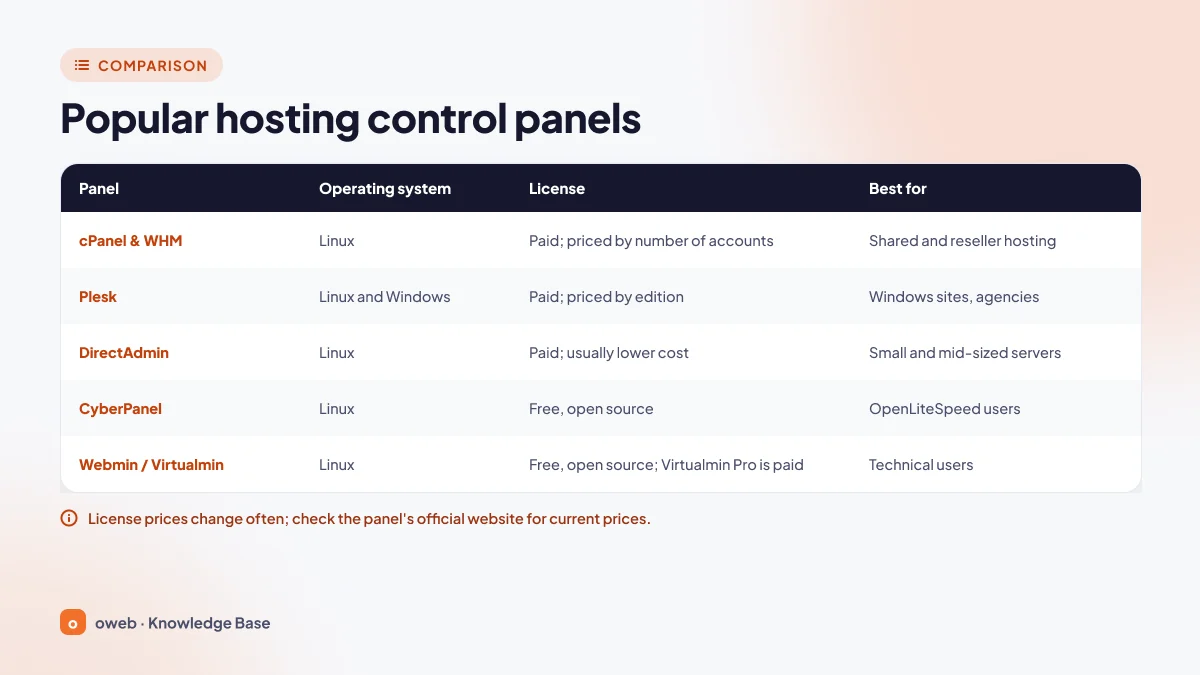
| Panel | Operating system | License | Best suited for |
|---|---|---|---|
| cPanel & WHM | Linux | Paid, by number of accounts | Shared and reseller hosting |
| Plesk | Linux and Windows | Paid, by edition | Windows sites, agencies |
| DirectAdmin | Linux | Paid, lower cost | Small and medium-sized servers |
| CyberPanel | Linux | Free, open source (GPL-3.0) | OpenLiteSpeed users |
| Webmin / Virtualmin | Linux | Free, open source (Webmin BSD, Virtualmin GPL); Virtualmin Pro is paid | Technical users |
DirectAdmin stands out for its lightweight design and low license cost; in addition to x86-64, it also runs on ARM64 processors. CyberPanel is free, but some add-on features are paid. Webmin is a general-purpose server administration interface; Virtualmin is the hosting management layer built on top of it and requires more technical knowledge than cPanel.
What is the difference between cPanel and Plesk?
Although the two panels belong to the same group, they do not work the same way:
- Operating system: If you need a Windows server, ASP.NET or MSSQL, Plesk is the option.
- Structure: In cPanel, server management (WHM) and account management (cPanel) happen in separate interfaces; Plesk combines both in a single panel.
- License: cPanel is priced by the number of accounts, Plesk by edition (Web Admin up to 10 domains, Web Pro up to 30, Web Host unlimited).
- Typical use: cPanel is common in shared and reseller hosting, while Plesk is common for Windows sites and multi-site agency projects.
For more guides on control panels and hosting management, browse the Oweb knowledge base.
When is cPanel not the right choice?
- When your project relies on Windows, IIS or .NET
- When, on a very low-budget VPS, the license fee exceeds the cost of the server
- When you manage your applications with Docker and automated deployment pipelines
- When you can comfortably manage a single site from the command line
cPanel security: six rules to protect your account
Accounts are usually compromised not through a flaw on the server but through a weak password or an outdated plugin. These six rules reduce most of the risk:
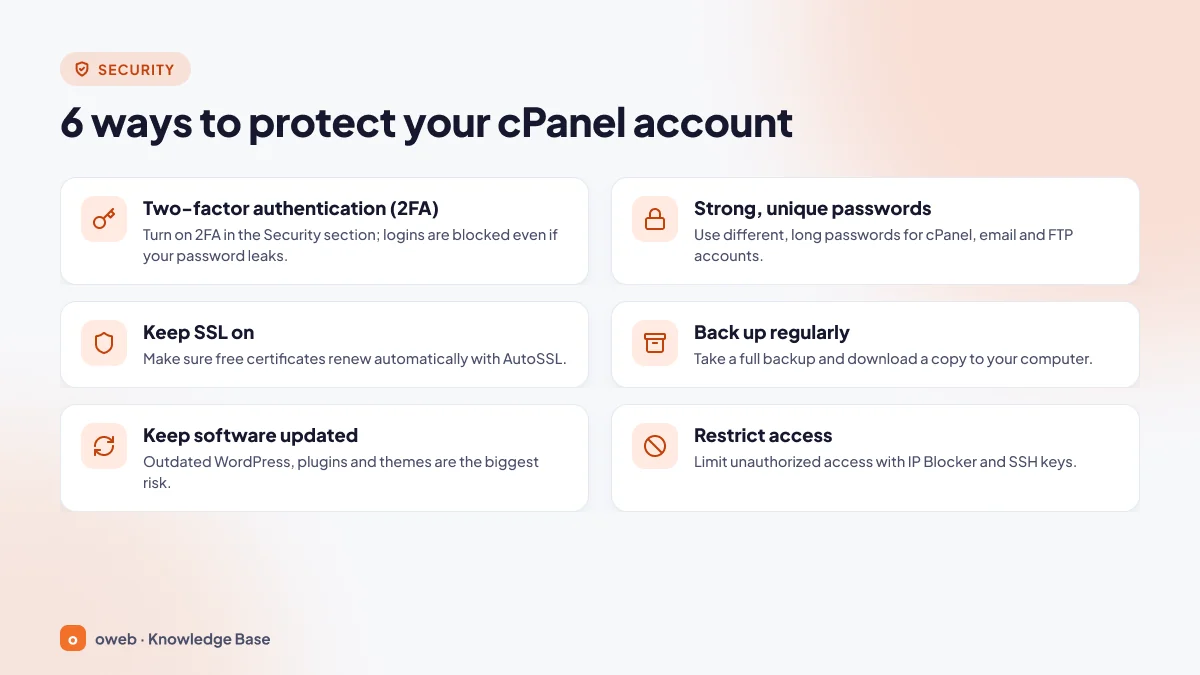
- Enable two-factor authentication (2FA): Use the Two-Factor Authentication tool in the Security section to link your account to an app such as Google Authenticator; a six-digit code is then requested at login. If the tool is not visible, your provider needs to enable the feature in WHM. 2FA does not protect API calls made with a password; use an API token for automation.
- Use strong, unique passwords: Set separate, long passwords for cPanel, email, FTP and databases, and do not reuse them on other services.
- Keep SSL on: Check regularly that AutoSSL is working on all your domains.
- Back up regularly and download copies to your computer: Backups stored on the server can be lost along with the server; always keep a copy elsewhere.
- Keep your software up to date: Outdated versions of WordPress core, themes and plugins are among the most common attack vectors. Delete plugins you do not use.
- Restrict access: IP Blocker writes its rules to the .htaccess file and blocks access to the website only; it does not affect cPanel or Webmail login. Server-level blocking is done in WHM. For SSH, use keys instead of passwords; generate and authorize a key in the SSH Access tool. Shell access depends on your provider's permission.
You can also password-protect admin folders with Directory Privacy and give FTP users access only to the folders they need. Server-level layers such as cPHulk, ModSecurity and the CSF firewall are the administrator's responsibility. ConfigServer, the developer of CSF, ended maintenance and support for CSF on August 31, 2025; WebPros, cPanel's parent group, then took over its maintenance. CSF is now distributed as the cpanel-csf package from cPanel's update servers and is installed and updated through standard cPanel package management on all supported cPanel & WHM versions. For details, see the official 2FA documentation.
Frequently asked questions
Is cPanel free?
No. On shared hosting, the license fee is included in the plan price. If you install it on your own VPS, you need a license priced by the number of accounts; a free 15-day trial license is available.
How do I log in to cPanel?
Type yourdomain.com/cpanel into your browser and enter the cPanel username and password from your welcome email. If two-factor authentication is enabled, you will then be asked for the six-digit code.
What is the cPanel login address?
The most convenient address is yourdomain.com/cpanel. For direct access, use https://yourdomain.com:2083; if DNS has not propagated yet, use https://server-ip-address:2083. If service subdomains are enabled, https://cpanel.yourdomain.com also works.
I forgot my cPanel password. What should I do?
You can reset the password from your hosting provider's client area. The Reset Password link on the login screen is also enabled by default; if your provider has not disabled it and a contact email is set on the account, a reset link is sent to that address.
What is the difference between ports 2082 and 2083?
Both open cPanel. Port 2083 encrypts the connection with SSL/TLS and is the recommended port; 2082 is unencrypted, and with default settings, requests to 2082 are redirected to 2083.
What is the WHM login port?
You log in to WHM over SSL at https://yourdomain.com:2087; 2086 is the unencrypted WHM port. Webmail uses 2096 (SSL) and 2095.
Where can I find my cPanel username and password?
They are usually in the welcome email sent when your hosting account was created. If you cannot find them, check the service details in your client area or reset the password there.
Does cPanel run on a Windows server?
No. cPanel & WHM runs only on supported Linux distributions; the usual choice for Windows is Plesk.
Are cPanel and Webmail the same thing?
No. cPanel manages the entire account. Webmail lets you use a single mailbox in your browser and manage that mailbox's settings, such as forwarding, autoresponders and its password; you log in with the full email address.
Is Softaculous part of cPanel?
No. Softaculous is a third-party installer that some providers offer separately. cPanel's own WordPress tool is WP Toolkit.
Is cPanel secure?
cPanel is mature software that receives regular security updates. Account security, however, depends largely on your own settings: 2FA, strong passwords, SSL kept on, up-to-date software and regular backups are the most effective measures.
Last reviewed: October 24, 2026. This guide is based on cPanel & WHM versions 134 LTS and 138 (Jupiter theme) and on cPanel's official documentation and release notes. Menu names, supported versions and prices may change over time and vary by hosting provider; check the current documentation at docs.cpanel.net before performing critical operations.