


Plesk is a commercial hosting control panel that runs on Linux and Windows Server and lets you manage websites, domains, email accounts, databases and SSL certificates from a single web interface. It is developed by WebPros International GmbH (formerly Plesk International GmbH), based in Schaffhausen, Switzerland, and is part of the WebPros group, which also owns cPanel and WHMCS.
This guide explains how Plesk works, the differences between its editions and licenses, where it differs from cPanel, its login and port settings, and how to install it on Linux and Windows, with information current as of October 2026.
Plesk at a glance:
- What it is: A web-based, licensed (paid) control panel for server and web hosting management.
- Developer: WebPros International GmbH (formerly Plesk International GmbH); part of the WebPros group, the same parent company as cPanel.
- Current series: Plesk Obsidian 18.0.x; a new minor release ships roughly every six weeks (the latest at the time of writing is 18.0.81).
- Operating systems: Ubuntu, AlmaLinux, Debian, Rocky Linux, RHEL, CloudLinux and Windows Server 2016-2025.
- Login: https://SERVER-IP on new installations; the HTTPS management port 8443 always works (8880 for HTTP).
- License editions: Web Admin (10 domains), Web Pro (30 domains), Web Host (unlimited); 14-day free trial.
- Installation: About 15 minutes on Linux with a single command, 30-60 minutes on Windows Server.
- Key tools: WP Toolkit, SSL It! and Let's Encrypt, Backup Manager, Docker, Git.
What is Plesk?
Technically, Plesk is a management layer that sits between the operating system and the web, email, DNS and database services. When you add a domain in the panel, Plesk creates the directories, writes the web server configuration, prepares the DNS zone and mail service and, if you wish, obtains a free SSL certificate. In short, it is an automation tool that generates the correct configuration files for you and keeps them consistently up to date.
What most clearly sets Plesk apart from similar panels is that it works with nginx and Apache on Linux and with IIS on Windows Server. As a result, a WordPress site and an application written in ASP.NET are managed from an interface with the same structure. If the concept of a server is new to you, start with our what is a server guide.
Plesk is not open source; it is licensed on a subscription basis. People who install Plesk on their own server buy the license directly from Plesk or from a provider, while customers who buy shared hosting from a provider that uses Plesk get the panel ready to use as part of the service.
A brief history of Plesk
- 1999-2000: The first Linux version was developed in Novosibirsk, Russia, in 1999; Plesk Inc. released the commercial product in February 2000.
- 2003: SWsoft acquired Plesk.
- 2008: SWsoft was renamed Parallels; for many years the product was known as "Parallels Plesk Panel".
- 2015: Following a restructuring of Parallels, Plesk became an independent company.
- 2017: Oakley Capital acquired a majority stake in Plesk.
- 2019-2020: CVC Capital Partners acquired a controlling stake in the WebPros group, which includes Plesk (the deal closed in February 2020).
- Today: Part of the WebPros group alongside cPanel, WHMCS, Sitejet and SolusVM.
What is Plesk Obsidian?
Plesk Obsidian is the current series, released in 2019 and still under active development; its version numbers take the form 18.0.x. The previous series was Plesk Onyx (17.x). Obsidian has no major version jumps; instead, a new minor release ships roughly every six weeks, with security and bug-fix updates in between. At the time of writing, the latest minor release is 18.0.81, released on 15 September 2026; its most recent update is 18.0.81 Update 4, dated 21 October 2026. Highlights of the minor releases published in 2026:
- 18.0.77 (March 2026): An ACME SSL extension that works with any ACME-compatible certificate authority, plus accessibility improvements; the APS Catalog was retired (previously installed APS applications keep working but are no longer supported).
- 18.0.79 (June 2026): Fixes following a security audit, an expanded REST API and support for Microsoft SQL Server (MS SQL) 2025.
- 18.0.80 (August 2026): MCP (Model Context Protocol) support: AI agents can manage the server using access tokens with restricted permissions. This release also added an AI support assistant and MariaDB 12.3 support.
- 18.0.81 (September 2026): Ubuntu 26.04 support, a DNS diagnostics tool and DNS validation in SSL It!.
The full release history is available in Plesk's official change log.
What does Plesk do? Who uses it?
Plesk's main job is to let you handle the day-to-day tasks of the web projects on a server without needing the command line. Typical tasks performed from the panel:
- Adding domains, subdomains and domain aliases; assigning independent PHP versions to domains and subdomains (aliases use the same site and settings as the main domain)
- Creating business email accounts, forwarders and auto-replies
- Creating databases and database users, and uploading files via File Manager or FTP
- Obtaining Let's Encrypt certificates with automatic renewal and editing DNS records
- Setting up scheduled tasks (cron) and reviewing access and error logs
- Backing up and restoring the entire server or a single subscription
- Updating, cloning and hardening WordPress sites from a single screen
Who is Plesk suitable for?
- People managing their own sites: Businesses hosting a few corporate sites, blogs or e-commerce projects on a VPS.
- Web designers and agencies: Teams that host client sites on a single server and want to give clients limited access.
- Hosting companies and resellers: Businesses serving many customers through service plans.
- Windows and .NET users: cPanel is not an option for ASP.NET and MS SQL projects running on IIS, so Plesk stands out in this area.
If you simply want to publish an ASP.NET site in a ready-made Windows environment without managing a server, Windows hosting plans, where the provider takes care of server maintenance, are a more practical starting point.
How does Plesk work?
Plesk has a layered structure: the server and operating system sit at the bottom, and Plesk is installed on top of them and serves its own web interface. The administrator creates subscriptions and domains in the interface, and Plesk configures each subscription's services on the underlying software.
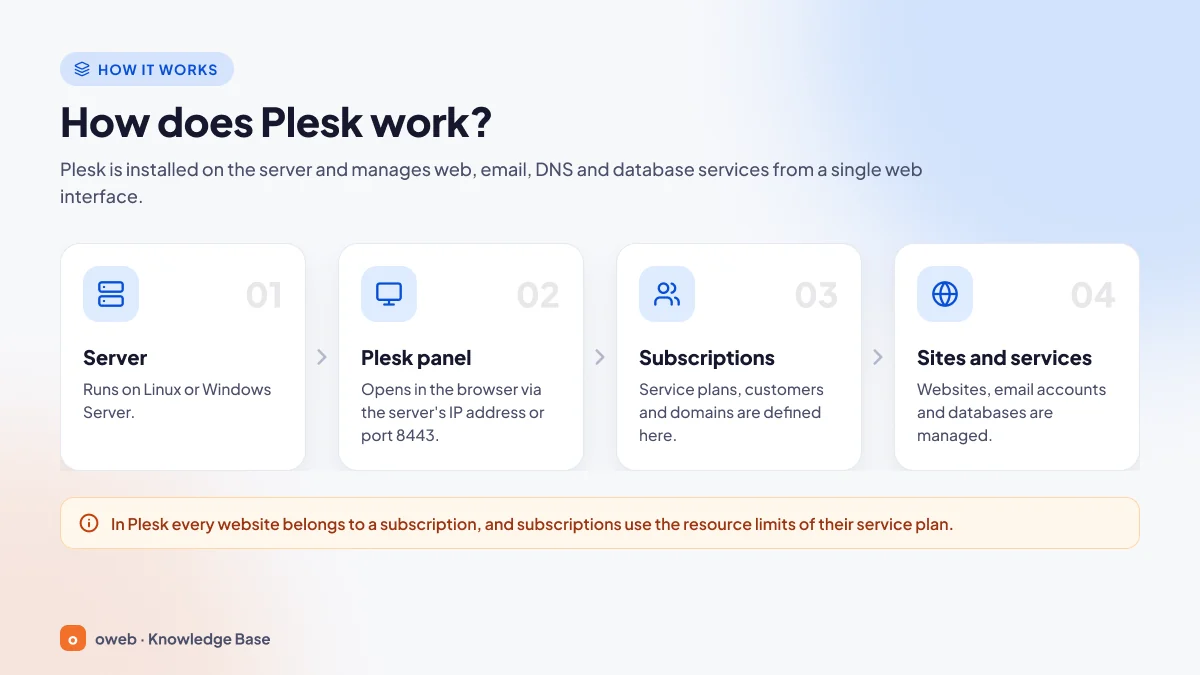
- Server: A VPS, VDS or physical server running Linux or Windows Server.
- Plesk: The management interface accessed from a browser; its classic address takes the form https://server:8443.
- Subscriptions and domains: Hosting spaces created according to service plans and assigned to customers.
- Services: Each subscription's websites, mailboxes, databases and DNS records.
Subscriptions, service plans and customers
| Concept | What it means | Example |
|---|---|---|
| Service plan | A template containing hosting settings along with disk, traffic, domain and email limits | "Starter" plan: 5 GB disk, 10 mailboxes |
| Subscription | A hosting space created from a plan, with its own system user and resource limits | examplecompany.com subscription |
| Add-on plan | An extra package that extends a subscription's limits | +5 GB disk |
| Customer | An account that owns one or more subscriptions | A company that is an agency's client |
| Reseller | An intermediate layer that manages its own customers and subscriptions | An agency that sells hosting |
A change made to a service plan can be applied in bulk to all subscriptions linked to that plan, so there is no need to edit hundreds of sites one by one.
Roles and interface views
Plesk offers all roles in a single interface, and everyone sees only the sections within their own permissions. The administrator (admin) manages the entire server and the license; a reseller creates customers with the resources allocated to them. A customer sees only their own subscriptions and can optionally add extra users with limited permissions (for example, a designer account that can access File Manager only).
The interface has two views. The Service Provider view is for hosting businesses that work with customers, subscriptions, service plans and resellers. The Power User view gives people who use the server only for their own sites a simpler screen without these menus. Web Pro and Web Host can use both views, while Web Admin comes with the Power User view only; in other words, the service plans and customers layer shown in the diagram is not available with a Web Admin license.
What software runs in the background?
Plesk is not a web server in itself; it manages the services provided by the operating system. On Linux, nginx sits in front as a reverse proxy and serves static files, while Apache handles dynamic requests behind it; on Windows, IIS takes on this role.
| Component | Plesk for Linux | Plesk for Windows |
|---|---|---|
| Web server | nginx + Apache 2.4 | IIS 10.0 (on all supported Windows Server versions) |
| PHP | 5.2-8.5 (available versions depend on the operating system) | 5.6-8.5 |
| Database | MySQL (5.7, 8.0 and 8.4 LTS), MariaDB, PostgreSQL | MySQL/MariaDB, MS SQL (PostgreSQL on a remote server only) |
| Other environments | Node.js, local Docker | ASP.NET, Node.js |
| Minimum hardware | 1 GB RAM + 1 GB swap, 20 GB disk | 2 GB RAM, 32 GB disk |
Plesk also offers PHP 5.x and 7.x for legacy applications; however, PHP 8.1 and earlier no longer receive any vendor support, and 8.2 reaches the end of security support on 31 December 2026. Use PHP 8.4 or 8.5 for new projects, and keep an older version only for the duration of a migration and in a separate subscription.
What are Plesk's features?
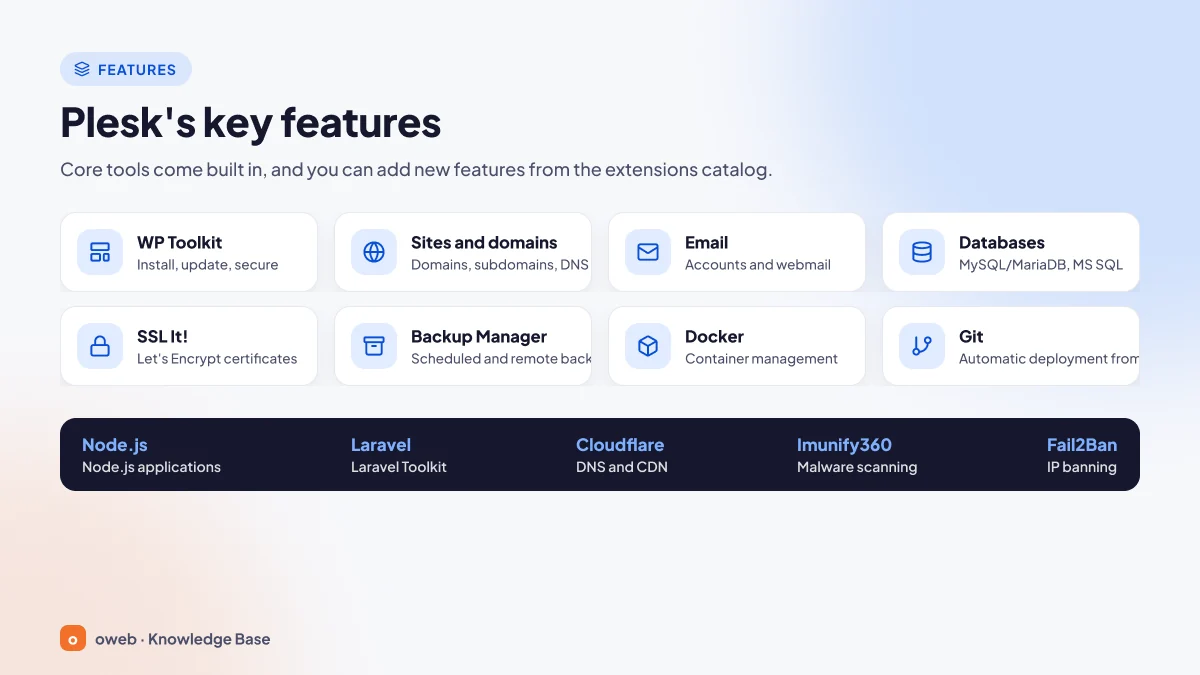
Plesk's strength comes from the ready-made tools and the extensions catalog that build on its core hosting functions. The image shows the eight most frequently used features.
WP Toolkit (WordPress Toolkit)
WP Toolkit, formerly called WordPress Toolkit, brings all WordPress installations on the server together on one screen. It updates plugins and themes in bulk, runs vulnerability scans and hardening, clones sites, and syncs data between a staging copy and the live site. On Web Pro and Web Host the full WP Toolkit is free; Web Admin includes the limited WP Toolkit SE, and the full WP Toolkit costs extra.
Websites and domains
Document root, PHP version and handler, redirects and additional nginx/Apache directives are configured separately for each domain. If the server is also used as a DNS server (name server), Plesk automatically creates a DNS zone for each domain; if you manage DNS elsewhere, you can turn this behavior off.
Mailboxes, forwarders, auto-replies and quotas are managed from the panel, and mailboxes can be accessed in a browser via webmail. You can add SPF and DMARC records and sign outgoing messages with DKIM. On Linux, the mail services support SNI: each domain's SMTP, IMAP and POP3 connections can use its own SSL/TLS certificate, so clients are always presented with the certificate for the correct domain.
Databases
MySQL, MariaDB and PostgreSQL are supported on Linux, and MySQL/MariaDB and MS SQL on Windows. Microsoft SQL Server (MS SQL), shown on the database card in the image, is available only in Plesk for Windows. Databases and their users are created from the panel, and tables are edited with a web-based tool.
SSL It! and Let's Encrypt
SSL It! is the hub for certificate operations and comes preinstalled by default together with the Let's Encrypt extension. In addition to free certificates and automatic renewal, it lets you manage Sectigo certificates, HTTP-to-HTTPS redirection, HSTS and OCSP stapling (for certificates from authorities that provide OCSP). The ACME SSL extension introduced in 18.0.77 also lets you obtain certificates (including wildcards) from other ACME-compatible authorities.
Backup Manager
Backup Manager backs up the entire server or a single subscription. Backups can be stored on the local disk or on remote destinations such as FTP, Amazon S3, S3-compatible storage, Google Drive and Microsoft OneDrive. Scheduled backups to cloud storage are a paid (premium) feature. Make sure at least one copy is kept off the server, and run test restores regularly.
Docker
The free Docker extension lets you launch containers from the image catalog, upload your own images and build multi-container setups with Docker Compose. It is a practical way to quickly run services such as Redis, MongoDB or Memcached. Local Docker works only on 64-bit Linux; Plesk for Windows can only connect to a remote Docker server, which requires an additional license. Containers are not included in Plesk backups.
Git
The free Git extension lets you create a local repository on the server or connect to remote repositories such as GitHub and Bitbucket. Multiple branches are supported, and changes are deployed to the site manually or automatically after every push. This gives you a version-controlled, reversible deployment workflow instead of FTP.
Extensions catalog
The official names and functions of the extensions in the bottom band of the image are as follows (Fail2Ban is covered in the security section below):
- Node.js Toolkit: Running and managing Node.js applications from the panel (free).
- Laravel Toolkit: Deploying Laravel projects from Git, editing the .env file, and running Artisan and Composer commands from the panel.
- DNS Integration for Cloudflare: Syncing DNS records with Cloudflare and managing proxy mode. The old Cloudflare ServerShield extension is no longer offered.
- Imunify: CloudLinux's security suite for Linux servers, with free and paid tiers.
Plesk editions and license options
Regardless of the version number, Plesk is offered in three license editions. The main differences between them are the number of domains, the interface view and the scope of WP Toolkit.
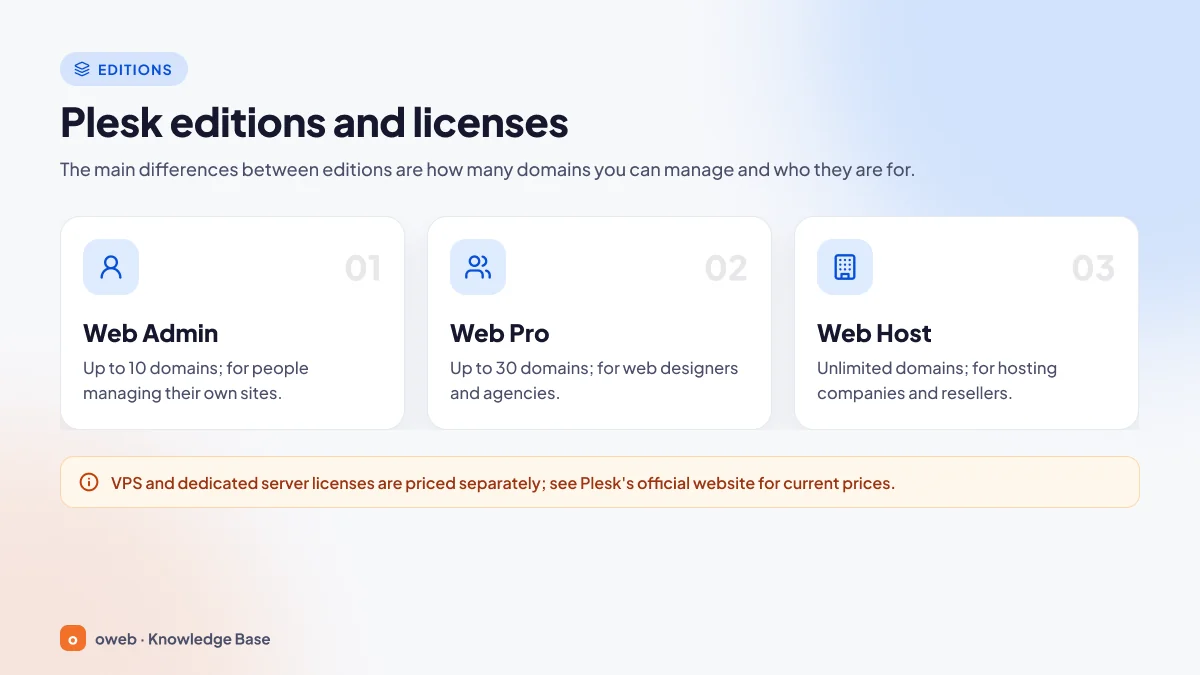
| License edition | Domains | Who is it for? | WP Toolkit | View |
|---|---|---|---|---|
| Plesk Web Admin | 10 | People managing their own sites | WP Toolkit SE (limited) | Power User |
| Plesk Web Pro | 30 | Web designers, developers, agencies | Full WP Toolkit included | Power User and Service Provider |
| Plesk Web Host | Unlimited | Hosting companies and resellers | Full WP Toolkit included | Power User and Service Provider |
Sitejet Builder (a website builder) is included in all three editions. You can upgrade or downgrade between editions at any time; an agency that grows beyond 10 domains can switch to Web Pro and keep the same installation.
VPS vs dedicated server licenses
VPS and dedicated server licenses are priced separately, but their features are identical. According to the official FAQ, a VPS license can be installed only on a virtual server, while a dedicated license can also be installed on a VPS. For Web Admin and Web Pro, VPS and dedicated licenses cost the same, and the VPS license is cheaper only for Web Host; even so, it makes more sense to start with a VPS license on a virtual server.
Plesk trial license: 14 days free
Plesk is paid software and requires a valid license key. However, it offers a 14-day trial with all features enabled and no credit card required; if you choose the trial at first login, the panel works with up to 3 domains.
Where can you buy a Plesk license?
Licenses are bought directly from plesk.com or from a provider that is a Plesk partner, and this choice determines your support route: for licenses bought directly, you use Plesk's own support channels, while for licenses bought through a provider, the provider is usually your point of contact. Licenses bought from the Plesk store renew automatically, list prices do not include VAT, and there is a 14-day refund period.
Plesk restructured its pricing on 1 January 2026, and the price list changes from time to time. That is why we do not quote figures; check current prices on Plesk's official pricing page.
What is the difference between Plesk and cPanel?
The key difference is this: Plesk runs on both Linux and Windows Server with a single interface and is licensed by edition and number of domains, while cPanel runs only on Linux with two interfaces (WHM on the server side and cPanel on the user side) and is licensed by number of accounts. Plesk and cPanel, the two best-known commercial hosting control panels, are now owned by the same company, WebPros. For an overview of how cPanel is structured, see our what is cPanel guide.
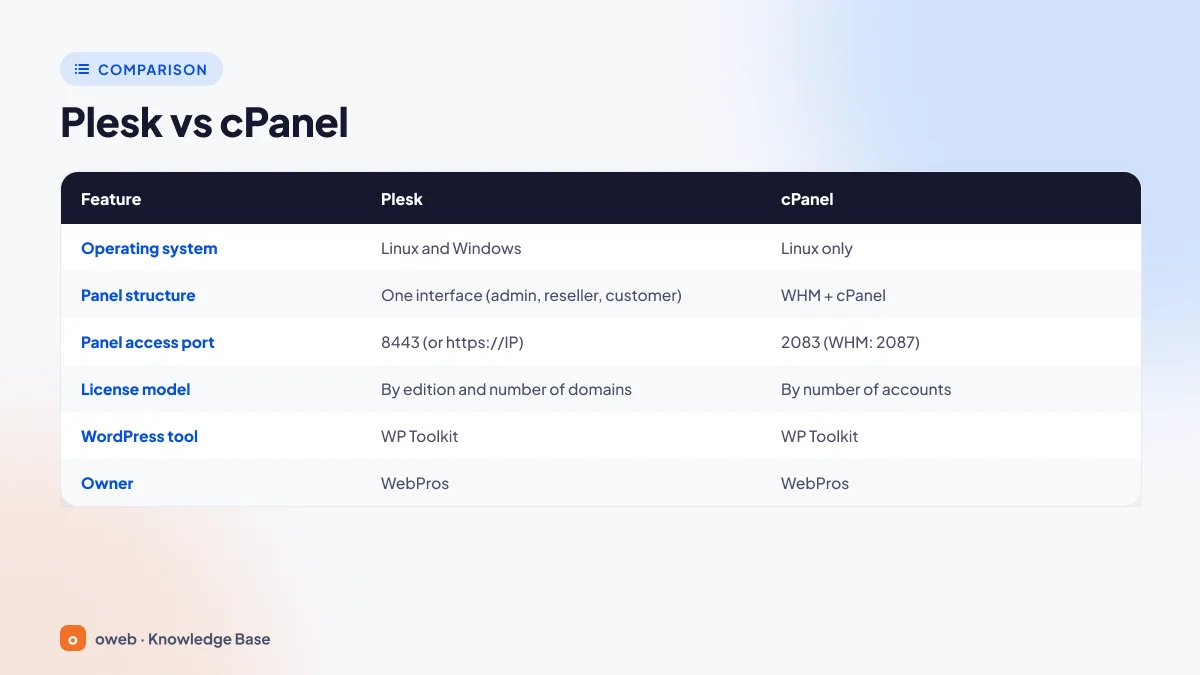
| Feature | Plesk | cPanel |
|---|---|---|
| Operating system | Linux and Windows Server | Linux only (AlmaLinux, CloudLinux, Rocky Linux, Ubuntu) |
| Panel structure | One interface for admin, reseller and customer | WHM on the server side, cPanel on the user side |
| HTTPS login port | 8443 (on new installations you can also log in with the IP address and no port) | cPanel 2083, WHM 2087 |
| HTTP login port | 8880 | cPanel 2082, WHM 2086 |
| License model | By edition and number of domains | By number of accounts (Solo, Admin, Pro, Premier) |
| Windows and .NET | IIS, ASP.NET, MS SQL | Not available |
| WordPress tool | WP Toolkit | The same WP Toolkit (standard and Deluxe versions; according to cPanel, all versions are included in the license at no extra cost, but whether Deluxe features are enabled depends on the hosting provider) |
| Owner | WebPros | WebPros |
Both panels use the same product: WP Toolkit, also known by its former name WordPress Toolkit, is developed by Plesk. In cPanel it comes in standard and Deluxe versions; according to cPanel's official page, all versions are included in the cPanel license at no extra cost, while enabling these tools on accounts is up to the hosting provider. For the full list of cPanel ports, see cPanel's official firewall configuration guide.
When should you choose Plesk, and when cPanel?
- If you need Windows, ASP.NET or MS SQL: Plesk; cPanel does not support Windows.
- If you also want to manage developer tools such as Docker and Laravel Toolkit from the panel: Plesk; Docker, Git and Node.js Toolkit are free. cPanel also offers Git Version Control and Node.js application management.
- If your team is used to WHM and cPanel: cPanel lets you carry on without disrupting your existing processes.
- If cost is the deciding factor: Plesk pricing is based on the number of domains and cPanel pricing on the number of accounts; compare both official pricing pages for your own scenario.
How do you log in to Plesk? Address and port details
You log in to Plesk from a browser at https://SERVER-IP:8443 (on new installations, also at https://SERVER-IP with no port). The administrator username is admin, and the password is the one you set during initial setup. If you use shared hosting, the address and login details are in the email your provider sent you.
Plesk login address
- On new installations: The server's IP address with no port (
https://SERVER-IP) - Classic address that always works:
https://SERVER-IP:8443orhttps://server.yourdomain.com:8443 - Unencrypted access:
http://SERVER-IP:8880(not recommended, because the password is sent in plain text)
You can change the address under Tools & Settings > Customize Plesk URL: the options are any domain pointing to the server, a single custom domain, or the IP address or hostname with port 8443. Servers that were upgraded from an older version and host domains continue to log in via 8443. Port 8443 cannot be disabled entirely from within Plesk; use the operating system's firewall to restrict it.
Plesk ports
On Linux systems that use firewalld, Plesk adds the required rules during installation; you should still check the security groups at your cloud provider separately.
| Port | Protocol | Usage |
|---|---|---|
| 8443 | TCP, UDP | Plesk management panel (HTTPS) |
| 8880 | TCP | Plesk management panel (HTTP) |
| 8447 | TCP | Plesk Installer and updates |
| 443 (outbound) | TCP | Communication with the license server |
| 80, 443 | TCP (also UDP for 443, HTTP/3) | Websites and Let's Encrypt validation |
| 22 / 3389 | TCP | SSH (Linux) / Remote Desktop (Windows) |
| 21 | TCP | FTP |
| 25, 465, 587 | TCP | SMTP |
| 110, 995 / 143, 993 | TCP | POP3 / IMAP |
| 53 | TCP, UDP | DNS (if the server is used as a name server) |
| 3306 / 1433 / 5432 | TCP | Remote MySQL-MariaDB / MS SQL / PostgreSQL access (open only if needed) |
Plesk login problems and solutions
Port 8443 won't open: Check the server firewall (firewalld, ufw or Windows Defender Firewall) and the cloud security group. On Linux, you can see whether the port is listening with this command:
ss -tlnp | grep 8443On Windows, the same check is done with netstat -ano | findstr :8443. If the output is empty, check the panel services on Linux and restart them if necessary:
systemctl status sw-cp-server sw-engine
systemctl restart sw-cp-server sw-engine
If the problem persists, the plesk repair installation command checks the installation and suggests fixes for any problems it finds.
Certificate warning: During installation, Plesk secures the panel with a Let's Encrypt certificate by default; if the hostname does not resolve yet, it uses a temporary name based on the IP address. If you open the panel via the IP address, the browser shows a warning because the certificate belongs to the hostname; log in using the hostname instead. If no certificate could be obtained (because port 80 is closed or the DNS record is missing), fix the problem and obtain a new Let's Encrypt certificate for Plesk under Tools & Settings > SSL/TLS Certificates.
Forgot your password: Connect via SSH or RDP and run the command below. It generates one-time login links that are valid for 24 hours; change your password after logging in.
plesk loginLicense error: The trial or license may have expired, or the server may be unable to reach the license server over port 443. Check your outbound connection rules; if you bought the license from a provider, ask them about its renewal status.
How do you install Plesk?
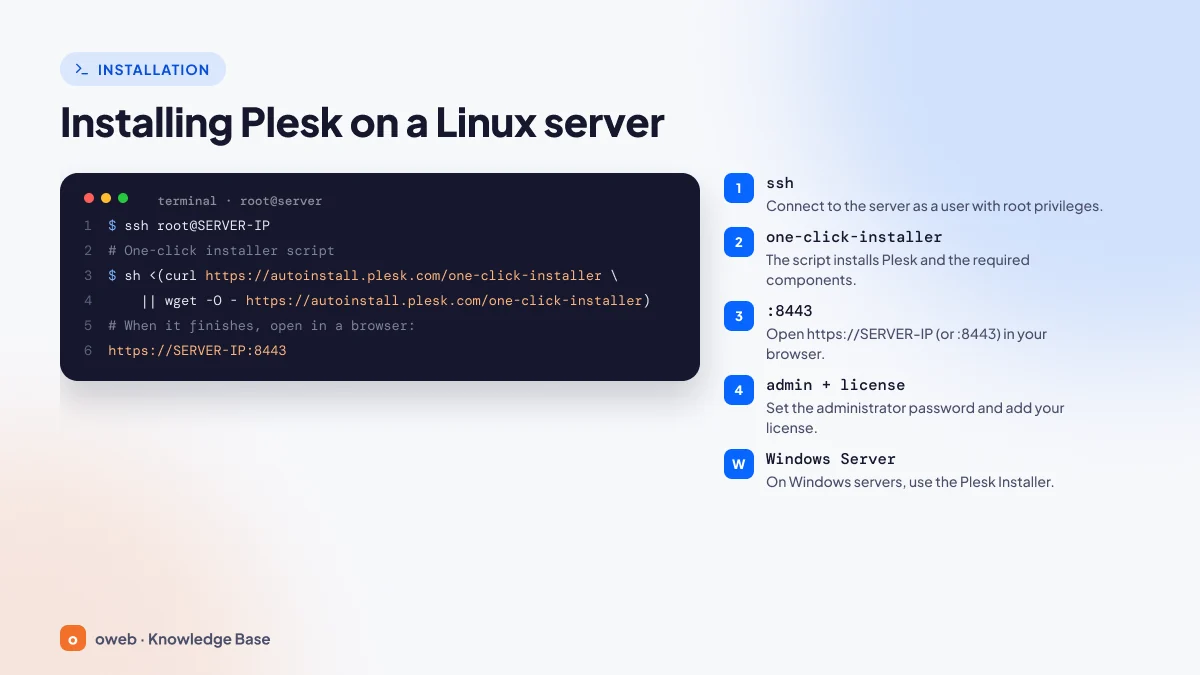
On a clean Linux server, Plesk is installed in about 15 minutes by connecting over SSH as root and running the official one-line script; on Windows Server, it is installed with Plesk Installer in 30-60 minutes. You then open the panel in a browser and set up the administrator account and the license. Installing Plesk requires root or Administrator privileges, so it cannot be installed on shared hosting; you need a VPS, VDS or physical server. The image summarizes the one-command installation on Linux.
Preparing for installation
- Clean operating system: Use a freshly installed, preferably minimal system; on servers where Apache, MySQL or another panel is already installed, conflicts can occur in some cases.
- Hostname: Give the server a fully qualified domain name (FQDN) such as
server.yourdomain.com, and create an A record in DNS that points this name to the server's IP address. - Network: Make sure ports 80 and 443 (web and Let's Encrypt validation), 8443 and 8880 (panel) and, if you will use the web installer interface, 8447 are open to inbound traffic, and that port 443 is open to outbound traffic.
If you haven't chosen a server yet, Oweb's Linux VPS and VDS virtual server plans with full root access are a good starting point for a clean installation on one of the recommended operating systems.
System requirements and supported operating systems
| Operating system | Recommended | Other supported versions |
|---|---|---|
| Ubuntu | 26.04 | 24.04, 22.04, 20.04, 18.04 |
| AlmaLinux | 10.x | 9.x, 8.x |
| Debian | 13 | 12, 11, 10 |
| CloudLinux | 9.x | 8.x, 7.x |
| Red Hat Enterprise Linux | 9.x | 8.x |
| Rocky Linux / CentOS | - | Rocky 8.x / CentOS 7.x |
| Windows Server | 2025 | 2022, 2019, 2016 (Standard, Datacenter, Essentials) |
The table is valid as of October 2026. The minimum hardware is 1 GB RAM, 1 GB swap and 20 GB disk for Linux, and 2 GB RAM and 32 GB disk for Windows. These figures cover only running the panel itself; with email filtering, antivirus and a few WordPress sites, memory requirements rise quickly. For the current list, see Plesk's official system requirements page.
Being on the supported list does not mean a system is suitable for a new installation. Systems that have reached the end of vendor support, such as CentOS 7, CloudLinux 7, Debian 10, Ubuntu 18.04 and 20.04, receive updates only through paid Extended Lifecycle Support (ELS). The last Plesk minor release to support Debian 11 is 18.0.81; the recommended path is to upgrade to Debian 12. For a new installation, choose one of the recommended versions.
Installing Plesk on Linux (with a single command)
The official one-click installer script installs the latest stable release with the default components and patches; the process takes about 15 minutes. The command is the same on Ubuntu, AlmaLinux, Debian, RHEL and CloudLinux; the versions Plesk officially recommends for new installations are Ubuntu 26.04, AlmaLinux 10, Debian 13, CloudLinux 9 and Red Hat Enterprise Linux 9. Ubuntu 24.04 and AlmaLinux 9 are also supported, but with some limitations, and are not marked as "recommended". Details are in Plesk's official Linux installation guide.
- Connect to the server over SSH as root:
ssh root@SERVER-IP. If you cannot connect as root directly, connect as a privileged user and first switch to a root shell withsudo -i; do not run the installation command with asudoprefix. - Run the following command in a bash shell; the script is downloaded with curl, or with wget if curl is not available:
sh <(curl https://autoinstall.plesk.com/one-click-installer || wget -O - https://autoinstall.plesk.com/one-click-installer) - When the installation finishes, the terminal usually displays one-time login links; if you don't see them, you can generate new ones with the
plesk logincommand. - Open the panel address in your browser and follow the "First login and license activation" steps below.
If you want to choose the components yourself (for example, PHP versions or the mail server), start Plesk Installer in web interface mode with the commands below, then continue at https://SERVER-IP:8447 with your root credentials:
wget https://autoinstall.plesk.com/plesk-installer
chmod +x ./plesk-installer
./plesk-installer --web-interfaceWhen copying commands from other sources, make sure the hyphens are plain ASCII hyphens (-). In some articles, the hyphens in wget -O - are turned into dashes (–) during formatting, and the command fails. Also, do not add prompt characters such as "#" or "$" at the start of the command.
Installing Plesk on Windows Server
- Connect to the server via Remote Desktop (RDP) with the Administrator account.
- Download Plesk Installer from
https://installer-win.plesk.com/plesk-installer.exe. On Server Core installations, use PowerShell:
If you get a TLS error on Windows Server 2016, first runInvoke-WebRequest -Uri https://installer-win.plesk.com/plesk-installer.exe -OutFile plesk-installer.exe[Net.ServicePointManager]::SecurityProtocol = [Net.SecurityProtocolType]::Tls12. - In a Command Prompt (cmd) or PowerShell window opened as administrator, in the folder that contains the file, install the latest version with the recommended components using the command below. The leading
.\prefix makes the command work in both environments:.\plesk-installer.exe --select-product-id=panel --select-release-latest --installation-type=recommended - The installation takes about 30-60 minutes; afterwards, open the panel in a browser and complete the initial configuration.
All installation options are described in Plesk's official Windows installation guide.
First login and license activation
- Open
https://HOSTNAMEorhttps://SERVER-IP(the address with port 8443 also works). - Log in with the root account on Linux or the Administrator account on Windows, using the system password. If you don't have the root password, generate a one-time login link on the server with the
plesk logincommand. - Set an email address and a strong password for the Plesk administrator account; for subsequent logins, the username is admin.
- Enter your activation code, or choose the 14-day trial license, which works with up to 3 domains.
- Accept the license agreement (EULA) and click Enter Plesk.
What to do after installation
- Verify that the panel certificate was issued for your real hostname (FQDN); if a temporary name was used, create the DNS record and renew the certificate. Enable two-factor authentication on the administrator account.
- Set the default PHP version to 8.4 (8.3 at minimum) and remove components you won't use.
- Configure remote storage in Backup Manager and create a scheduled backup.
- If you will use email, ask your provider for a reverse DNS (PTR) record for the IP address, and enable SPF, DKIM and DMARC.
- Verify that automatic updates are enabled for Plesk components and (on Linux) system packages.
How do you manage WordPress with Plesk?
WP Toolkit is the main reason Plesk appeals to agencies that work mostly with WordPress. A typical workflow looks like this:
- Installation: Install WordPress with the Install button on the WP Toolkit screen; the database and configuration file are prepared automatically. Add existing installations to the panel with Scan.
- Security: Apply hardening measures in bulk, such as blocking access to
xmlrpc.phpand protecting thewp-config.phpfile; the vulnerability scan lists risky plugins and themes. - Staging copy: Before a major change, clone the site to a subdomain such as
test.yourdomain.comand try out the changes there. - Syncing: If you are happy with the result, sync the files, the database or both to the live site.
- Updates: Manage plugin, theme and core updates for all sites from a single screen. Smart Updates, which tests updates on a copy first, is a separate paid extension.
Common tasks in Plesk
The steps below are based on the default Plesk Obsidian interface; menu names may differ slightly depending on the panel language and interface view.
Installing a free SSL certificate with Let's Encrypt
- In Websites & Domains, open the SSL/TLS Certificates link for the relevant domain.
- Click the Install button on the free Let's Encrypt certificate row.
- Select the www subdomain along with the domain and, optionally, webmail, then obtain the certificate; renewal is automatic.
- Turn on the Redirect from HTTP to HTTPS option on the same page.
For validation to succeed, the domain's A record must point to the server and port 80 must be open; a wildcard certificate requires DNS validation.
Adding a new domain
- In Websites & Domains, click Add Domain.
- Choose whether to start with a blank website or with WordPress, then enter your registered domain name.
- If prompted, set a system (FTP) username and password, and confirm.
- Point the domain's A record or name servers to the Plesk server.
In the Service Provider view, customer sites are usually created under Subscriptions, as a subscription linked to a service plan.
Creating an email address
- Go to Mail and click Create Email Address.
- Enter the username, select the domain and set a strong password.
- Set the mailbox size and save; the address can be used right away with webmail and email clients.
Changing the PHP version
- In Websites & Domains, open the PHP settings for the domain.
- Select the PHP version and handler from the list (on Linux, usually the FPM application served by nginx or Apache).
- Save the change and test the site; if a plugin turns out to be incompatible, you can switch back to the previous version.
Plesk security: which tools are available?
- SSL It! and Let's Encrypt: Free certificates with automatic renewal for sites, mail services and the panel.
- IP Address Banning (Fail2Ban): Detects brute-force attempts in the logs and temporarily bans the attacking IP addresses (Linux).
- Web Application Firewall (ModSecurity): Rule-based protection against common attacks such as SQL injection and XSS.
- Imunify: Malware scanning and proactive protection (Linux).
- Two-factor authentication and Advisor: One-time code login for accounts; Advisor lists missing security and performance settings as recommendations.
- Automatic updates: Keeps Plesk components and (on Linux) system packages up to date; on Windows, operating system patches are managed separately through Windows Update.
A practical tip: if you have a static office IP address or a VPN, allow administrator logins only from those addresses under Tools & Settings > IP Access Restriction Management; this restriction applies to administrator accounts and does not affect customer and reseller logins. If you have set Customize Plesk URL to "IP address or hostname with port 8443", you can also restrict ports 8443 and 8880 to these addresses in the firewall; with the default setting, the panel is also reachable over port 443, so closing only these ports is not enough. For day-to-day work, create users with only the permissions they need instead of using the administrator account.
Advantages and disadvantages of Plesk
Advantages
- Works the same way on Linux and Windows Server
- Brings administrator, reseller and customer roles together in one interface
- Lets you manage many WordPress sites centrally with WP Toolkit
- Docker, Git and Node.js tools come as free extensions
- Let's Encrypt, Fail2Ban and ModSecurity are included out of the box
- The Obsidian series is updated frequently
Disadvantages
- Paid license; you need to move to a higher edition as the number of domains grows
- Features such as scheduled backups to cloud storage and Smart Updates cost extra
- The panel itself consumes resources, which puts pressure on memory on very small servers
- No local Docker on Windows, and some extensions run only on Linux
- Manual changes to configuration files generated by the panel can be overwritten during updates
In short, Plesk is a strong choice for those who need Windows, for agencies managing multiple WordPress sites and for VPS owners who want developer tools in a single interface. If you have a single static site, or if you prefer to manage the server from the command line, the license cost and the panel's overhead may not be worth it.
Frequently asked questions
Is Plesk free?
No. After the 14-day free trial, you need a Web Admin, Web Pro or Web Host license. If you bought shared hosting from a provider that uses Plesk, the license fee is included in the service.
How much does a Plesk license cost?
The price depends on the license edition (Web Admin, Web Pro, Web Host) and on whether the license is for a VPS or a dedicated server. Plesk restructured its pricing on 1 January 2026, and the list is updated from time to time, so check the current price on Plesk's official pricing page. If you buy the license from a provider, the provider sets the price.
What is the Plesk port and login address?
On new installations, the default login address takes the form https://SERVER-IP; https://SERVER-IP:8443 works in every case. The management panel uses port 8443 for HTTPS and 8880 for HTTP, while installation and updates use 8447. The administrator username is admin (on Linux, you can also log in as root).
Which is better, Plesk or cPanel?
If you need Windows, ASP.NET or MS SQL, choose Plesk; cPanel runs only on Linux. On Linux, the deciding factors are what your team is used to, how the license model affects your costs and which developer tools you need.
Which operating systems does Plesk support?
On Linux, Plesk supports Ubuntu 26.04, 24.04 and 22.04, AlmaLinux 10, 9 and 8, Debian 13 and 12, CloudLinux, Red Hat Enterprise Linux and Rocky Linux 8; some older systems receive updates only under paid ELS. On Windows, Windows Server 2016, 2019, 2022 and 2025 are supported.
Does Plesk run on Windows servers?
Yes. Plesk for Windows runs with IIS on the Standard, Datacenter and Essentials editions of Windows Server 2025, 2022, 2019 and 2016.
Does Plesk support Docker?
Yes. You can run containers with the free Docker extension; however, local Docker works only on 64-bit Linux servers. Plesk for Windows can only connect to a remote Docker server, which requires an additional license.
How long does it take to install Plesk?
The one-command installation takes about 15 minutes on Linux and about 30-60 minutes on Windows Server.
Can Plesk be installed on shared hosting?
No. Installation requires root or Administrator privileges, which you get on a VPS, VDS or physical server.
What is the difference between Plesk Web Admin, Web Pro and Web Host?
Web Admin lets you manage up to 10 domains and Web Pro up to 30, while Web Host has no limit. Web Admin includes only the Power User view and the limited WP Toolkit SE; the other two offer the Service Provider view and the full WP Toolkit.
What should I do if I forget the Plesk administrator password?
Connect to the server via SSH or RDP and run the plesk login command. The one-time link it generates is valid for 24 hours; once you are in the panel, set a new password in your profile settings.