


An Android emulator is software that runs the Android operating system on your computer as a virtual phone or tablet. It lets you use mobile games and apps on Windows, macOS or Linux without a phone and, if you are a developer, test your app on different Android versions without needing a physical device.
Last reviewed: October 24, 2026. Version, pricing and system requirement details have been checked against the developers' official pages wherever possible; because this information changes often, check the official page before downloading.
In short: what you need to know about Android emulators
- Basic requirement: Hardware virtualization (Intel VT-x or AMD-V/SVM) must be enabled on your processor; if it is disabled, the emulator either won't start or runs very slowly.
- For gaming: BlueStacks 5, MuMu Player, LDPlayer and MEmu Play are free Windows emulators. Google Play Games lets you play many Google Play games on Google's official PC platform.
- For development: Google's free Android Studio Emulator runs the latest versions, including Android 17 (API 37); Genymotion is aimed at testing teams.
- Mac and Linux: BlueStacks Air is free on Apple Silicon Macs. On Linux, Waydroid is an open-source solution that runs Android in a container.
- Hardware: Most emulators start with 4 GB of RAM; 8 GB is recommended for comfortable use and 16 GB for heavy gaming, multiple instances and development.
- Windows 11: Microsoft discontinued Windows Subsystem for Android (WSA) on March 5, 2025; you now need an emulator to run Android apps.
- Security: Download emulators only from their official websites. Banking and payment apps usually don't work in emulators.
What is an Android emulator and how does it work?
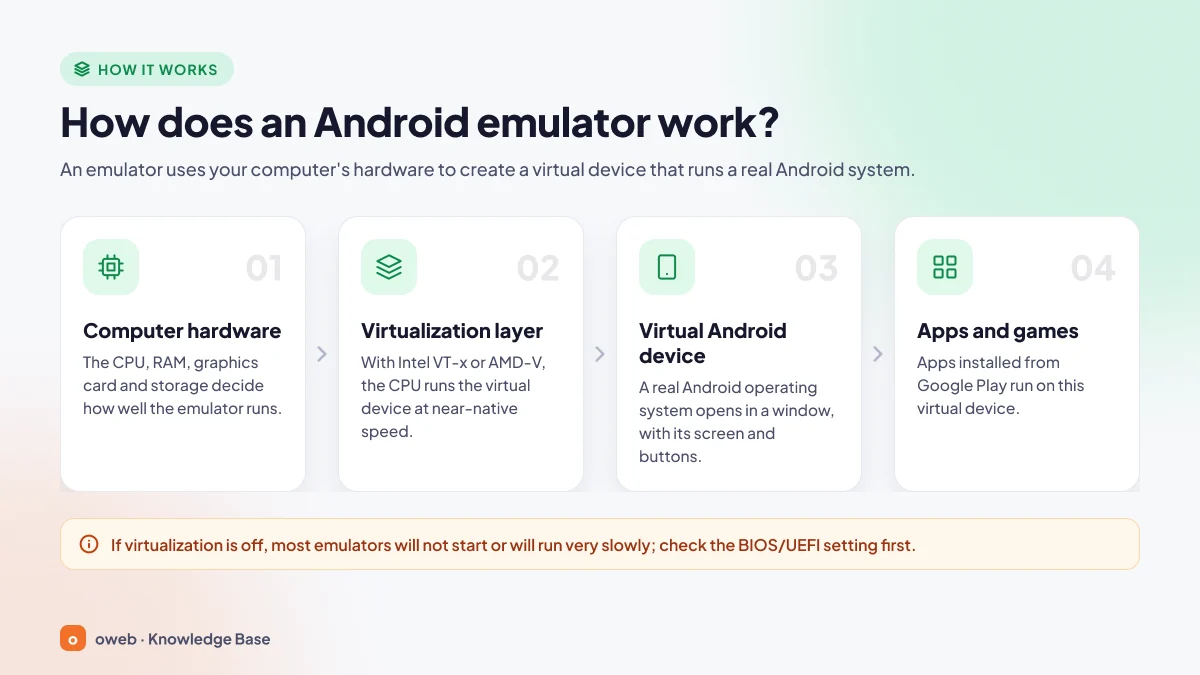
An Android emulator is a program that virtually recreates an Android device's hardware (processor, memory, screen, sensors) and boots a real Android system image on top of that virtual hardware. The virtual device opens in a window on your computer and works just like a phone, with a home screen, settings and (in most emulators) the Google Play Store.
Google's official Android Emulator (called Android Studio Emulator for short in this article) is the clearest example of this approach and includes phone, tablet, Wear OS, Android TV and Android Automotive profiles. Gaming emulators such as BlueStacks and LDPlayer build on a similar foundation and add keymapping, multi-instance and macro tools.
Virtualization: the layer that speeds up emulators
Modern emulators run Android in a virtual machine. Through a hypervisor that uses the processor's virtualization extensions (Intel VT-x, AMD-V/SVM), this virtual machine gets near-direct access to the hardware. Without a hypervisor, the emulator has to translate machine code block by block and becomes very slow.
The hypervisor depends on the operating system: on Windows, Google recommends Windows Hypervisor Platform (WHPX) for Android Studio Emulator; macOS uses the built-in Hypervisor.framework and Linux uses KVM. Intel and AMD processors also need SLAT support (Intel EPT / AMD RVI). Most current processors support these features, but virtualization may ship disabled in the BIOS/UEFI.
How do ARM apps run on an x86 computer?
Most phones use ARM processors, while most Windows computers use x86-64 processors. With Android 11, Google added a method to emulator system images that translates ARM code to x86 only within the relevant app process; because the rest of the system runs natively, performance is much better than with full ARM emulation. On Apple Silicon Macs, arm64 Android images run directly with hardware acceleration.
What is the difference between an emulator and a simulator?
An emulator creates virtual hardware and runs a real Android system on it; a simulator runs the app directly on the host computer without mimicking the hardware. Container-based solutions on Linux are a third approach:
- Emulator: Creates virtual hardware and boots a real Android system on it. Android Studio Emulator is based on QEMU.
- Simulator: Does not mimic hardware and runs the app on the host computer; Apple's Xcode Simulator is an example.
- Container: Runs Android in an isolated environment that shares the host system's kernel. That is why Waydroid on Linux is technically not an emulator.
What is an Android emulator used for, and who uses it?
An Android emulator moves what you do on your phone to a bigger screen, a keyboard and a mouse. The most common uses are:
- Mobile gaming: Playing on a monitor, mapping touch controls to the keyboard and mouse, and keeping your phone from overheating.
- Multiple accounts: Running several separate Android devices at once with the multi-instance feature.
- App development and testing: Trying an app on different screen sizes and Android versions without buying separate phones.
- Mobile-only services: Accessing apps that have no web or desktop version from your computer.
- Training and demos: Showing apps in presentations or recording the screen.
You don't need an emulator for every app. For example, the easiest and safest way to use WhatsApp on a computer is the official web version; see our WhatsApp Web guide for the steps.
Best Android emulators (2026)
The leading Android emulator options for PC in 2026 are BlueStacks 5, MuMu Player and LDPlayer for gaming; BlueStacks Air for Mac; Android Studio Emulator and Genymotion for app development; and Waydroid for Linux. We based our selection on active development, the current Android version, platform support and the official pricing model. The list is not sponsored. Version and pricing details were checked against the developers' official pages in October 2026; because they change often, check the official page before downloading.
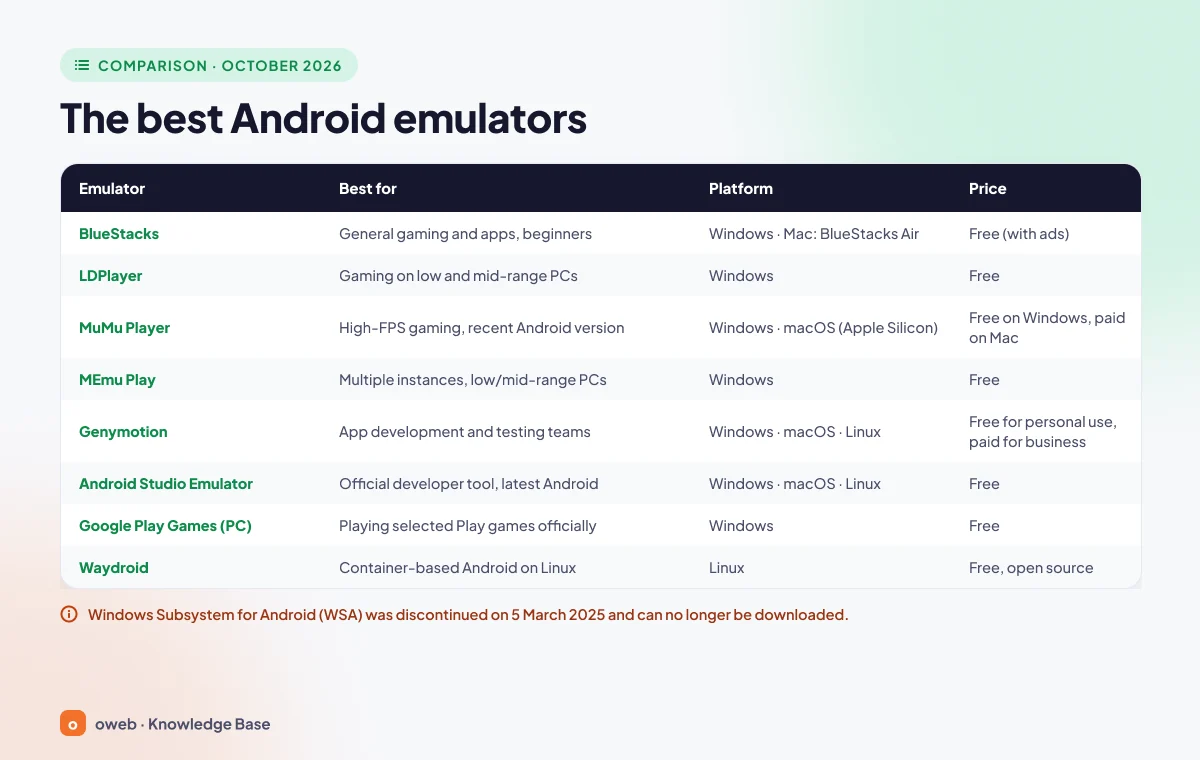
Android emulator comparison table
| Emulator | Best for | Android version | Platform | Price |
|---|---|---|---|---|
| BlueStacks 5 | General gaming, beginners | 7, 9, 11, 13 (Beta) | Windows 10/11 | Free with ads; ad-free subscription available |
| BlueStacks Air | Gaming on Mac | Not officially stated | macOS 11+ (Apple Silicon only) | Free |
| LDPlayer | Gaming on mid-range PCs, multi-instance | 9 and 14 (Beta) | Windows | Free with ads |
| MuMu Player | Gaming on a recent Android version | 12 and 15 | Windows, Windows on ARM (Beta), macOS | Free on Windows; paid on Mac after a 7-day trial |
| MEmu Play | Low-end and mid-range PCs, multiple accounts | 9 and 12 | Windows | Free, may contain ads |
| NoxPlayer | Macros and multi-instance | 9 and 12 (Beta) | Windows, macOS | Free |
| GameLoop | Call of Duty: Mobile, PUBG Mobile | Not officially stated | Windows | Free |
| Google Play Games (PC) | Playing Google Play games in an official environment | Not disclosed | Windows 10 (2004+) and 11 | Free |
| Android Studio Emulator | App development | Older versions up to Android 17 | Windows, macOS, Linux | Free |
| Genymotion | Testing/QA and cloud testing | Up to 16 | Windows 11, macOS, Linux, cloud | Free for personal use; paid plans $49–$479.99/year |
| Waydroid | Near-native performance on Linux | 13 (LineageOS) | Linux (Wayland) | Free, open source |
1. BlueStacks 5: the widest game compatibility
BlueStacks is one of the longest-running Android emulators and one of the easiest options for beginners. Its Windows version, BlueStacks 5, lets you open separate instances on different Android versions with the Multi-instance Manager.
- Android version: Android 11 (64-bit); also Android 7 (Nougat) 32/64-bit, Android 9 (Pie) 64-bit and Android 13 64-bit (Beta).
- Platform and price: Windows 10 and 11. Free and ad-supported; a monthly BlueStacks Prime subscription is available for ad-free use (check the official website for current pricing).
- Pros: Broad game compatibility, advanced keymapping, macros, multi-instance and builds that can run on systems with Hyper-V enabled.
- Cons: Ads and app recommendations in the free version; high RAM usage when several instances are open.
BlueStacks 10 is not a separate emulator but a cloud-powered launcher (we explain the difference in the FAQ section). Official website: bluestacks.com.
2. BlueStacks Air: for Apple Silicon Macs
BlueStacks Air is the free version built for Macs with Apple Silicon (M-series) processors; BlueStacks says it is optimized for M1–M4. Its first version was released in December 2024. It requires macOS 11 Big Sur or later, at least 8 GB of RAM (16 GB recommended) and 12 GB of free space; it does not support Intel-based Macs. Official website: bluestacks.com/mac.
3. LDPlayer: gaming on mid-range systems
LDPlayer is a gaming-focused emulator developed for Windows only. The official website offers LDPlayer 9, based on Android 9, and LDPlayer 14, based on Android 14; as of October 2026, LDPlayer 14 is still labeled "Beta".
- Platform and price: Windows only; free, with ads and app recommendations.
- Pros: A lighter Android 9 option, multi-instance and macro tools, and smoother performance with Hyper-V enabled in newer versions.
- Cons: No Mac or Linux version; LDPlayer 9 officially needs at least 36 GB of free disk space; disabling Hyper-V is still recommended for the best multi-instance performance.
Although the developer says LDPlayer 9 runs with 2 GB of RAM, with less than 8 GB you should expect a smooth experience only in lightweight games. Official website: ldplayer.net.
4. MuMu Player: gaming on a recent Android version
MuMu Player, developed by NetEase, announced Android 15 support in July 2026 and can run Android 12 and Android 15 instances at the same time.
- Platform and price: Windows, Windows on ARM (Beta) and macOS. The Windows version is a free download. The Mac version is free for 7 days on devices that have not used the trial before; after that, a paid subscription is required.
- Pros: One of the most up-to-date Android versions among gaming emulators; support for Mac and ARM-based Windows.
- Cons: The developer recommends turning off Hyper-V, virtualization-based security (VBS) and core isolation, which means compromising on security.
Recommended Windows hardware: Intel Core i5-7500 or better, at least 4 cores, an NVIDIA GTX 950 or better graphics card and at least 4 GB of RAM. Official website: mumuplayer.com.
5. MEmu Play: multiple accounts and different Android versions
MEmu Play is a Windows-only gaming emulator that is updated regularly; the latest version on the official website is 9.5.8, dated October 21, 2026. It offers Android 9 instances and Android 12 instances added as a beta, is free and, in the developer's own words, may contain ads. It has supported the Hyper-V engine since version 8.0. Official website: memuplay.com.
6. NoxPlayer: slowing development
NoxPlayer is a free emulator with Windows and Mac versions; it offers Android 9 and "Android 12 Beta" instances along with powerful macro and multi-instance tools. However, the latest version on the official website is 7.0.6.1, dated August 12, 2024, and updates have become noticeably less frequent. In 2021, ESET reported that malware had been delivered to a small number of targets through NoxPlayer's update infrastructure. NoxPlayer's developer, BigNox, then announced measures such as delivering updates only over HTTPS and verifying file integrity. Official website: bignox.com.
7. GameLoop: for Call of Duty: Mobile and PUBG Mobile
Tencent's GameLoop (formerly Tencent Gaming Buddy) markets itself as the "official emulator" for Call of Duty: Mobile and is also popular among PUBG Mobile players. However, Activision's support page says Call of Duty: Mobile does not support the use of emulators. It runs only on Windows and is free; it is mostly chosen for competitive mobile games like these. Official website: gameloop.com.
8. Google Play Games (PC): Google's official gaming platform
Google Play Games (PC) is the official platform for playing Google Play games on a Windows computer and is available in more than 140 regions; it is offered for Windows only. Google states that the platform uses an emulator in the background. Games in the catalog are labeled according to Google's testing status (optimized, playable or untested); untested games can only be found through search and may not run smoothly. You cannot install APKs, and general apps such as WhatsApp cannot be installed either.
Minimum requirements: Windows 10 (version 2004) or later, 4 physical cores, 8 GB of RAM, an SSD with 10 GB of free space, an Intel UHD Graphics 630 or comparable GPU, an administrator account and virtualization enabled. Google Play Games is the only platform recognized as a virtual environment in Play Integrity checks. Official website: play.google.com/googleplaygames.
9. Android Studio Emulator: the official tool for developers
Google's own emulator is the standard choice for Android app developers. It comes free with Android Studio, contains no ads and creates virtual devices at many API levels, including Android 17 (API 37). The latest stable release is 37.2.12, dated October 1, 2026.
- Platform: 64-bit Windows 10 or later, macOS 12 or later and Linux. Android Studio runs on ChromeOS, but the emulator is supported only on certain Chromebook models.
- Google's recommendation: 16 GB of RAM and 16 GB of disk space; Android 17 (API 37) phone virtual devices are allocated at least 4 GB of RAM.
- Cons: It is not designed for gaming, lacks tools such as keymapping and is more technical to set up.
On Windows, the emulator has not used Intel HAXM since version 36.2.11 in October 2025, and Google's Android Emulator Hypervisor Driver (AEHD) is being deprecated on December 31, 2026. So if you use AEHD, you need to switch to Windows Hypervisor Platform (WHPX) by the end of 2026. Official website: developer.android.com.
10. Genymotion: testing teams and the cloud
Genymotion is a professional emulator for developers and testing (QA) teams. With version 3.10.0 in March 2026, Android 16 support came out of beta. It runs on Windows 11 (x86-64), macOS 15 and 26 (Intel and Apple Silicon; Rosetta is required on M-series chips), Ubuntu 24.04, Debian 13 and Fedora 43; there are also AWS, Google Cloud, Azure and Alibaba Cloud images and a SaaS option.
The desktop version is free for personal use (limited features, no support). Paid annual plans cost US$49 for Educational, US$239.99 for Individual and US$479.99 for Business. It is not suitable for gaming, and the desktop version is not supported in virtual machine, VPS or server environments. Official website: genymotion.com.
11. Waydroid: a container-based solution for Linux
Waydroid runs Android in a container on Linux (using LXC, Linux namespaces and binder); because there is no emulation, it offers near-native performance. It uses Android 13 based on LineageOS and requires a Wayland-based desktop session; it is free and open source. Google Play is not included by default. Official website: waydro.id.
What happened to Windows Subsystem for Android (WSA)?
On March 5, 2024, Microsoft announced its decision to discontinue WSA, which ran Android apps on Windows 11 through the Amazon Appstore. According to Microsoft Learn, WSA and the Amazon Appstore have not been available in the Microsoft Store since March 5, 2025; WSA installation guides you find online are no longer up to date.
Which Android emulator should I choose?
The right emulator depends on what you want to do and on your hardware.
For gaming
BlueStacks 5 or MuMu Player is a good starting point for general gaming. If your game is in the Google Play Games catalog, try Google Play Games first. For competitive online games, check the publisher's emulator policy; for example, Activision says Call of Duty: Mobile does not support emulators.
For low-end PCs
On a computer with less than 8 GB of RAM or a processor with fewer than four cores, try options based on older Android versions, such as LDPlayer 9, MEmu Play's Android 9 instance or BlueStacks 5's Android 9 (Pie) 64-bit instance. Run a single instance, lower the resolution to 1280x720 and set the FPS limit between 30 and 60.
For app development and testing
For developers working on their own, the free Android Studio Emulator is enough. If you want to run tests as a team or in parallel in the cloud, take a look at Genymotion's paid plans.
For Mac
On an Apple Silicon (M-series) Mac, the free option is BlueStacks Air; the Mac version of MuMu Player is paid after the trial. Developers can run Android Studio Emulator with arm64 images and benefit from hardware acceleration. BlueStacks Air does not work on Intel Macs, where Android Studio Emulator or Genymotion is a better fit.
For Linux and other platforms
On Linux, Waydroid suits everyday use, while Android Studio Emulator (with KVM) and Genymotion suit development. On ARM-based Windows computers, the beta version of MuMu Player stands out. On Chromebooks with Google Play support, Android apps run directly, so you don't need an emulator.
Android emulator system requirements
In practice, most current Android emulators need 64-bit Windows 10 or 11, a processor with virtualization support and at least 4 GB of RAM (some also run on older systems); 8 GB of RAM is recommended for comfortable use, and 16 GB of RAM with an SSD for heavy gaming, multiple instances and app development. The table below is compiled from the developers' official figures.
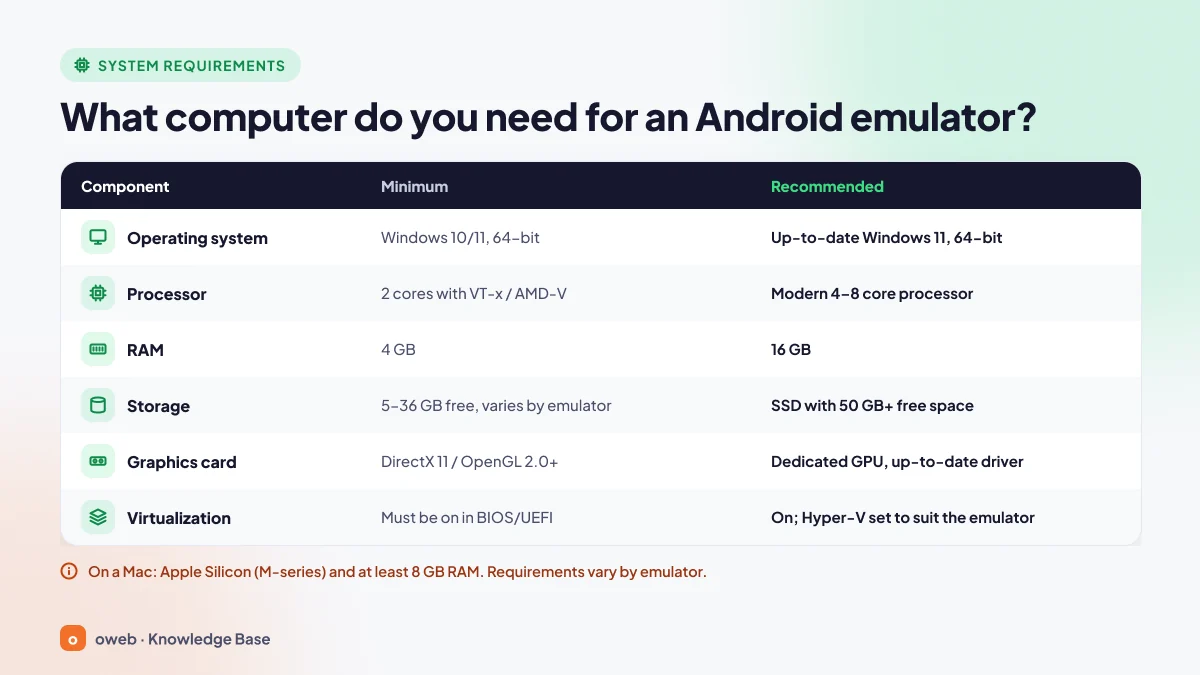
| Component | Minimum | Recommended |
|---|---|---|
| Operating system | 64-bit Windows 10 or 11 | Up-to-date Windows 11 (64-bit) |
| Processor | x86-64 processor with Intel VT-x or AMD-V support and virtualization enabled (4 physical cores for Google Play Games) | 4–8 cores; Intel Core i5-10500 or AMD Ryzen 5 class or better |
| RAM | 4 GB (BlueStacks 5); 8 GB for Google Play Games | 8 GB for comfortable use; 16 GB for heavy gaming, multiple instances and development |
| Disk | 5–36 GB of free space, depending on the emulator | SSD with 50–100 GB of free space |
| Graphics card | GPU with DirectX 11 or OpenGL support and an up-to-date driver (Intel UHD 630 or equivalent for Google Play Games) | Dedicated graphics card: NVIDIA GTX 950 for MuMu, GTX 1660 Ti class or better for LDPlayer |
| User account | Windows administrator account | Windows administrator account |
| Mac | Apple Silicon, macOS 11+, 8 GB of RAM (BlueStacks Air) | Apple Silicon, 16 GB of RAM |
Some emulators still list Windows 7 and 8 among their supported systems. However, Microsoft ended support for Windows 7 in 2020, for Windows 8.1 in 2023 and for Windows 10 on October 14, 2025. Running an emulator on a system that no longer receives security updates is an extra risk for your Google account; use Windows 11 if you can.
How to enable virtualization (VT-x / AMD-V)
You enable virtualization by restarting your computer and setting the Intel Virtualization Technology (VT-x) or AMD SVM option to "Enabled" in the BIOS/UEFI settings. If the emulator shows a warning such as "Virtualization (VT) is disabled" or runs very slowly, this setting is usually turned off.
How to check whether virtualization is enabled
- Open Task Manager with Ctrl + Shift + Esc.
- On the Performance tab, select CPU.
- If it says Virtualization: Enabled, you don't need to do anything; if it says Disabled, turn it on with the steps below.
If you use Android Studio, the emulator -accel-check command also shows the status of hardware acceleration.
Enabling virtualization in BIOS/UEFI
- Save any open files. In Windows 11, go to Settings > System > Recovery and click Restart now next to Advanced startup (in Windows 10, Settings > Update & Security > Recovery).
- On the screen that opens, go to Troubleshoot > Advanced options > UEFI Firmware Settings and click Restart.
- You will usually find the virtualization setting in the Advanced or CPU Configuration menu. On Intel it is called Intel Virtualization Technology, VT-x or Intel VMX; on AMD it is SVM Mode or AMD-V.
- Set it to Enabled, save and exit (F10 on most motherboards), and check Task Manager once Windows starts.
Change only the virtualization setting in the BIOS/UEFI; Microsoft also advises leaving the other settings alone. A wrong change can stop your computer from starting. If you can't find the menu, check your motherboard manufacturer's support page or Microsoft's virtualization guide.
Configuring Windows features
For Android Studio Emulator, type Turn Windows features on or off in the Start menu, check Windows Hypervisor Platform and restart your computer; this feature is available in Windows 10 version 1803 and later. Hyper-V, on the other hand, is only available in the Pro and Enterprise editions of Windows 10/11 and cannot be installed on Home editions. Windows Hypervisor Platform is a separate feature from Hyper-V; if it appears in the list on a Home edition, you can turn it on. Feature names may differ slightly depending on your Windows version and language.
How to install an Android emulator step by step
To install an Android emulator, enable virtualization, download and install the program from its official website, sign in with your Google account and install apps from the Play Store.
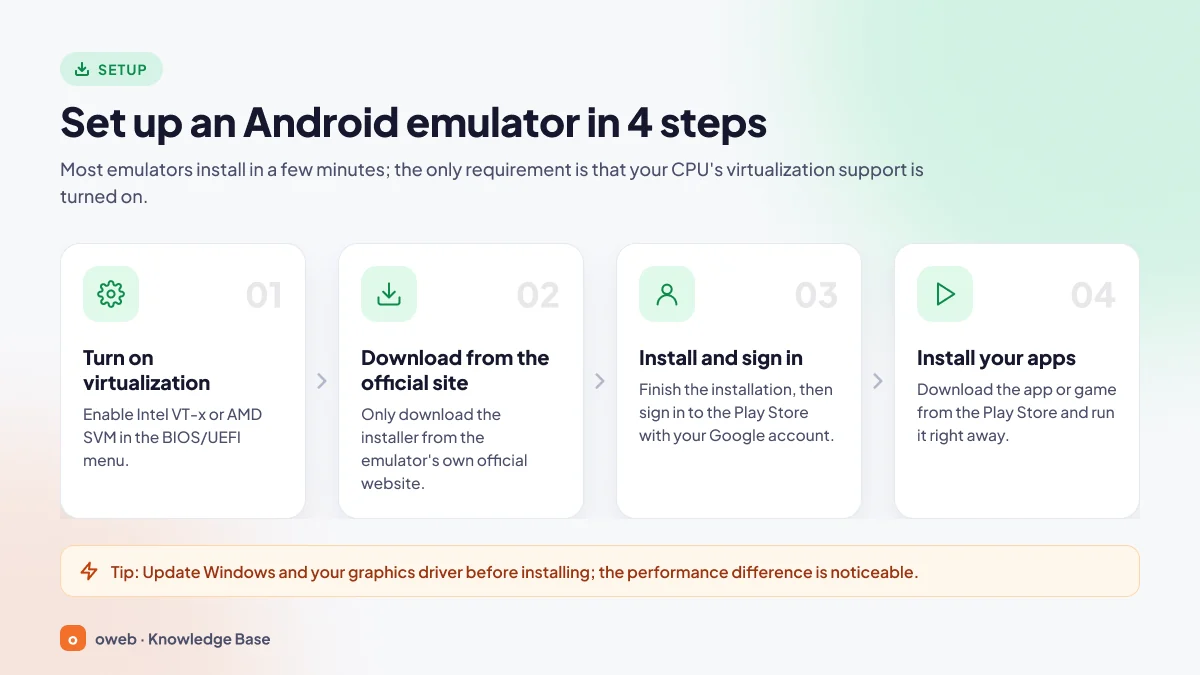
- Check virtualization: Make sure Task Manager shows Virtualization: Enabled.
- Download from the official website: Ad-driven download sites in search results may distribute modified installers.
- Install: Run the file and approve the administrator prompt. Uncheck any bundled software offers and, if possible, choose an SSD as the installation location.
- Choose the Android version: Pick a recent version for new games and a lighter version for older computers.
- Sign in with a Google account: Sign in to the Play Store. Using a secondary account instead of your main account is safer.
- Adjust resources: Set CPU cores, RAM, resolution, FPS and the graphics engine to suit your computer.
- Install apps: Install games from the Play Store and customize the controls on the keymapping screen.
Installing Android Studio Emulator (for developers)
- Download and install Android Studio; the setup wizard also installs the Android Emulator component.
- Open the Device Manager panel, create a new virtual device and choose a hardware profile (e.g., a Pixel phone).
- Download a system image: x86_64 on an x86-64 computer, arm64-v8a on an Apple Silicon Mac.
- Start the virtual device and deploy your app to it directly from Android Studio.
Why is my Android emulator lagging, and how can I speed it up?
If your emulator lags, the cause is usually the settings rather than the hardware. These steps work in most emulators:
- Enable virtualization: If Task Manager shows Virtualization: Disabled, the emulator runs very slowly without hardware acceleration; turn it on with the steps above.
- Allocate resources sensibly: 2–4 cores and 4 GB of RAM are enough for most games. Allocating more than half of your total RAM slows Windows down.
- Choose the right graphics card: On a laptop, assign the emulator to the high-performance GPU under Settings > System > Display > Graphics and keep the driver up to date.
- Switch the graphics engine: If you see display issues or low FPS, switch between DirectX, OpenGL and, if available, Vulkan.
- Limit FPS and resolution: An FPS value above your monitor's refresh rate brings no extra benefit, while 720p resolution saves a significant amount of resources.
- Close instances you are not using: Each additional instance is a separate Android system.
- Use an SSD and keep free space: Android Studio Emulator won't start if less than 5 GB of disk space is free.
- Reduce antivirus impact: Some antivirus programs slow emulators down by scanning their disk activity; you can add an emulator downloaded from its official website to your trusted apps.
- Raise the power mode: On a laptop, plug in the charger and set the power mode to best performance.
Is an Android emulator safe? Security and legality
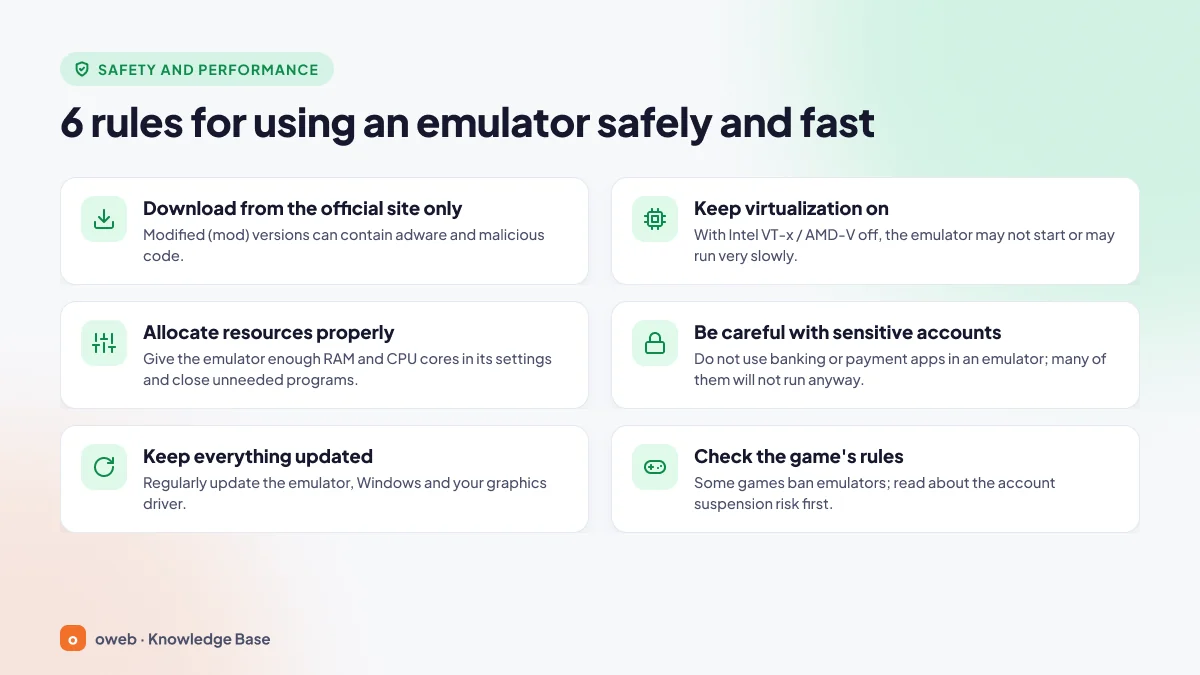
Emulators from well-known developers that are downloaded from official sources and kept up to date are generally safe. Most risks come from where you download the program and which accounts and apps you use in the emulator.
Is it legal to use an emulator?
In general, yes. The Android Open Source Project (AOSP) is distributed largely under the Apache 2.0 license, and emulators are built on this open-source system. The real limits come from the terms of service of the games and apps you use. This information is general in nature and is not a substitute for legal advice.
Risks to watch out for
- Fake installers: Modified installers advertised as "accelerated" or "ad-free" may contain malware.
- Update channel: The 2021 NoxPlayer incident showed that even official update infrastructure can be targeted; choose actively developed emulators.
- Google account: Use a secondary account instead of your main account and keep two-step verification turned on.
- Memory integrity: Some emulators ask you to turn this feature off. Microsoft describes it as a protection against malicious code; if possible, choose a Hyper-V-compatible build.
Do banking and payment apps work in an emulator?
Usually not. Banking, payment and some government apps can use Google's Play Integrity API to check whether they are running on a genuine, unmodified device. Emulators that cannot pass Google Play integrity verification and rooted devices fail this check. Trying to bypass these protections can get your account locked; use your phone for these tasks.
Can playing games on an emulator get you banned?
The rules vary from game to game. PUBG Mobile matches emulator players with each other and may take action against accounts that use unauthorized emulators; Activision says Call of Duty: Mobile does not support the use of emulators. Macro and auto-click tools count as cheating in many games. Read the publisher's current terms of service before you play.
Common problems and solutions
Most emulator problems are caused by the virtualization setting, a Hyper-V conflict or the graphics card driver.
"Virtualization (VT) is disabled" warning
Intel VT-x or AMD SVM is most likely disabled in the BIOS/UEFI; turn it on with the steps above. If the warning persists even though the setting is enabled, other virtualization software such as VMware, VirtualBox or Hyper-V may be using the hardware.
Hyper-V conflict: the emulator won't start
If you use Hyper-V, WSL 2, Windows Sandbox or Docker Desktop, some emulators may not start. First check whether a Hyper-V-compatible build is available; BlueStacks, LDPlayer and MEmu offer versions that run with Hyper-V enabled. If that doesn't help, the developers recommend the following:
- In the Turn Windows features on or off window, uncheck Hyper-V, Windows Hypervisor Platform, Virtual Machine Platform, Windows Sandbox and Windows Subsystem for Linux.
- Turn off Memory integrity under Windows Security > Device security > Core isolation.
- Restart your computer.
If you use Android Studio Emulator, don't turn off Windows Hypervisor Platform: Google recommends WHPX on Windows, HAXM support has been removed and the alternative AEHD driver is being deprecated on December 31, 2026. In that case, choose a gaming emulator build that runs with Hyper-V enabled.
After these steps, WSL 2, Docker Desktop and Hyper-V virtual machines will not work, and system security is reduced because Memory integrity is turned off. On Windows 11, Credential Guard may turn virtualization-based security (VBS) back on; if that happens, see your emulator's help page.
Black screen, freezing or crashing
Update your graphics card driver, then change the graphics engine in the emulator settings (OpenGL instead of DirectX, or the other way round). In Android Studio Emulator, if "auto" mode causes problems, "software" mode is recommended. Change one setting at a time and restart the emulator after each change.
"Your device isn't compatible with this version" error
Some apps are published only as 64-bit builds or require a newer Android version, so they won't install on 32-bit or older Android instances. Create a 64-bit instance running Android 11 or later from the multi-instance manager and try again. If the app deliberately blocks emulators, changing settings won't help.
Frequently asked questions
Are Android emulators free?
Most of them are. BlueStacks 5, LDPlayer, MEmu Play, NoxPlayer, GameLoop, Google Play Games, Android Studio Emulator and Waydroid are free; free gaming emulators usually make their money from ads. The Mac version of MuMu Player and Genymotion's commercial plans are paid.
What is the best Android emulator in 2026?
There is no single "best"; the choice depends on your goal. BlueStacks 5 or MuMu Player stands out for general gaming, BlueStacks Air for Mac, Android Studio Emulator for app development and Waydroid for Linux.
What is the best Android emulator for a low-end PC?
LDPlayer 9 (based on Android 9), MEmu Play or the Android 9 (Pie) instance of BlueStacks 5 are worth trying on older hardware. Running a single instance and lowering the resolution and FPS often makes a bigger difference than the choice of emulator.
How much RAM does an Android emulator need?
BlueStacks 5 needs at least 4 GB of RAM and Google Play Games needs 8 GB. 8 GB of RAM is recommended for comfortable use and 16 GB for heavy gaming, multiple instances and app development; Google also recommends 16 GB for Android Studio Emulator.
Does an emulator slow down my computer?
While it is open, it uses part of your RAM and processor, so other programs may slow down. When you close it, these resources are largely freed; however, some emulators run an update service in the background, which you can disable in your startup apps. Also remember that if you turned off Hyper-V or Memory integrity for the emulator, the change affects your entire system.
Is BlueStacks safe?
It is generally safe when downloaded from the official bluestacks.com website. BlueStacks is long-established and widely used software. The ads in the free version are a business model, not a security flaw; stay away from installers hosted on third-party sites.
What is the difference between BlueStacks 5 and BlueStacks 10?
BlueStacks 5 is the actual emulator that runs Android locally on your computer. BlueStacks 10 (BlueStacks X), on the other hand, is a hybrid launcher that opens games locally or streams them from the now.gg cloud; local games still run on the BlueStacks 5 engine.
What is the difference between BlueStacks and LDPlayer?
Both are free, ad-supported Windows gaming emulators. BlueStacks 5 offers Android 11-based instances and an Android 13 beta, has builds that can run with Hyper-V enabled and stands out for broad game compatibility; there is also BlueStacks Air for Mac. LDPlayer runs only on Windows; with the lighter Android 9-based LDPlayer 9 and the Android 14-based LDPlayer 14 (Beta), it focuses on multi-instance and macro use on mid-range computers.
Can you run Android apps on Windows 11?
Yes, but now only with an emulator. Microsoft's built-in solution, Windows Subsystem for Android, was discontinued on March 5, 2025. Today you can use an emulator such as BlueStacks, MuMu Player or LDPlayer for Android apps on Windows 11, or Google Play Games for games only.
Is Google Play Games for PC an emulator?
Technically yes: Google states in its own documentation that the platform uses an emulator. However, it is not a general-purpose emulator; it offers only games from Google Play, you cannot install APKs and general apps such as WhatsApp cannot be installed. It is also the only platform recognized as a virtual environment in Play Integrity checks.
Which emulator should I use for PUBG Mobile?
The best-known option for PUBG Mobile is Tencent's GameLoop emulator. PUBG Mobile matches emulator players with each other and may take action against accounts that use unauthorized emulators. So before you play, check the publisher's current terms of service to see which emulators are allowed.
Can you use an Android emulator on a Mac?
Yes. On Apple Silicon (M-series) Macs, you can use BlueStacks Air (free), MuMu Player (paid after the trial), Android Studio Emulator and Genymotion. On Intel Macs, Android Studio Emulator or Genymotion is a better fit.
Can you use WhatsApp in an Android emulator?
You can install it, but if you verify the same number in the emulator as your primary device, WhatsApp will be logged out on your phone. On a computer, the official WhatsApp Web or desktop app is far more practical; you can find the details in our WhatsApp Web guide in the Oweb Knowledge Base.
Does an Android emulator work on a VPS or VDS server?
In most cases it doesn't, or it works only in a limited way. Google states that the hardware-accelerated emulator cannot run inside another virtual machine such as VirtualBox, VMware or Docker and must run directly on a physical computer. Genymotion Desktop also does not support virtual machine and VPS environments. Other emulators can run on a virtual server only with nested virtualization support, which many providers keep disabled. Even with nested virtualization enabled, there is a performance penalty; because servers usually have no graphics card, graphics are rendered in software (e.g., swiftshader mode) and performance drops further. Before getting a Windows VDS or Linux VPS to run an emulator 24/7 or to set up a test environment, ask our support team whether nested virtualization is enabled. If you need direct access to the hardware, a physical dedicated server is a better fit.
Conclusion
When choosing an Android emulator, start by defining your goal: BlueStacks 5, MuMu Player or LDPlayer for gaming; BlueStacks Air for Mac; Android Studio Emulator for development; Waydroid for Linux. Whichever you choose, enable virtualization, download the program only from its official website and use your phone for sensitive apps such as banking. For more guides on servers, domain names and website management, visit the Oweb Knowledge Base.