


Changing the WordPress PHP version is done in your hosting control panel, not in the WordPress dashboard. In cPanel you use MultiPHP Manager or Select PHP Version. In Plesk you use the PHP link on the domain card. First take a full backup and update the core, plugins and theme. Then choose PHP 8.3 or a newer branch that your WordPress version supports, and test the site.
In short
- PHP is software installed on the server, so WordPress cannot change it by itself. You change the version in your hosting panel or ask your hosting provider's support team to do it.
- WordPress.org recommends PHP 8.3 or higher. The lowest version WordPress 7.0 and 7.1 can run on is PHP 7.4.
- WordPress 7.1 supports PHP 7.4 through 8.5. As of November 2026, PHP 8.4 or 8.5 is a good balance for most sites.
- To see your current version, go to Tools > Site Health > Info > Server > PHP version.
- Before you switch, take a full backup (files and database), install all updates, check what PHP version your plugins require and, if you can, test on a staging site first.
- If something goes wrong, you can roll back by selecting the old version again on the same panel screen.
Which PHP version does WordPress require?
Two things are easy to confuse here: the minimum version WordPress can run on and the version it recommends.
WordPress PHP requirements and the recommended version
The official WordPress requirements page recommends PHP 8.3 or higher, MariaDB 10.11 or MySQL 8.4 (or newer) for the database, and HTTPS support. The same page says WordPress also runs on PHP 7.4 and higher, but these older versions have officially reached end of life and may leave your site exposed to security vulnerabilities.
The WordPress PHP requirement rises over time. WordPress 7.0, released on May 20, 2026, raised the minimum to PHP 7.4 and dropped support for PHP 7.2 and 7.3. The WordPress Hosting Handbook recommends PHP 8.4 or higher for production environments. The branches in active support are 8.4 and 8.5, and WordPress 7.1 is fully compatible with PHP 7.4 through 8.5. In short, PHP 8.3 is the recommended floor, and 8.4 or 8.5 is the better choice today.
WordPress and PHP version compatibility table
The table below is based on the official compatibility table published by the WordPress core team (as of November 2026).
| WordPress version | Supported PHP versions | Note |
|---|---|---|
| WordPress 7.1 | 7.4, 8.0, 8.1, 8.2, 8.3, 8.4, 8.5 | Current release (7.1.5). Minimum PHP 7.4 |
| WordPress 7.0 | 7.4 - 8.5 | Support for PHP 7.2 and 7.3 dropped |
| WordPress 6.9 | 7.2 - 8.5 | Last branch that runs on PHP 7.2/7.3 |
| WordPress 6.8 | 7.2 - 8.4 | No PHP 8.5 support |
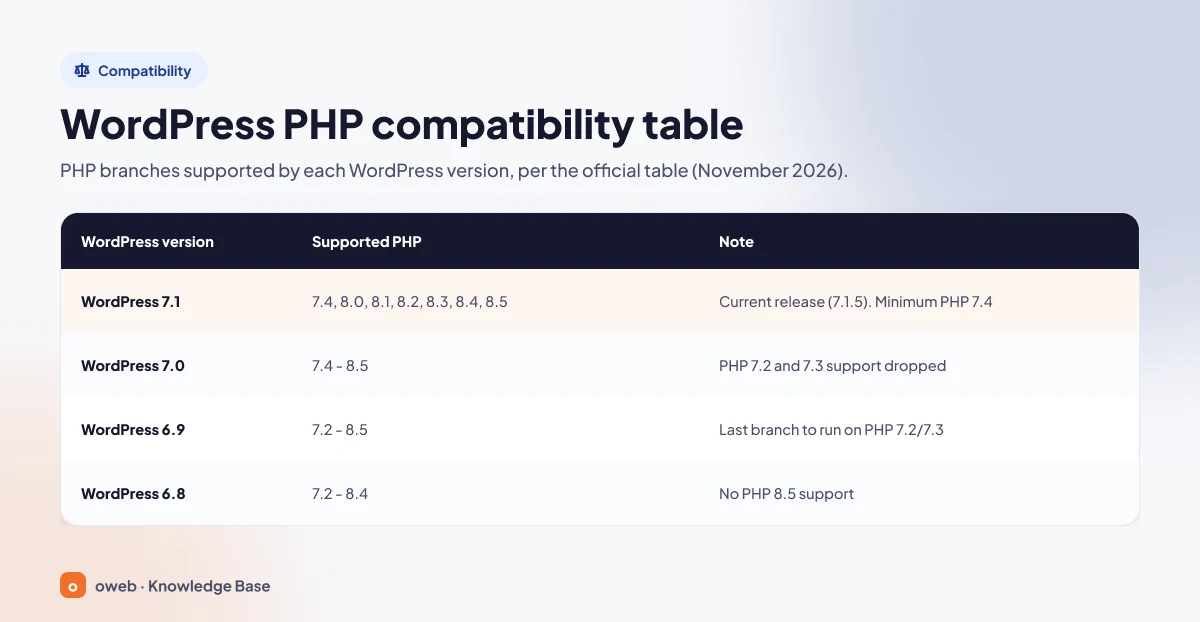
The table shows two things. First, WordPress PHP 8 compatibility is no longer an issue for the core: current WordPress fully supports 8.3, 8.4 and 8.5. The "beta support" label you may see in older articles was removed in May 2026. Second, staying on an old WordPress release while moving to a newer PHP branch is risky. For example, WordPress 6.8 does not support PHP 8.5. So always update WordPress first, then PHP.
Which PHP version should you choose?
Besides WordPress compatibility, also look at PHP's own support schedule. According to the php.net supported versions page, each branch gets two years of active support, followed by two years of security fixes only.
| PHP branch | End of active support | End of security support | Assessment for WordPress |
|---|---|---|---|
| 8.2 | December 31, 2024 | December 31, 2026 | Security support ends on this date; plan your upgrade |
| 8.3 | December 31, 2025 | December 31, 2027 | Recommended minimum; receives security fixes only |
| 8.4 | December 31, 2026 | December 31, 2028 | Safe, long-lived choice for most sites |
| 8.5 | December 31, 2027 | December 31, 2029 | A good option if all your plugins and themes support it |
| 8.6 | December 31, 2028 | December 31, 2030 | Not yet in the WordPress compatibility table |
PHP 8.1 and every older branch have reached end of life, and PHP 8.2 joins them on December 31, 2026. The PHP project no longer releases security fixes for these branches.
PHP 8.6.0 was released on November 19, 2026 and is not yet listed in the official WordPress compatibility table. Even if your panel offers it, wait for official support announcements for the core and your plugins before using it on a live WordPress site.
How to check your site's PHP version in WordPress
The Site Health screen shows your PHP version without installing any plugin:
- In the dashboard, open Tools > Site Health from the left menu.
- Switch to the Info tab at the top (the other tab is called Status).
- Click the Server section to expand it.
- Find the PHP version row. The value looks like "8.4.28 (Supports 64bit values)".
Before you switch, use the "Copy site info to clipboard" button and paste the details into a text file. You will need to compare values such as the PHP memory limit and the maximum upload file size later.
This screen is read-only and cannot change any server setting. On shared hosting you choose the branch (8.3, 8.4, 8.5), and your hosting provider updates the patch release (the last number in 8.4.28). As of November 2026, the latest patch releases are 8.2.36, 8.3.37, 8.4.28 and 8.5.13 (the November 19, 2026 security releases). You can see the current numbers on the php.net downloads page. If the version in that row is clearly behind, ask your hosting provider.
Why does WordPress show a PHP update warning?
WordPress checks your server's PHP version against a WordPress.org service and shows a message depending on whether that version is secure, acceptable and supported. Because these thresholds are updated on the WordPress.org side, the warning can appear even if you have not changed anything. As of November 2026, WordPress 7.1 shows the following messages on the Site Health > Status tab (the message includes your version number in parentheses):
| PHP version | Site Health message | Level |
|---|---|---|
| 8.3 and higher | Your site is running a recommended version of PHP | Passed |
| 8.1 and 8.2 | Your site is running an older version of PHP, which should be updated | Recommended improvement |
| 8.0 | Your site is running an outdated version of PHP, which does not receive security updates. It should be updated. | Critical issue |
| 7.4 | Your site is running an outdated version of PHP, which does not receive security updates and soon will not be supported by WordPress. | Critical issue |
This test only looks at the support status of the PHP branch. It also passes on PHP 8.6, but that does not mean WordPress officially supports that version.
The notice box on the Dashboard appears only on the oldest versions: on PHP 7.4 its title is "PHP Update Required", and on PHP 8.0 it is "PHP Update Recommended". Sites on PHP 8.1 and 8.2 do not see this box, only the Site Health recommendation.
The warning also has a practical effect. If your PHP version is too old, WordPress blocks core and plugin updates and shows a message such as "This plugin does not work with your version of PHP." For example, version 6.2.5 of Contact Form 7 requires PHP 8.3. A site that stays on old PHP cannot move to plugin and core releases that need a newer PHP, so it may also miss the security fixes in those releases.
What to do before upgrading PHP
Most problems during a WordPress PHP update are caused not by PHP itself but by old plugin and theme code that is incompatible with the new version. That is why the official WordPress guide to updating PHP puts preparation first.
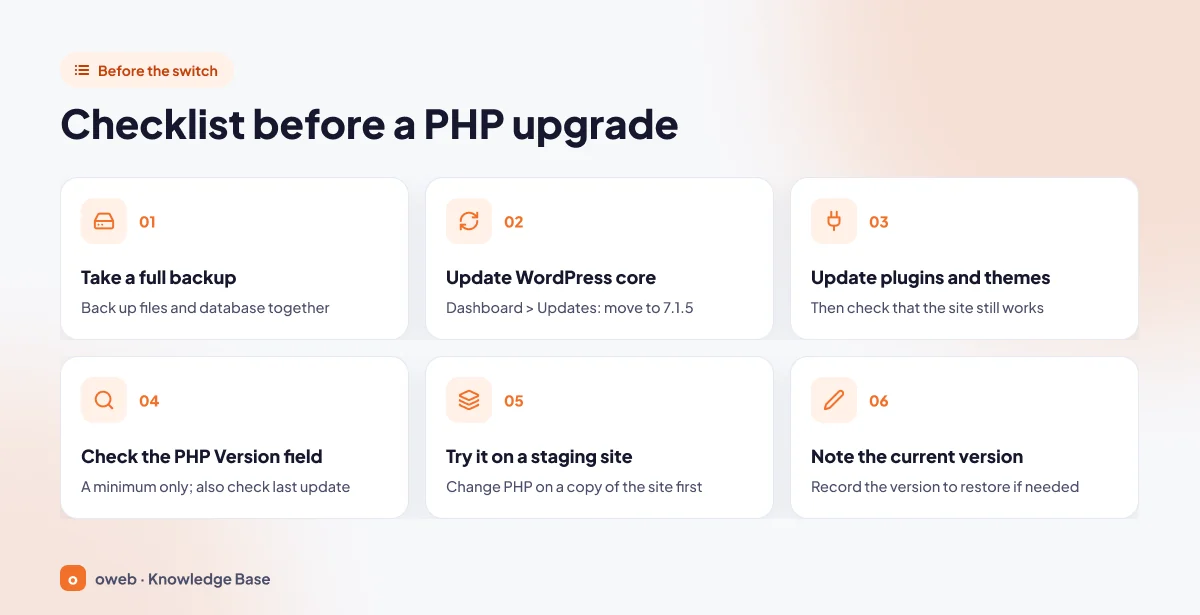
- Full backup: A backup has two parts, the files and the database, and you need both for a full restore. See our WordPress backup guide for the steps, and keep a copy of the backup off the server.
- Core update: Update to the latest WordPress release (7.1.5 as of November 2026) from Dashboard > Updates.
- Plugin and theme updates: Update everything, then check that the site works. This way, if an error appears later, you can tell whether it came from the updates or from PHP.
- PHP requirements: Check the minimum PHP version your plugins require (details below).
- Staging site: Change the PHP version on a copy of the site first.
- Note the current version: If you need to roll back, you have to know which version to select.
How to read the PHP version on a plugin page
In the WordPress.org plugin directory, each plugin page lists Version, Last updated, Active installations, WordPress version, Tested up to and PHP version. The "Requires PHP" field that the developer sets in the plugin header appears here as "PHP version: 7.4 or higher". In the dashboard, the same value appears as "Requires PHP" in the plugin's "View details" window.
- PHP version only gives the minimum. "7.4 or higher" does not prove the plugin runs without problems on PHP 8.5.
- Tested up to refers to the WordPress version the plugin was tested with, not PHP.
- Last updated is the most useful clue. A plugin that has not been updated for a long time has most likely not been tested on newer PHP branches. Check the changelog or ask the developer.
Premium themes and plugins are not in the directory, so you need to get this information from the vendor. For themes and plugins encoded (encrypted) with tools such as ionCube, make sure the vendor supports the PHP version you plan to use.
Testing on a staging site
The most reliable compatibility test is to run a copy of the site on the new PHP version. You can create this copy with the cloning tool in your hosting panel or by setting it up by hand on a subdomain. In cPanel, MultiPHP Manager sets the version separately for each domain, so you can run the copy on the new version while the live site stays on the old one. Remember to stop search engines from indexing the copy.
Step by step: changing the WordPress PHP version
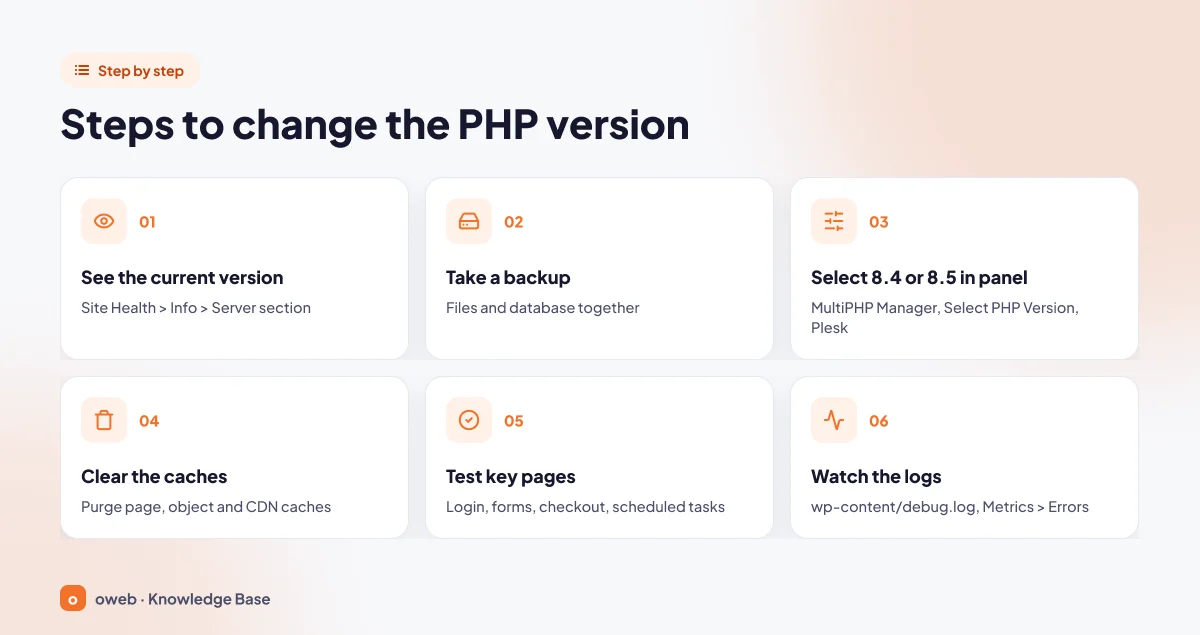
Once you are prepared, upgrading the WordPress PHP version takes only a few minutes. Follow these six steps in order.
1. Check and note the current version
Write down the value in the Tools > Site Health > Info > Server > PHP version row.
2. Take a backup
Back up the files and the database together. If you ever need to restore the backup, switch PHP back to the old version first and then restore, because the code in the backup may not run on the new PHP version.
3. Change the version in your hosting panel
Which tool you see depends on your hosting provider's server configuration. For detailed panel steps, see our guide to changing the PHP version. Here are the short versions:
cPanel: MultiPHP Manager
- In cPanel, open MultiPHP Manager in the Software section.
- Select the checkbox next to your WordPress site's domain in the list.
- Choose the new version from the PHP Version menu and click Apply.
The setting applies to each domain separately. The "inherit" option means the domain uses the default version set by the server administrator. Source: cPanel MultiPHP Manager documentation.
cPanel (CloudLinux): Select PHP Version
On servers running CloudLinux, the Software section includes the Select PHP Version tool. On this page you choose the current PHP version and the extensions to enable for it. Extensions are stored separately for each PHP version. The "Switch to PHP options" link shows values such as memory_limit and upload_max_filesize, and changes to these options are saved automatically. If you see a confirmation button after changing the version, click it, then confirm the new version on the Site Health screen.
The "My Domains" tab in the same tool shows which selector each domain uses. If your domain does not use PHP Selector, the choice you make here will not apply to it. If PHP-FPM is enabled for the domain, only the server administrator can turn it off, so contact your hosting provider in that case. Source: CloudLinux PHP Selector documentation.
Plesk
- On the Websites & Domains screen, find the domain and click the PHP link (the current version is shown next to the icon).
- If the "PHP support" checkbox is cleared, select it, then choose the PHP version from the drop-down menu.
- Click OK to save. The change takes effect within a short time.
Source: Plesk PHP settings documentation.
If your panel has none of these tools, your hosting provider manages the PHP version, and you just need to open a support ticket.
Do not try to change the PHP version by adding a handler line to your .htaccess file by hand; the panel manages the version. A line copied from another site that your server does not recognize can make your site return a 500 error.
4. Clear your caches
Clear the page cache, the object cache if you use one, and the CDN cache. Otherwise, during testing you will see a stored copy left over from the old version instead of the page generated by the new PHP, and you may miss errors.
5. Test key pages
Confirm that the Site Health screen shows the new version, then work through the list in the next section.
6. Monitor the logs
Check the error logs several times on the first day. In cPanel, the Metrics > Errors interface shows the last 300 entries of the web server error log. WordPress's own log (if you enabled it) is the wp-content/debug.log file.
Make the change when visitor and order traffic is at its lowest, and stay at your computer until testing is finished.
What to test after the change
Errors often hide in rarely used pages and features rather than on the homepage. Follow this order:
- Front end: the homepage, a post, a category, a search results page and, if you have one, a page built with a page builder.
- Login and admin: logging in through wp-login.php, the post editor, and uploading an image to the Media Library (are thumbnails generated?).
- Forms: submit your contact form and confirm that the email arrives.
- Checkout: in WooCommerce, adding to cart, the checkout page and, if possible, a test order; also payment gateway callbacks, invoicing and shipping integrations.
- Scheduled tasks: the Site Health > Status tab should not show any warning about scheduled events (such as "A scheduled event is late").
If you run scripts from the command line through cron on the server, check them separately, because the command-line PHP version may differ from the one you selected in the panel. PHP settings (memory limit, upload size) can be stored separately for each version, so compare the values in Info > Server with the copy you saved before the switch.
What to do if your site won't load after a PHP update
If your site won't load after a PHP update, one of the most common causes is an old plugin or theme that calls a function removed in the new PHP version. An extension that is not enabled in the new version can have the same result. If the site is taking orders at that moment, first switch back to the old PHP version to get the site running again, and look for the cause later on a staging site.
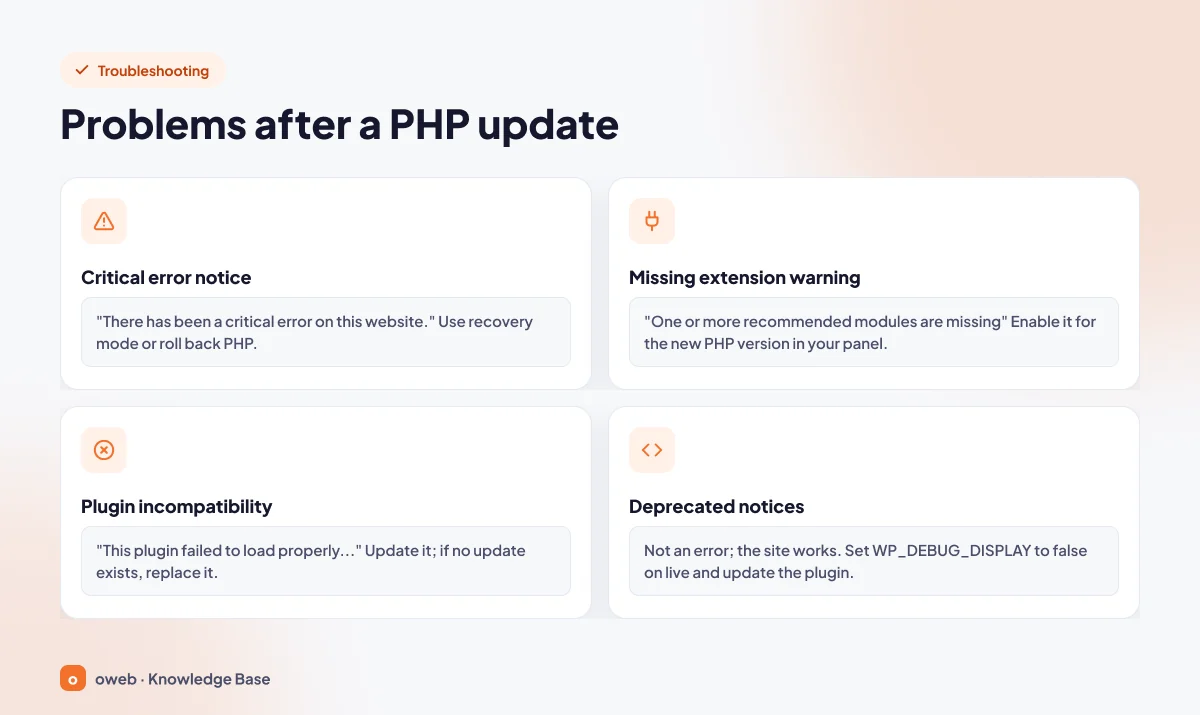
| Message you see | What it means | Fix |
|---|---|---|
| There has been a critical error on this website. | Fatal PHP error | Log in through the recovery mode link in the email and deactivate the faulty plugin, or switch PHP back to the old version |
| One or more recommended modules are missing | An extension is not enabled in the new PHP version | Enable the extension for the new version in your hosting panel |
| This plugin failed to load properly and is paused during recovery mode. | The plugin is incompatible with the new PHP | Update the plugin; if no update exists, replace it with a maintained alternative |
| Deprecated: Creation of dynamic property ... is deprecated (example line) | The code uses a PHP feature that will be removed in the future; this is not an error and the site keeps working | Turn off error display on the live site and watch for a plugin update |
Switch back to the old PHP version
Rolling back is simply the change in reverse. It is the simplest and safest first step, and you do not need to edit any files. On the same panel screen (MultiPHP Manager, Select PHP Version or the PHP page in Plesk), select the old version you noted and save. If the old version is not in the menu, or the administrator has locked the version, ask your hosting provider for help.
Do not treat the rollback as a permanent fix. Staying on an end-of-life branch turns the problem into a security risk. Once the site is back up, track down the error on a staging site, update the incompatible component and try the switch again. The steps below help you find where the error comes from.
How to fix "There has been a critical error on this website"
This message means PHP stopped with a fatal error. The first job is to find out which plugin or theme caused it. There are two ways to do this: the recovery mode email and the error log.
When a plugin or theme causes a fatal error, WordPress sends a message to the administrator email address with the subject "[Site Name] Your Site is Experiencing a Technical Issue". The message includes the name of the plugin or theme that caused the problem, the error details, the PHP version and a recovery mode link. By default the link is valid for one day, and you still need to log in after clicking it. The faulty component is paused only for your session, and visitors still see the broken site. In other words, recovery mode is not a fix; it is a way to get in so you can fix the problem.
If no email arrives, write the error to a log. First back up the wp-config.php file. In most installations the file already contains the line define( 'WP_DEBUG', false );. Find it, delete it and put the lines below in its place. Do not define the same constant a second time: PHP uses the first definition, and logging will not be turned on. If there is no such line, add the lines before the comment that starts with "/* That's all, stop editing!" (in localized installations this comment may be translated; in every case, the lines must come before the require_once line that loads wp-settings.php):
define( 'WP_DEBUG', true );
define( 'WP_DEBUG_LOG', true );
define( 'WP_DEBUG_DISPLAY', false );
@ini_set( 'display_errors', 0 );
Errors are then written to the wp-content/debug.log file and are not shown to visitors. In the log, the file path on the line containing "PHP Fatal error" (for example wp-content/plugins/plugin-name/...) points to the problem component. See the WordPress debugging documentation for details. If the screen is completely blank, the steps in our WordPress white screen of death guide will also help.
When you are done, set WP_DEBUG back to false, remove the other three lines you added and delete the debug.log file. WordPress does not recommend leaving debug mode on for live sites, and the log file may stay in a publicly accessible location.
Find the plugin causing the problem
If you can access the dashboard
In recovery mode, the Plugins screen shows the note "This plugin failed to load properly and is paused during recovery mode." under the paused plugin. Turn the plugin off with the Deactivate link, exit recovery mode and check the site.
If you cannot access the dashboard
- If the log tells you which plugin is causing the error, open the wp-content/plugins folder with the file manager or FTP and rename that plugin's folder (for example, add .hold to the end). When WordPress cannot find the plugin, it treats it as deactivated.
- If you do not know which plugin it is, rename the plugins folder to "plugins.hold", go to /wp-admin/plugins.php, rename the folder back to "plugins" and activate the plugins one by one to find the one that triggers the error.
- If the problem is in the theme, first make sure a default WordPress theme (the themes whose names start with Twenty) is installed in the wp-content/themes folder, then rename the active theme's folder. WordPress switches to the default theme. If no default theme is installed, upload one first.
The method of renaming the whole plugins folder is described in the WordPress troubleshooting documentation. The database method in the same document (editing the active_plugins entry in the wp_options table) is riskier. Use it only after taking a database backup, and only if the folder method does not work.
When moving from PHP 7.4 to 8.x, a common cause of errors is code that still uses functions removed in PHP 8.0, such as create_function(), each() and get_magic_quotes_gpc() (php.net migration notes). Fix these errors by updating the plugin or replacing it with another one, not by editing the plugin code by hand; manual fixes are overwritten by the next update.
Why do Deprecated notices appear after a PHP update?
A Deprecated notice is not an error but an advance warning: the feature the code uses still works, but it will be removed in a future major version of PHP. For example, PHP 8.2 deprecated creating dynamic properties on classes and the utf8_encode() and utf8_decode() functions, and PHP 8.4 deprecated implicitly nullable parameter types (php.net PHP 8.2 notes). That is why old code can produce lines such as "Deprecated: Creation of dynamic property ... is deprecated" on a new branch.
When WP_DEBUG is off, WordPress does not report these notices. If you see them on screen, WP_DEBUG may have been left on in wp-config.php, or error display may be turned on at the server level. Keep error display turned off on the live site (WP_DEBUG_DISPLAY set to false) and watch for an update to the plugin or theme in question.
Which PHP extensions does WordPress need?
When you change the PHP version, your extensions may not carry over automatically, because on many servers each PHP version has its own set of extensions. imagick or intl may be enabled on the old version but disabled on the new one. The reference for which WordPress PHP extensions are needed is the list in the WordPress Hosting Handbook (Site Health calls these extensions "modules"):
| Extension | What it is used for | Status |
|---|---|---|
| mysqli | MySQL/MariaDB database connection | Required |
| json | Processing JSON data, communicating with other servers | Required |
| hash | Secure hashing algorithms | Required |
| curl | Remote server requests (updates, API calls) | Highly recommended |
| mbstring | Correct handling of UTF-8 text (non-ASCII characters) | Highly recommended |
| imagick | Resizing images, PDF thumbnails (gd is used if it is missing) | Highly recommended |
| zip | Unpacking plugin, theme and update packages | Highly recommended |
| openssl | Secure connections over SSL | Highly recommended |
| opcache | Keeps compiled PHP code in memory | Recommended (caching) |
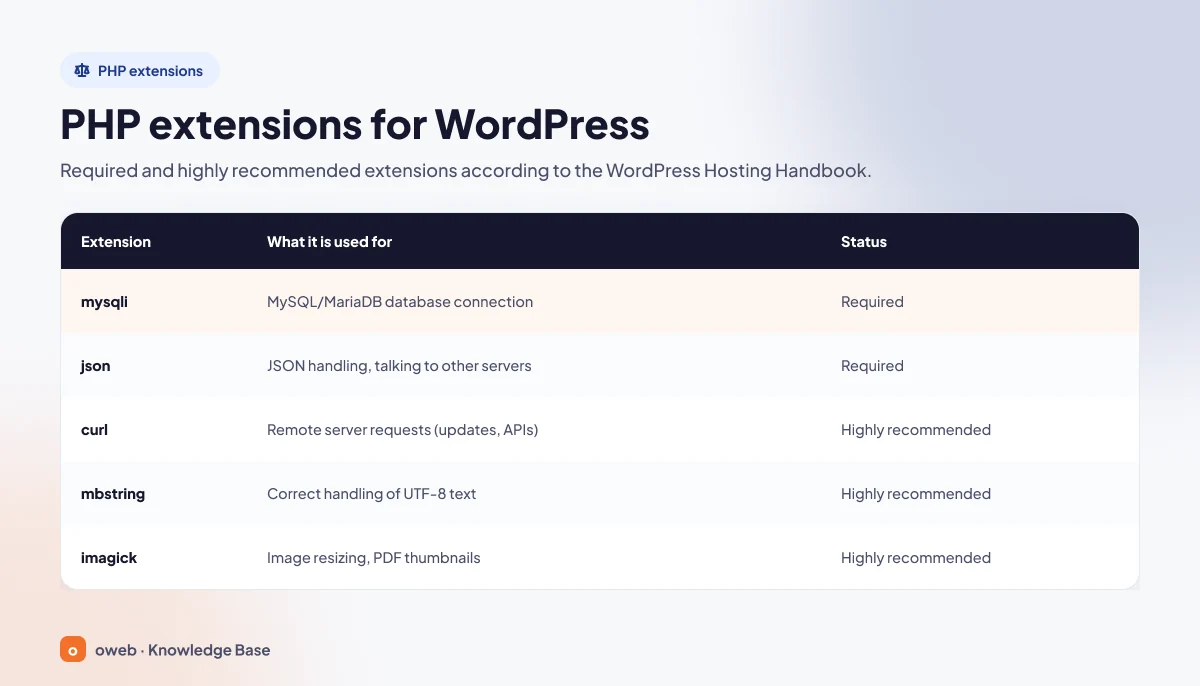
The highly recommended list also includes dom, exif, fileinfo, intl and xml. If mysqli is missing on the server, WordPress will not load at all and shows the message "Your PHP installation appears to be missing the MySQL extension which is required by WordPress." Site Health lists other missing modules on the Status tab under the heading "One or more recommended modules are missing", with lines such as "The optional module, imagick, is not installed, or has been disabled."
The fix depends on your panel. If you use Select PHP Version, select the checkbox for the extension under the new version. If you cannot manage extensions yourself, tell your hosting provider which extension is missing.
Along with the extensions, also check the PHP memory limit. The Hosting Handbook recommends a memory_limit of at least 128M, 256M as the default, and 512M or more for sites that use WooCommerce or a page builder.
Does a newer PHP version make your site faster and more secure?
The security benefit is certain, and it is the main reason to upgrade. The PHP project no longer releases fixes for newly found vulnerabilities in a branch whose support has ended. According to WordPress.org statistics, as of November 2026 about 30 percent of WordPress sites still run on an end-of-life PHP branch (8.1 or older).
The speed benefit is real, but it should not be overstated. The WordPress documentation says PHP gets more efficient with each new version, and moving to the recommended version can improve performance. Independent benchmarks show the difference is more noticeable when moving from PHP 7.4 to 8.x and on PHP-heavy sites such as WooCommerce stores, but limited between 8.x branches on a simple WordPress site. A PHP update alone will not make a slow site fast. For caching, image sizes and plugin load, see our guide to speeding up a WordPress site.
Frequently asked questions
Can I change the PHP version from the WordPress dashboard?
No. WordPress only shows the version and warns you about it. Because PHP is installed on the server, you change it in your hosting panel or with help from your hosting provider's support team.
Does updating WordPress also update the PHP version?
No, the two are independent. In fact, if your PHP version is too old, WordPress cannot be updated to the new release and tells you so on the Updates screen.
Will a PHP update break my site?
The current WordPress core supports versions up to PHP 8.5. The risk lies in plugins and themes that are not maintained. If you have installed all updates and tested on a staging site, problems are unlikely, and if something does go wrong you can switch back to the old version on the same screen.
Can I keep using WordPress with PHP 7.4?
Technically, WordPress 7.1 runs on PHP 7.4, but PHP 7.4 has not received security fixes since November 2022. WordPress also flags this version as "soon will not be supported". According to a note in the WordPress 7.1 source code, the minimum will later be raised to at least PHP 8.0, but no date has been announced.
Does WordPress work with PHP 8.6?
PHP 8.6.0 was released on November 19, 2026 and, as of November 2026, is not listed in the official WordPress compatibility table. Until support is announced for the core and your plugins, stay on the 8.4 or 8.5 branch on your live site and try 8.6 only on a staging site.
When does PHP 8.2 support end?
According to php.net, security support for PHP 8.2 ends on December 31, 2026. After that date the PHP project will not release fixes for this branch, so sites on PHP 8.2 should plan a move to 8.4 or 8.5.
Which PHP version should I use for WooCommerce?
The same rule applies: choose PHP 8.4 or 8.5 after testing on a staging site. Also confirm that your payment, shipping and invoicing plugins support the branch you choose. The WordPress Hosting Handbook recommends a memory_limit of 512M or more for WooCommerce sites.
What is the difference between MultiPHP Manager and Select PHP Version?
MultiPHP Manager is cPanel's own tool and sets the PHP version separately for each domain. Select PHP Version is CloudLinux's PHP Selector tool; along with the version, it also manages that version's extensions and PHP options. Which one you see depends on your hosting provider's configuration. The "My Domains" tab in Select PHP Version shows which selector each domain uses, and the "native" option in this tool means the PHP version installed by cPanel (EasyApache).
How do I remove the "PHP Update Required" notice?
Do not try to hide the notice. It goes away on its own when you upgrade PHP. The "PHP Update Required" and "PHP Update Recommended" boxes on the Dashboard are not shown on PHP 8.1 and higher, and the recommendation on the Site Health screen disappears once you move to PHP 8.3 or a newer branch.
What should I do if the PHP version I want is not in the panel?
Either that version is not installed on the server or it has not been made available for your account. Ask your hosting provider which versions they offer.
What should I do if the recovery mode email does not arrive?
Check your spam folder; the message goes to the site's administrator email address. If it still has not arrived, do not wait. Switch PHP back to the old version or use the method of renaming the plugin folder.
Conclusion
The answer to how to change the PHP version of a WordPress site is more than a single click. A safe switch has four parts: a backup, a compatibility check, testing and a rollback plan. Check your current version on the Site Health screen, take a full backup, update WordPress, your plugins and your theme, select a supported branch such as PHP 8.4 or 8.5 in your hosting panel, test your key pages and monitor the logs on the first day.
For detailed panel steps, see our general guide to changing the PHP version. You can compare hosting options for your WordPress site on the Oweb WordPress hosting page, and if you are an Oweb customer, you can open a support ticket whenever you get stuck during the switch.
