


Changing your PHP version is done from your hosting control panel, not from the WordPress dashboard: in cPanel, you open MultiPHP Manager in the Software section, select your domain, choose a version from the PHP Version menu and click Apply. On servers running CloudLinux, Select PHP Version does the same job, and in Plesk it is the PHP screen under Websites & Domains.
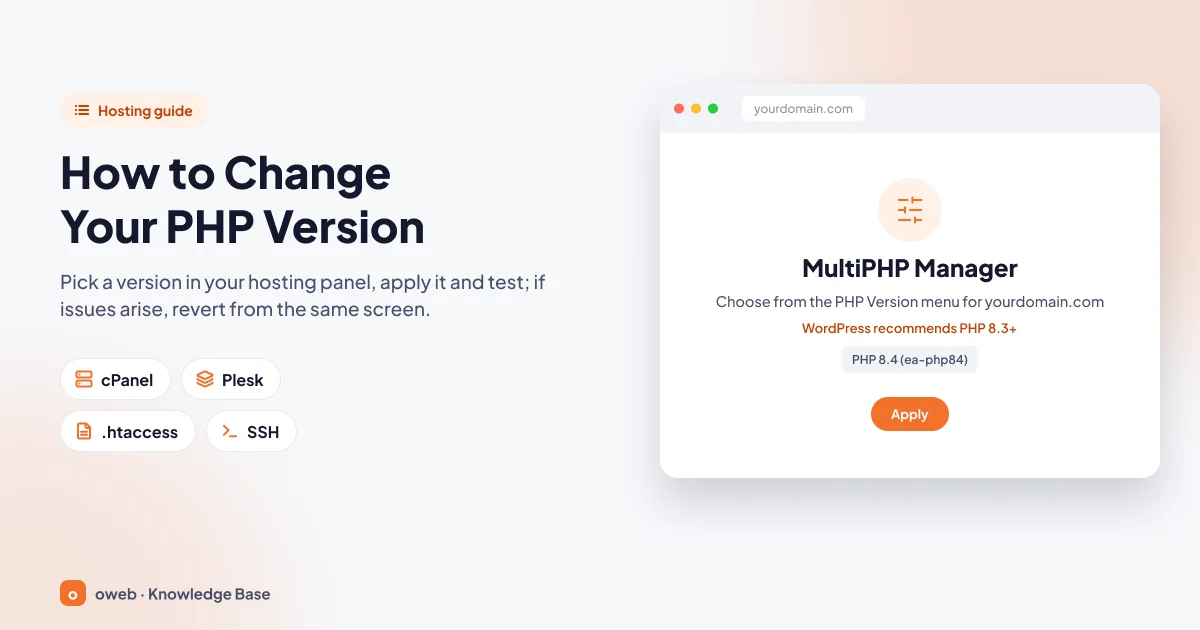
In short: changing your PHP version
- Your PHP version is changed from your hosting control panel; WordPress only shows the current version under Tools > Site Health.
- cPanel: Software > MultiPHP Manager > domain checkbox > PHP Version > Apply.
- Servers running CloudLinux: Software > Select PHP Version; the version and extensions are on the same screen.
- Plesk: Websites & Domains > domain > PHP > version and handler > OK.
- As of November 2026, php.net supports the 8.2, 8.3, 8.4, 8.5 and 8.6 branches; security support for PHP 8.2 ends on December 31, 2026.
- WordPress recommends PHP 8.3 or higher.
- Back up first, then make the change, then test; if something breaks, switch back to the previous version from the same screen.
Why does your PHP version matter?
PHP is the server-side programming language in which WordPress and most ready-made web applications are written. On every page request the server interprets the PHP code, and the version of that interpreter determines whether your site receives security patches, how fast it runs and whether your plugins will work.
Why is an unsupported PHP version a security risk?
PHP's support policy is clear: each branch receives two years of active support from its first stable release, followed by two years of critical security fixes only. After four years the branch reaches end of life, and newly discovered vulnerabilities are no longer patched. The current schedule is on the php.net Supported Versions page.
Does updating PHP make your site faster?
WordPress's official Update PHP page states that newer PHP versions are faster and more secure. Because the interpreter improves from release to release, the same code often runs with less CPU time. The gain varies by version and by site, so we don't quote a general percentage. Measure speed on your own site before and after the change.
Plugin and theme compatibility
Compatibility works both ways. An old plugin may throw errors on a new PHP version because it calls a function that has been removed. Conversely, current software won't accept old PHP: with WordPress 7.0, the minimum PHP version was raised to 7.4. If the PHP on your server is too old for a plugin, the Plugins screen shows the notice "This plugin does not work with your version of PHP." below that plugin. In other words, upgrading your PHP version is often also a prerequisite for installing new plugin versions.
How do you check which PHP version you are using?
There are three ways to check your PHP version; we list them starting with the most reliable.
WordPress Site Health screen
In the dashboard, open Tools > Site Health, switch to the Info tab and expand the Server section. The PHP version row shows the version your site actually uses for web requests. If that version no longer receives security updates, the Status tab shows the warning "Your site is running on an outdated version of PHP (...), which does not receive security updates. It should be updated."; for versions below the recommended one that still receive updates, you will see the message "Your site is running on an older version of PHP (...)". Details are in the WordPress Site Health documentation.
phpinfo file
If you don't use WordPress or can't access the dashboard, create a file with a hard-to-guess name, for example version-7f3a9.php, in your site's root folder (the document root, usually public_html) and add this line:
<?php phpinfo(); ?>When you open https://yourdomain.com/version-7f3a9.php in your browser, you will see the PHP version, the installed extensions and the current configuration values. If the version number is all you need, use this line instead, which reveals far less information:
<?php echo phpversion(); ?>The phpinfo output shows server paths and configuration values to anyone who knows the URL. Delete the file as soon as you are done, and do the same with a file that prints only the version number.
From the command line via SSH
If you have SSH access, the following commands show, in order, the version, the installed modules (extensions) and the php.ini file being loaded:
php -v
php -m
php --ini
Keep in mind that the PHP on the command line may not be the same as the PHP your site uses for web requests. On Plesk servers, php -v usually shows the operating system's PHP. In cPanel, the php command is a wrapper that looks for the version set for the current directory and falls back to the server default if it finds none. When verifying your site's version, rely on Site Health or the phpinfo output.
Which PHP version should you choose?
The right version is the newest one that still receives security support and runs your software without problems.
Supported PHP versions and support dates (November 2026)
The table is based on the php.net schedule published as of November 22, 2026.
| Version | End of active support | End of security support | Status in November 2026 |
|---|---|---|---|
| PHP 8.2 | December 31, 2024 (ended) | December 31, 2026 | Security fixes only |
| PHP 8.3 | December 31, 2025 (ended) | December 31, 2027 | Security fixes only |
| PHP 8.4 | December 31, 2026 | December 31, 2028 | Active support |
| PHP 8.5 | December 31, 2027 | December 31, 2029 | Active support |
| PHP 8.6 | December 31, 2028 | December 31, 2030 | Active support (released November 19, 2026) |
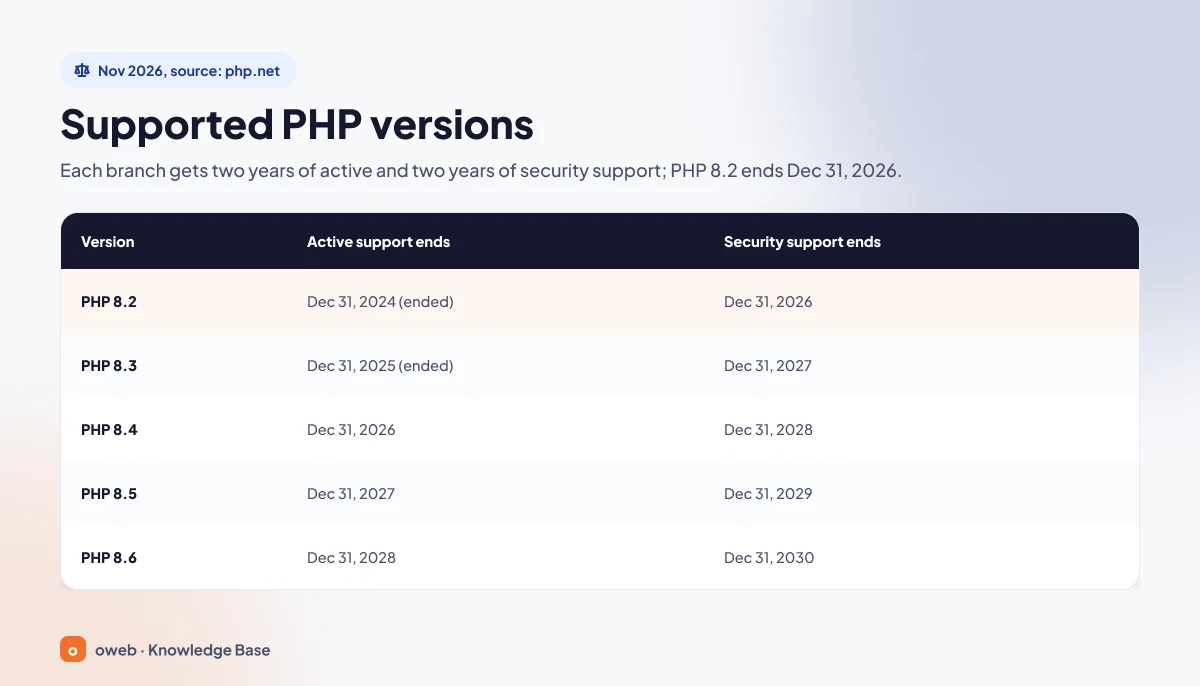
Support for PHP 8.1 ended on December 31, 2025, for PHP 8.0 on November 26, 2023, and for PHP 7.4 on November 28, 2022 (php.net's unsupported branches page). Watch two upcoming dates: after December 31, 2026, PHP 8.2 is no longer supported, and from that same date PHP 8.4 receives security fixes only.
Which PHP version does WordPress recommend?
The WordPress requirements page recommends PHP 8.3 or higher and, on the database side, MariaDB 10.11 or MySQL 8.4 or higher. WordPress also runs on PHP 7.4, but the same page notes that this version has reached end of life and may leave your site exposed to security vulnerabilities. The WordPress hosting team recommends the 8.4 and 8.5 branches for new installations.
In practice, when updating the PHP version for WordPress, aim for at least 8.3; if your plugins are up to date, 8.4 or 8.5 will keep you covered for longer. If you are building a new site, check up front which PHP versions you can select in your WordPress hosting plan.
Should you switch to PHP 8.6 right away?
PHP 8.6.0 was released on November 19, 2026 and may not appear in your panel yet: the cPanel documentation lists PHP 7.4 and versions 8.1 through 8.5 for EasyApache 4. As of November 2026, PHP 8.6 is not yet listed in WordPress's compatibility table either. WordPress 7.2, planned for December 2026, is expected to bring PHP 8.6 compatibility improvements, but this is not confirmed until that release ships.
PHP 8.6 also deprecates several functions commonly used in plugins, such as spl_object_hash(), is_double() and mb_split(): these functions keep working in 8.6 but produce a Deprecated notice (WordPress Developer Blog). Wait for compatibility announcements from plugin developers before moving your live site to 8.6.
What should you do before changing your PHP version?
Changing the version takes one click, but it affects all the PHP code on your site. Prepare first:
- Take a full backup of both your files and your database.
- Record the current state: write down the current PHP version, the enabled extensions and any custom settings such as
memory_limit; you will need them if you roll back. - Update WordPress core, your theme and your plugins on the current PHP version first; compatibility fixes ship in the latest releases.
- Weed out unmaintained components: check the PHP requirement and the last updated date on each plugin's wordpress.org page.
- Try the new version on a staging site first: set up a copy of your site on a subdomain and select the version there. The copy needs its own database; see our guide to creating a MySQL database.
- Make the change when traffic is at its lowest.
The PHP Compatibility Checker plugin recommended in older guides is no longer maintained and only checks compatibility up to PHP 8.0. For PHP 8.3 and later, the reliable method is a staging site combined with the error log.
How to change your PHP version in each control panel
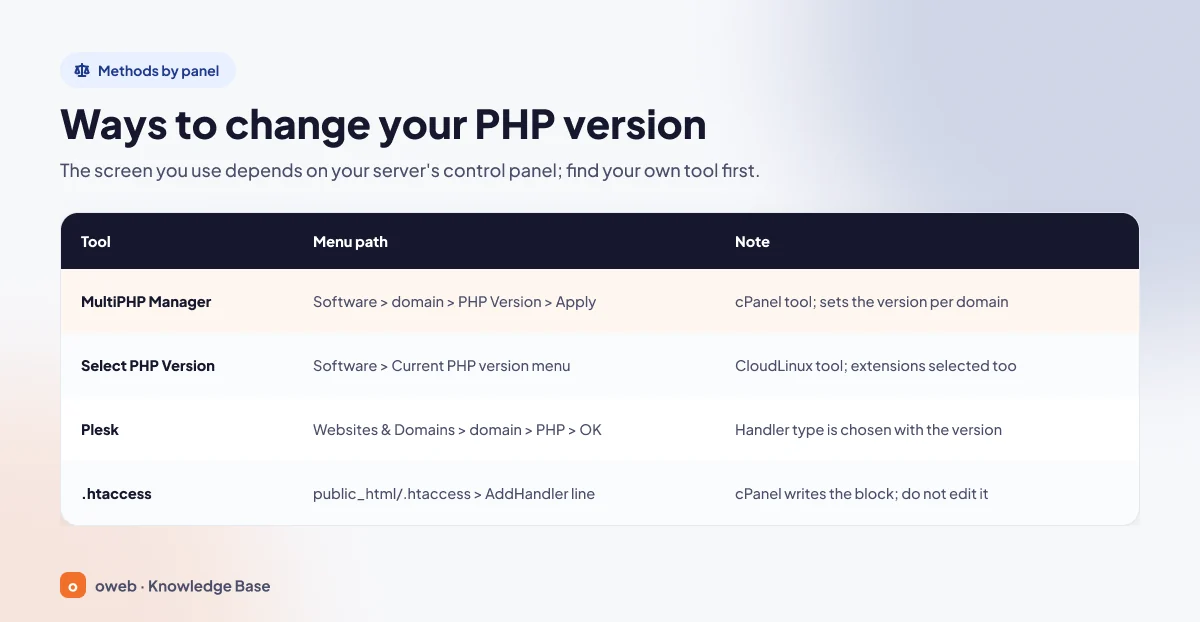
The screen you use for this task, also known as switching your PHP version, depends on the control panel on your server. Find your tool in the table first; the methods are ordered from the simplest and safest to the most advanced.
| Tool | Menu path | Note |
|---|---|---|
| cPanel MultiPHP Manager | cPanel > Software > MultiPHP Manager > select the domain > PHP Version > Apply | Works per domain; the inherit option uses the server default |
| CloudLinux Select PHP Version | cPanel > Software > Select PHP Version > choose from the version list > Apply (Set as current in older interfaces) | Extensions and settings are chosen in the Extensions and Options tabs |
| Plesk | Websites & Domains > domain > PHP > PHP support > version and handler > OK | Handler types served by nginx ignore the .htaccess file |
| .htaccess | public_html/.htaccess > AddHandler application/x-httpd-ea-php83 .php .php8 .phtml | The panel writes the cPanel EasyApache 4 block; only versions installed on the server work |
Changing your PHP version with cPanel MultiPHP Manager
On hosting accounts that use the cPanel control panel, the standard tool is MultiPHP Manager. It works per domain, so one site on an account can stay on PHP 8.3 while another moves to 8.4.
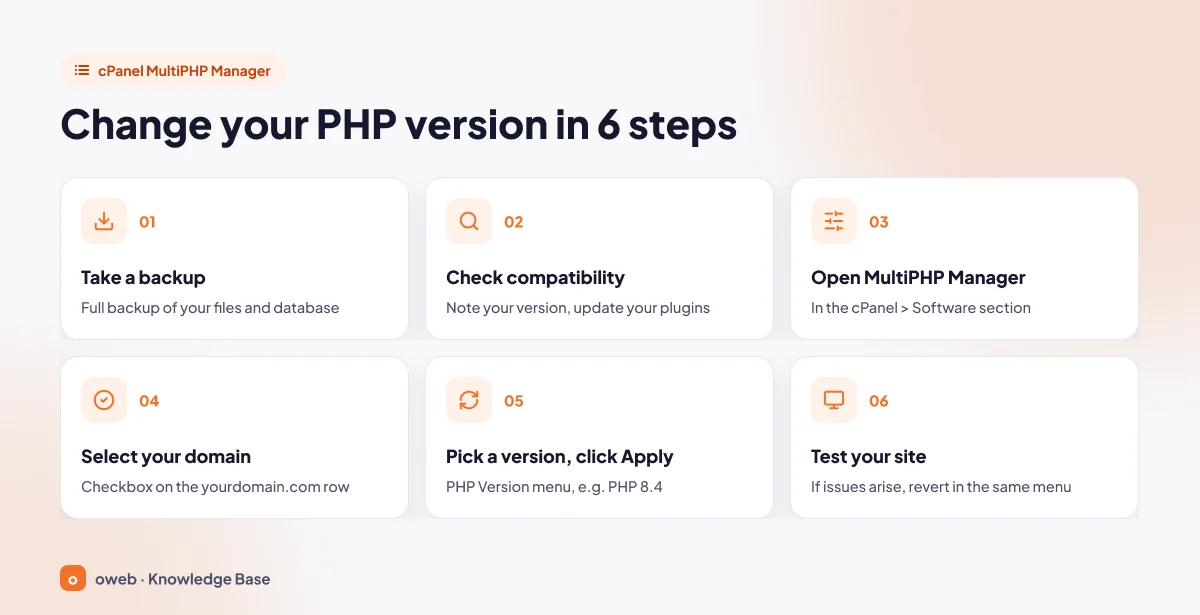
Here are the steps to change the PHP version in cPanel:
- Take a backup. Make sure you have a current backup of your files and database.
- Check the current version and compatibility. Note the version shown on the Site Health screen, and update WordPress core, your theme and your plugins.
- Open MultiPHP Manager. In cPanel, click the MultiPHP Manager icon in the Software section.
- Select the domain. Tick the checkbox on your domain's row in the list; the same row shows the current version and the PHP-FPM status.
- Choose the version and click Apply. Select the target version (for example, PHP 8.4) from the PHP Version menu and click the Apply button.
- Test your site. Check the home page, the admin dashboard and your forms; if you notice a problem, switch back to the previous version from the same menu.
A few details: parked domains (aliases) do not appear in the list; they follow the main domain's version. Domains that share the same document root change version together. If PHP-FPM is enabled, the FPM version is also updated to the version you select. Source: cPanel MultiPHP Manager documentation.
What does the inherit option mean?
The inherit option in the menu makes the domain follow the server's default PHP version; these domains are marked with an Inherited label. Only the server administrator sets the default, and when the administrator changes it, your site moves to the new version without you doing anything. If you want control over the version, select a specific version explicitly.
If the version or tool you need doesn't appear
If the version you want is not in the menu, it is either not installed on the server or not enabled for your account. If the MultiPHP Manager icon doesn't appear at all, the provider has usually disabled this interface for your account. In both cases the solution lies with your hosting provider; if you are an Oweb customer, you can open a support ticket to ask for help.
Choosing a version and extensions with CloudLinux Select PHP Version
On shared hosting servers running the CloudLinux operating system, cPanel may also include the Select PHP Version (PHP Selector) tool. The difference is that, along with the version, you can choose PHP extensions and some php.ini values for your own account. If the icon is missing, PHP Selector may not be installed on the server, or your provider may have disabled the feature in your hosting package's feature list (WHM Feature Manager). Ask your hosting provider to be sure.
Selecting the version
- In cPanel, open Select PHP Version from the Software section.
- Choose the new version from the list in the Current PHP Version field.
- Click the Apply button (Set as current in older interfaces).
Configuring extensions and PHP options
The extension list is on the same page. In the Extensions tab, you enable an extension by ticking its box and disable it by clearing the box; in many interfaces changes are saved automatically, and a Reset to default option lets you restore the defaults. In the Options tab (the Switch to PHP options link in some interfaces), you can change values such as memory_limit, upload_max_filesize, display_errors and allow_url_fopen (CloudLinux LVE Manager documentation).
The step people most often miss: extension selections are stored separately for each PHP version, so they must be checked again on the new version. WordPress requires json, hash and mysqli, and strongly recommends curl, dom, exif, fileinfo, imagick, intl, mbstring, openssl, xml and zip.
If the version doesn't change: which tool takes priority
A common reason behind the complaint "I changed the version, but the site is still on the old one" is a conflict between the two tools. According to the CloudLinux documentation, PHP Selector only takes effect when two conditions are met: the domain's version in MultiPHP Manager must match the server's default version (the inherit option ensures this), and a version other than Native must be selected on the Select PHP Version screen. Native is the server's own PHP installation.
If the domain has been assigned a version in MultiPHP Manager that differs from the default (the handler block in the .htaccess file shows that version), or if PHP-FPM is enabled for the domain, the MultiPHP Manager version applies. The My Domains tab on the Select PHP Version screen shows which selector each domain uses, and the Use PHP Selector button connects a domain to the Selector. Only the administrator can disable PHP-FPM. Don't mix the two tools for the same domain; pick one and confirm the result on the Site Health screen.
Changing your PHP version in Plesk
In the Plesk panel, PHP settings are configured per domain. Here are the steps to change the PHP version in Plesk:
- Find the domain on the Websites & Domains screen.
- Click the PHP button (in some Plesk versions and in the documentation it is called PHP Settings).
- If the PHP support checkbox is cleared, select it.
- Choose the PHP version from the drop-down list. Only change the handler type if you know why you need to.
- Click OK to save.
For the handler, Plesk's handler types documentation recommends Dedicated FPM application on shared hosting and FPM application on dedicated Linux servers; the mod_php and CGI types are not recommended. Handler types served by nginx ignore the .htaccess file, in which case WordPress permalinks and redirect rules may stop working. Which handler types appear in the list depends on the selected PHP version, the server's operating system (FPM types are available only on Linux) and the handlers your hosting provider has enabled on the server, while your subscription's permissions determine whether you can change this setting at all. If you're not sure, leave the current type as it is.
The View the phpinfo() page link on the same screen shows the current settings. The Plesk documentation suggests trying another version or the default if your site breaks; depending on your subscription's permissions, some settings may be unavailable to you. Details are in the Plesk PHP settings documentation.
Setting the PHP version with .htaccess: what does the AddHandler line do?
On cPanel servers using EasyApache 4, when you select a version in MultiPHP Manager, the panel itself writes the following block to the domain's .htaccess file (PHP 8.3 example):
# php -- BEGIN cPanel-generated handler, do not edit
# Set the “ea-php83” package as the default “PHP” programming language.
<IfModule mime_module>
  AddHandler application/x-httpd-ea-php83 .php .php8 .phtml
</IfModule>
# php -- END cPanel-generated handler, do not edit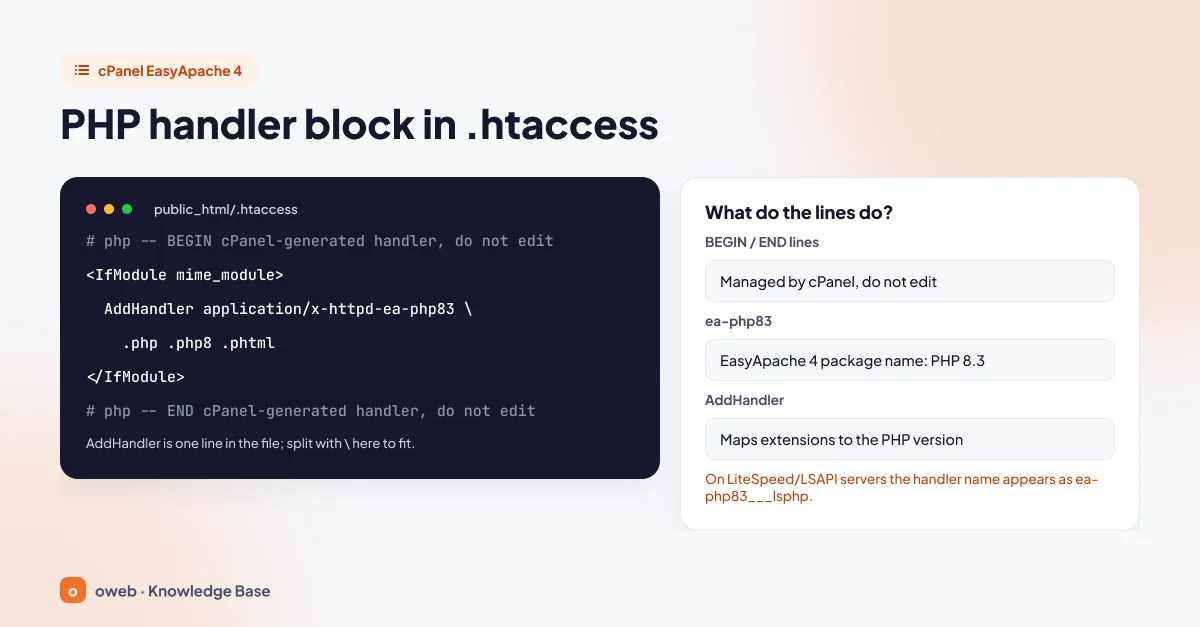
- BEGIN / END lines: cPanel manages this block; the panel overwrites any manual changes.
- ea-php83: The EasyApache 4 package name, meaning PHP 8.3; for 8.4 you would use ea-php84.
- <IfModule mime_module>: The directive is applied only if Apache's mod_mime module is loaded.
- AddHandler: Routes files with the .php, .php8 and .phtml extensions to the selected PHP version (Apache mod_mime documentation).
- LiteSpeed/LSAPI: On these servers the handler name appears in the form
ea-php83___lsphp.
That's why, for most users, setting the PHP version with .htaccess means reading the line rather than writing it by hand: the file tells you which version is set, and you use the panel to change it. If you have no panel tool and need to add the line manually:
- The handler name varies by server; instead of copying it from an article, ask your provider for the line that is valid on your server.
- Make a copy of the .htaccess file before editing it.
- Don't manually edit the block between cPanel's BEGIN and END lines, and don't add an
AddTypeline next to it. - In Apache, .htaccess directives apply to the folder they are in and its subfolders, so a line written to a subfolder's .htaccess file affects only that folder. This method doesn't work on domains with PHP-FPM enabled or on sites served by nginx; confirm the result with the phpinfo output.
A handler name the server doesn't recognize can cause your site to return a 500 error, or cause PHP files to be downloaded by the browser instead of being executed. In the second case, the database credentials in wp-config.php may be exposed. If you're not sure, don't use this method.
PHP version on the command line (SSH) and in cron jobs
The change in the panel affects web requests; command-line scripts and cron jobs may keep running on a different version. On cPanel servers you can call a specific version by its full path:
/usr/local/bin/ea-php83 -v
/opt/cpanel/ea-php83/root/usr/bin/php -v
In cron jobs, start the command with the PHP binary path of the version you want to use:
/usr/local/bin/ea-php83 /home/username/public_html/wp-cron.phpReplace ea-php83 with the package name of the version you selected in the panel (for example, ea-php84) and use your own account's home directory path. On Plesk servers, the PHP executable for each version is usually at a path such as /opt/plesk/php/8.3/bin/php. cPanel's command-line behavior is explained in the ea-php-cli documentation.
How do you change PHP settings (php.ini) with MultiPHP INI Editor?
After changing the version, also review values such as the memory and upload limits. In cPanel, the tool for this is MultiPHP INI Editor in the Software section. This tool only changes php.ini directives. On servers running CloudLinux, PHP extensions are enabled in the Select PHP Version > Extensions tab; if that icon is missing, ask your hosting provider to enable the extension.
- Basic Mode: From the Configure PHP INI basic settings menu, you select the Home Directory or a domain, change the directives and click Apply. The listed directives vary by PHP version; if a value such as
memory_limitis in the list, this is the safest place to change it. - Editor Mode: From the Edit PHP INI settings menu, you select the location, edit the file as raw text and click Save. Copy the existing content somewhere before editing; cPanel recommends this mode for advanced users and asks you to proceed with great care.
The tool writes changes to the php.ini, .user.ini and .htaccess files, and each file receives only the directives it supports. By default, .user.ini files are re-read every 300 seconds, so a change can take up to five minutes to show (.user.ini documentation on php.net). If you don't see the result right away, wait a few minutes.
| Directive | What does it control? | When should you check it? |
|---|---|---|
| memory_limit | The maximum amount of memory a script can use | When you see the "Allowed memory size ... exhausted" error |
| upload_max_filesize | The maximum size of a single uploaded file | When a theme, plugin or media upload is rejected |
| post_max_size | The maximum size of data that can be sent in a POST request | When large file uploads are rejected; it must be larger than upload_max_filesize |
If your site runs through CloudLinux PHP Selector, set these values in the Options tab on the Select PHP Version screen and check that the change shows up in the phpinfo output. The interface is described in the cPanel MultiPHP INI Editor documentation.
Common errors after the change and how to fix them
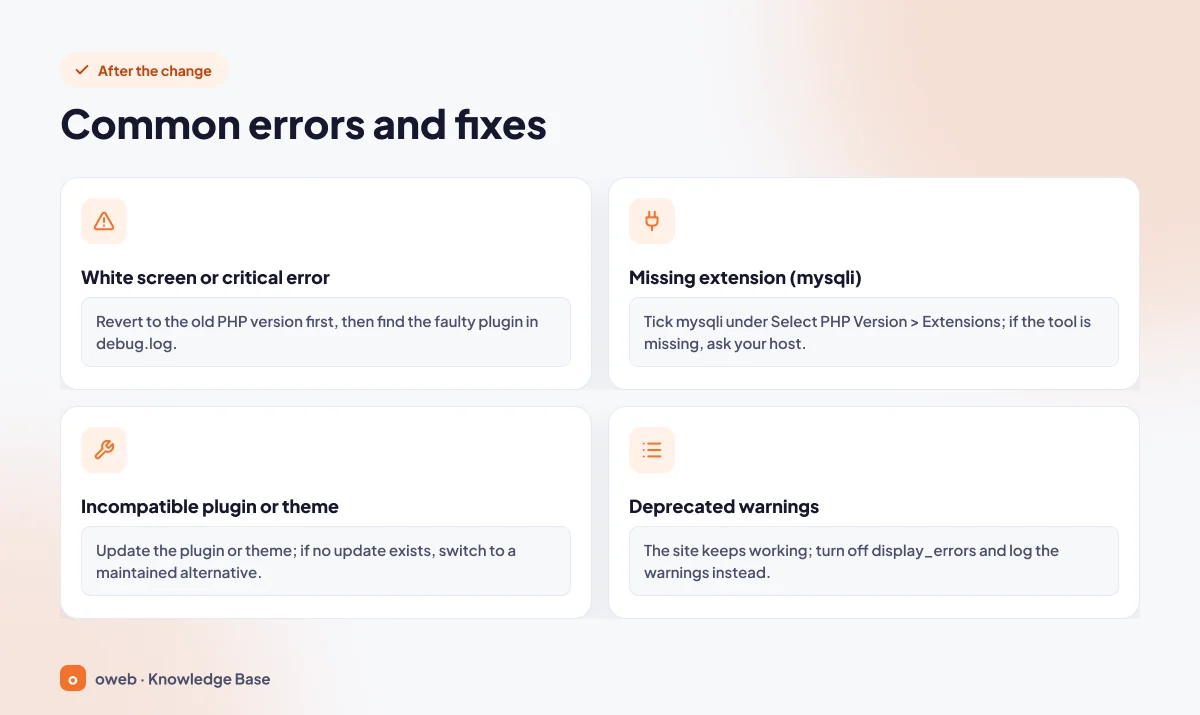
Most problems fall into four categories, and the last row of the table covers the case where the version doesn't change at all. The first step is always the same: if the site won't load, switch back to the previous version first and investigate the cause afterwards.
| Symptom | Likely cause | Fix |
|---|---|---|
| The message "There has been a critical error on this website." or a white screen | A plugin or theme that is incompatible with the new version throws a fatal error | Switch the PHP version back to the previous value, then find the component causing the problem in the debug.log file |
| "Your PHP installation appears to be missing the MySQL extension which is required by WordPress." | The mysqli extension is not enabled on the new version | On a server running CloudLinux, tick mysqli and the other required extensions for the new version under Select PHP Version > Extensions; if this tool isn't available, ask your hosting provider to enable the extension |
| "Fatal error: Uncaught Error: Call to undefined function create_function()" | The plugin calls a function that was removed in PHP 8.0 | Update the plugin or theme; if no update exists, replace it with a maintained alternative |
| "Deprecated: Creation of dynamic property ... is deprecated" | A deprecation notice shown in PHP 8.2 and later | The site keeps working; turn off display_errors, send the notices to the log and update the plugin |
| The version doesn't change | A conflict between the two tools: the domain has a separate version assigned in MultiPHP Manager, PHP-FPM is enabled, or Native is selected in the Selector | Use a single tool; check the My Domains tab and the handler line in the .htaccess file |
PHP 8.0 removed functions such as create_function(), each() and money_format() from the language, and many situations that previously only raised a warning became errors that stop the script (PHP 8.0 backward incompatible changes page on php.net). On single-site installs, WordPress's critical error message on protected pages such as the admin dashboard or the login page asks you to check the site admin email inbox for instructions (on multisite it suggests contacting the site administrator); on pages visitors see, only a short message saying the site has a critical error appears. A link that lets you log in to the site in recovery mode may have been sent to your admin email address.
Even if everything looks fine, clear the cache of your caching plugin and of your CDN if you use one, and test your forms, member login, checkout and scheduled tasks.
Finding the plugin causing the error: debug.log
Instead of guessing where the error comes from, have WordPress write errors to a log. Back up the wp-config.php file and open it. Replace the existing define( 'WP_DEBUG', false ); line with the four lines below. Don't define the same constant a second time: the first definition stays in effect and logging won't be turned on. If there is no such line, add the code above the "That's all, stop editing!" comment line:
define( 'WP_DEBUG', true );
define( 'WP_DEBUG_LOG', true );
define( 'WP_DEBUG_DISPLAY', false );
@ini_set( 'display_errors', 0 );
Errors are written to the wp-content/debug.log file without being shown to visitors; the file path in each line tells you which plugin or theme the problem comes from (WordPress debugging documentation). When you're done, set WP_DEBUG and WP_DEBUG_LOG back to false and delete the wp-content/debug.log file; it contains server paths and error details, and on most servers anyone who knows its URL can read it. If the white screen persists, first deactivate the problematic plugin or theme, then review the file path in the debug.log entry.
How do you roll back to an older PHP version?
Rolling back is done from the same screen, and changing the version does not alter your site's content or database. If you updated plugins or WordPress after the upgrade, first check that those versions support the older PHP.
- Open the same screen where you changed the version: MultiPHP Manager in cPanel, Select PHP Version in CloudLinux, or the domain's PHP screen in Plesk.
- Select the previous version and save with Apply or OK. In cPanel, you can also choose inherit to return to the server default.
- Verify extensions and settings: check that your extension selections for the old version are still in place.
- If the site is still broken, restore the backup. This is also the order WordPress recommends: roll back the version first, and if that doesn't help, restore from a backup.
Rolling back to an older version is not a permanent fix but a stopgap that buys you time. A PHP version that has reached end of life receives no security patches; after updating or replacing the incompatible plugin, try the upgrade again.
Frequently asked questions
Can you change the PHP version from the WordPress dashboard?
No. PHP is software that runs on the server; its version is changed from the hosting control panel or by your hosting provider. WordPress only shows the version in use and warns you if it is outdated. Updating WordPress does not change your PHP version.
What is the difference between MultiPHP Manager and Select PHP Version?
MultiPHP Manager is cPanel's own tool and assigns a PHP version per domain. Select PHP Version is CloudLinux's tool; along with the version, it also lets you choose extensions and some php.ini values. According to the CloudLinux documentation, the Selector only takes effect if the domain uses the server's default version in MultiPHP Manager and a version other than Native is selected in the Selector.
Will upgrading PHP break my site?
With up-to-date, actively maintained themes and plugins, problems are rare; the risk comes from components that haven't been updated in a long time. If you have a backup, the worst case is switching back to the old version from the same screen.
When does PHP 8.2 support end?
According to the php.net schedule, security support for PHP 8.2 ends on December 31, 2026; no security fixes are released after that date. Sites running PHP 8.2 should plan a move to 8.3 or higher.
Should I use PHP 8.3 or PHP 8.4?
Both are supported as of November 2026. Security support for PHP 8.3 ends on December 31, 2027, and for PHP 8.4 on December 31, 2028. If your plugins run smoothly on 8.4, it is the longer-lasting choice; if you're not sure, start with 8.3 and test 8.4 on a staging site.
How should you migrate from PHP 7.4 to PHP 8?
First update WordPress, your theme and your plugins to their latest versions on PHP 7.4, then select a supported version (at least 8.3) on a staging site and monitor the error log. A common source of problems when upgrading to PHP 8 is old plugins that still use functions removed in 8.0.
Can I choose a different PHP version for a subdomain?
Yes. Because MultiPHP Manager works per domain, you can select subdomains and addon domains individually and assign them different versions. Parked domains follow the main domain's version, and domains that share the same document root use the same version.
How do you hide Deprecated notices?
On a live site, turn off the display_errors setting and set WP_DEBUG_DISPLAY to false in WordPress; the notices are then written to the log instead of the screen. These notices don't stop your site, but update the plugin anyway, because the same code may become an error in a future PHP version.
Conclusion
The answer to "How do you change your PHP version?" is short: open the PHP tool in your hosting control panel, select the domain and the version, and save. What makes the job safe are the steps around it: backup, updates, a staging site, testing and, if needed, rolling back from the same screen. As of November 2026, aim for at least PHP 8.3, and 8.4 or 8.5 if possible; for sites still on PHP 8.2 or earlier, the upgrade is no longer something to put off.
The dates in this guide are based on the php.net schedule, and the menu names on the cPanel, CloudLinux, Plesk and WordPress documentation; button names may differ slightly depending on your panel version. If the tool doesn't appear in your panel or an error remains that you can't resolve, and you are an Oweb customer, you can open a support ticket to get help from our technical team.
