


The WordPress White Screen of Death (WSOD) is when your site or admin dashboard loads as a blank page without any message. It is usually caused by a fatal PHP error triggered by a plugin, a theme or a PHP setting. To fix it, first take a backup and read the error in the server log or the debug.log file; then deactivate your plugins, switch to a default theme, and check the memory limit and PHP version.
Quick summary
- The White Screen of Death (WSOD) is when your site returns a blank page with no explanation; behind it there is usually a PHP error you can read in the server log or the
debug.logfile. - Since WordPress 5.2, most fatal errors show a critical error notice instead of a blank page, and a recovery mode link is emailed to the administrator.
- The most common causes: plugin conflicts, a faulty theme or
functions.php, the PHP memory limit, PHP version incompatibility, an interrupted update and corrupted core files. - Your first job is to see the error: the server error log and
wp-content/debug.logshow the faulty file along with the line number. - If you cannot access the dashboard, you can deactivate plugins via FTP, the file manager or WP-CLI; plugin settings are not deleted.
- Take a backup before touching any files, and turn off debug mode when you are done.
What is the WordPress White Screen of Death?
The white screen error is when your site or admin dashboard opens as a blank page without any explanation. The WordPress community calls this the White Screen of Death (WSOD for short). According to the official WordPress documentation on common errors, both PHP errors and database errors can appear this way, as a white screen with no information.
The page stays blank because PHP stops generating the page when it hits a fatal error. On live sites, error messages are usually not printed to the screen, so the details only end up in log files.
Thanks to the fatal error protection introduced in WordPress 5.2, plugin- or theme-related errors now usually display a short critical error notice instead of a blank page, and a recovery mode link is sent to the administrator. If you still see a completely blank page, the error most likely occurs at a point where this protection cannot kick in: for example, a typo in the wp-config.php file, an update that was cut off halfway, or a blank page stuck in the cache.
If your browser shows a redirect loop warning instead of a blank page, the problem is different; see the WordPress ERR_TOO_MANY_REDIRECTS error guide.
What are the symptoms of the WordPress White Screen of Death?
The WordPress blank page error does not look the same on every site. The most common forms are:
- Every page of the site loads blank; even the page source is empty.
- The site loads, but only
/wp-admin/is blank, or conversely only the front end is blank. - Only a single page or post loads blank.
- Instead of a blank page, you see the WordPress critical error notice or the browser's "HTTP ERROR 500" page.
The status code returned by the server is also a clue. Press F12 in your browser to open the developer tools and reload the page with the Network tab open: HTTP 500 points to a server-side error, while 503 points to maintenance mode or a resource problem. If the status code is 200 but the page is blank, you may be dealing with a cached blank page, a PHP error that occurred after output started, or a JavaScript error in the browser; clear the cache and check the debug.log file and the Console tab of the developer tools.
| Message on screen | Source | Meaning |
|---|---|---|
| There has been a critical error on this website. | WordPress critical error notice | A plugin, theme or custom code triggered a fatal PHP error; instead of a blank screen, WordPress shows this message with an HTTP 500 code. |
Fatal error: Allowed memory size of 134217728 bytes exhausted (tried to allocate 20480 bytes) | PHP | The script exceeded the allowed memory (128M in this example); raise the limit or find the component consuming the memory. |
| This page isn't working / HTTP ERROR 500 | Browser (Chrome) | The server encountered an unexpected error while processing the request; the real cause is in the server error log or the debug.log file. |
| Briefly unavailable for scheduled maintenance. Check back in a minute. | WordPress maintenance mode | The .maintenance file created during an update was left in the root directory; the response comes with an HTTP 503 code. |
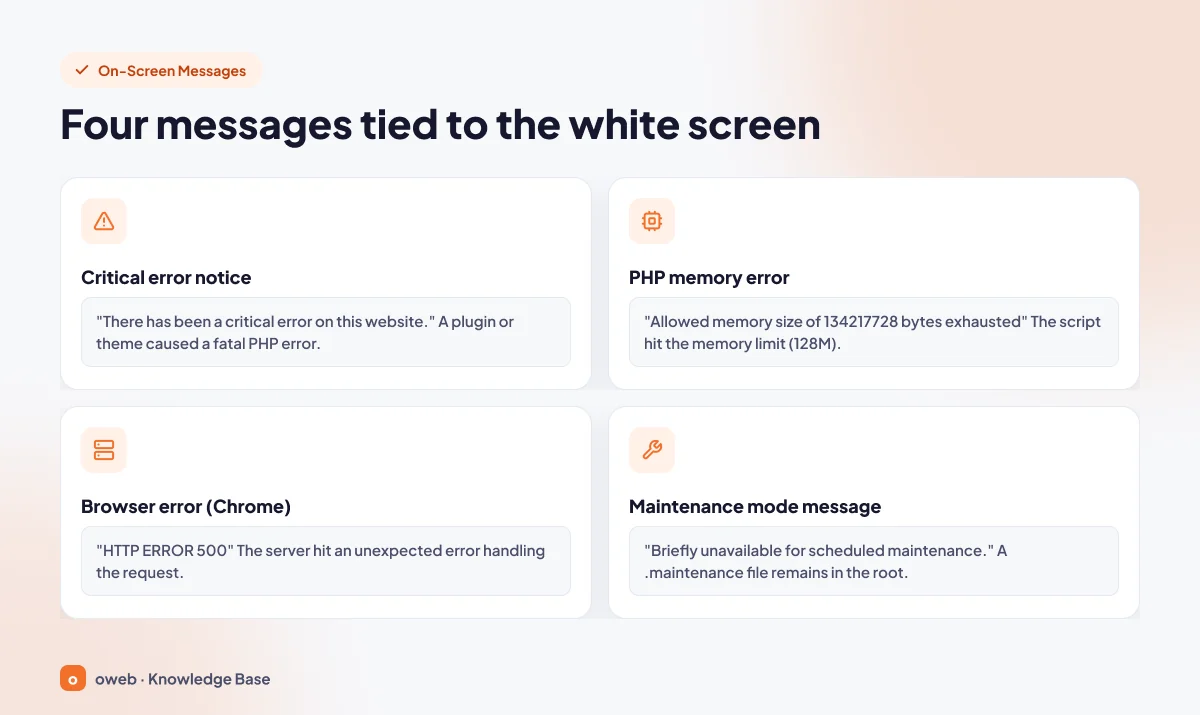
The exact wording of the critical error notice depends on the WordPress version and language pack. On English sites running current versions, visitors see "There has been a critical error on this website.", while users opening the login and admin pages see the longer form: "There has been a critical error on this website. Please check your site admin email inbox for instructions." WordPress 5.2 showed a different sentence, "The site is experiencing technical difficulties.", and sites using a translated language pack display the notice in their own language. Many users search for it simply as critical error on this website; whichever sentence you see, the fix is the same.
What causes the WordPress White Screen of Death?
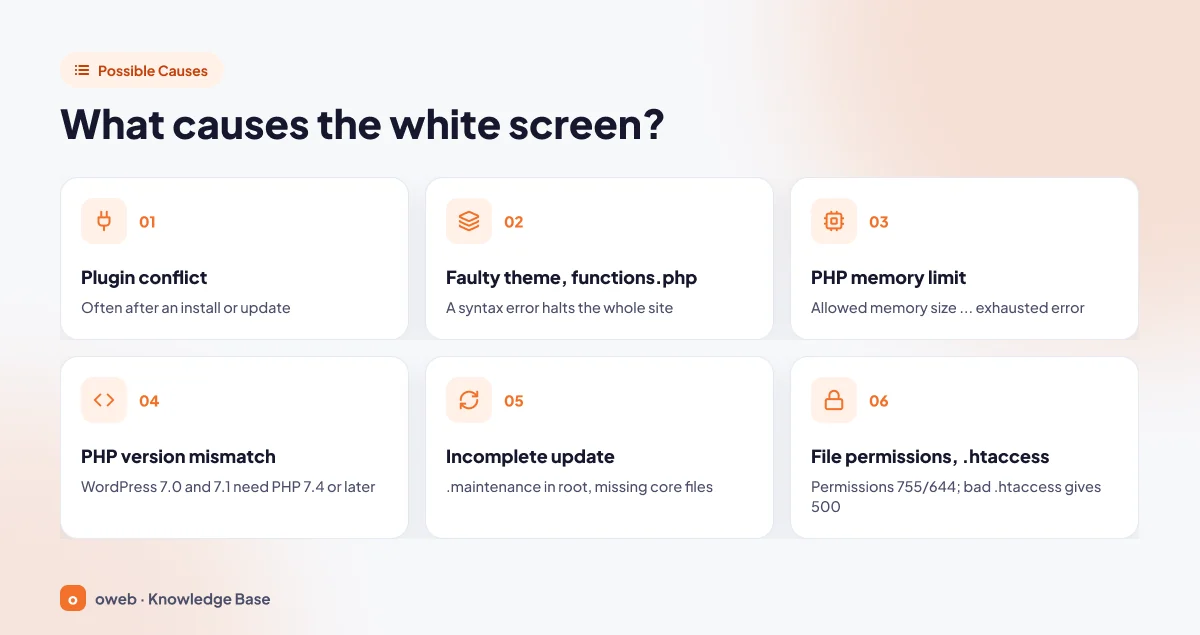
The official WordPress documentation lists the most common causes of a critical error as plugin conflicts, theme incompatibility, an incompatible PHP version, reaching the memory limit and corrupted WordPress files. Interrupted updates, incorrect file permissions and .htaccess rules can be added to the list.
Plugin conflict
This is one of the most common causes. A newly installed or updated plugin may be incompatible with another plugin, the theme or the PHP version on the server. The error often starts right after an installation or update; asking "What changed last?" gets you halfway to the diagnosis.
Faulty theme or functions.php
Activating a new theme or manually adding code to the functions.php file is another common cause. A forgotten semicolon, an unclosed curly brace or copied curly quotes produce a syntax (parse) error and bring the entire site down.
PHP memory limit
If the PHP limit is lower, WordPress tries to raise memory to at least 40M on a single site, 64M on multisite and 256M in the admin area; PHP's own default is 128M. When a heavy page, a large import or a plugin that uses memory inefficiently exceeds the limit, PHP stops with an "Allowed memory size ... exhausted" error.
PHP version incompatibility
WordPress 7.0 and 7.1 require at least PHP 7.4; WordPress.org recommends PHP 8.3 or higher. Even if core is compatible with current PHP, a plugin or theme that has not been updated for a long time may throw a fatal error on a newer PHP version.
Interrupted update and corrupted core files
While updating, WordPress places a temporary .maintenance file in the root directory. If the connection drops or file permissions are wrong, the update stops halfway; some files in the wp-admin and wp-includes folders end up missing or left at the old version.
File permissions and .htaccess
The server cannot run a file it cannot read; the correct permission scheme is 755 for folders, 644 for files and 440 or 400 for wp-config.php. A corrupted .htaccess file, on the other hand, produces an HTTP 500 error before PHP even runs.
Caching alone is not considered a cause of the white screen; however, the browser, plugin or CDN cache may keep showing the old or blank page even after the problem is fixed. That is why you should clear the cache after every fix.
Before you start: take a backup and check for the recovery mode email
Most of the steps below modify files. Before you begin:
- Take a backup: back up the site files and the database, even in their broken state; download a copy of every file you are going to edit (especially
wp-config.phpand.htaccess) to your computer. - Note the last change: what was done right before the error? It could be a plugin update, a theme change, added code or a PHP version change.
- Check your inbox: if WordPress caught the error, it may have emailed you a recovery mode link.
How do you use the recovery mode email?
The email goes to the administration email address on the Settings > General screen. In English, the subject line reads "[Site Name] Your Site is Experiencing a Technical Issue"; the email contains the name of the plugin or theme that caused the error, the WordPress and PHP versions, and the error details.
- Click the recovery link in the email; by default the link is valid for 1 day.
- Log in with your administrator account. The problematic component is paused only for your session; visitors continue to see the error.
- On the Plugins or Appearance > Themes screen, deactivate, update or replace the paused component.
- When you are done, click the "Exit Recovery Mode" button in the toolbar.
Details are available in the WordPress recovery mode documentation.
What if the email did not arrive?
- First check your spam folder; since the email may be sent directly from the web server, it can land there.
- The notification is sent at most once a day and is usually triggered when the error occurs on the login or admin pages; if only the front end is broken, try opening the
/wp-admin/address once. - If the administration email address is no longer in use, you can redirect the notification to another address by adding the following line to the
wp-config.phpfile, above the "stop editing" comment.
define( 'RECOVERY_MODE_EMAIL', '[email protected]' );On multisite installations, recovery mode may not kick in this way; instead of waiting for the email, move on to the log method in step 2. Recovery mode can only be entered through the link in the email; tips suggesting you start the mode by adding a parameter to the login URL do not work.
Where should you start based on the symptom?
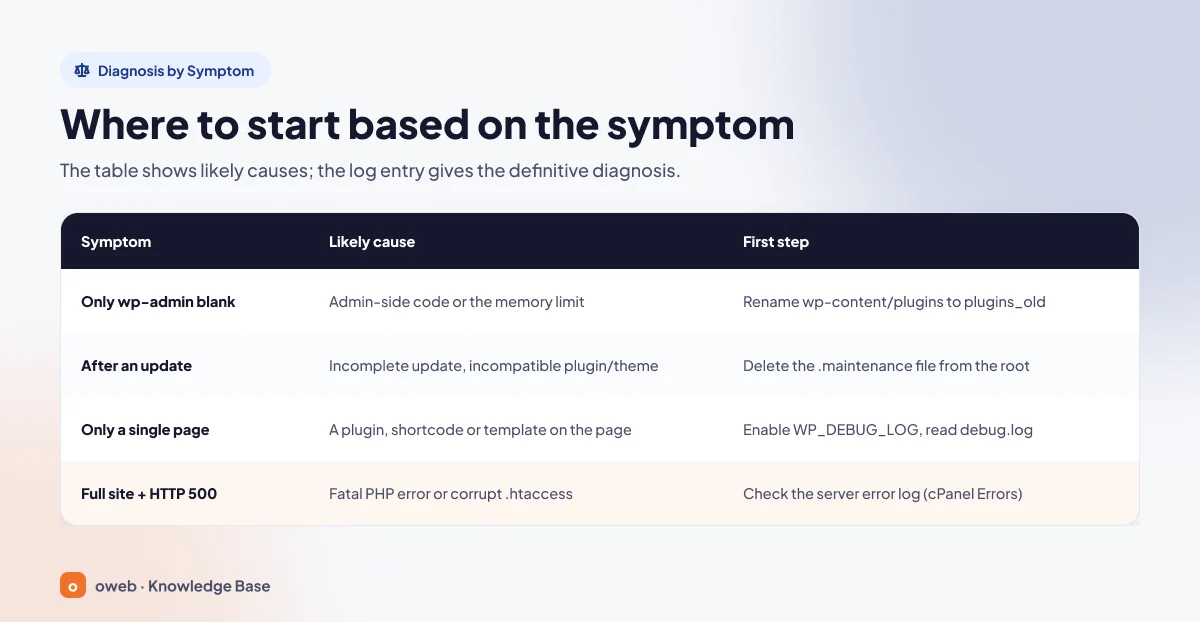
Starting in the right place saves time. The table below shows the likely causes for each symptom; the log entry provides the definitive diagnosis.
| Symptom | Likely cause | First step |
|---|---|---|
Only /wp-admin/ is blank | Plugin or theme code running in the admin area, or the memory limit | Disable plugins via FTP or the file manager: wp-content/plugins → plugins_old |
| Right after an update | Interrupted update (.maintenance), incompatible plugin or theme version, missing core file | Delete the .maintenance file in the root directory; deactivate the most recently updated plugin or theme |
| Only one page is blank | A plugin, shortcode or template error on that page; the memory limit | Enable WP_DEBUG_LOG, reload the page and read the wp-content/debug.log file |
| Entire site blank + HTTP 500 | Fatal PHP error (plugin, theme, functions.php), corrupted .htaccess, PHP version incompatibility | Check the server error log (cPanel > Metrics > Errors); .htaccess → .htaccess_old |
How to fix the WordPress White Screen of Death: step by step
The steps are ordered from the simplest and safest to the most advanced:
- Clear the cache and determine the scope of the problem.
- Make the error visible: the server error log and
debug.log. - Deactivate plugins.
- Switch to a default theme.
- Increase the memory limit.
- Check the PHP version.
- Complete the interrupted update (
.maintenance). - Check the
.htaccessfile and file permissions. - Reinstall the core files.
- Restore the last good backup.
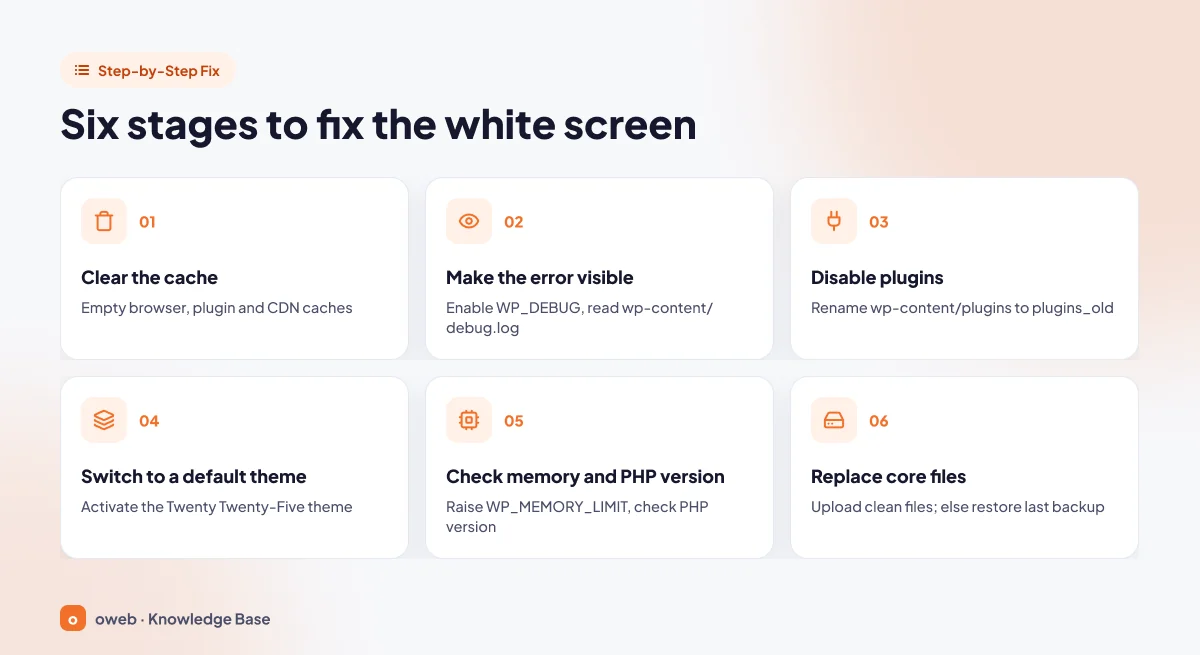
After each step, reopen the site in a private window; if the problem is fixed, skip the remaining steps and go to the cleanup note at the end. The six stages in the image below summarize these ten steps.
1. Clear the cache and determine the scope of the problem
First, observe without changing anything: open the site in a private window and try the home page, an inner page and the /wp-admin/ address separately. Then clear the browser cache, the caching plugin's cache and the CDN cache; if you have SSH access, flush the object cache with the wp cache flush command.
2. Make the error visible
The fix for the WordPress white screen is found by reading the error, not by guessing. Two sources give you the full text of the error.
Check the server error log
This method requires no changes to the site. On accounts using the cPanel control panel, the Errors interface in the Metrics section lists the last 300 entries in the web server error log, from newest to oldest. On most setups, PHP errors are also written to an error_log file in the site directory; the exact location depends on the hosting configuration.
Create a debug.log file with WP_DEBUG
If the server log is not enough, enable WordPress debug mode. To turn on the WP_DEBUG setting, edit the wp-config.php file and place the following lines above the "stop editing" comment. If the file already contains a define( 'WP_DEBUG', false ); line, do not add it a second time; change the false value to true. Write the values (true, false) without quotes.
// Enable debug mode
define( 'WP_DEBUG', true );
// Write errors to the wp-content/debug.log file
define( 'WP_DEBUG_LOG', true );
// Do not show errors to visitors
define( 'WP_DEBUG_DISPLAY', false );
@ini_set( 'display_errors', 0 );

/* That's all, stop editing! Happy publishing. */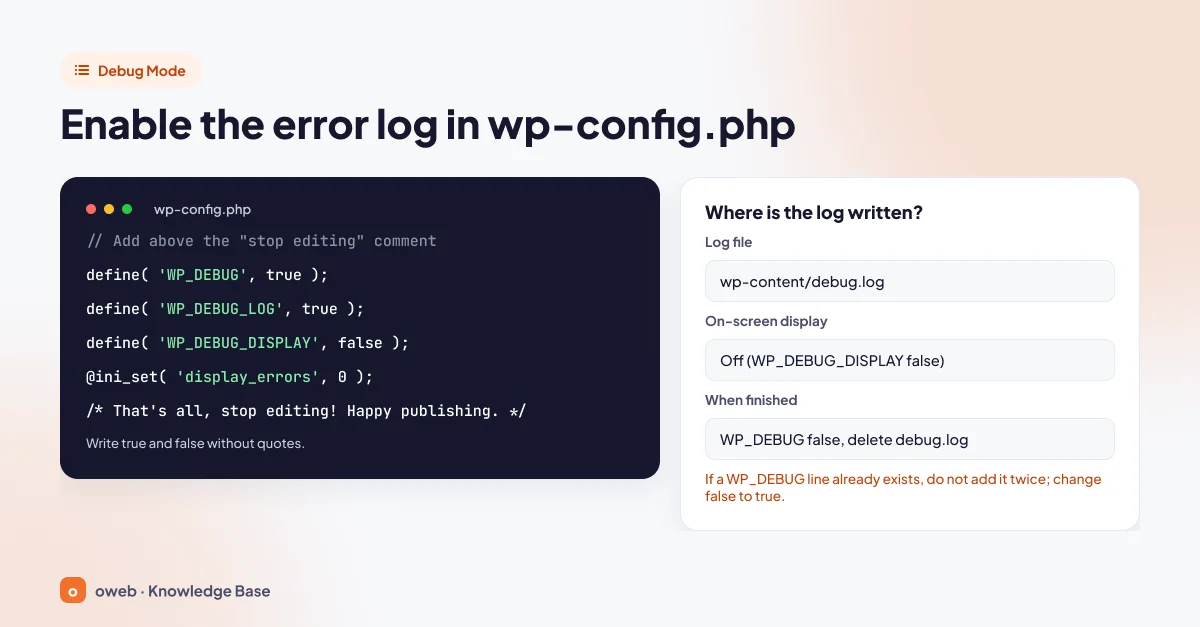
Save the file, reload the page and open the wp-content/debug.log file. If you use WP-CLI, you can apply the same three settings with these commands:
wp config set WP_DEBUG true --raw
wp config set WP_DEBUG_LOG true --raw
wp config set WP_DEBUG_DISPLAY false --raw
When you are done, the wp config set WP_DEBUG false --raw command turns the mode off.
Do not display errors on screen on a live site; otherwise file paths on the server become visible to visitors. The WordPress documentation recommends using debug mode on a staging copy whenever possible; if you need to enable it on a live site, keep it on only for the duration of the diagnosis. When you are done, set WP_DEBUG to false and delete the debug.log file. If it is left on, the Tools > Site Health screen shows the warning "Your site is set to log errors to a potentially public file".
How do you read a log entry?
A typical entry looks like this:
[22-Nov-2026 09:14:07 UTC] PHP Fatal error: Uncaught Error: Call to undefined function example_function() in /home/user/public_html/wp-content/plugins/example-plugin/example.php:123The file path tells you the source of the problem: plugins/example-plugin points to a plugin, while a path starting with themes/ points to the theme.
| Phrase in the log | Meaning | What to do |
|---|---|---|
PHP Fatal error ... wp-content/plugins/example-plugin/ | The error occurs in this plugin's code. | Deactivate only that plugin (step 3). |
PHP Parse error: syntax error ... functions.php on line 45 | There is a syntax error around the specified line. | Restore the backup of the file (step 4). |
Allowed memory size of ... bytes exhausted | The request exceeded the PHP memory limit. | Check the memory limit (step 5). |
Call to undefined function ... | The called function does not exist: a missing file, a typo or a removed PHP function. | Undo the last change and check the PHP version (step 6). |
3. Deactivate plugins
If the log entry points to a specific plugin, deactivate only that one; if it does not, deactivate all of them and reactivate them one by one to find the culprit. None of these methods delete plugin settings.
If the dashboard loads
On the Plugins > Installed Plugins screen, select all plugins and apply the "Deactivate" option from the bulk actions. If the site recovers, activate the plugins one at a time; the plugin that brings the error back is the source of the problem.
Via FTP or the file manager
- Connect via FTP, or open File Manager in the Files section of cPanel, and go to the site's root directory (
public_htmlfor the primary domain in cPanel,httpdocsin Plesk). - Rename the
wp-content/pluginsfolder toplugins_old. All plugins are deactivated. - If the site recovers, visit the
/wp-admin/plugins.phppage once; WordPress marks the plugins as deactivated. - Rename the folder back to
pluginsand activate the plugins one by one. - If the site did not recover, the problem is not in the plugins; revert the folder name and move on to step 4.
If you know which plugin is causing the problem, rename only its folder (for example example-plugin → example-plugin-1). Plugins in the wp-content/mu-plugins folder and drop-in files in the wp-content root such as object-cache.php and advanced-cache.php are not disabled by this method; if you suspect them, temporarily rename these files as well.
With WP-CLI
On accounts with SSH access, the fastest way is the WP-CLI command:
wp plugin deactivate --all

# If the command itself hits the fatal error:
wp plugin deactivate --all --skip-plugins --skip-themes
With phpMyAdmin
If you cannot use FTP or SSH, phpMyAdmin also works: after backing up the database, set the option_value of the active_plugins row in the wp_options table (the prefix may differ) to a:0:{}.
4. Switch to a default theme
If the problem is not caused by plugins, the theme is next. If the dashboard loads, activate a default theme on the Appearance > Themes screen. As of November 2026, the current default theme is Twenty Twenty-Five.
If the dashboard does not load, rename the active theme's folder inside wp-content/themes (for example mytheme → mytheme-old). Since the faulty theme's code is no longer loaded, the dashboard opens if the theme was the problem; log in at the /wp-admin/ address and visit the Appearance > Themes screen. WordPress reports that the active theme is broken and switches to an installed default theme. The front end may stay blank until you open this screen. The WP-CLI equivalent:
wp theme activate twentytwentyfive --skip-plugins --skip-themesIf the error started after you added code to the functions.php file, there is no need to change themes: restore the backup of the file or delete the lines you added.
The folder renaming method only works if a default theme is installed on the site; if not, download the theme from WordPress.org and upload it to the wp-content/themes folder. Do not delete the active theme; renaming gives the same result and can be undone.
5. Increase the memory limit
If the log contains the phrase "Allowed memory size", the WordPress memory limit is too low. Add the following line to the wp-config.php file, again above the "stop editing" comment:
define( 'WP_MEMORY_LIMIT', '256M' );256M is an example value; the upper limit is set by your hosting plan, and WordPress can only apply this value if the server allows it. If that does not work, change PHP's own memory_limit setting: in cPanel, open the MultiPHP INI Editor interface in the Software section, select your domain on the Basic Mode tab, update the value and click the Apply button.
Avoid writing PHP settings manually into the .htaccess file with a php_value line; on servers where PHP does not run as an Apache module, this line can cause an HTTP 500 error. If the error persists even after you raise the limit, the problem is not the limit but the component consuming the memory.
6. Check the PHP version
If the error started after a PHP version change, switch back to the previous version and check the site. In cPanel, open the MultiPHP Manager interface in the Software section, tick the domain, select the version from the PHP Version menu and click the Apply button. For other control panels, see the guide to changing the PHP version.
WordPress 7.0 and 7.1 require at least PHP 7.4; do not go below that, even for diagnosis. On an older version, WordPress displays a message saying the PHP version is insufficient instead of the page.
According to the php.net support schedule, PHP 8.1 and earlier are no longer supported, and security support for PHP 8.2 ends on December 31, 2026. That is why rolling back to an older version is for diagnosis only. If the problem is caused by an old plugin using a function such as create_function(), which was removed in PHP 8.0, update or replace the plugin; then switch back to a supported version.
Upgrading to the newest PHP version without testing compatibility can also lead to a white screen. As of November 2026, WordPress 7.0 and 7.1 are listed as compatible with PHP 7.4-8.5 in the core team's compatibility table; the newly released PHP 8.6 is not yet included.
7. Complete the interrupted update
If you see a white screen after a WordPress update or the maintenance message, delete the .maintenance file in the root directory (the directory containing the wp-admin folder). Since the file name starts with a dot, the file is hidden; in cPanel File Manager, open the Settings window, tick the "Show Hidden Files (dotfiles)" option and click Save. The same operation with WP-CLI:
wp maintenance-mode status
wp maintenance-mode deactivate
WordPress already ignores a .maintenance file older than 10 minutes; the real problem is usually half-written files. After deleting the file, open the /wp-admin/ address, confirm the database update if prompted, and run the update again. Maintenance mode returns HTTP 503; if this response continues even after you delete the file, move on to the 503 Service Unavailable error guide.
8. Check the .htaccess file and file permissions
This step is for servers running Apache or LiteSpeed. If you get HTTP 500 and cannot find an entry in the PHP log, rename the .htaccess file to .htaccess_old. If the site loads, open the Settings > Permalinks screen and save it; WordPress generates a clean file. Add your custom rules from the old file (for example the HTTPS redirect) back one at a time.
Next, review the permissions: folders should be 755 or 750, files 644 or 640, and wp-config.php 440 or 400. According to the official file permissions documentation, no folder should ever be set to 777.
9. Reinstall the core files
If you still have no result, one of the core files may be missing or corrupted. Make sure your backup is ready; if you have SSH access, first verify and then refresh in the WordPress root directory:
wp core verify-checksums
wp core version
wp core download --force --skip-content --version=$(wp core version)
The first command compares the files against the WordPress.org checksums and lists any mismatches with the warning "File doesn't verify against checksum". The last command re-downloads the installed version shown by the second command; if you type the version manually, use your own version number (for example --version=7.1.5). If you download a different version, the core files and the database may become incompatible. With the --skip-content option, the default themes and plugins are not downloaded; if your site was installed with a non-English language pack, you can add the matching --locale option to the command (for example --locale=tr_TR).
If you are doing it manually, download the package for the same version as your site from WordPress.org; you can find the installed version in the $wp_version line of the wp-includes/version.php file. Delete the wp-admin and wp-includes folders on the server and upload the new ones from the package, then replace the individual files in the root directory with the new ones. Do not delete the wp-content folder; wp-config.php is not included in the package, so it stays in place.
10. Restore the last good backup
If the site generates revenue and the cause cannot be found quickly, the fastest solution is to restore the backup from before the error. First save the current state of the site as well: orders, comments and content added after the backup date are deleted by the restore.
Clean up once the problem is solved: set WP_DEBUG to false, delete the debug.log file, check the names of the folders and files you renamed, and clear the cache.
What should you do if wp-admin shows a white screen?
If wp-admin shows a white screen but the site loads, the error is most likely in code that runs only in the admin area, or it is memory related. Admin operations require more memory than front-end operations; that is why WordPress tries to raise memory in the admin area with a separate constant (WP_MAX_MEMORY_LIMIT, default 256M). If the server does not allow it, increase the PHP memory_limit value from the control panel.
First, deactivate plugins via FTP, the file manager or WP-CLI (step 3). If the dashboard still does not load, enable debug mode, reload the /wp-admin/ address and read the debug.log file; if the log entry points to the theme, switch to a default theme (step 4).
How do you prevent the error from happening again?
- Use a staging environment: test updates and code changes on a copy of the site first.
- Take a backup before updating: the WordPress backup documentation recommends keeping at least three recent backups in different locations.
- Update one item at a time: there is no single update order that suits every site; read the release notes and compatibility information, and check the site after each update.
- Stay on a supported PHP version: check plugin and theme compatibility before switching versions.
- Keep a default theme installed and keep the administration email address up to date: the recovery mode link is sent to this address.
When should you contact hosting support?
Contact your hosting provider if you cannot access the logs, if the memory limit or PHP settings cannot be changed from the control panel, if all the sites on the same account are affected, or if you need to restore from a backup. Include the following information in your request:
- The domain name and the exact URL where the problem appears
- The date and time the error started
- The message on screen and the HTTP status code
- The last change made before the error
- The relevant log lines and the steps you have tried
Hosting support can review the logs and help with PHP settings and restoring backups; however, a bug in the code of a third-party plugin or theme has to be fixed by its developer. Oweb customers can open a support ticket with this information.
Frequently asked questions
Does the WordPress White Screen of Death cause data loss?
Usually not. The error prevents the code from running; the content in the database and the files you uploaded stay in place. The real risk is deleting things in a panic; take a backup first.
Is "There has been a critical error on this website" the same as the white screen?
This notice, which reads "There has been a critical error on this website." in English (or "The site is experiencing technical difficulties." in WordPress 5.2), and the white screen are two faces of the same problem. When WordPress can catch the fatal error, it shows the critical error notice and sends a recovery mode email; when it cannot, the page stays completely blank. In both cases, the cause of the error is written in the log.
Is the WordPress HTTP ERROR 500 the same as the white screen?
Not exactly. HTTP 500 is a generic status code reporting that the server encountered an unexpected error while processing the request; the white screen is one of the ways this error appears on screen. The WordPress critical error notice is also served with an HTTP 500 code. The real cause is found in the server error log or the debug.log file.
How do you deactivate a plugin without accessing the dashboard?
Rename the wp-content/plugins folder via FTP or the file manager (for example to plugins_old), or run the wp plugin deactivate --all command over SSH. Plugin settings are preserved with both methods.
Where is the debug.log file?
When the WP_DEBUG and WP_DEBUG_LOG settings are enabled, errors are written to the wp-content/debug.log file by default. If you cannot see the file, reload the page where the error occurs once and check the folder again.
What happens if WP_DEBUG is left on?
Errors keep being written to the wp-content/debug.log file, which may be accessible from outside. Because the log file can contain sensitive information, turn off the mode and delete the file when you are done.
Which PHP version does WordPress support?
As of November 2026, WordPress 7.0 and 7.1 require at least PHP 7.4; WordPress.org recommends PHP 8.3 or higher. Check the compatibility of your plugins and theme before switching versions.
What should the WordPress memory limit be?
There is no single correct value. If the PHP limit is lower, WordPress tries to raise it to at least 40M on the front end (64M on multisite) and to 256M in the admin area; if the PHP memory_limit value on the server is already higher, that value applies (the PHP default is 128M). The upper limit is set by your hosting plan.
Conclusion
The WordPress White Screen of Death may look alarming, but it is usually caused by a single plugin, theme file or PHP setting. The right order is clear: backup first, then the log entry, followed by plugins, theme, memory, PHP version and core files. The commands and settings in this guide are based on the official WordPress documentation valid as of November 2026.
If you are looking for a WordPress-ready hosting infrastructure for your site, you can explore Oweb's WordPress hosting plans.
