


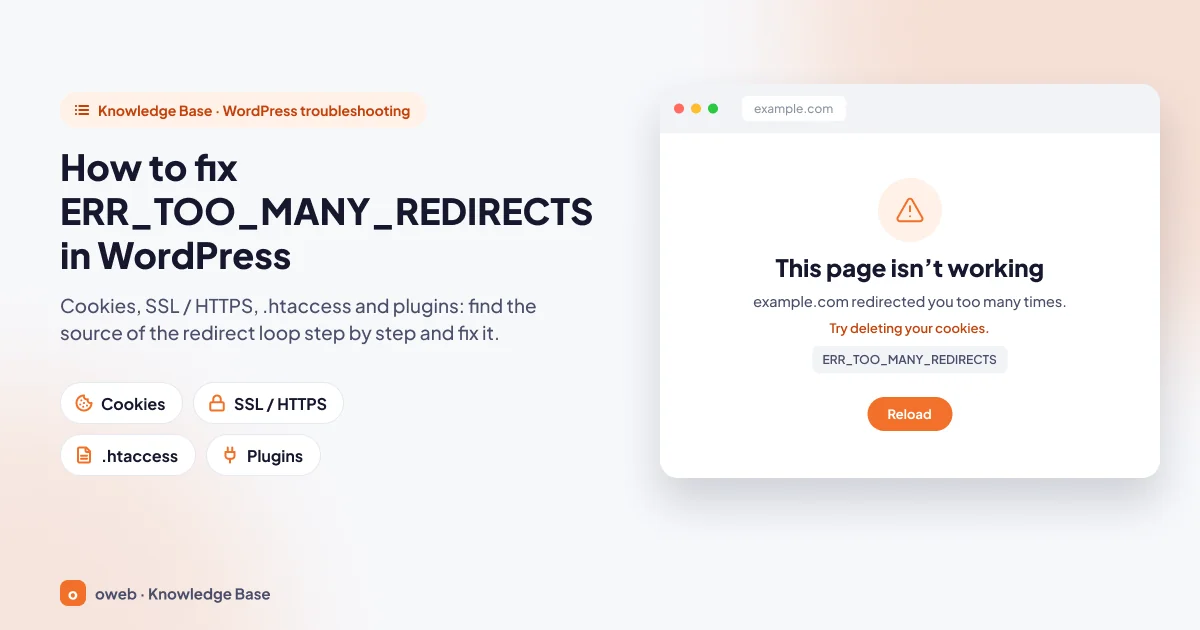
The WordPress ERR_TOO_MANY_REDIRECTS error means your site keeps sending the browser from one address to another without ever stopping; in other words, a redirect loop has formed. To fix it, first clear your cookies and try a private (incognito) window; if the problem persists, check your WordPress address settings, SSL and Cloudflare mode, the .htaccess file, plugins and server-level redirects, in that order.
In short
- The error is the result of a redirect loop: address A redirects to B, B redirects back to A, and the page never loads.
- Chrome and Firefox stop the request after 20 consecutive redirects and show the error screen.
- On WordPress sites the most common causes are a wrong WordPress Address or Site Address, misconfigured HTTPS enforcement, Cloudflare's Flexible mode, broken .htaccess rules and conflicting plugins.
- The problem is usually on the server or site side; clearing cookies only helps when stale or corrupted cookies are the cause.
- Diagnosis is the key to a lasting fix: the output of
curl -sILshows which two addresses the loop is bouncing between. - Always take a backup before editing files or the database.
What is the ERR_TOO_MANY_REDIRECTS error?
When a web server wants to send a visitor to a different address, it returns one of the 3xx status codes (such as 301, 302, 307 or 308) together with a Location header that names the destination. The browser then goes to that address. If the new address sends the visitor back to the first one, or to an earlier address in the chain, the request never reaches a real page. This is called a redirect loop.
Browsers do not wait forever. In Chromium-based browsers and in Firefox the limit is 20 redirects; once it is exceeded, the request is stopped and the ERR_TOO_MANY_REDIRECTS error, often simply called the "too many redirects" error, is displayed. According to MDN's guide to redirections, loops are most often a server-side configuration problem; all a visitor can do is rule out a cookie or cache mismatch.
So the error does not mean your site is "broken". Your files and database are most likely intact; two separate layers (for example WordPress and the server, or the server and the CDN) simply cannot agree on what the address should look like.
What does ERR_TOO_MANY_REDIRECTS look like in each browser?
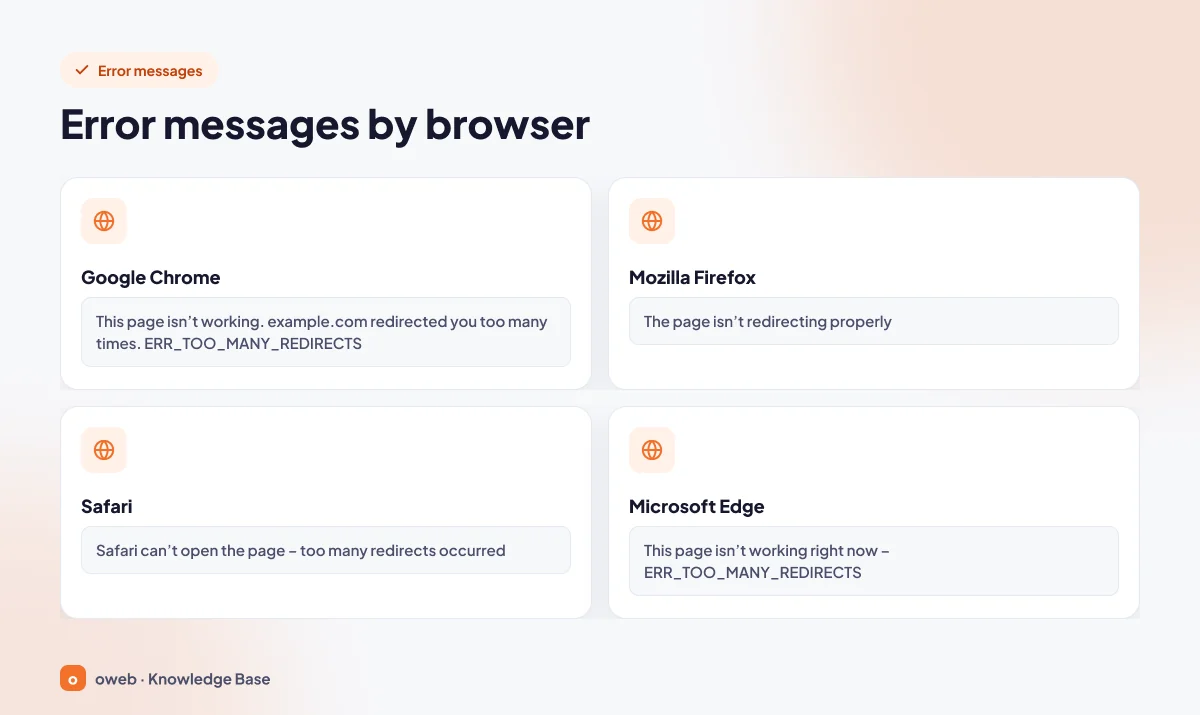
The same problem appears with different wording in each browser. The table below summarizes the message each browser shows for this error.
| Browser | Message shown | Note |
|---|---|---|
| Google Chrome | This page isn't working – yourdomain.com redirected you too many times. ERR_TOO_MANY_REDIRECTS | A "Try deleting your cookies" suggestion (older versions: "Try clearing your cookies") also appears. |
| Mozilla Firefox | The page isn't redirecting properly | Firefox adds that the problem can sometimes be caused by disabling or refusing to accept cookies; it is the same error. |
| Safari | A message stating that "Safari can't open the page because too many redirects occurred" | The exact wording differs slightly between macOS, iOS and Safari versions. |
| Microsoft Edge | The heading "This page isn't working right now" together with the ERR_TOO_MANY_REDIRECTS code | Because Edge is Chromium-based, it reports the same error code as Chrome; the heading text may vary by version. |
What causes ERR_TOO_MANY_REDIRECTS in WordPress?
Behind the loop there are almost always two rules that contradict each other about the "correct form" of the address. The most common causes are listed below.
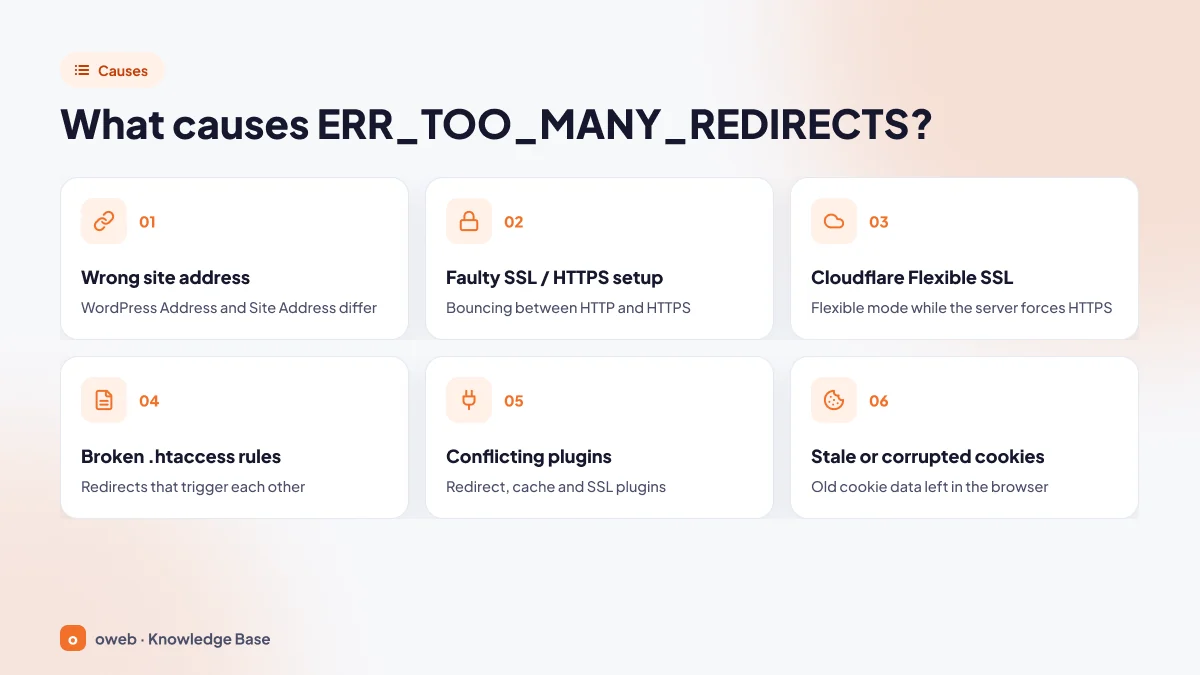
Wrong WordPress Address or Site Address
If the address a visitor arrives on does not match the stored address, WordPress redirects them to the stored one. When the stored address contains www while the server rewrites to the non-www version (or the other way round), the two sides keep "correcting" each other. Similarly, if the stored address uses https:// but SSL is terminated at a reverse proxy or CDN and WordPress sees the request as HTTP, then WordPress (especially on login and admin pages) or the server's HTTPS enforcement rule redirects the visitor to HTTPS again, the request arrives as HTTP once more, and a loop forms. This is the most common cause after a site migration, a domain change or an SSL installation.
Misconfigured HTTPS / SSL
A loop can occur when HTTPS enforcement is defined in more than one place at once (the hosting panel, .htaccess, a plugin) or is enforced without a valid certificate. The outcome is the same when one rule redirects to HTTP and another to HTTPS.
Cloudflare Flexible SSL mode
In Flexible mode the visitor connects to Cloudflare over HTTPS, while Cloudflare connects to your server over HTTP. If the server redirects every HTTP request to HTTPS, Cloudflare passes that response to the visitor, the visitor asks for HTTPS again, and Cloudflare once more arrives over HTTP. This is the classic scenario behind ERR_TOO_MANY_REDIRECTS complaints on sites that use Cloudflare.
Broken .htaccess rules
Redirect rules added by hand, written by a plugin or left over from an old migration can contradict one another. A typical .htaccess redirect loop is one rule redirecting to the www address while another redirects to the non-www address.
Conflicting redirect, cache and SSL plugins
Plugins that manage redirects, plugins that force SSL, security plugins and plugins that change the login URL all generate their own redirects. Caching plugins, in turn, can store a faulty redirect response and keep serving it even after the problem has been fixed.
Stale or corrupted browser cookies
If the session cookie belongs to the old domain or the old protocol, WordPress sends you to the login page and the login page sends you back to the dashboard. In this case the error usually affects only you; other visitors can open the site.
HTTPS not detected behind a reverse proxy or load balancer
If the SSL connection is terminated at a reverse proxy, load balancer or CDN and the request reaches WordPress as HTTP, WordPress assumes the connection is insecure and redirects to HTTPS. The proxy forwards the request over HTTP again and the loop begins.
www / non-www conflict and multisite
A loop occurs if the preferred form of the domain is defined one way in the control panel and another way in WordPress. In multisite installations, a mismatch between the network's main domain definition and the site records in the database produces the same result.
Before you start: take a backup and diagnose the loop
Rather than trying fixes blindly, first see where the loop is occurring; that often gets you to the solution with a single correction.
Take a backup
Some of the steps below modify wp-config.php, .htaccess and the database. Before editing, download a copy of both files to your computer and export the database. That way you can undo a change that goes wrong within seconds by restoring the file.
Inspect the redirect chain with curl
Run the following command in a terminal or command prompt. -I fetches only the response headers, -L follows redirects, and --max-redirs limits the number of hops to follow. In Windows PowerShell, type the command as curl.exe. In this and the following examples, example.com is a placeholder; replace it with your own domain name.
curl -sIL --max-redirs 10 https://example.comIn the output, look at the consecutive 301 / 302 lines and the Location header under each one. Repeat the test for all four versions: http://, https://, www and non-www.
Use the browser developer tools
- Open a private window and launch the developer tools with F12.
- Switch to the Network tab and tick the "Preserve log" option.
- Open your site; click the 301/302 requests in the list and read the
Locationvalue in the response headers.
Likely cause based on what the chain looks like
| What you see in the Location chain | Most likely cause | Where to look first |
|---|---|---|
| http → https → http → https | Conflicting rules, one redirecting to HTTPS and another to HTTP (panel, .htaccess, plugin), or the server redirecting to HTTP while Cloudflare is in Full mode | Step 3 |
| www → non-www → www | Different domain forms defined in the control panel, the .htaccess file and the WordPress address | Steps 2 and 4 |
| The same https address redirecting to itself | Cloudflare Flexible mode, or HTTPS not being detected behind a proxy that terminates SSL | Step 3 (Cloudflare), Step 6 (proxy) |
| /wp-admin/ → wp-login.php → /wp-admin/ | Cookies, FORCE_SSL_ADMIN or an address mismatch | Step 1 and the wp-admin section |
| New domain → old domain | The old address is still in the database | Step 2 |
How to fix ERR_TOO_MANY_REDIRECTS: step by step
The steps are ordered from the safest and quickest to the most invasive. After each step, test the site again in a private window or with curl; if the problem is solved, you do not need to continue to the next steps.
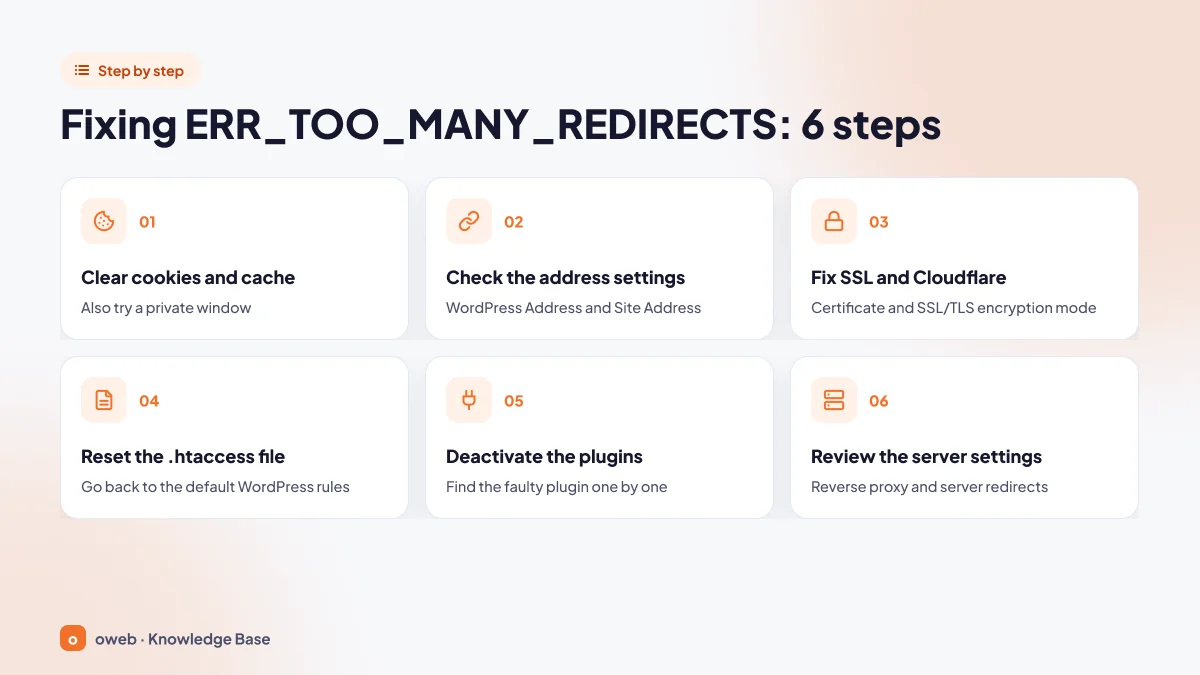
1. Clear cookies and the browser cache
First open the site in a private window (Ctrl+Shift+N in Chrome). If it loads in the private window but not in a normal one, the problem lies in your browser's cookies or cache. You do not need to delete all browsing data; removing the data for the affected site is enough.
- Chrome: Go to More > Settings > Privacy and security > Third-party cookies > See all site data and permissions, search for your site and click Delete (Google Chrome Help).
- Edge: Under Settings and more > Settings > Privacy, search, and services > Cookies > See all cookies and site data, find your site and delete it (Microsoft Support).
- Safari (Mac): In Safari > Settings > Privacy > Manage Website Data, select your site and click Remove (Apple Support).
- Firefox: Remove the site's cookies and site data from the privacy section of Settings (Mozilla Support).
Browsers cache 301 (permanent) redirects. Even after you fix the problem on the server, the error may keep appearing in your own browser for a while. Use a private window or curl to judge whether the fix has worked.
2. Check the WordPress address settings
Both the WordPress Address (URL) and Site Address (URL) fields must use the same protocol (https) and the same domain form (www or non-www) as the address your site is actually served on. There must be no trailing slash. According to the WordPress documentation, the WordPress Address points to the directory where the core files live, while the Site Address is the address visitors type into the browser; unless WordPress is installed in a separate subdirectory, the two are identical.
From the admin dashboard (Settings > General)
If you can log in, go to Settings > General, correct the "WordPress Address (URL)" and "Site Address (URL)" fields and click Save Changes. If the fields are greyed out and cannot be edited, the addresses are hard-coded in wp-config.php; see the next method.
WP_HOME and WP_SITEURL in wp-config.php
If you cannot reach the dashboard, this is the quickest way to change the WordPress site URL. Using FTP or your hosting panel's file manager, open the wp-config.php file in the site's root directory and add these two lines above the "That's all, stop editing!" line:
define( 'WP_HOME', 'https://example.com' );
define( 'WP_SITEURL', 'https://example.com' );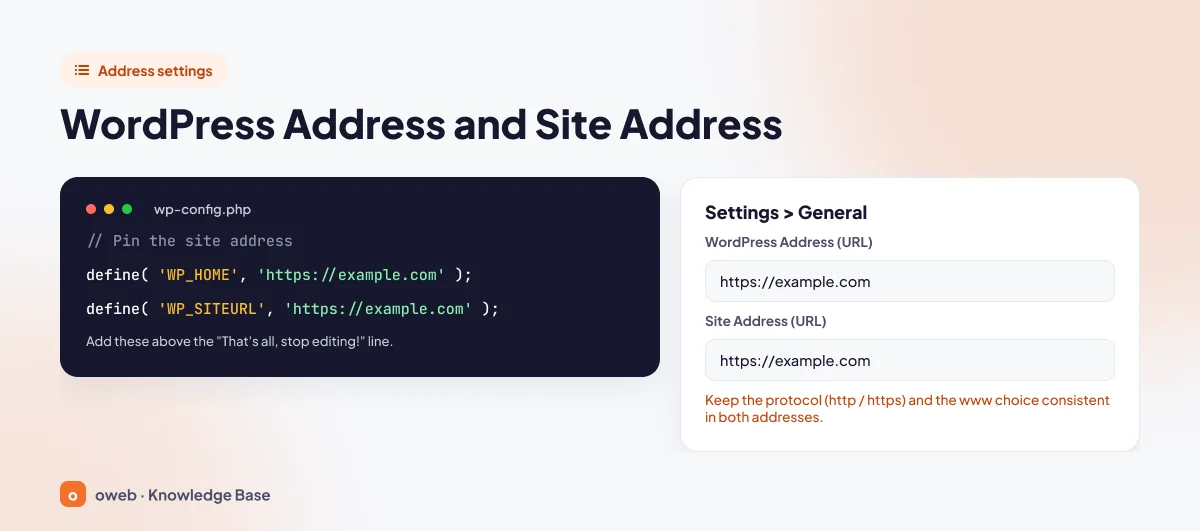
WP_SITEURL corresponds to the WordPress Address and WP_HOME to the Site Address. If WordPress is installed in a separate subdirectory (for example https://example.com/wp), enter the subdirectory address as the WP_SITEURL value. If these constants already exist in the file, do not add new ones; correct the existing values, because defining the same constant twice triggers a PHP warning. As long as these lines remain in the file, the address fields on the Settings > General screen cannot be changed from the dashboard (WordPress developer documentation).
Copy the code from a plain text editor, not a word processor. Curly quotation marks (‘ ’) cause a syntax error in PHP and make the site completely unreachable. If you get an error, restore the wp-config.php file you backed up.
siteurl and home in the database with phpMyAdmin
- Open phpMyAdmin from your hosting panel and select the WordPress database. If you do not know the database name, check the
DB_NAMEline in wp-config.php. - Open the
wp_optionstable. The table prefix may be different in your installation (for examplewpx1_options). - Find the two rows whose
option_nameissiteurlandhome, click Edit, enter the correct address in theoption_valuefield and save.
You can also do the same from the SQL tab with a single query:
UPDATE wp_options
SET option_value = 'https://example.com'
WHERE option_name IN ('siteurl', 'home');
Replace the wp_ prefix in the table name with your own prefix. If WordPress is installed in a separate subdirectory, do not set both values to the same address; write the subdirectory address for siteurl with a separate query.
With WP-CLI
If you have SSH access, run the commands as the user that owns the site, not as root, and from the WordPress root directory:
wp option get home
wp option get siteurl
wp option update home 'https://example.com'
wp option update siteurl 'https://example.com'
If the site has been migrated and the old domain is still present in the content, first run the command with --dry-run as a trial; if the result looks right, remove the flag and run it again. In the example, old-example.com stands for your old domain:
wp search-replace 'http://old-example.com' 'https://example.com' --skip-columns=guid --dry-runBy default this command modifies all WordPress tables registered with $wpdb (custom plugin tables require --all-tables-with-prefix, and an entire multisite network requires --network); make sure you have a database backup before the real run (wp db export backup.sql).
3. Fix SSL and the Cloudflare mode
Check the SSL certificate and HTTPS enforcement
First confirm that your domain has a valid, unexpired certificate that covers both the www and non-www names. If there is no certificate, do not force HTTPS; install an SSL certificate first.
Then apply the "single redirect authority" rule: the HTTP-to-HTTPS redirect should be defined in one place only. The places to check are:
- cPanel: The "Force HTTPS Redirect" toggle on the Domains screen and the entries in the Redirects interface. For a general introduction to the panel, see our article What is cPanel.
- Plesk: The "Permanent SEO-safe 301 redirect from HTTP to HTTPS" option on the Hosting Settings screen and the Preferred domain selection. For details, see What is Plesk.
- .htaccess: Rules containing
RewriteCond %{HTTPS}. - Plugins: The settings of plugins that force SSL or manage redirects.
If you prefer to enforce HTTPS through .htaccess, a simple one-way rule is enough:
RewriteEngine On
RewriteCond %{HTTPS} off
RewriteRule ^ https://%{HTTP_HOST}%{REQUEST_URI} [L,R=301]
Add the rule above the # BEGIN WordPress line; WordPress itself rewrites the section between the BEGIN and END markers. If your site is in Cloudflare Flexible mode or behind a proxy that terminates SSL, do not use this rule, because it produces the loop itself; see the X-Forwarded-Proto version in Step 6.
Set the Cloudflare SSL/TLS encryption mode
Open the SSL/TLS > Overview screen in the Cloudflare dashboard. If Automatic SSL/TLS is enabled on your account, Cloudflare chooses the mode itself; to select it manually, use the Custom SSL/TLS option. The modes differ as follows:
| Mode | Visitor – Cloudflare | Cloudflare – Server | Loop risk |
|---|---|---|---|
| Flexible | HTTPS | HTTP | A loop occurs if the server redirects to HTTPS |
| Full | HTTPS | HTTPS, certificate not validated | A loop occurs if the server redirects to HTTP |
| Full (strict) | HTTPS | HTTPS, valid certificate required | Recommended setting; the server must not redirect to HTTP |
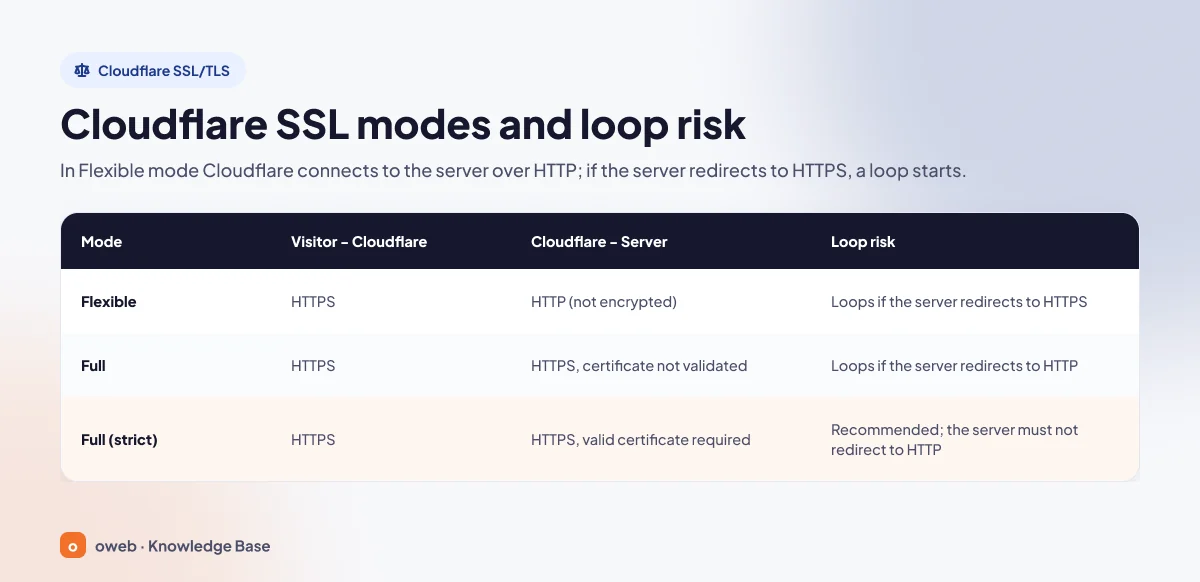
If your server has a valid certificate, set the mode to Full (strict). The Cloudflare documentation recommends using Full or Full (strict) whenever possible. Full (strict) works with a certificate issued by a public certificate authority or with a Cloudflare Origin CA certificate.
If you select Full (strict) without a valid certificate on the server, you will get a Cloudflare 526 (invalid SSL certificate) error instead of a loop. Install the certificate first, then change the mode. The Full modes are not entirely free of loop risk either: if the server redirects HTTPS requests to HTTP, the error still occurs.
If the mode is correct, look at Cloudflare's other redirect points: Always Use HTTPS under SSL/TLS > Edge Certificates, Redirect Rules and Bulk Redirects under Rules, and Page Rules, which is a legacy feature. Two conflicting rules will also cause a loop. Because it can lead to loop errors, Cloudflare recommends not repeating the same redirect at the origin server (Always Use HTTPS documentation). A loop also occurs if HSTS is enabled while the server redirects HTTPS requests to HTTP; only turn HSTS on once HTTPS is working without problems. For other scenarios, see the Cloudflare troubleshooting page.
4. Regenerate the .htaccess file
On Apache and LiteSpeed servers, most redirect rules live in the .htaccess file in the root directory. Do not delete the file; rename it to .htaccess_old. You may need the security, cache and custom 301 rules in it later.
- Enable the display of hidden files in the file manager and rename the
.htaccessfile. - Test the site. If the error is gone, the problem is a rule in this file. At this stage the home page may load while inner pages return 404; this is normal and is fixed by the next item.
- Log in to the dashboard, go to Settings > Permalinks and click Save Changes without changing anything. WordPress creates a clean file.
If your caching or security plugin writes its own rules to .htaccess, re-save the plugin's settings to regenerate those rules.
The default WordPress .htaccess file
If you cannot log in to the dashboard, create a new .htaccess file and paste in the default WordPress rules for single-site installations:
# BEGIN WordPress
<IfModule mod_rewrite.c>
RewriteEngine On
RewriteRule .* - [E=HTTP_AUTHORIZATION:%{HTTP:Authorization}]
RewriteBase /
RewriteRule ^index\.php$ - [L]
RewriteCond %{REQUEST_FILENAME} !-f
RewriteCond %{REQUEST_FILENAME} !-d
RewriteRule . /index.php [L]
</IfModule>
# END WordPress
This block is for single sites installed in the domain's root directory; the rules differ for subdirectory installations and multisite networks. Once the site is working, you can add the custom rules from the old file back one at a time to find the line that causes the loop.
5. Deactivate plugins and clear caches
If you suspect a specific plugin (a redirect, SSL, security or caching plugin, or one that changes the login URL), turn off only that one first. If you are not sure, deactivate them all and re-enable them one by one.
Via FTP or the file manager
- Go to the
wp-content/pluginsdirectory. - To disable a single plugin, rename that plugin's folder (for example
plugin-name_off). To disable them all, rename thepluginsfolder toplugins_old. - Test the site. If it loads, log in to the dashboard while the folder is still renamed and open the Plugins screen once; WordPress deactivates the plugins it cannot find. Then restore the folder name and activate the plugins one at a time to identify the culprit.
If you restore the folder name without opening the Plugins screen, all the plugins become active again and the loop returns.
With WP-CLI
wp plugin deactivate --all --skip-pluginsThe --skip-plugins flag prevents plugins from loading while the command runs, so a faulty plugin cannot break the command either. To exclude specific plugins, you can use --exclude=plugin-slug.
Redirects caused by the theme
If the error persists with plugins disabled, there may be redirect code in the theme's functions.php file. Temporarily rename the active theme's folder, log in to the dashboard and open the Appearance > Themes page; if a default theme (for example Twenty Twenty-Five) is installed, WordPress switches to it. If no default theme is installed, the front end may appear blank; install a default theme first. If you have SSH access, the safer route is to switch the theme with a command:
wp theme activate twentytwentyfive --skip-plugins --skip-themesAdjust the theme name (slug) to the default theme installed on your site. When the test is finished, restore the folder name.
Clear the plugin, server and CDN caches
The faulty redirect response may have been cached. After the fix, clear all of the following layers:
- The "purge all" action of your caching plugin (for example LiteSpeed Cache).
- The server-side cache in the hosting panel.
- The CDN cache (the purge cache action in Cloudflare).
wp cache flushfor the object cache. This command clears only the object cache; it does not touch the page cache or the CDN.
6. Review server redirects and reverse proxy settings
If the problem is still not solved at this point, the loop is most likely outside WordPress: domain redirects in the hosting panel, the Nginx server block, or an architecture in which SSL is terminated at a proxy.
When WordPress sits behind a reverse proxy that provides SSL but connects to the backend over HTTP, it cannot detect HTTPS. The fix recommended in the WordPress HTTPS documentation is to have the following code in wp-config.php before the wp-settings.php line:
define( 'FORCE_SSL_ADMIN', true );
if ( isset( $_SERVER['HTTP_X_FORWARDED_PROTO'] ) && strpos( $_SERVER['HTTP_X_FORWARDED_PROTO'], 'https' ) !== false ) {
    $_SERVER['HTTPS'] = 'on';
}
The isset check here is a small adaptation added to the official example so that no PHP warning is raised when the header is missing. If FORCE_SSL_ADMIN is already defined in your file, do not add it a second time. For the code to work, the proxy must send this header; in Nginx the equivalent is the line proxy_set_header X-Forwarded-Proto $scheme;.
Add this code only if your site really is behind a proxy, load balancer or CDN. If your server can be reached directly, bypassing the proxy, this header can be spoofed by the client.
If you are going to force HTTPS with .htaccess in the same architecture, check the header forwarded by the proxy instead of %{HTTPS}; otherwise the rule fires on every request:
RewriteEngine On
RewriteCond %{HTTP:X-Forwarded-Proto} =http
RewriteRule ^ https://%{HTTP_HOST}%{REQUEST_URI} [L,R=301]
This rule only works if the proxy sends the X-Forwarded-Proto header; if the header is absent, it does not redirect and does not create a new loop.
How do you fix a redirect loop on the wp-admin login?
If the site loads but the dashboard address keeps returning to the login page, in other words you are facing a wp-admin redirect loop, check the following points in order:
- Cookies: Delete the site's cookies and make sure the browser is not blocking cookies.
- FORCE_SSL_ADMIN: If this constant is enabled while the server cannot detect HTTPS, the login page redirects to itself. Apply the code in Step 6 or resolve the certificate problem.
- Address mismatch: The protocol and www form of the
homeandsiteurlvalues must be the same as the address you log in on. - COOKIE_DOMAIN: If it is defined in wp-config.php and does not match your domain, the session cookie is rejected; correct the line or remove it.
- Login and security plugins: Temporarily disable plugins that change the login URL or restrict the dashboard, using the method in Step 5.
Redirect loops in WordPress multisite installations
In multisite networks the single-line methods (WP_HOME / WP_SITEURL, a one-line database fix) are not enough. The domain records in the wp_site and wp_blogs tables, the home and siteurl values in each site's own options table and the DOMAIN_CURRENT_SITE definition in wp-config.php must all be consistent with one another. Take a full database backup before editing; if you use WP-CLI, select the target site with the --url parameter.
Verifying the fix and preventing the error from returning
Run a short check to make sure the fix is permanent:
- Test the four address versions (http, https, www, non-www) with curl; each should reach a single destination in one or two hops at most and end with
200. - Open the home page, a post and the dashboard login in a private window.
- Re-enable the plugins you disabled one at a time, testing again each time.
- Review any code you added temporarily and remove what is no longer needed.
- If a "Redirect error" entry has appeared in the Page indexing report in Google Search Console, start validation with the report's "Validate fix" option. A long-lasting loop prevents Google from crawling your pages.
To keep the error from coming back:
- Define the HTTPS and www redirects in a single layer, that is, in only one of the panel, .htaccess, a plugin or the CDN.
- After an SSL installation or a site migration, update the address settings and the Cloudflare mode at the same time.
- Do not use more than one redirect, SSL or caching plugin doing the same job.
- Make a copy of the .htaccess and wp-config.php files every time before you change them.
- Where possible, try changes on a staging copy first.
When should you contact hosting support?
If you have applied all six steps and the redirect in the curl output comes from the server configuration rather than from the WordPress files (for example, a 301 is still returned even with an empty .htaccess and plugins disabled), the problem is on the server side. Nginx rules, panel-level redirects and proxy settings can usually be changed only by your hosting provider.
If you are an Oweb customer, you can open a support ticket and ask for an investigation. Including the following information speeds things up: the curl -sIL output, the date and time the error started, the last change you made before the error (SSL installation, migration, plugin update) and whether you use Cloudflare. If you are looking for infrastructure configured for WordPress, take a look at our WordPress hosting page.
Frequently asked questions
What does "This page isn't working, redirected you too many times" mean?
It is the message Chrome shows for a redirect loop. When a site sends the browser to another address 20 times in a row, Chrome stops the request and shows the ERR_TOO_MANY_REDIRECTS code.
Does clearing cookies fix the error?
Only if the cause is a stale or corrupted cookie. If the error also appears in a private window and on other devices, the problem is on the site or the server; you need to look at the address settings, SSL and the .htaccess file.
Why does my site get stuck in a redirect loop after installing SSL?
The usual reasons are HTTPS enforcement being defined in more than one place, the WordPress addresses still being stored with http, or Cloudflare being left in Flexible mode. Change the addresses to https, reduce enforcement to a single layer and, if your server has a valid certificate, set the Cloudflare mode to Full (strict).
What is the difference between Cloudflare Flexible and Full (strict)?
In Flexible mode Cloudflare connects to your server over unencrypted HTTP and no certificate is needed on the server. In Full (strict) mode the connection is HTTPS end to end and the server's certificate is validated; this requires a valid certificate on the server issued by a public certificate authority or by Cloudflare Origin CA. Full (strict) is the recommended mode in terms of both loop risk and security.
Do the WordPress Address and the Site Address always have to be the same?
In most installations, yes. If the WordPress core files are installed in a separate subdirectory, the WordPress Address points to that directory while the Site Address is the address visitors see, and the two are deliberately different. The protocol and www form, however, must be consistent in every case.
How do you deactivate plugins without access to the dashboard?
You can deactivate plugins by renaming the wp-content/plugins folder via FTP or the file manager, or with the wp plugin deactivate --all --skip-plugins command over SSH. If you open the Plugins screen in the dashboard while the folder is renamed, the plugins stay deactivated; after restoring the folder name you can enable them one by one.
Does ERR_TOO_MANY_REDIRECTS affect SEO?
A short-lived error does no lasting harm. But if the loop continues for days, search engines cannot crawl the pages, and Search Console reports them as redirect errors. Once you have fixed the problem, it is enough to start validation for the affected pages.
I fixed the error but I still see it. Why?
Your browser may be serving the old 301 response from its cache. Test in a private window, in a different browser or with curl; if there is no problem there, deleting the site's cookies and cache is all you need to do.
Conclusion
The WordPress ERR_TOO_MANY_REDIRECTS error may look alarming, but it almost always comes down to a single conflicting rule. Diagnose the chain first, then work through the steps in order; if you believe the redirect originates on the server side, you can contact the Oweb support team.
