


The 503 Service Unavailable error is an HTTP status code. It means the web server is running and has received your request, but can't handle it right now because of a temporary overload or scheduled maintenance. The problem is on the server side, not on the visitor's device, and the site comes back once the cause goes away.
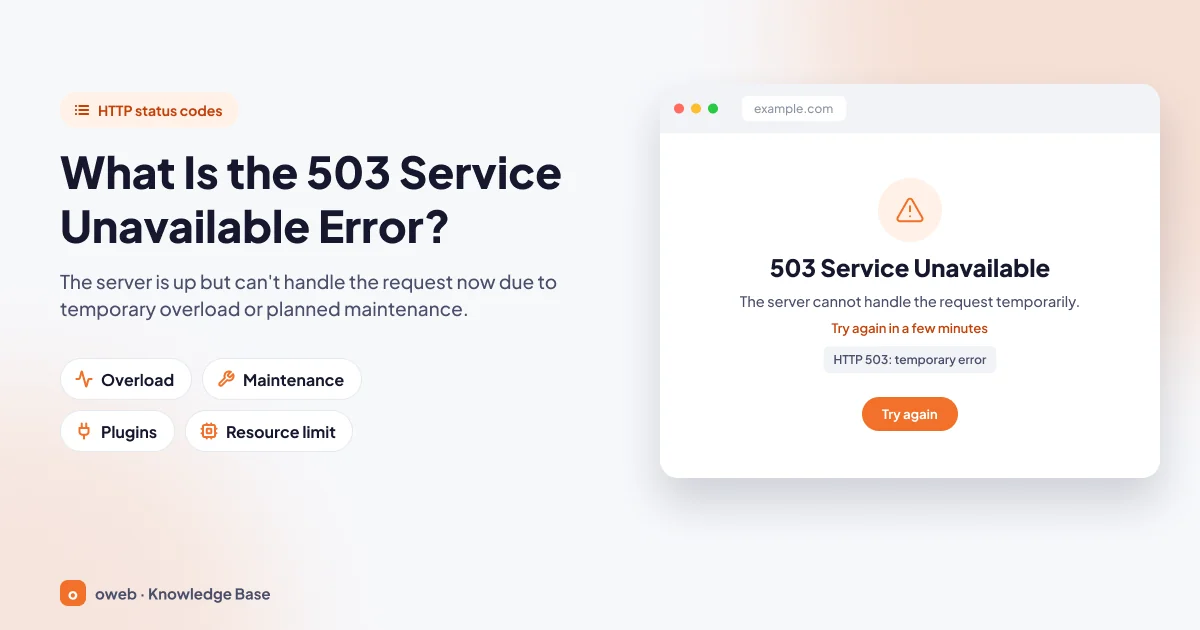
In short: what is a 503 error?
- Meaning: The server can be reached, but it can't process the request for now. In plain terms, "the service is temporarily unavailable" or "the server is temporarily unavailable."
- Who is responsible: The server. Clearing cookies, changing DNS or restarting your router won't fix it.
- Most common causes: Resource limits, WordPress maintenance mode, a heavy plugin or theme, a stopped PHP-FPM service or application pool, a traffic spike, and problems between a CDN and the origin server.
- Retry-After: A response header that tells the client how many seconds to wait, or on which date to try the request again.
- WordPress: During updates, the core sends a 503 with
Retry-After: 600by itself. If an update is interrupted, the.maintenancefile stays in the root directory. WordPress ignores it after 10 minutes, but you can delete it by hand so you don't have to wait. - SEO: Your pages stay in Google's index during short 503 outages. If the error lasts for days, Google may drop those URLs from its index.
What does a 503 error mean?
When your browser requests a page, the web server (what a server is and how it works) puts a three-digit status code at the start of its response. Codes starting with 5 mean the server couldn't fulfil the request. The 503 error is the code in this class that clearly signals a temporary condition.
The HTTP standard RFC 9110 says a 503 means the server can't handle the request right now because of a temporary overload or scheduled maintenance, and that the condition will probably clear after some delay.
What does the HTTP 503 status code tell you?
- The server is up: You got a response, so your domain points to a server and that server answers. If the server were completely down, the browser would show a connection error instead.
- The problem is temporary: Unlike a 404, it doesn't mean "this content doesn't exist." The same URL may respond normally a little later.
- The request wasn't served: The application that builds the page (PHP, for example) couldn't be reached, or it couldn't accept new work.
A 503 can come from the application, a load balancer or a CDN as well as from the web server, so the first step is to find out which layer sent it.
What is the Retry-After header?
Retry-After is an HTTP header a server can add to a 503 response to say how long the service will be unavailable. Its value is either a whole number of seconds or a date in GMT:
Retry-After: 120
Retry-After: Sun, 22 Nov 2026 03:00:00 GMT
The first line means "try again in 120 seconds (2 minutes)." The header is optional, and according to MDN client support varies, so don't expect your browser to reload the page automatically. Some search engine crawlers, such as Googlebot, may take the header into account, which is why it's worth sending during planned maintenance.
What does a 503 error look like?
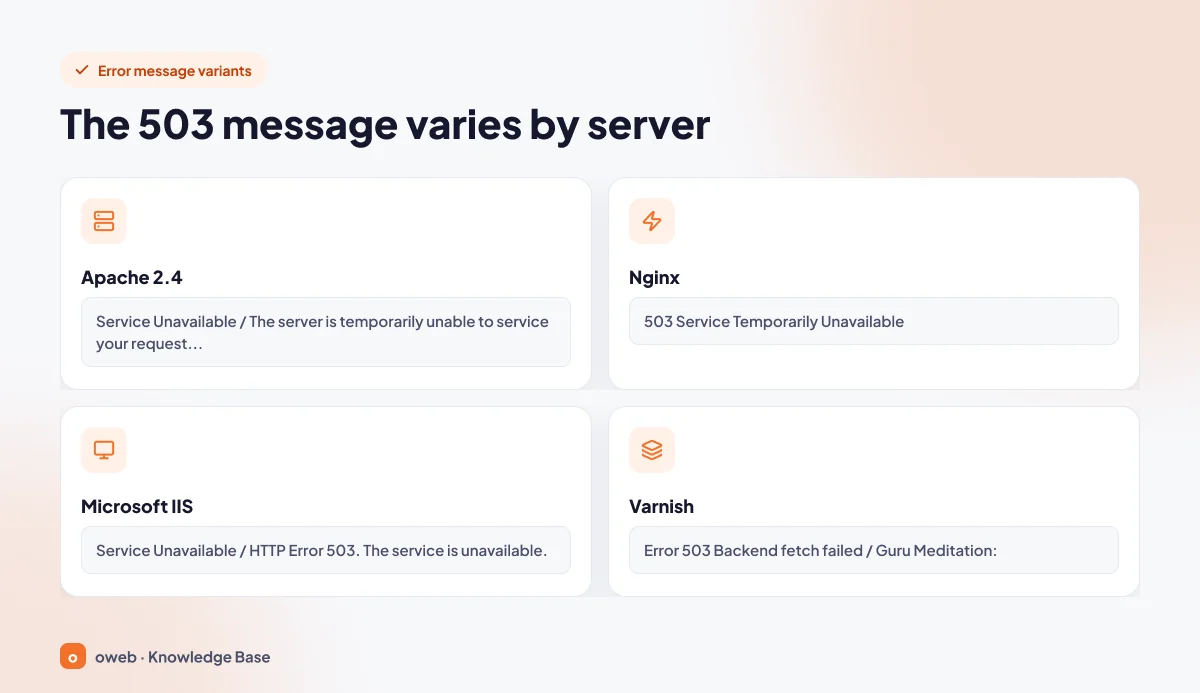
The error text depends on the software that produced the response, and it often reveals which layer the problem is in. The last column of the table also shows which fix step in this article to look at.
| Message on screen | Produced by | What it means and what to do |
|---|---|---|
| Service Unavailable The server is temporarily unable to service your request due to maintenance downtime or capacity problems. Please try again later. | Apache 2.4 | The server is under maintenance or at capacity, and the PHP service may be unreachable. See steps 1 and 5. |
| 503 Service Temporarily Unavailable | Nginx | Usually a request limit has been exceeded or a maintenance rule is in place. Check those rules. |
| Service Unavailable HTTP Error 503. The service is unavailable. | Microsoft IIS | The application pool has stopped or been disabled. Start the pool. |
| Error 503 Backend fetch failed Guru Meditation | Varnish | The cache layer couldn't get a response from the web server behind it. Check the web server and PHP services. |
| 503 Service Unavailable The server is temporarily busy, try again later! | LiteSpeed | Usually a PHP process has crashed or hit a limit. See steps 1 and 5. |
| Briefly unavailable for scheduled maintenance. Check back in a minute. | WordPress | An update is running or was interrupted. Follow step 3. |
| This page isn't working HTTP ERROR 503 | Chrome browser | This is the browser's own error page. To find the cause, check the curl -I output and the logs. |
Today, "Service Temporarily Unavailable" is seen mostly on Nginx. Apache used this wording in versions 2.0 and 2.2. The sentence "HTTP Error 503. The service is unavailable." belongs to Microsoft IIS and points to a Windows server. The upper-case "HTTP ERROR 503" line that Chrome shows under "This page isn't working" says nothing about the server software. It only tells you that the server responded with a 503 code.
What causes a 503 error?
All the causes have one thing in common: the server, or the layer in front of it, couldn't find a free "worker" to handle the request.
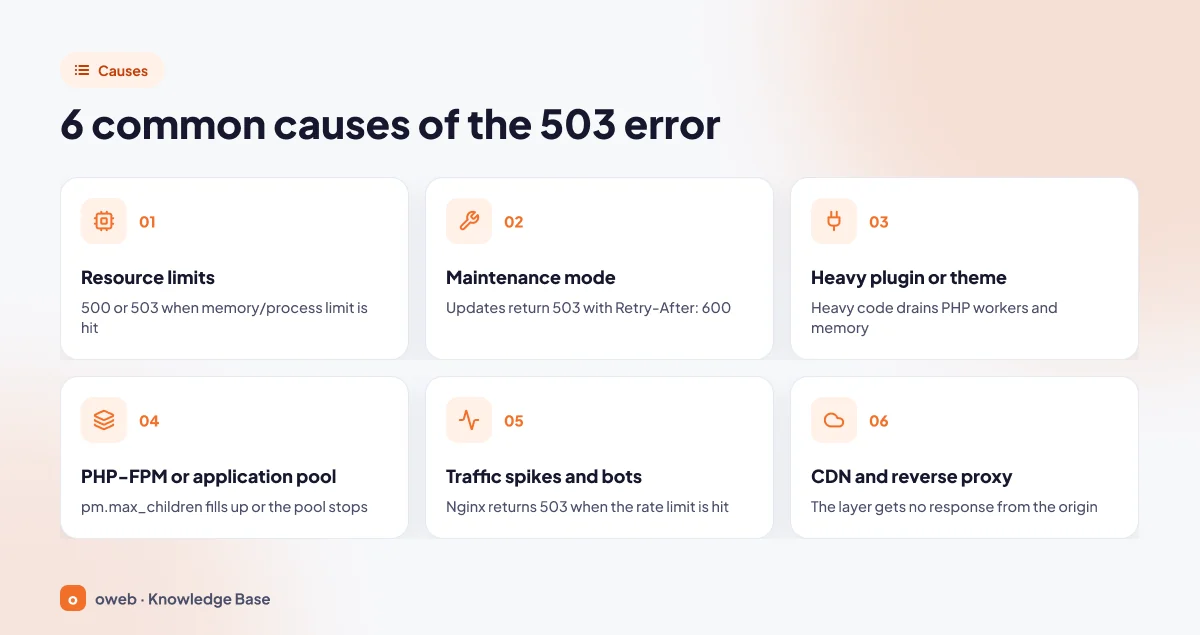
1. Server overload and resource limits on shared hosting
On shared hosting, each account has CPU, memory and concurrent process limits, so that one site can't slow down the others. Many providers enforce these limits with CloudLinux's LVE technology, and what happens depends on which limit is reached.
| Limit | What it limits | What happens when it's reached |
|---|---|---|
| EP (Entry Processes) | Number of simultaneous connections to dynamic scripts | 508 Resource Limit Is Reached error |
| PMEM (physical memory) | RAM available to the account | Processes are killed, usually resulting in a 500 or 503 |
| NPROC (number of processes) | Total number of processes the account can run | No new processes can start, resulting in a 500 or 503 |
| SPEED (CPU) and IO | CPU share and disk read/write speed | No error code. The site just slows down |
In short, on shared hosting a 503 usually means PHP couldn't run because of the memory or process limit. Limit values vary by plan. The details are in the CloudLinux limits documentation.
2. Maintenance mode and the WordPress .maintenance file
503 is the right status code for planned maintenance. WordPress writes a file named .maintenance to the root directory while it updates the core, plugins or themes. Until 10 minutes have passed since the file was created, every request gets a 503 code, a Retry-After: 600 header and the message "Briefly unavailable for scheduled maintenance. Check back in a minute."
The file is deleted when the update finishes. If the process is interrupted, it stays in place. WordPress ignores the file once it's older than 10 minutes, but you can delete it by hand if you don't want to wait.
3. Broken or heavy plugins and themes
In WordPress, a PHP fatal error in a plugin doesn't produce a 503. It produces a 500 code with the message "There has been a critical error on this website." Plugins and themes cause 503s indirectly. Code that gets stuck in a loop, runs heavy queries or waits on an external service uses up PHP workers and memory. When no free workers are left, the web server returns a 503, depending on the setup (behind Nginx it's more often a 502 or 504).
4. PHP-FPM or application pool problems
PHP-FPM handles PHP requests with a limited number of worker processes. The upper limit is set by the pm.max_children setting. When the pool is full, this warning appears in the log (the number in brackets is just an example):
WARNING: [pool www] server reached pm.max_children setting (20), consider raising itWhen PHP-FPM stops completely, Apache usually returns a 503 and Nginx returns a 502 Bad Gateway. According to the LiteSpeed documentation, 503 errors are also usually caused by a failure on the PHP side, not by the web server.
Sites that run on Node.js or Python behave the same way. When the application process crashes or stops, the web server has nowhere to forward the request and may return a 502 or 503, depending on the setup. Check the application log before you restart the application.
On Windows servers, the IIS application pool plays the same role. If the application crashes 5 times within 5 minutes, Rapid-Fail Protection disables the pool under the default settings, and the site returns a 503 until someone starts the pool by hand. Microsoft documents this case with the 503.0 (Application pool unavailable) substatus code. The cause shows up in the HTTPERR log with reasons such as AppOffline or Disabled.
5. Traffic spikes, bots and DDoS
Sales campaigns or malicious bot traffic can push the number of concurrent requests beyond what the server can handle. Nginx's request and connection limiting modules (limit_req, limit_conn) return a 503 by default for the requests they reject. In WordPress, brute-force attacks on wp-login.php and xmlrpc.php use up PHP workers quickly, because those requests can't be cached.
6. Problems between a CDN or reverse proxy and the origin server
If there's a CDN, a load balancer or a reverse proxy such as Varnish in front of your site, that layer can also produce the 503. The 503 Backend fetch failed message comes from Varnish. The cache server is running, but it couldn't get a response from the origin server behind it.
According to the Cloudflare documentation, if a "503 Service Temporarily Unavailable" page doesn't mention "cloudflare," the error comes from your origin server. If it does, the problem is in a Cloudflare data center.
DNS problems don't cause 503 errors. If the domain can't be resolved, the browser can't reach any server at all and shows its own DNS error page instead of an HTTP status code.
What is the difference between 500, 502, 503 and 504 errors?
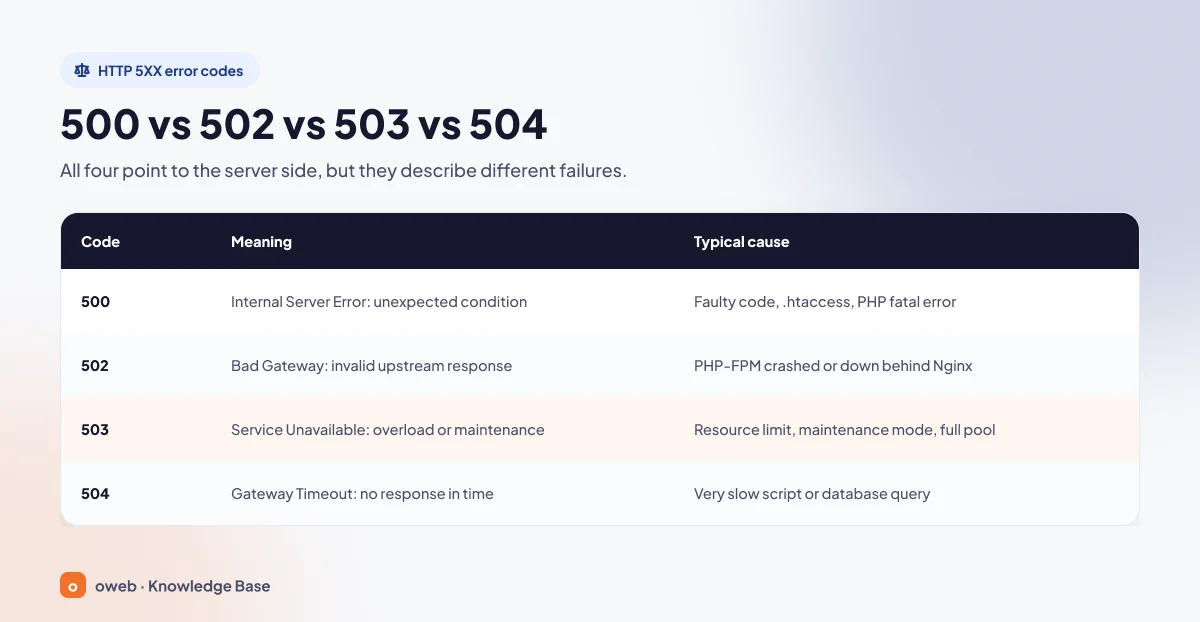
All four codes point to the server side, but each one describes a different failure.
| Code | Meaning | Typical cause |
|---|---|---|
| 500 Internal Server Error | The server hit an unexpected condition that stopped it from completing the request. | Faulty code or .htaccess rule, PHP fatal error |
| 502 Bad Gateway | A gateway or proxy server got an invalid response from the server behind it. | PHP-FPM or an application server crashing behind Nginx |
| 503 Service Unavailable | The server can't handle the request right now because of a temporary overload or planned maintenance. | Resource limit, maintenance mode, full worker pool, request (rate) limit |
| 504 Gateway Timeout | A gateway or proxy server didn't get a response from the server behind it in time. | Very slow script or database query |
For timeout problems, see our 504 Gateway Timeout error guide.
Two more codes are often confused with 503. 508 Resource Limit Is Reached means the concurrent connection (EP) limit has been reached on CloudLinux. 429 Too Many Requests means a single client has been limited for sending requests too often. In that case the correct code is 429, not 503.
What can you do as a visitor?
The error doesn't come from your device, so there isn't much you can do:
- Wait: Reload the page once after a few minutes. Reloading over and over adds load to the server and can get you rate-limited.
- Try another network: If the site opens over mobile data, the problem may be a limit applied only to your IP address.
- Don't repeat the action: If you were at the payment step, check your email and bank transactions first. Otherwise you could end up with a duplicate order.
Clearing cookies, changing your DNS server, restarting your router or turning off your firewall won't fix a 503 error. Disabling your security software only puts your device at risk.
How do you fix a 503 error as a site owner?
The steps below for fixing a 503 error go from safe checks to more involved changes. Test the site again after each step.
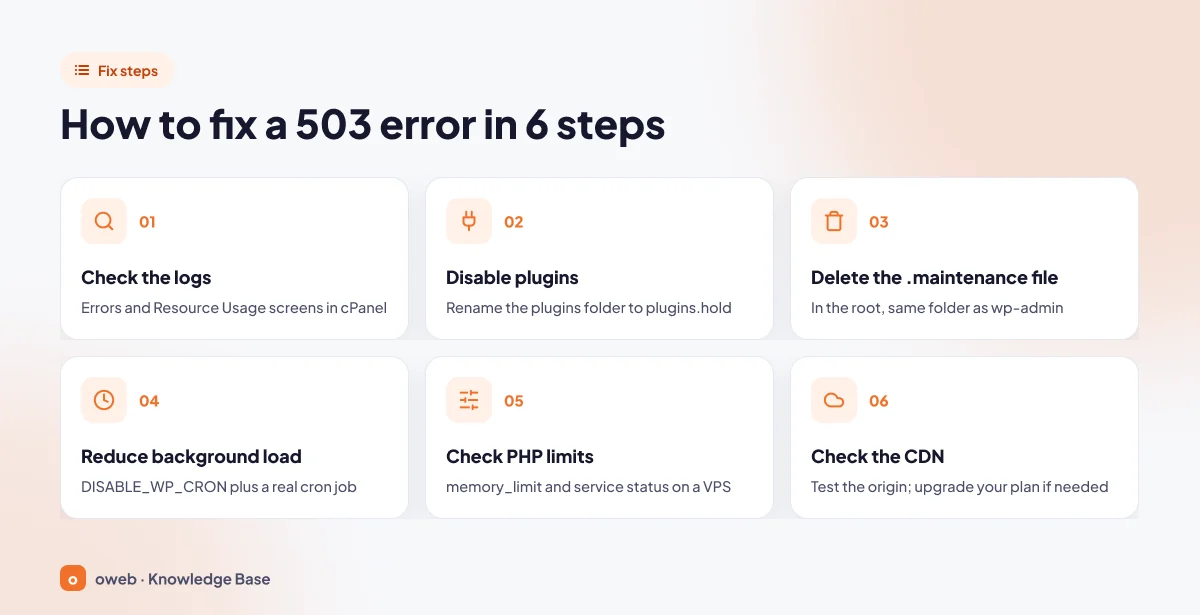
Take a backup before you change files, the database or the server configuration, and download a copy of the file you're going to edit (for example wp-config.php or .htaccess) to your computer.
Before you start, find out who is sending the response. This command fetches only the page's response headers:
curl -I https://yourdomain.com/The first line shows the status code. The Server line shows the software that sent the response, and the Retry-After line, if present, shows the suggested wait time. If your site is behind a CDN, the Server line shows the CDN's name (on Cloudflare you'll see Server: cloudflare and a cf-ray header), so you can't tell the origin server's software from it. In Windows PowerShell, type the command as curl.exe -I https://yourdomain.com/. The Network tab in the browser's developer tools gives you the same information.
1. Check resource usage and the error logs
The cause of a 503 is usually written in the logs or on the resource usage screen.
In cPanel
- Metrics > Errors: Lists the last 300 entries of the web server error log, newest first.
- Resource Usage: On CloudLinux servers, open it with the "CPU and concurrent connection usage" link. The Dashboard tab shows whether your account has hit its limits, Current usage shows the live state, and Snapshot shows the processes that were running when a limit was exceeded.
Each "fault" entry on this screen marks a moment when the account hit a limit. If the fault entries line up with the times of the errors, the cause is a lack of resources. To get to know the panel, see our article What Is cPanel?
What to search for in the log
Allowed memory size of ... bytes exhausted: PHP's own memory limit (memory_limit) has been exceeded. On its own, this error usually produces a 500, not a 503.server reached pm.max_children setting: The PHP-FPM worker pool is full.
PHP's memory_limit value and your account's physical memory (PMEM) limit are two different things. The second one is what can cause a 503. That overrun is easiest to see in the fault entries on the Resource Usage screen. In the error log it may only leave indirect traces such as "Cannot allocate memory."
On a VPS or VDS
If you have root access, check load, memory and disk usage with these commands:
uptime
free -m
df -h
A full disk, especially the /tmp partition, can also stop PHP from running and lead to a 503.
2. Deactivate plugins and the theme
If the error started after an update or a new plugin, undo that change first. If you don't know which plugin is causing it, deactivate all plugins and then turn them back on one at a time. This also turns off caching, security, form and payment plugins, so keep the test short and, if you can, run it at a time when few people are visiting.
Using File Manager or FTP
- In cPanel, open File Manager in the Files section and go to your site's
wp-contentfolder. - Use the Rename option to rename the
pluginsfolder toplugins.hold. - Open
/wp-admin/plugins.php. WordPress deactivates the plugins it can't find. - Rename the folder back to
pluginsand activate the plugins one at a time. If the error comes back when you activate a particular plugin, that plugin is the problem.
Using WP-CLI
If you have SSH access, a single command is enough. The --skip-plugins and --skip-themes flags make the command run without loading plugin and theme code, so a broken plugin can't stop WP-CLI as well:
wp plugin deactivate --all --skip-plugins --skip-themesIf the error continues, switch to a default WordPress theme that's installed on the site. If you can't get into the dashboard, run wp theme list to see the installed themes, then use wp theme activate THEME-NAME. Rename the active theme's folder instead of deleting it.
3. Delete the .maintenance file
Follow this step if the screen says "Briefly unavailable for scheduled maintenance. Check back in a minute." The update may still be running, so wait a few minutes and reload the page first. If the message doesn't go away, or you know the update was interrupted, delete the file:
- In File Manager, open your site's root directory, which is the directory that contains the
wp-adminfolder. - Click the Settings button, tick "Show Hidden Files (dotfiles)" and click Save. Files that start with a dot are hidden by default.
- Delete the
.maintenancefile and reload the site. The WordPress troubleshooting documentation recommends the same method. - Run the interrupted update again from the dashboard.
If you use WP-CLI, the wp maintenance-mode deactivate command does the same thing. If the message is still there after you delete the file, clear your caching plugin's cache and your CDN cache.
4. Reduce WordPress Heartbeat and cron load
If your limits fill up even though you get few visitors, background requests are usually generating the load.
The Heartbeat API lets the dashboard talk to the server at regular intervals. Each "tick" is a PHP request through admin-ajax.php that can't be cached. As of November 2026, the default interval in core is 60 seconds. On the post editing screen, while the post lock dialog is active, the interval drops to 10 seconds (since WordPress 6.7). So close admin tabs you aren't using. You can also lengthen the interval with the heartbeat_settings filter.
WP-Cron checks for scheduled tasks on every page load. To move it to a real cron job, add this line to wp-config.php above the "That's all, stop editing!" line:
define( 'DISABLE_WP_CRON', true );Then, in your control panel's cron section (Cron Jobs in cPanel), set up the following job to run every 15 minutes. The redirect at the end of the line stops a notification email from being sent every time it runs:
*/15 * * * * wget -q --delete-after https://yourdomain.com/wp-cron.php >/dev/null 2>&15. Check PHP limits and services
PHP settings on shared hosting
If you see an "Allowed memory size" error in the log, you can raise memory_limit in your control panel's PHP settings (for example, MultiPHP INI Editor under Software in cPanel). In WordPress, you add this line to wp-config.php for the same purpose:
define( 'WP_MEMORY_LIMIT', '256M' );This value can't go beyond the memory limit your hosting plan allows. If the Resource Usage screen shows memory (PMEM) overruns, raising memory_limit won't help. It can even make the limit fill up faster, because it lets each PHP process use more RAM. In that case you need to find the plugin that's using the memory, or move to a bigger plan.
Raising max_execution_time (30 seconds by default) at random can also backfire. Slow scripts keep workers busy for longer, and 503s become more frequent.
Restarting services on a VPS or VDS
Restarting a stopped service makes the site reachable again, but the error will come back if you don't fix the cause shown in the log. First check the service's state with systemctl status, then restart the service you need. The lines below are alternatives, so only run the command for the service that's actually installed on your server:
sudo systemctl status nginx          # check the status first (change the service name)

sudo systemctl restart nginx
sudo systemctl restart apache2       # AlmaLinux/RHEL: httpd
sudo systemctl restart php8.3-fpm    # version is an example; php-fpm on the RHEL family
sudo systemctl restart lsws          # LiteSpeed
On servers with cPanel, use the panel's own scripts for Apache and PHP-FPM:
/usr/local/cpanel/scripts/restartsrv_httpd
/usr/local/cpanel/scripts/restartsrv_apache_php_fpm
If you're going to raise pm.max_children, take the server's memory into account. A worker pool whose total memory use goes beyond physical memory can lock up the whole server.
On Windows servers, if a pool shows as "Stopped" in the Application Pools list in IIS Manager, start it. The reason it stopped is recorded in Event Viewer, in entries whose source is WAS.
6. Check the CDN and upgrade your plan if needed
If you use a CDN such as Cloudflare, first send the request straight to the origin server without changing any settings (replace 203.0.113.10 with your server's IP address):
curl -I --resolve yourdomain.com:443:203.0.113.10 https://yourdomain.com/If this request also returns a 503, the problem is on the origin server. If you get a certificate error, add the -k option to the command, for this test only. If you can't use the command line, you can pause Cloudflare for a short while. Select your domain in the dashboard and use "Pause Cloudflare on Site" under Advanced Actions on the Overview page. Keep the test short: while Cloudflare is paused, services such as the WAF, your rules and the Cloudflare SSL certificate are off too. If your server doesn't have a valid SSL certificate, visitors may see a certificate warning. The pause can take a few minutes to take effect.
If the resource usage screen still keeps showing limit overruns after the previous steps, your site has outgrown your current plan's resources. At that point, moving to a plan with more resources, or to a VDS virtual server whose resources you manage yourself, is usually the more lasting fix.
Confirm the fix
Once the error is fixed, run curl -I https://yourdomain.com/ again. You should see a 200 code on the first line. Then try key flows such as the home page, login and checkout, and over the next few hours keep an eye on the Metrics > Errors entries and the fault count on the Resource Usage screen.
503 errors on WordPress sites
If the WordPress 503 error appears with the maintenance message right after an update, go to step 3. If it started after a new plugin or theme, go to step 2. If it comes and goes at busy times, go to steps 4 and 5.
If you can't find the cause, turn on WordPress debug logging. Adding these lines to wp-config.php writes errors to the wp-content/debug.log file without showing them to visitors:
define( 'WP_DEBUG', true );
define( 'WP_DEBUG_LOG', true );
define( 'WP_DEBUG_DISPLAY', false );
@ini_set( 'display_errors', 0 );
Remove these lines when you're done. If the site shows a blank page or a "critical error" message instead of a 503, the problem is a different one. For that, see our WordPress white screen of death guide.
Does a 503 error affect SEO?
During a short 503, your pages stay in Google's index. For temporary outages, this is the most accurate response you can give search engines. The risk starts when the error drags on. Google's documentation on HTTP status codes says:
- 5xx and 429 responses temporarily slow down crawling, in proportion to the number of URLs returning errors.
- URLs that are already indexed are kept at first, but are dropped from the index if the error persists.
- Once the server starts returning 2xx responses again, the crawl rate gradually increases.
As of November 2026, Google doesn't publish an exact number of days after which pages that return a 503 drop out of the index. Its documentation only says a URL may be removed if the error goes on for several days.
After an outage, keep an eye on the "Server error (5xx)" row in the Page indexing report in Search Console, and on the Crawl Stats report.
Your robots.txt file must not return a 503. When Google gets a server error for this file, it stops crawling the site for the first 12 hours.
How should you use the 503 code during planned maintenance?
If you're taking your site offline briefly for maintenance, show visitors an information page and return a 503 code to search engines. If you serve the maintenance page with a 200 code, search engines may mistake it for your real content. A 403, 404, 410 or noindex can get your pages dropped from the index. The correct response looks like this:
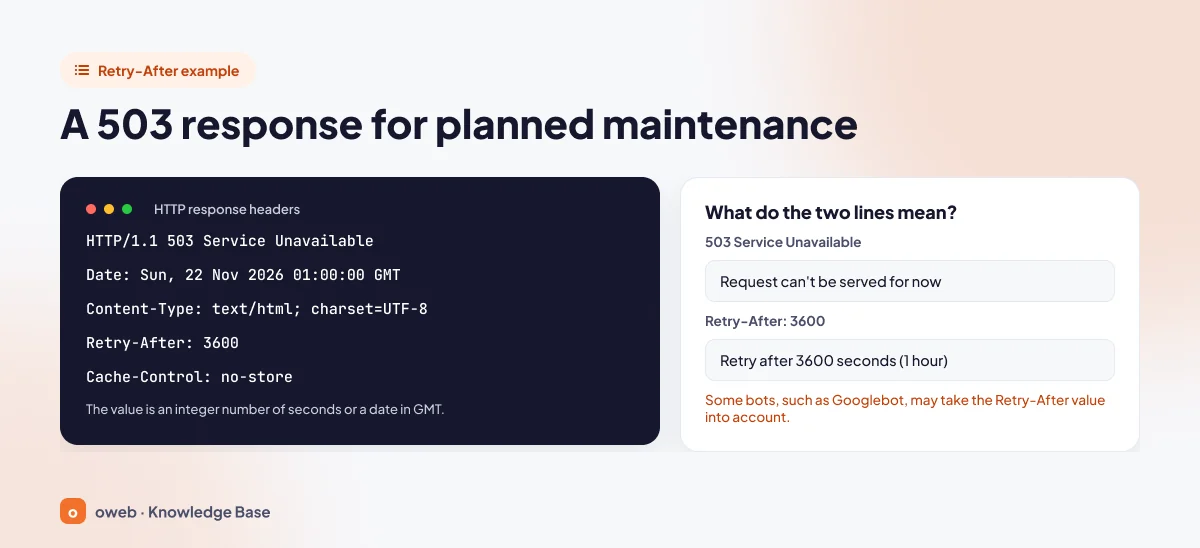
HTTP/1.1 503 Service Unavailable
Date: Sun, 22 Nov 2026 01:00:00 GMT
Content-Type: text/html; charset=UTF-8
Retry-After: 3600
Cache-Control: no-store
The first line says the request can't be served for now. Retry-After: 3600 tells the client to try again in 3600 seconds (1 hour). The optional Cache-Control: no-store line stops caches from storing the error page and showing it after the maintenance is over.
.htaccess example for Apache
Add the block below at the very top of your .htaccess file, above the WordPress rules. The root directory must contain a simple maintenance.html page with its styles written inline, and it must not load any other files (CSS, images, fonts) from your site. While the block is active, every request except this page and robots.txt gets a 503.
ErrorDocument 503 /maintenance.html
<IfModule mod_headers.c>
Header always set Retry-After "3600"
</IfModule>

RewriteEngine On
RewriteCond %{REMOTE_ADDR} !^203\.0\.113\.10$
RewriteCond %{REQUEST_URI} !^/maintenance\.html$
RewriteCond %{REQUEST_URI} !^/robots\.txt$
RewriteRule ^ - [R=503,L]- Replace
203.0.113.10with your own IP address, so that only you see the site as normal. The exception line is for an IPv4 address. If your connection uses IPv6, enter your own IPv6 address. - If your site is behind a CDN, the server may see the CDN's IP address instead of yours. In that case the IP exception won't work.
- When the maintenance is over, delete the whole block. While the block is active, the
Retry-Afterheader is also added to responses that don't return a 503 (the excepted ones).
LiteSpeed Web Server can also read Apache's .htaccess files, but don't assume every directive works the same way. Confirm the result as shown below.
Sample Nginx configuration
Nginx doesn't use .htaccess files. The server administrator writes the same setup into the site's server block:
error_page 503 @maintenance;

location @maintenance {
    rewrite ^ /maintenance.html break;
    add_header Retry-After 3600 always;
}

if ($request_uri != "/robots.txt") {
    return 503;
}
Without the always parameter, the header isn't added to the error response. Use a named location (@maintenance) as shown above, rather than putting the return 503; directive together with error_page 503 /maintenance.html; directly at the server level. Otherwise the rule can also fire on the internal redirect to the error page, and Nginx's own 503 page may appear instead of your maintenance page. Test the change with nginx -t, reload Nginx and confirm the result.
Confirm the maintenance response
curl -I https://yourdomain.com/
curl -I https://yourdomain.com/robots.txt
The output of the first command should show the 503 status line (HTTP/2 503 on servers that use HTTP/2) and the Retry-After: 3600 header. The second should show a response other than 503 (200 if the file exists). Run the test from a different connection, because you'll get a normal response from the IP address you excepted.
Google recommends that in an emergency a site can be closed with a 503 for 1-2 days, and that a full site outage should last no more than a few days.
How do you prevent 503 errors?
- Use page caching: Pages served from cache as static HTML, either at server level (LiteSpeed Cache, Nginx FastCGI cache, Varnish or a CDN) or through rewrite rules, don't run PHP at all. In cache modes served through PHP (such as WP Super Cache's Simple mode), PHP still runs, but WordPress doesn't fully load, so the server load is much lower. Either way, you can serve more visitors with the same resources.
- Reduce background load: Move WP-Cron to a real cron job and remove plugins you don't use.
- Stop bot traffic before it reaches PHP: Block attack traffic at the CDN or the server firewall. A plugin running inside PHP still uses a worker on every request.
- Monitor: An uptime monitoring service alerts you to the error before your visitors notice it. Check the resource usage screen before campaigns too.
When should you contact hosting support?
On shared hosting, some causes can only be seen and fixed by your provider. These include server-wide load, PHP processes being killed by the server's security software, a full /tmp area or a stopped service. Ask for support straight away in these cases:
- The error continues while plugins are deactivated and there's no
.maintenancefile. - You're getting a 503 even though the resource usage screen doesn't show any limit overruns.
In your ticket, include the URL that returns the error, the date, time and time zone of the error, the exact text of the message on screen, and the last change you made before the error. If you use Cloudflare and the error page shows a Ray ID, include that too. If you're an Oweb customer, you can open a support ticket with this information.
Frequently asked questions
Does a 503 error go away on its own, and how long does it last?
It depends on the cause. A 503 caused by a traffic spike or a WordPress update usually clears within minutes. A stopped service, a disabled application pool or a site that keeps going over its limits will keep returning the error until someone steps in.
Is the 503 error caused by me or by the site?
By the site. A 503 is a response sent by the server, and your browser or device doesn't produce this code. The only exception is when the server temporarily limits your IP address because you sent too many requests.
What does "HTTP Error 503. The service is unavailable." mean?
This message comes from Windows servers running Microsoft IIS, and it usually means the site's application pool has stopped or been disabled. The server administrator should start the pool in IIS Manager and find out why it stopped from the WAS entries in Event Viewer.
What is the difference between 503 and 508 Resource Limit Is Reached?
A 508 means the concurrent connection (entry process) limit has been reached. A 503 usually means PHP couldn't run because of the memory or process limit.
How do you fix the 503 Backend fetch failed error?
This message comes from the Varnish cache server, and it means the response couldn't be fetched from the web server behind it. Check whether the web server and PHP services are running and whether resources have run out. Server administrators can watch these requests with the varnishlog -q 'RespStatus == 503' -g request command.
Why does a 503 error appear when using Cloudflare?
The error can come either from Cloudflare or from the origin server behind it. If the error page doesn't mention "cloudflare," check your server's resource usage, request limits and maintenance mode. If it does, the problem is on Cloudflare's side.
Which HTTP status code should be used for maintenance mode?
Use the 503 code, ideally together with a Retry-After header that gives the estimated duration. The 200, 403, 404 and 410 codes aren't suitable for temporary maintenance.
Do you need to upgrade your hosting plan to fix a 503 error?
Not always. Sort out plugins, cron load and caching first. If the resource usage screen still keeps showing limit overruns after these steps, you need a plan or server with more resources.
Conclusion
A 503 Service Unavailable error doesn't mean your site has been deleted or is permanently broken. It's a temporary signal that the server can't accept new requests at the moment. First check which layer is sending the response and look at the logs. Then check your plugins, the .maintenance file, background load, PHP limits and the CDN.
If you can't fix the problem yourself, you can open a support ticket with the Oweb support team that includes the URL returning the error, the time of the error and the exact text of the message.
