


If you can't log in to WordPress admin, start with the symptom on the screen. For a password error, use the "Lost your password?" link to reset it. If the login page keeps reloading, check your cookies and site address. If you see a white screen or a critical error, check your plugins and theme. If the reset email never arrives, you can change the password from your own hosting account with WP-CLI or phpMyAdmin.
This guide is only for getting back into your own site through your own hosting account. The steps run from the lowest risk to the most advanced. The interface labels and commands come from the official WordPress and WP-CLI documentation.
In Short
- The default addresses for the WordPress admin login are
yourdomain.com/wp-login.phpandyourdomain.com/wp-admin/. - The easiest fix is the "Lost your password?" link on the login screen. By default, the reset link it sends is valid for 24 hours.
- If the email does not arrive, you can change the password with the WordPress tool in your hosting panel, with WP-CLI, or, as a last resort, through phpMyAdmin.
- If the login page keeps reloading, the cause is usually cookies or a mismatch between the WordPress Address and the Site Address.
- A white screen or the message "There has been a critical error on this website." usually points to a plugin, the theme, the PHP version or the memory limit.
- WordPress core does not block repeated failed logins. A "too many attempts" lockout comes from a security plugin or the server firewall.
- Always take a backup before you edit files or the database.
Identify the Symptom First: Why Won't wp-admin Open?
"wp-admin not working" is not a single fault. The cause can be the password, the browser, a WordPress setting, a plugin or the server. Run these quick checks before you start deleting files:
- Open
https://yourdomain.com/wp-login.phpdirectly in a private (incognito) browser window. - Check whether the front end of the site loads. If no page loads at all, the problem is not just the login.
- Try from a different network, such as your phone's mobile data. If the site only fails on your own connection, your IP address may be blocked.
- Write down the exact message on the screen and any error code the browser shows.
Compare the symptom you noted with the table below.
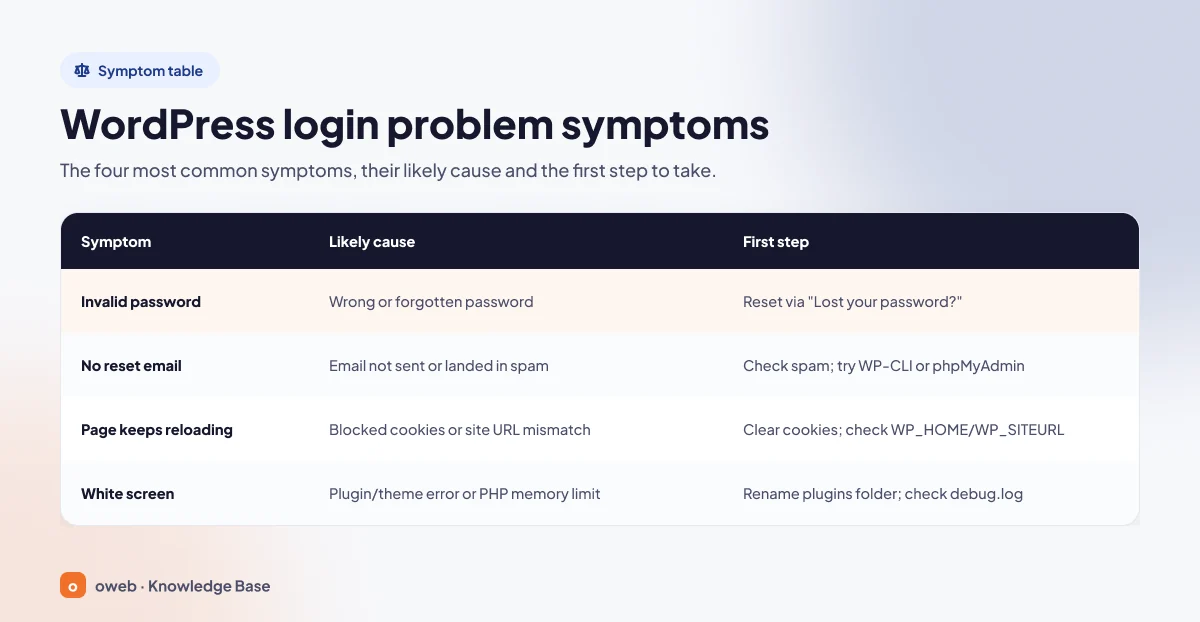
| Symptom | Likely cause | First step |
|---|---|---|
| "Error: The password you entered for the username ... is incorrect." | Wrong or forgotten password (both fields are case-sensitive) | Reset the password with the "Lost your password?" link |
| The reset email does not arrive | The server cannot send email, or the message is in the spam folder | Check your spam folder; change the password with WP-CLI or phpMyAdmin |
| The login page reloads and returns to the login form | Cookies are blocked, or the WordPress Address (URL) and Site Address (URL) do not match | Clear cookies and cache; check the WP_HOME and WP_SITEURL values |
| White screen or "There has been a critical error on this website." | A plugin or theme error, or the PHP memory limit | Rename the wp-content/plugins folder; check the wp-content/debug.log file |
| ERR_TOO_MANY_REDIRECTS | An HTTPS, proxy or address mismatch | Check the site address and SSL settings |
| 403 Forbidden | Firewall, IP restriction or file permissions | Try from a different network; check the .htaccess rules |
| wp-login.php returns a 404 | A plugin changed the login URL, or the file is missing | Find the custom login URL or deactivate the plugin |
| "Too many failed login attempts" | A security plugin or server-side protection | Wait for the lockout to expire or try from another network; once you are in, add your IP address to the allowlist |
| "Sorry, you are not allowed to access this page." | The account has no administrator role, or the table prefix does not match | Check the prefix, then restore the role with WP-CLI |
| "Briefly unavailable for scheduled maintenance. Check back in a minute." | An update that did not finish | Delete the .maintenance file in the site's root directory |
| "Error establishing a database connection" | The database details in wp-config.php, or the database server | Check the database details in wp-config.php and make sure the database server is running |
The image below sums up the four most common symptoms.
What Do the Login Screen Messages Mean?
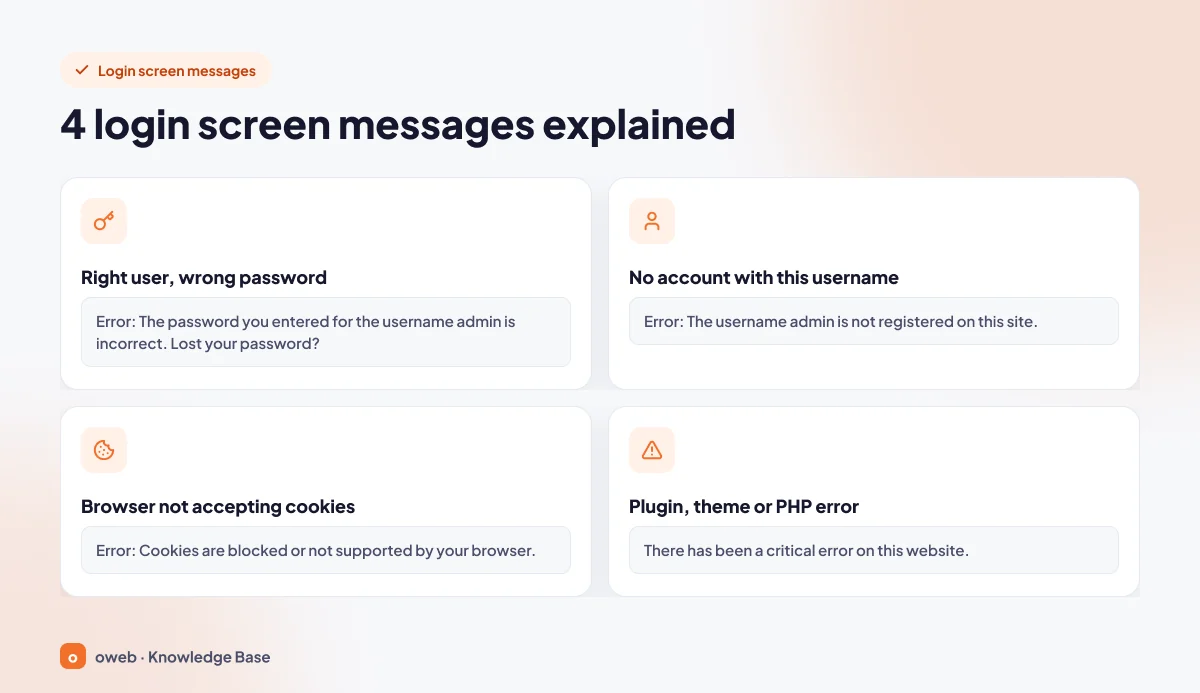
These are the four most common messages in current WordPress versions. Older versions may word them a little differently. "admin" in the table is just an example username.
| Message | Meaning |
|---|---|
| Error: The password you entered for the username admin is incorrect. Lost your password? | The username is correct, but the password is wrong. |
| Error: The username admin is not registered on this site. If you are unsure of your username, try your email address instead. | There is no account with this username. |
| Error: Cookies are blocked or not supported by your browser. You must enable cookies to use WordPress. | The browser is not accepting the login cookie. |
| There has been a critical error on this website. Please check your site admin email inbox for instructions. If you continue to have problems, please try the support forums. | A plugin, theme or PHP error stopped the login or admin page (HTTP 500). WordPress sends a recovery link to the admin email address. |
The Fix Order: From the Safest Step to Advanced Steps
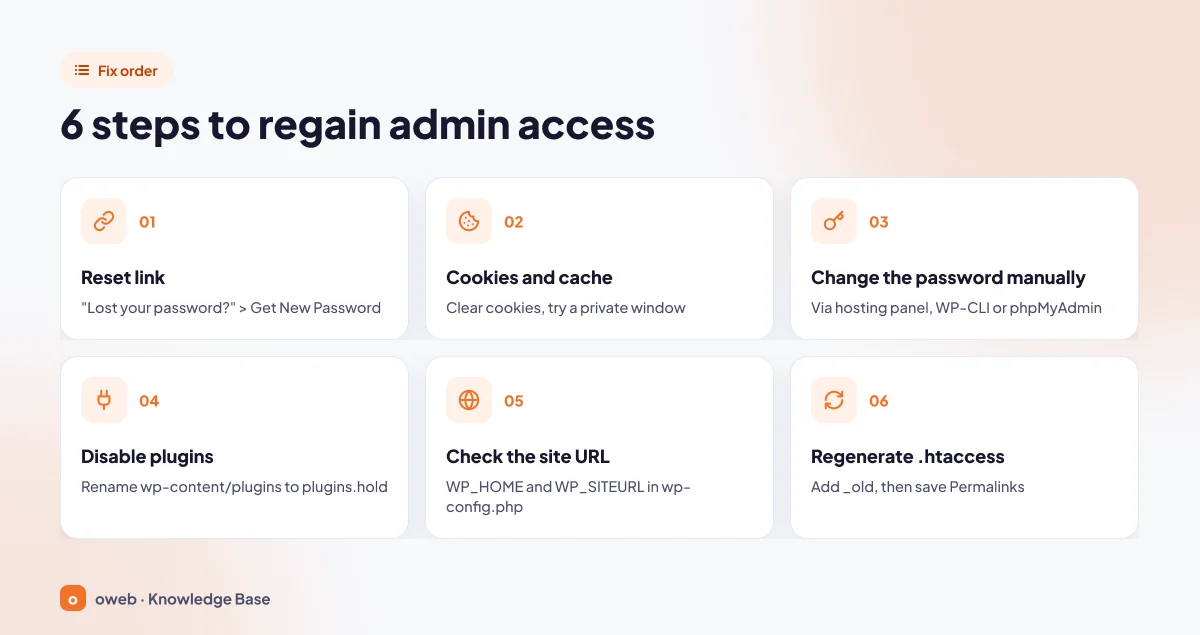
If the symptom is unclear and all you know is "I can't log in to WordPress", work through the steps in this order:
- Reset link: Request a new password with the "Lost your password?" link on wp-login.php.
- Cookies and cache: Clear your browser cookies and cache, then try again in a private window.
- Change the password manually: Set a new password from your hosting panel, with WP-CLI or with phpMyAdmin.
- Disable plugins: Rename the
wp-content/pluginsfolder toplugins.hold. - Check the site address: Define the
WP_HOMEandWP_SITEURLvalues in wp-config.php. - Regenerate the .htaccess file: Rename the file to
.htaccess_old, then save your permalinks again.
Before you change wp-config.php, .htaccess or the database, take a backup with your hosting panel's backup tool. At the very least, download the file you are about to edit, and export the database to your computer from phpMyAdmin's Export tab. Do not leave copies such as wp-config.php.bak in the site's root directory. Anyone can download them with a browser, and they can reveal your database password.
Forgot Your WordPress Password? How to Reset It
If you forgot your WordPress password, you have four options. Try them in this order: the email reset, the tool in your hosting panel, WP-CLI, and phpMyAdmin as a last resort. Each method further down the list needs more access and more care.
Reset Your WordPress Password by Email
- Open
yourdomain.com/wp-login.phpand click the "Lost your password?" link. - Fill in the "Username or Email Address" field and click the "Get New Password" button.
- Open the link in the email you receive, type your new password and confirm it with "Save Password".
By default, the link is valid for 24 hours. After that you will see the warning "Your password reset link has expired." Request a new link. You can find the details in the official WordPress password reset documentation.
What If the WordPress Password Reset Email Does Not Arrive?
According to the official WordPress troubleshooting FAQ, WordPress sends this message through the server's mail system, by default from [email protected]. If no mail service is running on the server, the message is never sent. Even when it is sent, it may land in spam or be rejected if your domain has no SPF and DKIM records.
- Check your spam folder and make sure the email address on your account is current.
- If the screen shows "Error: The email could not be sent.", do not wait. Change the password with one of the methods below.
- Once you are back in the dashboard, set your site up to send email through authenticated SMTP. This improves deliverability. Without it, recovery mode emails may not reach you either.
With the WordPress Tool in Your Hosting Panel
Many hosting panels include a tool for managing WordPress installations. Changing the password with this tool is safer than editing the database by hand. For example, if Softaculous is installed in a panel such as cPanel, you can use the Change Password option in WordPress Manager to change the admin password without waiting for an email. Labels may differ between versions.
Reset the Password with WP-CLI: wp user update
If you have SSH access and WP-CLI is installed on the server, the cleanest method is the wp user update command. It saves the password correctly through WordPress's own function. Run the commands in the site's root directory, or add the --path=/path/to/site parameter.
# List users
wp user list --fields=ID,user_login,user_email,roles

# Administrators only
wp user list --role=administrator

# Set a new password
wp user update 1 --user_pass='NEW-PASSWORD' --skip-email
Success: Updated user 1.
Here 1 is the user ID. You can also use the username or email address instead. The --skip-email parameter stops WordPress from sending the user a notification email. Wrap the password in single quotes, or the shell will interpret characters such as $ or !. If a plugin causes a fatal error, add --skip-plugins --skip-themes to the command.
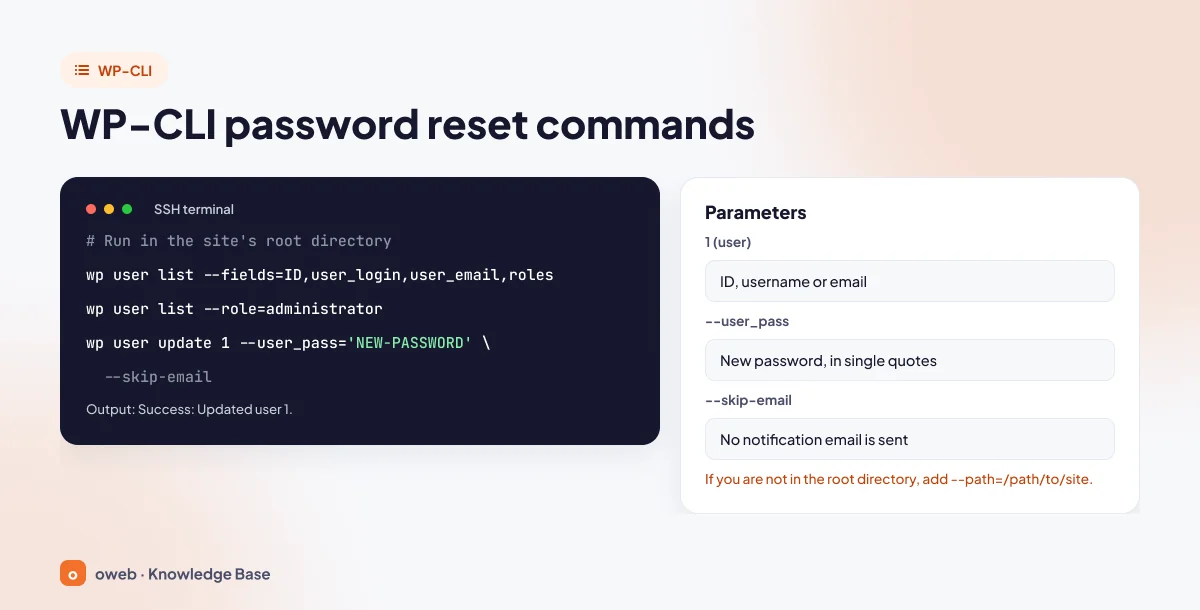
To keep the password out of your shell history, use --prompt=user_pass instead of --user_pass. WP-CLI will then ask for the value interactively.
Change Your WordPress Password with phpMyAdmin
If your hosting panel has no such tool and you have no SSH access, you can change the password directly in the database. The official documentation describes this method with a "use at your own risk" note, so export the database first.
Step by Step
- Open phpMyAdmin from your hosting panel and select the WordPress database. If you are not sure which one it is, check the
DB_NAMEand$table_prefixvalues in wp-config.php. - Open the
wp_userstable with Browse (your prefix may be different). - Find your user in the
user_logincolumn and click Edit. - Delete the long value in the
user_passrow and type your new password as plain text. - Select MD5 from the Function list on the same row and click Go. If phpMyAdmin is set to another language, the labels will be translated, but the column and button are in the same place.
- Try the new password on the login screen.
If you leave the Function field empty, the password is saved as plain text and the login will still fail.
Does MD5 Still Work in Current Versions?
Yes. Since WordPress 6.8, passwords are stored with bcrypt (WordPress 6.8 bcrypt announcement), and the user_pass value usually starts with $wp$2y$. A 32-character MD5 value is still accepted as a legacy format, and WordPress converts it to bcrypt automatically on the first successful login. Choose a long, random password, and never paste ready-made MD5 values published on the internet.
If the WordPress Login Page Keeps Reloading or Gets Stuck in a Redirect Loop
If you enter the correct password and land back on the login form with no error, WordPress cannot write the session cookie to your browser or cannot read it back. The cookie's name and path are based on the site address. If the addresses do not match, the cookie does not match either and the form reloads.
Browser Cookies and Cache
- Clear the cookies saved for the site and your browser cache.
- Try again in a private window or another browser.
- Temporarily turn off browser extensions that block cookies.
The message "Cookies are blocked due to unexpected output." has nothing to do with the browser. It means a PHP file, most often wp-config.php, has a space, a blank line or a BOM character before the opening <?php tag. In the error log, the file and line listed after "output started at" are the source of the problem. Save the file as UTF-8 without BOM. Saving it as ANSI is not the right fix.
WordPress Address and Site Address Mismatch
If the "WordPress Address (URL)" and "Site Address (URL)" fields under Settings > General do not match the real address (http or https, with or without www), the redirect after login goes to a different address. This mismatch often appears after a migration, a domain change or an SSL installation. Since you cannot reach the dashboard, you can temporarily hard-code the values in wp-config.php, above the line that loads wp-settings.php:
define( 'WP_HOME', 'https://yourdomain.com' );
define( 'WP_SITEURL', 'https://yourdomain.com' );
Do not add a trailing slash to the address. These constants do not change the value in the database. They only override it, and they lock the two fields on the Settings screen. For a permanent fix, correct the home and siteurl values in the database:
wp option update home 'https://yourdomain.com'
wp option update siteurl 'https://yourdomain.com'
If you have no SSH access, export the database first. Then, in phpMyAdmin, edit the rows in the wp_options table whose option_name is home and siteurl. The official documentation on changing the site URL covers the other methods.
wp-admin Redirect Loop Caused by HTTPS and Proxies
If SSL terminates at a CDN or reverse proxy while WordPress sees the request as http, the setting that forces the dashboard onto HTTPS creates an endless wp-admin redirect loop. The fix in the official WordPress HTTPS documentation is to read the X-Forwarded-Proto header sent by the proxy in wp-config.php, before the wp-settings.php line:
if( strpos( $_SERVER['HTTP_X_FORWARDED_PROTO'], 'https') !== false ) $_SERVER['HTTPS'] = 'on';This line does nothing if the proxy does not send that header. For a step-by-step diagnosis, see our WordPress ERR_TOO_MANY_REDIRECTS error guide.
How to Regenerate the .htaccess File
Broken or conflicting rules can cause a redirect loop as well as a 500 error. Do not delete the file. Rename it instead:
- In File Manager or over SFTP, rename the
.htaccessfile in the site's root directory to.htaccess_old. - Try the login page again.
- If you can log in, go to Settings > Permalinks and click "Save Changes". WordPress will create the file again.
- Add your custom rules from the old file (HTTPS redirect, caching, security) back one at a time.
Also check whether the wp-admin folder has its own .htaccess file, or whether directory password protection is set up in your hosting panel, and handle it the same way. If the file is not created automatically, you can add the default WordPress rule block for single-site installations by hand:
# BEGIN WordPress
<IfModule mod_rewrite.c>
RewriteEngine On
RewriteRule .* - [E=HTTP_AUTHORIZATION:%{HTTP:Authorization}]
RewriteBase /
RewriteRule ^index\.php$ - [L]
RewriteCond %{REQUEST_FILENAME} !-f
RewriteCond %{REQUEST_FILENAME} !-d
RewriteRule . /index.php [L]
</IfModule>
# END WordPress
This block is for sites installed in the root directory. If WordPress is in a subfolder, RewriteBase and the last RewriteRule line include that folder's name, so it is safest to let the Permalinks screen create the file. This method applies to Apache and LiteSpeed servers. Servers that run only Nginx do not read .htaccess; the rules live in the server configuration.
If the WordPress Admin Shows a White Screen or a Critical Error
If the WordPress admin shows a white screen or the message "There has been a critical error on this website.", PHP has stopped with a fatal error. Older WordPress versions showed the same warning as "The site is experiencing technical difficulties." or "There has been a critical error on your website." The meaning and the fix are the same. According to the official WordPress common errors documentation, the main causes are plugin conflicts, theme incompatibility, an incompatible PHP version, the memory limit and corrupted files. If the problem also affects the front end, our WordPress white screen of death guide covers a wider diagnosis.
Check for the Recovery Mode Email
Since WordPress 5.2, a fatal error triggers an email to the admin email address under Settings > General with the subject "[Site Name] Your Site is Experiencing a Technical Issue". The special link inside it opens the site in recovery mode. The link takes you to the login form, where you still need to sign in with your own username and password. The faulty plugin or theme is paused only for your session, so you can open the dashboard and deactivate it. By default, the email is sent no more than once a day.
Read the Error Log
Find the file that causes the error instead of guessing. In wp-config.php, the following lines must sit above the /* That's all, stop editing! */ line (that is, before wp-settings.php is loaded). If the file already contains define( 'WP_DEBUG', false );, do not add a new line. Change the existing one to true. If the same constant is defined twice, only the first definition counts.
define( 'WP_DEBUG', true );
define( 'WP_DEBUG_LOG', true );
define( 'WP_DEBUG_DISPLAY', false );
@ini_set( 'display_errors', 0 );
Reload the page and open the wp-content/debug.log file. If the file path on the "PHP Fatal error" line contains /wp-content/plugins/plugin-name/, that plugin is the source of the error. When you are done, set WP_DEBUG back to false, remove the other lines you added and delete the log file.
How to Disable Plugins Without Accessing the Dashboard
Start with the plugin you installed or updated most recently. Disabling every plugin also stops payment, form and caching features.
With File Manager or SFTP
- In
wp-content/plugins, rename the suspect plugin's folder (for example, add.holdto the end). - If nothing changes, rename the
pluginsfolder toplugins.holdand log in at/wp-admin/plugins.php. - Rename the folder back to
plugins. The plugins stay deactivated. Activate them one by one to find the faulty one.
This does not delete plugin settings. However, it does not affect the mu-plugins folder or drop-in files under wp-content such as object-cache.php. If the problem continues, check those too.
With WP-CLI or phpMyAdmin
wp plugin deactivate --all --skip-plugins --skip-themesIf you have no SSH access, export the database first. Then, in phpMyAdmin, set the option_value of the active_plugins row in the wp_options table to a:0:{}. This also deactivates all plugins.
Disable the Theme
If the plugins are not the cause, rename the active theme's folder in wp-content/themes. WordPress will switch to an installed default theme. If no default theme is installed, upload one first. WP-CLI users can switch with wp theme activate theme-name --skip-plugins --skip-themes, where theme-name is the folder name of an installed default theme.
PHP Memory Limit and PHP Version
If the log contains "Allowed memory size exhausted", the site is running out of memory. WordPress tries to raise the PHP memory limit to at least 40M on a single site (64M on Multisite), and to the WP_MAX_MEMORY_LIMIT value on admin screens (256M by default in core). The login page and the front end use the WP_MEMORY_LIMIT value. Some hosting environments do not let WordPress raise this value. In that case the constants have no effect, and the limit has to be raised through the memory_limit value in your hosting panel's PHP settings or by your hosting provider. Check the value in your hosting panel first. If needed, raise the limit as described in the wp-config.php documentation, before the wp-settings.php line (if the constant is already defined, edit the existing line):
define( 'WP_MEMORY_LIMIT', '96M' );If the problem started after a PHP version change, an outdated plugin or theme may not support the new version. Switch back to the previous PHP version in your hosting panel and test again, then update the component.
If You Get a 403, a 404 or an Access Block Warning
With these errors, the request is often stopped before it reaches WordPress. So the fix is not in the password but in the layer that set the block.
How to Remove a Too Many Failed Login Attempts Lockout
WordPress core has no limit on login attempts. The block comes from a security plugin, server-side protection (ModSecurity, Fail2ban) or a CDN/WAF layer. For example, the Limit Login Attempts Reloaded plugin shows the message "ERROR: Too many failed login attempts." along with the remaining wait time.
- Wait until the stated time has passed.
- If you cannot wait, log in from a different connection, such as your phone's mobile data, so that you have a different IP address.
- If that does not work, temporarily rename the plugin's folder in File Manager, log in, rename the folder back and add your own IP address to the allowlist.
Do not turn the protection off permanently. The lockout is there to stop brute force attacks, not you.
What Causes a wp-admin 403 Forbidden Error?
If wp-login.php is not opening and returns a 403 error, first check whether the .htaccess file has a rule like the one below that restricts the login page to certain IP addresses:
<Files "wp-login.php">
    Require ip 203.0.113.15
</Files>
If such a rule exists and your internet provider has changed your IP address, you will be locked out. If there is no such rule, the other possibilities are:
- The server firewall may have blocked your IP address after repeated failed logins. If the site opens over mobile data, this is very likely.
- A ModSecurity or WAF rule may have flagged the request as malicious.
- File permissions may be wrong. The general recommendation is 755 for folders and 644 for files.
On shared hosting, only your hosting provider can remove server-side blocks. The official brute force attacks documentation explains how these layers work.
If wp-login.php Returns a 404: The Login URL May Have Changed
Plugins that hide the login URL make the default addresses unreachable. While WPS Hide Login is active, wp-login.php and wp-admin do not open. If you have forgotten the custom URL:
- In phpMyAdmin, check the value of the
whl_pagerow in thewp_optionstable. This value is the last part of your custom login URL. - Or rename the
wp-content/plugins/wps-hide-loginfolder and log in through wp-login.php.
If the wp-login.php File Is Missing or Corrupted
If wp-login.php returns a 404 and no login-hiding plugin is installed, the file may have been deleted or corrupted. You can find the installed version on the $wp_version line in the wp-includes/version.php file. Back up the site files before you overwrite anything. Then upload wp-login.php from a clean WordPress package of the same version you have installed, and, if needed, the wp-admin and wp-includes folders. Do not touch wp-config.php or the wp-content folder. The WP-CLI command wp core verify-checksums compares the core files against the WordPress.org checksums and lists any files that have changed.
If You Do Not Have Your Two-Factor Authentication Code
Two-factor authentication is not part of WordPress core. As the official two-factor authentication documentation explains, it is provided by a plugin. First, try one of the backup codes you received during setup. If the site has another administrator, they can edit your user profile and turn off your active verification methods. If you are the only administrator, use the recovery method in the plugin's own documentation. For example, the Two-Factor plugin provides WP-CLI commands for this. If none of these is possible, you can temporarily rename the plugin's folder and log in. However, your verification settings stay in the database. So after you reactivate the plugin, reset the method and generate new backup codes before you log out.
If Your Administrator Account Was Deleted or Downgraded
If you can log in but see the message "Sorry, you are not allowed to access this page.", your account does not have the administrator role. After a migration, a common cause is a changed table prefix. Roles are stored in the options table under the wp_user_roles key, and user capabilities are stored in the usermeta table under the wp_capabilities and wp_user_level keys. The prefix of these keys must match $table_prefix in wp-config.php. If the prefix does not match, back up the database first, then correct the prefix of these three keys in phpMyAdmin to match the $table_prefix value. The commands below only work after that.
If the prefix is correct and your account has only lost its role, you can restore the role with WP-CLI or create a new WordPress administrator account with the wp user create command:
# Give an existing user the administrator role
wp user set-role 1 administrator

# Create a new administrator
wp user create newadmin [email protected] --role=administrator
Success: Created user 3.
Password: (randomly generated password)
If you do not pass --user_pass to this command (wp user create), it generates a random password and prints it on the screen.
If you see administrator accounts you do not recognize, /wp-admin redirects to an unknown site, or core files have changed, your site may have been compromised. Restore a clean backup, verify the core files and change every password: WordPress, database, FTP and hosting panel.
Login Security Tips to Avoid the Same Problem Again
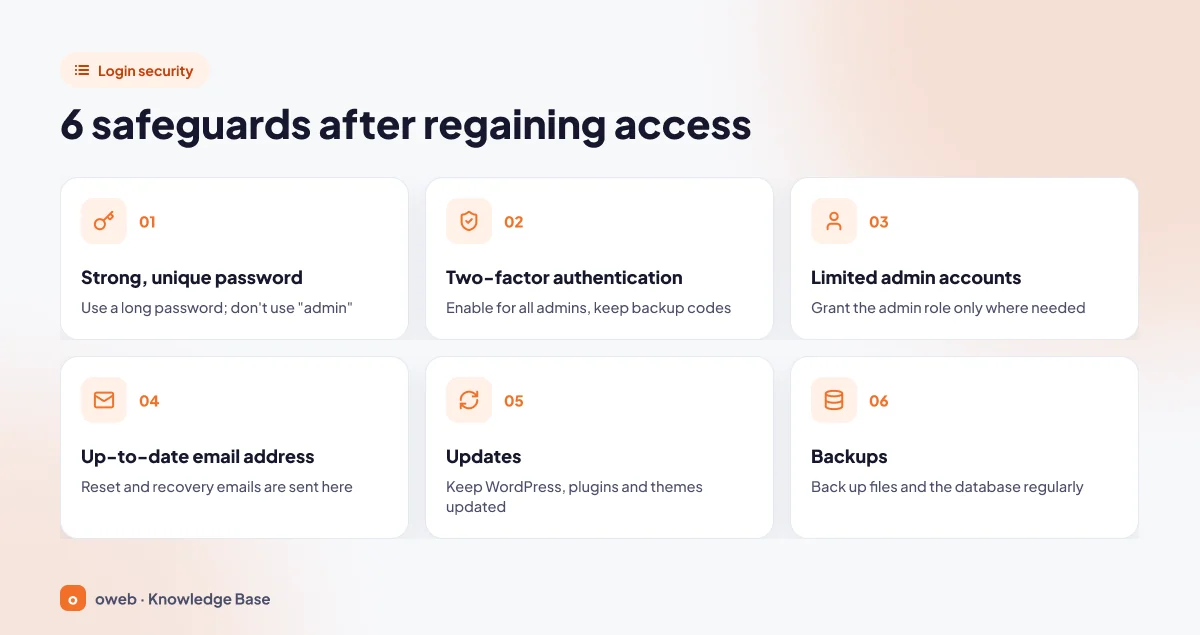
Once you have access again, revert the debug lines (WP_DEBUG, WP_DEBUG_LOG) and delete the debug.log file. Remove the WP_HOME and WP_SITEURL lines only after you have corrected the home and siteurl values in the database, or the problem will come back. Delete any leftover copies of renamed files (such as .htaccess_old) and reactivate your security plugin. Then put these six measures in place:
- A strong, unique password: Choose a long password or passphrase, use a password manager and avoid the username "admin".
- Two-factor authentication: Turn it on for every administrator account and keep the backup codes safe.
- Few administrator accounts: Give the administrator role only to people who really need it.
- A current email address: Keep the admin email address under Settings > General and your profile email up to date. Reset and recovery mode emails go to these addresses.
- Updates: Keep WordPress, plugins and themes up to date, and delete the ones you do not use.
- Backups: Back up your files and database regularly, and test a restore from time to time.
For a more complete checklist, see our WordPress security guide and the official WordPress hardening documentation.
When Should You Contact Hosting Support?
If any of the following applies, contacting support is safer than continuing on your own:
- The site opens from a different network but not from your own connection (IP block).
- The 403 response appears in every browser and on every network (firewall rule).
- Your disk quota is full, or you are getting resource limit errors such as 503 and 508.
- You suspect the site has been compromised.
In your request, include the domain name, the full text of the message on the screen, the time the problem started, your IP address and any changes you made. If you are an Oweb customer, including the same details when you open a support ticket helps us find the issue in the server logs faster.
Frequently Asked Questions
Why can't I log in to my WordPress admin panel?
There are four common causes: a wrong or forgotten password, a cookie or site address mismatch, a PHP error caused by a plugin or theme, and a block set by a security plugin or the server firewall. The message on the screen usually tells you which one it is. Start with the symptom table above.
How do I log in to the WordPress admin, and what is the login URL?
Open the login page by adding /wp-login.php or /wp-admin/ to the end of your domain name. If permalinks are enabled and no other page uses these addresses, /login redirects to the login page and /admin redirects to the dashboard (or to the login page if you are not signed in). If these addresses return a 404, a plugin may have changed the login URL.
How long is a WordPress password reset link valid?
By default, it is valid for 24 hours. If it has expired, request a new link from the login screen.
Can I change the WordPress admin password from my hosting panel?
Yes, usually, if your panel has a tool for managing WordPress installations. For example, in panels with Softaculous, you can use the Change Password option in WordPress Manager. If there is no such tool, you can change the password yourself with WP-CLI or phpMyAdmin.
What does "There has been a critical error on this website" mean?
A plugin, theme or PHP error has stopped the page from running. Older WordPress versions showed the same warning as "The site is experiencing technical difficulties." or "There has been a critical error on your website." Use the recovery mode link sent to your admin email address, or open the error log and deactivate the faulty plugin.
I forgot my WordPress username. How can I find it?
You can log in with the email address on your account instead of the username. To see the username, check the user_login column of the wp_users table in phpMyAdmin, or run the wp user list command.
The site loads but wp-admin does not. Why?
If the front end works and only the dashboard fails, the cause is usually a login-specific block: a cookie or address mismatch, a plugin error that only runs in the admin area, or a security rule set for wp-login.php.
Conclusion
When you can't log in to WordPress admin, the cause is usually simple: a forgotten password, a broken cookie, a wrong site address or a single plugin. Reading the symptom correctly and starting with the lowest-risk step is usually enough. If you suspect a server-side block, contact your hosting provider's support team. If you are looking for hosting for your WordPress site, take a look at Oweb's WordPress hosting page.
