


An email not sending error is usually caused by a wrong SMTP server, port or encryption setting, an incorrect password, a full mailbox quota, or the recipient's server rejecting the message. To fix it, first send a test message from webmail, then verify your SMTP settings (465 SSL/TLS or 587 STARTTLS) and read the error code in the bounced message.
In short
- If sending works from webmail, the problem is in the email program on your device or in your network; if it does not, look at the account, the server or the recipient's side.
- Email programs send through port 465 (SSL/TLS) or port 587 (STARTTLS); port 25 is for server-to-server transfer and is blocked by some internet service providers.
- The username is the full email address, and authentication for the outgoing server (SMTP AUTH) must be turned on.
- SMTP codes starting with 4 are temporary errors; codes starting with 5 are permanent errors.
- 550 5.1.1 means the recipient address does not exist, 550 5.7.1 indicates a permission or policy rejection, and 552 means a quota or size limit was exceeded.
- The server response inside the notification sent by "Mail Delivery Subsystem" tells you the cause of the problem.
What does an email not sending error look like?
The same complaint shows up in three different ways.
The message is stuck in the Outbox
If the message stays in the Outbox folder, it has not left your device yet; the program could not connect to the server. Typical causes are offline mode, a dropped internet connection, a blocked port and a very large attachment. For the fix, see the port test in step 4 and the offline mode steps in the Outlook section.
An "email could not be sent" warning appears
If the program shows a warning such as "message could not be sent", "cannot connect to server" or "password was not accepted", it either failed to reach the outgoing server or the server refused the login. This kind of SMTP error is almost always caused by settings, the password or the network.
The email goes out but bounces back
The message lands in the Sent folder, and a few seconds or a few days later a notification arrives in your inbox. Gmail sends this notification from the sender name Mail Delivery Subsystem, usually with the subject "Delivery Status Notification (Failure)". Exim, the mail software running on cPanel servers, uses the subject "Mail delivery failed: returning message to sender"; Microsoft calls the same notification an NDR (non-delivery report).
In this case your server accepted the message, but the recipient's server did not take delivery.
If your message goes out without an error but lands in the recipient's spam folder, this is not a sending error but a deliverability problem; see the "Messages are delivered but land in spam" section below.
Why can't email be sent?
For a message to reach the recipient, the email program must connect to the outgoing server, prove its identity, and the recipient's server must accept the message. When any link in that chain breaks, you get the "email not going through" or cannot send email complaint. These are the six most common causes:
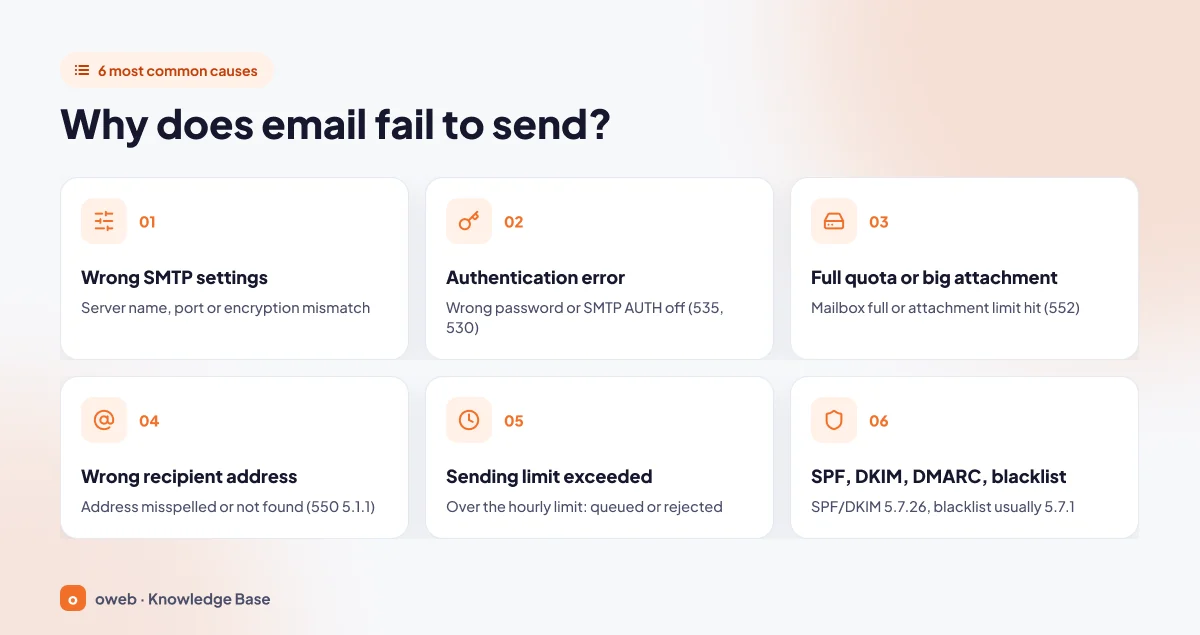
Wrong SMTP server, port or encryption setting
This is the most common cause. A single-letter typo in the server name, or choosing STARTTLS with port 465 or SSL/TLS with port 587, prevents the connection; the port and the encryption type must match.
Port 25 is for servers relaying mail to each other. Some internet service providers and corporate networks block outbound traffic on this port to reduce spam; if your email program still uses port 25, it may not be able to connect.
SMTP authentication error (535 and 530)
If the password was changed but not updated on the device, or authentication is turned off for the outgoing server, the server responds with 535 5.7.8 Authentication credentials invalid or 530 5.7.0 Authentication required. Errors containing "Relaying denied" often mean the same thing.
Full quota or attachment too large
If your own mailbox is full, the program may not be able to save a copy of the sent message to the Sent folder and may show an error; some providers stop sending entirely when storage is full. If the recipient's mailbox is full, the message is deferred with code 452 4.2.2 or bounced with code 552 5.2.2.
Attachment size is also limited. As of November 2026, the attachment limit for personal Gmail accounts is 25 MB. According to Microsoft, the most likely reason for messages stuck in the Outbox is a large attachment; for Outlook.com it recommends removing attachments larger than 25 MB and attaching a smaller file or sharing the file as a OneDrive link. Messages over the limit are usually rejected with code 552.
Wrong recipient address
If the address is misspelled or the account has been deleted, the message bounces with a 550 error; the most common form is code 550 5.1.1. If the domain part is wrong, the notification says the address could not be routed or the server could not be found.
Exceeding the sending limit
Most shared hosting servers set an hourly sending limit per domain; the value is set by the hosting company. When the limit is exceeded, new messages are queued or rejected. Details are in the "What happens if you exceed the hourly email sending limit?" section below.
Missing SPF, DKIM, DMARC or a blacklisted IP
If the server's IP address is on a blacklist, or your domain cannot prove itself with authentication records, the recipient's server rejects the message. When authentication is missing, Gmail responds with 550 5.7.26 This email has been blocked because the sender is unauthenticated.
Apart from these six causes, the recipient's server may be under maintenance or overloaded. Temporary problems like these are reported with codes starting with 4 and usually resolve on their own.
Correct SMTP port settings: 465 or 587?
There are two correct options for sending from an email program: a connection encrypted from the start on port 465 (Implicit TLS), or STARTTLS on port 587. RFC 8314 prefers port 465, while RFC 6409 reserves port 587 for message submission.
| Port | Encryption | When to use it |
|---|---|---|
| 465 | SSL/TLS (Implicit TLS, connection encrypted from the start) | Sending from an email program or phone. The SMTP port cPanel shows as the secure setting. |
| 587 | STARTTLS (connection starts unencrypted and is upgraded to TLS) | Authenticated sending. Try it if 465 does not work; Outlook.com uses this port for SMTP sending, and 587 is also the recommended port for Microsoft 365. Neither service supports port 465. |
| 25 | Optional STARTTLS (encryption is not guaranteed) | Server-to-server transfer (MX delivery). Do not use it in an email program; some providers and networks block it. |
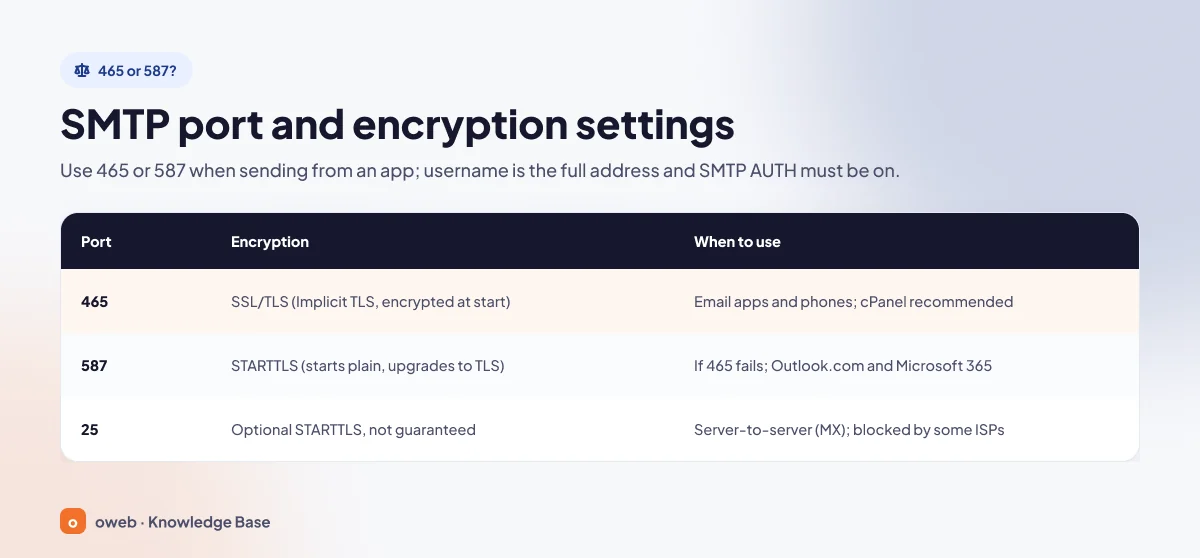
The difference between SMTP 587 and 465 is the moment encryption begins; both are secure. Whichever port you choose, these four settings stay the same:
- Outgoing server (SMTP): The server name shown in your control panel, for example
mail.example.com. - Username: The full email address, for example
[email protected]. - Password: The email account's own password.
- Authentication: Must be turned on for the outgoing server; it uses the same username and password as the incoming server.
Do not set encryption to "None" when the connection fails; otherwise your password travels across the network in plain text. If you get a certificate warning, use the server name shown in the secure settings box of your control panel.
How to fix the email not sending error step by step
The six steps below start with the simplest and safest; after each step, send yourself a short test message.
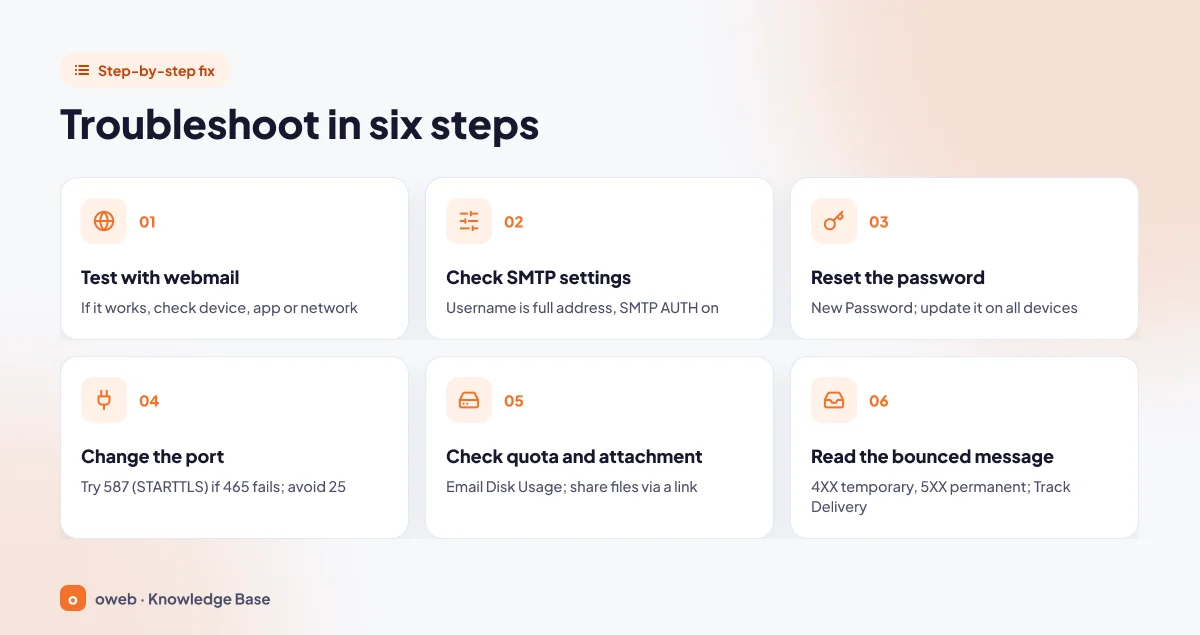
1. Test with webmail
Webmail lets you access your account from a browser and works independently of the program settings on your device; it is the fastest way to locate the problem. If you use the cPanel control panel, the "Check Email" button next to the account on the Email Accounts screen opens webmail.
If sending from webmail works
There is nothing wrong with your account or the server. The problem is in the email program's settings, an old password saved on the device, or the network you are on. Follow steps 2, 3 and 4.
If sending from webmail fails too
The problem is in the account (quota, restriction, sending limit) or on the recipient's side. Note the error text on screen and continue from step 5; for limits and restrictions, also see the "What happens if you exceed the hourly email sending limit?" section. If you cannot log in to webmail at all, try the password reset in step 3 first.
2. Check your SMTP settings
Find the correct settings in the control panel
In cPanel, the "Connect Devices" button on the Email Accounts screen opens the Set Up Mail Client page, which shows the server name and ports specific to the account. The "Secure SSL/TLS Settings (Recommended)" box shows SMTP port 465 for the outgoing server and the full email address as the username.
Compare them in your email program
Compare the outgoing server name, port, encryption type and username in your program's account settings with the values in the control panel one by one, and make sure authentication is turned on for the outgoing server.
3. Reset the password
If you are not sure about the password, reset it instead of guessing. In cPanel, click the "Manage" button next to the account, type a new password in the "New Password" field or create a strong one with "Generate", and save with the "Update Email Settings" button at the bottom of the page. Then update the new password on every device where the account is set up; a single forgotten phone keeps trying to connect with the old password.
Many hosting servers temporarily block an IP address after repeated failed logins. A single device trying to connect with an old password can get the office's shared IP address blocked. If sending works over mobile data but not on the office network, send your external IP address to hosting support.
4. Change the SMTP port (465 or 587)
If the settings are correct but the connection still fails, your network may be blocking the port you use. If 465 (SSL/TLS) does not work, try 587 (STARTTLS); if you are using port 25, be sure to change it. You can test whether the port is open with the commands below.
Windows (PowerShell):
Test-NetConnection -ComputerName mail.example.com -Port 465
Test-NetConnection -ComputerName mail.example.com -Port 587
macOS and Linux (Terminal):
nc -vz mail.example.com 465
nc -vz mail.example.com 587
If the PowerShell output shows TcpTestSucceeded : True, the port is open. If you see False, repeat the same test over your phone's hotspot. If it succeeds there, there are two possibilities: either the block is in your own network or device (router, corporate firewall, VPN, antivirus email scanning), or the server has blocked your network's external IP address because of failed login attempts. In the second case, send your external IP address to hosting support.
Do not turn off your antivirus completely; pause only its email scanning for a single test and turn it back on right away.
5. Check the quota and attachment size
Mailbox quota
The Email Disk Usage tool in cPanel shows the number of messages in each folder and the space they take up. When you choose one of the preset criteria in the "Manage" menu, such as "1 year old or more" or "30MB in size or more", and click "Delete Permanently", the messages are deleted permanently; back up important correspondence to your computer first.
You can increase the quota in the "Allocated Storage Space" field on the account's "Manage" page on the Email Accounts screen and save it with "Update Email Settings" (up to the limit your provider allows).
Attachment size
Share large files as a cloud storage link instead of attaching them to the message. The recipient's provider also sets a limit; even if your server accepts the message, the other side may reject it with code 552.
6. Read the bounced message
Find the server response in the notification
Do not delete the bounced message (the non-delivery notification). It shows which address the message could not reach and contains the response line from the remote server. On Exim-based servers, this line appears right below the text "This is a permanent error. The following address(es) failed:". Find the three-digit code and look it up in the error codes table below.
No notification: cPanel Track Delivery
If no notification arrived or it was deleted, open the Track Delivery tool in the Email section of cPanel. Enter the recipient address and click "Run Report"; use the "Show Blocked & Failed" option to see only problem entries. The statuses in the "Result" column mean the following:
- Success: The message was delivered to the recipient's server.
- Deferred: There is a temporary problem; the system will try again.
- Error / Rejected: Delivery failed, or the message was rejected during the SMTP stage.
- Filtered: The message was accepted but did not reach the inbox.
Details are in cPanel's Track Delivery documentation.
If the error text mentions SPF, DKIM, DMARC or a blacklist
After the six basic steps, it is time for more advanced server-side checks. If the error text contains the words "unauthenticated", "SPF", "DKIM", "DMARC", "blocked" or "listed", the problem lies in your domain's DNS records or in the reputation of the sending IP address. The Email Deliverability screen in cPanel lists problems with SPF, DKIM, DMARC and reverse DNS (PTR) records. You can also query the records from the command line:
nslookup -type=txt example.com
nslookup -type=txt _dmarc.example.com
nslookup -type=mx example.com
The first command shows the SPF record (the line starting with v=spf1), the second shows the DMARC record, and the third shows which server mail is routed to. You can run the same queries from your browser with the DNS lookup tool. You can learn how the records are written in the SPF, DKIM and DMARC guide, and how mail routing works in the What Is an MX Record? article.
Make a copy of the existing record before changing any DNS record. A domain must have only one SPF record; edit the existing one instead of adding a second.
You can check the server's IP address on the lookup pages of blacklists such as Spamhaus. On shared hosting, the hosting company submits the delisting request.
How to read a bounced message: SMTP error codes
Every SMTP response starts with a three-digit code. According to RFC 5321, codes starting with 4 are temporary errors: the sending server keeps the message in the queue and retries at intervals. Codes starting with 5 are permanent; resending the same message unchanged gives the same result.
This retry applies only if your server has accepted the message. If your email program shows a code starting with 4 at the moment of sending, the message has not left your device; you need to resend it yourself after a few minutes.
The code is often followed by a second, dotted code such as 5.1.1. According to RFC 3463, the middle digit indicates the area of the problem: 1 = address, 2 = mailbox, 3 = mail system, 4 = network, 7 = security and policy.
| Code | Meaning | What to do |
|---|---|---|
| 421 | Service temporarily unavailable, connection closed. | Wait; the server retries automatically. If the problem continues, check the sending limit and IP reputation. |
| 450 / 451 | The mailbox is temporarily unavailable, or there is a temporary processing error on the recipient's server. | Do not send the same message repeatedly; wait for the queue result. |
| 530 / 535 | Authentication was not performed, or the username and password were not accepted. | Reset the password and turn on authentication for the outgoing server. |
| 550 5.1.1 | The recipient address does not exist or is misspelled. | Check the address letter by letter; do not resend without correcting it. |
| 550 5.7.1 | Rejected because of permissions, policy or suspected spam (including "relay denied"). | Turn on SMTP authentication; check SPF, DKIM, DMARC and blacklist status. |
| 552 | Quota exceeded or message too large. | Reduce the attachment or share a link; let the recipient know their mailbox is full. |
| 554 | Transaction failed; in practice usually caused by spam, policy or a blacklist. | Read the explanation in the notification; if the IP is blacklisted, contact hosting support. |
The image below summarizes the five most common codes in the table.
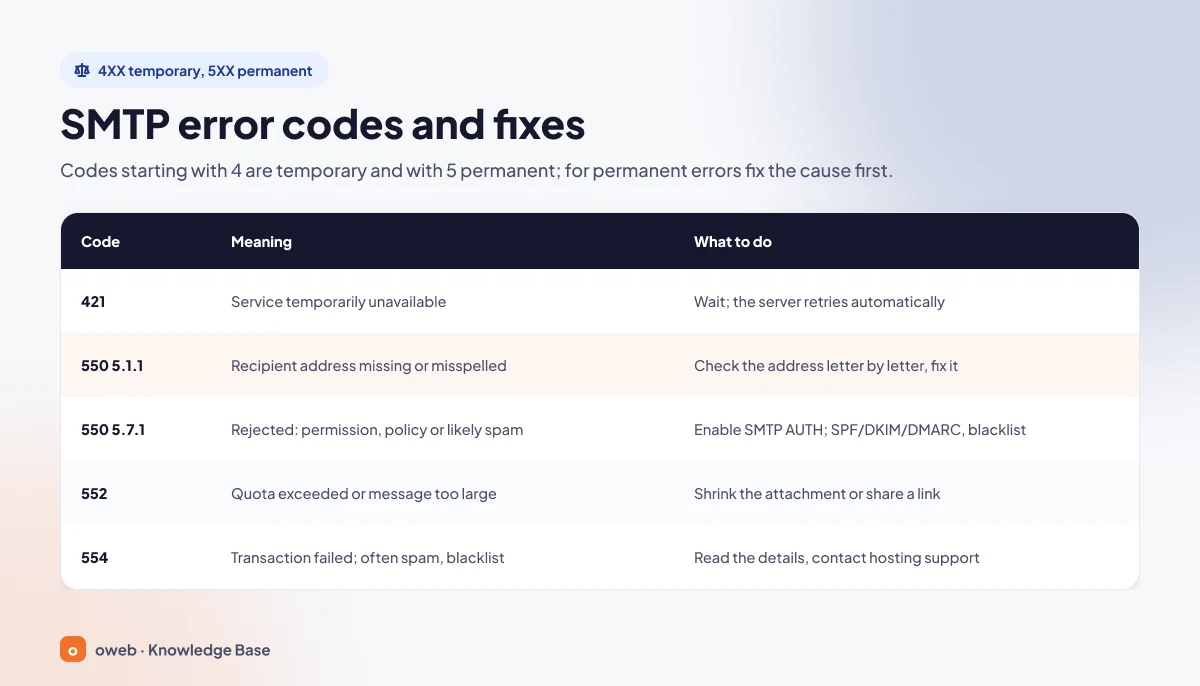
For temporary errors, Exim keeps retrying for four days in its default configuration. A message with the subject "Warning: message ... delayed" that arrives in the meantime is not an error but a notice.
Common responses in bounced messages
The four lines below are responses returned by Gmail; with other providers the text and the dotted second code may differ, but the meaning of the first digit (4 temporary, 5 permanent) is the same.
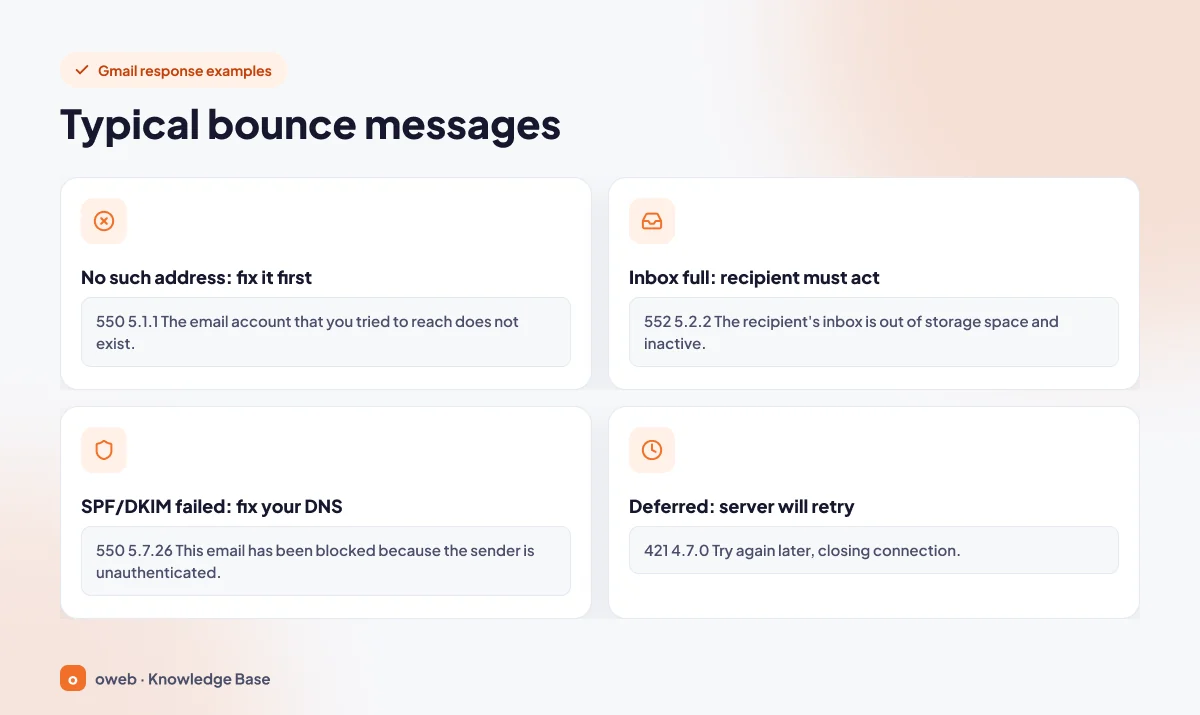
550 5.1.1 The email account that you tried to reach does not exist.The recipient address does not exist or is misspelled; do not resend without correcting the address.552 5.2.2 The recipient's inbox is out of storage space and inactive.The recipient's mailbox is full; they need to free up space.550 5.7.26 This email has been blocked because the sender is unauthenticated.Your domain failed SPF or DKIM authentication; fix your DNS records.421 4.7.0 Try again later, closing connection.Temporary deferral; the server retries automatically after a while.
Common problems by email program
If Outlook cannot send email
For the "Outlook not sending email" complaint, the order on Microsoft's troubleshooting page is a good place to start:
- In classic Outlook, if the status bar shows "Working Offline" or "Disconnected", go online with the "Work Offline" button on the Send/Receive tab.
- If a message is stuck in the Outbox, open the messages in the Outbox starting with the oldest; if one has a large attachment, remove it, add a smaller file or a link instead, and resend.
- Check the outgoing server details in the "Outgoing mail" section of the File > Account Settings > Server Settings screen.
Common error codes are:
- 0x80042109: Outlook cannot connect to the outgoing (SMTP) server. Check the server name, the port and any blocks on the network.
- 0x800CCC0D: The server could not be found. The server name is most likely misspelled.
- 0x800CCC80: The authentication methods of the server and the program do not match. Repair the account or set the authentication option to the method your provider requires.
Microsoft's troubleshooting page also lists codes 0x800CCC0E, 0x800CCC0F and 0x8004210B among send and receive errors; for these codes, apply the same server name, port, encryption type and network checks. Stay away from methods that suggest deleting your data files (.pst, .ost).
If you send through Microsoft 365 from a printer or a website, be aware: according to the schedule in effect as of November 2026, SMTP authentication with a username and password (Basic Authentication) will be turned off by default for existing tenants at the end of December 2026. An administrator can turn the setting back on if needed; the permanent solution is to move to a sending method that supports OAuth. Since dates can change, check Microsoft's latest announcement.
If you get an error sending from another address in Gmail
Gmail's "Send mail as" feature lets you set up your own domain's SMTP server under Settings > See all settings > Accounts and import. If you get a "Couldn't reach server" or "TLS Negotiation failed" error during setup, verify the server name and try a different port and authentication type.
According to the announcement on Google's help page, this feature is being removed for third-party addresses starting January 2027; as of November 2026 the transition period is ongoing and new setups may be restricted. As a permanent solution, use your provider's webmail or an email program that supports IMAP and SMTP.
If iPhone or Mac Mail cannot send email
Mac (Mail app)
Outgoing server settings are on the Mail > Settings > Accounts > Server Settings screen (older macOS versions show Preferences instead of Settings). Compare the server name, port and encryption option there with the settings your provider gave you.
Apple's troubleshooting page for Mac also recommends testing your internet connection, signing in to webmail to try the account, and checking your quota and network software such as VPNs. Earlier versions of the Mail user guide also describe the Window > Connection Doctor window and checking whether a firewall is blocking ports 25, 465 or 587.
iPhone and iPad
For the "iPhone not sending email" complaint, first look at the mailboxes list. If an Outbox folder appears, it contains a message that could not be sent; open the message, check the recipient address and send it again. Verify your password by signing in to webmail. The last resort Apple recommends is to remove the account from the device and add it again.
Before deleting the account, sign in to webmail and confirm that your messages are stored on the server. When the account is deleted, messages downloaded to the device may be removed; with accounts set up over POP3, the only copy of those messages may be on the device.
Messages are delivered but land in spam
In this case sending is technically successful; the problem is that the recipient's email provider does not trust your message. Since February 1, 2024, Google's sender guidelines require SPF or DKIM authentication from all senders, and all three of SPF, DKIM and DMARC from senders who send 5,000 or more messages a day.
Microsoft also requires SPF and DKIM to pass and a DMARC record to be published for senders who send 5,000 or more messages from the same domain to Outlook.com, Hotmail and Live addresses (enforcement began in May 2025); otherwise messages are rejected with error 550 5.7.515.
In short, unauthenticated messages may land in spam or be rejected outright with codes such as 5.7.26 and 5.7.515. The solution is to publish your SPF, DKIM and DMARC records correctly and check your blacklist status.
If your WordPress site is not sending email
If contact form notifications or password reset emails do not arrive, in other words if WordPress is not sending email, the cause is usually the sending method. By default, WordPress's wp_mail() function uses PHP's mail() function, sets the sender address to [email protected] and does not perform SMTP authentication. The function returning "success" does not mean the message reached the recipient either.
The solution is to send site emails through a real mailbox using authenticated SMTP. There are two ways to do this:
- Plugin: Enter the SMTP details in the admin dashboard with a plugin such as WP Mail SMTP.
- Code: Define the settings yourself with the phpmailer_init hook.
If you choose the code route, take a backup before editing any files. First, in the wp-config.php file, add the constant that holds the password above the "That's all, stop editing!" line:
define( 'SMTP_PASSWORD', 'your-email-account-password' );Then add the code below to a child theme or a small plugin instead of the parent theme's functions.php file:
add_action( 'phpmailer_init', 'example_smtp_setup' );
function example_smtp_setup( $phpmailer ) {
    $phpmailer->isSMTP();
    $phpmailer->Host       = 'mail.example.com';
    $phpmailer->SMTPAuth   = true;
    $phpmailer->Port       = 465;
    $phpmailer->SMTPSecure = 'ssl';
    $phpmailer->Username   = '[email protected]';
    $phpmailer->Password   = SMTP_PASSWORD;
}

add_filter( 'wp_mail_from', function () {
    return '[email protected]';
} );
Here the 'ssl' value is used with port 465, and the 'tls' value with port 587 and STARTTLS. The wp_mail_from filter makes the sender address the same as the authenticated mailbox, so replies and bounced messages reach a mailbox that actually exists.
If the code is added without defining the constant, every request that sends email throws an error on PHP 8 and later; define the constant first, then add the code.
On some servers, PHP scripts are restricted from connecting directly to external SMTP servers; if the plugin cannot connect to an external server, ask your hosting company.
If your email service is hosted with another provider such as Google Workspace or Microsoft 365, the Email Routing setting in cPanel should not stay on "Local Mail Exchanger"; select "Remote Mail Exchanger" (or "Automatically Detect Configuration" if your MX record is correct). Otherwise, form messages your site sends to your own domain are delivered to the local mailbox on the server. If this setting is chosen incorrectly, your domain cannot receive email; note the current selection and, if you are not sure, contact hosting support before changing it.
What happens if you exceed the hourly email sending limit?
Limits prevent a single account from damaging the reputation of the entire server. On cPanel servers, the hourly sending limit per domain is set by the hosting company. When the limit is exceeded, extra messages are queued first and rejected as the overage grows; you may see a phrase similar to "exceeded the max emails per hour" in the notification or in the server logs. Sending may also be temporarily paused for a domain that produces many failed or deferred messages within an hour.
The outgoing mail restriction (Sending Outgoing Email) on the account's "Manage" page in cPanel also affects sending: if "Suspend" is selected, the account cannot send messages; if "Hold" is selected, messages wait in the queue.
As of November 2026, personal Gmail accounts have sending paused for 1 to 24 hours when they exceed 500 emails a day or 500 recipients in a single message; in Google Workspace, the daily limit is 2,000 messages per user.
If you get a limit error without sending bulk email, or messages you did not send are bouncing back, your account may have been compromised. Change the password, scan your devices for malware, and review the account's forwarders and filters.
When should you contact hosting support?
Only the team that manages the server can fix the following problems; open a support ticket without wasting time:
- Email cannot be sent from webmail either, and there is no quota or password problem.
- The bounced message says the server's IP address is on a blacklist.
- Sending fails only from a specific network (suspected IP block).
- You are getting an hourly limit error and have a legitimate need to send.
- The account's "Restrictions" column shows a restriction you did not set.
Include the following in the ticket: the affected email address, the recipient address, the date and time of the attempt, the full text of the error or notification, the device and program you use, the result of the webmail test and your external IP address. Do not write your password in the ticket. If you are an Oweb customer, you can send these details by opening a support ticket from the client area.
Frequently asked questions
I can receive email but cannot send it. Why?
Messages are received over IMAP or POP3 and sent over SMTP, so one can work while the other does not. Check the outgoing server name, port, encryption type and authentication setting.
My email is stuck in the Outbox. What should I do?
The message could not leave your device. Make sure the program is not in offline mode and check your internet connection, remove any large attachment, then verify the SMTP port (465 or 587) and the encryption type.
Should the SMTP port be 465 or 587?
Both are correct: choose SSL/TLS with 465 and STARTTLS with 587. If one does not work on your network, try the other; do not use port 25 in an email program.
What does Mail Delivery Subsystem mean?
It is the sender name the mail server uses for automatic notifications. It tells you that your message could not be delivered or has been delayed, and explains the reason with an SMTP error code.
What is a 550 error and how do you fix it?
550 means a server (usually the recipient's server) has permanently rejected the message. For code 550 5.1.1, correct the recipient address; for code 550 5.7.1, check SMTP authentication, your SPF, DKIM and DMARC records and your blacklist status.
Should I resend the message after a 421 error?
If the code appears in a delay or bounce notification, no; your server keeps the message in the queue and retries automatically. If your email program shows the code at the moment of sending, the message has not left your device; resend it after a few minutes. Retrying repeatedly can use up your sending limit.
Can email be sent when the mailbox is full?
If your own mailbox is full, a copy of the sent message may not be saved to the Sent folder, and some providers stop sending entirely. If the recipient's mailbox is full, the message is deferred with code 452 4.2.2 or bounced with code 552 5.2.2.
What is the maximum attachment size for an email?
The limit varies by provider. As of November 2026, it is 25 MB for personal Gmail accounts; for Outlook.com, Microsoft recommends removing attachments larger than 25 MB and attaching a smaller file or sharing the file as a OneDrive link. Since the recipient's provider also sets a limit, sharing large files as a link is the safer option.
Conclusion
Fixing an email sending error usually takes only a few minutes of checks: the webmail test shows whether the problem is on the device or the server, the SMTP settings and password explain the device side, and the code in the bounced message explains the recipient side.
If the email not sending error comes from a server-side cause such as a limit, a blacklist or an IP block, contact hosting support with the error text. If you want to work with addresses on your own domain, take a look at Oweb's corporate email page.
