


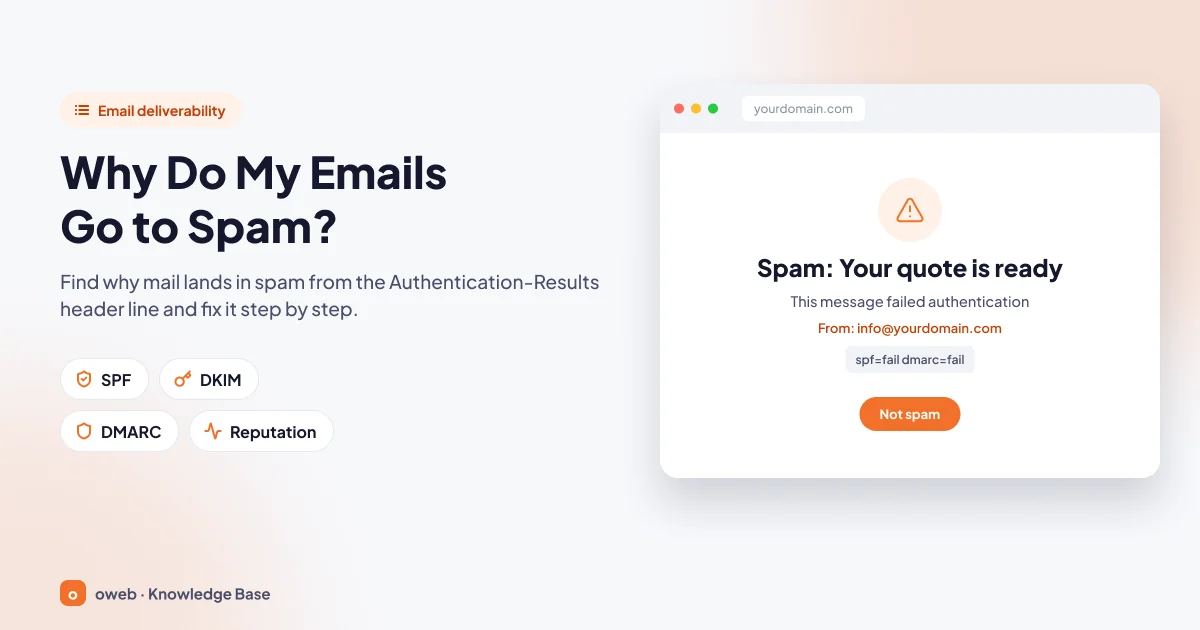
If you are asking why your emails go to spam, the most common answer is this: SPF, DKIM or DMARC is missing or misconfigured on the sending domain, the sending IP address has no reverse DNS (PTR) record or is on a blacklist, or recipients are reporting your messages as spam. Your first step should be to open the header of a message that landed in spam, find the Authentication-Results line and see which check failed.
In short
- Spam filters do not rely on a single rule. They weigh authentication, sender reputation, content and recipient feedback signals together.
- As of November 2026, anyone sending to personal Gmail accounts needs at least SPF or DKIM (both are recommended), valid forward and reverse DNS records, TLS for transmission and a spam rate below 0.30%.
- Bulk senders that send close to 5,000 or more messages to Gmail within 24 hours must use SPF, DKIM and DMARC together, align the From domain and offer one-click unsubscribe in marketing messages.
- Google asks senders to keep their spam rate below 0.10% and never let it reach 0.30%.
- A domain can have only one SPF record. If the terms that require DNS lookups add up to more than 10, SPF returns permerror.
- The PTR (reverse DNS) record is set by the provider that owns the IP address, not in your domain's DNS panel.
- By default, WordPress sends from [email protected] using PHP mail(). Authenticated SMTP and a real sender address fix most form problems.
- Unsolicited bulk email is filtered, and it should be. This guide is only about getting email that recipients actually asked for delivered correctly.
How do spam filters decide?
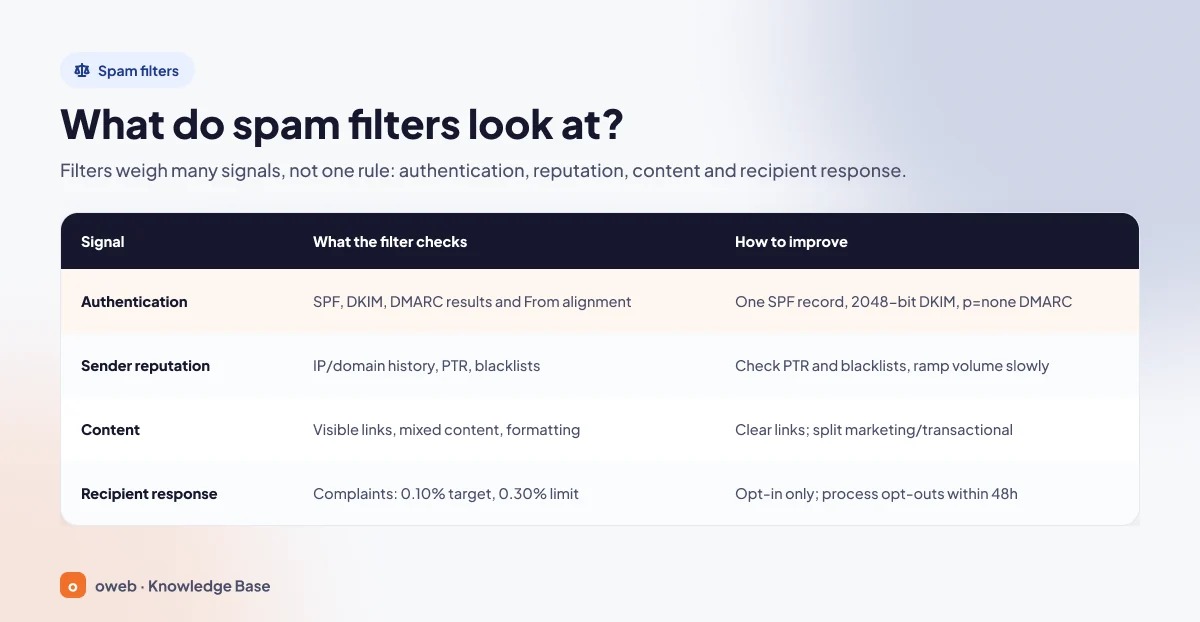
Receiving servers such as Gmail, Outlook.com or Yahoo weigh many signals together to decide whether a message goes to the inbox, goes to the spam folder or is rejected. The filter checks whether the message really comes from the domain it claims, looks at the history of the domain and IP, and considers how recipients have reacted to this sender. The weight of each signal varies by provider and is not published. Together, these signals determine your email deliverability.
That is why a single "banned word" is rarely the real cause. A message that cannot be authenticated is treated as suspicious even if its content is clean, and a sender that keeps receiving complaints will gradually see its messages land in spam.
| Signal | What the filter looks at | How to improve it |
|---|---|---|
| Authentication | SPF, DKIM and DMARC results and From alignment (Authentication-Results) | A single SPF record (10 DNS lookup limit), DKIM of at least 1024 bits (2048 bits preferred), DMARC published as a _dmarc TXT record starting with p=none |
| Sender reputation | IP and domain history, PTR record, blacklists | Have the IP provider set the PTR record, check blacklists, ramp up volume gradually on a new domain |
| Content | Visible and clear links, mixed content types, message format (RFC 5322) | Write links out clearly, separate marketing and transactional messages, add a visible unsubscribe link |
| Recipient feedback | "Report spam" complaints, spam rate (0.10% target, 0.30% limit) | Send only to addresses that opted in, verify addresses, process unsubscribe requests within 48 hours (Yahoo: 2 days) |
Why do emails go to spam? The most common causes
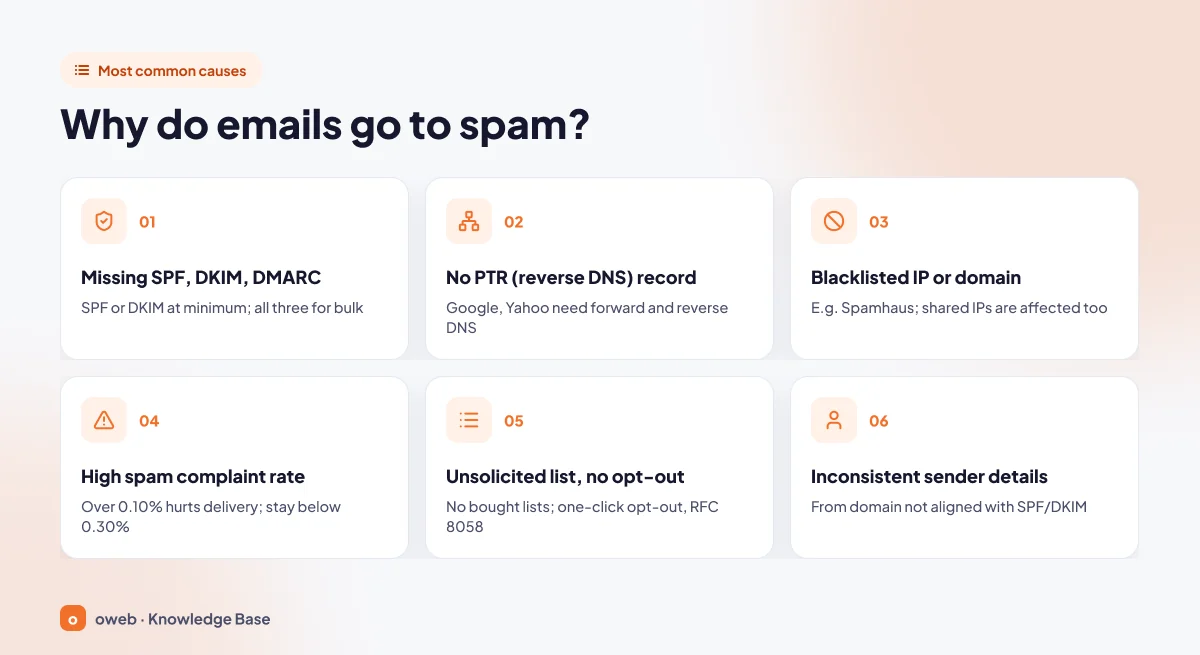
If your emails are going to spam, one of the causes below is usually behind it, and often several at once.
SPF, DKIM or DMARC is missing or misconfigured
SPF states which servers may send email on behalf of your domain. DKIM shows that the message was not altered in transit and was really signed by your domain. DMARC checks whether at least one of those two checks passed in alignment with the From domain, and tells receivers what to do with the message if it did not. Without these records, a receiving server cannot tell your domain's messages apart from forged ones. For a detailed explanation of these concepts, see the What are SPF, DKIM and DMARC guide.
Common mistakes: two separate v=spf1 records on the same domain, a newly added service (CRM, invoicing software, newsletter tool) that was never added to SPF, and DKIM that was never enabled in the panel.
No reverse DNS (PTR) record, or a mismatched one
The sending IP address must resolve to a hostname, and that hostname must resolve back to the same IP. Google and Yahoo require valid forward and reverse DNS records for sending IPs. Without a PTR record, Gmail may temporarily defer or reject the message. If you send email from your own server, see the reverse DNS (PTR) service page.
The IP address or domain is on a blacklist
DNS-based blacklists run by organizations such as Spamhaus publish IP addresses and domains caught sending spam. On shared hosting, another account using the same IP can get that IP listed. Google's guidelines ask senders on shared IPs to make sure the IP is not on a blacklist.
A new or low-reputation domain
A new domain or IP has no history, and filters treat it cautiously. Rather than sending thousands of messages on day one, the safest way to build email sender reputation is to start with regular, low-volume mail that recipients reply to, and increase volume gradually.
A high spam complaint rate
Every time a recipient clicks "Report spam", it counts as a complaint. According to Google, even rates above 0.10% hurt inbox delivery, and the rate should never reach 0.30%. Yahoo also asks all senders to keep their complaint rate below 0.30%.
Sending to unsolicited or purchased lists
Purchased or scraped lists reach people who never gave you their address, and those people report the message as spam. Google explicitly advises against buying email addresses from other companies and recommends verifying an address before adding a subscriber. This is the most common reason bulk mailings end up in spam, and filtering unsolicited mail is the right outcome.
No unsubscribe link
Recipients who cannot find a way to unsubscribe click the spam button instead. A visible unsubscribe link reduces complaints and is one of Gmail's and Yahoo's requirements for bulk senders.
Spam-triggering content, shortened links and attachments
Google's guidelines ask that links in the body be visible and clear, and that different content types (for example, an invoice and a promotion) not be mixed in the same message. It is also good practice in general to avoid shortened links that hide their destination, messages consisting of a single large image, and unexpected attachments.
Inconsistent sender details
If the From address shows one domain, the Return-Path shows another server name and the signature uses a third domain, DMARC alignment breaks. For example, when a contact form uses the visitor's Gmail address as the From address, your domain's server is effectively sending email "on behalf of gmail.com". Google explicitly requires senders not to impersonate gmail.com addresses in the From header.
A compromised account or website form
An account with a weak password or an unprotected form lets attackers send thousands of messages in your name, and the result is quickly a blacklisting. If you see unknown recipients or hundreds of bounced messages in the mail queue, check for this first.
How do you find the source of the problem?
Changing DNS records by guesswork often makes the problem worse. Gather evidence first: the header of a real message, your DNS records and your IP reputation.
Read the Authentication-Results line in the message header
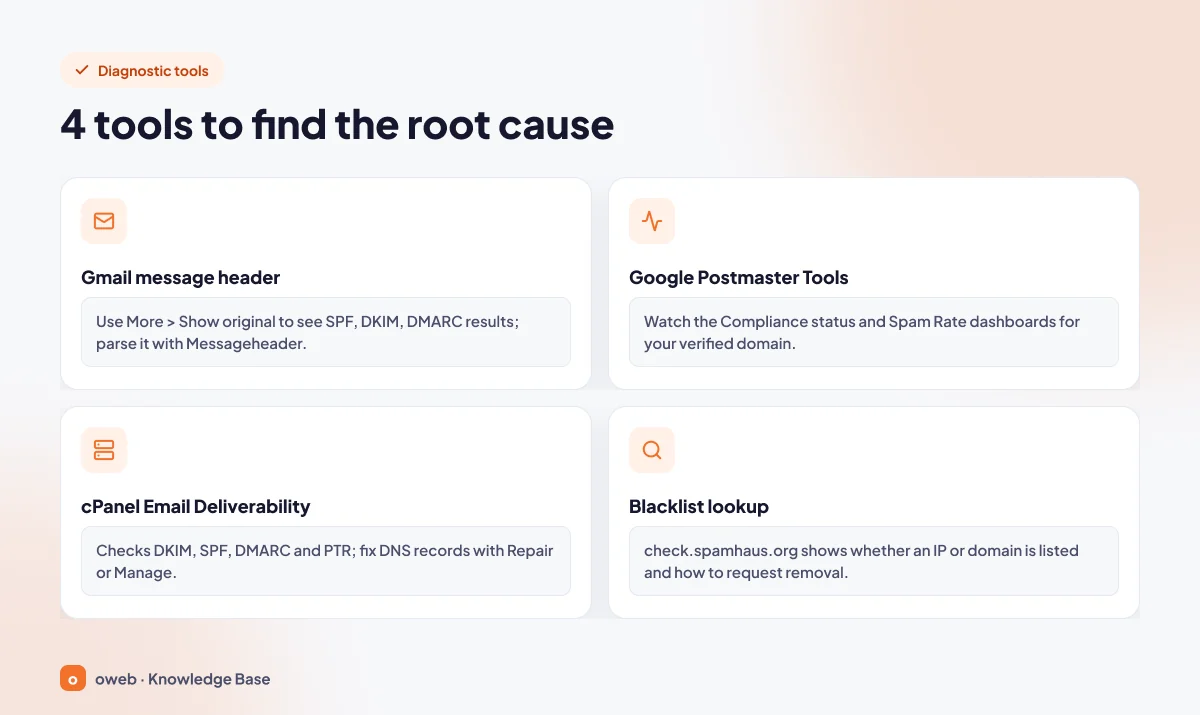
The receiving server adds the results of its checks to the message header as an Authentication-Results line. The format of this line is defined in RFC 8601: it starts with the name of the server that performed the checks, followed by method=result pairs.
Show the original message in Gmail
- Open Gmail on your computer and open the test message (you can send it to a Gmail address of your own).
- Click the More icon (three dots) next to the Reply button.
- Click Show original. The full header opens in a new window.
- Optionally, click "Copy to clipboard", paste the header into the Messageheader tool in the Google Admin Toolbox and click "Analyze the header above" to parse it.
These steps are based on Google's trace an email with its full headers help page. Here is a shortened example of what you will see in Gmail:
Authentication-Results: mx.google.com;
       dkim=pass [email protected] header.s=default;
       spf=pass (google.com: domain of [email protected] designates 203.0.113.10 as permitted sender) [email protected];
       dmarc=pass (p=NONE sp=NONE dis=NONE) header.from=example.com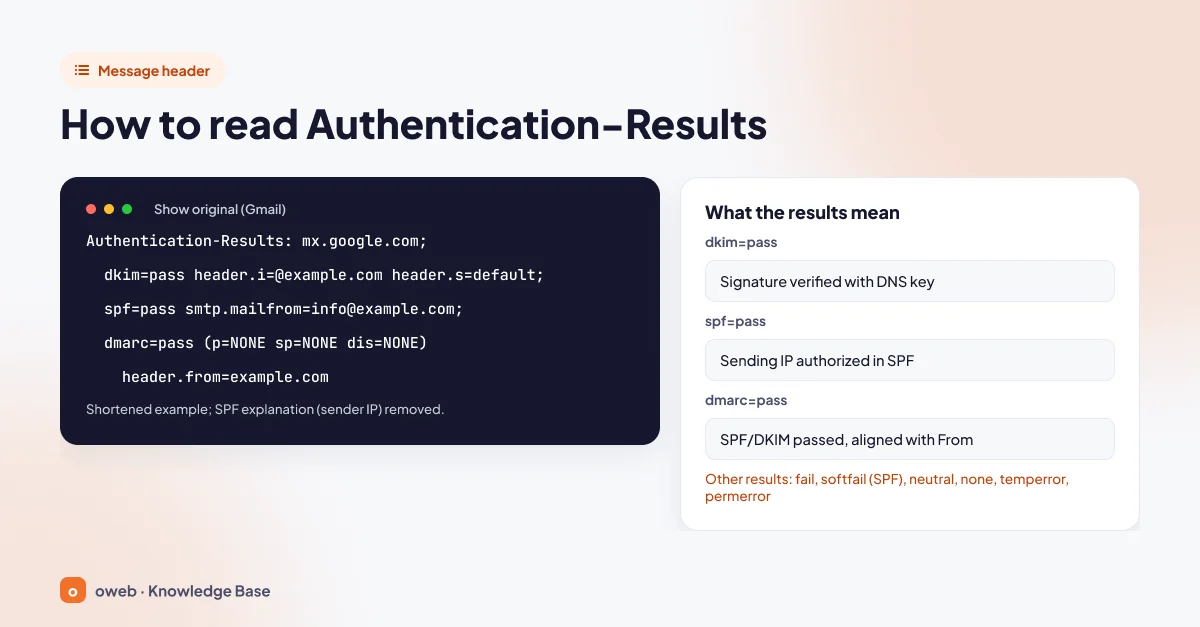
The example.com domain in the image and example.com in the code are placeholders. In your own header, you should see your own domain.
| Result | Meaning | What to do |
|---|---|---|
| dkim=pass | The signature was verified against the public key in the DNS of the signing domain (d= in DKIM-Signature, header.i in the Gmail header). The message was not altered in transit. | No action needed |
| spf=pass | The sending IP is authorized in the SPF record of the smtp.mailfrom domain | No action needed |
| dmarc=pass | SPF or DKIM passed and is aligned with the header.from domain | Monitor the reports and tighten the policy over time |
| spf=softfail or fail | The sending IP is not authorized in the SPF record | Add the sending service to SPF |
| spf=permerror | The SPF record is invalid: there is more than one record, or the 10 DNS lookup limit was exceeded | Merge them into a single record and remove unnecessary includes |
| dkim=none or fail | There is no signature, or it could not be verified with the public key | Enable DKIM and check the key in DNS |
| dmarc=none | The domain has no DMARC record | Publish a _dmarc TXT record with p=none |
| dmarc=fail | Neither SPF nor DKIM passed in alignment with the From domain | Match the From address to the authenticated domain |
Outlook and other clients
Outlook, Apple Mail and Thunderbird can also show the message source. The menu name varies by version and language, but the line you are looking for is the same. If you share a header publicly, hide the email addresses first.
Google Postmaster Tools
Google Postmaster Tools gives you Google's own data on the messages you send to Gmail. After you verify your domain, the Compliance status dashboard shows your status as Compliant, Needs work or No data found. For all senders it checks SPF/DKIM, DNS records, message format, encryption and user-reported spam rate. For bulk senders it also checks DMARC and one-click unsubscribe. The Spam Rate dashboard shows the share of messages that recipients reported as spam (the spam rate, or complaint rate).
The spam rate is calculated only from messages sent to Gmail accounts that were authenticated with DKIM and reached the inbox. If your messages are already landing in spam, the rate may look misleadingly low. In Postmaster Tools, check the Compliance status and Spam Rate dashboards first. The IP Reputation and Domain Reputation dashboards also show the reputation of your sending IP and domain for messages authenticated with DKIM (or SPF if DKIM is missing); keep an eye on them as supporting indicators (Postmaster Tools help).
Is my IP address on a blacklist? Is my PTR record correct?
For an IP blacklist check, first find the sending IP. It appears in the SPF explanation in the Authentication-Results line, or in the Received line added by the receiving server (for example, mx.google.com). Then look up the IP and your domain in Spamhaus's free IP and Domain Reputation Checker (check.spamhaus.org). The tool shows the likely reason for the listing and the removal steps.
You can check the PTR record from the command line like this:
dig -x 203.0.113.10 +short
nslookup 203.0.113.10
The returned name (for example, mail.example.com) must resolve back to the same IP. It is also good practice for it to match the name the server uses to identify itself in SMTP (HELO).
cPanel Email Deliverability
If you use cPanel, the Email Deliverability interface checks the DKIM, SPF, DMARC and reverse DNS (PTR) records for each domain. For a domain with problems, the Repair option installs the record the system suggests once you confirm, while Manage opens detailed management. The Manage screen offers Generate Local DKIM Key, Install a Customized SPF Record and, for DMARC, Install the Suggested Record. If the interface is missing from your menu, your hosting provider may have disabled the feature. For details, see the cPanel Email Deliverability documentation.
If your domain's DNS is managed not on the hosting server but at your domain registrar or another service such as Cloudflare, cPanel cannot fix these records for you, and the Repair option is not available. Copy the DKIM and SPF values shown in the interface and add them manually in the panel where your DNS is actually managed. The PTR record is set not by cPanel but by the provider that owns the IP address (the hosting company or data center).
Step-by-step fix: how to stop emails going to spam
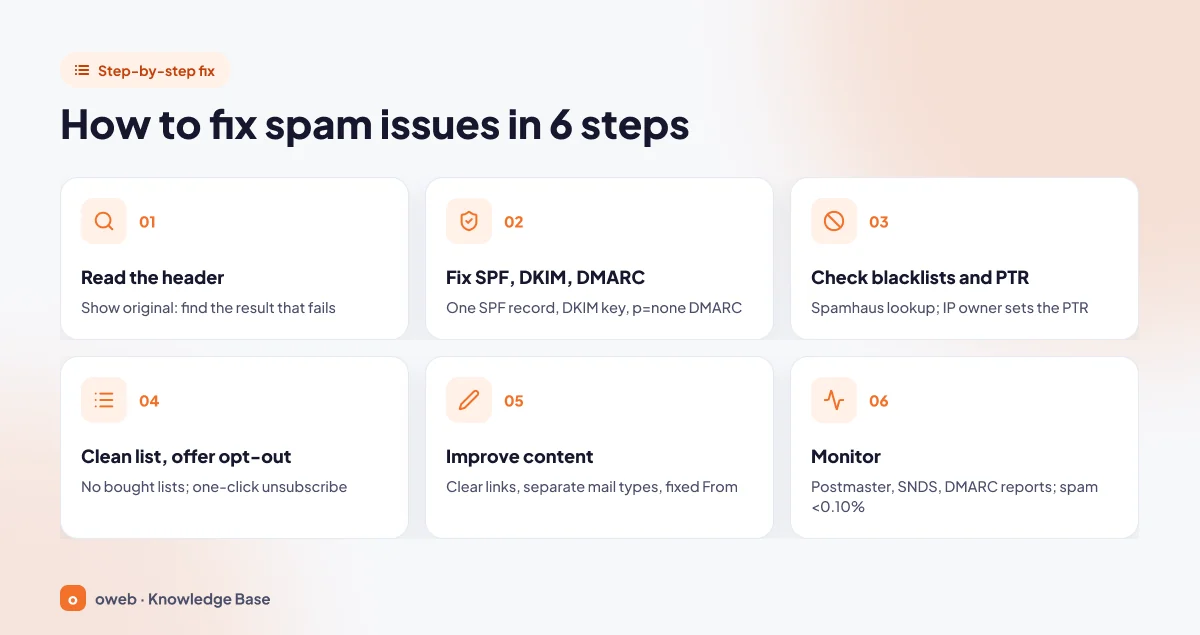
If you want your emails to stop landing in spam, follow the order below. The steps run from the simplest and safest to the most advanced. In most cases, emails going to spam is solved within the first three steps.
Take a backup before changing DNS records, WordPress files or the database. At the very least, save a screenshot or export of your current DNS records, because a wrong SPF or MX change can stop delivery of all your email. For the role of MX records, see the What is an MX record guide.
1. Read the header
Send a test message to your own Gmail address, use Show original to note which result is fail, softfail, none or permerror, and fix only the one that is broken.
2. Fix SPF, DKIM and DMARC
How do you add an SPF record?
There should be only one SPF record per domain (RFC 7208), so combine all sending services into a single record. In DNS panels, the name (host) field usually takes @, which means the domain itself. Here is an example for a domain that sends from the hosting server (203.0.113.10) and Google Workspace:
Name: @
Type: TXT
Value: v=spf1 ip4:203.0.113.10 include:_spf.google.com ~all
If you use Microsoft 365, add include:spf.protection.outlook.com (Microsoft SPF documentation). For other services, use the include value from the provider's documentation. Every include, a and mx term in your record counts toward the 10 DNS lookup limit; ip4 and ip6 values do not. If your MX records point to a service that does not send email, do not use the mx term.
Starting with ~all reduces the risk of outright rejection if you have forgotten a sender (a contact form, invoicing software). Once you have verified all senders, you can switch to -all. +all lets anyone send on your behalf, so never use it.
How do you set up a DKIM record?
Enable DKIM on your mail server or email service. The panel gives you a selector and a public key (RFC 6376). Google requires DKIM keys of at least 1024 bits and recommends 2048 bits if your provider supports it. The record looks like this:
Name: default._domainkey
Type: TXT
Value: v=DKIM1; k=rsa; p=MIIBIjANBgkqh...AQAB
Here, default is the selector; use exactly the value your panel gives you. A 2048-bit key exceeds the 255-character limit of a single TXT string, so some DNS panels require you to split the value into several quoted parts. Paste the value in full and check it with the commands below.
Creating a DMARC record
A DMARC record is a TXT record named _dmarc. Start in monitoring mode and specify an address to receive reports:
Name: _dmarc
Type: TXT
Value: v=DMARC1; p=none; rua=mailto:[email protected]
Once the reports show that all legitimate mail passes, switch to p=quarantine and then p=reject. In May 2026, DMARC moved onto the IETF standards track with RFC 9989, which obsoletes RFC 7489. Existing DMARC records keep working, but the new standard no longer includes the pct tag, so roll out gradually by watching the reports and moving from p=none to quarantine to reject, not by using pct.
To check the records:
nslookup -type=txt example.com
nslookup -type=txt _dmarc.example.com
dig +short TXT default._domainkey.example.com
3. Check blacklists and PTR
If you are listed, fix the cause first: change the password of the compromised account, disable the abused form and stop any unsolicited sending. Then follow the removal process on the blacklist's own official website. On lists such as Spamhaus, removal is usually free and is requested after the problem has been fixed, so do not trust paid "fast removal" offers. On a shared IP, your hosting provider handles the request. Ask the provider that owns the IP to set the PTR record.
4. Clean your list and add unsubscribe options
Remove addresses with unclear consent or that hard bounce repeatedly, and stop sending to contacts who have not engaged in a long time. Add a visible unsubscribe link and one-click unsubscribe headers to campaign messages (details below).
5. Improve content and sender details
Show the real destination of your links, keep invoices and promotions separate, and keep your From name and address consistent.
6. Monitor
Regularly check the Compliance status and Spam Rate dashboards in Postmaster Tools, along with DMARC aggregate reports. If you send high volumes to Outlook.com addresses from your own (dedicated) IP address, also monitor Microsoft SNDS (Smart Network Data Services) data; on shared IPs, the hosting provider handles this registration. The goal is to keep your spam rate below 0.10%. Because of DNS caching, changes can take time to take effect, so repeat the test a few hours later.
Google, Yahoo and Microsoft sender requirements
Since 2024, the major mailbox providers have required senders to follow written rules. Gmail's requirements took effect on February 1, 2024, and according to Google's FAQ page, Gmail stepped up enforcement against non-compliant traffic from November 2025. The table summarizes the official pages as of November 2026. For details, see Google's email sender guidelines, the Google sender guidelines FAQ and Yahoo's sender best practices.
| Requirement | Gmail | Yahoo | Microsoft Outlook.com |
|---|---|---|---|
| Authentication for all senders | At least SPF or DKIM (both recommended) | At least SPF or DKIM | Requirements were published for high-volume senders |
| Bulk sender threshold | Close to 5,000 or more messages to personal Gmail accounts within 24 hours (messages from the same primary domain, including subdomains, are counted together); once reached, the status does not expire | Does not publish a numeric threshold; applies additional rules to bulk senders | More than 5,000 messages per day |
| Bulk sender authentication | SPF and DKIM, DMARC (at least p=none), From alignment | SPF and DKIM, DMARC of at least p=none, and DMARC must pass | SPF and DKIM must pass; DMARC at least p=none and aligned |
| Forward and reverse DNS | Required | Required | Not specified in the official announcement |
| TLS for transmission | Required | Not specified in the official announcement | Not specified in the official announcement |
| Spam rate | Keep below 0.10%; should never reach 0.30% | Below 0.30% | Not specified in the official announcement |
| One-click unsubscribe (bulk senders) | Required for marketing and promotional messages; transactional messages are exempt; processing unsubscribe requests within 48 hours is recommended | Required; unsubscribes must be honored within 2 days | A working unsubscribe link is recommended |
"Not specified in the official announcement" means the item is not among the mandatory requirements published by that provider; it is still recommended as good practice. Microsoft announced that from May 5, 2025, it routes high-volume messages that do not meet these requirements to the Junk folder and will eventually reject them with the error 550; 5.7.515 Access denied. Google's requirements apply only to messages sent to personal Gmail accounts, not to messages sent to companies using Google Workspace. Bulk senders with a spam rate above 0.30% cannot request mitigation from Google until the rate stays below that limit for 7 consecutive days.
What do Gmail's rejection codes mean?
A message that does not meet the requirements may bounce outright instead of landing in spam. The code in the bounce message tells you which requirement is missing. Codes starting with 4.x.x are temporary deferrals and those starting with 5.x.x are permanent rejections; in Google's list, the permanent code number is not always the same as the temporary one. For messages you cannot send at all, also see the email not sending error guide.
| Code | Missing requirement |
|---|---|
| 4.7.23 / 5.7.25 | The sending IP has no PTR record, or the forward DNS record does not point to this IP |
| 4.7.27 / 5.7.27 | SPF did not pass |
| 4.7.29 / 5.7.29 | The message was not transmitted over TLS |
| 4.7.30 / 5.7.30 | DKIM did not pass |
| 4.7.31 | The sending domain has no DMARC record, or the record has no policy |
| 4.7.32 | The From domain is not aligned with the authenticated SPF or DKIM organizational domain |
If you send bulk email
For newsletter senders, authentication is only the starting point. Gmail and Yahoo require bulk senders to offer one-click unsubscribe in marketing messages. Gmail expects the method defined in RFC 8058 (an HTTPS URL and POST). Yahoo strongly recommends this method but also accepts the mailto method. Two headers are added to the message for this:
List-Unsubscribe: <https://example.com/abonelik/cikis?t=BENZERSIZ-KOD>
List-Unsubscribe-Post: List-Unsubscribe=One-Click
Under RFC 8058, List-Unsubscribe must contain an HTTPS URL, both headers must be covered by a valid DKIM signature, and your server must respond to POST requests to that URL without redirecting. Transactional messages such as orders, invoices or password resets are exempt from this requirement. Marketing messages, however, must also include a visible unsubscribe link in the body in addition to these headers.
For bulk sending, use infrastructure that supports these headers, bounce handling and complaint feedback loops instead of PHP mail(). As an industry reference, see the M3AAWG Sender Best Common Practices document.
In Türkiye, commercial electronic messages are governed by Law No. 6563 on the Regulation of Electronic Commerce and the related regulation, and consent and opt-out records are managed through the Message Management System (İYS). For which messages count as commercial and which exemptions apply, consult the official sources and your legal advisor; this section is not legal advice.
Email sent from your website (WordPress, contact forms)
On shared hosting, a common source of messages landing in spam is website forms and order notifications, because these sites often use PHP mail() instead of an authenticated account.
By default, the wp_mail() function sets the sender name to "WordPress" and the address to [email protected], and sends through PHPMailer using PHP mail(). On most sites this address is not a real mailbox, and the message may not carry a DKIM signature. The permanent fix is:
- Create a real sending mailbox on your domain (for example, [email protected]). The steps are explained in the create a business email guide.
- Install an SMTP plugin from the WordPress plugin directory and configure the site to send email over SMTP using that mailbox's username and password.
- In your form plugin, put your own address in the From field and the visitor's address in the Reply-To field. That way, clicking reply reaches the visitor and DMARC alignment stays intact.
- Add bot protection (CAPTCHA or similar) to the form.
If you only want to fix the sender name and address without a plugin, you can add these filters to your child theme's functions.php file (take a backup first):
add_filter( 'wp_mail_from', function () {
    return '[email protected]';
} );
add_filter( 'wp_mail_from_name', function () {
    return 'Company Name';
} );
So that it is not lost when you change themes, you can also add the same code as a small plugin or as a file under wp-content/mu-plugins. These filters only change the sender name and address; you still need the SMTP setup above for SMTP authentication and DKIM.
If form messages only come to you and are stored on your own domain's server, you may not notice a problem. Run a real test by sending a notification from the form to a Gmail or Outlook.com address and checking the Authentication-Results line in the header.
What recipients can do
If the problem affects a single recipient, the following steps help keep legitimate mail from getting lost, but they do not fix the sender's reputation problem.
- In Gmail, for a message in spam: select the message in the Spam folder and click Not spam. This helps keep future messages from that sender out of spam. Adding the sender to Google Contacts or creating a filter also works (Gmail Help).
- In Outlook, for a message in the Junk Email folder: in Outlook.com, go to Safe senders and domains and use Add safe sender to add an address or domain. Addresses in your contacts are also treated as safe by default (Microsoft Support).
- For business recipients, the administrator should check the quarantine and the allow list.
- In Gmail, messages from blocked senders keep being marked as spam; in Outlook.com, messages from blocked senders go straight to the Junk Email folder.
When should you contact hosting support?
If you are on shared hosting, the following situations usually cannot be solved from your own panel and require action from your hosting provider:
- The shared server IP appears on a blacklist.
- The sending IP has no PTR record, or it does not match the server name.
- You receive PTR- or TLS-related rejection codes from Gmail, such as 4.7.23 or 4.7.29.
- The mail queue contains unknown recipients or shows a sudden spike in volume.
Oweb customers can open a support ticket. Including the full message header, the time of the test, the recipient's provider and the error code speeds up the fix. If you want to keep your email separate from your website on managed infrastructure, take a look at our corporate email options.
Frequently asked questions
Why do my emails go to spam even though SPF, DKIM and DMARC are set up?
Authentication proves that a message really comes from you, but not that it was wanted. If the records pass, look in turn at sender reputation (blacklists, a new domain, sudden volume), complaint rate and content. Also, seeing spf=pass without dmarc=pass is not enough; From alignment is required too.
Is having two SPF records a problem?
Yes. Under RFC 7208, more than one SPF record produces permerror and SPF is treated as entirely invalid. Combine all senders into a single v=spf1 record.
What is Google's spam rate limit?
Google asks senders to keep the spam rate reported in Postmaster Tools below 0.10% and never let it reach 0.30%. Even rates above 0.10% can hurt inbox delivery.
Is one-click unsubscribe mandatory?
Yes, at Gmail and Yahoo, for bulk senders' marketing and promotional messages. Transactional messages such as orders, invoices or password resets are exempt, but every marketing message should still include a visible unsubscribe link.
Does Gmail mark new domains as spam?
Filters may treat a domain with no history cautiously. Setting up all records correctly, starting with low volume and ramping up gradually builds reputation.
Why do my emails go to the Junk Email folder in Outlook?
The causes are the same as with Gmail: missing authentication, low reputation or complaints. Microsoft routes high-volume messages that do not meet its requirements to the Junk folder. Recipients can rescue individual messages by adding the sender to their Safe senders and domains list.
Why do contact form emails go to spam?
Usually because the form uses the visitor's address as the From address, or sends through PHP mail() without authentication. Put a mailbox on your own domain in From, the visitor in Reply-To, and send over SMTP.
How do you get removed from a blacklist?
First fix the reason you were listed, then follow the removal process on the blacklist's own official website. On Spamhaus, removal is free and goes through the IP and Domain Reputation Checker; for SBL listings, the abuse team of the provider that owns the IP must submit the request. For shared hosting IPs, your hosting provider makes this request.
Does email forwarding break SPF?
SPF can fail because the forwarding server's IP address is not in the original domain's SPF record, while the DKIM signature survives as long as the message is not modified. Google's sender guidelines do not require DMARC alignment for forwarded messages. However, if a message fails DMARC, the outcome is usually decided by the sending domain's DMARC policy: if the DKIM signature breaks during forwarding, a message from a domain that publishes p=reject may be rejected. If you run a forwarding service, Google recommends that you help authenticate the messages you forward.
Conclusion
The answer to why emails go to spam almost always comes down to a measurable cause: a fail line in the header, a missing PTR record, a blacklisting or a rising complaint rate. Read the header first, then fix SPF, DKIM and DMARC, check your reputation, send only to recipients who gave consent and monitor with Postmaster Tools. For IP, PTR or blacklist problems you cannot solve on your side, contact the Oweb support team with the message header.
