


To create a business email address, you first need a domain name, and then an email service that accepts mail for that domain. That service can be the email included with a hosting plan, a separate business email service, or Google Workspace / Microsoft 365. Create the mailbox, add the correct MX record to the domain's DNS zone, and your [email protected] address is ready to use.
Creating a business email: quick summary
- A business email is an address where everything after the @ sign is your company's own domain (for example, [email protected]).
- You need two things: a registered domain and an email hosting service for that domain. You do not need website hosting.
- The MX record in DNS decides which server receives incoming mail. Servers with a lower priority value are tried first.
- In cPanel, you create an account at
Email » Email Accounts » Createand enter a username, password and quota (Storage Space). - For device setup, cPanel recommends the secure ports IMAP 993, POP3 995 and SMTP 465. If you use more than one device, choose IMAP.
- Add SPF, DKIM and DMARC records to improve deliverability. A domain can have only one SPF record.
- Since February 1, 2024, Gmail has required at least SPF or DKIM from everyone who sends mail to personal Gmail accounts.
What is a business email and why do you need one?
A business email (also called a professional email, company email or custom domain email) is an email address that uses your business's own domain. An address on a free service shows that service's domain. An address like [email protected] shows your brand.
So why do you need one? There are three main reasons:
- Trust: Customers find a quote or invoice more believable when it comes from the company's own domain. It also helps them spot phishing attempts.
- Branding: Every message you send repeats your domain name, so your business card, website and email all carry the same name.
- Control: The accounts belong to the company. When an employee leaves, you can change the password, forward their mail to another address or archive the mailbox. With a personal free account, you don't have that control.
Your professional email address also stays the same if you change providers, because the MX record decides which server receives your incoming mail. Old messages do not move on their own, though. You have to copy them over during the migration.
What do you need for a business email?
A business email needs two components:
- Domain name: The part of the address after the @ sign. If you don't have a domain yet, start with domain registration. You cannot create a business email without a domain.
- Email hosting: The server-side service that receives, stores and sends mail for you. It can come with your web hosting plan or be bought separately.
You also need access to the panel where the domain's DNS records are managed. That may be your hosting panel, your registrar or a separate DNS provider such as Cloudflare.
Business email options: which one is right for you?
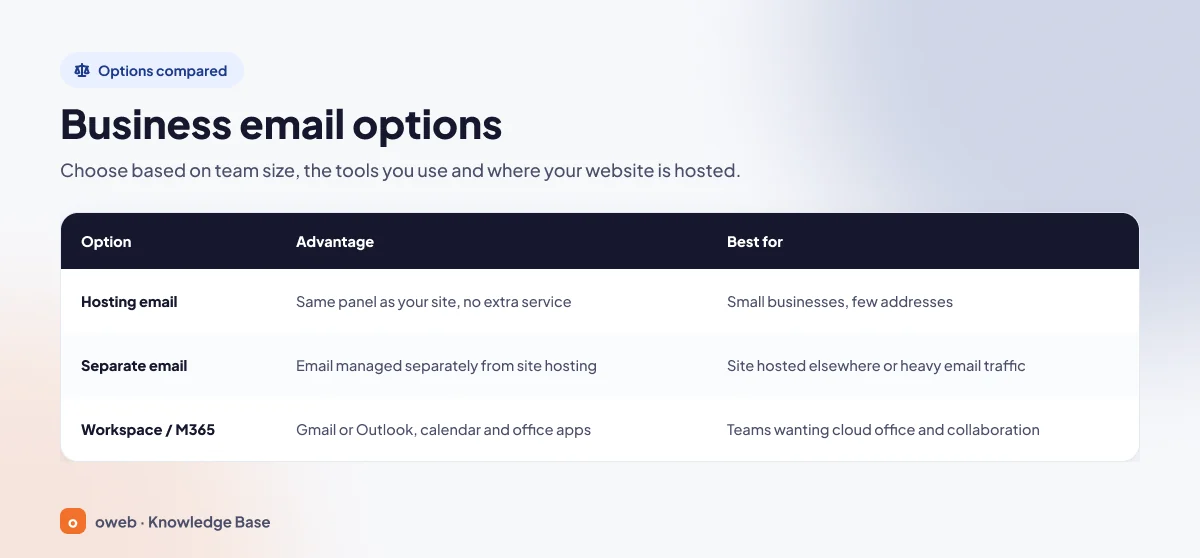
There are three common ways to set up a company email. Choose based on the size of your team, the tools you use and where your website is hosted.
| Option | Advantages | Best for |
|---|---|---|
| Email included with hosting | Managed in the same panel as the website (cPanel, Plesk), no extra service needed, Roundcube webmail in cPanel | Small businesses that use only a few addresses |
| Separate business email service | Email runs independently of the website, and server resources are usually not shared with it (details vary by provider) | Companies whose website is hosted elsewhere or that send and receive a lot of email |
| Google Workspace / Microsoft 365 | Gmail or Outlook interface with calendar and office tools, licensed per user | Teams that collaborate and want cloud office tools |
If you want to keep email separate from your website, see the options on Oweb's corporate email page. Whichever provider you choose, ask beforehand which country your data is stored in, what the backup policy is and which support channels are available. If your company processes personal data, data location also matters for compliance with data protection laws such as GDPR or Turkey's KVKK.
How to create a business email: step by step
The steps below are the simplest path for a new domain and work with most providers. If you are moving from an existing email service, do step 4 (creating the mailboxes) before changing the MX record. Then move your old messages to the new service and change the MX record last.
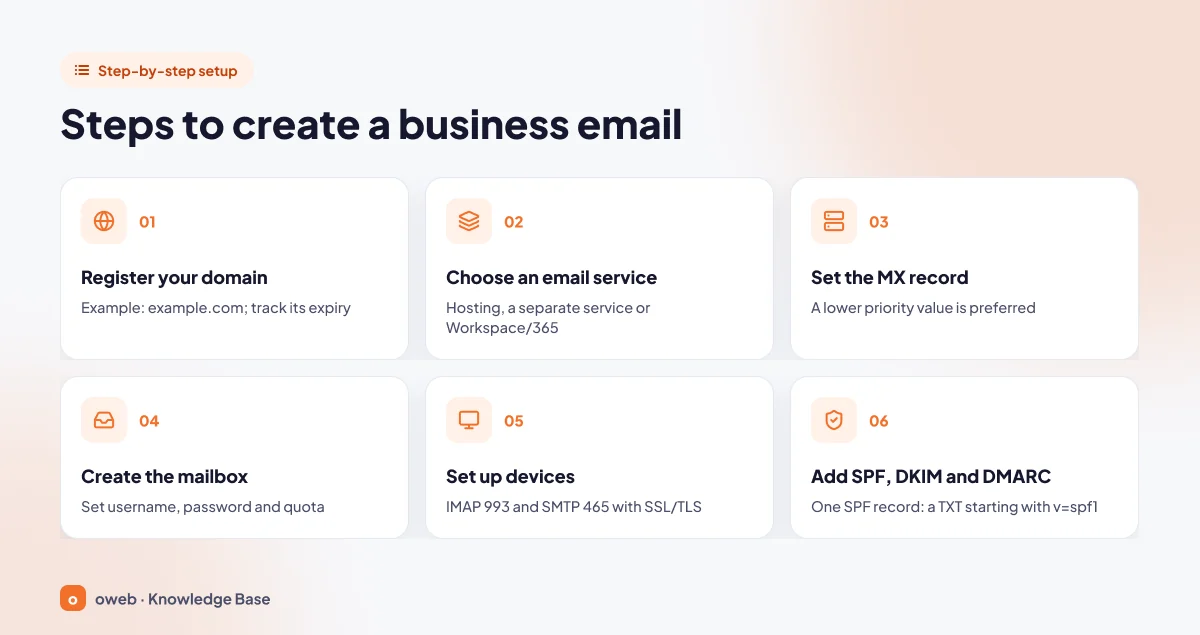
1. Register a domain
Choose a short domain that is easy to spell out over the phone. If you already have a domain, check its expiry date. If the domain expires, your email stops working too.
2. Choose an email service
Pick one of the three options in the table above. Setup works a little differently for each:
Email included with a hosting plan
Plans that include cPanel or Plesk usually come with email. If your domain's nameservers point to the hosting server, the MX record is usually already in place.
Separate business email service
The provider gives you the MX and SPF values to add. Your website can stay on another server. Only the email-related DNS records change.
Google Workspace or Microsoft 365
With these services, you first verify that you own the domain. Google Workspace setup also asks you to verify domain ownership. In the Microsoft 365 admin center, the path is Show all » Settings » Domains » + Add domain. Enter the domain in the Domain name box and select Use this domain. You verify ownership with a TXT record, which is the recommended method, or with an MX record or a text file uploaded to your website. According to Microsoft's guide to adding a domain, TXT verification usually takes about 10 minutes but can take up to 48 hours with some registrars. Registrars that support Domain Connect can add the records automatically. For a migration without downtime, Microsoft recommends creating users and mailboxes after you add the domain and before you change the MX record.
3. Set up the MX record in DNS
The MX (Mail Exchanger) record tells other servers which server accepts mail for your domain. For details, see our what is an MX record guide.
If you are switching from another service, create the mailboxes on the new service before you change the MX record. Otherwise, the new server rejects mail sent to addresses that don't exist there yet. Keep the old service running for a few days while the change propagates.
Back up your existing records before you change anything in the DNS zone, either with the panel's export feature or with a screenshot. If you delete an MX or TXT record by mistake, incoming mail can stop or your messages can land in spam. With a backup, you can restore the old records quickly, but because of DNS caching the fix can take as long as the record's TTL to reach everyone. Lowering the TTL a day before the migration makes your changes propagate faster.
Enter the value your provider gives you exactly as shown:
- For Google Workspace, the MX value is
smtp.google.comwith priority1. Google says new MX records can take up to 72 hours to be recognized. If you set up your domain before 2023 with the older values and they work, you don't need to change them. - Microsoft 365 has changed the format of the MX value it gives to newly added domains. Always copy the correct value from the DNS records screen in the admin center.
- For cPanel hosting email, the MX record is usually created automatically if the domain's DNS is hosted on the same server. If your DNS is with another provider, you have to add the record there yourself.
- The MX value must always be a hostname. Do not use an IP address or a CNAME.
- If your DNS is on Cloudflare, do not proxy the A record that points to your mail server. Set it to DNS only.
Remember to delete MX records left over from an old provider. If your MX records point to two different servers, some of your mail may still go to the old one.
4. Create the mailbox
In the panel, you create the account by setting a username, password and quota (the cPanel and Plesk steps are below). In Google Workspace, you add users in the Admin console. In Microsoft 365, you add them in the admin center and assign each one a license.
5. Set up devices and email clients
Test the account in webmail first, then add it to your phone and computer. You'll find the port settings in the table below.
6. Add SPF, DKIM and DMARC
These three records show receiving servers that your mail really comes from you. Without them, your messages may go to spam or be rejected.
Creating an email account in cPanel and Plesk
Creating an email account in cPanel
Creating an email account in cPanel is the fastest option if you use the email that comes with your hosting. The steps below follow cPanel's official documentation (cPanel & WHM version 130 and later) and use the official English interface labels.
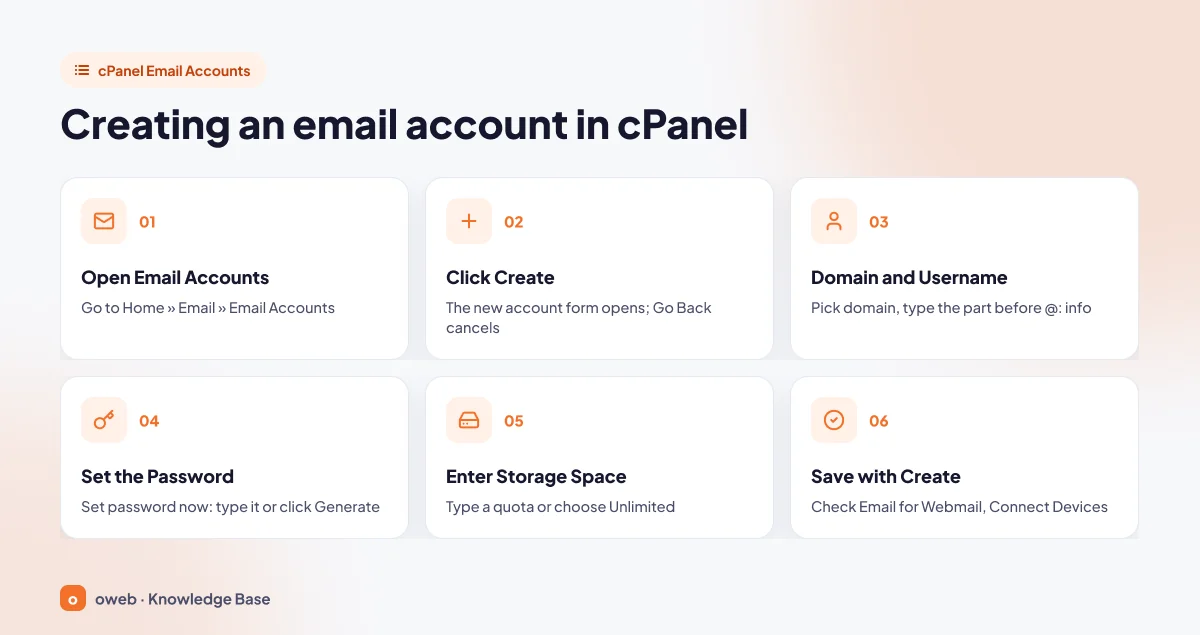
- On the cPanel home page, open Email Accounts in the Email section.
- Click the Create button.
- If your account has more than one domain, select the right one from the Domain menu (the menu only appears when there is more than one domain). In the Username box, type the part before the @ sign, for example info.
- Under Password, with Set password now selected, type a password or click Generate to create a strong one.
- In the Storage Space field, enter a mailbox quota or select Unlimited. If you like, check "Send welcome email with instructions to set up a mail client" to send the user setup instructions.
- Click Create. The account appears in the list. Use Check Email to open webmail or Connect Devices to see the device settings.
After you create an account in cPanel, you cannot change its username or address. You also cannot use "cpanel" as an account name. If you misspelled the name, create a new account with the right name and use Forwarders to send mail for the old address to the new one. Your hosting provider may also require a minimum password strength or turn off email account creation on your plan.
To change the email password or increase the quota, click the Manage link next to the account. It opens the same settings screen.
Creating an email address in Plesk
In Plesk Obsidian, you usually create an email address at Mail » Create Email Address. Menu names can differ slightly depending on the version and how your provider set it up. For details, see the Plesk documentation. The form usually has these fields:
- Email address: The part before the @ sign. If you have more than one domain, you also choose the domain.
- External email address and Password: An outside address for password resets, and the account's password.
- Mailbox: Keep this checkbox selected if you want a mailbox, then set its size or use the default. If you clear it, the address works without a mailbox, for example as a forwarder only.
In Plesk, the mailbox size is limited by your hosting plan or subscription. If you need a larger quota, contact your hosting provider.
DNS settings: MX, SPF, DKIM and DMARC
Creating the mailbox is only half the job. For your messages to reach the inbox, your authentication records have to be correct. For a detailed explanation of these terms, see our what are SPF, DKIM and DMARC guide.
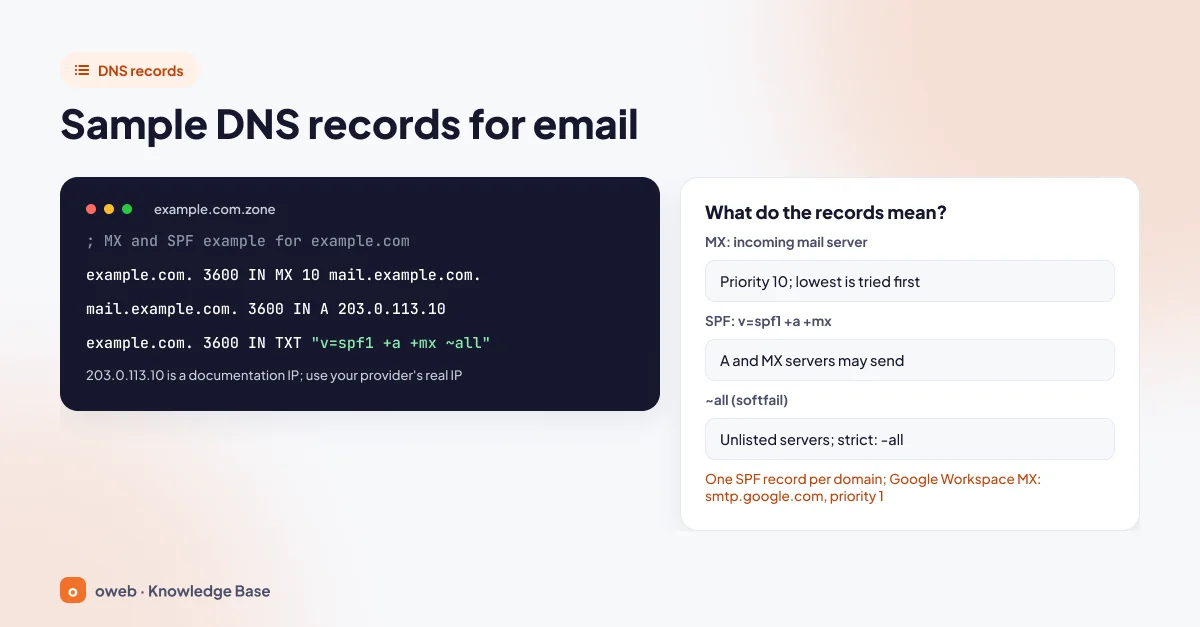
Below are example records in BIND zone file format for a domain that uses email on its hosting server:
example.com.          3600  IN  MX   10 mail.example.com.
mail.example.com.     3600  IN  A    203.0.113.10
example.com.          3600  IN  TXT  "v=spf1 +a +mx ~all"
_dmarc.example.com.   3600  IN  TXT  "v=DMARC1; p=none; rua=mailto:[email protected]"
The hostname the MX record points to (mail.example.com in the example) must have an A record that resolves to the server's IP address. The address 203.0.113.10 in the example is reserved for documentation. Get the real IP address from your hosting provider.
MX record
The 10 in the line is the priority value. Under RFC 5321 section 5.1, a lower value has higher priority. If there are several MX records, the sending server tries the one with the lowest value first. If you use Google Workspace, this line's value is smtp.google.com with priority 1.
SPF record
SPF lists the servers allowed to send mail for your domain. Under the rules of RFC 7208:
- The record starts with
v=spf1and is published only as a TXT record. +aand+mxallow the servers in the domain's A record and MX records to send mail.- The
~allat the far right means softfail for servers not on the list. The stricter option is-all(fail). - Terms that need a DNS lookup (such as include, a and mx, counting the ones inside records pulled in by include) can make at most 10 lookups in total.
Do not add a second SPF record for the same domain. Multiple SPF records produce an error (permerror), and the check fails completely. When you add a new sender, such as invoicing software or a newsletter service, put the include value it gives you inside your existing record, before ~all.
DKIM record
DKIM adds a digital signature to outgoing messages. The receiving server checks the signature against the public key in your DNS. Your provider generates the key. You just copy the record name and value shown in the panel.
DMARC record
DMARC tells receiving servers what to do with a message that fails both SPF and DKIM in alignment with the domain in the From address. Passing one of them with alignment is enough. It also has reports sent to you. Alignment means the domain verified by SPF or DKIM matches the domain in the message's From address.
The p=none in the example only monitors. Once the reports show that all your legitimate senders (website contact form, billing system, newsletter tool) pass authentication, you can raise the policy to quarantine and then to reject. Starting with reject on day one can block your legitimate messages too. The address in the rua tag ([email protected] in the example) must be a mailbox or forwarder that exists. Otherwise, the reports won't reach you.
In May 2026, the DMARC standard was updated with RFC 9989, which replaces the older RFC 7489. The new version removes the pct tag. Existing records keep working.
Automatic checks with cPanel Email Deliverability
The Email Deliverability screen in cPanel checks the DKIM, SPF, DMARC and Reverse DNS (PTR) records for each domain. If it finds a problem, click Repair to apply the record the system suggests, or click Manage to fix it yourself. According to the cPanel documentation, a repair can take up to 5 minutes. If your DNS is with another provider, cPanel cannot add the records for you. Copy the suggested records and add them in the panel that manages your DNS.
Gmail and Outlook.com sender requirements
According to Google's email sender guidelines, everyone who sends mail to personal Gmail accounts has needed SPF or DKIM since February 1, 2024. If you send more than 5,000 messages a day to personal Gmail accounts, SPF, DKIM and DMARC are all required, and the From domain must align with the SPF or DKIM domain. Since May 5, 2025, Microsoft has required the same three records from anyone who sends more than 5,000 messages a day to consumer accounts (Outlook.com, Hotmail). Messages that don't comply are rejected with error 550 5.7.515. We recommend setting up all three records even if you send less than this.
How do you test the records?
After a DNS change, you can check from the command line that the records have propagated:
nslookup -type=mx example.com
nslookup -type=txt example.com
nslookup -type=txt _dmarc.example.com
Then send a test message from your business address to a Gmail address. In Gmail, open the message menu and choose Show original. It shows the SPF, DKIM and DMARC results as PASS or FAIL.
Migrating from an existing email service
If you are moving from another provider, follow this order to avoid losing mail:
- Back up your old mailboxes, for example by exporting the messages from an email client connected over IMAP.
- Lower the MX record's TTL a day before the migration.
- Create the same addresses on the new service and copy your old messages to the new mailboxes.
- Change the MX record last, and delete the old MX records.
- Keep the old service running while the change propagates, and check it for messages that still arrive there.
- Update your SPF record: remove the old provider's include value and add the new one.
Address naming tips: info@, support@, firstname.lastname@
Give personal addresses to people and role addresses to jobs. A role address stays the same when an employee leaves, so customers can keep writing to it.
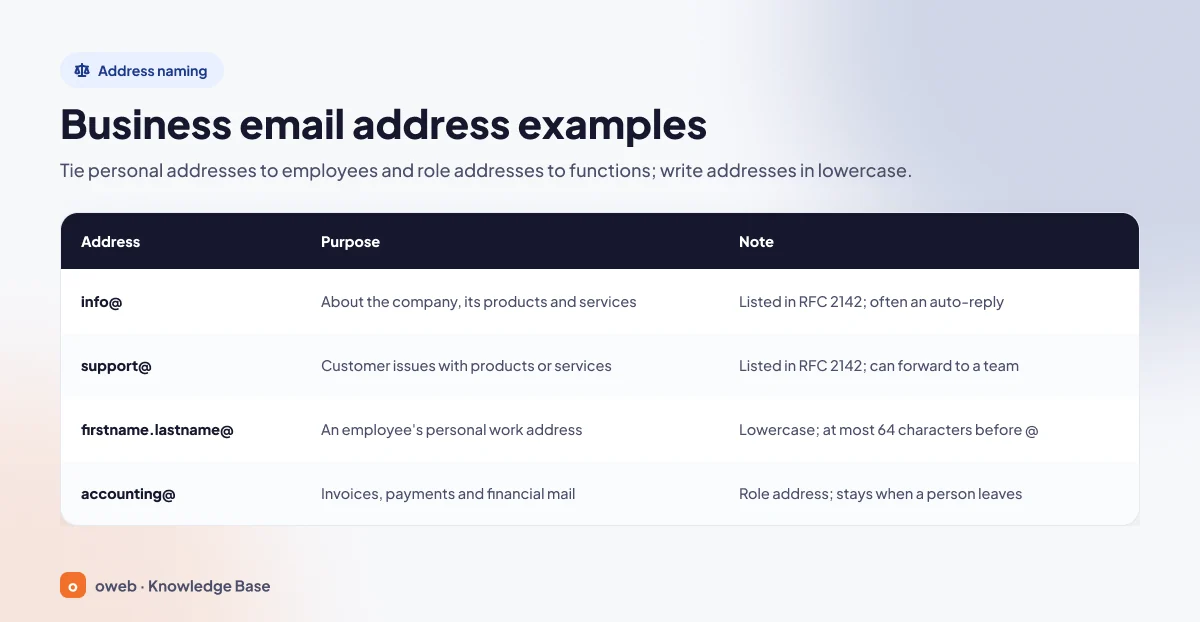
| Address | Purpose | Note |
|---|---|---|
| info@ | General information about the organization, its products and services | Defined in RFC 2142, often used with an auto-reply |
| support@ | Customer issues with products or services | Defined in RFC 2142. Use a forwarder or alias to share it across the team |
| firstname.lastname@ | An employee's personal work address | Use lowercase. The part before the @ can be up to 64 characters (RFC 5321) |
| accounting@ | Invoices, payments and financial correspondence | A role address that stays when people leave. Use a strong password |
Most companies start with an info email address. When you plan your addresses, keep these rules in mind:
- Under RFC 5321 section 4.5.1, every domain with an SMTP server must have a postmaster address. Instead of creating it as a separate account, you can forward it to the administrator's mailbox.
- RFC 2142 also defines role names such as abuse and webmaster. Make sure mail sent to these addresses gets read.
- Avoid accented and other non-ASCII characters: write "jose" instead of "josé". Not every server and email client supports addresses with non-ASCII characters, so mail from some senders may bounce, or people may mistype the address.
- Write addresses in lowercase. RFC 5321 says the local part can in theory be case-sensitive, but relying on that causes compatibility problems.
Using your business email with webmail
Webmail lets you read and send mail in a browser without installing any software. Test a new account in webmail first. If you can send messages to and receive them from an outside address (such as your personal Gmail account), the server side is most likely fine. Any problems after that usually come from device settings.
According to the cPanel documentation, cPanel & WHM ships with the Roundcube webmail client, and your provider may have installed other clients too. In cPanel, open webmail with the Check Email link in the Email Accounts list. If you check Open my inbox when I log in, future logins take you straight to your Roundcube inbox. Ask your hosting provider for the direct login address, because it can vary from server to server.
Google Workspace users sign in to Gmail with their business address, and Microsoft 365 users sign in to Outlook on the web.
Setting up an email client and phone (IMAP, POP3, SMTP)
Setting up your business email on a device takes this information: the incoming and outgoing mail servers, port numbers, username and password. The username is always the full email address (for example, [email protected]), not just "info".
IMAP or POP3?
IMAP keeps messages on the server and syncs all your devices, so a message you read on your phone also shows as read on your computer. POP3 downloads messages to the device, and most clients delete them from the server by default. If you use a phone, a computer and webmail together, POP3 leaves each message only on the device that downloaded it. You won't see it on your other devices or in webmail. That's why cPanel also recommends IMAP. For a detailed comparison, see our IMAP vs POP3 guide.
Port and server settings
These are the values shown in cPanel's Set Up Mail Client screen:
| Protocol | Secure (SSL/TLS) | Non-SSL |
|---|---|---|
| IMAP (incoming) | 993 | 143 |
| POP3 (incoming) | 995 | 110 |
| SMTP (outgoing) | 465 | 587 |
cPanel strongly recommends the secure SSL/TLS settings. The server name works like this:
Incoming mail server
If the domain has a valid SSL certificate, the server name is your email domain. Otherwise, the hosting server's own hostname is used. The non-SSL settings show the mail.yourdomain.com format. The most reliable value is the one on your account's Connect Devices screen.
Outgoing mail server (SMTP)
The outgoing server usually has the same name as the incoming server. In your client's outgoing server (SMTP) settings, turn on authentication and use the same username and password as the incoming server. If authentication is off, the server may reject your outgoing mail.
Automatic configuration
Under Mail Client Automatic Configuration Scripts, cPanel offers ready-made scripts for iOS and macOS Mail.app. Choose a protocol, click Proceed, run the script and enter your password. If you use Outlook, follow our Outlook email setup guide for step-by-step screens.
How do you connect a business email to Gmail?
If you want to read your business mail in Gmail, there's an important change. According to Google's announcement, Gmail on the computer is removing two features: fetching mail from other accounts over POP (Check mail from other accounts) and Gmailify. Since the first quarter of 2026, new users can't turn them on. Existing users can keep using them until January 2027.
As of November 2026, we recommend two options:
- Gmail mobile app: You can still add your business account over IMAP in the Gmail app on Android, iPhone and iPad.
- Forwarding: For Gmail on the web, Google recommends setting up automatic forwarding from your business mailbox to your Gmail address.
Forwarding only covers incoming mail. When you reply from Gmail, the message may go out from your personal address. Send business emails from webmail or from a client set up with IMAP/SMTP.
Forwarding, aliases and auto-replies
Forwarding (Forwarders)
To forward mail from one address to another, use the Forwarders screen in cPanel. According to the cPanel documentation, the Add Forwarder button opens a form. Type the source address in Address to forward, select the domain, and set the destination with Forward to Email Address. Add Domain Forwarder sends mail for addresses that don't exist on your domain (invalid addresses) to another domain. Messages for existing mailboxes and autoresponders are not forwarded. They are delivered as usual.
Aliases and shared addresses
You can use a forwarder as an alias to get an extra address without creating another mailbox. For example, forward sales@ and quotes@ to a single mailbox.
When an employee leaves, forward their address to their manager's mailbox instead of deleting it, so no customer mail is lost. Deleting a mailbox also deletes every message in it. Before you delete one, back it up to an email client connected over IMAP or to an archive. If you can, keep the mailbox for a while, change its password and forward incoming mail to the manager.
Auto-replies (Autoresponders)
For leave, vacation or "we've received your request" notices, open the Autoresponders screen in cPanel and click Add Autoresponder. According to the cPanel documentation, the form includes the character set (utf-8 by default), the reply interval in hours, the Email, From, Subject and Body fields, and a start time (Immediately or Custom) and stop time (Never or Custom). An interval of 0 sends a reply to every message. Set an interval of a few hours so that two autoresponders don't keep replying to each other.
Email signature
A signature only needs your full name, job title, company, phone number and website. You set it up separately in each client (webmail, Outlook, phone). Signatures with large images and lots of links can trigger spam filters.
Security and quota management
Strong passwords and account security
- Use a different, long, hard-to-guess password for each mailbox. The Generate button in cPanel is a good place to start.
- If you use Google Workspace or Microsoft 365, turn on two-step verification.
- When someone who knows a role address's password leaves the team, change the password right away.
Protecting against phishing attacks
Business addresses are frequent targets of fake warnings such as "your mailbox is full." Always open webmail from an address you know, and never log in through a link in an email. Confirm payment requests from addresses that look like your domain by phone. Moving DMARC to reject makes it harder for anyone to spoof your exact domain. It does not protect against lookalike domains such as yourdomain-us.com, though, so keep confirming payment requests by phone.
What happens when the quota is full?
A mailbox quota is not a fixed size. The default quota depends on your hosting plan. When a mailbox is full, the server usually stops accepting new messages. A message may be held for a while, or the sender may get a delivery failure notice. In other words, a customer's email may never reach you. To prevent this:
- In cPanel, check how full each mailbox is in the Email Accounts list, and increase the quota with Manage if needed. Remember that your plan's total disk space is also limited.
- Move old correspondence you need to keep to a local archive folder in an email client connected over IMAP, and back up the archive.
- Only then delete old messages with large attachments and clear the Trash and Sent folders. On most cPanel-based hosting email, emptying the Trash deletes messages permanently, and you can only get them back from a server backup. Some services, such as Microsoft 365 (Exchange Online), let you get emptied items back with Recover Deleted Items for 14 days by default (up to 30 days).
Frequently asked questions
Can I get a business email address for free?
Domain registration usually costs a yearly fee. If your hosting plan includes email, you can create mailboxes at no extra cost. Services that offer a free tier can change their terms, so check the current conditions on the provider's own website.
Can I create a business email without a domain?
No. By definition, a business email uses your own domain, so you need to register a domain first.
Do I need web hosting for a business email?
You don't need website hosting, but you do need an email hosting service. Separate business email services, Google Workspace and Microsoft 365 all work without web hosting. All you need is the ability to edit your domain's DNS records.
Is the email included with hosting enough?
For businesses with only a few addresses and moderate email traffic, it is usually enough. If your team is growing, you want to manage email separately from your website, or you need calendar and office tools, a separate business email service or Google Workspace / Microsoft 365 may suit you better.
How do I set up a business email on my phone?
Add a new account in your phone's email app, choose IMAP as the account type and enter your full email address as the username. Use port 993 for the incoming IMAP server and port 465 for the outgoing SMTP server, both with SSL/TLS. You'll find the correct server name on the account's Connect Devices screen in cPanel. For iPhone and iPad, you can also use the automatic configuration script on the same screen.
How do I change my business email password?
In cPanel, click the Manage link next to the account in the Email Accounts list and save the new password. After you change it, enter the new password on every phone and computer where the account is set up.
I changed the MX record. Why is mail still going to the old server?
First, make sure you edited DNS in the right place: records must be changed in the panel that your domain's nameservers point to. Run nslookup -type=mx example.com with your own domain to confirm the old MX records are gone. If the records are correct, servers may keep using cached old values until the TTL expires. Google also says new MX records can take up to 72 hours to be recognized. Don't shut down the old service right away during a migration.
Why are my business emails going to spam?
The most common causes are missing or incorrect SPF, DKIM and DMARC records, having more than one SPF record, and a new domain that hasn't built a reputation yet. Check with Show original in Gmail and with the Email Deliverability screen in cPanel.
I can receive mail in Outlook but can't send it. Why?
Usually, outgoing server authentication is turned off or the port is wrong. In your client's outgoing server (SMTP) settings, turn on authentication and use the same username and password as the incoming server. Enter the username as your full address. Use port 465 (SSL/TLS) for SMTP. If 465 doesn't work, try port 587 if your provider recommends it.
Google Workspace or Microsoft 365?
If your team is used to Gmail and Google's tools, Google Workspace is the more natural choice. If your team works in Word, Excel and Outlook, Microsoft 365 is. If you only need email, the email included with hosting or a separate business email service may be enough.
Conclusion
To create a business email, you do four main things: register a domain, choose the right email service, create the mailbox and set up the MX record correctly. After that, set up your devices with IMAP so you see the same mail everywhere. SPF, DKIM and DMARC records make it more likely that your messages reach the inbox. To avoid the most common mistakes, back up before you touch DNS, change the MX record last during a migration, keep a single SPF record and tighten DMARC step by step.
If you don't have a domain yet, start with domain registration. If you want to manage email separately from your website, start with our corporate email options. If you get stuck on any step during setup, contact your service provider's support team.
