


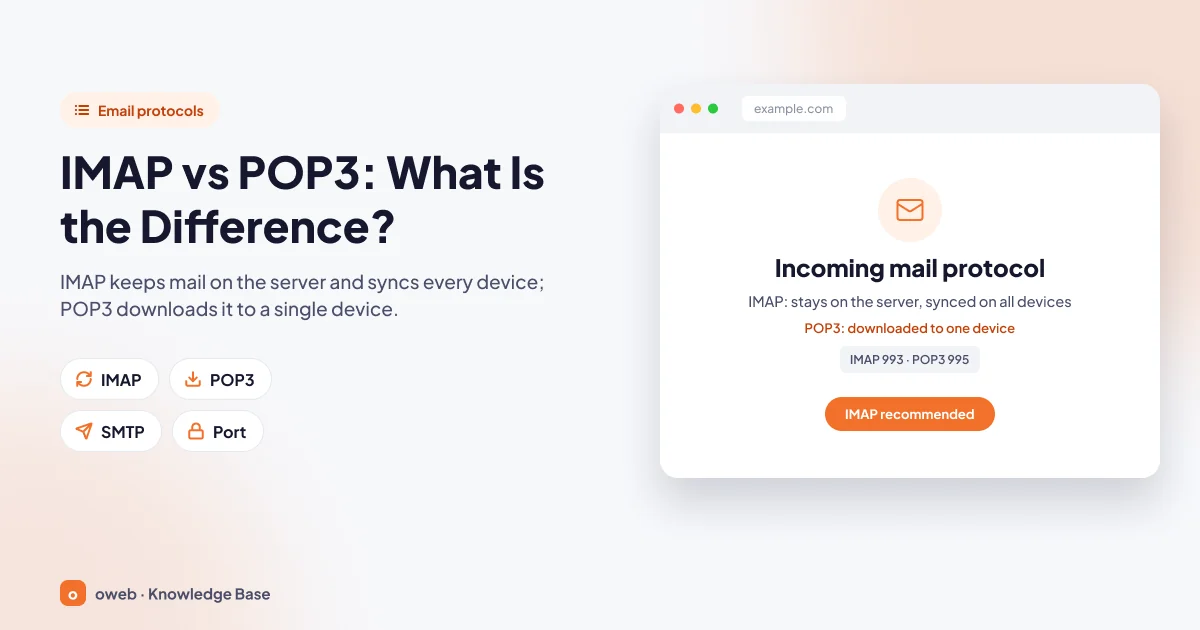
The difference between IMAP and POP3 comes down to this: IMAP keeps your messages on the server and syncs folders and read status across all of your devices. POP3 downloads messages to a single device and normally deletes them from the server afterwards. If you use more than one device, IMAP is the better fit. If you keep an offline archive on one computer, POP3 may suit you better.
IMAP vs POP3: quick summary
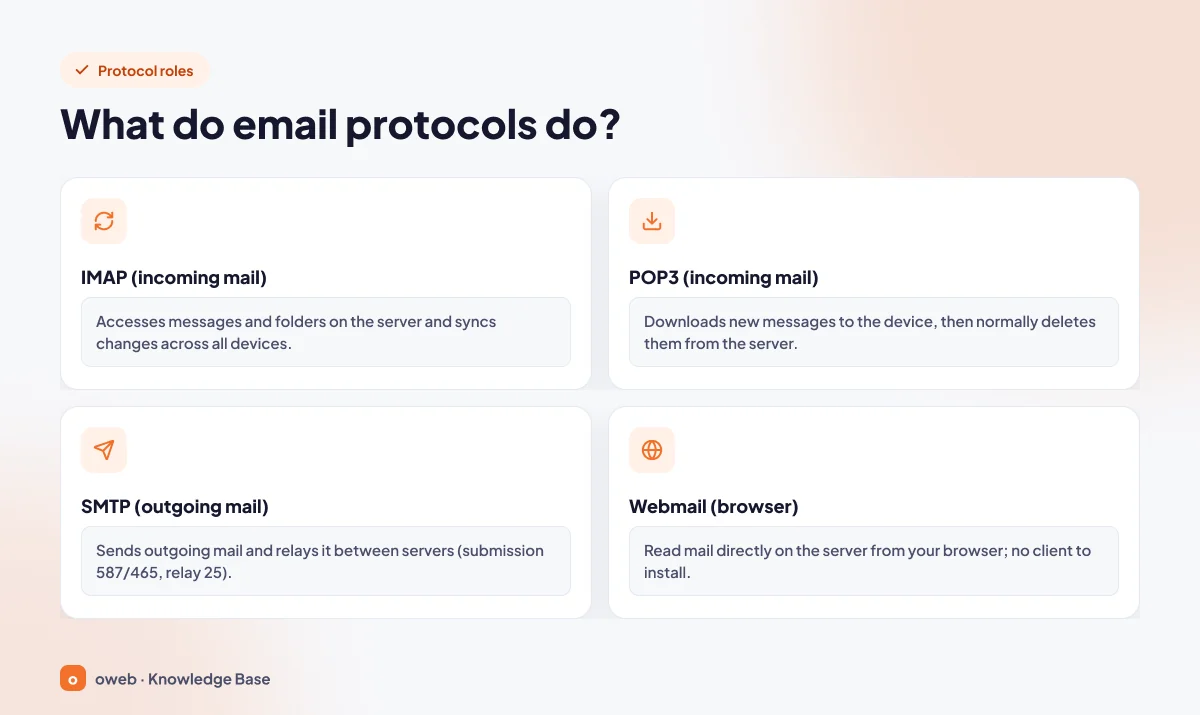
- IMAP (Internet Message Access Protocol) leaves messages on the server. Folders, read status and deletions look the same on every device.
- POP3 (Post Office Protocol 3) downloads new messages to the device and normally deletes them from the server afterwards. You can turn on a "leave a copy on the server" option in the mail client.
- IMAP and POP3 are only used to read incoming mail. In both cases, outgoing mail is sent with SMTP.
- IMAP port numbers: 993 (SSL/TLS, recommended) and 143 (unencrypted or STARTTLS).
- POP3 port numbers: 995 (SSL/TLS, recommended) and 110 (unencrypted or STARTTLS).
- SMTP sending uses port 465 (SSL/TLS) or port 587 (STARTTLS).
- According to RFC 8314, mail servers and clients must support at least TLS 1.2.
- With IMAP, all of your mail counts toward the server quota. With POP3, the quota frees up when messages are deleted from the server.
- If you use a phone and a computer together, IMAP is the recommended method. Microsoft and cPanel also recommend IMAP.
What do email protocols do? (IMAP, POP3, SMTP)
When you add an email account to Outlook, Thunderbird, Apple Mail or the mail app on your phone, the client actually opens two separate connections. One reads incoming mail, and the other sends the messages you write. The rules for these connections are defined by email protocols.
Incoming mail protocols: IMAP and POP3
A message sent to you first reaches the mail server listed in your domain's MX record and is delivered to your mailbox there. We explain how this stage works in our guide to what an MX record is. To show the message on your device, the client uses either IMAP or POP3. Both connect to the same mailbox, but they handle messages in very different ways.
Outgoing mail protocol: SMTP
SMTP (Simple Mail Transfer Protocol, RFC 5321) handles sending mail and relaying it between servers. Whether you choose IMAP or POP3 for incoming mail, every message you send goes out via SMTP. So the relationship between IMAP, POP3 and SMTP can be summed up like this: IMAP and POP3 are alternatives to each other, while SMTP complements both.
How webmail relates to IMAP
With a webmail interface, you read your mail in the browser, directly from the mailbox on the server. You do not need to install any client. What you see in webmail matches the server folders shown in an IMAP client. Local folders in your client, and messages that were downloaded with POP3 and deleted from the server, do not appear in webmail.
What is POP3 and how does it work?
The technical answer to what is POP3 lies in the protocol's definition. Its current specification is RFC 1939. RFC 1939 states clearly that POP3 is not designed for extensive manipulation of mail on the server. The goal is simple: the client connects, downloads new messages and normally deletes them from the server. Your mail is moved to your device, much like letters collected from an old-fashioned mailbox and taken home.
What happens in a POP3 session?
If QUIT is sent during the authorization stage, or if the connection drops, the session does not enter the UPDATE state. In the normal flow, a POP3 session passes through three states in order:
- AUTHORIZATION: The client authenticates.
- TRANSACTION: The client lists messages, retrieves them (RETR) and marks them for deletion (DELE).
- UPDATE: When the client sends the QUIT command, the server actually deletes the marked messages.
The example below gives a simplified view of what happens inside an encrypted connection established on port 995. Lines starting with S: are server responses, and lines starting with C: are client commands:
S: +OK POP3 server ready
C: USER [email protected]
S: +OK
C: PASS ********
S: +OK mailbox opened
C: STAT
S: +OK 2 5400
C: UIDL
S: +OK
S: 1 a1b2c3
S: 2 d4e5f6
S: .
C: RETR 1
S: +OK sending message
S: (message content)
S: .
C: DELE 1
S: +OK message 1 marked for deletion
C: QUIT
S: +OK session closed
Under RFC 1939, RETR and DELE are required commands, while UIDL, TOP and APOP are optional. The server assigns a persistent unique ID to each message, and the UIDL command lists these IDs. Although the RFC does not use this name, the "leave a copy on the server" feature relies on this mechanism: the client remembers which IDs it has already downloaded, never sends the DELE command, and downloads only new IDs on the next connection.
The "leave a copy on the server" option
The common statement "POP3 deletes mail from the server" is incomplete. The protocol alone does not force deletion. The client decides whether a message is deleted, and deletion only happens when the client sends the DELE command. Many clients, such as Outlook and Thunderbird, offer an option to leave a copy of messages on the server. Some clients can also be set to remove that copy after a certain period. On most servers, this decision belongs entirely to the client; some services, such as Gmail, use a separate server-side setting to decide what happens to a message downloaded via POP.
POP options in Gmail
Gmail is a concrete example. The setting is located in Gmail under Settings (gear icon) > See all settings > the Forwarding and POP/IMAP tab. The When messages are accessed with POP setting described on Google's POP settings page has four options:
- Keep Gmail's copy in the Inbox
- Mark Gmail's copy as read
- Archive Gmail's copy
- Delete Gmail's copy
In other words, the same POP3 download can end in four different ways depending on the server-side setting.
The cost of leaving a copy
Leaving a copy on the server keeps your messages safe, but it has two side effects. First, every message left behind continues to take up space in your server quota. Second, because POP3 carries no folder information, when another device downloads these copies again, they all land in the Inbox. Read status and the folder structure you created are not transferred to that device either.
POP3 advantages and limitations
- Offline access: All downloaded messages can be read without an internet connection.
- Low quota usage: If messages are deleted from the server, the mailbox rarely fills up.
- Simplicity: The protocol is simple, works with a small set of commands and is supported even on older devices.
- Tied to one device: According to Microsoft, when you use POP, your mail can only be read on the computer it was downloaded to. Sent Items also stay on the local computer, not on the server.
- Backups are your responsibility: If the disk fails or the computer is stolen, mail with no copy on the server cannot be recovered.
What is IMAP and how does it work?
The current answer to what is IMAP is found in RFC 9051 (IMAP4rev2, August 2021). IMAP lets a client access and manage messages on the server. Mailboxes on the server are used in the client much like local folders. RFC 9051 obsoletes RFC 3501, which defined IMAP4rev1, and was designed to be largely compatible with it; a server can support both versions at the same time. For users, the difference is usually unnoticeable, and the port numbers have not changed.
How are folders and read status synced?
In IMAP, the state of a message is shown with flags stored on the server. For example, the \Seen system flag means "the message has been read". When you open a message on your phone, either the client adds this flag with the STORE command, or the server sets the flag itself when the message body is fetched. Marking a message with STORE looks like this (C: client, S: server):
C: a1 STORE 5 +FLAGS (\Seen)
S: * 5 FETCH (FLAGS (\Seen))
S: a1 OK STORE completed
Because the flag lives on the server, both Outlook on your computer and webmail see the message as read. The same logic applies to creating folders, moving messages and deleting them. Wherever you make a change, a single mailbox on the server is updated, and your other devices reflect that state.
Offline reading and caching in IMAP
IMAP partially supports offline use. RFC 9051 anticipates that a client working offline can later resynchronize with the server. Microsoft notes that with IMAP, messages are read directly from the email service, are downloaded only when opened, and attachments are not downloaded automatically. Even so, many desktop and mobile clients can keep a cached copy of messages. Which messages can be read offline is determined by the client's cache settings, not by the protocol.
IMAP advantages and things to watch out for
- Multiple devices: Your phone, tablet, computer and webmail all show the same mailbox.
- Folders and Sent Items: Messages you send can be stored in the Sent Items folder on the server, so they are visible from every device.
- Easy device changes: Just add the account to a new device, and your mail comes from the server.
- Quota usage: All mail and folders count toward the server quota.
- Deletions apply everywhere: A message you permanently delete on one device disappears from your other devices too.
IMAP is not a backup method. Syncing works in both directions. A folder deleted by mistake, or messages mass-deleted from a compromised account, can disappear from all of your devices within a short time. Back up important correspondence regularly to a separate local or external location.
Differences between IMAP and POP3
The difference between IMAP and POP3 rests on a single question: where is the primary copy of your mail kept? Every other difference follows from that. The table below brings these differences together.
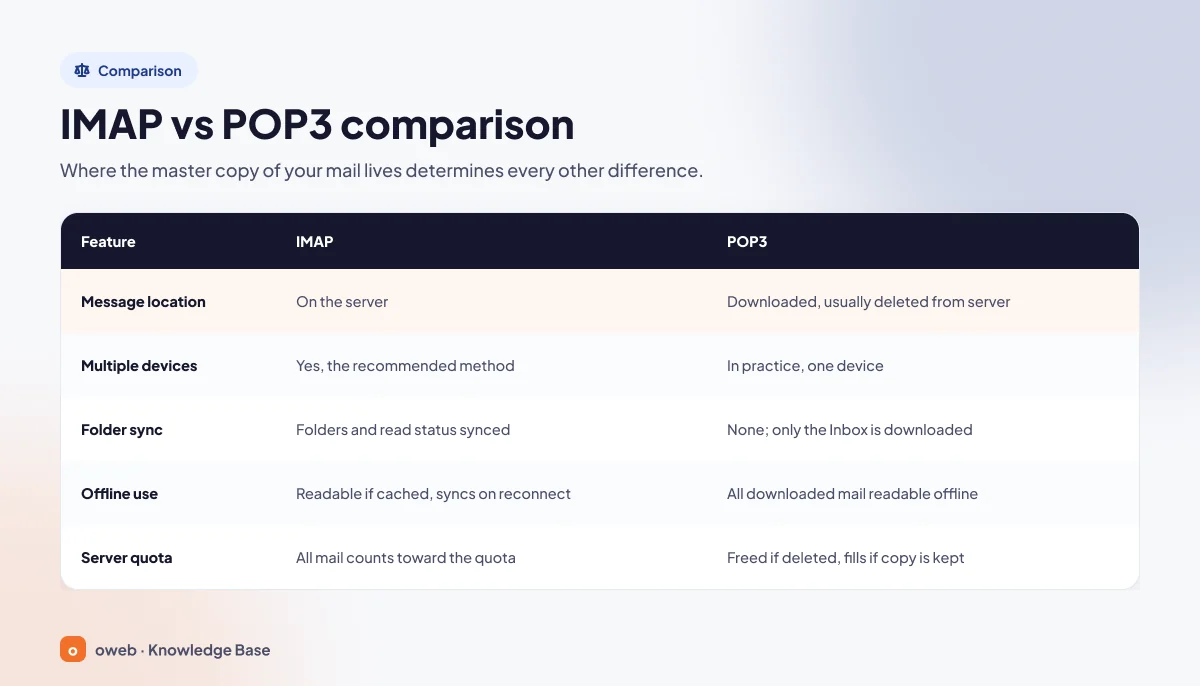
| Feature | IMAP | POP3 |
|---|---|---|
| Message location | On the server | Downloaded to the device (deleted from the server by default) |
| Multiple devices | Yes, the recommended method | In practice, a single device |
| Folder sync | Folders and read status are synced | No sync (only the Inbox is downloaded) |
| Offline use | Readable if the client has cached it; resyncs when connected | All downloaded messages can be read offline |
| Server quota | All mail counts toward the quota | Uses little quota if messages are deleted (fills up if copies are kept) |
| Sent Items | Can be stored in a folder on the server | Stays on the local computer |
| Backup responsibility | Kept on the server, but deletions apply everywhere | The single copy on the local disk is your responsibility |
Where messages are stored
With IMAP, the primary copy is on the server, and your devices show a view of it. With POP3, the primary copy moves to your device after download. That is why backing up your mail files is essential before you format or replace a computer that uses POP3.
Multiple devices
If you use two devices with POP3, whichever device connects first receives the message. If the "leave a copy" option is off, the second device never sees that message. Messages never reaching the computer because the account was set up on a phone with POP3 is a situation we often see in support tickets.
Folders and Sent Items
POP3 has no concept of folders; it only downloads the Inbox. Folders you create in the client are local. With IMAP, folders are created on the server, so you see the same folder structure on every device.
Offline use
If you need access to your mail on a plane or at a construction site with no internet, POP3 has a natural advantage. Offline reading is also possible with IMAP, but it depends on the client's cache settings.
Server quota
With IMAP, every message and every attachment counts against your quota. With POP3, the quota frees up when messages are downloaded and deleted. If "leave a copy on the server" is on, POP3 fills the quota just as much as IMAP. We cover this topic separately in the "How do you keep your email quota from filling up?" section below.
IMAP and POP3 port numbers
A port tells the client which "door" to use when connecting to the server. The correct port is needed for the connection both to work and to be encrypted.
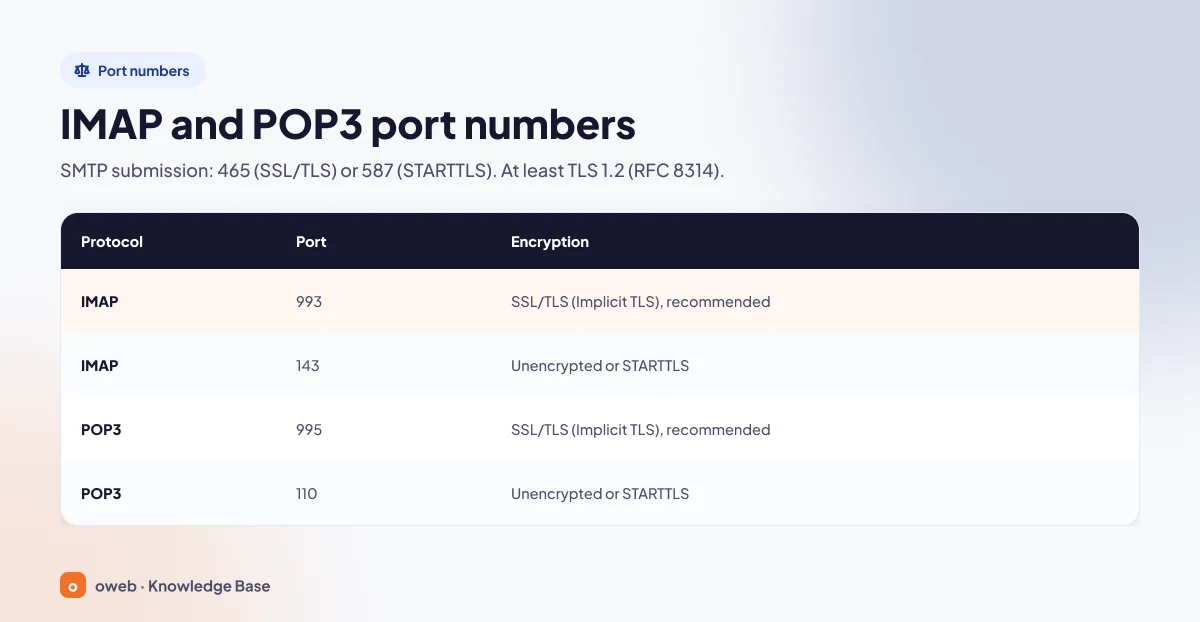
| Protocol | Port | Encryption |
|---|---|---|
| IMAP | 993 | SSL/TLS (Implicit TLS), recommended |
| IMAP | 143 | Unencrypted or STARTTLS |
| POP3 | 995 | SSL/TLS (Implicit TLS), recommended |
| POP3 | 110 | Unencrypted or STARTTLS |
The difference between 993 and 143
According to RFC 9051, an IMAP server listens on two ports. On 993, the TLS handshake starts as soon as the connection is made, so your password and messages are encrypted from the very first byte. Port 143 starts unencrypted, and the connection can be upgraded to encryption with the STARTTLS command. If no upgrade happens and the server allows it, your username and password travel across the network in plain text; for this reason, many servers refuse logins over unencrypted connections.
The difference between 995 and 110
The situation is similar for POP3. RFC 1939 defines TCP port 110 for POP3. Its encrypted counterpart is port 995 (pop3s), defined for Implicit TLS in RFC 8314. On 995, the connection is encrypted from the start. On 110, the connection starts unencrypted and can be upgraded to encryption. In POP3, this upgrade is done with the STLS command (RFC 2595); in mail clients it usually appears as STARTTLS.
Implicit TLS or STARTTLS?
RFC 8314 (January 2018) defines connections that begin directly with TLS on ports 993, 995 and 465. The RFC recommends using this Implicit TLS method instead of connecting to an unencrypted port and switching to encryption with STARTTLS. The same RFC requires mail servers and email clients to support at least TLS 1.2. In your client's security drop-down menu, the "SSL/TLS" option usually corresponds to Implicit TLS, while "STARTTLS" refers to the upgrade method.
Mail client settings in cPanel
cPanel's Set Up Mail Client page (opened in cPanel via Email Accounts > Connect Devices) lists IMAP 993, POP3 995 and SMTP 465 as the secure settings. It marks the unencrypted settings as "NOT Recommended". According to the same documentation, cPanel uses the full email address as the username. Take the incoming and outgoing server name from the value shown in your hosting control panel. This value is often in the form mail.yourdomain.com, and sometimes it is the server's own hostname:
Username        : [email protected]
Incoming server : mail.yourdomain.com
IMAP port       : 993  (SSL/TLS)
POP3 port       : 995  (SSL/TLS)
Outgoing server : mail.yourdomain.com
SMTP port       : 465  (SSL/TLS)  or  587  (STARTTLS)
SMTP authentication: On (same details as the incoming server)If you get a certificate warning, do not accept it blindly. This warning usually appears when you use a server name that is not included in the certificate. Use the server name recommended on the mail client settings page in your hosting control panel, and do not try to "fix" the problem by switching to unencrypted ports.
IMAP or POP3: which should you choose?
There is no single correct answer to IMAP or POP3, but for most users the answer is IMAP. Microsoft recommends IMAP if you check your mail from more than one device. cPanel also recommends IMAP for incoming mail. The six scenarios below offer a practical guide based on these recommendations and on our support experience.
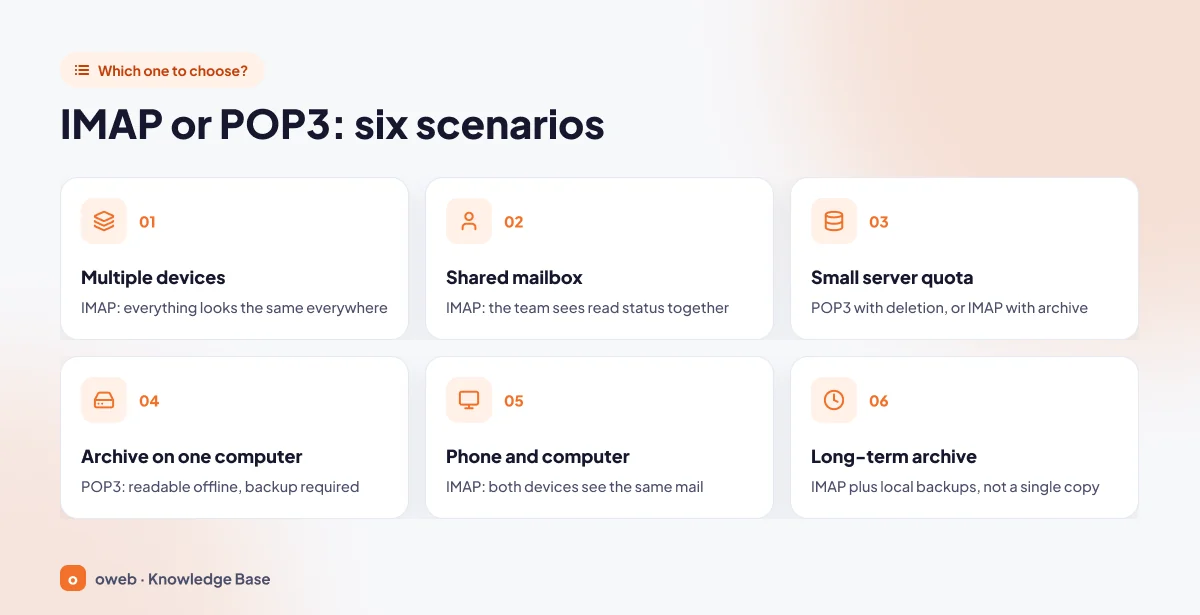
- I use more than one device: IMAP. Everything you read, move and delete looks the same on every device.
- Shared mailbox (a team uses the same account): IMAP. When one employee replies to a message, the others see it as read too. With POP3, the first person to download a message "takes" it away from everyone else.
- My server quota is small: POP3 (with deletion from the server) or IMAP with regular archiving. If you do not need multiple devices, POP3 keeps the quota empty. If you do, it is better to stay on IMAP and move old mail to a local archive.
- Offline archive on a single computer: POP3. For example, POP3 is enough for someone who handles accounting correspondence only from an office computer. The one condition is that the computer is backed up regularly.
- Phone and computer together: IMAP. In this scenario, POP3 is the most common cause of the "I saw the message on my phone but it is not on my computer" problem.
- Long-term archive: IMAP plus regular local backups (or a backed-up archive on a single computer with POP3). For correspondence you are legally required to keep, do not rely on a single copy.
If you are setting up new addresses for your team, our guide to creating a business email will help you set up the accounts correctly from the start.
How do you keep your email quota from filling up?
When the quota is full, many servers reject new messages; in that case, the sender may receive a non-delivery report. The problem usually grows unnoticed. Large attachments, the Sent Items folder and a Trash folder that is never emptied fill the quota the most. To prevent it, start with the simplest step.
If you use IMAP
- Empty the Trash and spam (junk) folders after checking that no messages you need are left in them. With IMAP, these folders are also on the server and count toward the quota. Emptying them cannot be undone.
- Sort messages with large attachments by size. Save the attachments you need to your computer and delete the messages.
- Archive mail from previous years by moving it to a local folder in your client that is not synced with the server (for example, a separate .pst file in Outlook). The local folder does not count toward the quota, but backing it up is up to you.
- If these steps are not enough, increase the mailbox quota from your hosting control panel or upgrade to a larger plan.
If you use POP3
- Check whether the "leave a copy on the server" option is turned on in your client. If it is, copies on the server keep piling up.
- If you are going to keep the option on and your client supports it, set copies to be removed from the server after a certain period.
- Back up your local mail file before turning off "leave a copy on the server". A message deleted from the server then exists only in that file.
How do you switch from POP3 to IMAP?
The biggest risk when switching from POP3 to IMAP is losing mail that was downloaded to the computer over the years and no longer exists on the server. The safest approach is not to try to "convert" the existing account in place, but to add the account again as IMAP and copy the old mail to the server.
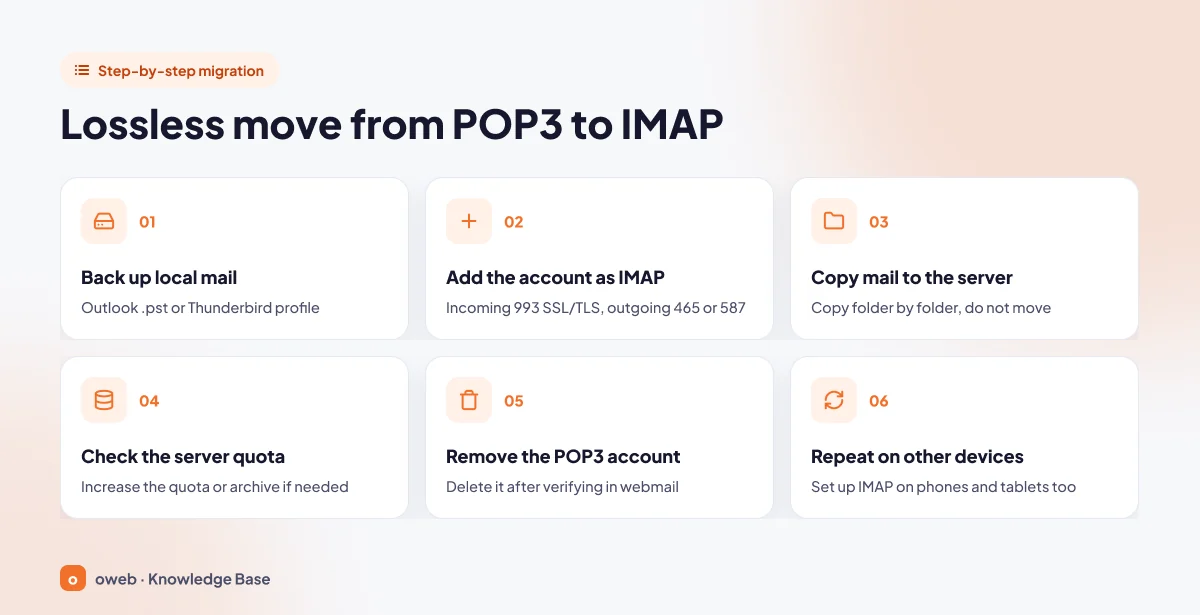
Step-by-step migration
- Back up your local mail. After closing Outlook completely, copy the .pst data file to an external drive. If you use Thunderbird, close the program and copy the profile folder. A copy of a file that is still open may be incomplete or corrupted.
- Add the account to your client as IMAP. Use 993 SSL/TLS for the incoming server and 465 SSL/TLS or 587 STARTTLS for the outgoing server. For adding an account in Outlook, see our Outlook email setup guide.
- Copy your folders to the server. Before you start, compare the total size of your local mail with the server quota (step 4). Copy messages instead of moving them: hold down the Ctrl key while dragging, or use the client's copy command. This way, the original local copy stays in place until you have verified it on the server.
- Check the server quota. Make sure the quota does not fill up while copying is in progress and after it finishes. If needed, increase the quota or leave very old mail in the local archive.
- Verify the copy, then remove the POP3 account. Log in to webmail and check that the folders and message counts appear on the server. Only after that should you delete the POP3 account from the client.
- Apply the same IMAP settings on your other devices. Replace the POP3 accounts on your phones and tablets with IMAP as well.
Before you start copying, disable the POP3 accounts on your other devices or turn on the leave-a-copy option on them. Messages uploaded to the server get new IDs, so a device still using POP3 will download them again, and if leaving a copy is turned off, it will also delete them from the server. Copying old mail into a separate folder on the server (for example, Archive) instead of the Inbox is also safe, because POP3 only accesses the Inbox.
Things to watch while copying
Instead of copying thousands of messages at once, work folder by folder. A large upload can be interrupted by a network outage, and it becomes hard to track which messages were transferred. Checking the message count in webmail after each folder is the most practical way to verify.
Post-migration checklist
- Does a message you read on one device show as read on the other?
- Does a test message you send land in the Sent Items folder on the server?
- Are you keeping your old backup file for at least a few weeks before deleting it?
Using the same account with both POP3 and IMAP
If one device connects to the same mailbox with IMAP and another with POP3, and "leave a copy" is turned off on the POP3 device, POP3 empties the Inbox on every connection. The IMAP devices then see messages "disappearing on their own". During the migration, move all devices to IMAP on the same day, or keep the leave-a-copy option turned on for the POP3 device until the migration is complete.
The role of SMTP and sending ports
Choosing between IMAP and POP3 does not change your outgoing mail settings. Sending is always done with SMTP. According to RFC 6409, port 587 is reserved for message submission from email clients. Port 25 is for relaying between servers. RFC 8314 recommends supporting both STARTTLS on 587 and Implicit TLS on 465 during the transition period.
| Use | Port | Encryption |
|---|---|---|
| Sending from a client | 465 | SSL/TLS (Implicit TLS) |
| Sending from a client | 587 | STARTTLS |
| Server-to-server relay (not used in client settings) | 25 | - |
cPanel's mail client settings page shows 587 in the unencrypted column. However, the connection on this port can be encrypted with STARTTLS. Choose STARTTLS as the encryption type in your client. If you can receive mail but cannot send it, the problem is usually not IMAP or POP3 but the SMTP port, encryption or authentication settings. In that case, see our guide to the email not sending error.
What is Exchange ActiveSync and how does it differ from IMAP?
IMAP and POP3 deal only with mail; calendars and contacts are outside the scope of these protocols. Exchange ActiveSync (EAS), on the other hand, is a sync protocol Microsoft uses for mobile devices, and unlike IMAP and POP3, it is not limited to email. If you use a Microsoft 365 or Exchange account, check your service provider's documentation to see which connection type the account should be added with.
Recent IMAP and POP changes in Gmail (November 2026)
As of November 2026, according to Google's support pages, the situation is as follows:
- IMAP in Gmail has been always on since January 2025; the option to enable or disable it has been removed.
- Gmail does not support third-party apps that require you to share your Google username and password directly. "Sign in with Google" (OAuth) is recommended instead.
- Gmail's feature for fetching mail from other accounts via POP (Check mail from other accounts) and Gmailify are being discontinued. After the first quarter of 2026, new users can no longer use this feature, while existing users can use it until January 2027. Messages synced earlier remain in Gmail. Google recommends adding the account to the Gmail app with IMAP on mobile, and using automatic forwarding or a one-time import on the web.
These changes do not mean that POP3 and IMAP are "over". What is changing is that providers are moving from passwords to more secure sign-in methods and removing some older mail-fetching features.
Frequently asked questions
Does POP3 delete mail from the server?
Normally, yes. After downloading a message, the POP3 client deletes it from the server with the DELE command. However, if the "leave a copy on the server" option is turned on in your client, messages stay on the server. Some services, such as Gmail, also have a separate server-side POP behavior setting.
Will I lose my emails when I switch to IMAP?
Not if you follow the right order. First back up your local mail, then add the account as IMAP, and transfer your old messages to the server folders by copying them, not moving them. Remove the POP3 account only after you have verified that the copy is complete.
Can IMAP and POP3 be used at the same time?
Technically yes, but it is not recommended. If the POP3 device does not leave a copy, it empties the Inbox, and messages appear to vanish on the IMAP devices. Outside a migration period, use a single protocol on all devices.
What is the IMAP port number?
The encrypted port for IMAP is 993 (SSL/TLS). Port 143 starts unencrypted and can be upgraded to encryption with STARTTLS. RFC 8314 recommends Implicit TLS, and cPanel recommends 993.
What is the POP3 port number?
The encrypted port for POP3 is 995 (SSL/TLS). Port 110 is the unencrypted port defined in RFC 1939 and should not be used without upgrading to encryption (STLS in POP3, usually shown as STARTTLS in mail clients).
Should I use 465 or 587 for SMTP?
Both are for sending messages from a client. On 465, the connection is established with SSL/TLS from the start (Implicit TLS), while on 587 it switches to encryption with STARTTLS. RFC 8314 recommends Implicit TLS. In practice, use the port and encryption type shown on the mail client settings page of your hosting control panel.
What happens if the quota is full?
When the quota is full, many servers reject new messages, and the sender may receive a non-delivery report. The first fixes are to check and empty the Trash, clean up large attachments and move old mail to a local archive. If that is not enough, you will need to increase your quota.
Can I read my IMAP mail without an internet connection?
If your client has cached the messages, you can read them while offline. When the connection is restored, the client resyncs with the server. Messages and attachments that have not been cached require a connection.
Is Gmail dropping POP3 support?
As of November 2026, Google's announcement does not cover connecting to your Gmail account via POP from a mail client; it covers Gmail fetching mail from other accounts via POP (Check mail from other accounts). This feature has been closed to new users, while existing users can use it until January 2027.
Should I choose IMAP or POP3 on my phone?
If you use your phone together with a computer, choose IMAP. With POP3, the phone may download messages and delete them from the server, and your computer may never see that mail.
Conclusion
The difference between IMAP and POP3 comes down to where the primary copy of your mail is kept. IMAP keeps it on the server and syncs it across every device. POP3 downloads it to a device and stores it in one place. With today's mix of phone, computer and webmail, IMAP is almost always the right choice. POP3 makes sense for single-computer, offline and well-backed-up archives. Whichever you choose, use encrypted ports such as 993/995/465 and check your quota regularly.
If you are unsure about any setting and you are an Oweb customer, you can open a support ticket stating the mail client you use and the error message you receive. If you are looking for an email service on your own domain, take a look at the Oweb corporate email page.
