


An MX record (Mail Exchanger) is a DNS record that specifies which mail server accepts email sent to a domain. To add one, open the panel where your domain's DNS records are managed (cPanel Zone Editor, Plesk, Cloudflare or your domain registrar's panel), create a record of type MX and fill in the name, priority, destination and TTL fields. If you are switching email providers, you also need to delete the old MX records.
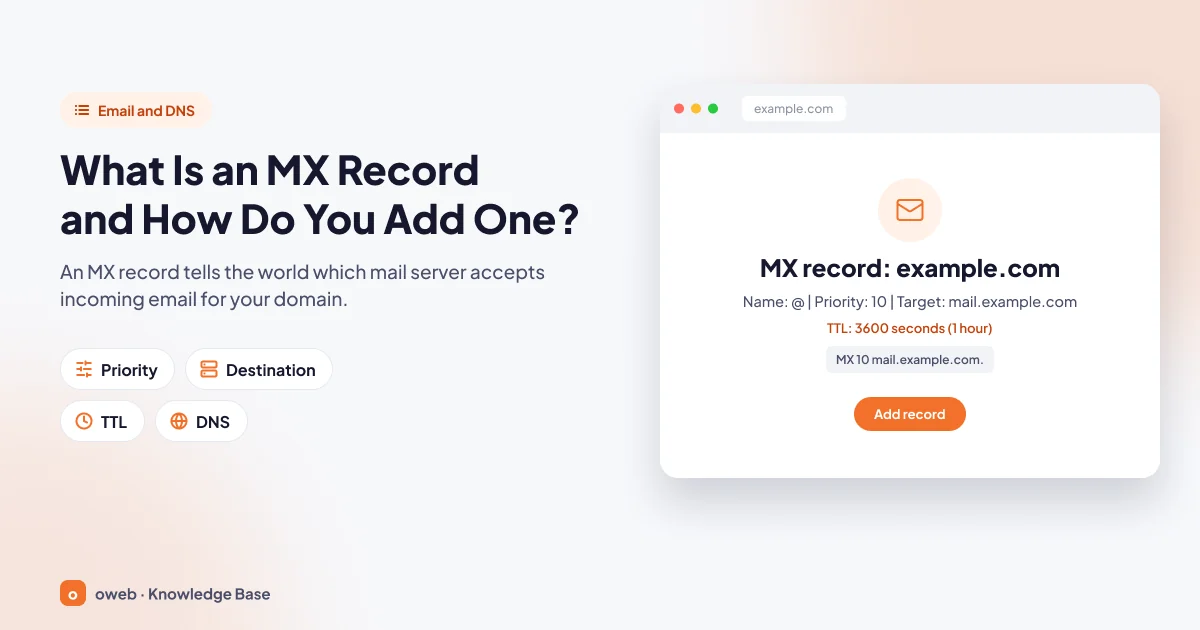
In short: what you need to know about MX records
- An MX record only routes incoming email; whether your outgoing email is accepted depends on your SPF, DKIM and DMARC records.
- It consists of four fields: name (host), priority, destination (mail server) and TTL.
- The priority value is a number between 0 and 65535; the record with the lowest number is tried first, and 0 is the highest priority.
- The destination must be a hostname that has an A or AAAA record; it cannot be an IP address or a CNAME.
- The record must be added at the DNS provider that your domain's name servers (NS) point to; changes made in any other panel have no effect.
- A change takes effect once the old record's TTL expires (with a TTL of 14400, within 4 hours at most).
- When switching providers, delete the old MX records, update SPF and DKIM, and check the Email Routing setting in cPanel.
What is an MX record and what does it do?
An MX record is the DNS record that indicates which mail server accepts email sent to a domain. Its job is to tell sending servers where to deliver a message; if the record is wrong, the email goes to the wrong place.
MX stands for Mail Exchanger. The DNS standard (RFC 1035) defines the MX record as the record that identifies the host willing to accept mail for a domain. When someone sends an email to [email protected], the sending server finds out where to deliver it by looking up the MX record in DNS.
An A record points your domain to your website's IP address, while an MX record points your email to the server that receives it. Because the two are independent, your website can live on a hosting server while your email runs on a separate service such as Google Workspace or Microsoft 365. This record is also what lets you use corporate email with your own domain.
An MX record only routes incoming email. Getting the messages you send accepted by the recipient is the job of SPF, DKIM and DMARC records; we cover this further below.
How does an MX record work?
Summarizing the process described in RFC 5321, an email reaches the recipient's server in six steps:
- The domain is extracted: The sending server takes the part of the recipient address after the @ sign. For [email protected], that is example.com.
- An MX lookup is performed: DNS is queried for the MX record of example.com.
- Records are returned: DNS returns a list of MX records with priorities and destinations (for example, 10 mail.example.com and 20 backup.example.com).
- They are sorted by priority: The record with the lowest number is tried first; among servers with equal priority, one is chosen at random.
- The destination's IP address is resolved: The A or AAAA record of the destination hostname is looked up.
- The message is delivered via SMTP: The server connects to that IP address on port 25. If it cannot be reached, the next MX is tried; if none respond, the message is queued and retried.
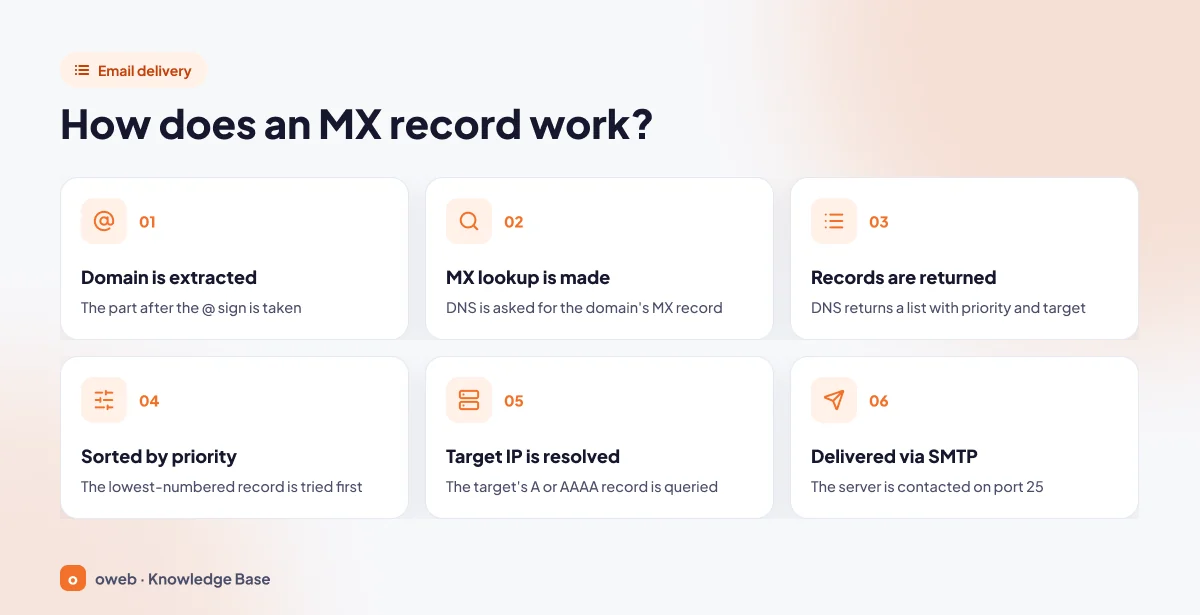
The queue in the last step explains why email is rarely lost outright: the standard recommends a retry interval of at least 30 minutes and a give-up time of generally at least 4-5 days. A brief outage on your mail server therefore usually causes a delay rather than lost mail.
What are the fields of an MX record?
Whichever panel you use, an MX record is made up of the same four pieces of information:
| Field | Example value | Description |
|---|---|---|
| Name (Host) | @ | The domain the record belongs to. @ stands for the root domain (example.com); some panels leave it blank. |
| Priority | 10 | A number from 0 to 65535. The lower number is tried first; 0 is the highest priority. |
| Destination (Mail server) | mail.example.com | The hostname of the server that accepts the email. It cannot be an IP address or a CNAME; it must have an A/AAAA record. |
| TTL | 3600 | How long the record is cached, in seconds. 3600 = 1 hour. |
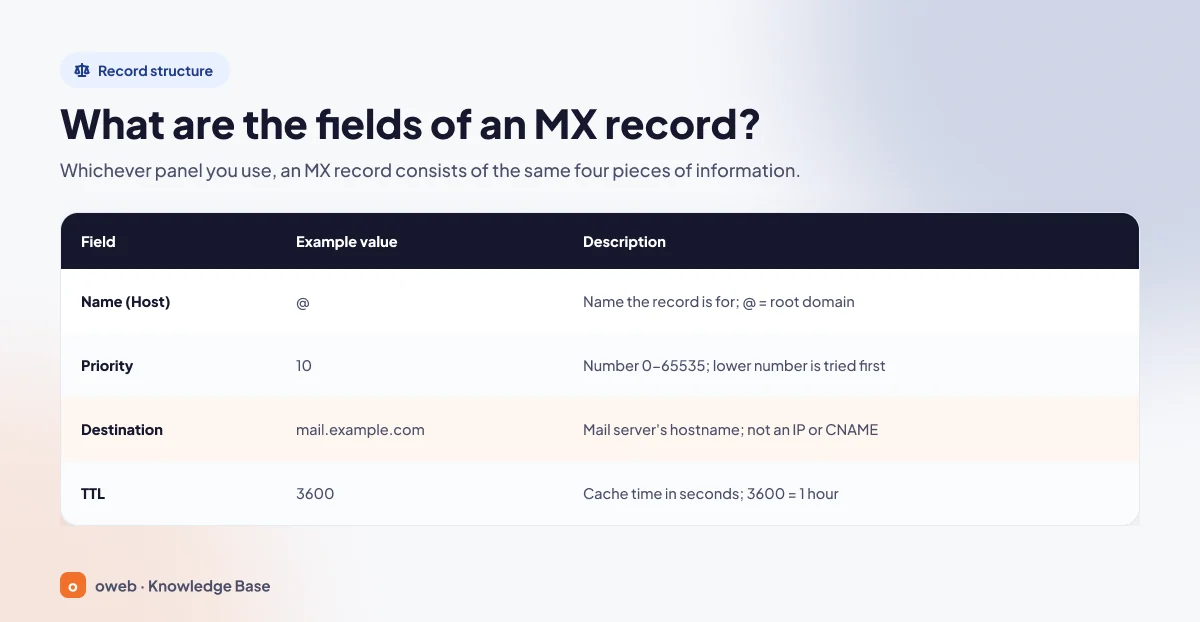
Panels give these fields different names (Priority and Destination in cPanel; Name, Mail server, TTL and Priority in Cloudflare), but the information is the same. In a DNS zone file, the record is written on a single line like this:
example.com. 3600 IN MX 10 mail.example.com.In zone files, names ending with a dot are treated as fully qualified; names without a trailing dot have the zone's domain appended, which can produce an invalid destination such as mail.example.com.example.com. Some panels add the trailing dot automatically, while others require you to type it (for example, the Yandex 360 destination is entered as mx.yandex.net.). After adding the record, look it up and verify the destination.
How do MX priority and backup MX work?
The MX priority value determines which record is tried first when there are several MX records: a lower number means a higher priority. The example below defines a primary and a backup mail server:
; example.com DNS zone
example.com.        3600  IN  MX  10  mail.example.com.
example.com.        3600  IN  MX  20  backup.example.com.
mail.example.com.   3600  IN  A   192.0.2.10
backup.example.com.  3600  IN  A   198.51.100.20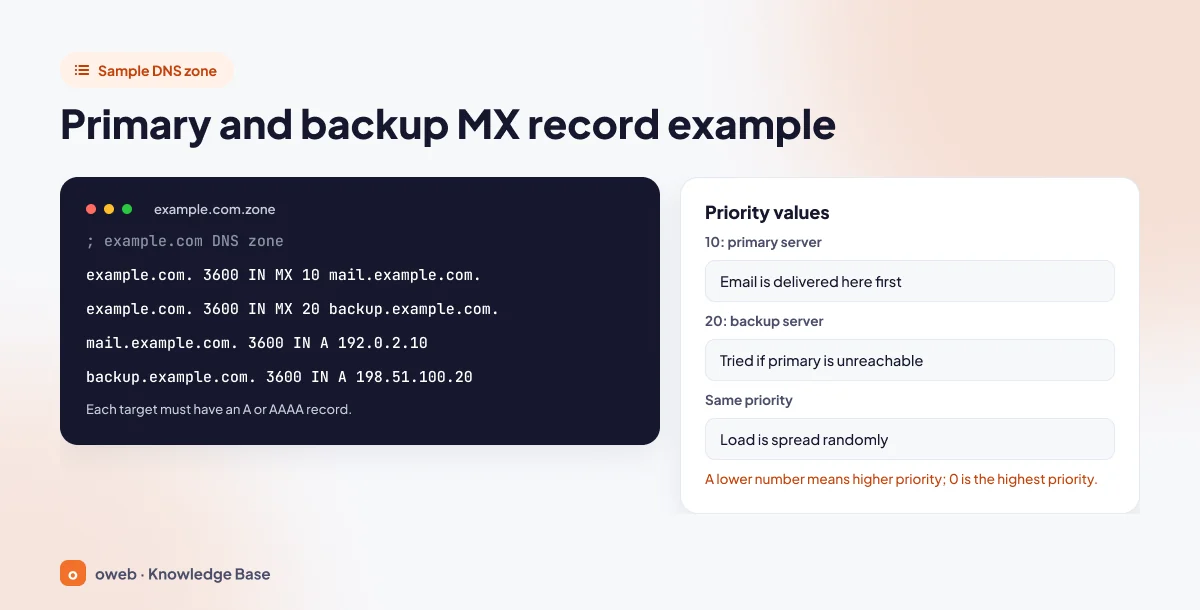
- 10, primary server: Email is delivered here first.
- 20, backup server: Tried only if the primary server cannot be reached.
- Equal priority: The load is distributed randomly between the servers; this is not an error but a deliberate technique.
The IP addresses in the example are reserved for use in documentation and examples. Note that each destination has its own A or AAAA record.
What should the MX priority value be?
The numbers have no meaning on their own; what matters is their order relative to each other. Using 0 and 10 gives the same result as 10 and 20, and if you only have one MX record, the value you enter makes no difference. If your email provider specifies a particular value (1 for Google Workspace, 10 for Yandex 360), use that.
What is a backup MX record, and do you need one?
A backup MX is a mail server record with a higher priority number that is tried only when the primary server is unreachable; it is not required. Because sending servers keep undeliverable messages in their queue for days and keep retrying, a single MX record is enough for most domains. A backup MX only helps if that server is configured to accept email for your domain. Do not keep two different email systems in your MX records at the same time; Microsoft notes that this can cause delivery problems.
Rules your MX record must follow
Most MX records that do not work break one of these rules.
Can an MX record point to an IP address?
No. RFC 5321 requires the MX answer to contain a domain name as the destination; a record with an IP address as its destination is invalid. The correct approach is to create an A record for the mail server and use that name as the MX record's destination:
; Wrong
example.com.       IN  MX  10  192.0.2.10

; Correct
example.com.       IN  MX  10  mail.example.com.
mail.example.com.  IN  A   192.0.2.10
Can an MX record point to a CNAME?
No. RFC 2181 requires that the name used as an MX value must not be an alias (CNAME); the destination must carry an A or AAAA record directly. In addition, a name that has a CNAME record cannot have any other records, so you cannot add an MX record to a subdomain that has a CNAME record.
What happens if there is no MX record?
Contrary to popular belief, email sent to a domain without an MX record is not rejected immediately; the sending server tries the domain's A or AAAA record instead.
Falling back to the A record (implicit MX)
If there are no MX records at all, the sending server treats the domain's A or AAAA record as an MX record with a priority of 0 and tries to deliver the message to that IP address. If no mail server is running there, delivery is usually retried repeatedly for several days (typically 1-5 days), depending on the sending server's configuration. If an MX record exists, the A record is not consulted: the sending server tries only the MX destinations, queues and retries the message if it cannot reach them, and returns an error to the sender if it still fails.
Null MX: domains that do not receive email
You can declare that a domain accepts no email at all with a Null MX record, defined in RFC 7505. The record has a priority of 0 and a destination of a single dot:
example.com. IN MX 0 .Servers that see this record reject the message immediately without queuing it. The domain must not have any other MX records, and you should not add a Null MX to a domain you use for sending email.
How do you add an MX record?
Whichever panel you use, adding an MX record involves the same five steps:
- Find out which provider manages your domain's DNS records.
- Back up your existing DNS records.
- Note the MX values (destination and priority) provided by your email service.
- Add a record of type MX in the DNS panel and delete the MX records belonging to your old email service.
- Look up the record and send a test email from an external address.
Before you start: where is your DNS managed?
An MX record is only effective at the DNS provider your domain's name servers (NS) belong to. If your domain uses Cloudflare name servers, changes you make in cPanel are never visible to the outside world; this is one of the most common reasons behind "I added it but it doesn't work" complaints. You can check your name servers with this command:
nslookup -type=ns example.comBefore making changes, take a screenshot of your current MX, SPF (TXT) and other email-related DNS records or copy their values into a file, so you can quickly restore the old values if needed.
Adding an MX record with cPanel Zone Editor
If your domain's DNS records are managed on your hosting server, you add an MX record in cPanel with the Zone Editor tool. If you are new to the panel, see our what is cPanel article. Button and menu names follow the cPanel Zone Editor documentation and may vary slightly between cPanel versions.
Quick method: the MX Record link
- Log in to cPanel and open the Zone Editor tool in the Domains section.
- Click the MX Record link in your domain's row.
- Enter the priority value (for example, 10) in the Priority box and the mail server's fully qualified name (for example, mail.example.com) in the Destination box.
- Click the Add An MX Record button.
If you cannot see the MX options, your hosting provider may have disabled this feature; ask the support team to add the record for you.
Editing and deleting old MX records
If you are switching providers, the old records must also be removed. In Zone Editor, click the Manage button; for old MX records, click Delete and confirm with Continue, and use the Edit button for records you want to change. You can add a new record on the same screen with Add Record and save it with Save Record.
Email Routing setting: is email handled on the local server or a remote one?
Changing the MX record alone may not be enough. The server decides whether to accept incoming email for the domain itself or send it to a remote mail server based on the Email Routing setting (cPanel Email Routing documentation):
- In cPanel, open the Email Routing tool in the Email section and select the domain.
- Select the appropriate option under Configure Email Routing.
- Click the Change button.
| Option | Server behavior | When to choose it |
|---|---|---|
| Automatically Detect Configuration | Checks only the local zone file on the server; does not perform a real DNS lookup. | When DNS records are also managed on this server (the option cPanel recommends). |
| Local Mail Exchanger | Always accepts email and delivers it to the local mailbox. | When the email accounts are on this server. |
| Backup Mail Exchanger | Holds email until the mail server with a lower priority value becomes reachable. | When the server is a backup MX. |
| Remote Mail Exchanger | Does not accept email for the domain; sends all messages to the mail server with the lowest priority value. | When email is hosted on an external service. |
If your MX record points to an external service but this setting is left as Local Mail Exchanger, the server still considers itself your mail server: email from outside reaches the new service, but messages sent from your website's contact form or from other accounts on the same server end up in the old mailbox on the server. If your DNS is hosted elsewhere, such as Cloudflare, automatic detection cannot notice this; select Remote Mail Exchanger manually. If your email accounts were previously on this server, change the setting only after the old MX record's TTL has expired: once Remote Mail Exchanger is selected, the server no longer accepts email for the domain, and messages from senders that still have the old record cached may bounce.
Adding an MX record in Plesk DNS Settings
In Plesk, DNS records are managed on the DNS Settings screen under Websites & Domains (Plesk DNS records documentation). Menu locations and labels may vary by Plesk version.
- To create a new record, click Add Record and select MX as the type; to change an existing MX record, click its link in the Host column.
- Enter the mail server's name in the Mail exchange server field, set the priority (in Plesk, priority ranges from 0 to 50, where 0 is the highest and 50 the lowest) and confirm with OK. If the value your provider specifies is not available and you will have only one MX record, you can use a close value.
- Click the Update button to apply the changes to the DNS zone; if you skip this step, the record is not written to the zone (Plesk external mail server documentation).
If your email is on an external service, also turn off the local mail service; otherwise, messages sent from within the server stay local. On the domain's Mail tab, open the Mail Settings screen and set Mail service on this domain to Disabled for incoming mail on a Linux server or Disabled on a Windows server (Plesk mail settings documentation).
Do not select the Not configured option: with this option, Plesk permanently deletes the domain's mailboxes along with all the email in them. Migrate or back up your old email to the new service before turning off the service.
Adding an MX record in Cloudflare DNS
If your domain uses Cloudflare name servers, you add an MX record in Cloudflare with these steps (Cloudflare email records documentation):
- Select your domain and open the DNS Records page.
- Click the Add record button and select MX in the Type field.
- Enter @ for the root domain in the Name field, the mail server's name in the Mail server field and the priority in the Priority field; you can leave the TTL field set to Auto.
- Click Save.
If the mail server is your own hosting server, you also need an A record for the destination name, and that record's Proxy status must be set to DNS only. The MX record itself always works as DNS only; however, if proxying is enabled (orange cloud) on the name it points to, email clients cannot connect to the server, because email protocols such as SMTP, IMAP and POP3 do not pass through Cloudflare's HTTP proxy. In that case, Cloudflare adds a record starting with _dc-mx to the DNS response that exposes your server's real IP address so incoming email can still arrive, which reveals the IP address you are hiding behind the proxy. The example.com record for your website can stay proxied; for email, use a separate mail.example.com record with the proxy turned off (DNS only) (Cloudflare email troubleshooting page).
If Cloudflare's Email Routing feature is enabled, Cloudflare adds its own MX records; this feature does not work alongside another service's MX records.
Adding it in your domain registrar's DNS panel
If your name servers belong to your domain registrar, you add the record in that company's DNS management screen. Menu names vary, but the fields to fill in are the same: type MX, name/host @ (or blank), destination, priority and TTL.
Google Workspace, Microsoft 365, Yandex and Zoho MX records
The values below are taken from the providers' official help pages as of November 2026; in all cases, enter @ in the name/host field. Before adding the record, compare it with the value shown in your own admin console.
| Service | MX destination | Priority |
|---|---|---|
| Google Workspace | smtp.google.com | 1 |
| Microsoft 365 | example-com.mail.protection.outlook.com (example format) | 0 |
| Yandex 360 | mx.yandex.net. | 10 |
| Zoho Mail | mx.zoho.com / mx2.zoho.com / mx3.zoho.com | 10 / 20 / 50 |
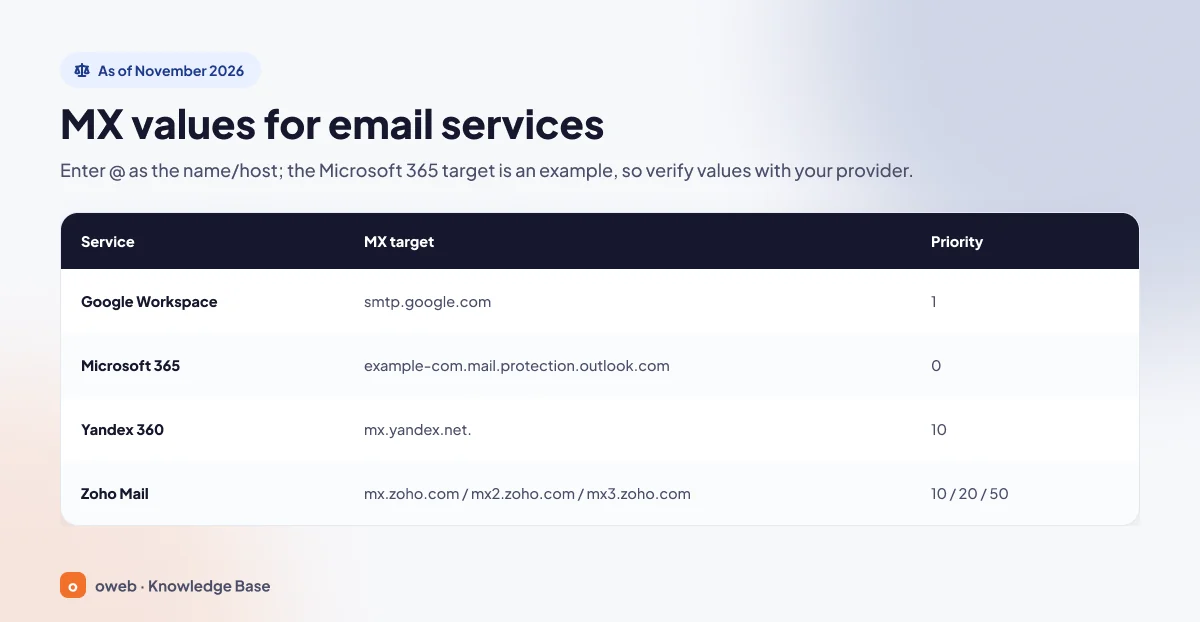
Google Workspace MX record
The Google Workspace MX record is a single record: destination smtp.google.com, priority 1 (Google Workspace MX setup page). Delete any other MX records on the domain; Google notes that email may not work properly if old or incorrect records remain. The legacy records used by accounts set up before 2023 (aspmx.l.google.com and alt1-alt4.aspmx.l.google.com, with priorities 1, 5, 5, 10, 10) are still supported; if your email works, you do not need to change them.
Microsoft 365 (formerly Office 365) MX record
The Microsoft 365 MX record is specific to your domain; its classic format is example-com.mail.protection.outlook.com. In the admin center, go to Settings > Domains, select your domain and copy the MX value shown in the DNS records section. The value does not always end in mail.protection.outlook.com; for example, on domains with DNSSEC enabled it ends in mx.microsoft. For this reason, do not build the value yourself from a pattern. Microsoft recommends the highest priority (usually 0) and a TTL of 3600 (Microsoft 365 DNS records page).
Yandex 360 MX record
For the Yandex 360 MX record, the destination is mx.yandex.net. (including the trailing dot) and the priority is 10. Delete the existing MX records first, then add this record; if asked for a TTL, enter 21600.
Zoho Mail MX records
There are three Zoho Mail MX records: mx.zoho.com (priority 10), mx2.zoho.com (20) and mx3.zoho.com (50). The extension depends on the data center hosting your account (in the EU: mx.zoho.eu, mx2.zoho.eu and mx3.zoho.eu), so take the values from the Zoho admin console. If an MX record from your old provider with a lower priority number (for example, 0 or 5) remains, email will not reach Zoho Mail.
How do you switch email providers without losing mail?
Changing an MX record in the following order minimizes the risk of losing email:
- Create all mailboxes on the new service in advance; otherwise, incoming messages bounce with a "user unknown" error.
- One day before the switch, lower the TTL of the current MX record to 300 seconds.
- Add the new service to your SPF record (the domain must keep a single SPF record) and create the new service's DKIM record.
- Add the new MX records and delete the old provider's records.
- If you use cPanel, change the Email Routing setting to Remote Mail Exchanger after the old record's TTL has expired (a few minutes later if you lowered the TTL to 300). After this change, the server no longer accepts email for the domain; if you change it before the TTL expires, messages from senders that still have the old MX record cached may bounce.
- Look up the record and send a test email from an external address.
- Keep the old mailboxes open for a few days and migrate your old email separately; changing the MX record does not copy existing messages.
- Once everything works, set the TTL back to a value such as 3600.
How do you look up an MX record?
For an MX record lookup, run nslookup -type=mx example.com on Windows or dig example.com MX +short on macOS and Linux, or use an online DNS lookup tool; the response lists the priority and destination server of each MX record.
Looking it up with nslookup on Windows
Run the following command in Command Prompt (nslookup command documentation):
nslookup -type=mx example.comThe response contains one line per record; "MX preference" shows the priority and "mail exchanger" shows the destination server:
example.com MX preference = 10, mail exchanger = mail.example.comTo send the query to a specific DNS server, add that server to the end of the command; this way you see a response that does not depend on your internet service provider's cache (the first command below). Public resolvers such as 1.1.1.1 also cache the record for the length of its TTL; only your domain's authoritative name server returns the most up-to-date version. For that, replace ns1.example.com in the second command with your own name server from the NS lookup:
nslookup -type=mx example.com 1.1.1.1
nslookup -type=mx example.com ns1.example.com
In PowerShell, the same query is done with Resolve-DnsName -Name example.com -Type MX.
Looking it up with dig on macOS and Linux
Run the following commands in Terminal:
dig example.com MX +short
dig @1.1.1.1 example.com MX
The first command returns only the priority and destination. The second queries a specific DNS server and shows the full line; the number in the second column shows how many more seconds the record will stay in the cache:
example.com. 3542 IN MX 10 mail.example.com.Looking it up with online tools
If you prefer not to use the command line, you can check your records in the browser with our DNS lookup tool. The Check MX tool in Google Admin Toolbox checks MX and SPF records together. The final check is always a real test email: send an email to your domain from an address on a different service and confirm that it arrives in the new mailbox. The Received lines in the message headers show which server accepted the email.
How long does an MX record take to propagate?
An MX record change takes effect when the old record's TTL expires: with a TTL of 300 it takes at most 5 minutes, and with 14400, the cPanel default, at most 4 hours; 24-72 hours is only the upper bound for the worst case. What is called "DNS propagation time" is really caching: DNS servers keep a record in their cache for the duration of its TTL and use the old value until it expires. That is why the old record's TTL determines when the change becomes visible:
- TTL 300 (the Auto option in Cloudflare): at most 5 minutes.
- TTL 3600: at most 1 hour.
- TTL 14400 (the default on cPanel servers; your hosting provider may have changed it): at most 4 hours.
- TTL 86400: at most 24 hours.
The 72 hours stated by Google and Yandex, or the 12-24 hours stated by Zoho, are upper limits for the worst case; Microsoft says DNS changes usually take effect in about 15 minutes.
Lower the MX record's TTL to 300 seconds one day before a planned migration, because a reduced TTL only takes effect once the previous TTL has expired. After the migration, you can return to a value such as 3600 for everyday use. In Microsoft 365, the TTL must be less than 6 hours (21600 seconds).
Common MX record mistakes
When it comes to MX record errors, these four mistakes come up most often:
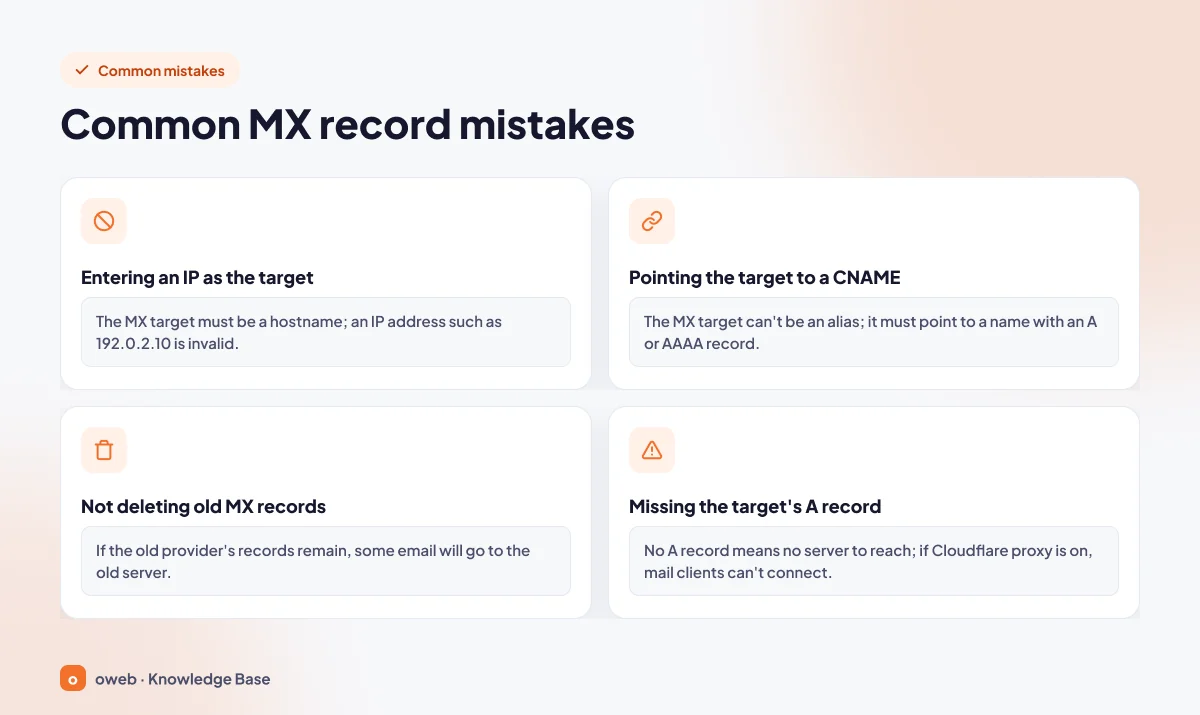
- Using an IP address as the destination: The MX destination must be a hostname; an IP address such as 192.0.2.10 is invalid.
- Pointing the destination to a CNAME record: The MX destination cannot be an alias; it must point to a name that has an A or AAAA record directly.
- Not deleting old MX records: If the previous provider's records remain, some of your email goes to the old server.
- Not adding the destination's A record: If mail.example.com has no A record, the server cannot be reached; if the proxy is enabled in Cloudflare, email clients cannot connect.
The table below helps you work from the symptom to the cause:
| Symptom | Possible cause | Solution |
|---|---|---|
| Email from outside arrives, but messages from the website form do not | The cPanel Email Routing setting is still Local Mail Exchanger | Change it to Remote Mail Exchanger |
| Some email ends up on the old server | Old MX records remain or the TTL has not expired yet | Delete the old records and wait for the TTL to expire |
| Messages bounce with a "user unknown" error | The mailbox has not been created on the new service | Create the missing addresses on the new service |
| The record was changed, but the lookup still shows the old value | The change was made in the wrong panel | Look up the NS records and edit the record in the correct panel |
| With Cloudflare, the email client cannot connect to the server | The proxy is enabled on the mail server's A record | Set the record to DNS only |
If the problem is with sending email rather than receiving it, the cause lies not in the MX record but in your outgoing mail (SMTP) settings or in the SPF, DKIM and DMARC records described below.
How MX records relate to SPF, DKIM and DMARC
The MX record shows incoming email the way in; SPF, DKIM and DMARC prove to receiving servers that email sent on your behalf really comes from you. Even with a flawless MX record, your messages may land in the spam folder if these three are missing. The direct link between them is the mx mechanism in the SPF record:
v=spf1 mx -allThis record means "the servers in my MX records may send email on my behalf" and only works if the same server both receives and sends your email. Do not copy this line as is: -all asks receivers to reject messages from any source not listed in the record, so first add every service that sends email for you to your SPF record. With an external service, use that service's SPF value; for example, for Google Workspace: v=spf1 include:_spf.google.com ~all.
When moving your email to a new service, make sure the domain keeps a single SPF record (merge the new value into the existing record) and add the new service's DKIM record; DKIM keys are specific to each service. Without a DMARC record, receiving servers also have no policy to apply to messages that fail these checks. For details, see our what are SPF, DKIM and DMARC guide.
Frequently asked questions
Will I lose email if I change my MX record?
Not if you do it in the right order. The change only affects which server new incoming messages are delivered to; email on the old server stays where it is but is not moved to the new service automatically. Because messages may still reach the old server until the TTL expires, keep the old mailboxes open for a few days.
What is the difference between an MX record and an A record?
An A record maps a name to an IP address. An MX record specifies the name and priority of the server that receives the domain's email; since its destination is a name rather than an IP address, it relies on that name's A or AAAA record.
Can my website be on one server and my email on another service?
Yes. Because the A record routes your website and the MX record routes your email, the two can run in different places. In this setup, the Email Routing setting in cPanel should be set to Remote Mail Exchanger.
Can I add more than one MX record?
Yes. Records with different priorities define primary and backup servers, while records with the same priority distribute the load. Make sure they all belong to the same email system.
What TTL should an MX record have?
There is no required value. 3600 (1 hour) is a good value for everyday use; the default on cPanel servers is 14400. Lowering it to 300 before a planned migration makes the change take effect quickly. If you use Microsoft 365, the TTL must be less than 21600 seconds (6 hours).
Can an MX record be proxied (orange cloud) in Cloudflare?
No. In Cloudflare, only A, AAAA and CNAME records can be proxied; MX records always work as DNS only. The A record of the mail server name that the MX record points to must also be DNS only.
Can I add an MX record for a subdomain?
Yes. If you enter the subdomain (for example, destek) instead of @ in the Name (Host) field, you define a separate mail server for addresses such as [email protected]. If the subdomain has a CNAME record, you cannot add an MX record.
Why am I not receiving email even though my MX record is correct?
Look up the record from your domain's own name server; the change may have been made in the wrong panel. Then check the destination's A record, whether the old MX records have been deleted and whether the mailbox has been created on the new service. If you are an Oweb customer, you can open a support ticket for help.
Conclusion
The MX record is a small but critical DNS record that makes sure your email reaches the right server. Edit it in the panel of the provider your name servers belong to, use a name with an A or AAAA record as the destination, delete the old provider's records, and verify the change with a lookup and a test email. If you use cPanel, also review the Email Routing setting, and if you send email, review your SPF, DKIM and DMARC records. Remember to back up your existing records before making changes. Oweb customers can open a support ticket whenever they get stuck.
