


Redirecting HTTP to HTTPS means sending every request that reaches your site over http:// to the https:// address of the same page with a server-side, permanent 301 redirect. First, a valid SSL certificate is installed. Then, using just one of the cPanel, .htaccess, Nginx, Plesk or Cloudflare methods, every variant of your address is redirected to the canonical address in a single hop.
Quick summary
- Before you redirect, a valid SSL certificate must be installed for both the www and non-www versions of your domain.
- Use 301 or 308 for a permanent move. Google treats a permanent redirect as a strong signal that the target is the canonical URL. The temporary codes 302 and 307 are not used by Google as a signal that the target is the canonical URL; the target page can only be indexed if other canonical signals exist, and the source URL may stay in search results.
- If you use cPanel, the easiest way is to turn on the Force HTTPS Redirect toggle in the Domains interface.
- On Apache and LiteSpeed, add an
[R=301,L]rule with the conditionRewriteCond %{HTTPS} !=onat the very top of the .htaccess file. - On Nginx, create a separate server block for port 80 and write
return 301 https://example.com$request_uri;(replace example.com with your own domain). - Redirect in one place only. Redirecting both in Cloudflare and on the server, or using an HTTPS redirect on the server while Cloudflare is in Flexible mode, can cause an ERR_TOO_MANY_REDIRECTS loop.
- Afterwards, check mixed content, internal links, the sitemap, canonical tags and Search Console. Enable HSTS last, once HTTPS works without problems.
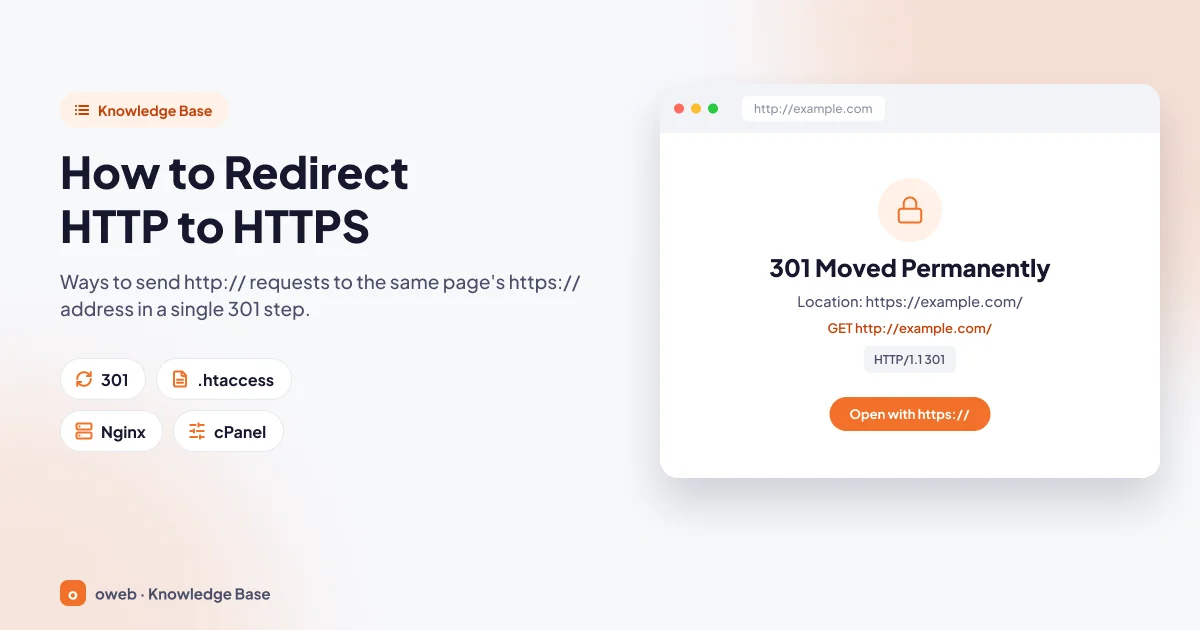
What is an HTTP to HTTPS redirect and why do you need it?
Once an SSL certificate is installed, your site opens over https://, but the http:// address does not shut down on its own. Old links and bookmarks can still take visitors to the unencrypted version. An HTTP to HTTPS redirect closes this gap: instead of the page, the server answers the http:// request with a "moved permanently" response and a Location header containing the new address, and the browser then opens the https:// address.
- Security: Over HTTP, form data and session cookies travel as plain text. HTTPS encrypts this traffic with TLS and verifies the server's identity. For the basics, see our guide What is an SSL certificate and how does it work.
- One consistent address: Without a redirect, the same page can open at four addresses: http://, http://www, https:// and https://www. This splits your analytics data and shared links.
- Search engines: Google treats this switch as a site move and recommends permanent, server-side redirects (Google Search Central, site moves). According to its 2014 announcement, Google uses HTTPS as a lightweight ranking signal; the real gain is that signals are no longer split between two versions.
The differences between 301, 302, 303, 307 and 308
The status code you choose determines how browsers and search engines interpret the redirect:
| Code | Meaning | Request method | For an HTTPS move |
|---|---|---|---|
| 301 Moved Permanently | Permanent | GET is kept; other methods such as POST may change to GET | Standard choice |
| 308 Permanent Redirect | Permanent | Method and body are unchanged | Suitable for URLs with form or API traffic |
| 302 Found | Temporary | GET is kept; other methods may change to GET | Only while testing |
| 303 See Other | Temporary | The new URL is requested with GET | Not suitable for an HTTPS move |
| 307 Temporary Redirect | Temporary | Method and body are unchanged | Not suitable for a permanent move |
With permanent redirects (301, 308), Google tends to treat the target page as the canonical URL. With temporary redirects (302, 303, 307), the source page may remain in search results. For details, see MDN's guide to redirections and Google's documentation on redirects.
Before you start: a valid SSL certificate is a must
If there is no valid certificate on the https:// address, the browser shows a full-screen security warning instead of the page. In other words, a redirect without a certificate does not protect your site; it makes it unreachable. The order is always the same: certificate first, then verification, and the redirect last.
- Install a certificate for your domain. You can use free certificates (e.g. Let's Encrypt) issued by tools such as AutoSSL in your hosting control panel, or paid SSL certificate options.
- Make sure the certificate covers both
example.comandwww.example.com. If it does not, you will get a name mismatch warning on the www address (NET::ERR_CERT_COMMON_NAME_INVALID in Chrome). - Open https://example.com and https://www.example.com manually in your browser. If the page loads and there is no security warning in the address bar, move on to the next step.
- Back up the file you are about to change (.htaccess, the Nginx configuration, web.config, wp-config.php). If something goes wrong, restoring the backup is the fastest fix.
Browsers can cache 301 responses. A faulty permanent redirect may keep working for some visitors for a while, even after you fix the rule. For rules you write by hand, test with R=302 first, and switch to R=301 once the curl and private window tests succeed.
Which method should you choose?
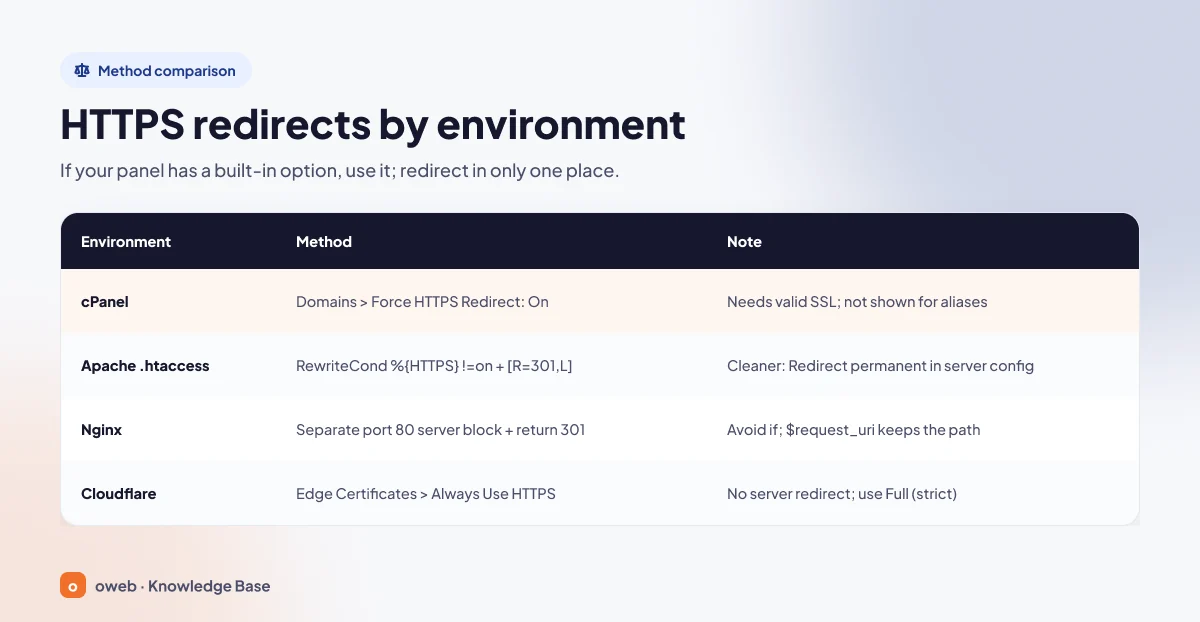
The right method depends on the environment your site runs on and the access you have. The general rule is simple: if your control panel has a built-in option, use it; otherwise write a file-level rule, and redirect in one place only. The methods in the table are listed from the easiest and safest to the most advanced.
| Environment | Method | Note |
|---|---|---|
| cPanel | Set the Force HTTPS Redirect toggle to On in the Domains interface | Can only be enabled for domains with a valid SSL certificate; not shown for aliases |
| Plesk | Permanent SEO-safe 301 redirect from HTTP to HTTPS under Hosting Settings | SSL/TLS support must be on and a certificate selected |
| Apache / LiteSpeed (.htaccess) | A rule with RewriteCond %{HTTPS} !=on and [R=301,L] | If you have access to the server configuration, Redirect permanent inside the :80 VirtualHost is cleaner |
| Nginx | A separate server block on port 80 with return 301 | Do not use if; $request_uri preserves the path and query string |
| Cloudflare | SSL/TLS > Edge Certificates > Always Use HTTPS | Do not add a second redirect on the server; use Full (strict) mode |
| Windows / IIS | A web.config rule with the URL Rewrite module | The module must be installed separately; 308 is not supported |
How to redirect to HTTPS in cPanel
On shared hosting accounts that use cPanel, the panel's own option is the easiest way. You do not need to edit any files, and there is no risk of typos. If you are using the cPanel interface for the first time, our article What is cPanel and how do you use it is a helpful starting point.
- Log in to cPanel and open the Domains interface in the Domains section.
- Find your domain in the list. Set the toggle in the Force HTTPS Redirect column to On.
- To do the same for several domains, select them and choose Force HTTPS Redirect On from the bulk actions.
- Open http://example.com in a private window and confirm that you are taken to the https:// address.
Why can't I turn on Force HTTPS Redirect?
According to the cPanel documentation, this option can only be enabled for domains with a valid SSL certificate. If the toggle cannot be switched on or is missing from the list, the certificate may not be installed yet, may have expired, or may not cover the domain. The option is not shown for domains added as aliases. Your hosting provider may also have disabled this interface through Feature Manager in WHM. For details, see the cPanel Domains documentation.
While Force HTTPS Redirect is on, do not add a second HTTPS rule to the .htaccess file. The cPanel documentation does not explain how this option interacts with custom .htaccess rules. Doing the same job in two places risks conflicts and unnecessary redirect chains. If you also want to merge the www and non-www addresses in a single hop, leave Force HTTPS Redirect off and use the combined .htaccess rule below; do not use both together.
How to redirect to HTTPS with Apache and .htaccess
If your server runs Apache or LiteSpeed (which reads .htaccess files) and your panel has no built-in option (or you want to handle the www merge in the same step), you can use an .htaccess HTTPS redirect rule. The file is usually located in your site's root folder (public_html on most cPanel accounts). Because its name starts with a dot, you may need to enable Settings > Show Hidden Files (dotfiles) in cPanel File Manager. If you use OpenLiteSpeed, the server may need to be restarted for .htaccess changes to take effect; for details, see the LiteSpeed documentation.
The Apache recipe adapted for .htaccess
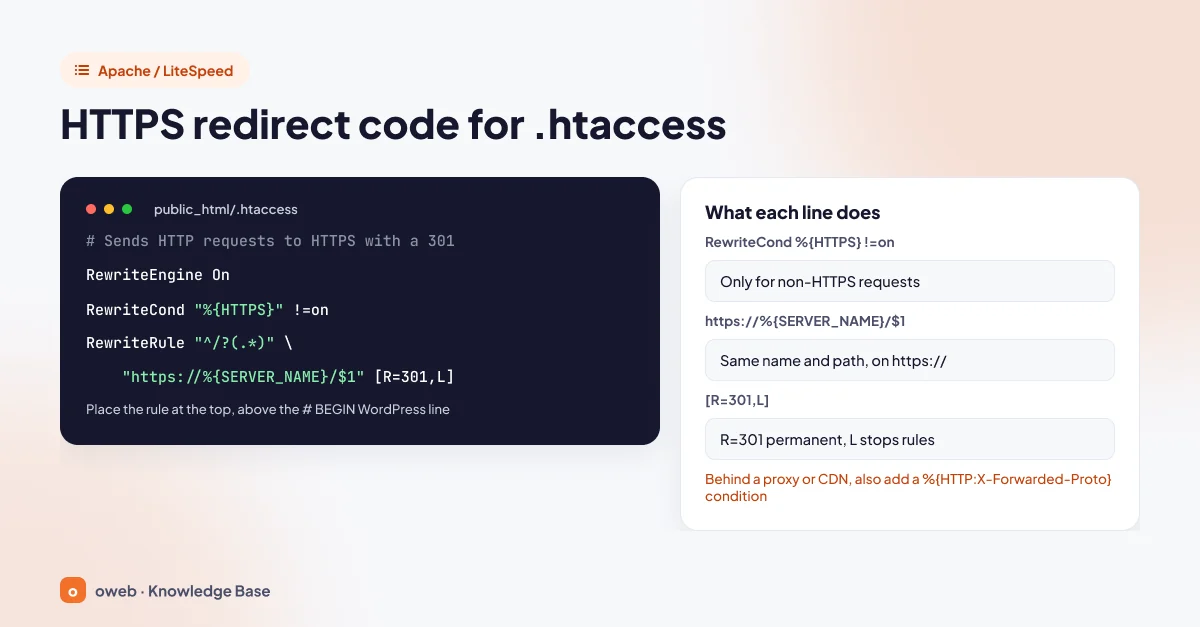
For those without access to the server configuration, the Apache documentation provides a mod_rewrite recipe based on the %{HTTPS} condition. Inside .htaccess (in per-directory context), mod_rewrite strips the leading slash from the path before matching. So write the recipe like this to make it work safely in .htaccess:
RewriteEngine On
RewriteCond "%{HTTPS}" !=on
RewriteRule "^/?(.*)" "https://%{SERVER_NAME}/$1" [R=301,L]
What each line does:
RewriteEngine On: turns on the rewrite engine. If it is already in the file, you do not need to add it again.RewriteCond "%{HTTPS}" !=on: the rule only runs if the connection is not HTTPS. Without this condition, https:// requests would also be redirected, creating a loop.RewriteRule "^/?(.*)": captures the path with or without a leading slash. Since the path arrives without a slash in .htaccess, the target uses/$1; otherwise a request for /blog/post goes to a broken address.https://%{SERVER_NAME}/$1: builds the https:// address with the same server name and path.R=301: sends a permanent redirect. According to the Apache documentation, this tells search engines to update their indexes. If you use justRwithout a code, Apache sends a 302.L: stops processing further rules once this rule is applied.
Official sources: Apache, Redirecting and Remapping with mod_rewrite and, for matching in per-directory context, the mod_rewrite reference documentation.
The format commonly used on shared hosting
The value of %{SERVER_NAME} depends on the ServerName and UseCanonicalName settings on the server. On shared hosting, the following format is commonly used to keep the domain name the visitor typed. Because %{REQUEST_URI} always starts with a slash, there is no path problem either:
RewriteEngine On
RewriteCond %{HTTPS} !=on
RewriteRule ^ https://%{HTTP_HOST}%{REQUEST_URI} [R=301,L]
Since the target address contains no question mark, Apache appends the original query string (such as ?page=2) automatically.
Where in the file should the rule go?
The HTTPS rule must go at the very top of the file, before your content management system's rules. In WordPress, that means above the # BEGIN WordPress line. Do not place the rule between the # BEGIN WordPress and # END WordPress lines, because WordPress may regenerate that block. If the rule is placed at the end, the request may first be rewritten to an internal address (such as index.php), and the redirect may expose that internal address to the visitor.
Merging the www and non-www addresses
Each of the three address variants other than the canonical one should go to the canonical address in a single hop. This avoids a two-step chain in which http://www.example.com goes first to https://www.example.com and then to https://example.com. Choose only one of the rules below and replace example.com with your own domain.
.htaccess rules in public_html also apply to subfolders. In cPanel, the folders of addon domains and subdomains are often inside public_html, so limit the rules to your own domain with the condition on the first line.
Making the non-www address canonical
RewriteEngine On
RewriteCond %{HTTP_HOST} ^(www\.)?example\.com$ [NC]
RewriteCond %{HTTPS} !=on [OR]
RewriteCond %{HTTP_HOST} ^www\. [NC]
RewriteRule ^ https://example.com%{REQUEST_URI} [R=301,L]
mod_rewrite reads these conditions as "condition 1 AND (condition 2 OR condition 3)". The first condition limits the rule to example.com and www.example.com only, so addon domains and subdomains that inherit the same .htaccess file are not affected. The [OR] flag makes the rule run if the connection is not HTTPS or the address starts with www. The NC flag ignores case. The backslash before the dot ensures that the dot is read as a literal dot rather than "any character".
Making the www address canonical
RewriteEngine On
RewriteCond %{HTTP_HOST} ^(www\.)?example\.com$ [NC]
RewriteCond %{HTTPS} !=on [OR]
RewriteCond %{HTTP_HOST} !^www\. [NC]
RewriteRule ^ https://www.example.com%{REQUEST_URI} [R=301,L]
The logic is the same: the first condition limits the rule to the two names of your domain, and then, if the connection is not HTTPS or the address does not start with www, the visitor is sent to https://www.example.com.
If you have access to the server configuration: the Redirect directive
Apache's "When not to use mod_rewrite" page states that the cleanest approach is to use the Redirect directive in the HTTP virtual host. Redirect preserves path information automatically: a redirect written for / also covers all subpaths such as /blog/post.
<VirtualHost *:80>
    ServerName example.com
    ServerAlias www.example.com
    Redirect permanent "/" "https://example.com/"
</VirtualHost>
The SSL settings live in a separate <VirtualHost *:443> block. If you also want to send https://www requests to the canonical address, you need to define a separate redirect for the www name on the 443 side. Source: Apache, When not to use mod_rewrite.
Redirecting to HTTPS with Nginx
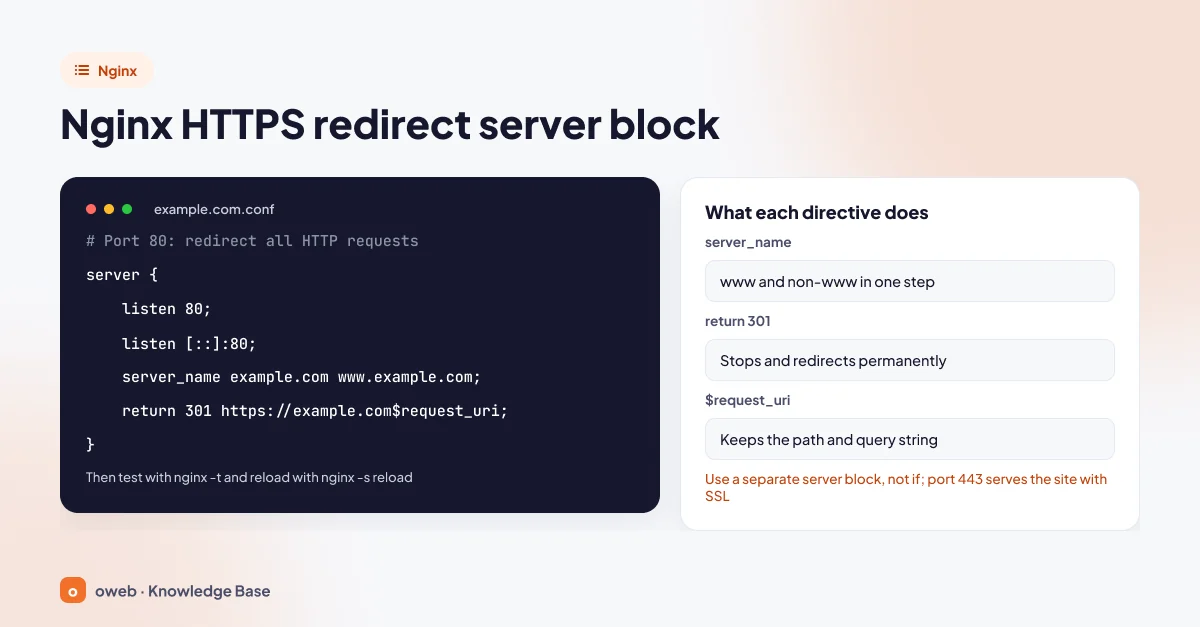
Nginx has no .htaccess-style file for an HTTPS redirect; the rule is written directly in the server configuration. The Nginx documentation considers writing redirect logic inside if blocks wrong and inefficient, and instead recommends a separate server block for each address that redirects.
server {
    listen 80;
    listen [::]:80;
    server_name example.com www.example.com;
    return 301 https://example.com$request_uri;
}

server {
    listen 443 ssl;
    listen [::]:443 ssl;
    server_name example.com;
    ssl_certificate     /etc/ssl/example.com.crt;
    ssl_certificate_key /etc/ssl/example.com.key;
    # your other site settings
}
listen 80: listens for HTTP requests;[::]:80does the same for IPv6.server_name: the names this block responds to. Because the www and non-www addresses are listed together, both are redirected in a single hop.return 301: stops processing and sends a permanent redirect.$request_uri: preserves the original path and query string.
If you want the www address to be canonical, write the return line and the server_name value of the second block with www. To merge https://www requests as well, add a separate server block that listens on port 443, has the server_name www.example.com and contains its own certificate lines:
server {
    listen 443 ssl;
    listen [::]:443 ssl;
    server_name www.example.com;
    ssl_certificate     /etc/ssl/example.com.crt;
    ssl_certificate_key /etc/ssl/example.com.key;
    return 301 https://example.com$request_uri;
}
The certificate must also cover the www name; otherwise the TLS connection fails before the redirect is sent.
After making changes, always test the configuration, and reload it if there are no errors:
nginx -t
nginx -s reload
Documentation: ngx_http_rewrite_module and Converting rewrite rules. If you plan to use 308 for form or API traffic, Nginx has treated this code as a redirect since version 1.13.0.
Redirecting with Plesk, Cloudflare and IIS
Plesk
In Plesk, the HTTPS redirect is set with a checkbox in the hosting settings:
- Open your domain from Websites & Domains (Domains in some versions) and go to the Hosting Settings screen; menu names may vary by Plesk version.
- Check that SSL/TLS support is on and that a certificate is selected.
- Tick Permanent SEO-safe 301 redirect from HTTP to HTTPS and save.
Depending on server or service plan settings, this option may already be on; check its status before adding an .htaccess or web.config rule, or you may end up with a double redirect. If the option is not visible or cannot be changed, contact your hosting provider. On Windows servers, also check web.config for leftover rewrite rules that might conflict with this option.
Cloudflare Always Use HTTPS
If your site is behind Cloudflare, you can handle the redirect on Cloudflare's edge servers. Cloudflare Always Use HTTPS redirects HTTP requests to HTTPS for all subdomains and hosts, and as of November 2026 it is available on all plans.
- In the Cloudflare dashboard, select your domain and check the encryption mode on the SSL/TLS > Overview screen. If the mode is Off, the option is not shown.
- Go to the SSL/TLS > Edge Certificates screen.
- Turn on Always Use HTTPS.
Why does the encryption mode matter?
Cloudflare's encryption modes are Off, Flexible, Full, Full (strict) and Strict (SSL-Only Origin Pull). In Flexible mode, Cloudflare connects to your server over HTTP. If your server also redirects HTTP to HTTPS, every request is redirected again and the browser shows an ERR_TOO_MANY_REDIRECTS error. The fix is to install a certificate on the server and set the mode to Full (strict), or to remove the redirect on the server. The default setting in Cloudflare is Automatic SSL/TLS. This setting finds the most secure encryption mode your server supports on its own and moves traffic to that mode gradually (first 1% of traffic, then in 10% steps). That is why you may see Automatic SSL/TLS on this screen instead of a list of modes; if you want to choose a specific mode manually, you need to switch to the Custom SSL/TLS setting.
Cloudflare also recommends two things: do not turn on this option if only part of your site supports HTTPS, and once you have turned it on, do not add a second HTTPS redirect on the server. Sources: Cloudflare, Always Use HTTPS, Cloudflare, encryption modes and Cloudflare, ERR_TOO_MANY_REDIRECTS.
IIS URL Rewrite
On Windows servers, the redirect is written to the web.config file using the IIS URL Rewrite module. This module does not ship with IIS by default; make sure it is installed first, otherwise the site will return an error because of an unrecognized configuration section.
<configuration>
  <system.webServer>
    <rewrite>
      <rules>
        <rule name="HTTP to HTTPS" stopProcessing="true">
          <match url="(.*)" />
          <conditions>
            <add input="{HTTPS}" pattern="^OFF$" />
          </conditions>
          <action type="Redirect" url="https://{HTTP_HOST}/{R:1}" redirectType="Permanent" />
        </rule>
      </rules>
    </rewrite>
  </system.webServer>
</configuration>
{HTTPS} takes the value OFF on HTTP connections, redirectType="Permanent" sends a 301, and because appendQueryString is on by default, the query string is preserved. Do not delete your existing web.config file; just add the <rule> section inside the existing <rules> element. Source: Microsoft Learn, URL Rewrite Module Configuration Reference.
HTTPS redirects on WordPress sites
On WordPress, an HTTPS redirect has two layers: the server redirecting the visitor, and WordPress knowing its own address as https://. If one is missing, either links are generated with http:// or old addresses are not redirected.
- First, confirm that https://example.com opens without a certificate warning. If you change the address without this check, you may lose access to the admin dashboard.
- Back up the database and files.
- In the admin dashboard, go to Settings > General, change the WordPress Address (URL) and Site Address (URL) fields so they start with https://, and save. If these fields are greyed out, they are locked by the
WP_HOMEandWP_SITEURLconstants in wp-config.php; make the change there. - Add the server-side redirect with the cPanel option or an .htaccess rule.
- To make the admin dashboard and login page always use HTTPS, you can add the following line to wp-config.php, before the
/* That's all, stop editing! */line:
define( 'FORCE_SSL_ADMIN', true );The FORCE_SSL_LOGIN constant is now deprecated. You do not need to install a separate plugin for the redirect. Using a plugin together with an .htaccess rule does the same job twice and can add an unnecessary redirect hop. If you run into a loop on WordPress, our guide How to fix ERR_TOO_MANY_REDIRECTS in WordPress walks you through it step by step.
Updating old http addresses in the database
The addresses of images and links added to posts and pages are usually stored in the database as absolute http:// URLs. Replacing them with a raw SQL REPLACE can corrupt the serialized data that plugins use. A safer way is the WP-CLI search-replace command, which handles serialization correctly. WP-CLI requires SSH access; if your server does not have it, ask your hosting provider. Back up the database first, then use --dry-run to see how many records will change:
wp db export backup.sql
wp search-replace 'http://example.com' 'https://example.com' --skip-columns=guid --dry-run
wp search-replace 'http://example.com' 'https://example.com' --skip-columns=guid
If your old address used www, run the command with that address too; as the target, use the canonical address you saved in Settings > General:
wp search-replace 'http://www.example.com' 'https://example.com' --skip-columns=guid --dry-run
wp search-replace 'http://www.example.com' 'https://example.com' --skip-columns=guid
The guid column is the permanent identifier of posts and should not be changed. The same method is used when changing domain names; for the full process, see our WordPress site migration guide. Official source: WordPress, HTTPS for WordPress.
Sites behind a reverse proxy or CDN
If the SSL connection is terminated at a load balancer, reverse proxy or CDN layer, your server sees every request as HTTP. A rule based on the %{HTTPS} condition then redirects every request again, creating a loop. The proxy usually passes the visitor's original protocol in the X-Forwarded-Proto header.
Apache rule
In Apache, this header is read with %{HTTP:X-Forwarded-Proto}:
RewriteEngine On
RewriteCond %{HTTPS} !=on
RewriteCond %{HTTP:X-Forwarded-Proto} !https
RewriteRule ^ https://%{HTTP_HOST}%{REQUEST_URI} [R=301,L]
Both conditions must be met: the redirect happens only if the connection is not directly HTTPS and the proxy does not report that "the visitor came over HTTPS". This way, neither requests coming through the proxy nor requests reaching the server directly over HTTPS end up in a loop. Only trust the X-Forwarded-Proto header if you manage the proxy yourself and the proxy rewrites this header on every request; anyone connecting directly to the server can spoof it.
Fix for WordPress
Behind a proxy that terminates SSL, WordPress can enter a loop because of FORCE_SSL_ADMIN. Here is the solution from the WordPress documentation, adjusted so it does not throw a warning if the header is missing. Add these lines to wp-config.php before the require_once ABSPATH . 'wp-settings.php'; line:
if ( isset( $_SERVER['HTTP_X_FORWARDED_PROTO'] ) && strpos( $_SERVER['HTTP_X_FORWARDED_PROTO'], 'https' ) !== false ) {
    $_SERVER['HTTPS'] = 'on';
}If you use Cloudflare, the simplest solution is often to install a certificate on the server, set the mode to Full (strict), and keep the redirect in one place only, either in Cloudflare or on the server. In Full (strict) mode, Cloudflare forwards visitor requests that arrive over HTTPS to your server over HTTPS as well, so the %{HTTPS} condition works correctly and no loop occurs.
How to test an HTTPS redirect
Testing with curl
The browser can be affected by its cache, while curl shows the server's current response. Run this command in a terminal:
curl -I "http://example.com/"In Windows PowerShell, curl is an alias for Invoke-WebRequest, so write the command as curl.exe -I "http://example.com/". -I fetches the headers only. The first lines of the expected response should look like this:
HTTP/1.1 301 Moved Permanently
Location: https://example.com/
To see the entire chain, add -L; curl follows the redirects and prints the headers of each hop in order. Put URLs that contain a question mark in quotes, otherwise shells such as zsh on macOS stop the command with an error:
curl -IL "http://www.example.com/blog/?sayfa=2"What to check:
- Each of the three address variants other than the canonical one should reach the canonical address in a single hop; the canonical address should return a 200 response directly.
- The status code should be 301 or 308, not 302.
- The path and query string in the
Locationheader should be preserved. - Also try a subpage and a page that does not exist; the redirect should behave the same on every path.
Testing with browser developer tools
- Open a private (incognito) window so the cache does not affect the result.
- Press F12 and switch to the Network tab in the developer tools; tick Preserve log in Chrome or Persist Logs in Firefox.
- Open the http:// address. In the first row, you should see the 301 status and the Location header.
- Check the Console tab for mixed content warnings.
What to do after the redirect
The job is not done once the redirect works. The following six checks make sure the switch is completed smoothly for both visitors and search engines.
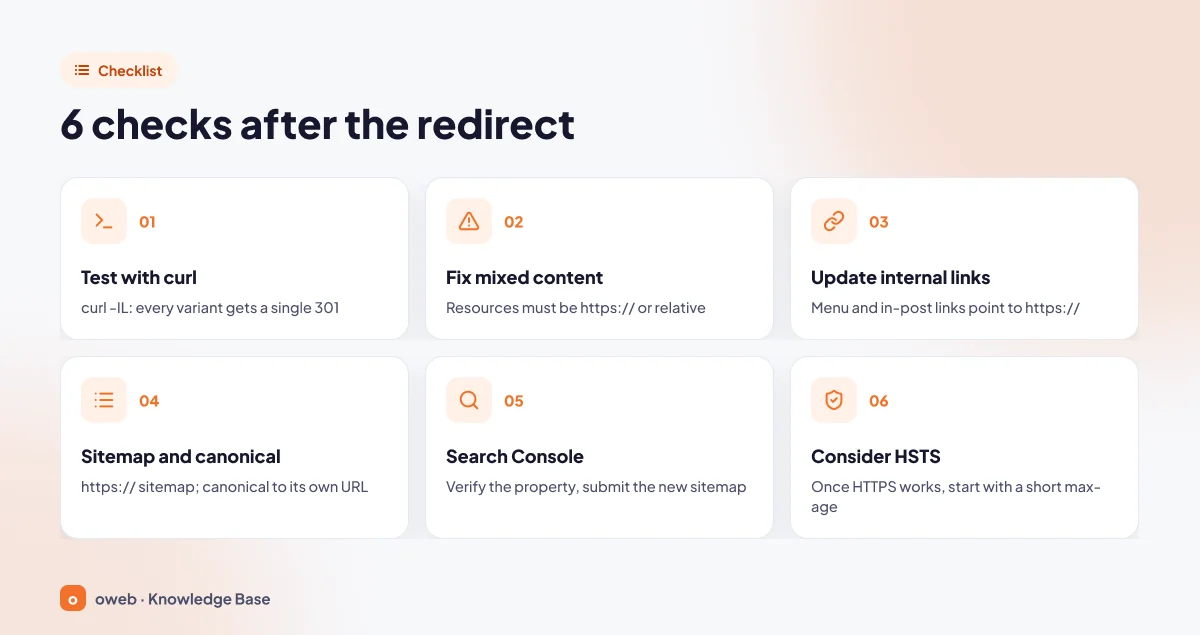
- Test with curl: as described in the testing section above, every address variant should reach the canonical address in a single hop.
- Fix mixed content: change resources loaded over http:// to https:// or relative links.
- Update internal links: menus and in-content links should point directly to the https:// address.
- Sitemap and canonical: the URLs in your sitemap should be https://, and each page's canonical tag should point to its own https:// address. Also check the Sitemap line in robots.txt and your hreflang tags.
- Search Console: verify the https:// version or a domain property and submit the new sitemap. The Change of Address tool is not needed for this switch.
- Consider HSTS: once HTTPS works without problems, enable it gradually.
Google recommends keeping site move redirects in place for at least one year. Make sure you are not blocking the HTTPS site with robots.txt or noindex.
How to fix mixed content errors
A mixed content error occurs when a page loaded over HTTPS loads some of its resources over HTTP. Browsers divide these resources into two groups:
| Type | Examples | Browser behavior |
|---|---|---|
| Upgradable | img src, audio and video sources, images in CSS | Automatically requested over https://; not upgraded if the resource is an IP address |
| Blockable | Scripts, stylesheet links, iframes, fetch/XHR, web fonts, srcset and picture | Blocked; page layout or functionality may break |
Find the problems through the mixed content warnings in the Console tab of your browser's developer tools. The permanent fix is to serve every resource over https:// or with a relative URL. The upgrade-insecure-requests directive in the Content-Security-Policy (CSP) header is only a temporary safety net while the cleanup is in progress. Cloudflare Always Use HTTPS does not fix mixed content either; Automatic HTTPS Rewrites may help with some links. Source: MDN, Mixed content.
What is HSTS and when should you enable it?
HSTS (HTTP Strict Transport Security) is a security mechanism in which the server uses the Strict-Transport-Security header to tell the browser to connect to the site only over HTTPS for a set period. During that period, the browser opens http:// addresses as https:// without asking the server. The browser only honors this header in HTTPS responses.
Enabling it gradually
HSTS is hard to undo: once the browser has stored the period, visitors cannot click past the warning if the certificate runs into trouble. So start with a short period in the first stage. The examples below show this first stage (300 seconds). On Apache or LiteSpeed with mod_headers enabled, place the line inside an IfModule block so that a 500 error does not occur if the module is missing:
<IfModule mod_headers.c>
    Header always set Strict-Transport-Security "max-age=300"
</IfModule>
On Nginx, in the server block that listens on port 443:
add_header Strict-Transport-Security "max-age=300" always;In Nginx, add_header lines in the server block are not inherited by a location block that has its own add_header line; if such a block exists, add the header there too. If there are no problems, increase the period, for example to one week, then one month, and finally to max-age=31536000 (one year).
includeSubDomains and preload
includeSubDomains applies the rule to all subdomains; any subdomain that does not support HTTPS becomes unreachable. So only add it if all of your subdomains work over HTTPS. The target value looks like this:
Strict-Transport-Security: max-age=31536000; includeSubDomainsTo be included in the browsers' preload list (hstspreload.org), max-age must be at least 31536000, and includeSubDomains and preload must both be present. To turn HSTS off, send max-age=0 over HTTPS. Even with HSTS, do not remove the 301 redirect; first-time visitors and search engine bots such as Googlebot still need the redirect. Source: MDN, Strict-Transport-Security.
Common mistakes and how to fix them
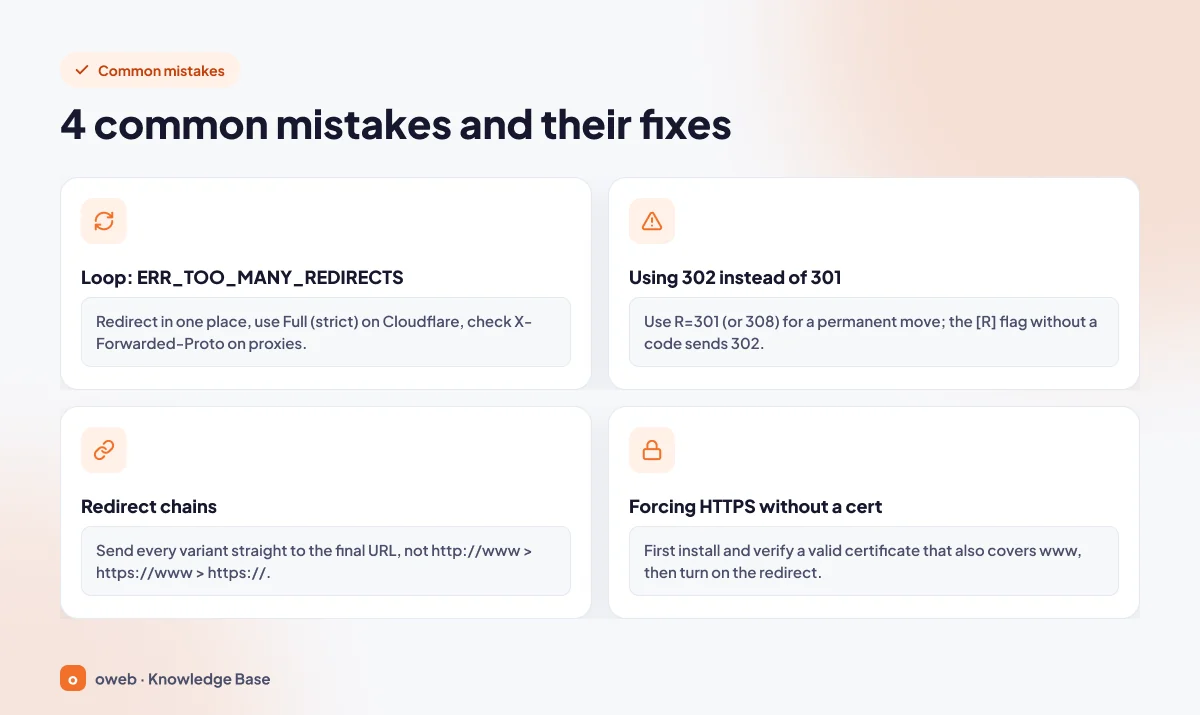
Redirect loop (ERR_TOO_MANY_REDIRECTS)
The page never loads. According to MDN, if the server detects the loop, it usually returns a 500 Internal Server Error; if it does not, the browser detects the loop and shows an error page. In current versions of Chrome, this error appears as ERR_TOO_MANY_REDIRECTS. The cause is usually redirecting in two places, having a redirect on the server while Cloudflare is in Flexible mode, or a missing X-Forwarded-Proto check behind a proxy. Fix: reduce the redirect to a single place, use Full (strict) in Cloudflare, and add the X-Forwarded-Proto condition behind a proxy.
Using 302 instead of 301
[R] or [R,L] flags written without a code send a 302, and old http:// URLs may stay in the index. Use R=301 for a permanent switch.
Redirect chains
When http://www first goes to https://www and then to https://, that is a two-hop chain. Google recommends going straight to the final address; combine the HTTPS and www rules into a single rule.
Forcing HTTPS without SSL
If the redirect is turned on while there is no certificate, the certificate has expired or it does not cover the www name, visitors see a security warning. Install and verify the certificate first, then turn on the redirect.
Symptom and cause table
| Symptom | Possible cause | What to do |
|---|---|---|
| ERR_TOO_MANY_REDIRECTS | Double redirect, a server redirect combined with Cloudflare Flexible, the %{HTTPS} condition behind a proxy | Keep a single redirect, use Full (strict), add the X-Forwarded-Proto condition |
| 500 Internal Server Error | A typo in .htaccess, curly (smart) quotes, a module not enabled on the server (mod_rewrite, mod_headers) | Restore the backup and rewrite the code in a plain text editor; if the module is not enabled, contact your hosting provider |
| Certificate warning on the www address | The certificate does not cover the www name | Renew the certificate so it covers both names |
| The page loads but the address bar shows a security warning / some elements do not load | Mixed content | Change the resources listed in the Console warnings to https:// |
| The visitor ends up at an internal address (index.php?...) | The rule is below the content management system's rules | Move the HTTPS rule to the very top of the file |
| Subpages go to a broken address (such as example.comblog) | $1 was used instead of /$1 in the .htaccess target | Use the ^/?(.*) and /$1 format or the %{REQUEST_URI} format |
| The rule is fixed but the old behavior continues | A 301 cached by the browser, or the CDN cache | Test in a private window and with curl, and purge the CDN cache |
If a change has broken your site, restore the backup first, then clear plugin and CDN caches. Trying one piece of code after another on a live site can make the problem worse because of cached faulty redirects.
Frequently asked questions
Can I redirect to HTTPS without an SSL certificate?
You can write the rule, but visitors will see a certificate warning and the site effectively will not open. A valid certificate must be installed first.
Does switching to HTTPS affect SEO?
HTTPS is a lightweight ranking signal. What really matters is doing the switch correctly, with permanent 301 redirects, updated internal links, an https:// sitemap and canonical tags.
What is the difference between 301 and 308?
Both are permanent. With 301, POST requests may change to GET, while 308 preserves the method and body. 301 is enough for normal pages; IIS URL Rewrite does not support 308.
The redirect works, so why is there a security warning in the address bar?
Usually because of mixed content: even though the page opens over HTTPS, some images, scripts or stylesheets are still loaded over http://. Change the resources listed in the Console warnings to https:// or relative URLs.
How long should the redirect stay in place?
Google recommends keeping site move redirects for at least one year. In practice, leaving the HTTP to HTTPS redirect in place permanently is the safest option.
Can I remove the 301 redirect once HSTS is enabled?
No. HSTS only works in browsers that have already visited the site over HTTPS. The 301 redirect is still needed for first-time visitors and search engine bots.
Should I use the Change of Address tool in Search Console?
No. According to Google, this tool is not needed when moving from HTTP to HTTPS; verifying the https:// or domain property and submitting the new sitemap is enough.
Conclusion
A successful HTTP to HTTPS redirect always follows the same order: install the certificate and verify it on both addresses, take a backup, choose a single method, send every address variant to the canonical address with a 301 in a single hop, and test with curl. Then update mixed content, internal links, the sitemap, canonical tags and Search Console; enable HSTS last and gradually. If you are an Oweb customer and run into a problem such as a redirect loop or a certificate warning, you can open a support ticket that includes the steps you tried and your curl output.
