


If email is not arriving in your business mailbox but you can send messages without any trouble, in other words you can send but not receive email, the problem is almost always on the receiving side. You send messages through your own server using authenticated SMTP. Incoming messages, however, are delivered by the sender's server, which looks up your domain's MX record to find where to deliver them. Work through webmail, the MX record, Email Routing, quota and filters in that order, and you can usually narrow down the cause quickly.

In short: what you need to know
- Sending and receiving are separate paths. When you send, your mail client logs in to your own SMTP server with your password. When you receive, the sender's server looks up your MX record and delivers the message to the server that record points to. You then read it over IMAP or POP3.
- If your MX record points to an old provider, Google Workspace or Microsoft 365, incoming messages go there while sending keeps working.
- If Email Routing in cPanel is set to Remote Mail Exchanger, the server will not accept email for your domain.
- A mailbox that has reached its quota cannot receive email, and the sender gets an error such as "Mailbox is full".
- Error codes starting with 4 are temporary, and codes starting with 5 are permanent. After a temporary error, the sending server keeps retrying the message for days.
- How quickly an MX change takes effect depends on the record's TTL. Google says it can take up to 72 hours.
I can send but not receive: how is that possible?
Sending and receiving may use the same account, but they are two independent chains. One working tells you nothing about whether the other works.
The sending path: from your client to your SMTP server
When you send a message from Outlook, your phone or webmail, your client connects to the outgoing mail server and authenticates with your password. Your MX record plays no direct part in this path, so sending can look perfectly normal even when your MX record is wrong. Bounces and replies will not reach you, though. If your messages are not reaching recipients, see our guide to the email not sending error.
The receiving path: from the sender's server to your MX record
According to RFC 5321, the sending server first looks up the MX records of the recipient's domain and sorts them by preference. It then tries delivery starting with the server that has the lowest preference value. If MX records exist, it will not try to deliver to servers not listed in them. Once the message reaches the destination server, it is written to your mailbox, and you read it over IMAP or POP3.
So three links must hold for incoming email to work: a correct MX record, a server that accepts the message and delivers it to the right mailbox, and a client that shows it. Use the table below to find out which link is broken.
| Symptom | Likely cause | Where to look first |
|---|---|---|
| No messages arrive from anyone, and senders get no error | The MX record points to an old provider or another service | MX lookup (dig / nslookup) |
| Senders get "mailbox full" or 452 / 552 | The mailbox quota is full | Email Disk Usage, Email Accounts |
| Senders get 550 5.1.1 | The address does not exist on the server, or the MX points to the wrong server | Email Accounts, MX lookup |
| External messages arrive, but not those from accounts on the same server or from the website form | Email is hosted at Google or Microsoft, but cPanel is set to Local Mail Exchanger | Email Routing |
| Only messages from certain people fail to arrive | Blocked sender, blacklist or filter | Spam Filters, Email Filters |
| Message is in webmail but not in Outlook or on the phone | Client settings, folder or POP3 use | Client account settings |
| Message shows on one device but not on another | A POP3 client downloads the message and deletes it from the server | "Leave a copy of messages on the server" |
Why does incoming email not arrive? The most common causes
Most of the causes below cut off only the receiving path and leave sending untouched. The image summarizes the six most common ones.
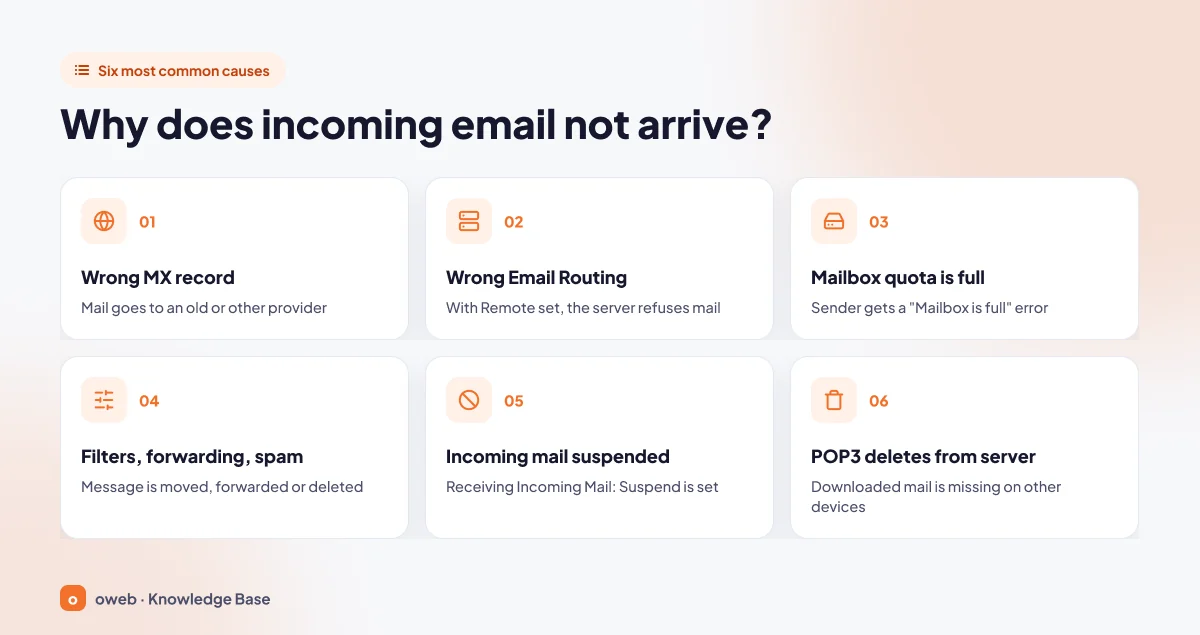
1. The MX record is wrong, missing or points to another provider
An MX record error is one of the main reasons business email stops arriving. Google and Microsoft both warn that old or incorrect MX records can break email delivery. If the record still points to a previous hosting company, messages land there and you see nothing on the new server. For details, read our article What is an MX record?
After moving to Google Workspace or Microsoft 365
As of November 2026, Google recommends a single MX record for Google Workspace: smtp.google.com with priority 1. Accounts set up before 2023 may show older values starting with "aspmx", and these are still supported. Google's guide to setting up MX records for Google Workspace notes that email may not work correctly if old or incorrect MX records are left in place.
In Microsoft 365, your MX target is shown on the Add DNS records page of the admin center and is unique to your domain. According to Microsoft's DNS records documentation, the priority is usually 0 and the TTL 3600 seconds. Once the MX is updated, new messages go to Microsoft 365. Messages that arrived earlier stay with the old provider.
| Where your email is hosted | MX target | Priority | Note |
|---|---|---|---|
| Your hosting server (cPanel) | The mail server name given by your hosting provider (e.g. example.com or mail.example.com) | The value given by the provider | Email Routing: Local |
| Google Workspace | smtp.google.com | 1 | Delete all other MX records; Email Routing: Remote |
| Microsoft 365 | The value shown in the admin center | Usually 0 | TTL 3600; Email Routing: Remote |
After changing nameservers
When you move your nameservers to another company or to a DNS service such as Cloudflare, the active DNS zone is now the one at the new provider. If the MX record from the old zone was not added to the new zone, sending servers cannot find the right server. Because the website keeps loading, the problem can go unnoticed for days. After the move, make sure the MX record, the mail subdomain and the related TXT records exist in the new zone.
If you use Cloudflare, the A record for the name your MX points to (e.g. mail.example.com) must be set to DNS only, not Proxied (orange cloud). Cloudflare's proxy status documentation states that proxying is only available for A, AAAA and CNAME records, and MX records are always DNS only. The proxy is for web traffic, and email traffic cannot reach your server through it.
2. The cPanel Email Routing setting is wrong
cPanel Email Routing decides whether the server keeps email for your domain in its own mailboxes or passes it on to another server. According to the cPanel documentation, there are four options:
- Automatically Detect Configuration: the recommended setting. It decides based on the MX record in the local DNS zone.
- Local Mail Exchanger: the server always accepts the domain's email and delivers it to the local mailbox.
- Backup Mail Exchanger: the server acts as a backup and holds messages until a lower-numbered MX becomes available.
- Remote Mail Exchanger: the server does not accept email for the domain and forwards all messages to the lowest-numbered MX.
If your email is hosted in cPanel but the setting is still Remote, incoming messages never reach the local mailbox. The reverse can also happen. Suppose you moved your email to Google or Microsoft but the setting is still Local. Messages sent from accounts on the same server and from your website's contact form are then delivered to the old mailbox on the server and never reach your new one. cPanel itself warns that a misconfigured Email Routing setting can stop your domain from receiving email.
3. The mailbox quota is full
A full mailbox (email quota exceeded) is one of the best-known reasons messages stop arriving in the inbox. According to cPanel's Manage Email Accounts documentation, a mailbox that has reached its quota cannot receive email. The incoming message bounces back, and the sender gets an error such as "Mailbox is full / Blocks limit exceeded / Inode limit exceeded". If senders report a mailbox full error, that is a strong sign of this problem.
4. Filters, forwarders and the spam filter
Even when a message reaches the server, a rule can move it somewhere other than the inbox. The Redirect to Email action forwards the message to another address. If Move New Spam to a Separate Folder (Spam Box) is enabled in Spam Filters, suspicious messages go to a separate folder. If Automatically Delete New Spam (Auto-Delete) is enabled with a low threshold, legitimate messages can also be deleted before you ever see them.
5. Incoming mail is suspended or the sender is blocked
In cPanel, the Restrictions section of each account has Allow and Suspend options for Receiving Incoming Mail. If Suspend is selected, the server rejects all incoming messages for that account. Sending Outgoing Mail is a separate setting, so sending can stay enabled. This is exactly the "I can send but not receive" situation.
Messages from a sender added to the Blacklist (Emails Never Allowed) under Spam Filters are marked as spam. If Spam Box is enabled they go to the spam folder, and if Auto-Delete is enabled they may be deleted. The blocked senders list in webmail or Outlook usually moves messages to the Junk/Spam folder as well.
6. A POP3 client is deleting messages from the server
According to Microsoft, the default setting for POP3 accounts in Outlook is to delete messages from the server after downloading them. Once one computer downloads messages and removes them from the server, other devices and webmail can no longer see them. If an Outlook client set up with POP3 is open at the office, it can look as if messages never reached your phone. We explain the difference between the two protocols in our article on IMAP vs POP3.
Another possibility is that your domain has expired. The registrar may suspend an expired domain or point it to a parking page, and the MX may then stop pointing to your server. In that case, sending and the website are usually affected too. If several services stopped at the same time, check your domain's expiry date first.
How do you diagnose an incoming email problem? Step-by-step checklist
The order below starts with the simplest, risk-free checks and leaves panel settings for last.
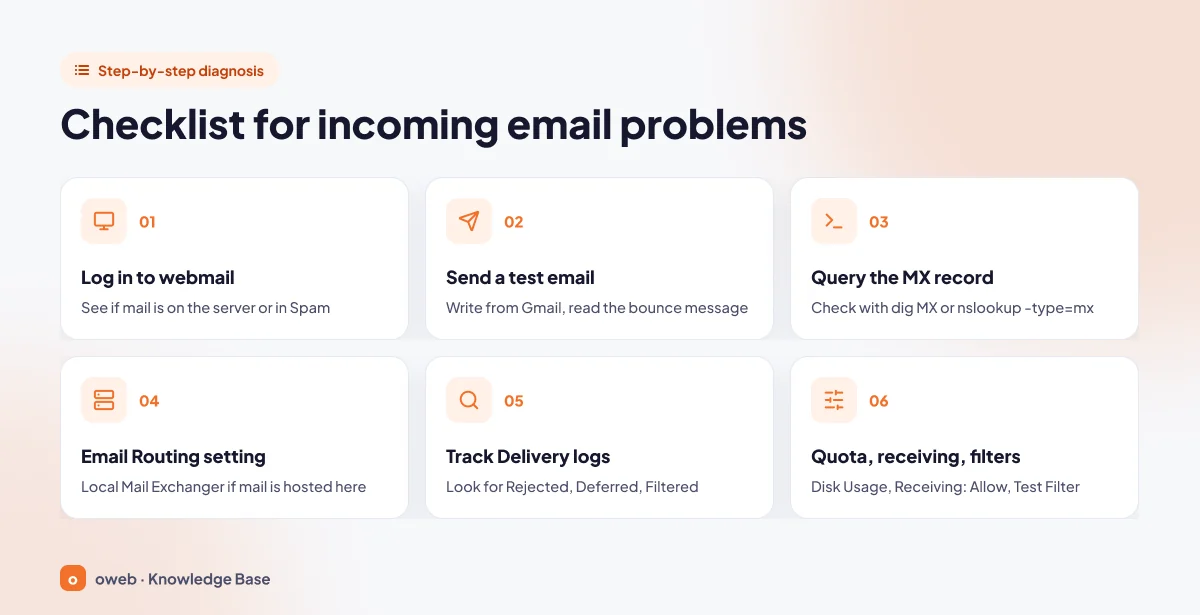
- Log in to webmail. Check whether the message is on the server and whether it landed in the Spam folder. If it shows up in webmail, the problem is in your client. Skip to the section "If email does not show up in Outlook or on your phone".
- Send a test email from another account. Write to your business address from your personal Gmail or Outlook.com account. If you get a bounce message, read its text. Codes such as 550 5.1.1, 452 4.2.2 or 550 5.7.1 tell you the cause directly.
- Look up the MX record. Use
dig MX example.com +shortornslookup -type=mx example.comto confirm that the record points to the correct server. - Check the Email Routing setting. Under cPanel » Email » Email Routing, Local Mail Exchanger should be selected if your email is hosted on this server.
- Review the Track Delivery logs. In cPanel » Email » Track Delivery, enter your address in the Recipient Email field. Use Show Blocked & Failed to review Rejected, Deferred and Filtered entries.
- Check quota and filters. Check the space used on the Email Disk Usage and Email Accounts screens, and confirm that Receiving Incoming Mail is set to Allow. Then review the rules in Email Filters, Global Email Filters and Spam Filters.
Back up the current state before you change any DNS records or email settings. Take a screenshot of the records in Zone Editor, or copy every record (type, name, value, priority, TTL) into a text file. If your DNS is hosted with another provider that offers zone export, you can use that too. Write down your Email Routing and filter settings. You can only undo a change that goes wrong quickly if you know the old values.
How do you check the MX record?
You can look up the MX record from your own computer without touching the server. In the commands below, replace example.com with your own domain name. Adding 8.8.8.8 to the query makes your computer ask Google's public DNS resolver instead of your default resolver (your router or internet provider). Keep in mind that this resolver can also cache the answer for the length of the TTL.
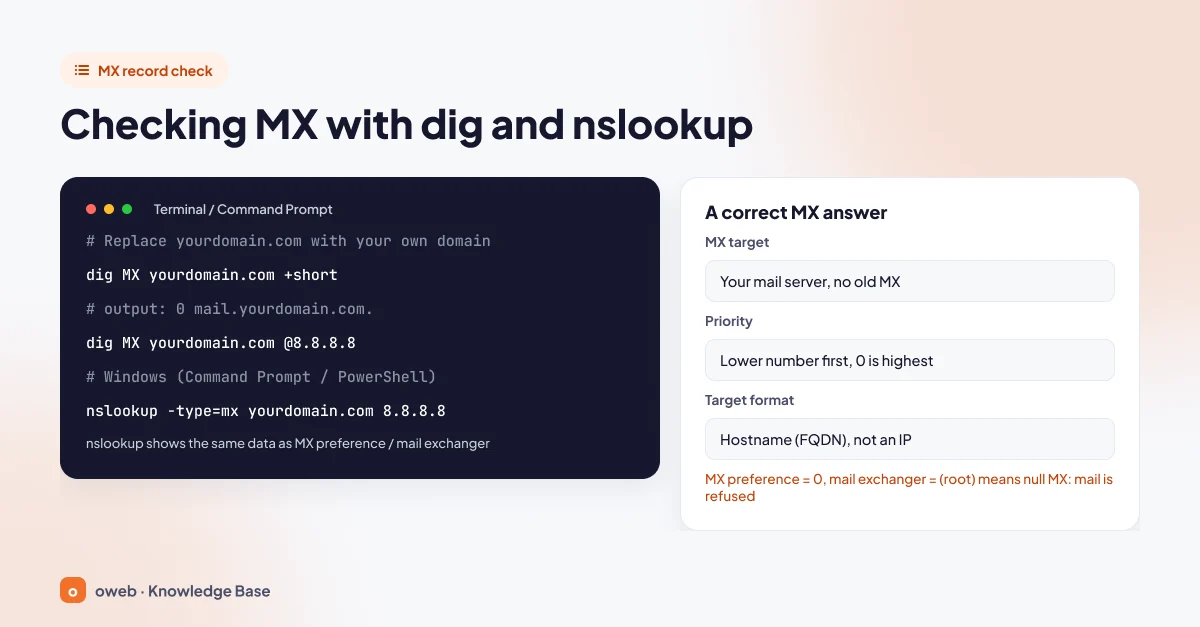
# Linux or macOS
dig MX example.com +short
dig MX example.com @8.8.8.8

# Windows (Command Prompt or PowerShell)
nslookup -type=mx example.com 8.8.8.8

# To check the IP address of the MX target
dig A mail.example.com +short
A typical correct response looks like this. dig prints the preference value first and then the server name. nslookup gives the same information with the labels "MX preference" and "mail exchanger":
0 mail.example.com.

example.com  MX preference = 0, mail exchanger = mail.example.com
What should a correct MX response look like?
- The MX points to the server that actually hosts your email: your hosting server,
smtp.google.comfor Google, or the value given by Microsoft 365. - No MX record from a previous provider is left.
- A lower number means higher priority, and 0 is the highest priority.
- The target is a fully qualified domain name (FQDN), not an IP address, and the A record for that name returns the IP of the correct server.
If the output shows MX preference = 0, mail exchanger = (root), you are looking at a null MX record. According to RFC 7505, this record declares that the domain does not accept email, and sending servers will reject messages to it. Unless it was added on purpose, replace it with the correct MX.
If you prefer not to use the command line, you can also check the MX record from your browser with our DNS lookup tool.
Fixing the MX record in cPanel
If your domain uses your hosting server's DNS, edit the MX record under cPanel » Domains » Zone Editor. Click the MX Record button next to the domain, fill in the Priority and Destination fields and save with Add An MX Record, or change the existing record from the Manage screen. If your domain uses another DNS provider, make the change in that provider's control panel instead.
What do bounce message codes mean?
The most valuable piece of evidence is the error message returned to the sender (a bounce or NDR). It contains a basic SMTP reply code and a three-part enhanced status code. Ask the sender for the full message as text.
How the codes work: 4xx temporary, 5xx permanent
According to RFC 3463, 2.X.X means success. 4.X.X is a temporary error, which RFC 3463 calls a "persistent transient failure": the message is valid, but a temporary condition has delayed delivery. 5.X.X is a permanent error, and if the message is resent unchanged it will most likely fail again. RFC 5321 recommends that the retry interval after a temporary error should generally be at least 30 minutes, and that the sender should generally keep trying for at least 4-5 days before giving up. So if you fix a 4xx error quickly, the queued message may still get through.
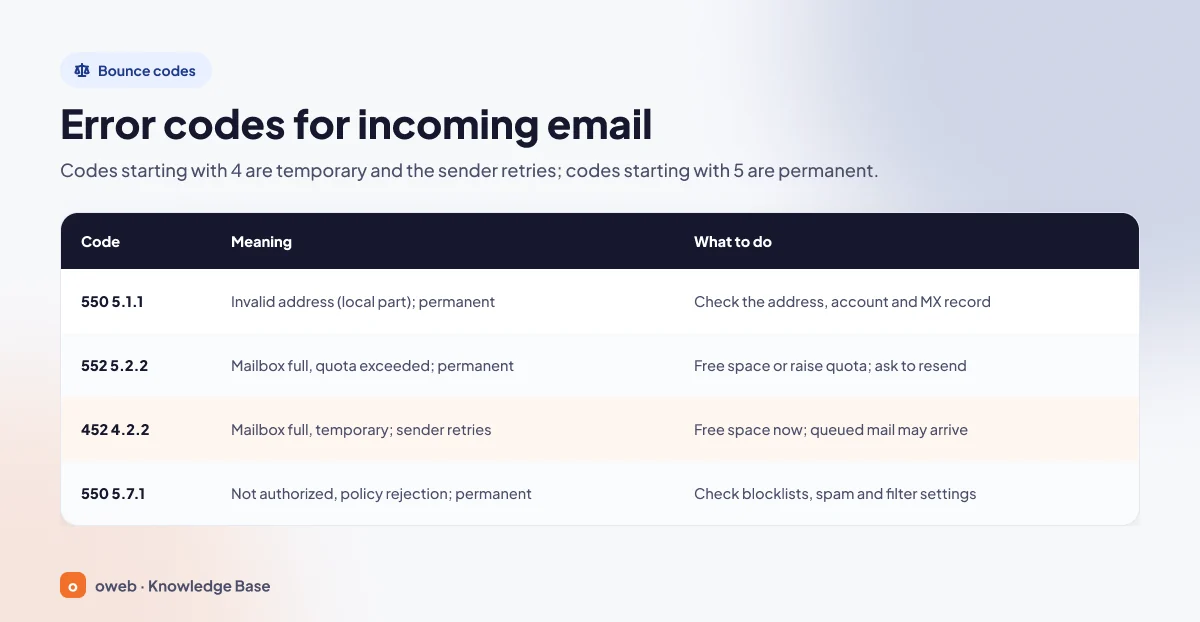
| Code | Meaning | What to do |
|---|---|---|
| 550 5.1.1 | The destination mailbox does not exist; the part before the "@" is invalid. Permanent error. | Check the spelling of the address and that the account exists on the server. Confirm the MX points to the correct server. |
| 552 5.2.2 | The mailbox is full; the quota or capacity has been exceeded. Permanent error. | Delete old and large messages or increase the quota, then ask the sender to resend the message. |
| 452 4.2.2 | The mailbox is full. Temporary error; the sending server will retry. | Free up space right away. The queued message may then arrive. |
| 550 5.7.1 | Delivery not authorized; the message was rejected because of a policy or filter. Permanent error. | Check the blocked senders list, the blacklist and spam settings, and your filters. |
RFC 3463 classifies a full mailbox (X.2.2) as a temporary condition, but providers also return the same situation as 5.2.2, so you may see either code. The basic code can vary from server to server. The real meaning is carried by the enhanced status code (e.g. 5.7.1).
The exact error messages senders receive
If your domain's email is hosted on Google Workspace, the sender sees one of the messages from Google's list of SMTP error codes. If your email is on a cPanel server, the wording depends on your server's software. When the quota is full, cPanel's sample text is "Mailbox is full / Blocks limit exceeded / Inode limit exceeded". The code and its meaning are read the same way. These are the four lines you will see most often with incoming email problems on Google Workspace:
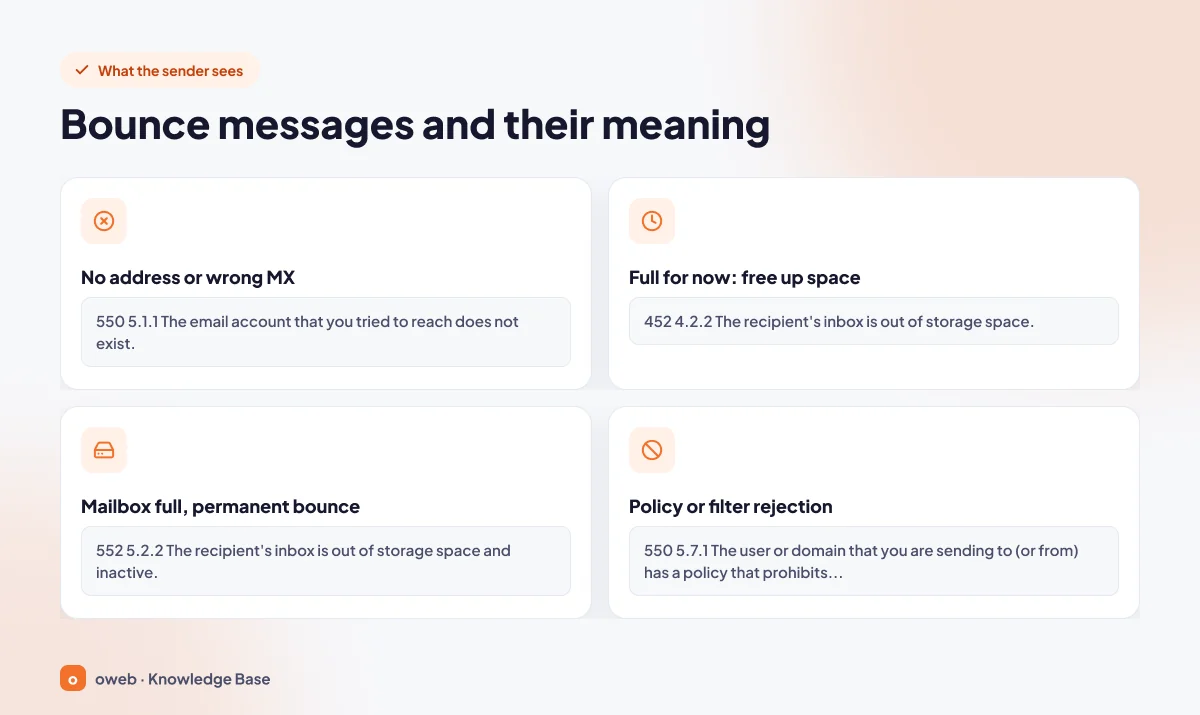
550 5.1.1 The email account that you tried to reach does not exist.The address does not exist on the server, or the MX points to the wrong server. If you still need to create the account, follow our guide to creating a business email address.452 4.2.2 The recipient's inbox is out of storage space.The mailbox is full. The sending server will retry, so free up space right away.552 5.2.2 The recipient's inbox is out of storage space and inactive.The mailbox is full and the rejection is permanent. The message has to be sent again.550 5.7.1 The user or domain that you are sending to (or from) has a policy that prohibits the email that you sent.A policy or filter rejection. Check your blocking and spam settings.
How long should you wait after changing the MX record?
When you fix the MX record, the change does not reach everyone at once. DNS resolvers cache the old answer for the length of the record's TTL. With a TTL of 3600, the old answer is refreshed in about an hour. Google says MX changes can take up to 72 hours to be recognized across the internet. Microsoft states that Exchange Online only supports TTL values shorter than 6 hours (21,600 seconds).
During the transition, some messages may still be delivered to the old server, so check the old mailbox once the switch is complete. We explain why these times vary in our article How long does DNS propagation take?
Avoid these mistakes while troubleshooting. Do not delete MX records unless you know what they are for. Do not leave the MX records of both the old and new provider in place together. Do not turn off encryption when you get a connection error; use the correct port and SSL/TLS setting instead. If you use more than one device, do not enable deletion from the server in POP3. Do not copy example.com or the server names in the examples as they are.
Fixing it in cPanel and Plesk
If the MX record is correct, the next step is the server settings. Interface names follow the official documentation. Menus may look different depending on the features your provider has enabled.
cPanel
Fixing the Email Routing setting
- Open cPanel » Email » Email Routing and select your domain.
- Under Configure Email Routing, choose Local Mail Exchanger if your email is hosted on this server, or Remote Mail Exchanger if you use Google Workspace or Microsoft 365.
- Save with the Change button and send another test email from a different account.
Automatically Detect Configuration only reads the local DNS zone (the zone file). It does not run a real DNS lookup and does not change by itself when the MX is updated. If you manage your MX at another DNS provider, set this option manually.
Tracing a message with Track Delivery
According to the cPanel documentation, the Track Delivery interface lists the last 250 messages sent to and from your mailboxes by default. When you enter your address in the Recipient Email field, the entries for that address and the Email Address Trace diagram appear. Look at the Event column.
Success means the message was delivered, and the problem is most likely in a filter, a folder or the client. Deferred points to a temporary delay, Rejected to a rejection, Error to a delivery failure and Filtered to a filter. If no entry appears for your test message, it most likely never reached your server. The screen shows only the last 250 messages by default, and only messages with eximstats data, so run the test with a fresh message. Then go back to the MX record and the Email Routing setting.
Disk usage and quota
The Email Disk Usage interface lists mailboxes with their message count and the space they use. The Manage menu offers cleanup options such as "1 year old or more", "30MB in size or more", "Previously viewed", "All messages" and "Custom query…". The Delete Permanently button in the final step removes messages for good, so back up important messages first. To increase the quota, open the Manage link next to the account on the Email Accounts screen and set a new value under Allocated Storage Space. In the Restrictions section of the same screen, also confirm that Receiving Incoming Mail is set to Allow.
Filters and spam settings
On the Email Filters screen, select Manage Filters for your account. Type a sample message in the Filter Test box and click Test Filter, and Filter Trace Results shows the outcome of each condition. If it says "Normal delivery will occur", the filter is not blocking the message. Also check the Global Email Filters screen for rules that apply to all email addresses on all domains in your account. In Spam Filters, check the Auto-Delete option and the Blacklist. You can add senders you trust to the Whitelist (Emails Always Allowed).
Plesk
In Plesk, the mail service is managed under Websites & Domains » domain » Mail Settings. According to the Plesk documentation, Enabled turns on both incoming and outgoing mail. Disabled for incoming mail in Plesk for Linux allows sending only, so with this option selected you can send but not receive. If you use an external mail service, the local mail service should be turned off. Be careful with the Not configured option, because it permanently deletes mailboxes along with their messages.
If email does not show up in Outlook or on your phone
If the message shows up in webmail but you find Outlook not receiving emails, the server side is fine and the problem is in how the client uses the account. First find out whether the account was set up as IMAP or POP3. IMAP is the better choice if you use more than one device.
If you use POP3 in classic Outlook, follow the steps in Microsoft's documentation: go to File » Account Settings » Account Settings, select the POP3 account, then Change » More Settings » Advanced tab, and under Delivery check "Leave a copy of messages on the server". If you use more than one computer, check this option on each of them. If you want other devices and webmail to keep seeing messages, also turn off the option in the same section that removes messages from the server after a set number of days. Messages that were already downloaded and deleted from the server will not come back. They exist only in the Outlook data file on that computer, so back up that file.
If you use IMAP, check which folder the message is in. A folder that a filter moved the message to may not be visible in your client. To set up the account correctly from scratch, use our Outlook email setup guide.
Before you delete and re-add the account on your phone, search for the message in webmail. If it is there, the problem is on the device. If it is not, go back to the server side.
What should you include when opening a support ticket?
If these steps do not solve the problem, ask your hosting provider for help. Oweb customers can open a support ticket from the client area. Sending the following details in one go speeds up the fix:
Affected address: [email protected]
Direction of the problem: Sending works, incoming email does not arrive
Start time: (date and approximate time)
Test sender address and time: (e.g. your personal Gmail address, 14:05)
Full text of the bounce message: (copy and paste)
MX lookup output: (result of dig MX example.com +short)
Recent changes: (nameservers, MX, provider migration, etc.)
Frequently asked questions
Why can I send email but not receive it?
Sending goes from your client to your own SMTP server with authentication. Receiving depends on the sender's server looking up your MX record. If the MX is wrong, Email Routing is misconfigured, the quota is full or incoming mail is suspended, receiving stops while sending keeps working.
Why are emails from cPanel not arriving after moving to Google Workspace?
Because the MX now points to smtp.google.com, new messages are delivered to Google. If messages from your website's forms are not reaching Google, Email Routing in cPanel is most likely still set to Local. Select Remote Mail Exchanger and test again.
What happens when the email quota is full?
A full mailbox cannot receive new messages, and messages bounce back to the sender. The sender sees an error that depends on the receiving server: on Google Workspace it is 452 4.2.2 or 552 5.2.2, and on cPanel it is a message such as "Mailbox is full". Deleting old and large messages or increasing the quota fixes the problem.
What is the difference between 452 4.2.2 and 552 5.2.2?
Both mean the mailbox is full. 452 4.2.2 is temporary: the sending server keeps the message in its queue and retries. 552 5.2.2 is a permanent rejection: after you free up space, the message has to be sent again.
How long does an MX record change take to work?
It depends on the record's TTL and on resolver caches. With a TTL of 3600 seconds, the old answer is refreshed in about an hour. Google says it can take up to 72 hours.
Does POP3 delete messages from the server?
It depends on the client's settings; the protocol itself does not require deletion. Outlook, for example, deletes messages from the server by default after downloading them in a POP3 account, so your phone and webmail can no longer see them. In Outlook, check "Leave a copy of messages on the server" or set up the account as IMAP.
Will I still receive email after my domain expires?
Possibly not. It depends on how the registrar handles DNS for an expired domain. If the registrar suspends or parks the domain, the MX record may no longer point to your server. After renewing, check that your DNS and MX records are back to their previous values.
Conclusion
Once you understand that sending and receiving are two separate paths, the can send but not receive email problem is no longer complicated. Use a webmail test to rule out the client, narrow down the cause with the bounce code, look up the MX record from outside, and then check Email Routing, Track Delivery, quota and filters. Save your current settings before making changes, and wait for the TTL to expire after an MX change.
If you are looking for a business email service that runs on your own domain, take a look at Oweb's corporate email service. The menu names and codes in this guide come from cPanel, Plesk, Google, Microsoft and IETF documentation. Interfaces may change over time.