


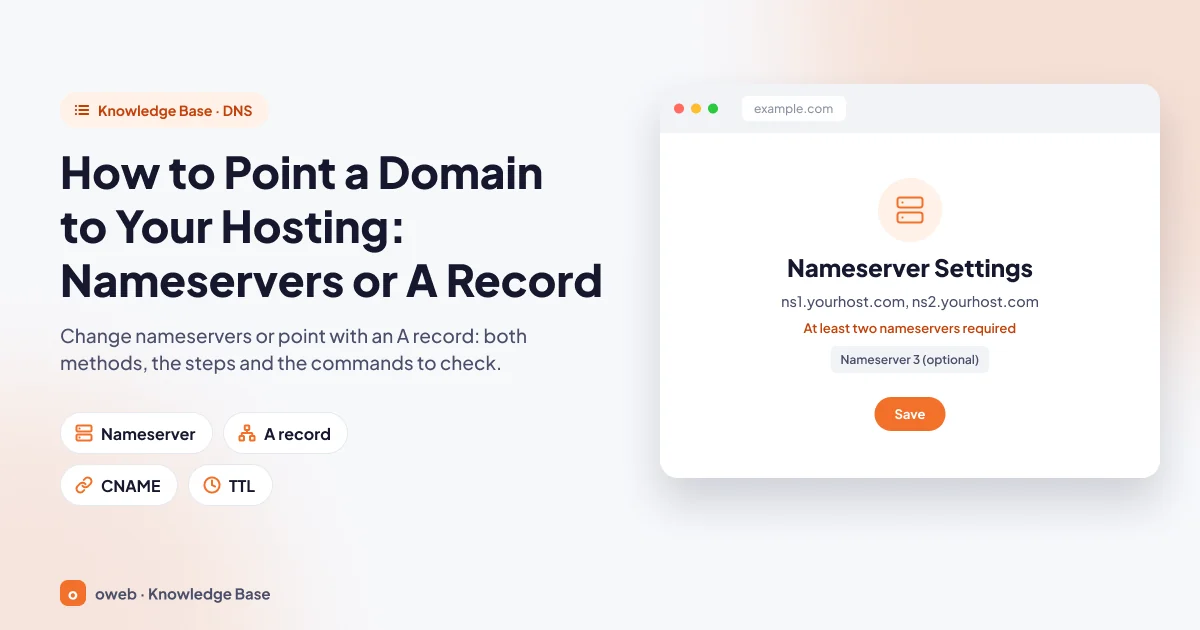
There are two ways to point a domain to your hosting: either you replace the nameservers (NS) at your domain registrar with the two or more nameservers your hosting provider gives you, or you leave DNS where it is and add A records that point the root domain (@) and www to your server's IP address (a CNAME works for www if you prefer). With either method, the domain must also be added to your hosting account.
Quick summary
- There are two ways to connect a domain to hosting: changing the nameservers (DNS management moves to the hosting panel) and pointing it with an A record (DNS stays at the registrar or in Cloudflare).
- With the nameserver method, you enter at least two nameservers; the DNS standard (RFC 1034) requires every zone to be reachable through at least two name servers.
- Once you change nameservers, the MX, TXT and other records at the old DNS provider are no longer read; to keep email working, those records must also exist in the new zone.
- With the A record method, you add an A record for @ and either a CNAME or an A record with the same IP for www; a CNAME is not used for @.
- A nameserver change usually becomes visible within a few hours; full propagation to all resolvers typically takes 24-48 hours and, rarely, longer. An A record change becomes visible once the old record's TTL expires.
- If DNSSEC is enabled, remove the DS record before changing nameservers and wait until the old DS record's TTL has expired; otherwise the site may fail to load with a SERVFAIL error.
- SSL issued through HTTP validation (cPanel AutoSSL or Let's Encrypt HTTP-01) can only be generated after the domain points to the new server.
Is pointing a domain the same as domain forwarding?
"Domain redirection" is often used for two different things; this guide covers the first one. The phrase "pointing a domain with an A record" in the title also refers to connecting it through DNS.
- Connecting through DNS: Deciding which server's IP address your domain resolves to. ICANN describes DNS as the system that maps domain names to the numeric IP addresses computers use, in other words, the address book of the internet. Nameserver and A record settings live at this layer.
- HTTP redirect (301/302): Sending visitors from one address to another (for example, from the non-www address to the www address). This is done on the web server or with the panel's redirect tool.
DNS only answers the question "which address does this name live at?"; it cannot send a 301 redirect. First you connect the domain through DNS, then, if needed, you set up a redirect on the server.
Nameservers or an A record? How the two methods differ
Both methods work; the right choice depends on who will manage your DNS and where your email is hosted.
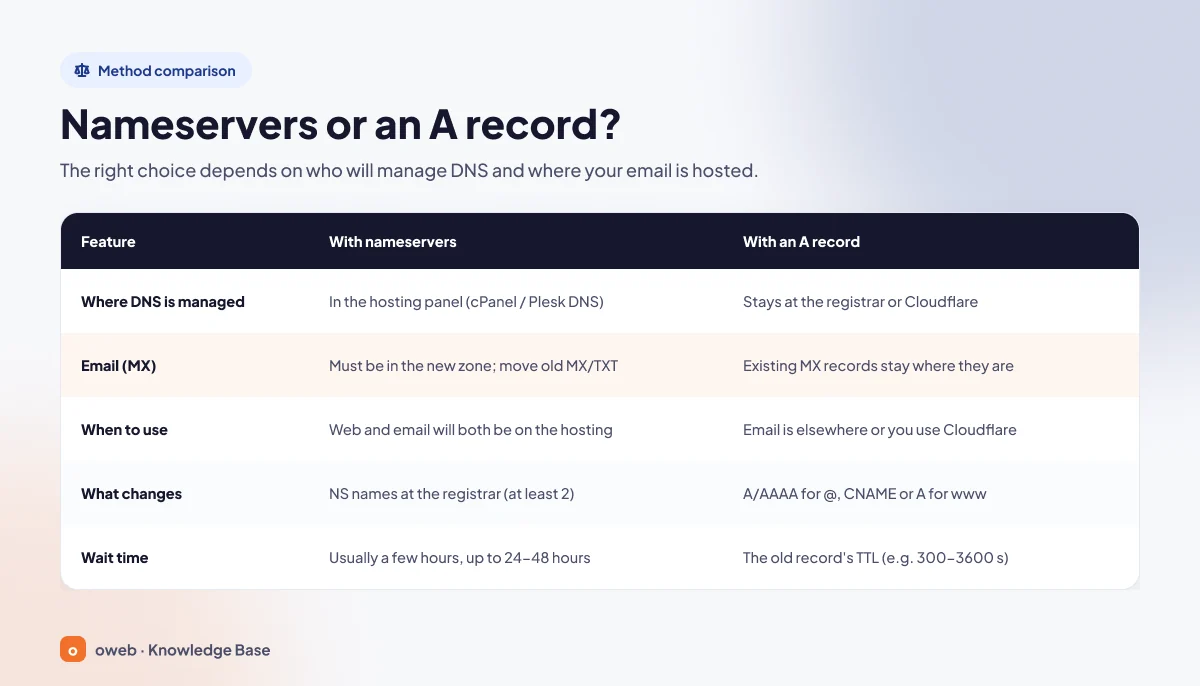
| Feature | With nameservers | With an A record |
|---|---|---|
| Where DNS is managed | In the hosting panel (cPanel Zone Editor / Plesk DNS) | Stays at the registrar or in Cloudflare |
| Email (MX) records | Must exist in the new zone on the hosting side; old MX/TXT records must be moved | Existing MX records stay where they are |
| When it fits | When all services (web + email) will be on the hosting | When only the website moves and email is elsewhere, or when you use Cloudflare |
| What changes | NS names at the registrar (at least 2) | A record for @ (AAAA if you have IPv6), CNAME or A for www |
| Waiting time | Usually a few hours, up to 24-48 hours | As long as the old record's TTL (e.g. 300-3600 s) |
Rule of thumb: if your DNS only holds records for the website and your email will also be on the hosting, the nameserver method involves less work. If your email runs on another service such as Google Workspace or Microsoft 365, if you have verification TXT records, or if you use Cloudflare, the A record method carries less risk.
Before you start: preparation steps
Adding the domain on the hosting side (cPanel / Plesk)
This is the most frequently skipped step. A single server hosts many sites, and the server works out which site a request belongs to by looking at the domain name. Even if DNS points to the right IP, the server shows a default page when the domain has not been added to the account. If you need the basics of cPanel, see our guide What is cPanel and what is it used for.
If you opened your hosting package with this domain, it is already set up as the primary domain. Only follow the steps below if you are connecting an additional domain to the account; trying to add the same domain again returns an error.
Adding a domain in cPanel
- In cPanel, open the Domains interface in the Domains section.
- Click Create a New Domain.
- Select Registered Domain and type your domain name in the Domain field (e.g. yourdomain.com).
- If the site will not use the same folder as the primary domain, uncheck the Share document root checkbox and set the site's folder in the Document Root (File System Location) field. This checkbox appears only if your hosting provider has enabled it.
- Click Submit; the domain appears in the list.
For details, see cPanel's official Create a New Domain documentation.
Adding a domain in Plesk
- In Plesk, go to Websites & Domains and click Add Domain.
- In the Select your domain name step, choose Registered domain name and type your domain name.
- Fill in the Webspace settings section and finish with Add Domain.
When Plesk cannot resolve the domain, it shows a warning in the DNS section of that domain's Hosting & DNS tab. The options on screen may vary by Plesk version and edition; the current steps are in the Plesk Obsidian documentation.
Find your nameservers and server IP address
This information is usually in your welcome email or client area:
- Nameservers: There are at least two (e.g. ns1.yourhostingprovider.com and ns2.yourhostingprovider.com). If you were given three or four, enter all of them.
- Server IP address: The IPv4 address you will enter in the @ and www records with the A record method, plus the IPv6 address if your server has one.
Back up your existing DNS records
Once the nameservers change, the zone at the old provider is no longer queried; every record there stops working unless it is added to the new zone. Before the change, export the zone or take a screenshot of it:
- MX records and their priority values
- SPF, DKIM, DMARC and Google/Microsoft verification TXT records
- A and CNAME records for subdomains, plus any SRV and CAA records
Always take a backup before changing DNS records, site files or the database. If you do not know the old values, undoing a mistake can take hours.
Pointing a domain to hosting by changing nameservers
Changing nameservers means delegating your domain's DNS authority to your hosting provider's servers. According to RFC 1034, the NS records that show which servers a domain is delegated to are held in the parent zone (e.g. the .com or .com.tr zone). That is why this setting is changed in the panel of the company your domain is registered with, not in the hosting panel.
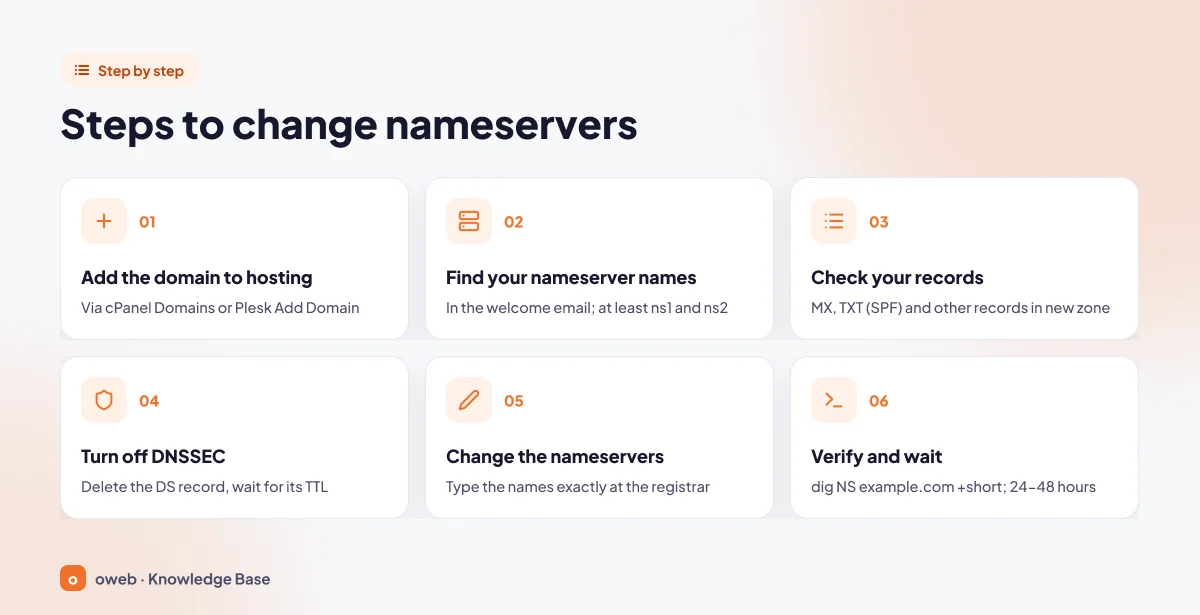
1. Add the domain to your hosting
If the domain is not set up on the account yet, complete the cPanel or Plesk steps above.
2. Get the nameserver names
Copy the names instead of typing them by hand; a single typo can stop the domain from resolving.
3. Check the records in the new zone
Open the DNS zone in your hosting panel. In cPanel, you do this in the Zone Editor interface with the Manage option next to the domain; the table shows the Name, TTL, Type and Record columns. Use Add Record to add the MX, TXT (SPF) and subdomain records you backed up.
4. Disable DNSSEC
DNSSEC may be enabled at your registrar or at your old DNS provider. If it is on, first delete the DS record at the registrar, then wait until the old DS record's TTL has expired before changing the nameservers; otherwise validating resolvers return a SERVFAIL response. Once the domain is working with the new provider, you can turn DNSSEC back on (details in the Cloudflare section).
5. Change the nameservers at your registrar
- Log in to the panel of the company your domain is registered with.
- Open the domain's nameserver settings and choose the custom nameserver option.
- Delete the old names, enter the names your hosting provider gave you exactly as written, and save.
6. Verify and wait
Check the new nameservers with dig NS yourdomain.com +short. Propagation to all resolvers usually takes 24-48 hours.
What are child nameservers and glue records?
Using nameservers under your own domain (such as ns1.yourdomain.com) creates a loop: to find the IP of ns1.yourdomain.com, you have to ask the nameserver of yourdomain.com, which is ns1.yourdomain.com itself.
If you use your hosting provider's ready-made nameservers
No extra step is needed; the IPs of these names are already defined, so you only enter the names at the registrar.
If you use nameservers under your own domain (child nameservers)
First, you define IP addresses for these names in your registrar's panel. Names such as ns1 and ns2 under your domain are called child nameservers, and the address records stored in the parent zone for them are called glue records. RFC 1034 explains that because NS records do not contain the server's address, the parent zone keeps these address records as glue. Your own DNS zone must also contain A records for the same names. For redundancy, ns1 and ns2 should ideally be on different servers with different IPs; two names pointing to a single IP defeats the purpose of the two-server rule.
The more recent RFC 9471 requires the name servers operating the parent zone to include all available glue records for in-domain nameservers in their referral responses; this is handled by the registry, not by you.
Changing nameservers for .tr domains
The process is the same for .com.tr, .net.tr and .tr domains, but keep these differences in mind:
- According to TRABİS, registrars act as intermediaries for operations such as registration, renewal and cancellation. That is why nameserver changes are made through the panel of the registrar the domain is registered with.
- Nameserver changes are not instant; it may take a few hours for them to be applied to the central zone, and seeing the old value in lookups during that time is normal.
- TRABİS states that DNSSEC is not an automatic system and that the zone data must be signed by the domain owner.
Pointing a domain to hosting with an A record
An A record is a DNS record that maps a name to an IPv4 address; according to RFC 1035, the record's address field is a 32-bit IPv4 address. With the A record method, you do not touch your nameservers; in whichever panel holds your DNS (registrar or Cloudflare), you only update the website records so they point to your hosting server's IP. Email and other records stay as they are.
The @ and www records
In zone file format, a standalone @ sign stands for the domain itself (the apex). For the site to load from both addresses, you need two records:
- A record for @: The value is your hosting server's IPv4 address.
- CNAME or A record for www: With a CNAME, the value is yourdomain.com; with an A record, you enter the same IP.
If your registrar already has an A record for @ or www (often a parking page), edit the existing record instead of adding a new one. If you leave two A records for the same name, resolvers return both and some visitors end up at the old address.
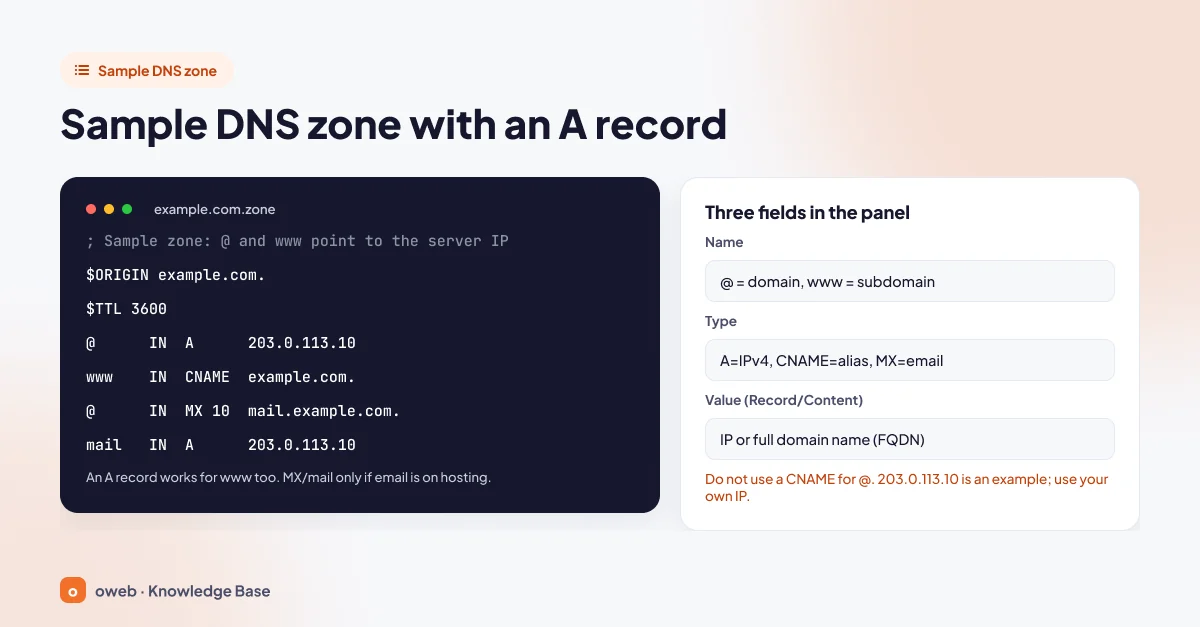
The sample zone lines below use 203.0.113.10. This address belongs to a block reserved for documentation by RFC 5737; you should use your own server IP.
$ORIGIN yourdomain.com.
$TTL 3600
@      IN  A      203.0.113.10
www    IN  CNAME  yourdomain.com.
; or: www  IN  A  203.0.113.10
@      IN  MX 10  mail.yourdomain.com.
mail   IN  A      203.0.113.10
The MX and mail lines are only needed if your email will also be on the hosting; if your email runs on another service, leave your existing MX records alone.
In control panels, these lines are split into three fields: you enter @ or www in the Name field, A, CNAME or MX in the Type field, and the IP address or fully qualified domain name (FQDN) in the Value (Record/Content) field. The trailing dot is only needed in the zone file; panels such as cPanel and Cloudflare usually do not require it and add it themselves.
CNAME or A record for www?
According to RFC 1034, if a name has a CNAME, no other data should exist at that name. Since the root domain holds NS, SOA and often MX records, a CNAME is not used for @. For www, both options are valid:
- CNAME for www: When the server IP changes, you only need to update the @ record; www follows automatically.
- A record for www: When the IP changes, you have to update both records.
AAAA record (IPv6)
According to RFC 3596, an AAAA record holds a single 128-bit IPv6 address. If your hosting provider has given you an IPv6 address, add AAAA records for @ and www as well. If you do not delete an AAAA record left over from your old provider, visitors on IPv6 will keep going to the old server.
@      IN  AAAA   2001:db8::10
www    IN  AAAA   2001:db8::10
The 2001:db8::10 in the example is also an IPv6 address reserved for documentation; replace it with your real address.
Lower the TTL in advance
TTL determines how long a record can be kept in caches. If the TTL is 86400 (one day), some visitors may see the old IP for up to a day. At least one current TTL period before the change (at least one day ahead if the TTL is 86400), lower the TTL of the @ and www records to 300-600 seconds. Old cached records are only refreshed with the short TTL once the old TTL expires, so lowering it at the last minute has no effect. When the migration is complete, you can raise the TTL again.
Lowering the TTL helps most with record changes such as A and MX. It does not fully speed up a nameserver switch, because the NS TTL in the parent zone (on the TLD side) is not under your control; still, lowering the TTL of the records at the old provider in advance shortens how long old answers stay in caches.
If you use Cloudflare DNS
If your domain's nameservers point to Cloudflare, your DNS is managed in Cloudflare. In that case, you do not change the nameservers to connect to your hosting; you apply the A record method in the Cloudflare DNS dashboard.
Adding an A record in Cloudflare
- In the Cloudflare dashboard, select your domain and open the DNS > Records page.
- Click Add record and choose A as the Type.
- Enter @ in the Name field and your hosting server's IP address in the IPv4 address field (this value appears in the Content column of the record list).
- Set the Proxy status and TTL, then click Save.
- Repeat the same steps for www: choose CNAME as the Type and enter your domain as the target, or add an A record with the same IP.
Knowing how the proxy behaves makes verification easier:
- Only A, AAAA and CNAME records can be proxied; MX and TXT records always work as DNS only (they are not proxied).
- A DNS query for a proxied record is answered with Cloudflare's anycast IP addresses instead of your hosting IP. In that case, not seeing your own server IP in the
dig Aoutput is normal. - The TTL of proxied records is fixed at Auto (300 seconds); for DNS only records, you can choose a TTL between 60 seconds and 1 day.
- Cloudflare allows a CNAME at the apex through its CNAME flattening feature; this is not possible in standard DNS.
SSL mode: Full or Full (strict)?
When the proxy is on, the SSL/TLS encryption mode determines how the connection between Cloudflare and your server (the origin) is encrypted. As of November 2026, the default mode is Automatic SSL/TLS; the dashboard may look different depending on your account. If you choose a mode manually:
Full
Cloudflare connects to your server over HTTPS but does not validate the certificate; a self-signed certificate is also accepted.
Full (strict)
Your server needs a valid certificate: either one from a public certificate authority such as Let's Encrypt or a Cloudflare Origin CA certificate. This is the recommended long-term mode once a valid certificate is in place on the server.
Flexible
Cloudflare connects to your server over HTTP. If HTTPS is enforced on the server, a redirect loop can occur. The modes are described in detail in the Cloudflare SSL/TLS encryption modes documentation.
DNSSEC before switching nameservers to Cloudflare
If you are moving your domain to Cloudflare for the first time, the order matters. Cloudflare's official setup steps are: get the nameservers assigned to you from the Overview page, disable DNSSEC at your registrar, remove the old nameservers and enter Cloudflare's exactly as shown, then wait up to 24 hours. Once the domain is activated, the status changes to Active; if the process is not completed, the status stays at Pending Nameserver Update.
Why shouldn't you skip the DNSSEC step? According to Cloudflare's explanation, if you change nameservers before the old DS record's TTL has expired, the cached DS records do not match the new provider's keys and validating resolvers return SERVFAIL. Once the domain is active, you can turn DNSSEC back on at the new provider and add the new DS record at your registrar.
How do I check that my domain is pointing to my hosting?
Your browser cache can mislead you; the most reliable way is to query DNS directly. Use dig on macOS and Linux, and nslookup on Windows. On some Linux distributions, dig comes in a separate package (e.g. dnsutils or bind-utils).
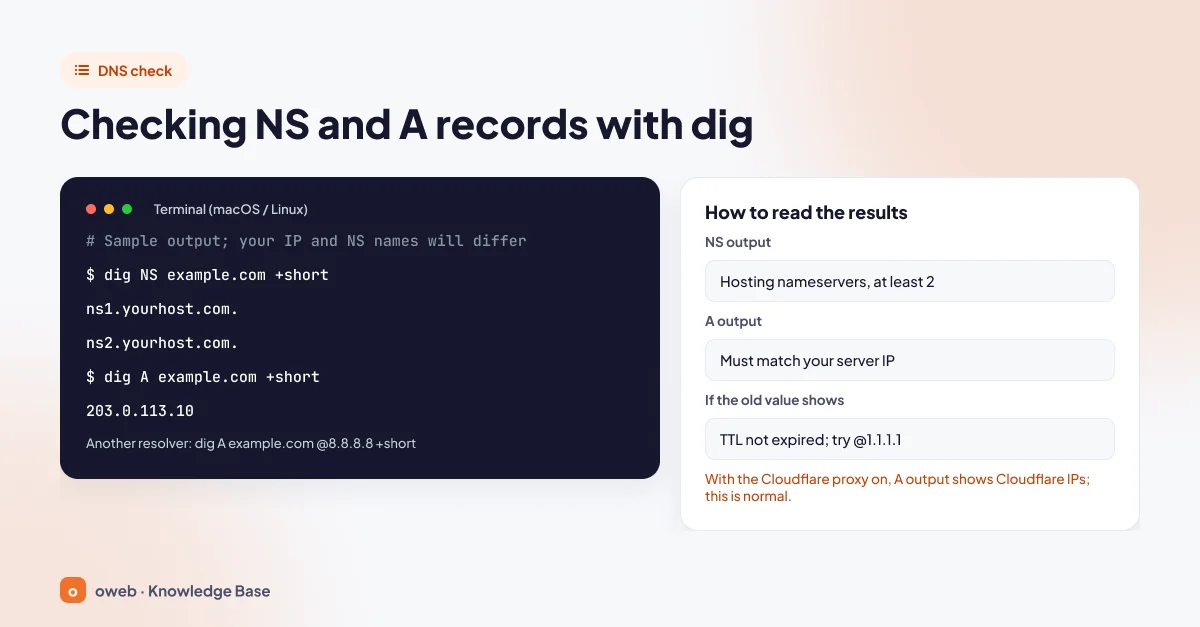
$ dig NS yourdomain.com +short
ns1.yourhostingprovider.com.
ns2.yourhostingprovider.com.

$ dig A yourdomain.com +short
203.0.113.10

$ dig A www.yourdomain.com +short
yourdomain.com.
203.0.113.10

$ dig NS yourdomain.com @8.8.8.8 +short
ns1.yourhostingprovider.com.
ns2.yourhostingprovider.com.
On Windows, you can run the same checks with the first two commands and clear the local DNS cache with the last one:
nslookup -type=ns yourdomain.com 8.8.8.8
nslookup yourdomain.com 1.1.1.1
ipconfig /flushdns
How to read the results
- NS output: Your hosting provider's nameservers should appear on at least two lines.
- A output: It should match your server IP.
- www query: If you used a CNAME, the CNAME target appears first, followed by the IP.
- If you see the old value: Most likely the cached record's TTL has not expired yet. Compare by sending the same query to a different resolver such as @8.8.8.8 or @1.1.1.1.
ipconfig /flushdnsclears the Windows cache. - If the Cloudflare proxy is on: The A output shows Cloudflare IPs, not your hosting IP. This is not an error.
If you would rather not use the command line, you can check your domain's DNS records from your browser with Oweb's DNS lookup tool.
The whois command shows the nameservers listed at the registrar, but as of January 28, 2025, ICANN made RDAP the authoritative source for registration data in generic TLDs (gTLDs) and largely removed the WHOIS requirement. Because some companies have shut down their WHOIS service, whois may return no results; dig or nslookup is more reliable for verifying the connection.
How long does it take to point a domain to hosting?
"Propagation" is not a copying process. Resolvers (your ISP's DNS servers and public resolvers such as 8.8.8.8 and 1.1.1.1) keep the answer they receive in their cache for the duration of the TTL and ask again when it expires. That is why some visitors see the new site while others still see the old one.
- Nameserver change: Usually visible within a few hours. Cloudflare states this can take up to 24 hours, and some sources say propagation can, rarely, stretch to 72 hours. A practical expectation is 24-48 hours.
- A record change: Takes as long as the old record's TTL; if you lowered the TTL in time, it can be complete within minutes.
- .tr domains: There may be an extra delay of a few hours.
The right order for a zero-downtime switch
- Lower the TTL of the A and MX records and wait for the length of the old TTL.
- Upload the site to the new hosting and make sure it works.
- Optionally, add the domain with the new IP to your computer's hosts file to preview the site before DNS changes; delete that line when testing is done.
- Back up the DNS records and move them to the new zone.
- Change the nameservers or the A record, then verify with dig.
- Keep the old hosting account open for a few days so visitors and emails coming through resolvers that update late are not lost.
The hosts file is located at C:\Windows\System32\drivers\etc\hosts on Windows and /etc/hosts on macOS and Linux, and it is edited with administrator privileges; make a copy of the file before editing it. Sample line:
203.0.113.10 yourdomain.com www.yourdomain.comAfter connecting: SSL and email
SSL certificate
Once the domain points to the new server, it is time for HTTPS. You can learn what an SSL certificate is and how it works in our guide What is an SSL certificate. AutoSSL and Let's Encrypt certificates are domain validated (DV): the certificate authority verifies that you control the domain. With HTTP-01, the most common method, this means the domain must point to your server.
- cPanel AutoSSL: Issues domain validated (DV) certificates. The Has AutoSSL Problems filter in the SSL/TLS Status interface lists issues such as the domain not resolving to an IPv4 address on the internet. AutoSSL will not succeed until DNS resolves to the right place.
- Let's Encrypt: HTTP-01 validation only works on port 80 at the
/.well-known/acme-challenge/<TOKEN>path and cannot be used for wildcard certificates. If you need a wildcard certificate, or if the domain does not point to the server yet, you can use DNS-01 validation, which works with an_acme-challengeTXT record.
Once the certificate is issued, enable the HTTPS redirect with the Force HTTPS Redirect option in cPanel's Domains interface or in your server configuration. This is also the stage to decide whether the www or non-www address will be your primary address and to redirect the other one to it with a 301.
Email and MX records
An MX record has two fields: the priority (the lower number is tried first) and the name of the server that accepts email.
- Nameserver method: Email is now routed according to the zone on the hosting. If your email runs on another service, you must add that service's MX, SPF, DKIM and verification records to the zone in your hosting panel.
- A record method: MX records stay where they are; you only update the MX if you are also moving email to the hosting.
For the structure of MX records and how priority works, see our guide What is an MX record.
If you cannot receive email after changing nameservers, the first place to look is the MX record in the new zone. The MX record at the old provider loses effect as the nameserver change propagates to resolvers.
Common mistakes and how to fix them
Below, we have grouped the most common problems when pointing a domain by symptom.
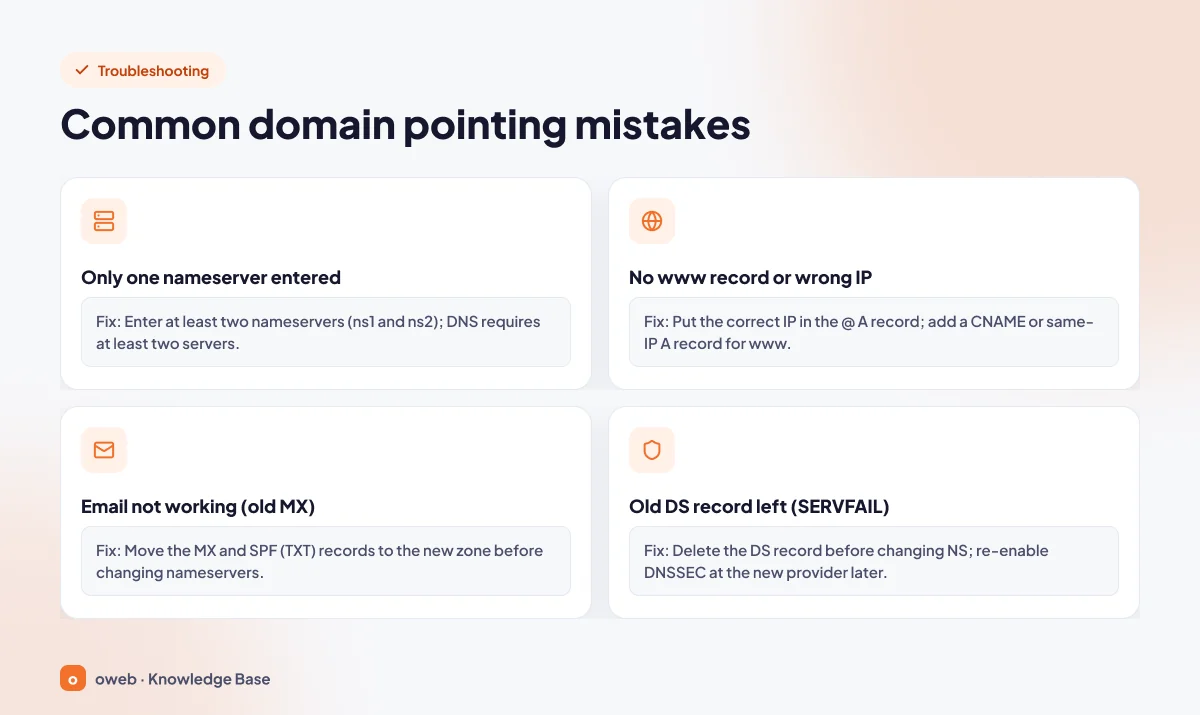
| Symptom | Possible cause | Fix |
|---|---|---|
| The registrar does not accept the nameservers | Only one nameserver was entered, a name was misspelled, or there is no glue for a child nameserver | Enter at least two nameservers and copy the names; if you use nameservers under your own domain, define the IPs (glue) first |
| The site only loads without www | There is no www record | Add a CNAME (yourdomain.com) or an A record with the same IP for www |
| The old site, a parking page or another site appears | Wrong IP in the A record, a second (old) A record for the same name, an old AAAA record or caching | Correct the @ and www records with the right IP, delete extra A and old AAAA records, and wait for the TTL to expire |
| The server's default page opens | The domain has not been added to the hosting account | Add the domain with cPanel Domains or Plesk Add Domain |
| Email is not arriving | The nameservers changed, but MX and SPF were not moved to the new zone | Add the MX and SPF (TXT) records to the new DNS zone |
| The site does not load at all for some users (SERVFAIL) | An old DNSSEC DS record remains at the registrar | Delete the DS record; turn DNSSEC back on later at the new provider |
| An SSL warning appears or the certificate is not issued | DNS does not point to the server yet, a CAA record does not allow the certificate authority, or the Cloudflare SSL mode is incompatible | Verify the A record with dig and check the CAA record, then wait for AutoSSL to run; once a valid certificate is on the server, switch Cloudflare to Full (strict) mode |
Frequently asked questions
How long does it take to connect a domain to hosting?
A nameserver change usually becomes visible within a few hours; full propagation to all resolvers typically takes 24-48 hours and, rarely, longer. An A record change becomes visible once the old record's TTL expires.
What happens to my email when I change nameservers?
The MX records at the old DNS provider stop working. For email to keep working without interruption, the MX, SPF, DKIM and DMARC records must exist in the new zone. If you do not want to touch your email, choose the A record method.
Can my domain and hosting be with different companies?
Yes. Your domain can be registered with one company and your hosting with another. You connect them by changing the nameservers or with an A record; there is no need to transfer the domain.
How many nameservers do I need to enter?
At least two. RFC 1034 requires every zone to be reachable through at least two name servers. If your hosting provider has given you more nameservers, enter all of them.
Why doesn't my site load with www?
Most likely there is no record for www. Add a CNAME for www (value: yourdomain.com) or an A record pointing to the same IP in your DNS zone.
Why does my .com.tr domain take longer to load?
Nameserver changes for .tr domains are not instant; the information you enter in the registrar's panel takes effect only after it is applied to the central zone. This can mean an extra wait of a few hours.
SSL will not install. What should I do?
First, confirm with dig A yourdomain.com +short that the domain resolves to your server IP. AutoSSL and Let's Encrypt, which use HTTP validation, cannot issue a certificate until the domain points to the server. Also check any CAA record and the SSL mode in Cloudflare.
Conclusion
Pointing a domain to hosting comes down to one decision: will you move your DNS to the hosting panel, or leave it where it is and only change the @ and www records? If your website and email are on the same hosting account, changing the nameservers keeps things simple. If your email runs on another service or you use Cloudflare, pointing the domain with an A record is the safer route. Either way, the order is the same: add the domain to your hosting account, back up your records, check TTL and DNSSEC, make the change and verify it with dig.
If you need a new domain, you can search for one on our domain registration page and compare suitable plans for your site on our web hosting page. If you are an Oweb customer and get stuck on any of the steps, you can open a support ticket that includes your domain name and your dig output.