


The short answer to how long DNS propagation takes is this: when you change a record such as A, CNAME or MX, the new value becomes visible no later than the moment the old record's TTL (Time to Live) expires, which is usually somewhere between 5 minutes and 1 hour. For a nameserver change, the parent zone cache limit for .com and .net is roughly 48 hours (not counting the registrar's processing time); in practice it usually takes less.
The measurements in this guide were taken on November 25, 2026 by sending queries directly to the parent zone servers; the rules are based on the DNS standards and on Google and Cloudflare documentation.
Short answer: how long does a DNS change take to show up?
- DNS propagation is not a "distribution" process; it is caches expiring. The change takes effect immediately on the authoritative DNS server, and resolvers keep serving the old answer until its TTL runs out.
- An A record change takes at most as long as the old record's TTL: 300 seconds = 5 minutes, 3600 seconds = 1 hour, 86400 seconds = 24 hours.
- A nameserver change depends on the TTL of the NS records in the parent zone. In our November 25, 2026 measurement, this value was 172800 seconds (48 hours) for .com/.net and 43200 seconds (12 hours) for .com.tr.
- A newly added record may not appear until the negative cache period expires if it was queried before it existed and the "does not exist" answer was cached (RFC 2308).
- Google Public DNS generally keeps records in its cache for no more than 6 hours, even when the TTL is longer.
- For record changes, the only reliable way to shorten the wait is to lower the TTL at least one old TTL before the change. Lowering it after the change has no effect on the old record already in caches, and the NS TTL in the parent zone is not under your control.
- Cloudflare's Auto TTL is 300 seconds; on proxied records the TTL is fixed at this value.
What is "DNS propagation" really? How TTL and caching relate
When a visitor types your address, their device first checks its own cache. If there is no answer there, it forwards the question to the internet provider's resolver or to a public recursive resolver such as 8.8.8.8 or 1.1.1.1. The resolver starts at the root servers, moves to the parent zone (.com, .tr) and from there reaches your domain's authoritative nameserver.
The resolver writes the answer to its cache, and the TTL field in the record tells it how long to keep it. RFC 1034 defines this field as the upper limit on how long the record may be cached. According to RFC 1035, the TTL is expressed in seconds; when it expires, the record is discarded and the source is queried again. A TTL of 0 means the record is not cached at all.
In other words, when you change your record, no "notification" goes out to resolvers, and the root and parent zone servers are not affected by an A record change. Every resolver that cached the old answer keeps returning it until the TTL expires.
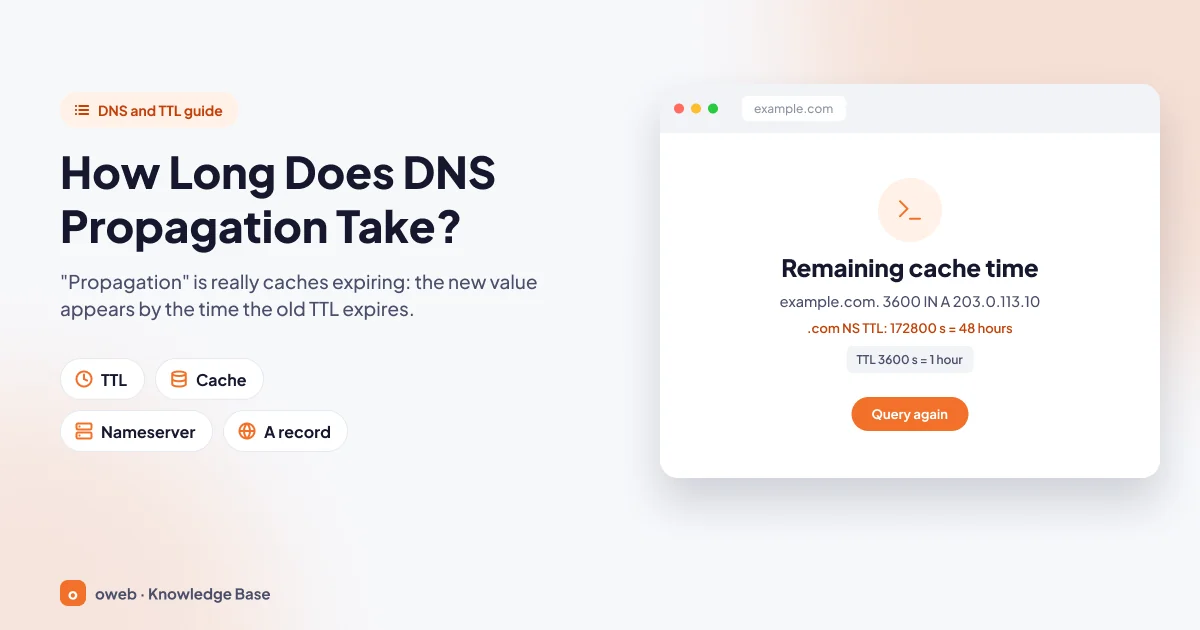
Why do some people see the old site and others the new one?
Each resolver caches the record at a different moment. Suppose a record has a TTL of 3600 seconds and one resolver queried it at 10:00 while another queried it at 10:20. If you change the record at 10:30, the first resolver learns the new address at 11:00 and the second at 11:20. That is why it is normal for two people to see different sites at the same time.
What do TTL values mean in practice?
| TTL (sec) | Duration | Typical use |
|---|---|---|
| 60 | 1 min | The moment of a short cutover; query load is high |
| 300 | 5 min | Value lowered before a migration, Cloudflare Auto TTL |
| 3600 | 1 hour | A balanced value for everyday use in many panels |
| 86400 | 24 hours | Records that rarely change; a change can stretch over a day |
| 172800 | 48 hours | NS records in the .com/.net parent zone (measured, November 2026) |
A short TTL reduces caching but increases query load; use a low TTL temporarily before a planned change, not permanently. According to RFC 2181, records with the same name and type (an RRset) must have equal TTLs.
How long does each type of DNS change take?
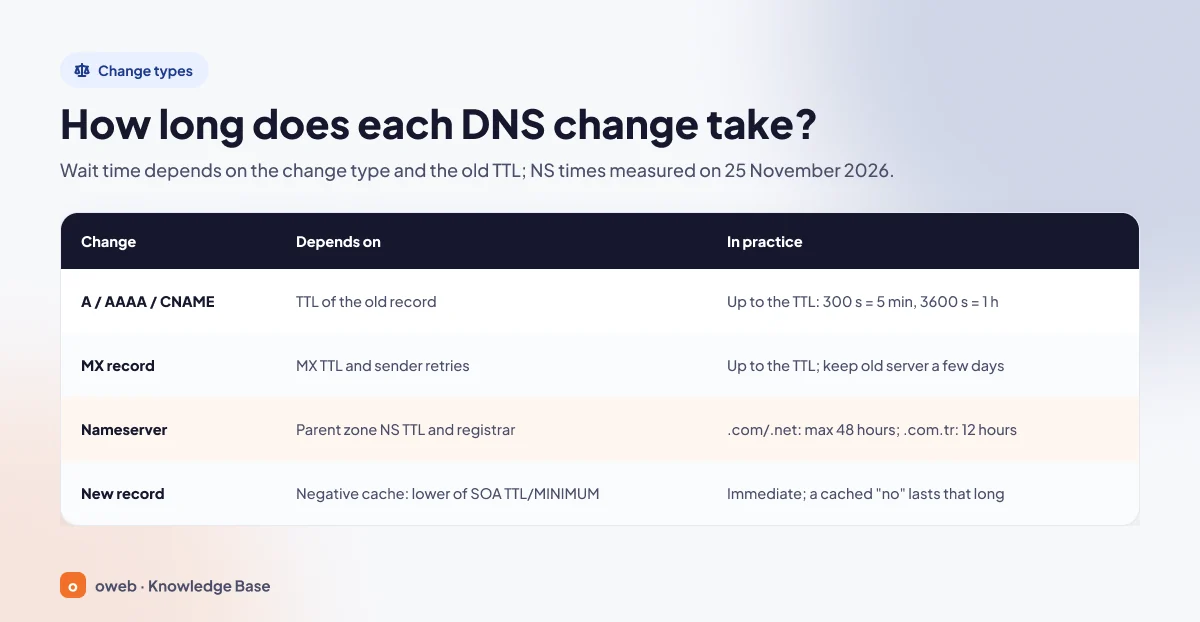
DNS update time depends on a different factor for each type of change. The table below summarizes the four main cases.
| Change | Depends on | In practice |
|---|---|---|
| A / AAAA / CNAME record | The old record's TTL | As long as the TTL (300 sec = 5 min, 3600 sec = 1 hour); Auto TTL on Cloudflare is 300 sec (on a proxied record, an origin change does not wait for the TTL) |
| MX record | The old MX record's TTL and sending servers' retry period | As long as the TTL; the old mail server should stay up for a few days (senders retry for up to 4-5 days) |
| Nameserver | The TTL of the NS records in the parent zone and the registrar's processing time | .com/.net: up to 48 hours; .com.tr: up to 12 hours (measured); usually less |
| New record | Negative caching (RFC 2308) | Immediately if it was never queried before; if a "does not exist" answer is cached, as long as the negative cache period (the smaller of the SOA TTL and MINIMUM) |
A, AAAA and CNAME record changes
If you only changed the A record, the wait is at most the TTL that was in place before the change. The new TTL has no effect on this first switch, because resolvers stored the old record with the old TTL. The same rule applies to AAAA and CNAME. We cover the pointing steps in our guide to pointing a domain to hosting.
MX and TXT record changes
MX and TXT (SPF, DKIM, DMARC) records also follow the TTL rule. For MX, the retry behavior of sending servers matters as well; we cover this separately below.
How long does a nameserver change take?
When you change nameservers, the registrar passes the new NS information to the registry, and the registry publishes it in the parent zone. Resolvers also keep these NS records in their cache for the length of the TTL. That is why a nameserver change usually takes longer than a single record change.
On top of this comes the registrar's processing time; Cloudflare notes that it can take up to 24 hours. In addition, resolvers treat the NS records in the domain's own zone as more trustworthy than the copy in the parent zone, so the TTL of the old NS set can also play a role. 48 hours is not an exact figure but an approximate upper limit.
For .com and .net domains
On November 25, 2026, we sent a query to a.gtld-servers.net, one of the .com/.net authoritative servers. The TTL of the NS records and of the glue records (the linking IP addresses) in the additional section came out as 172800 seconds (48 hours). Only the AUTHORITY section of the response is shown below:
$ dig @a.gtld-servers.net google.com NS +norecurse

;; AUTHORITY SECTION:
google.com.     172800  IN  NS  ns2.google.com.
google.com.     172800  IN  NS  ns1.google.com.
google.com.     172800  IN  NS  ns3.google.com.
google.com.     172800  IN  NS  ns4.google.com.
In the worst case, a resolver that cached the old NS information can keep using it for up to 48 hours. We could not find a current document from Verisign, the .com/.net registry, that states this value; the figure is our November 25, 2026 measurement and may change.
For .com.tr and other .tr extensions
On the same day, in a query we sent to ns43.ns.tr, one of the .tr authoritative servers, the TTL of the google.com.tr NS records came out as 43200 seconds (12 hours). As a result, an NS change on .com.tr can take full effect sooner than on .com. .tr domains are managed through TRABIS. This value is based on our own measurement rather than an official document and may change over time.
If DNSSEC is enabled: the DS record comes first
If DNSSEC is enabled, your registrar holds a DS record belonging to the old provider. If you change the NS while this record is still in place, validating resolvers may be unable to resolve your domain. According to Cloudflare, you may need to wait up to 24 hours after removing the DS record. The correct order is: remove the DS record, wait until the DS record's TTL expires (up to 24 hours according to Cloudflare), change the NS, then enable signing at the new provider and add the new DS record.
Why doesn't a newly added DNS record show up right away?
If you tried a new subdomain (for example magaza.example.com) before adding it, the resolver may have cached the "no such record" answer too. This is called negative caching. According to RFC 2308, a negative answer (NXDOMAIN/NODATA) is cached for the smaller of the SOA record's TTL and the SOA MINIMUM field:
$ dig example.com SOA +noall +answer
example.com.  3600  IN  SOA  ns1.example.com. hostmaster.example.com. 2026112501 3600 1800 1209600 3600
The last number in the example is the SOA MINIMUM; here a "does not exist" answer is kept for at most 1 hour. RFC 2308 describes 1-3 hours as a range that works well for this value. In the .com SOA record we measured on November 25, 2026, both the TTL and MINIMUM were 900 seconds, so a negative answer for a nonexistent .com domain is cached for about 15 minutes.
The refresh, retry and expire values in the SOA do not determine cache duration; they control zone transfers between the primary and secondary authoritative servers. Even so, if a secondary server has not been updated yet, some queries may get an old answer from it. That is why you should query each of your nameservers separately in Step 1 below.
Where does the "DNS takes 24-48 hours" claim come from?
The common "DNS takes 24-48 hours" claim has no single standard source. Many records and NS records use 86400 seconds (24 hours) as the default TTL, the .com/.net delegation TTL is 172800 seconds (48 hours), and registrar processing time can reach 24 hours. Cloudflare also gives a range of "a few minutes to 48 hours" for an NS change. In short, 24-48 hours is an approximate upper limit for a nameserver change; it is not a realistic wait for an A record with a low TTL.
My domain still shows the old site: causes and fixes
When a domain still shows the old site, propagation is not always the cause. We have listed the causes below from the simplest to the most technical; in most cases the problem is one of the first three.
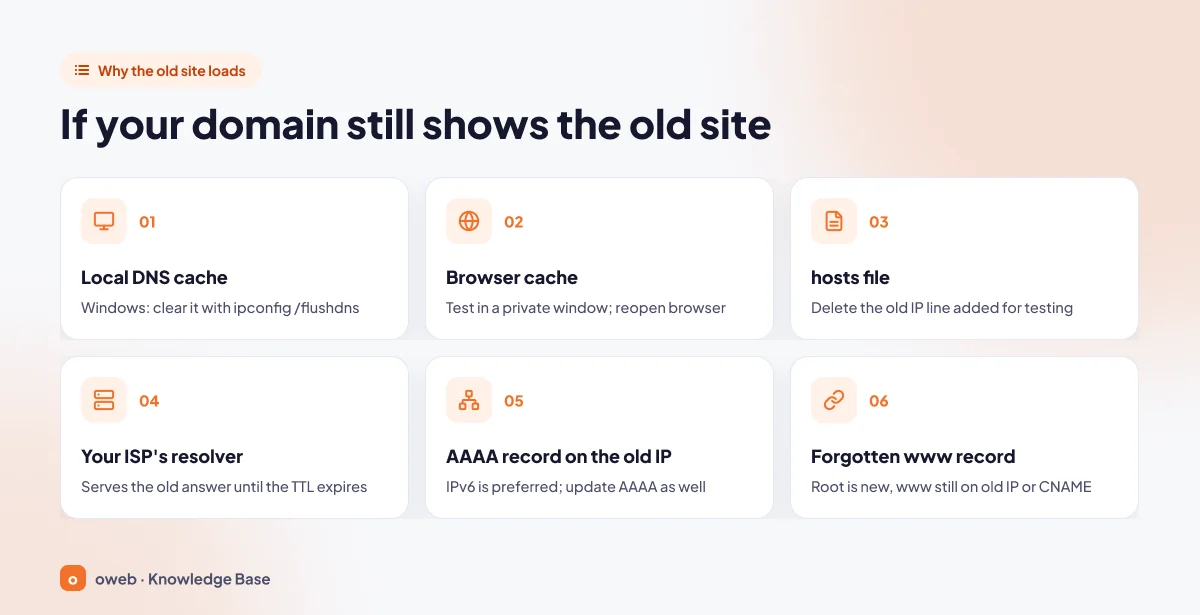
| Cause | How to tell | Fix |
|---|---|---|
| Local DNS cache | The old site opens only on your device | Flush the device's DNS cache |
| Browser cache | The new site opens in another browser or a private window | Fully close and reopen the browser; clear cached data if needed |
| hosts file | The same old IP comes back even after flushing the cache | Delete the old line from the hosts file |
| The ISP's resolver | New site on mobile data, old site on home internet | Wait for the TTL to expire or refresh the public cache |
| AAAA record on the old IP | Old site on some networks, new site on others | Update or delete the AAAA record |
| www record forgotten | example.com is new, www.example.com is old | Point the www record to the new target as well |
| CDN cache | DNS is correct, but the page content is old | Purge the CDN content cache |
| Old server still running | Visitors whose resolver still holds the old record see the old copy | Do not change content on the old server until the cutover is complete |
1. Local DNS cache
The operating system also stores the records it resolves. According to Microsoft, ipconfig /flushdns resets this cache, including negative entries:
:: Windows (Command Prompt)
ipconfig /flushdns

# Windows (PowerShell)
Clear-DnsClientCache

# macOS (Terminal)
sudo dscacheutil -flushcache; sudo killall -HUP mDNSResponder

# Linux (distributions using systemd-resolved)
sudo resolvectl flush-caches
On Linux, the local cache varies by distribution; if no caching service such as systemd-resolved is in use, there may be no cache to flush. You can find the steps for every device in our guide to flushing the DNS cache.
2. Browser cache
Browsers keep their own DNS and page cache. Open the site in a private window or another browser; if the new site appears there, the problem is in the browser, and fully closing and reopening it is usually enough. Permanent (301) redirects issued by the old server can also be stored in the browser; if the private window works fine, clear the browser's cached data.
3. hosts file
A line written in the hosts file on your computer overrides the DNS answer. A line added for testing and then forgotten returns the same old IP even after the cache is flushed. The file is located at C:\Windows\System32\drivers\etc\hosts on Windows and at /etc/hosts on macOS and Linux.
4. Your internet provider's resolver
Your provider's resolver serves the old answer until the TTL expires, and you cannot clear it from your computer. According to the Google Public DNS FAQ, Google generally keeps records for no more than 6 hours, even when the TTL is longer.
5. The AAAA record points to the old IP
Moving the A record and forgetting the AAAA (IPv6) record is a common mistake. With the Happy Eyeballs method described in RFC 8305, clients prefer IPv6, so visitors with an IPv6 connection reach the old server. If the new server has no IPv6 address, delete the old AAAA record.
6. The www record was forgotten
The root domain (example.com) and www.example.com are two separate names. If the record for the www name was left on the old IP or on an old CNAME, people who type www see the old site. Query the two names separately.
7. CDN cache and an old server that is still running
If the site is behind a CDN, the CDN can serve an old copy of the page even when DNS is correct. On Cloudflare's proxied records, the DNS answer shows the edge server's address, so check a server change at the origin address and in the content cache. As long as the old server stays up, visitors whose resolver still holds the old record go there, and any changes made on the old server during that time are not carried over to the new one. If the site does not open at all, see our guide to the "This site can't be reached" error.
How do you check DNS propagation?
The right way to check DNS propagation is to look at the source first and the caches second. These three steps show within a few minutes whether the problem comes from a wrong record or from a cache. Instead of the command line, you can also view your records with the Oweb DNS lookup tool.
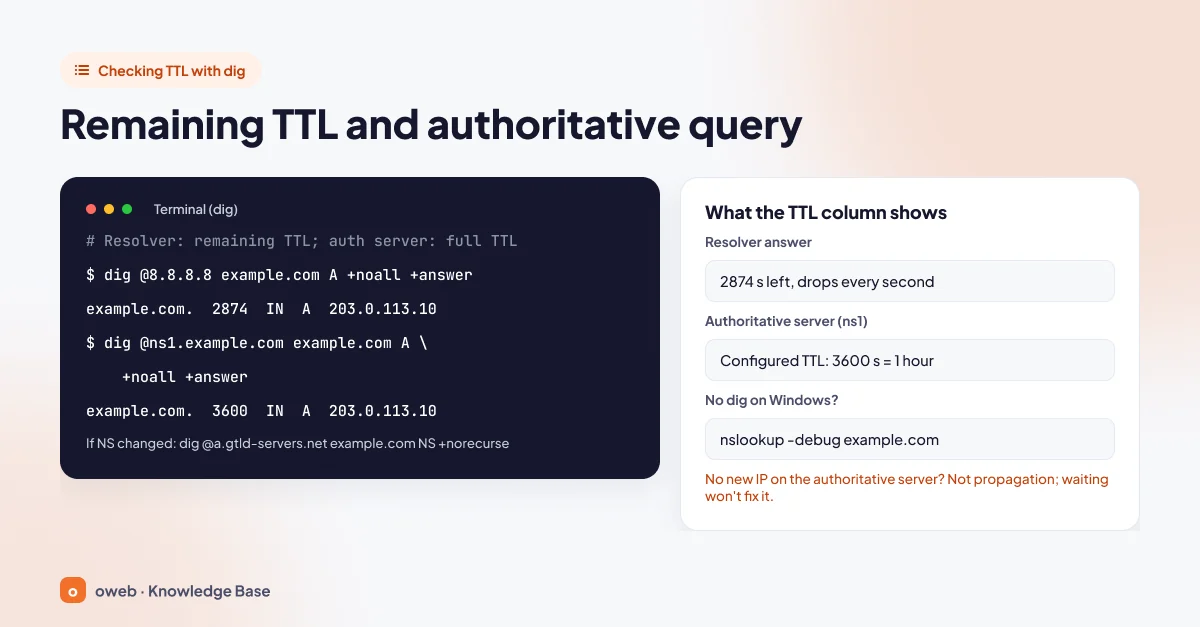
Step 1: Query the authoritative servers directly
Find your domain's nameservers and query each of them separately. An authoritative server does not use a cache; it returns the record's current value and the full configured TTL. If you changed nameservers recently, get the NS list from the parent zone as in Step 2, not from a resolver; the list from a resolver may be outdated.
$ dig example.com NS +short
ns1.example.com.
ns2.example.com.

$ dig @ns1.example.com example.com A +noall +answer
example.com.   3600   IN   A   203.0.113.10

$ dig @ns2.example.com example.com A +noall +answer
example.com.   3600   IN   A   203.0.113.10
If the new IP is not on all of the authoritative servers, the problem is not propagation: the change was made in the wrong zone (for example, edited in a different panel while the NS points to another provider) or was never saved, and waiting will not fix it. If only one of the servers returns the old value, the secondary server has not been updated yet.
Step 2: If the nameservers changed, check the parent zone
The registrar's panel only shows the value you entered; that does not prove the value has been published in the parent zone. Cloudflare also states that what really needs checking is the NS records published by the parent zone, and that dig +trace can be used for this.
$ dig @a.gtld-servers.net example.com NS +norecurse
$ dig +trace example.com
For .com.tr, first get the list of .tr authoritative servers, then query one of them directly:
$ dig tr NS +short
$ dig @ns43.ns.tr example.com.tr NS +norecurse
If the new nameservers appear in the AUTHORITY section, the update at the registry is complete; all that is left is for the old record in resolver caches to expire.
Step 3: Read the remaining TTL on different resolvers
$ dig @8.8.8.8 example.com A +noall +answer
example.com.   2874   IN   A   203.0.113.10

$ dig @1.1.1.1 example.com A +noall +answer
example.com.   612    IN   A   203.0.113.10
The second column is the TTL. In a resolver's answer, this number is the time remaining for the record in that cache, and it decreases every second. If you see the old IP in the answer, this number tells you the maximum number of seconds before the new address is picked up. Two resolvers showing different numbers is the result of their caching the record at different moments.
If dig is not available on Windows
The "ttl =" line in the nslookup -debug output and the TTL column in the output of Resolve-DnsName in PowerShell give the same information:
nslookup -debug example.com 8.8.8.8

Resolve-DnsName example.com -Type A -Server 1.1.1.1
Refreshing the Google and 1.1.1.1 caches
The Google Public DNS Flush Cache tool does not ask for proof of ownership, but it does require reCAPTCHA verification. Each name and record type is flushed separately; if the nameservers changed, flush the main domain first, then subdomains such as www. For 1.1.1.1 there is a Purge Cache tool at one.one.one.one/purge-cache; this is different from the Cloudflare CDN's content cache purge feature.
Flushing the cache on your own computer or at Google only refreshes that cache. Other providers' resolvers keep serving the old answer until the TTL expires.
Shortening the wait: lower the TTL before the change
The way to complete a cutover within minutes is to prevent resolvers from keeping the old record for a long time in the first place. The Cloudflare DNS FAQ also recommends lowering the TTL in advance for records with a high TTL.
Before making the change, back up the zone or copy all records to a text file. A mistakenly deleted MX or TXT record can stop email even if the site loads.
- In your DNS panel (for example, Zone Editor under the Domains section in cPanel), note the current TTL of the record you will change.
- Lower the TTL of this record (or of all A records, if there are several for the same name) to 300 seconds. Do not change anything else.
- Wait at least as long as the old TTL (24 hours if the old TTL is 86400 seconds). Once this time has passed, any cache holding the record will have received it with the 300-second TTL.
- Make the actual change (for example, enter the new IP in the A record).
- Verify the new value by querying the authoritative servers and 8.8.8.8 / 1.1.1.1.
- If everything is fine, raise the TTL back to a balanced value such as 3600.
This method does not change the NS TTL in the parent zone; the 172800-second delegation TTL of .com is not under your control.
If you use Cloudflare: Auto TTL and limits
According to the Cloudflare documentation (as of November 2026):
- The TTL of proxied records is fixed at "Auto", which is 300 seconds, and cannot be changed. For DNS only records, Auto is also 300 seconds.
- A custom TTL can be at least 60 seconds (30 seconds on Enterprise) and at most 1 day.
- Changes to the zone take effect worldwide within 5 minutes by default; old data can remain in resolvers until the TTL expires.
- The TTL of Cloudflare's NS records (Nameserver TTL) is 86400 seconds by default; it can be set between 30 and 86400 seconds in the DNS record options section of the DNS Records page, and it does not change the delegation TTL in the parent zone. This setting is part of the Foundation DNS feature that Cloudflare offers only to Enterprise customers. If you are an Enterprise customer and the setting does not appear in your dashboard, contact your account team, as advised in the Cloudflare documentation. On other plans, the TTL of the NS record is 86400 seconds (24 hours) by default.
How do you migrate without downtime?
When you switch hosting, the goal is that no visitor ever sees a blank page; for that, both servers must be able to serve the same site during the cutover. We cover moving files and the database in our guide to migrating a WordPress site; here we focus on the DNS side.
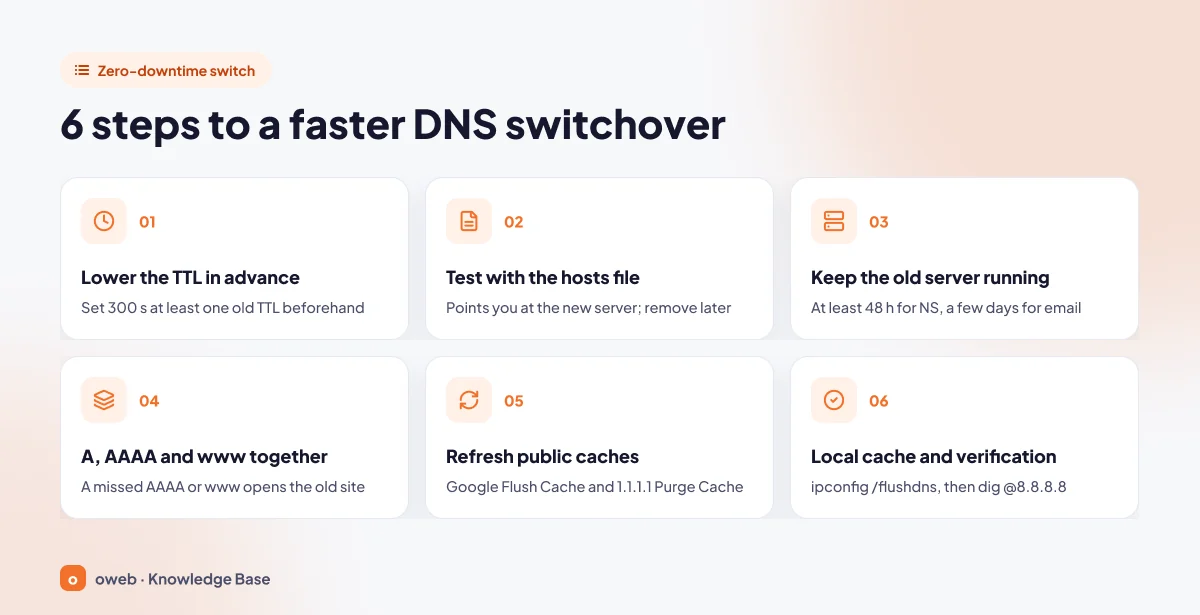
Of the six steps in the image, lowering the TTL, flushing caches and verification are covered in the sections above; below you will find preparing the records, testing with the hosts file and managing the old server.
Copy every record to the new DNS provider
If you are going to change nameservers, prepare the zone completely at the new DNS provider before the NS change: A/AAAA for the root and www, MX, SPF/DKIM/DMARC and verification TXT records, plus CAA and other subdomains if you have them. Instead of deleting the old NS entries and then typing in the new ones, save the new NS list in a single step; the domain should always have at least two nameservers defined.
Test the new server with the hosts file
You can point only your own computer to the new server without touching the DNS records. Before editing, make a copy of the hosts file (for example hosts.yedek). Then add the following line to the end of the file (replace 203.0.113.20 with the new server's IP):
203.0.113.20 example.com www.example.comOn Windows, editing the file requires administrator rights (run Notepad as administrator); on macOS and Linux, use sudo nano /etc/hosts. Then flush the DNS cache and test the pages, login, forms and the form and notification emails sent by the site. This line affects only your computer and only the names you wrote (example.com and www.example.com). Every program that resolves these names, such as the browser, an FTP client or ping, goes to the new IP; other visitors, names not on the list (for example mail.example.com) and MX records are not affected. Tools such as nslookup or dig that query a DNS server directly ignore the hosts file, so they keep showing the old record. Always delete the line after testing.
Prepare the SSL certificate as well. Let's Encrypt's HTTP-01 validation is done only on port 80 and requires Let's Encrypt to be able to reach the server through the domain name. While DNS still points to the old server, the practical ways to get a certificate on the new server are DNS-01 validation with an _acme-challenge TXT record (the record is added at the DNS provider that is active at that moment) or moving the existing certificate from the old server. Because HTTP-01 follows redirects, redirecting the validation path from the old server to the new one is also an option.
Keep the old server running for a while
Cloudflare's migration guide recommends keeping the old DNS servers running as a fallback when you change NS. Keep the old server up for at least one old TTL for a record change, at least 48 hours for a .com/.net NS change, and a few days for email. According to RFC 8767, some resolvers may serve expired data for up to 1-3 days when the authoritative servers cannot be reached; shutting down the old NS abruptly can lead to stale answers.
Sample timeline
| When | What to do |
|---|---|
| At least one old TTL before the cutover | Back up the zone and lower the TTL of the relevant records to 300 sec |
| The day before the cutover | Test the new server with the hosts file and prepare the SSL certificate |
| Cutover | Freeze content changes, transfer the final data, update the A/AAAA/www records together |
| First hour | Verify with the authoritative servers, 8.8.8.8 and 1.1.1.1; refresh public caches if needed |
| 48 hours later (if the NS changed) | If the parent zone and different resolvers are consistent, raise the TTL again |
| A few days later | Collect the last emails delivered to the old server, then shut down the old service |
What should you watch out for when changing email (MX) records?
An MX change is more sensitive: a page can be reloaded, but a lost email does not come back. Until the TTL expires, some senders deliver mail to the old MX, so during the cutover emails can land on both servers.
- Do not close the old mailboxes. Until the TTL expires, some senders deliver mail to the old server; if the mailbox has been deleted, the message bounces with a permanent error. If the old server is briefly unreachable, however, senders retry the message according to RFC 5321 and usually give up only after at least 4-5 days, so a short outage does not lose mail.
- Collect mail that arrives during the cutover. Over the following days, log in to the old mailboxes and move incoming messages to the new system.
- Update SPF, DKIM and DMARC records together. If the new server is not in SPF or the DKIM key has not been published, outgoing mail may go to spam or be rejected.
- Treat MX and web separately. If you are only moving the site, do not touch MX. However, if the MX target (for example mail.example.com or example.com itself) points to the IP you are changing, changing the A record also sends email to the new server. If you want to keep email where it is, first create a separate A record (for example mail.example.com) for the old mail server's IP and point the MX to it. According to RFC 2181, the MX target must be a name with an A/AAAA record, not a CNAME.
You can find MX structure and priority values in our guide to what an MX record is.
One of the most common mistakes during an NS change is entering only the A record at the new DNS provider and forgetting the MX and TXT records. The site opens on the new server, but email silently stops. Before changing the NS, check the MX records in the new zone by querying the authoritative server.
Common misconceptions about DNS propagation
The four misconceptions below cause the most confusion during DNS changes.
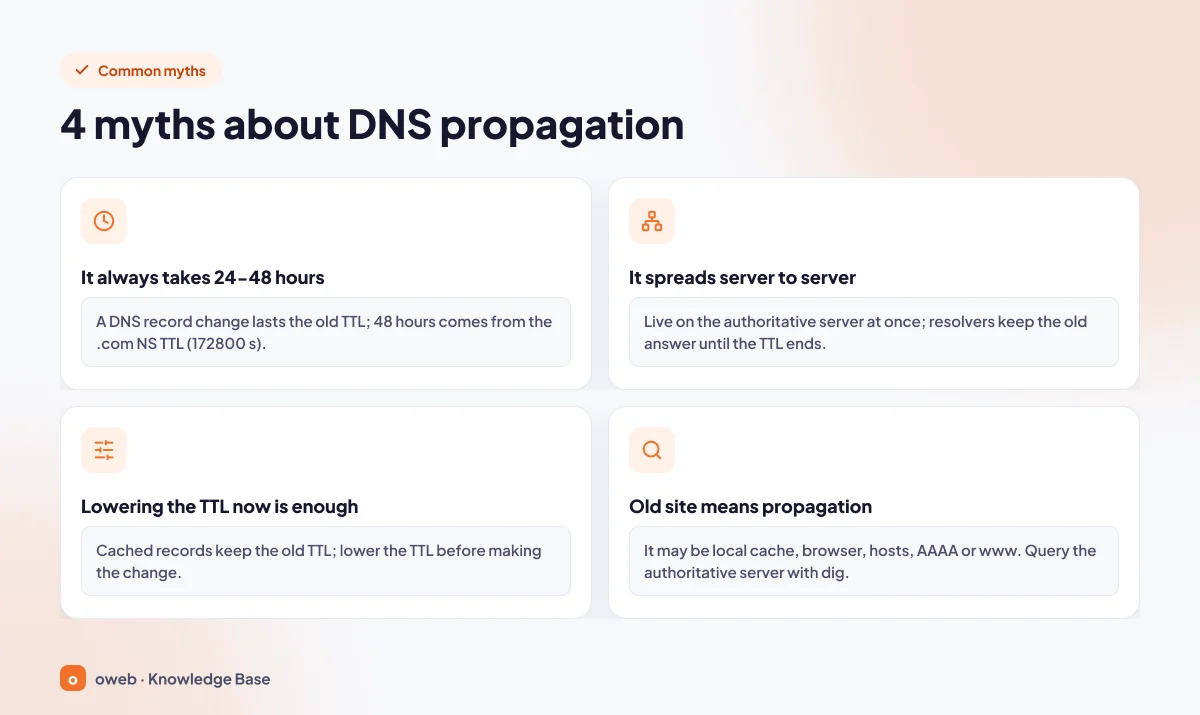
| Myth | Fact |
|---|---|
| A DNS change always takes 24-48 hours. | A record change takes at most one old TTL, which is usually between 5 minutes and 1 hour. The 48 hours largely comes from the 172800-second TTL of the .com NS delegation. |
| The change spreads from server to server. | The change takes effect immediately on the authoritative server. Resolvers keep the old answer in their cache until the TTL expires. |
| If I lower the TTL now, the change will show up right away. | The cached record is still held with the old TTL. The TTL has to be lowered before the change. |
| If I see the old site, DNS hasn't propagated. | The local cache, the browser, the hosts file or an AAAA/www record can also be the cause. Query the authoritative server with dig @ns1.example.com example.com A. |
Frequently asked questions
Is it possible to speed up a DNS change?
After the change, you cannot refresh most of the caches other people use. Besides your own device, you can refresh the caches of some public resolvers such as Google Public DNS, Cloudflare 1.1.1.1 and OpenDNS (CacheCheck) with their web tools; for others, such as your internet provider's resolver, you have to wait for the old record's TTL to expire. The real speed-up is lowering the TTL before your next change.
What is TTL, and what should it be set to?
TTL (Time to Live) is the value that sets the maximum number of seconds a record can be kept in a cache. For everyday use, 3600 seconds is balanced; lower it to 300 before a planned change and raise it again once the work is done.
Why do I see the old site while my friend sees the new one?
Most likely you are using different resolvers, and those resolvers cached the record at different moments. There may also be a local cache, a hosts entry or an IPv6 difference on your device.
Does flushing the DNS cache on my computer fix the problem for everyone?
No. It only affects your own device; visitors' resolvers keep their caches until the TTL expires.
It has been 48 hours and my domain still shows the old site. What should I do?
The problem is most likely not propagation. Query the authoritative servers directly; if the new IP is not there, the change may have been made in the wrong zone. Then check the NS records in the parent zone, the AAAA and www records, the hosts file and the DNSSEC/DS status.
Will emails be lost when I change the MX record?
If you keep the old mail server and mailboxes running for a few days, they are usually not lost; you only need to collect the messages that reached the old server and move them over afterwards.
Does a nameserver change take a different amount of time for .com.tr domains?
In our November 25, 2026 measurement, the .com.tr delegation TTL came out as 43200 seconds (12 hours), compared with 172800 seconds (48 hours) for .com. The switch can be quicker on .com.tr; the registrar's processing time and the domain's own NS TTL also play a part.
How long does a DNS change take on Cloudflare?
Cloudflare states that changes to the zone take effect within 5 minutes by default. When you change the origin IP of a proxied record, the DNS answer visitors see (Cloudflare addresses) does not change; routing is updated on Cloudflare's side and you do not wait for resolver caches. For DNS only records, Auto TTL is 300 seconds, so the old answer is usually refreshed within a few minutes. If you are moving your domain to Cloudflare, the registrar's processing time and the parent zone TTL also apply to the NS change.
Conclusion
The answer to how long DNS propagation takes depends on the type of change and the old TTL. For record changes, the wait is at most one old TTL; for a nameserver change, the parent zone's NS TTL and the registrar's processing time are the deciding factors. "24-48 hours" is only an approximate upper limit for the worst case.
For a planned cutover, lower the TTL in advance, test the new server with the hosts file, handle the A, AAAA, www and MX records together and keep the old server running for a while. If the old site keeps showing up, check the authoritative servers first and the caches second. If you are an Oweb customer, you can get help from our team by opening a support ticket along with the command output you collected.