


The “Your connection is not private” warning means your browser could not verify the site's SSL/TLS certificate and therefore does not consider the connection secure. Two of the most common causes are an expired certificate and the wrong date and time on your own device. Check your clock first; if the error persists, check the certificate's expiry date.
In short
- Your connection is not private is the title of the certificate warning in Chrome's English interface. On a Turkish-language Chrome the same warning appears as “Bağlantınız gizli değil”.
- The code below the warning tells you what kind of problem it is. NET::ERR_CERT_DATE_INVALID points to a date problem, NET::ERR_CERT_AUTHORITY_INVALID to a certificate chain or trust problem, and NET::ERR_CERT_COMMON_NAME_INVALID to a domain name mismatch.
- If the error appears on only one site, the problem is most likely with the site. If it appears on every site, check your device clock, your antivirus's HTTPS scanning or the network you are connected to.
- On sites that use HSTS, or whose certificate has been revoked, the “proceed” option does not appear at all.
- As of November 2026, newly issued public SSL/TLS certificates can be valid for at most 200 days. This limit drops to 100 days on March 15, 2027 and to 47 days on March 15, 2029.
- Site owners can see the dates with a single command: pipe the output of
openssl s_clientintoopenssl x509 -noout -dates.
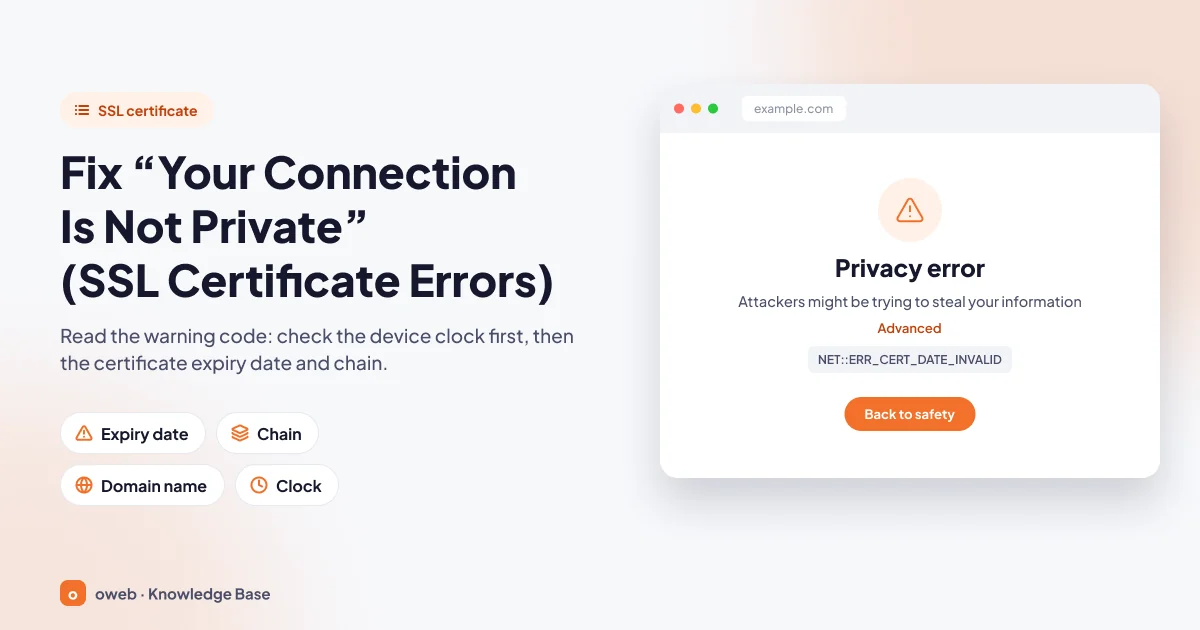
What does “Your connection is not private” mean?
When you open an HTTPS address, the browser inspects the certificate the server sends before it sets up the encrypted TLS connection. A certificate is a digital identity document, signed by a trusted certificate authority (CA), that says “this server really is example.com”. If you want to understand the basics, see our article What is an SSL certificate and how does it work.
The browser checks four things in this document:
- Date: Is today's date between the certificate's start (notBefore) and end (notAfter) dates?
- Name: Is the domain name in the address bar on the certificate's Subject Alternative Names (SAN) list?
- Certificate chain: Does the certificate link, through intermediate certificates, to a root certificate that the browser or operating system trusts?
- Revocation status: Has the certificate been revoked by the authority that issued it? (Browsers do not query this online on every connection; they mostly rely on revocation lists that they update themselves.)
If any of these checks fails, the browser shows a warning instead of opening the page. An invalid certificate can mean that someone in the middle (a man-in-the-middle attack) is pretending to be that site, and the browser cannot tell a simple configuration mistake from a real attack.
This warning is not the same as the “Not secure” label in the address bar. “Not secure” usually means the page was loaded over unencrypted HTTP; the fix is to install a certificate and redirect HTTP to HTTPS.
What does the warning look like in different browsers?
Each browser describes the same problem in different words. The headings below are from each browser's English interface; the wording may differ in other languages.
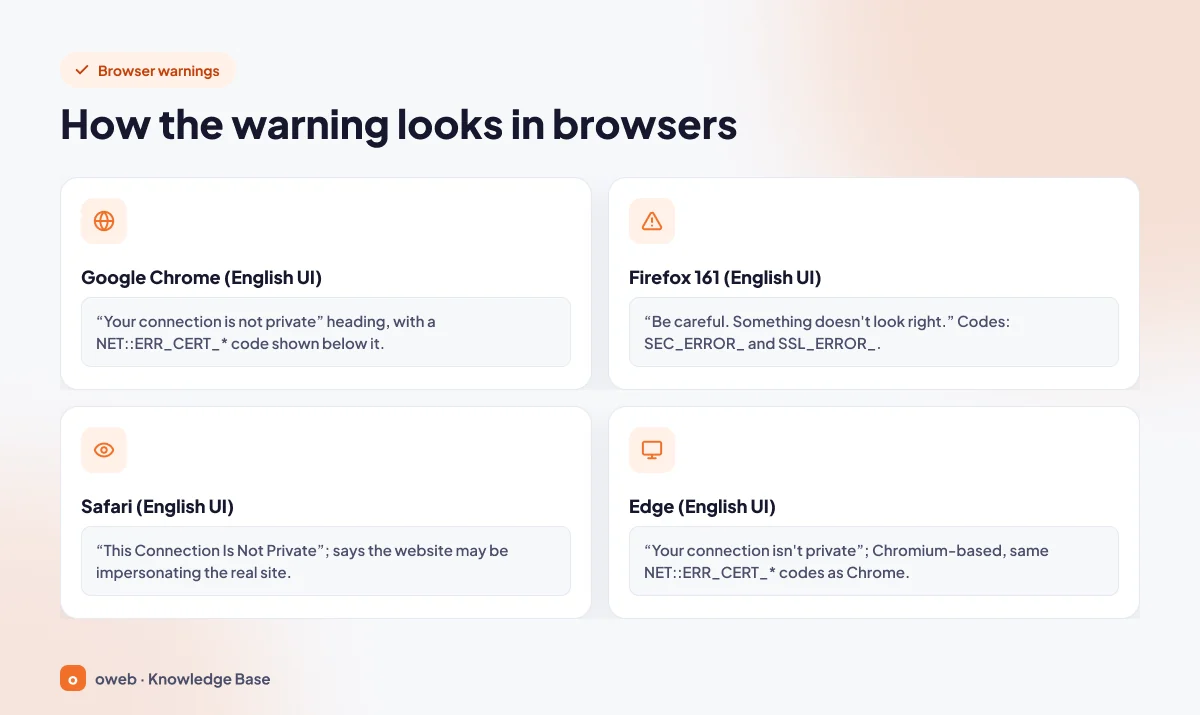
Google Chrome
In Chrome, a certificate error appears under the heading “Your connection is not private”. Below it, Chrome says attackers might be trying to steal your information from the site (for example, passwords, messages or credit cards). The page has “Advanced” and “Back to safety” buttons. Clicking “Advanced” shows the error details and, in most cases, a “Proceed to ... (unsafe)” link.
If Chrome notices that your device clock is wrong, it shows a different page: the heading is “Your clock is behind” or “Your clock is ahead”, and the code is still NET::ERR_CERT_DATE_INVALID. This distinction is very useful for a first diagnosis. If you see the clock warning, the problem is most likely on your side. If you get the “Your connection is not private” page directly instead of the clock warning, the certificate has most likely really expired; when you click “Advanced”, Chrome shows how many days ago the certificate expired and what date your device clock is set to.
Mozilla Firefox
Firefox 161, the current stable release as of November 2026, uses the new error page design. The tab title reads “Warning: Security Risk” and the page heading reads “Be careful. Something doesn't look right.” Older Firefox versions, and installations where the new design is not enabled, show the old heading: “Warning: Potential Security Risk Ahead”. Firefox error codes carry the SEC_ERROR_, MOZILLA_PKIX_ERROR_ and SSL_ERROR_ prefixes.
Safari
In Safari, the warning appears under the heading “This Connection Is Not Private”. The text says the website may be impersonating another website. Apple's Safari User Guide mentions a “Show Certificate” option for this warning; there you can see who the certificate was issued to and its dates. The “Not Secure” label shown on sites opened over HTTP is a separate issue, and Apple advises against entering passwords or card details on those sites (Apple Support).
Microsoft Edge
Because Edge is based on Chromium, it shows the same NET::ERR_CERT_* codes as Chrome. In the English interface the warning uses the heading “Your connection isn't private”. Since the codes are the same, every diagnostic step in this article also applies to Edge.
What do SSL error codes mean?
When you see an SSL error, the code on the warning page tells you which check failed. Reading this code is the fastest way to the right fix. The definitions below are based on Chromium's official list of network errors.
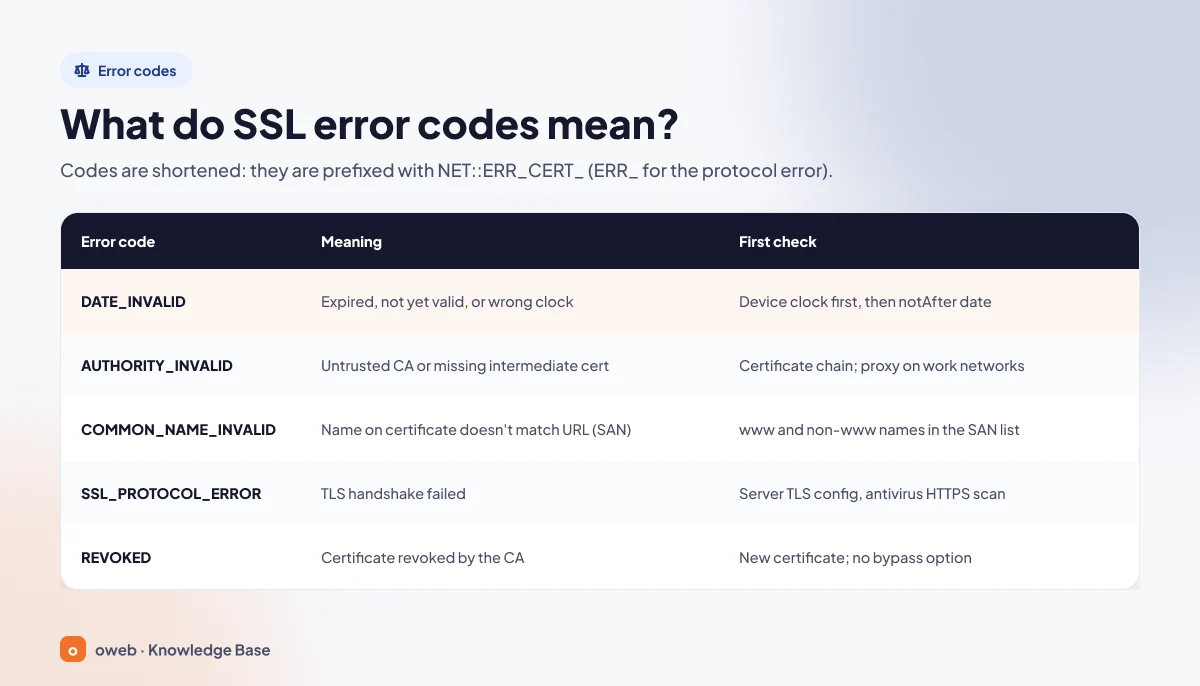
| Error code | Meaning | Firefox equivalent | First check |
|---|---|---|---|
| NET::ERR_CERT_DATE_INVALID | The certificate has expired, is not yet valid, or the device clock is wrong | SEC_ERROR_EXPIRED_CERTIFICATE, MOZILLA_PKIX_ERROR_NOT_YET_VALID_CERTIFICATE | Device clock first, then the notAfter date |
| NET::ERR_CERT_AUTHORITY_INVALID | Untrusted authority, self-signed certificate or missing intermediate certificate | SEC_ERROR_UNKNOWN_ISSUER, MOZILLA_PKIX_ERROR_SELF_SIGNED_CERT | Certificate chain; a proxy on work networks |
| NET::ERR_CERT_COMMON_NAME_INVALID | The name on the certificate does not match the domain in the address | SSL_ERROR_BAD_CERT_DOMAIN | www and non-www names on the SAN list |
| ERR_SSL_PROTOCOL_ERROR | The TLS handshake failed | Codes with the SSL_ERROR_ prefix | Server TLS configuration, antivirus HTTPS scanning |
| NET::ERR_CERT_REVOKED | The certificate has been revoked by the authority that issued it | SEC_ERROR_REVOKED_CERTIFICATE | New certificate; there is no option to proceed |
NET::ERR_CERT_DATE_INVALID
Chromium defines this error as a certificate that is not valid “according to our clock” (error number -201). The phrase “according to our clock” matters: the browser compares the certificate's dates with your own device's clock. That is why the same code can come from three different situations.
Expired certificate
This is the most common case. The certificate's notAfter date has passed and it was not renewed, or the renewed certificate was not installed on the server. Every visitor to the site sees the same error. There is nothing the visitor can do; the fix is up to the site owner. In short, the SSL certificate has expired.
Certificate not yet valid
The certificate's notBefore date appears to be in the future. This usually happens with a newly issued certificate when the device clock is a few minutes or days behind. Firefox reports this situation with a separate code, MOZILLA_PKIX_ERROR_NOT_YET_VALID_CERTIFICATE.
Wrong device clock
If your computer's date is off by a few months or years, valid certificates also look expired or not yet started. If Chrome notices the clock is wrong, it shows the “Your clock is behind/ahead” page and states clearly that it cannot verify certificates because your device's clock is wrong. In this case the error usually appears on many of the HTTPS sites you visit at once.
NET::ERR_CERT_AUTHORITY_INVALID
The certificate was signed by an authority the browser does not trust (-202). Typical causes are a self-signed certificate, a CA the browser does not recognize and a server that does not send the intermediate certificate. On work computers, a corporate proxy that inspects HTTPS traffic (Google's examples are ZScaler, Palo Alto Networks and Fortinet) can also cause this error.
NET::ERR_CERT_COMMON_NAME_INVALID
The name on the certificate does not match the address you are trying to open (-200). Chrome validates the name using the certificate's SAN field. The most frequent example is a certificate issued only for example.com while the visitor types www.example.com. Wildcard certificates are limited too: *.example.com covers only names one level down (sub.example.com); it does not cover the bare domain without www (example.com) or deeper names (sub.test.example.com). That is why the bare domain must be added to the SAN list separately.
ERR_SSL_PROTOCOL_ERROR
This code is not a certificate warning but a connection error showing that the TLS handshake failed (-107). It usually appears on a separate error page such as “This site can't provide a secure connection” rather than on the “Your connection is not private” page. Possible causes include another service, such as plain HTTP, answering on port 443 instead of HTTPS, a faulty TLS configuration on the server, and software in the middle (antivirus, proxy) breaking the connection. If the server cannot offer a TLS version or cipher suite in common with the browser, Chrome usually shows a separate code: ERR_SSL_VERSION_OR_CIPHER_MISMATCH.
NET::ERR_CERT_REVOKED
The certificate has been revoked by the authority that issued it (-206). Revocation usually happens when the private key has been compromised or the certificate was issued in error. On this page Chrome offers no option to proceed to the site. The site owner needs to get a new certificate with a new key.
Is it you or the site? A 60-second test
Finding out where the problem is before you start fixing it saves you from unnecessary setting changes. Work through these steps in order:
- Open another site. If only one site shows the error, the problem is most likely that site's certificate.
- Open the same site on another device and over mobile data. If you get the error on different devices and on mobile data too, the problem is most likely with the site; let the site owner know.
- If you get the error on every site, check your device clock, your antivirus's HTTPS scanning and the network you are connected to.
- If you get the error on only one network (hotel, café, workplace), the problem is that network's login page or a device in the middle.
To see the certificate from the outside, independently of your own device, you can use our SSL checker tool. An external check helps you tell whether the problem comes from your device or from the site's certificate.
How to fix “Your connection is not private” (visitor steps)
The steps to fix “Your connection is not private” below are ordered from simplest to most complex and are based on Google Chrome Help's recommendations (Chrome Help: certificate errors). Clearing the cache or changing DNS usually does not fix a date error; only try those if the other steps fail and the error persists on your device alone.
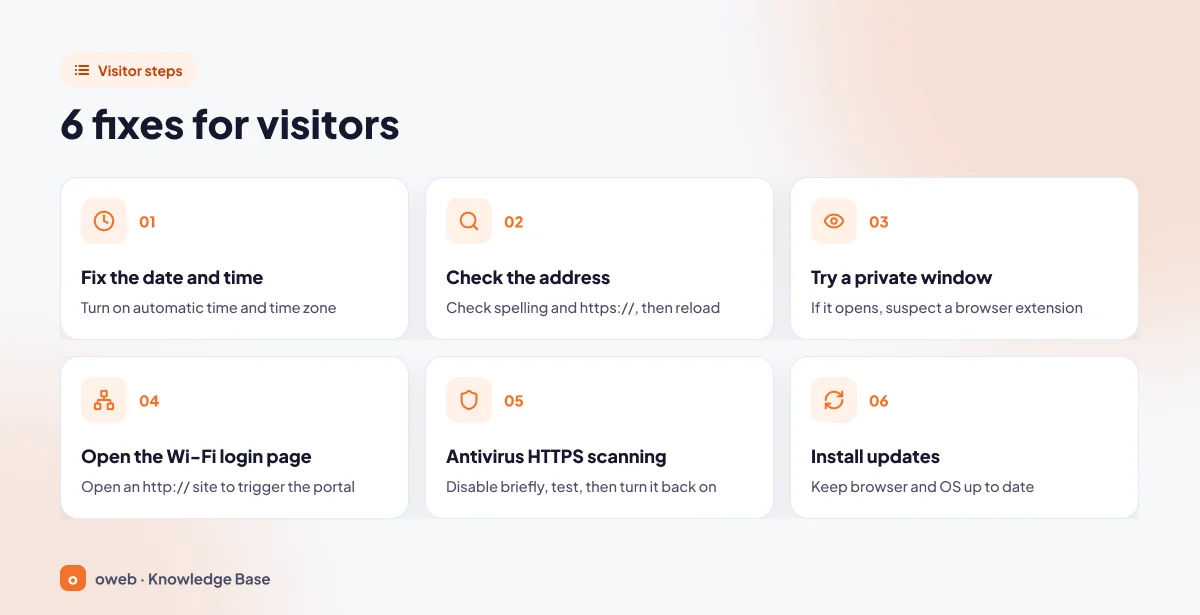
1. Correct the date, time and time zone
If you see NET::ERR_CERT_DATE_INVALID or “Your clock is behind/ahead”, this is the first step. Turn on automatic time and make sure the time zone matches your location (Turkey, for example, uses UTC+3 all year round).
Windows 11
Go to Settings » Time & language » Date & time, turn on “Set time automatically” and “Set time zone automatically”, then click “Sync now”. If you prefer the command line, you can run the following in a Command Prompt opened as administrator. If the resync command returns “The service has not been started”, run net start w32time first to start the Windows Time service:
net start w32time
w32tm /resync
w32tm /query /status
macOS
In System Settings » General » Date & Time, turn on setting the time and date automatically. Before macOS 13 Ventura this app was called System Preferences.
iPhone and iPad
Go to Settings » General » Date & Time and turn on “Set Automatically”. If the option is greyed out, a Screen Time restriction or a corporate profile may be managing this setting on the device.
Android
Menu names vary by manufacturer and Android version. Find the Date & time section in Settings and turn on automatic time and automatic time zone.
Linux
In a terminal, you can check the status of time synchronization and turn it on with these commands:
timedatectl status
sudo timedatectl set-ntp true
If the clock on a desktop computer goes back to the wrong date every time it starts, whatever operating system you use, the motherboard battery (CMOS) may be running low.
2. Check the address and reload the page
Make sure the address is typed correctly and starts with https://. If the site owner is renewing the certificate at that moment, reloading the page a few minutes later may be enough.
3. Try an Incognito window
In Chrome, extensions do not run in Incognito windows by default. If the site opens in an Incognito window, the problem is most likely an extension; turn your extensions off one by one to find the one causing it.
4. Open the login page on public Wi-Fi
Hotel, airport and café networks show a login page (captive portal) before letting you onto the internet. Because the portal intercepts and redirects your HTTPS requests, you see a certificate error. Google suggests opening a site that starts with http:// to reach the login page. If the error still appears on every site after you sign in, leave that network and switch to mobile data.
5. Test your antivirus's HTTPS scanning
Some security software intercepts encrypted traffic with its own root certificate to inspect it. When this feature breaks or the software is out of date, a certificate error appears on every site. Google notes that the “HTTPS protection” or “HTTPS scanning” feature in antivirus software can cause this error, and suggests temporarily turning the antivirus off, trying the page again and turning the software back on when you are done. Turning off only the HTTPS scanning feature temporarily, rather than the whole antivirus, lets you run the same test more safely. Do not leave your antivirus software turned off; if the feature is the problem, update the software or contact the vendor's support.
6. Update your browser and operating system
Old browsers and operating systems may not recognize current root certificates. Because certificate authorities move to new roots and intermediate certificates over time, a device that is not updated can return a date or trust error even for a valid certificate.
If you see NET::ERR_CERT_AUTHORITY_INVALID on a work computer, do not install the certificate yourself. Google generally treats this as a security risk. Contact your organization's IT administrator. If the error still persists, let the site owner know.
How to check your SSL certificate as a site owner
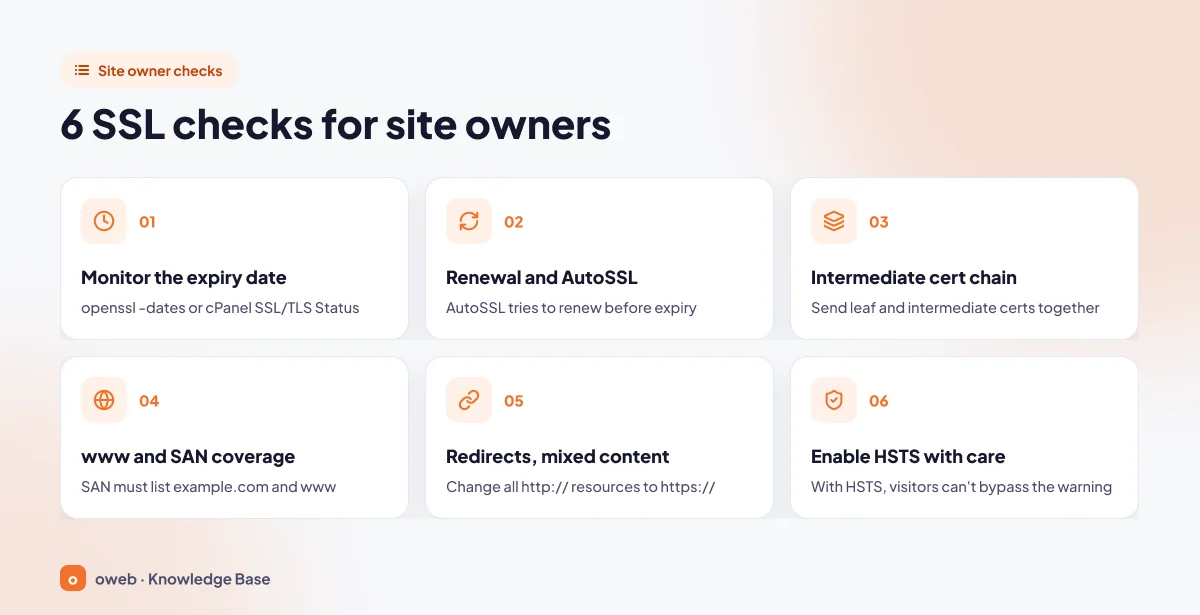
If visitors see the error on every device, the problem is most likely on the server. The five checks below, together with HSTS covered in its own section, address the main server-side causes. Always take a backup before touching server configuration files, DNS records or the database.
Check the certificate's expiry date
Use the command below to see which certificate the server actually sends to visitors. The commands in this section work in Linux, macOS or a POSIX shell on Windows such as WSL or Git Bash; they do not work as written in Windows Command Prompt or PowerShell. Replace example.com with your own domain name. The command prints the certificate's start and end dates:
echo | openssl s_client -connect example.com:443 -servername example.com 2>/dev/null | openssl x509 -noout -datesSample output looks like this:
notBefore=Sep 26 22:49:11 2026 GMT
notAfter=Dec 25 22:56:35 2026 GMT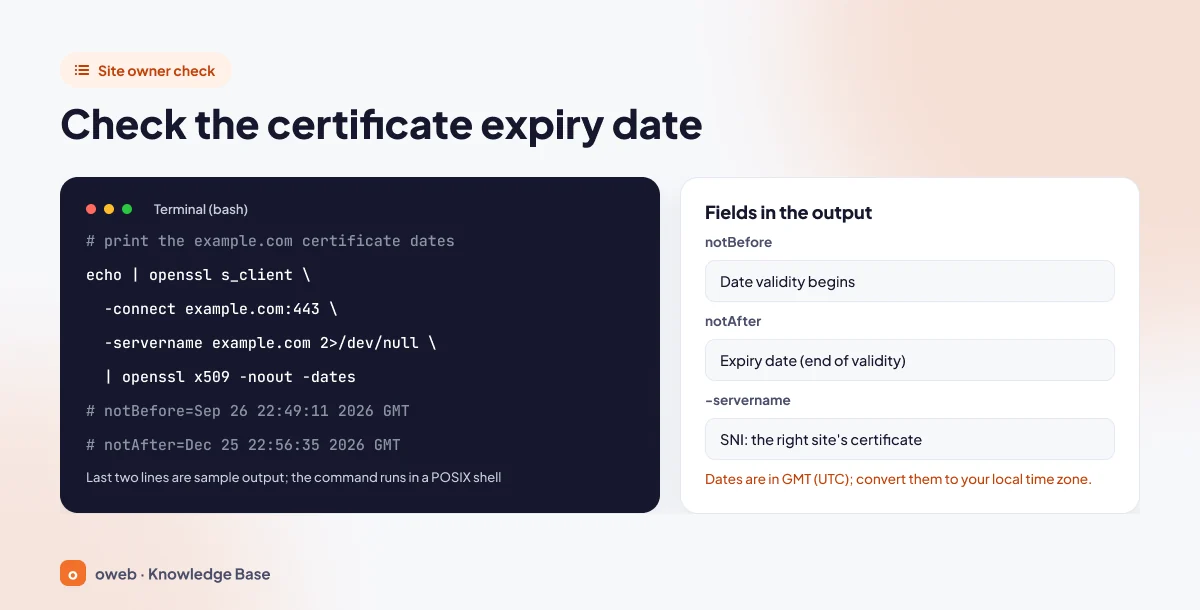
What do the output fields and options mean?
- notBefore: The date the certificate becomes valid.
- notAfter: The expiry date. Dates are in GMT (UTC); convert them to your local time zone (for Turkey time, add 3 hours).
- -servername: Sets the SNI (Server Name Indication) value. If several sites share the same IP address, it makes sure you get the right site's certificate.
- -noout: Does not print the certificate's raw PEM text; it shows only the fields you ask for.
To test in one line whether the certificate will expire within 30 days, and to see the issuer and the SAN list:
echo | openssl s_client -connect example.com:443 -servername example.com 2>/dev/null | openssl x509 -noout -checkend 2592000

echo | openssl s_client -connect example.com:443 -servername example.com 2>/dev/null | openssl x509 -noout -subject -issuer -ext subjectAltName
If the certificate will not expire within the given time (in seconds; 2592000 = 30 days), -checkend prints “Certificate will not expire” and the exit code is 0; if it will expire, it returns a non-zero code. That is enough for a simple monitoring script.
If you use a control panel, the Home » Security » SSL/TLS Status page in cPanel lists the certificate status of your domains. The Expired and Expiring Soon filters separate certificates that have expired from those about to expire. If you want to look from the outside without using the command line, you can also use our SSL checker page.
Check AutoSSL and Let's Encrypt renewal
According to cPanel, AutoSSL tries to renew Let's Encrypt certificates when 29 days or fewer remain before they expire. If renewal fails, the Has AutoSSL Problems filter on the SSL/TLS Status page shows the affected domains and the Certificate Status column shows the error text (cPanel SSL/TLS Status documentation). Detailed logs are kept on the server under /var/cpanel/logs/autossl/; only the server administrator (root) can access this directory. If you are on shared hosting, send the error text from the SSL/TLS Status page to your hosting provider's support team. The interface may vary by cPanel version.
Servers that use Certbot
sudo certbot certificates
sudo certbot renew --dry-run
The first command lists the installed certificates and their expiry dates; the second tests renewal without actually renewing.
Renewed, but the error persists
This is a very common situation: the certificate has been renewed on disk, but because the web server was not reloaded, it keeps serving the old certificate from memory. Test the configuration and reload the server:
sudo nginx -t
sudo nginx -s reload

sudo apachectl configtest
sudo apachectl -k graceful
If you obtained the certificate with Certbot's webroot or standalone method, you can use the --deploy-hook option so the web server reloads automatically after renewal:
sudo certbot renew --deploy-hook "systemctl reload nginx"If the site is behind a CDN or load balancer, visitors see that layer's certificate; renew at the right layer. On a CDN such as Cloudflare, the edge certificate that visitors see and the origin certificate that the CDN checks when connecting to your server are evaluated separately. For example, in Full (strict) mode, if the certificate on the origin server expires, visitors still see an error (Cloudflare SSL/TLS encryption modes).
Let's Encrypt ended its certificate expiration notification emails on June 4, 2025 (Let's Encrypt announcement). Do not rely on email warnings any more; track certificate expiry dates with your own monitoring tool.
Verify the intermediate certificate chain
The server must send visitors not only its own (leaf) certificate but also the intermediate certificate that links it to the root. To see whether the certificate chain verifies:
echo | openssl s_client -connect example.com:443 -servername example.com 2>/dev/null | grep "Verify return code"| Output | Meaning |
|---|---|
| Verify return code: 0 (ok) | The chain verified |
| Verify return code: 10 (certificate has expired) | The certificate has expired |
| Verify return code: 18 (self-signed certificate) | Self-signed certificate |
| Verify return code: 20 (unable to get local issuer certificate) | The chain could not be linked to a root in the local trust store (missing intermediate certificate, an outdated CA bundle or an openssl installation with no trust store) |
| Verify return code: 21 (unable to verify the first certificate) | Intermediate certificate missing |
0 (ok) verifies only the chain; to check the domain name match, look at the -ext subjectAltName output. Some Windows or macOS openssl installations have no default trust store, so even a healthy site can return code 20; before drawing conclusions, repeat the test from a Linux server or point to a CA bundle with the -CAfile option.
If you see code 21, only the leaf certificate has been installed on the server. In Nginx, the file referenced by the ssl_certificate directive must contain the leaf certificate followed by the intermediate certificates. For Let's Encrypt users this is usually the fullchain file. In Apache 2.4.8 and later, the file referenced by the SSLCertificateFile directive can also contain the intermediate certificates; the older SSLCertificateChainFile directive should no longer be used (Apache mod_ssl documentation). This detail matters because some browsers fill in a missing intermediate certificate from their own cache and open the site, while a new phone browser may return NET::ERR_CERT_AUTHORITY_INVALID and an API client or curl may return an error like “unable to get local issuer certificate”. Also note that the -showcerts option lists the certificates the server sends, but that list does not mean the chain has been verified.
Check www and domain coverage
The SAN list must include both example.com and www.example.com. The -ext subjectAltName command above shows this list. According to cPanel's documentation, AutoSSL covers only the names that pass the domain control validation (DCV) test. If the www name has no DNS record or points to another server, DCV fails and NET::ERR_CERT_COMMON_NAME_INVALID appears on the www address. In that case, back up your DNS records, fix the www record and then renew the certificate. If you have changed DNS and your own computer still sees the old record, our guide on how to flush the DNS cache will help.
If your domain has a CAA record, only the authorities allowed in that record can issue certificates (RFC 8659). If the authority you use is not on that list, renewal fails.
Fix redirects and mixed content
Once the certificate is sound, redirect all HTTP requests to a single HTTPS address (with or without www). You can find the redirect rules in our redirect HTTP to HTTPS guide; back up the file before changing .htaccess or the server configuration.
Mixed content is when a page loaded over HTTPS fetches some files over HTTP. It is not a certificate error and does not trigger the “Your connection is not private” warning. According to MDN, browsers automatically upgrade content such as images, audio and video to HTTPS, and block content such as scripts, stylesheets, iframes and web fonts (MDN: Mixed content). The fix is to change all http:// links to https://. If you are going to make bulk changes in the database, take a database backup first.
As a temporary measure, the header below tells the browser to upgrade all requests on the page to HTTPS; the real fix is still to correct the links:
Content-Security-Policy: upgrade-insecure-requestsHSTS: why is there no “proceed” option?
HSTS (HTTP Strict Transport Security) is a security header with which a site tells the browser “connect to me only over HTTPS”. According to MDN, if a TLS error such as an invalid certificate occurs on a site that uses HSTS, the browser does not let the user bypass the warning (MDN: Strict-Transport-Security). In this case Chrome says you cannot visit the site right now because it uses HSTS, and does not show the “proceed” link. In Firefox (with the old design), HSTS sites show the heading “Did Not Connect: Potential Security Issue” and state that an exception cannot be added.
This rule is intentional and stops users from accepting a fake certificate with a single click. As a site owner, make sure your certificate renews automatically before you turn on HSTS. Example header:
Strict-Transport-Security: max-age=31536000; includeSubDomainsThe max-age value is in seconds; 31536000 is one year. includeSubDomains also covers all subdomains, so any subdomain without HTTPS becomes unreachable. When you add the header for the first time, it is safer to start with a short max-age (for example, 300 seconds) and increase it once you see that everything works.
To get onto the browsers' HSTS preload list, max-age must be at least 31536000, the includeSubDomains and preload directives must be present, and the domain must be submitted to the list separately. The example value on MDN is:
Strict-Transport-Security: max-age=63072000; includeSubDomains; preloadRemoval from the preload list takes time, so do not rush this step.
Is it safe to bypass the warning?
Short answer: in most cases, no. Chrome deliberately labels the bypass link “(unsafe)”. Both Chrome and Firefox warn that attackers might be trying to steal your passwords, messages and credit card details. When you bypass the warning the connection is still encrypted, but you cannot verify that the other side really is that site.
Never continue in these cases:
- Banking, e-government, payment and shopping pages
- Login pages where you enter a password or verification code
- On public Wi-Fi, especially if the error appears on more than one site
- Sites that show NET::ERR_CERT_REVOKED or an HSTS warning (no bypass option is offered anyway)
The only scenario where bypassing the warning is reasonable is a test server under your own control or the interface of a local device that uses a self-signed certificate.
If you get a certificate error on every HTTPS site on a public network, someone may be inspecting your network traffic. Disconnect, switch to mobile data and consider changing the passwords of the accounts you signed in to on that network.
Certificate lifetimes are getting shorter: the 2026-2029 timeline
Date errors will become more common in the coming years because certificate lifetimes are being shortened in stages. Ballot SC-081v3, voted on at the CA/Browser Forum between April 4 and 11, 2025, passed; Apple, Google, Microsoft and Mozilla all voted yes. The current rules are in the Baseline Requirements document (CA/Browser Forum Baseline Requirements).
| Certificate issued | Maximum validity | Domain validation data reuse |
|---|---|---|
| Before March 15, 2026 | 398 days | 398 days |
| March 15, 2026 - March 15, 2027 | 200 days | 200 days |
| March 15, 2027 - March 15, 2029 | 100 days | 100 days |
| March 15, 2029 and later | 47 days | 10 days |
As of November 2026, the upper limit in force for newly issued certificates is 200 days; 398-day certificates issued before March 15, 2026 can remain valid until the end of their term. On the Let's Encrypt side, the default “classic” profile issues 90-day certificates, and the optional “tlsserver” profile has issued 45-day certificates since May 13, 2026. According to Let's Encrypt's announcement, the classic profile will drop to 64 days on February 10, 2027 and to 45 days on February 16, 2028 (Let's Encrypt: from 90 to 45 days).
The practical result: manual renewal is no longer sustainable. Instead of a fixed 60-day interval, Let's Encrypt recommends using ACME Renewal Information (ARI) or renewing when about two-thirds of the certificate's lifetime has passed.
Frequently asked questions
Why does “Your connection is not private” appear on only one site?
The problem is most likely that site's certificate: it may have expired, be missing an intermediate certificate or not cover the address. If you also get the error on another device, let the site owner know.
Why does the error appear on every site?
A certificate error that appears on every site almost always comes from your side. The most likely causes are a wrong device clock, broken HTTPS scanning in your antivirus, a public Wi-Fi login page and an outdated operating system.
How do I fix NET::ERR_CERT_DATE_INVALID?
If you are a visitor, set your device's date, time and time zone to automatic. If the clock is correct and the error appears on all devices, the site's certificate has expired and the fix is up to the site owner. If you are the site owner, renew the certificate and reload the web server.
I renewed the certificate, but the error still appears. Why?
There are three possible reasons: the web server was not reloaded, the renewal was done on the wrong server or layer (CDN, load balancer), or the new certificate does not cover a name such as www. Use the openssl command to check the dates and SAN list of the certificate the server actually sends.
Why do I get a certificate error when I use www?
www.example.com is not on the certificate's SAN list. This is common on sites that use AutoSSL when the www name fails the DCV test. Fix the DNS record for www, renew the certificate and then redirect to a single address.
Why is there no “proceed” option in the warning?
The site uses HSTS or the certificate has been revoked. In both cases browsers deliberately do not let you bypass the warning. The problem has to be fixed at its source, which is the site's certificate.
How long is an SSL certificate valid?
As of November 2026, newly issued public certificates can be valid for at most 200 days. Let's Encrypt certificates are valid for 90 days by default.
Conclusion
The Your connection is not private warning may look alarming, but it is usually easy to diagnose. Read the code: for a date error, check your clock first and then the certificate's expiry date; for an authority or chain error, focus on the certificate chain; for a name error, focus on www coverage in the SAN list. As a visitor, reporting the problem to the site owner is always safer than bypassing the warning.
If you own a site, shorter certificate lifetimes are making automatic renewal and external monitoring a must. If you are looking for the right certificate for your site, take a look at our SSL certificate options, and for infrastructure to host your site, see our web hosting plans. Oweb customers can get help from our team with certificate renewal or chain issues by opening a support ticket.