


The This site can’t be reached error means Chrome could not connect to the website. If the code DNS_PROBE_FINISHED_NXDOMAIN appears below it, the browser could not translate the domain name into an IP address: the DNS servers are working, but the domain cannot be found in DNS. Start by checking the spelling of the address and clearing the browser and computer DNS cache. If the site does not open on another network either, the problem lies with the domain's expiry, its nameserver settings or its DNS records.
In short
- NXDOMAIN is the DNS answer for “the domain you asked about does not exist”; RFC 1035 defines it as response code 3 (Name Error).
- Chrome uses the “This site can’t be reached” heading for several different errors. With NXDOMAIN, the line below the heading reads “Check if there is a typo in yourdomain.com.” (The line “yourdomain.com’s server IP address could not be found.” appears in cases such as ERR_NAME_NOT_RESOLVED and DNS_PROBE_FINISHED_BAD_CONFIG.)
- If only your device or network shows the error, the cause is usually the browser or operating system cache, your DNS settings, Secure DNS, a VPN or security software.
- If you are sure the address is spelled correctly and the site returns NXDOMAIN on every network and on different DNS servers (1.1.1.1, 8.8.8.8), the problem is on the website's side. The main cause is an expired or suspended domain; wrong nameservers and a missing DNS zone can lead to similar errors.
- ERR_CONNECTION_TIMED_OUT and ERR_CONNECTION_REFUSED are not DNS errors: the domain was resolved, but the server either did not respond in time or refused the connection. An outdated line in the hosts file usually causes this kind of connection error as well.
- After a nameserver change, some networks may keep showing the old answer for up to 24-48 hours. For a newly registered domain, an NXDOMAIN answer received earlier usually stays cached for much less time (about 15 minutes for .com as of November 2026).
What does “This site can’t be reached” mean?
When you open a web address, the browser first has to find out the IP address of that name. This is the job of DNS (Domain Name System): your computer asks a DNS resolver, “What is the address of yourdomain.com?” If no answer comes back, or the answer is “no such name exists”, the browser never gets as far as connecting to the server.
Chrome uses the “This site can’t be reached” heading for different problems; the real clue is the small grey error code at the bottom of the page. If the code is DNS_PROBE_FINISHED_NXDOMAIN, the problem is at the name resolution stage, which means the server itself has not even been contacted yet.
What does DNS_PROBE_FINISHED_NXDOMAIN mean?
This is not actually a classic network error code but the result of Chrome's DNS diagnosis (probe). When Chrome cannot resolve a name, it runs a short test in the background; during this test you may briefly see the message “yourdomain.com’s DNS address could not be found. Diagnosing the problem.” When the test finishes, the result is reflected in the code.
According to the definition in the Chromium source code, the NXDOMAIN result means that the DNS servers are working properly and yet the name could not be found, in other words the domain does not exist. The other diagnosis results are:
- DNS_PROBE_FINISHED_NO_INTERNET: the device has no internet connection.
- DNS_PROBE_FINISHED_BAD_CONFIG: the DNS configuration is wrong or the DNS servers in use are having problems.
- DNS_PROBE_FINISHED_BAD_SECURE_CONFIG: the Secure DNS (DNS over HTTPS, DoH) setting is wrong.
- DNS_PROBE_FINISHED_INCONCLUSIVE: the diagnosis could not reach a definite result.
If the diagnosis does not run or produces no result, the same situation may also appear as ERR_NAME_NOT_RESOLVED. For this reason, the two codes are often different faces of the same problem.
What is NXDOMAIN?
NXDOMAIN (“non-existent domain”) is the common name for the “Name Error” response in the DNS protocol. According to Section 4.1.1 of RFC 1035, RCODE 3, when it comes from an authoritative nameserver, signals that the queried domain name does not exist.
This response has two important consequences:
- The subdomains of the queried name are also treated as non-existent. RFC 8020 states that an NXDOMAIN response means the queried name and every name below it do not exist. If yourdomain.com returns NXDOMAIN, www.yourdomain.com will not resolve either.
- Negative answers are cached too (negative caching). According to RFC 2308, NXDOMAIN responses also have a retention time (TTL), which is taken from the SOA record in the response. Even after you fix the problem, resolvers that previously received a “does not exist” answer may keep showing the error until that time runs out.
What does the error message look like in browsers?
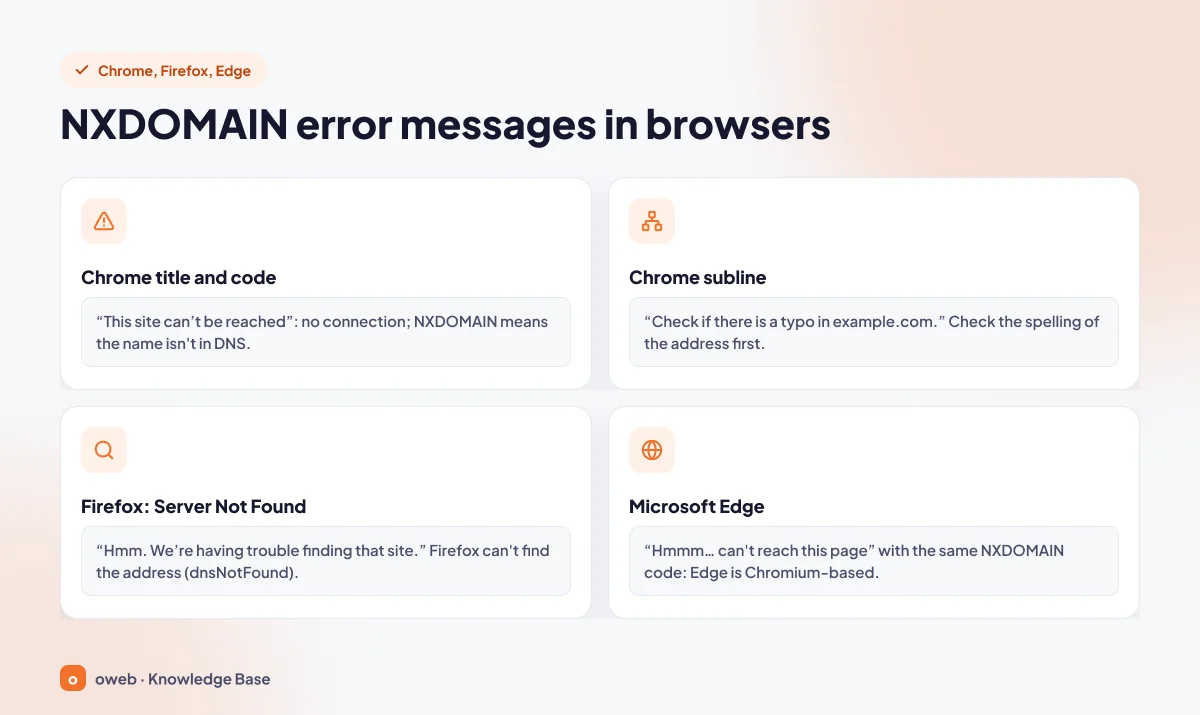
- Chrome heading: “This site can’t be reached” with the DNS_PROBE_FINISHED_NXDOMAIN code below. The browser could not connect to the site; NXDOMAIN shows that the name was not found in DNS.
- Chrome subline: “Check if there is a typo in yourdomain.com.” Because the name was not found in DNS, Chrome first suggests checking the spelling of the address; the problem is at the DNS stage, not on the server. The line “yourdomain.com’s server IP address could not be found.” appears in cases such as ERR_NAME_NOT_RESOLVED and DNS_PROBE_FINISHED_BAD_CONFIG.
- Firefox: “Hmm. We’re having trouble finding that site.” (the tab shows “Server Not Found”). Firefox could not find the address of the domain either.
- Microsoft Edge: “Hmmm… can’t reach this page” with the same DNS_PROBE_FINISHED_NXDOMAIN code. Because Edge is based on Chromium, it uses the same codes as Chrome.
Chrome also shows additional suggestions below this line; they vary depending on the error type and the operating system.
Differences between similar DNS and connection error codes
Very different problems can sit under the same “can’t be reached” heading. Reading the error code correctly saves you from spending hours looking for a fix in the wrong place. The table below summarises the codes in line with the official error descriptions in Google Chrome Help and Chromium's error list.
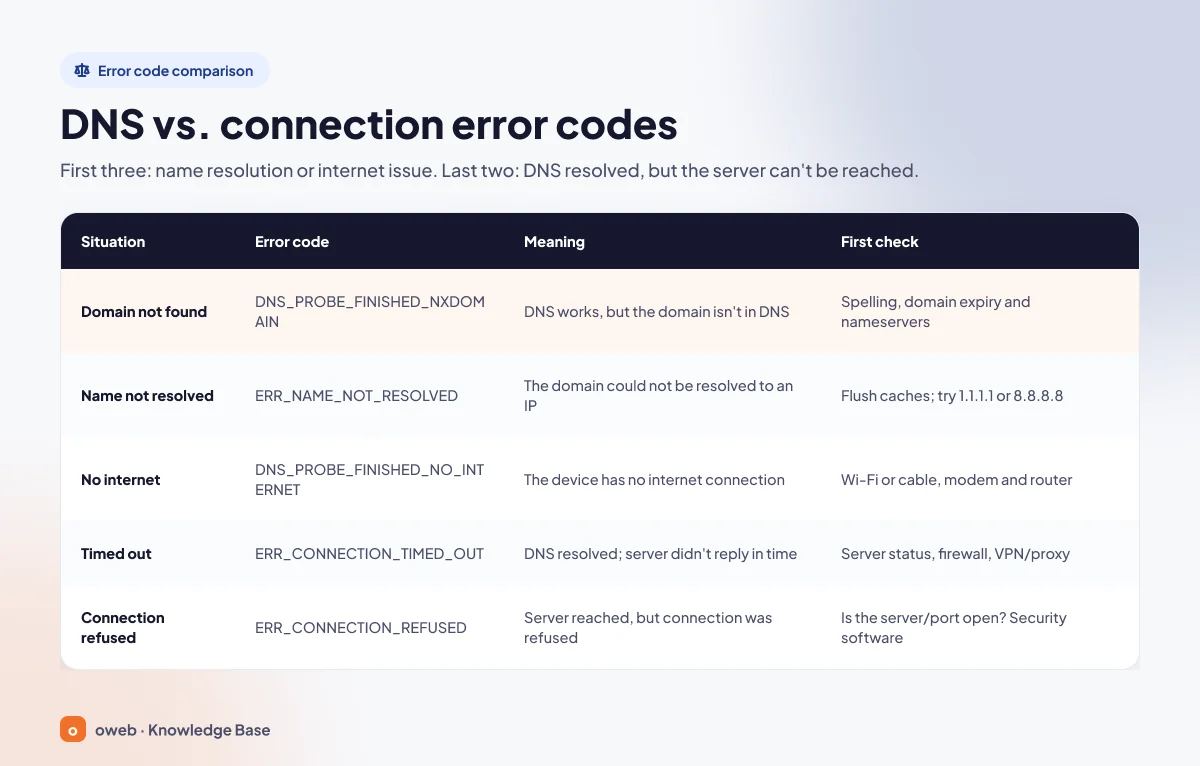
| Error code | Meaning | First check |
|---|---|---|
| DNS_PROBE_FINISHED_NXDOMAIN | DNS servers are working, but the domain does not exist in DNS | Spelling of the address; domain expiry and nameservers |
| ERR_NAME_NOT_RESOLVED | The domain could not be resolved to an IP address (the name does not exist or its IP changed) | Clear the DNS cache, try another DNS server (1.1.1.1 / 8.8.8.8) |
| DNS_PROBE_FINISHED_NO_INTERNET | The device has no internet connection | Wi-Fi or cable, modem and router |
| ERR_CONNECTION_TIMED_OUT | DNS resolved, but the server did not respond in time | Server status, firewall, VPN or proxy |
| ERR_CONNECTION_REFUSED | The server was reached, but the connection was refused | Is the web server running and the port open? Security software |
In short, with the first three codes the problem lies in name resolution or the internet connection. With the last two, DNS has done its job; the problem is that the server did not respond in time or refused the connection. Clearing the DNS cache usually does not help with these two codes.
To see the list of all network error codes Chrome recognises, type chrome://network-errors/ into the address bar.
Is the problem on your side or the site's? A 30-second test
Before you start looking for a fix, finding out where the problem is will save you the most time. Run this quick test:
- Check the spelling of the address letter by letter; a misspelled name returns NXDOMAIN on every network.
- Try opening the same address on another device, ideally on your phone with Wi-Fi turned off and mobile data on.
- Open another website (a search engine, for example) on your computer; if it loads, your internet connection is working.
- In Command Prompt, ask two different DNS servers about the domain:
nslookup yourdomain.com 1.1.1.1andnslookup yourdomain.com 8.8.8.8. You can run a similar check from your browser with our DNS lookup tool.
| Observation | Most likely problem | Section to read |
|---|---|---|
| Opens on mobile data and on another device, but not on yours | Visitor side (cache, DNS settings, Secure DNS, VPN) | How to fix the “This site can’t be reached” error |
| The address is spelled correctly, it opens on no device or network, and both DNS servers say “Non-existent domain” | Website or domain side | How to fix DNS_PROBE_FINISHED_NXDOMAIN as a site owner |
| Opens on some networks but not on others | A recent DNS change, cache time or DNSSEC | The cache time and DNSSEC sections |
| No website opens at all | Internet connection | The modem and router step |
How to fix the “This site can’t be reached” error (step by step for visitors)
The steps are ordered from the simplest and safest to the most advanced. Reload the page after each step; if the site opens, you do not need to continue.
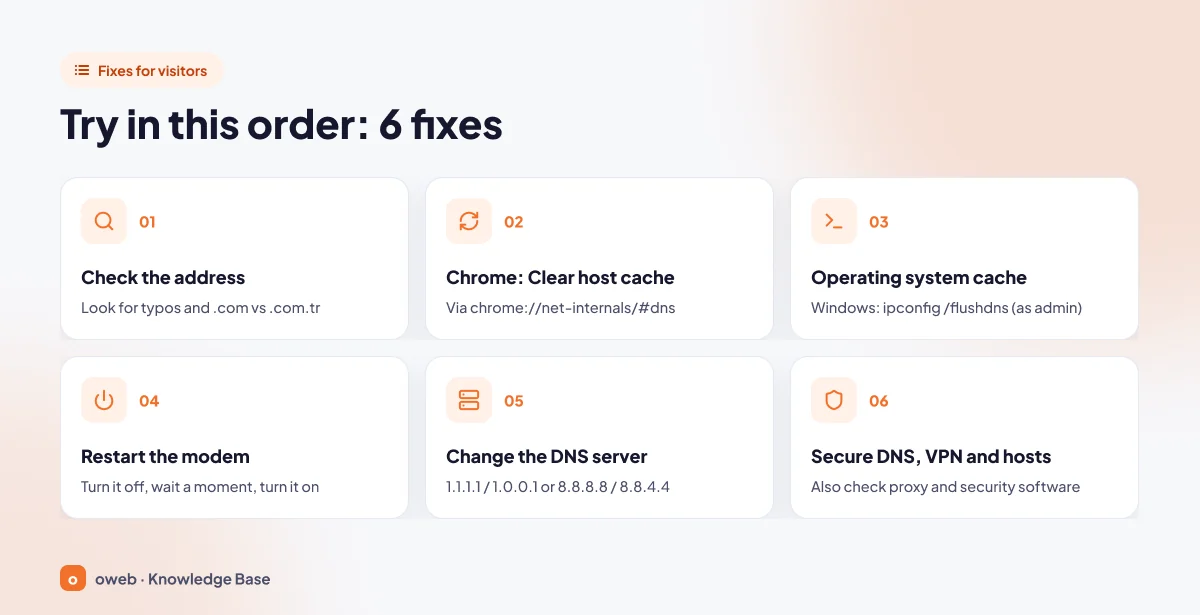
1. Check the address and its spelling
The most common cause is a simple typo. A single missing letter, two swapped letters, or typing .com.tr instead of .com (or the other way round) often makes you query a different name that is not registered; in that case DNS naturally returns NXDOMAIN.
- Search for the address in a search engine and compare the correct spelling.
- An old address saved in your bookmarks may not point to the new domain the site has moved to.
2. Clear Chrome's DNS cache
Chrome keeps its own DNS cache, separate from the operating system's. Even if the site owner has fixed the problem, the browser may remember the old “not found” answer for a while.
- Type
chrome://net-internals/#dnsinto the address bar and press Enter. - Click the Clear host cache button.
- Then go to
chrome://net-internals/#socketsand click Flush socket pools; this resets any connections that are still open. - Close the tab and open the site again.
If you use Microsoft Edge, you can do the same at edge://net-internals/#dns.
3. Clear the operating system's DNS cache
Your computer also stores DNS answers for a while, and negative answers are included in this cache. Clearing it makes sure the name is queried afresh on your next visit. You can find detailed instructions for every operating system in our guide to flushing the DNS cache.
Windows
Search for “cmd” in the Start menu, right-click Command Prompt, click Run as administrator and type the following command:
ipconfig /flushdnsNote that there is a space between ipconfig and the slash. According to Microsoft's ipconfig documentation, this command flushes and resets the DNS client resolver cache and can be used to discard negative cache entries when troubleshooting DNS. To view the cache, use ipconfig /displaydns.
macOS
Open the Terminal app and run the following command; you will be asked for your administrator password:
sudo dscacheutil -flushcache; sudo killall -HUP mDNSResponderApple's archived support article gives the command sudo killall -HUP mDNSResponder for OS X 10.10.4 and later. The combined command above is also widely used on current macOS versions. When it succeeds, the command usually prints no confirmation message.
Linux
On distributions that use systemd-resolved (such as current versions of Ubuntu), clear the cache with this command:
sudo resolvectl flush-cachesIf no service keeps a local DNS cache, this step is not needed.
4. Restart your modem and router
Many home and office modems act as a DNS forwarder and may keep answers in their own memory. Turn the modem off, wait a moment, turn it back on and try the site again once the connection is up. This step is especially effective when no website opens at all or the code is DNS_PROBE_FINISHED_NO_INTERNET.
5. Change your DNS server
Your internet provider's DNS server may be having a temporary problem or holding on to an old answer. The most practical way to test this is to switch to a public DNS resolver. The official addresses are:
Cloudflare  IPv4: 1.1.1.1  and 1.0.0.1
            IPv6: 2606:4700:4700::1111  and 2606:4700:4700::1001
Google      IPv4: 8.8.8.8  and 8.8.4.4
            IPv6: 2001:4860:4860::8888  and 2001:4860:4860::8844
Write down your current settings before changing anything so you can easily switch back if needed.
Changing the DNS server in Windows 11
- Go to Start > Settings > Network & internet and select the adapter you are using (Wi-Fi or Ethernet).
- Click the Edit button next to DNS server assignment.
- Select Manual instead of Automatic (DHCP).
- Turn on IPv4 and enter the addresses in the Preferred DNS and Alternate DNS boxes; if you use IPv6, turn it on as well and enter the IPv6 addresses.
- Click Save, close and reopen your browser, and refresh the site a few times.
The labels follow Microsoft's Essential network settings and tasks in Windows page; small differences may appear depending on your Windows version. The steps are consistent with Cloudflare's Windows setup guide. If your setting was previously Automatic (DHCP), simply select Automatic (DHCP) again on the same screen to switch back; if you were using manually entered addresses, type back the values you wrote down. Google's Public DNS documentation also recommends this test: if no website opens after the change, revert the setting, and if the problem persists, contact your internet provider or network administrator.
Router, phone and tablet
You can change the DNS address for every device in your home from the modem's admin panel (usually at an address such as 192.168.1.1). On Android 9 and later, the Private DNS option asks for the provider's hostname, not an IP address: one.one.one.one for Cloudflare and dns.google for Google. The location and name of the menu may vary by manufacturer. On iPhone and iPad, a DNS change you make in the details of a Wi-Fi network applies only to that Wi-Fi network, not to mobile data.
6. Check Secure DNS, VPN, proxy, security software and the hosts file
If nothing changes even after you change your computer's DNS settings, your queries are most likely bypassing the operating system's DNS altogether. In this final step, check the settings that can send queries elsewhere.
Secure DNS in Chrome
When Secure DNS (DNS over HTTPS, DoH) is turned on in Chrome and another provider is selected, queries go to that provider instead of the operating system's DNS.
- Go to Settings > Privacy and security > Security; on desktop you can also open
chrome://settings/securitydirectly. - If a custom provider is selected under Use secure DNS, turn the setting off temporarily and try the site again. If that solves the problem, choose a different provider or return the setting to its default. Option names and menu layout may vary between Chrome versions.
- For details, see the Chrome Secure DNS help page.
VPN, proxy and security software
VPNs, proxies and some security software route DNS traffic to their own servers. Turn your VPN off briefly and try again. Rather than disabling your antivirus completely, pause only its web filter or DNS protection feature, or add the site to its allow list; turn the protection back on after the test.
The hosts file
Entries in the hosts file are used before DNS. That is why an outdated line does not produce NXDOMAIN; instead it pins the domain to an old IP address, and the result is usually ERR_CONNECTION_TIMED_OUT, ERR_CONNECTION_REFUSED or the wrong website opening. Check this file if the code is not NXDOMAIN or if the site behaves differently only on your computer.
- Before making any changes, make a copy of the file (for example named hosts.bak). On macOS and Linux, the command below is enough; on Windows you can copy the file to your desktop in File Explorer.
- Open the file. Windows:
C:\Windows\System32\drivers\etc\hosts(run Notepad as administrator and open the file from this location). macOS and Linux:/etc/hosts(for example withsudo nano /etc/hosts). - Look for lines containing the domain in question and disable them by adding
#at the start instead of deleting them. - Save the file and clear the DNS cache again.
sudo cp /etc/hosts /etc/hosts.bakDisabled example lines look like this:
# These lines were pointing yourdomain.com to a fixed IP address
# 203.0.113.10    yourdomain.com
# 203.0.113.10 www.yourdomain.comNetwork reset commands such as netsh winsock reset, which are often recommended online, are usually not needed for this error. Because they can affect network adapter settings and some VPN or security software components, use them only if the other steps have not worked and you are sure of what you are doing; the command requires administrator rights and a restart.
Do not confuse an access block with a DNS error
In Turkey, access to some domains may be blocked by legal decisions; the block may be applied through the internet provider's DNS or by other network methods. Your provider's DNS and a public resolver may give different answers, and instead of an error you may also see an information page in the browser. This is not a technical fault, and the steps in this guide should not be used to bypass legal access restrictions.
How to fix DNS_PROBE_FINISHED_NXDOMAIN as a site owner
If you are sure the address is spelled correctly, your visitors see the same error on different networks and public DNS servers also say “Non-existent domain”, the fix is on your side. Work through the checks below in order. Before changing any DNS record, take a screenshot of the existing records or, if your panel supports it, export the zone file.
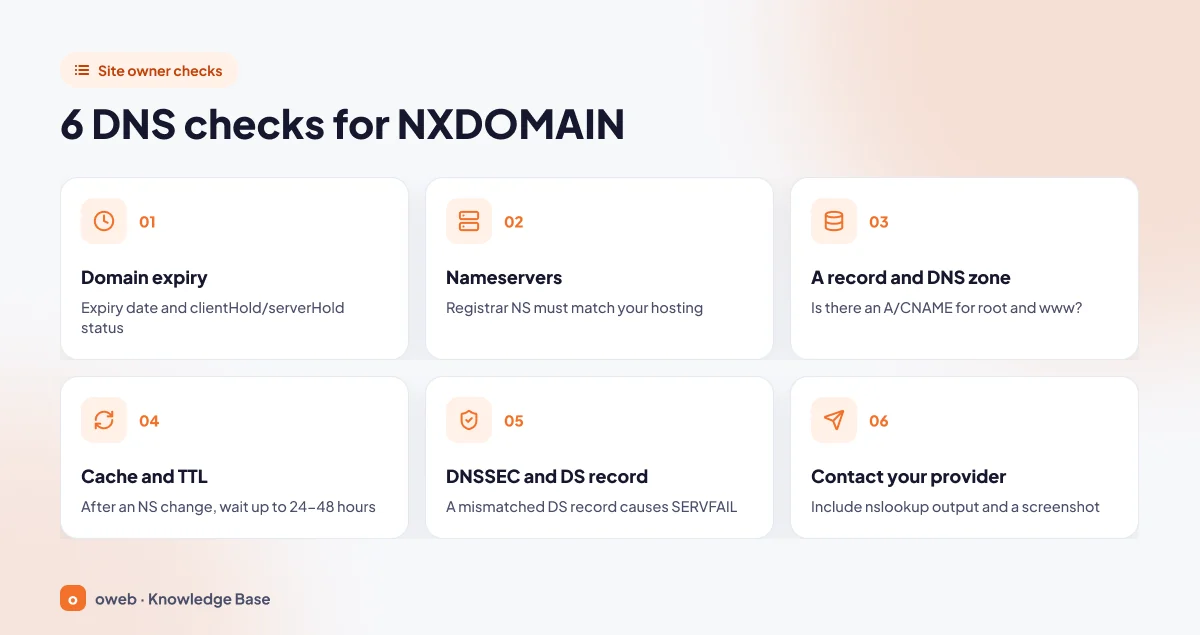
The domain may have expired or been suspended
An expired domain is one of the most common causes on the website's side. Under ICANN's Expired Registration Recovery Policy, for generic extensions such as .com, the registrar must send at least two reminders before expiry and, after expiry, interrupt DNS resolution for at least 8 consecutive days while the domain can still be renewed. Some registrars point the domain to a notice page saying that it has expired during this period; in that case you see that page instead of NXDOMAIN. If the domain moves to the deletion stage, DNS does not work during the 30-day Redemption Grace Period either.
To check, do the following:
- Look up the expiry date in your registrar's panel.
- For generic extensions, you can use ICANN's registration data lookup tool (lookup.icann.org). Since 28 January 2025, the official source of this information has been RDAP rather than WHOIS; the command-line
whoistool may still work for many domains. - If the lookup shows status codes such as
clientHold,serverHoldorredemptionPeriod, the domain is not published in DNS. - .tr domains are not subject to ICANN policies; check their status in the panel of the registrar you bought the domain from.
Renewal is done in the panel of the company the domain is registered with. If you want to get a new domain, take a look at our domain registration page.
The nameservers may have been entered incorrectly
The nameserver (NS) setting at your registrar determines which DNS servers hold your domain. A typo here, or a domain pointing to a DNS server that does not contain your zone, can lead to NXDOMAIN or SERVFAIL; Chrome often shows both of these cases with the same error code. Verify that the NS values at your registrar exactly match the nameservers provided by your hosting provider. You can use the first command on Linux and macOS and the second on Windows:
dig yourdomain.com NS +short
nslookup -type=NS yourdomain.com
If the output is empty, check the domain's expiry and status codes. To see step by step which servers the delegation points to, you can use dig +trace yourdomain.com; starting from the root servers, this command shows the NS records returned by the top-level domain servers. The nameserver field in an RDAP lookup gives the same information.
We explain the steps for connecting your domain to your hosting account in detail in our guide on how to point a domain to hosting.
Records may be missing from the DNS zone
Even if the nameservers are correct, the name cannot be resolved if no DNS zone has been created for the domain on the server. An important detail: if the zone exists but only the A record for the main domain (yourdomain.com) is missing, the DNS response is usually not NXDOMAIN but NOERROR (NODATA), meaning “the name exists but there is no record of this type”. On the other hand, if there is no record at all (and no wildcard * record) for a subdomain such as www, an NXDOMAIN response is returned for that name.
Checking the A record in cPanel
If you use cPanel, go to Domains > Zone Editor and click the Manage button in the row for your domain. In the list that opens, check the Name, TTL, Type and Record columns to make sure there are records for the main domain and for www. A typical setup looks like this:
yourdomain.com.        3600  IN  A      203.0.113.10
www.yourdomain.com.    3600  IN  CNAME  yourdomain.com.
According to cPanel's Zone Editor documentation, the records here only take effect if the domain's nameservers point to this server. If the nameservers point to another DNS provider, you need to add the record in that provider's panel.
Write down the current value of a record before deleting or changing it. An MX record deleted by mistake can stop incoming email, and a wrong A record can make your website unreachable.
Cache time after a new registration or a nameserver change
If you have just registered a new domain or changed its nameservers, some visitors may still see the error because of caching:
- Positive answers stay unchanged in resolvers until their own TTL expires. The TTL of NS records at the top-level domain is usually measured in hours, which is why waiting up to 24-48 hours is recommended for NS changes.
- Negative answers are cached as well. If the domain was queried before it went live, the NXDOMAIN answer is stored for the time taken from the SOA record. In our test via Google Public DNS on 25 November 2026, this time was 900 seconds (15 minutes) for .com. The value may vary by extension and resolver.
The symptom “it opens on mobile data but not at home” often means the cache has not been refreshed yet. We cover these times in detail in our article How long does DNS propagation take?
DNSSEC error
If DNSSEC is enabled for your domain, the DS record at your registrar must match the key at your DNS provider. According to RFC 4035, a validating resolver that cannot validate the signatures should return SERVFAIL (server failure). So broken DNSSEC usually produces SERVFAIL rather than NXDOMAIN; however, if your network's DNS resolves other domains without trouble, Chrome often shows this case as DNS_PROBE_FINISHED_NXDOMAIN too (ERR_NAME_NOT_RESOLVED appears if the browser's error diagnosis feature is turned off). This is why the error code alone does not identify a DNSSEC problem; you need to check with dig or DNSViz. Because public resolvers such as 1.1.1.1 and 8.8.8.8 perform validation, the following comparison is a more reliable test:
dig @8.8.8.8 yourdomain.com
dig @8.8.8.8 yourdomain.com +cd
If the first command returns SERVFAIL while the second (+cd disables validation) returns the IP address, the problem is most likely DNSSEC.
If you are moving the domain to another DNS provider, remove the DS record at your registrar or update it with the new provider's key before changing the nameservers; note down the current value of the DS record before removing it. According to the cPanel documentation, when moving DNSSEC-enabled domains to another server, it can take up to 72 hours for the changes to propagate after you remove the DS records at the registrar. Before deleting a DNSSEC key, it is also recommended to remove or disable the DS record at your registrar and then wait at least 24 hours.
Checking for NXDOMAIN with nslookup and dig
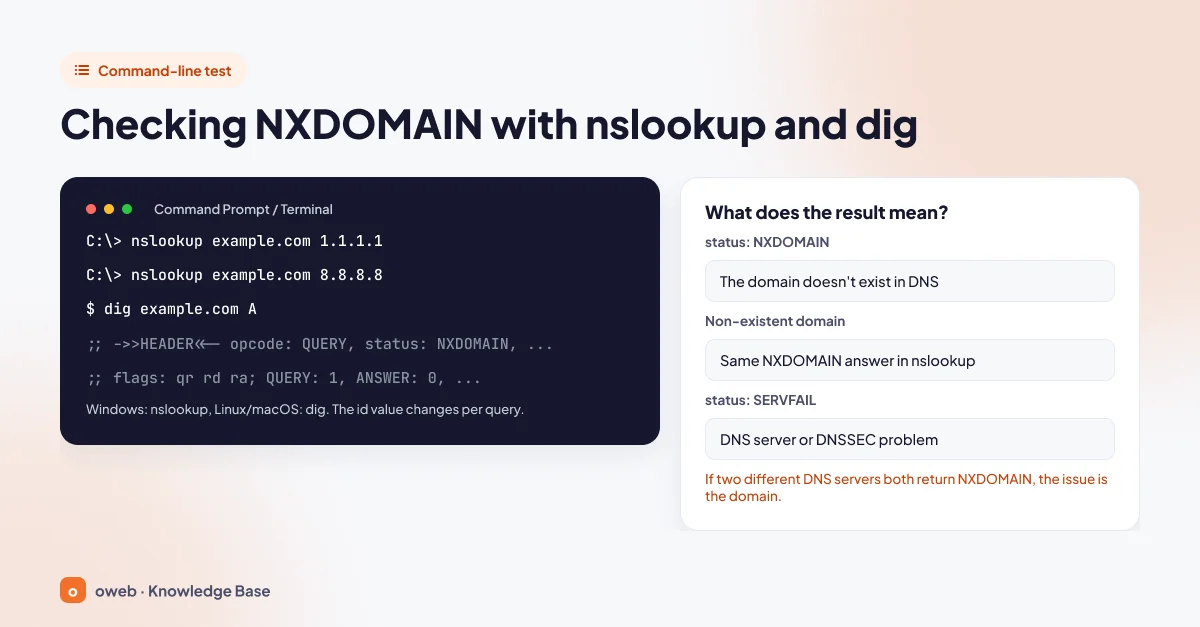
Asking DNS directly goes a long way towards pinpointing where the problem is. The nslookup outputs below are typical of what you see when querying a non-existent domain on Windows; yourdomain.com is used in place of the real name in the examples.
nslookup on Windows
According to Microsoft's nslookup documentation, the first parameter is the name to look up and the second is the DNS server to use:
C:\> nslookup yourdomain.com 1.1.1.1
Server:  one.one.one.one
Address:  1.1.1.1

*** one.one.one.one can't find yourdomain.com: Non-existent domain

C:\> nslookup yourdomain.com 8.8.8.8
Server:  dns.google
Address:  8.8.8.8

*** dns.google can't find yourdomain.com: Non-existent domain
The order of the lines may look different depending on the console you use. For a working domain, Name and Address lines appear below the “Non-authoritative answer:” line. If you use PowerShell, you can run the same check with the command below; when the name cannot be found, the command returns a “DNS name does not exist” error:
Resolve-DnsName yourdomain.com -Server 1.1.1.1dig on Linux and macOS
dig comes preinstalled on macOS but is not available on Windows by default. If the command is not found on Linux, you can install it with sudo apt install dnsutils on Debian/Ubuntu or sudo dnf install bind-utils on RHEL/Fedora. The basic commands are:
dig yourdomain.com A
dig yourdomain.com NS
dig @1.1.1.1 yourdomain.com
dig +short yourdomain.com
With NXDOMAIN, the header line of the output looks like this (the id value is different for every query):
;; ->>HEADER<<- opcode: QUERY, status: NXDOMAIN, id: 41523
;; flags: qr rd ra; QUERY: 1, ANSWER: 0, AUTHORITY: 1, ADDITIONAL: 1
An ANSWER value of 0 shows that no address was returned, while the record in the AUTHORITY section shows that the response came with the SOA record of the parent zone.
How to interpret the result
| Output | Meaning | What to do |
|---|---|---|
| status: NXDOMAIN / Non-existent domain | The domain does not exist in DNS | If it is the same on two different DNS servers, check the domain's expiry and NS settings |
| status: NOERROR, ANSWER: 0 / No records | The name exists but there is no record of this type | Add an A record (and AAAA if you use IPv6) for the main domain, and an A or CNAME record for subdomains such as www |
| status: SERVFAIL / Server failure | The DNS server could not give a valid answer or DNSSEC could not be validated | Check DNSSEC with the +cd test, then the DS record and the status of your DNS provider |
| timed out | The DNS server did not respond | Try again with another DNS server and check your network connection |
| NOERROR with an IP in the ANSWER section | DNS is working | If the error persists, clear the local cache or investigate the server side |
If you prefer not to use the command line, you can check your domain's DNS records from your browser with the Oweb DNS lookup tool.
When should you contact support?
If any of the following applies, asking your provider for help is the fastest route:
- The site returns NXDOMAIN on every network, but the domain's expiry and nameservers look correct.
- More than 48 hours have passed since the nameserver change.
- You are not sure about your DNSSEC settings.
Including the following information when you open a support ticket speeds up the solution:
- The full domain name and the date and time the error was first seen.
- A screenshot of the error page and the error code at the bottom.
- The output of
nslookup yourdomain.com 1.1.1.1andnslookup yourdomain.com 8.8.8.8. - Any recent changes you have made (nameservers, DNS records, moving providers).
Oweb customers can open a support ticket with this information. If you need a hosting account to connect your domain to, take a look at our web hosting plans.
Frequently asked questions
Why does the DNS_PROBE_FINISHED_NXDOMAIN error appear on only one site?
If other sites open, your internet connection and DNS server are working. In that case, either the address is misspelled, the domain is not published in DNS (expiry, suspension) or your device has an old cache entry for that name. If the code is a connection error rather than NXDOMAIN, an outdated line in the hosts file may also be the cause.
The site opens on my phone but not on my computer. Why?
The problem is most likely on your computer. Clear the Chrome and operating system caches, and check your VPN and Secure DNS settings. If the site opens on your phone only over mobile data, your home network's DNS may be holding an old answer; restart your modem.
Why won't my newly registered domain open?
The domain's nameservers need to point to your hosting provider, a DNS zone needs to be created on the server, and caches need to refresh. If you looked up the name before registering it, the negative answer may stay cached for a while; for .com, this is about 15 minutes as of November 2026. After a nameserver change, waiting up to 24-48 hours is normal.
Does the website still open after the domain expires?
No. Under ICANN rules, for generic extensions, DNS resolution of an expired domain must be interrupted for at least 8 consecutive days while the domain can still be renewed; some registrars show a notice page during this period. The site does not open during the 30-day Redemption Grace Period at the deletion stage either. After renewal, you may need to wait a while for caches to update.
Does Chrome's Secure DNS setting block websites?
Secure DNS itself is not a blocking feature. However, if the selected provider cannot be reached or the setting is wrong, name resolution may fail and Chrome may show a code such as DNS_PROBE_FINISHED_BAD_SECURE_CONFIG. Filtered services from some providers (for example Cloudflare's 1.1.1.2 and 1.1.1.3 resolvers) deliberately block certain domains.
What is the difference between ERR_NAME_NOT_RESOLVED and DNS_PROBE_FINISHED_NXDOMAIN?
Both show that the name could not be translated into an IP address. With DNS_PROBE_FINISHED_NXDOMAIN, Chrome has seen through a test query to a known address that the DNS server you use is working, and has therefore concluded that the domain does not exist in DNS. This is an inference, not a definitive verification; a DNSSEC or nameserver error specific to that domain can show the same code. ERR_NAME_NOT_RESOLVED is more general; it can also appear with local cache problems, Secure DNS issues or DNSSEC-related SERVFAIL responses.
Is it safe to set my DNS server to 1.1.1.1 or 8.8.8.8?
Cloudflare's and Google's public DNS resolvers are widely used and officially documented. Keep in mind that your DNS queries will go to these providers; you may want to review their privacy policies. The change is fully reversible: if your setting was previously automatic, simply set DNS server assignment back to Automatic (DHCP) in Windows 11. If you are on a company network, consult your network administrator before making changes.
What does “Non-existent domain” mean in nslookup?
The DNS server you queried has reported that this domain does not exist; in other words, you received an NXDOMAIN response. If you are sure the address is spelled correctly and you get the same answer from two different DNS servers, the problem is not on your device but in the domain's DNS configuration.
Conclusion
The DNS_PROBE_FINISHED_NXDOMAIN code shown with the “This site can’t be reached” heading means the problem is not on the server but in resolving the domain name. First check the spelling of the address and try the site on another network; then clear the caches and check your DNS, Secure DNS and VPN settings. If two different DNS servers you query with nslookup or dig both return NXDOMAIN, look at the domain's expiry, its nameservers and its DNS zone. If the problem is still not solved, you can contact the Oweb support team with your nslookup outputs and a screenshot of the error.