


A 500 Internal Server Error is a generic HTTP server error: it means the server ran into an unexpected problem while processing the request and could not return a more specific error code. The problem is on the server side, not with the visitor. To fix it for good, start by reading the error log. Then check .htaccess, plugins, the theme, the PHP memory limit, the PHP version, file permissions and the core files, in that order.
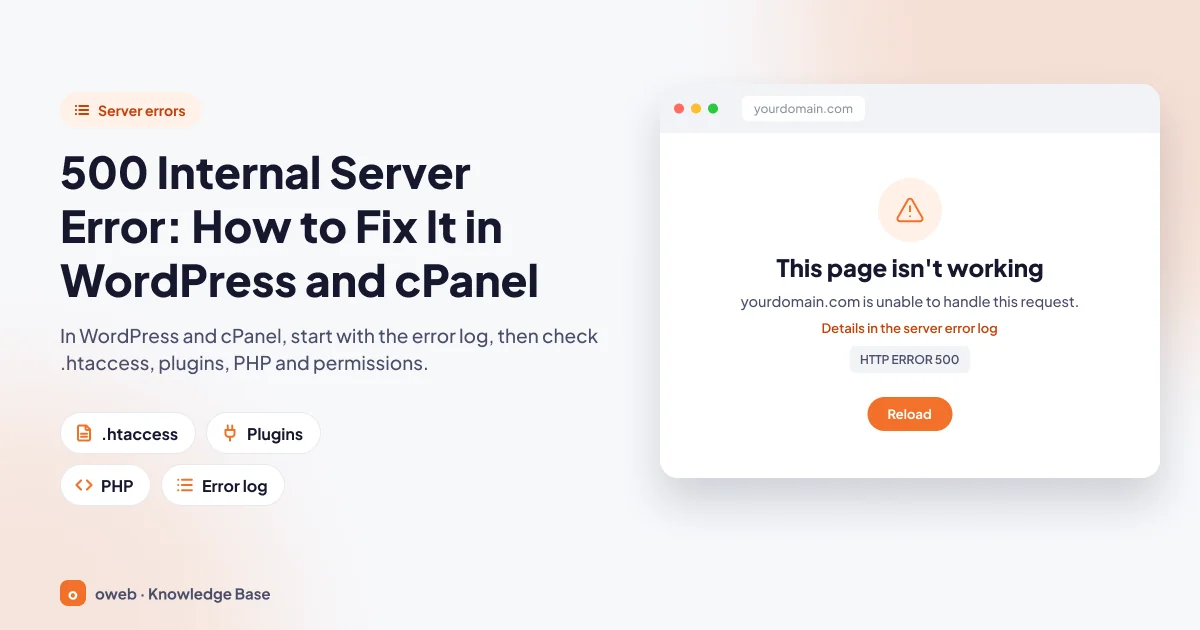
In short: what you need to know about the 500 error
- The 500 error is defined in RFC 9110, section 15.6.1, and MDN describes it as a generic catch-all server error. The server returns it when no more suitable 5xx code applies.
- The error originates on the server; the visitor's connection or browser is not the real cause.
- The most common causes are a faulty .htaccess rule, a PHP fatal error (usually caused by a plugin or theme), the PHP memory limit, PHP version incompatibility, incorrect file permissions and corrupted core files.
- Read the error log first: Metrics > Errors in cPanel, the
error_logfile, and in WordPress thewp-content/debug.logfile created by WP_DEBUG_LOG. - The two quickest tests in WordPress: rename
.htaccessto.htaccess_oldand rename thewp-content/pluginsfolder. - Always take a backup before touching any files or the database.
- 502 and 504 point to a problem between a proxy and the upstream server, while 503 indicates temporary overload or maintenance.
- WordPress's "There has been a critical error on this website." page is also sent with an HTTP 500 status code.
What is a 500 Internal Server Error?
With every request, the browser receives a status code from the server. 4xx codes describe problems with the request, while 5xx codes describe problems on the server. The 500 Internal Server Error is the most generic member of the latter group.
What does RFC 9110 say?
The current reference for HTTP status codes is RFC 9110, which replaced the older RFC 7231 in June 2022. According to section 15.6.1, a 500 code indicates that the server encountered an unexpected condition that prevented it from fulfilling the request. MDN lists misconfiguration, insufficient memory, unhandled exceptions and incorrect file permissions among the possible causes. In short, a 500 code tells you that something went wrong, but not what went wrong. The real information is in the server's error logs.
What does a 500 error look like?
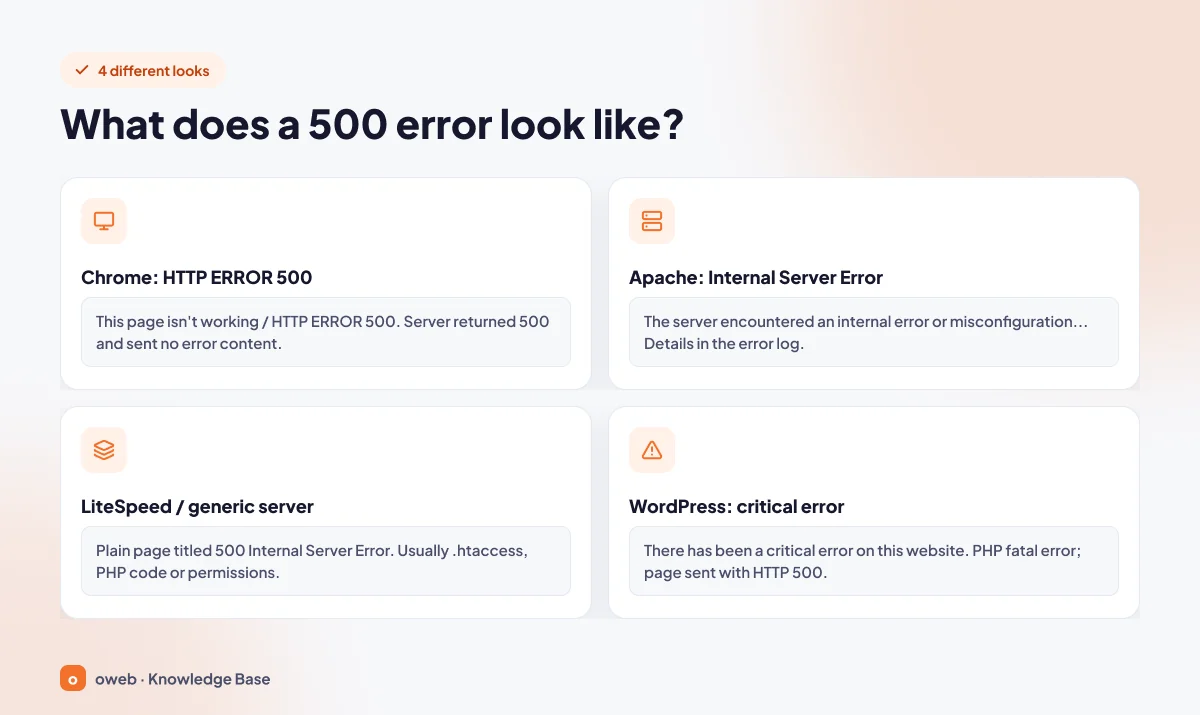
The same error can appear in different forms depending on the server software and the application the site runs. These are the four most common forms:
- Chrome: a "This page isn't working" heading, a line below it saying that your domain is currently unable to handle this request, and an HTTP ERROR 500 line. This screen means the server returned a 500 code but did not send any error content to display.
- Apache default page: an "Internal Server Error" heading with the text "The server encountered an internal error or misconfiguration and was unable to complete your request." At the bottom, the page notes that more details may be available in the server error log.
- LiteSpeed or a generic server page: a plain page titled "500 Internal Server Error", sometimes with the name of the server software in the footer. It means the same thing as the Apache page. According to the LiteSpeed documentation, the cause is usually .htaccess, PHP code or permissions.
- WordPress: the message "There has been a critical error on this website." with a link to the WordPress troubleshooting documentation. This page is the result of a PHP fatal error and is sent with an HTTP 500 status code.
If your site sits behind a CDN or reverse proxy, check whether the error page carries that service's branding. If the page belongs to the CDN, the problem may be between the CDN and your server; if the page comes from your own server, the fix is in your hosting account. You can see the status code in the browser's Network tab or from the command line:
curl -I https://yourdomain.com/
# The first line of the response, for example: HTTP/2 500

curl -s -o /dev/null -w "%{http_code}\n" https://yourdomain.com/
# Output, for example: 500
The -I option in the first command sends a HEAD request. Because some applications and caches respond differently to HEAD and GET requests, the second command sends a normal GET request and prints only the status code.
What should you do if you are a visitor?
Since the problem is not on your device, there is little you can do. Reload the page after a few minutes; a temporary issue may have cleared up. If the error persists, let the site owner know the address and the time you saw it.
What is the difference between 500, 502, 503 and 504?
All four codes belong to the 5xx class, but each points to a different kind of failure. Recognising the right code tells you where to look.
| Code | Meaning (RFC 9110) | Typical cause in hosting |
|---|---|---|
| 500 Internal Server Error | The server encountered an unexpected condition and could not complete the request. | Faulty .htaccess, PHP fatal error, plugin or theme conflict, memory limit, permission error |
| 502 Bad Gateway | The proxy or gateway received an invalid response from the upstream server. | The PHP-FPM or application process on the backend crashed or returned a malformed response |
| 503 Service Unavailable | The server cannot handle the request right now because of temporary overload or maintenance; it may send a Retry-After header. | Resource limits reached, maintenance mode, a sudden traffic spike |
| 504 Gateway Timeout | The proxy or gateway did not receive a timely response from the upstream server. | Long-running script or database query, backend server timeout |
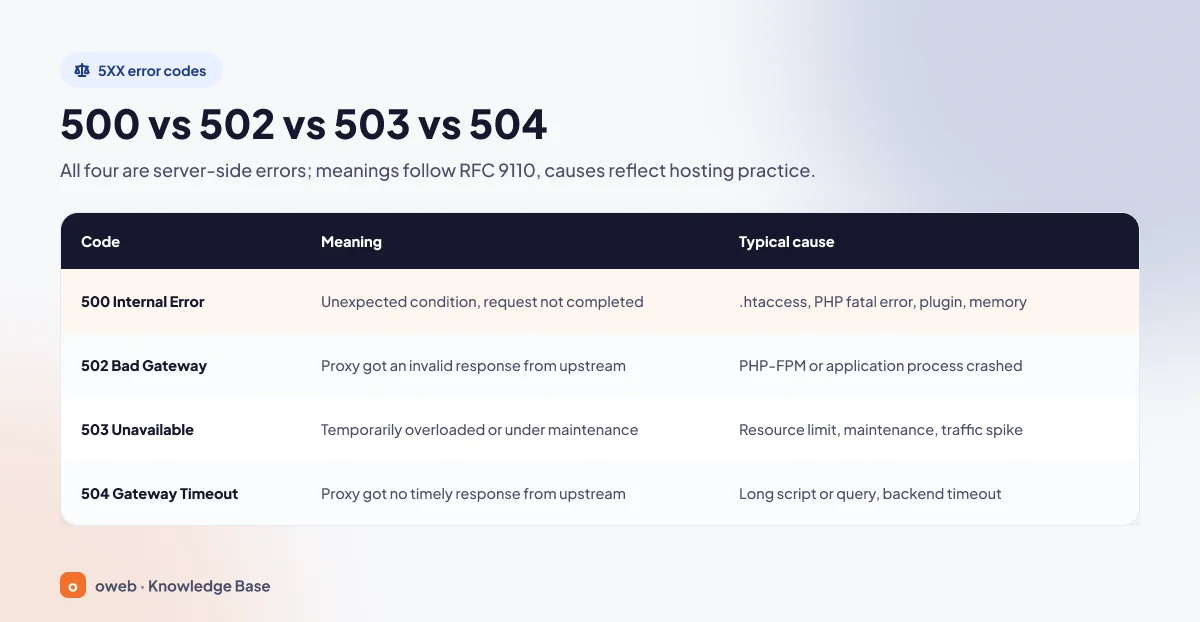
The "Typical cause in hosting" column is a generalisation based on hosting experience, not on the standard. For errors caused by temporary load or maintenance, see our 503 Service Unavailable error guide; for timeouts caused by long-running operations, see our 504 Gateway Timeout error guide.
What causes a 500 error? The 6 most common causes
The vast majority of 500 server error cases on shared hosting accounts fall under one of the following six headings.
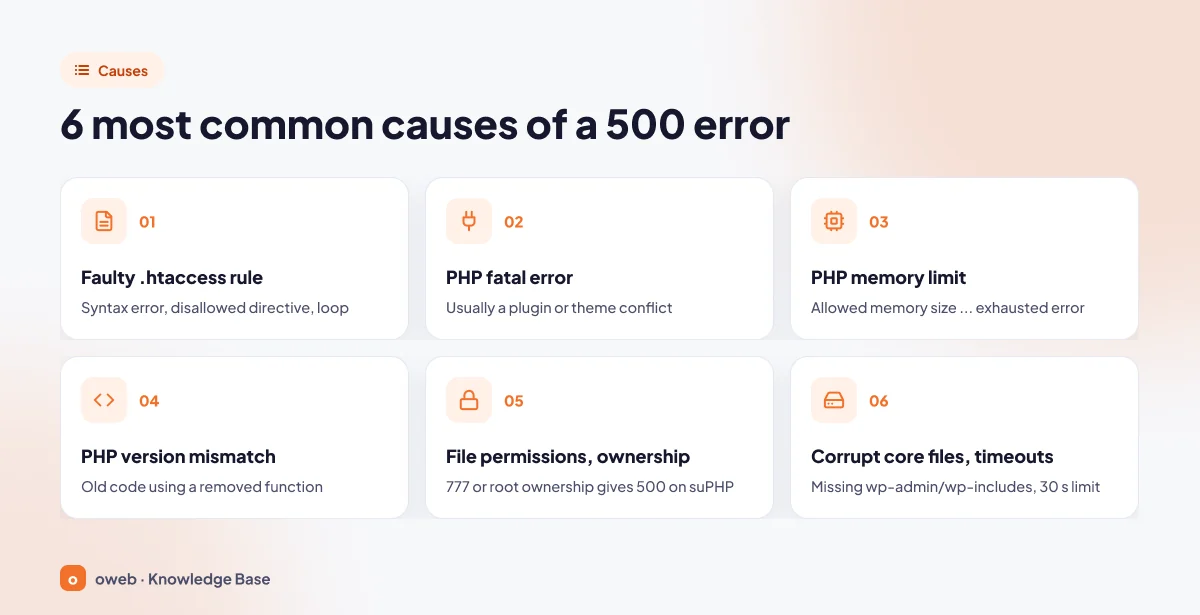
- A faulty .htaccess rule: According to Apache's .htaccess tutorial, when Apache finds a syntax error in .htaccess or a directive that is not allowed in that directory, it ends the request with a 500. The error log shows lines such as "RewriteCond: bad flag delimiters" or "not allowed here". Redirect rules that call each other also produce a 500, logged as "AH00124: Request exceeded the limit of 10 internal redirects".
- PHP fatal error and plugin/theme conflicts: A call to an undefined function, two plugins declaring the same class, or an interrupted update stops PHP.
- PHP memory limit: If a script requests more memory than the
memory_limitvalue, PHP stops with the error "Allowed memory size of ... bytes exhausted". The default value in php.ini is 128M. - PHP version incompatibility: If an old plugin or theme uses a function that was removed in a newer PHP version, a fatal error occurs. For example, each() and create_function() were removed entirely in PHP 8.0. Functions that are marked as deprecated but still exist usually only produce an E_DEPRECATED notice, which is why the distinction matters.
- File and folder permissions and ownership: On servers running suEXEC or similar security mechanisms, files with overly loose permissions (777) or owned by the wrong user are not executed for security reasons. A file left owned by the root user can also cause a 500 error.
- Corrupted core files or timeouts: An interrupted update can leave files missing in
wp-adminorwp-includes. In addition, if PHP'smax_execution_time(30 seconds by default) is exceeded, the error "Maximum execution time of N seconds exceeded" occurs and, depending on the server configuration, a 500 may be returned.
Likely causes by symptom
The first question is: what was the last thing that changed on the site?
| Symptom | Likely cause | First check |
|---|---|---|
| The whole site fails right after .htaccess is edited or a redirect is added | Syntax error, redirect loop | Rename the .htaccess file |
| The error started after a plugin or theme was installed or updated | PHP fatal error | Check debug.log, rename the plugins folder |
| The error started after the PHP version was changed | Incompatible code, a disabled PHP extension | Switch back to the previous PHP version |
| The error only appears during heavy operations such as imports or backups | memory_limit or max_execution_time | Search the error log for "Allowed memory size" or "Maximum execution time" |
| The error started after moving files or uploading via FTP | Permission or ownership error | Check permissions (folders 755, files 644) |
| The error only appears in the admin area (wp-admin) | A plugin that runs in the dashboard, corrupted wp-admin files | Check debug.log, reinstall the core |
How to find the cause of a 500 error: read the error log first
Because the 500 code hides the cause, the error logs are the fastest route. The Apache documentation also describes the server error log as the most important log file and the first place to look when something goes wrong. Match the timestamp in the error log to the time you saw the error; a single line often points to the problematic file.
The cPanel Errors interface
In cPanel, go to Metrics > Errors. According to the cPanel documentation, this screen lists the 300 most recent entries in the web server error logs, from newest to oldest. If the server uses NGINX, only errors logged by Apache appear here. The hosting provider may also have disabled this interface; if Errors is not in the menu, ask the support team for help with the error log.
The error_log file
PHP writes errors to the file set by the error_log directive. In many cPanel environments this setting is relative, so a file named error_log is created in the directory where the failing script runs (for example public_html/error_log). In some configurations, error logs are kept in a central logs folder; the location depends on the hosting configuration.
Look at the last lines of the file: the line containing "PHP Fatal error" gives the error type, the file and the line number. The LiteSpeed documentation also recommends checking error_log, stderr.log and the PHP error log for a 500, but it notes that some 500 errors may not be logged at all.
debug.log with WP_DEBUG and WP_DEBUG_LOG
If the server error logs are not enough, you can enable WordPress's own debugging mode. WP_DEBUG is false by default. Before editing, download a copy of wp-config.php to your computer; a single missing quote or semicolon in this file can stop the site from loading at all.
Add the following lines to wp-config.php above the comment line that begins with "That's all, stop editing!". Depending on the version, the rest of that line reads "Happy publishing" or "Happy blogging", and it may also differ on translated installs. If the file already contains a define( 'WP_DEBUG', false ); line, change that line instead of defining the constant a second time:
define( 'WP_DEBUG', true );
define( 'WP_DEBUG_LOG', true );
define( 'WP_DEBUG_DISPLAY', false );
@ini_set( 'display_errors', 0 );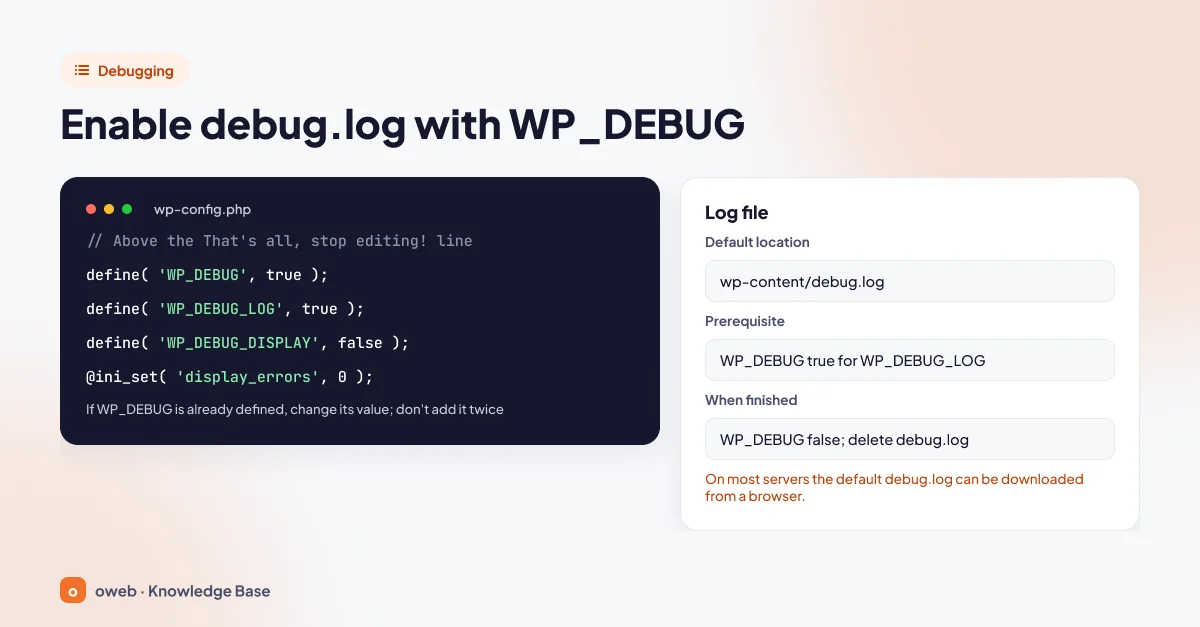
With this configuration, errors are not printed on screen but written to the wp-content/debug.log file. WP_DEBUG_LOG only works when WP_DEBUG is true. Setting WP_DEBUG_DISPLAY, which defaults to true, to false keeps the details hidden from visitors. The details are in the WordPress debugging documentation.
WP_DEBUG_LOG can also be given a file path instead of true. Writing the error log to a file outside the web root (public_html) is safer:
define( 'WP_DEBUG_LOG', '/home/username/logs/wp-errors.log' );The folder must already exist and be writable by PHP. Replace the username and path with those of your own account.
Debugging mode should not be left permanently enabled on a live site. On most servers, a debug.log in the default location can be downloaded by anyone at yourdomain.com/wp-content/debug.log. The file contains information that can be useful to attackers, such as server paths and plugin details. Once you have found the problem, set WP_DEBUG back to false and delete the debug.log file. The PHP documentation also recommends not using display_errors on production systems and logging errors instead of printing them on screen.
How to fix the WordPress 500 error step by step
The order below is based on WordPress's common errors documentation and moves from the safest step to the most comprehensive one. Test the site in a private window after each step and stop once the problem is solved.
Back up your files and database before renaming, editing or deleting any file. A backup lets you undo a step that goes wrong within minutes. For methods, see our WordPress backup guide.
1. Reset the .htaccess file
The official WordPress documentation names a corrupted .htaccess file as the most likely cause of an Internal Server Error. That is why this is the first test, and it is also the easiest step to undo.
- Open File Manager in cPanel and go to the directory where WordPress is installed (usually
public_html). - If .htaccess is not visible, click the Settings button in File Manager, tick Show Hidden Files (dotfiles) and click Save.
- Select the .htaccess file and use Rename in the toolbar to rename it to
.htaccess_old. - Refresh the site. If it still returns a 500, .htaccess is not the problem; rename the file back to
.htaccessand move on to the next step (plugins). - If the site loads, the problem was in .htaccess. In the WordPress dashboard, go to Settings > Permalinks and click Save Changes without changing anything. WordPress creates a new, clean .htaccess file.
If, after renaming the file, the home page loads but inner pages return 404, this is expected, because the permalink rules have not been written yet. Saving in step 5 fixes it.
If WordPress cannot create the file (because it lacks write permission), you can create a new .htaccess file and paste in the default block below, which applies to single-site installs. This block is the current version from WordPress's Apache documentation; older guides do not include the Authorization line. The block assumes WordPress is installed in the root directory of the domain. For installs in a subfolder, RewriteBase and the path in the last rule must be changed accordingly. Multisite installs use a different block.
# BEGIN WordPress
RewriteEngine On
RewriteRule .* - [E=HTTP_AUTHORIZATION:%{HTTP:Authorization}]
RewriteBase /
RewriteRule ^index\.php$ - [L]
RewriteCond %{REQUEST_FILENAME} !-f
RewriteCond %{REQUEST_FILENAME} !-d
RewriteRule . /index.php [L]
# END WordPress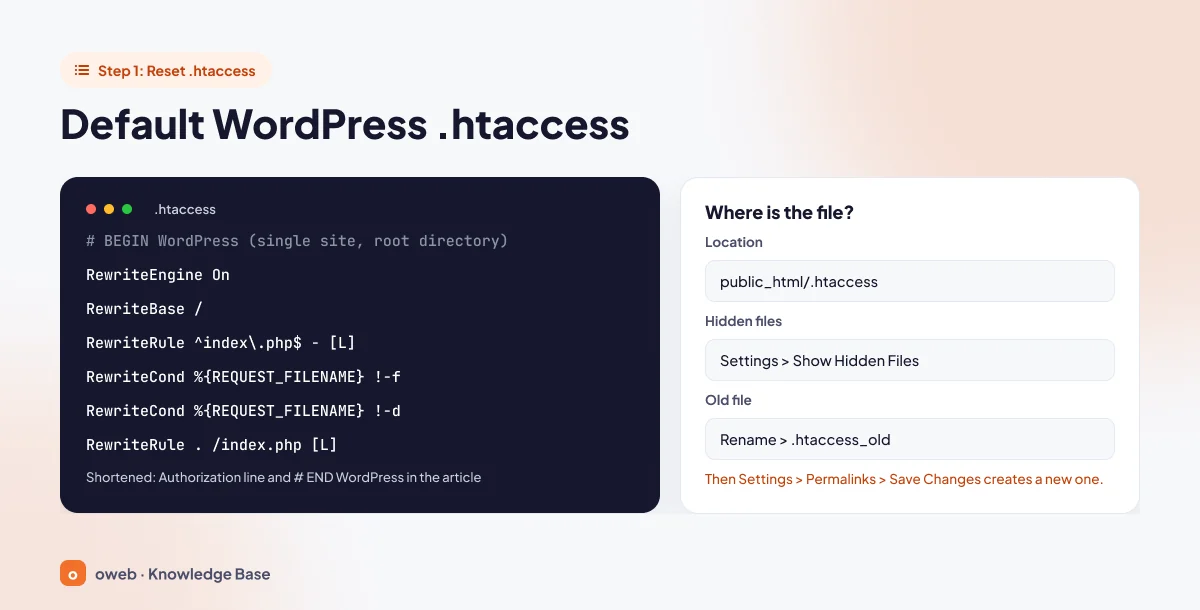
The old file may contain rules added by caching or security plugins. If you add them back one by one from .htaccess_old, testing each time, and find the faulty line, you will have fixed the .htaccess 500 error without losing the rules you need.
2. Deactivate plugins
If .htaccess did not solve the problem, plugins are the next suspect. If you can log in to the dashboard, deactivate them all at once from the Plugins screen. If the dashboard also returns a 500, work at the file level as described in the WordPress troubleshooting FAQ:
- Open the
wp-contentfolder in File Manager. - Rename the
pluginsfolder to something likeplugins.hold. Because WordPress cannot find the plugin files, it cannot load any of them; the plugin settings are kept in the database. - If the site loads, the problem is a plugin. Log in to the dashboard and go directly to the Plugins screen at
/wp-admin/plugins.php. WordPress reports that the plugins could not be found and deactivates them all. Only then rename the folder back toplugins. - The plugins now stay deactivated. Activate them one by one and check the site each time. When the 500 error returns, the plugin you activated last is the culprit.
If you skip step 3 and rename the folder back straight away, WordPress still treats the plugins as active and the error returns. Must-use plugins in the wp-content/mu-plugins folder are not disabled by this method; if the error persists, test by renaming that folder in the same way.
Update the problematic plugin, send the relevant line from the error log to its developer, or switch to an alternative. Advanced users can achieve the same result in phpMyAdmin by setting the active_plugins value in the wp_options table (the table prefix may differ depending on the $table_prefix value in wp-config.php) to a:0:{}. Before doing this, back up the database and copy the current value somewhere safe; this value is the list of active plugins.
3. Switch to a default theme
If the plugins turn out to be fine, the active theme's functions.php file or a template file may be causing the error. If you can log in to the dashboard, activate a default theme from Appearance > Themes.
If you cannot access the dashboard, rename the active theme's folder under wp-content/themes (for example to themename.hold). If WordPress cannot find the active theme and the core default theme is installed, it switches to that theme. As of November 2026, that theme in WordPress 7.1 is Twenty Twenty-Five.
Do not delete the theme folder; rename it. Deleting it can cause the customisations in a child theme to be lost, while a renamed folder can be restored in a single step.
4. Check the PHP memory limit
If the error log shows an "Allowed memory size of ... bytes exhausted" line, the problem is an insufficient PHP memory limit (memory_limit). On the WordPress side, the memory limit is set with the WP_MEMORY_LIMIT constant. By default, WordPress tries to raise it to 40M on a single site and 64M on a multisite install; if the server's limit is higher, it uses that instead. There is also WP_MAX_MEMORY_LIMIT for the admin area, with a core default of 256M.
To raise the limit, add the following to wp-config.php above the line that begins with "That's all, stop editing!":
define( 'WP_MEMORY_LIMIT', '256M' );WordPress tries to apply this value to the memory_limit setting using PHP's ini_set function. However, if the server does not allow this setting to be changed from within a script, the constant has no effect. If the byte value in the "Allowed memory size" line of the error log does not change, raise memory_limit with MultiPHP INI Editor as described below (Select PHP Version > Options on servers running CloudLinux), or ask your hosting provider. The WordPress Hosting Handbook recommends at least 128M for basic installs, 256M as the default, and 512M or more for busy sites.
Repeatedly raising the limit can mask the real problem. A site that still fails even at 256M usually has a plugin that consumes too much memory or a faulty loop. The file path in the error log often gives a clue about the plugin responsible.
5. Check the PHP version
If the error started right after a PHP version change, switch back to the previous version, then update the incompatible plugin or theme. As of November 2026, WordPress 7.1 requires PHP 7.4 or later and is listed as compatible with versions 7.4 through 8.5. However, because 7.4, 8.0 and 8.1 no longer receive security updates, at least PHP 8.3, and preferably 8.4 or later, is recommended for live sites.
PHP 8.6, released on 19 November 2026, is not yet on WordPress 7.1's compatibility list. Before upgrading, make sure your plugins and themes support the new version. We explain how to change the version from the control panel step by step in our guide to changing the PHP version.
6. Reinstall the WordPress core files
If nothing has worked so far, a file in wp-admin or wp-includes may be corrupted. Before reinstalling the core, check the file permissions section below; a permission error is simpler and quicker to fix. If you can log in to the dashboard, the safest method is the "Re-install version X" button on the Dashboard > Updates screen.
If you cannot access the dashboard, follow the method in WordPress's manual update documentation.
Never delete the existing wp-content folder. Your themes, plugins and uploaded media are stored in this folder.
- Take a full backup and make sure the plugins are deactivated. Download the zip file for the version your site uses from wordpress.org and extract it on your computer.
- Delete the old
wp-adminandwp-includesfolders on the server and upload the ones from the new package in their place. - Upload the individual files in the root directory (such as
index.php,wp-login.phpandwp-settings.php) from the new package. Becausewp-config.phpis not included in the package, your settings are preserved.
How to fix a 500 error in cPanel
Not every cPanel 500 error comes from WordPress; permissions and PHP settings can also cause this error in custom PHP applications. The tools are given under cPanel's official English names. Menus may vary depending on the features your provider has enabled.
File permissions and ownership
Servers running security mechanisms such as suEXEC refuse to execute world-writable files. That is why the advice "set it to 777 and it will work" creates a new 500 error and a serious security hole.
Recommended permission values
According to the WordPress file permissions documentation, the recommended values are:
| Item | Recommended permission | Note |
|---|---|---|
| Folders | 755 or 750 | No directory, including upload folders, should be set to 777 |
| Files | 644 or 640 | Including .htaccess and PHP files |
| wp-config.php | 440 or 400 | Kept stricter because it contains database credentials |
On shared hosting, files should be owned by your account user, not by the web server process or root. You cannot change ownership from within your account; if you suspect a file is owned by root, contact the support team.
Changing permissions in File Manager
- Open File Manager in cPanel and select the file or folder.
- Click the Permissions button in the toolbar.
- In the window that opens, enter the value (for example 0644 for a file) and confirm with Change Permissions.
If you have SSH access, you can fix permissions in bulk in the WordPress root directory with the commands below. Take a backup first and make sure you are in the correct directory:
find . -type d -exec chmod 755 {} \;
find . -type f -exec chmod 644 {} \;
chmod 440 wp-config.php
PHP settings and PHP version
The memory limit and PHP version are managed with separate tools in cPanel; which ones are available depends on the server.
memory_limit with MultiPHP INI Editor
MultiPHP INI Editor lets you change PHP directives from the control panel:
- In cPanel, open Software > MultiPHP INI Editor.
- On the Basic Mode tab, use the "Configure PHP INI basic settings" menu to select a domain for a single site, or the Home Directory option for all sites.
- Change the
memory_limitvalue (for example 256M) and, if needed, themax_execution_timevalue. - Click the Apply button at the bottom of the page.
The tool writes the changes to php.ini, .user.ini and, where supported, .htaccess files. Editor Mode edits php.ini directly; according to the cPanel documentation, a mistake made there can stop PHP scripts from working.
Some guides on the internet recommend writing PHP settings into .htaccess with php_value or php_flag lines. According to the PHP documentation, these directives can only be used when PHP runs as an Apache module (mod_php). On Apache servers using PHP-FPM or CGI, Apache does not recognise these lines and ends the request with a 500 error. The LiteSpeed documentation also lists php_value lines among the causes of 500 errors under Apache, although LiteSpeed's lsphp handler does recognise them. This is one of the most common reasons the same .htaccess file works on one server and returns a 500 on another. Use the control panel's tools or a .user.ini file for PHP settings.
You can see which method applies in which environment in PHP's documentation on how to change configuration settings.
PHP version with MultiPHP Manager
MultiPHP Manager lets you choose the PHP version per domain:
- Open the Software > MultiPHP Manager screen.
- Tick the checkbox next to the relevant domain.
- Select the version from the PHP Version menu and click Apply.
The "inherit" option uses the server's default version. A version that does not appear in the list is either not installed on the server or not enabled for your account.
CloudLinux Select PHP Version
On servers running CloudLinux, the PHP version can be managed from the Software > Select PHP Version screen. Choose the version from the menu next to "Current PHP version" and apply it with "Set as current" (Apply in some interfaces). This selection applies to the whole hosting account, not to individual domains. The interface may differ between versions.
If your account uses a version selected through Select PHP Version, settings such as memory_limit are changed on this screen's Options tab instead of in MultiPHP INI Editor. PHP extensions are listed either on a separate Extensions tab or on the same screen, depending on the interface version.
If you see an "undefined function" fatal error after a version change, there are two possibilities: either the function was removed in the new PHP version (you need to update the code), or a PHP extension that was enabled in the old version is disabled in the new one (enable the extension from this screen). In addition, PHP handler lines written to .htaccess by MultiPHP Manager can override the Select PHP Version selection.
WordPress recovery mode and the "critical error" message
The error handler introduced in WordPress 5.2 shows an explanatory message instead of a blank white screen when a PHP fatal error occurs. WordPress sends visitors the "There has been a critical error on this website." page with an HTTP 500 status code. In other words, the WordPress 500 error reported by your monitoring tool and the critical error message on screen are often two sides of the same event.
At this point, recovery mode kicks in: an email with the subject "[Site Name] Your Site is Experiencing a Technical Issue" (translated on sites in other languages) is sent to the admin address. The email contains the name of the problematic plugin or theme and a secret recovery link. When you log in with that link, the problematic component is paused only for your session, so you can update or deactivate it from the dashboard.
- By default, the email is sent at most once a day and the link is valid for one day.
- The recipient of the recovery email can be changed with the RECOVERY_MODE_EMAIL constant in
wp-config.php.
For a detailed fix for the critical error message, see our "There has been a critical error on this website" guide; for blank pages that show no message at all, see our WordPress white screen of death guide.
When should you contact hosting support?
If the error persists despite the account-level steps, the problem is most likely outside your reach. Open a support ticket in the following cases:
- The 500 error continues even with .htaccess and plugins disabled.
- There is no Errors interface in cPanel, or the error logs show no entries at all.
- The error log mentions a file owned by root, a server module or a ModSecurity rule.
- You cannot raise memory_limit from the control panel, or the change has no effect.
- The error appears under heavy traffic or at random intervals (resource limits may be the cause).
Include in your ticket the address where the error appears, the time, the last change made before the error, the relevant error log line and the steps you have tried; this information speeds up diagnosis considerably. If you are an Oweb customer, you can add this information to your support ticket.
Frequently asked questions
Is the 500 error caused by me?
Most likely not. A 500 is a server error; the real cause is not the visitor's device or connection. You can try opening the page from another device or network, but the error has to be fixed by the site owner or the hosting provider.
I only get a 500 error in wp-admin. Why?
Usually a piece of plugin code that runs only in the dashboard, or a corrupted file in the wp-admin folder, is responsible. Check the debug.log and wp-admin/error_log files, and test the plugins by renaming the plugins folder. If that does not help, reinstall the core files.
A 500 error appeared after I changed the PHP version. What should I do?
Switch back to the previous version from MultiPHP Manager or Select PHP Version. Then use the fatal error line in the error log to identify the incompatible plugin or theme, update it and try the upgrade again. A PHP extension that is disabled in the new version can also cause the same symptom.
Can I delete the error_log file?
Yes. error_log is only a log file, and deleting it does not break the site. Read the last lines first, though; if you delete it before fixing the error, the file will soon be created again. On most servers, these files in the web root can be downloaded directly from a browser. Delete them when you are done, and use a file path outside the web root for the WordPress error log as well.
Does a 500 error affect SEO?
A short-lived 500 usually has no lasting effect. According to Google Search Central documentation, 5xx responses cause Google to temporarily slow down crawling, and URLs that keep returning server errors are eventually dropped from the index. You can monitor the impact in the Crawl stats and Page indexing reports in Search Console. Also make sure your custom error page actually returns a 500 code, not a 200.
Which code should be used instead of 500 during maintenance?
The correct code for planned maintenance is 503 Service Unavailable. According to RFC 9110, a 503 indicates that the condition is temporary and will be resolved after some delay; the server can optionally use a Retry-After header to say when the request should be retried. A 500, by contrast, describes an unexpected failure.
Conclusion
Fixing a 500 Internal Server Error starts with evidence, not guesswork: back up first, then read the cPanel Errors, error_log or debug.log entries. If the error log does not reveal the cause, start with the safest step: .htaccess, plugins, theme, memory limit, PHP version, file permissions and finally the core files. Changing only one thing at each step and testing makes it easier to find the cause and roll back. If account-level steps are not enough, hosting support is the fastest route. If you are looking for a new hosting environment for your WordPress site, take a look at Oweb's WordPress hosting plans.