


The WordPress “There has been a critical error on this website” message means a page could not load because a plugin, theme or custom code snippet triggered a PHP fatal error. The fastest and safest fix is to log in through the recovery mode link sent to the admin email address and deactivate the faulty plugin or theme. If no email arrived, you turn on error logging and disable the problematic component through the file manager, FTP or WP-CLI.
This guide is based on WordPress 7.1, the current release as of November 2026, and the PHP 8.3+ requirement recommended by WordPress.org.
Quick Summary
- This screen is shown by the fatal error protection (Fatal Error Recovery Mode) introduced in WordPress 5.2, and the page returns an HTTP 500 status code.
- Visitors see the sentence “There has been a critical error on this website.” Sites that use another language pack show a translated version of the same message. The problem is usually referred to simply as the “WordPress critical error”.
- If the error occurs in the admin dashboard or on the login page and is caused by a plugin or theme, WordPress sends an email with the subject “[Site Name] Your Site is Experiencing a Technical Issue” to the admin address. By default this email is sent at most once a day, and the link inside it is valid for 24 hours.
- Recovery mode works only in the browser where you open the link. The faulty plugin is paused only for you; for visitors, the site remains broken.
- If no email arrived, use
WP_DEBUGandWP_DEBUG_LOGto write the error to thewp-content/debug.logfile. The file path in the log points to the responsible plugin or theme. - Back up your files and database before touching anything.
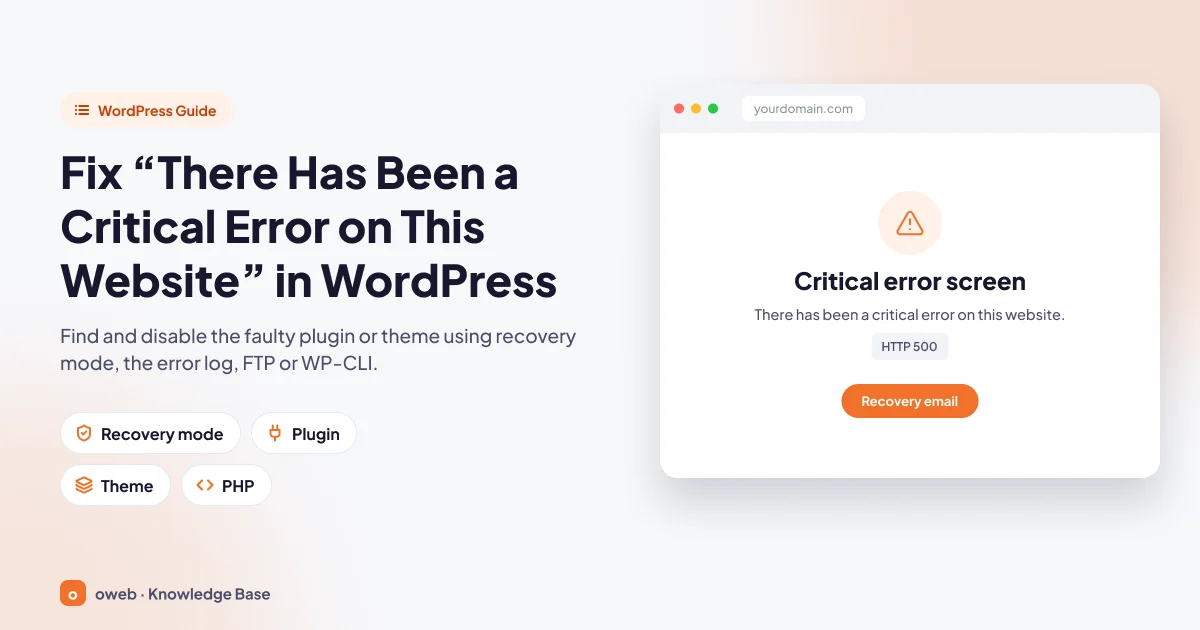
What does “There has been a critical error on this website” mean?
When PHP runs into a problem it cannot recover from, it stops execution. This is called a fatal error. Calling an undefined function, loading a file with a syntax error or exceeding the memory limit are typical examples.
Before WordPress 5.2, this usually resulted in a blank white page. Version 5.2 added an error handler to core. The handler does not prevent the crash, but it shows visitors an understandable message and gives the administrator a way to fix the problem. This feature is called WordPress recovery mode.
The handler only kicks in for error types that are truly fatal: E_ERROR, E_PARSE, E_USER_ERROR, E_COMPILE_ERROR and E_RECOVERABLE_ERROR. Warnings and notices do not trigger this screen. In most cases the problem is not the server but a single plugin, theme or line of custom code.
Back up your site's files and database before you rename, delete or edit any file. If your hosting panel offers a snapshot or backup tool, use it first. We explain the methods step by step in our WordPress backup guide. Also write down exactly when the error started and what you were doing at the time (which update, which code).
Who sees the message, and in what form?
WordPress chooses the message based on the page where the error occurred. The texts below are the original English strings from WordPress core. If your site uses another language, or an outdated language pack, the wording on screen may be slightly different.
The message visitors see
Anyone who opens your site on the front end sees only a short sentence: “There has been a critical error on this website.” Below it is a link that reads “Learn more about troubleshooting WordPress.” No technical details are shown to visitors, which also keeps information such as file paths from being exposed publicly.
The message in the admin dashboard and on the login page
If the error occurs on a protected address such as the admin dashboard or the login page, and recovery mode has been initialized, the message is longer: “There has been a critical error on this website. Please check your site admin email inbox for instructions. If you continue to have problems, please try the support forums.” A visitor who opens these pages without being logged in sees the same message. It indicates that a recovery link may have been sent to the admin email address. The same message also appears when the email cannot be sent at that moment (for example, because it was already sent within the last 24 hours). On multisite installations, the message reads: “There has been a critical error on this website. Please reach out to your site administrator, and inform them of this error for further assistance.”
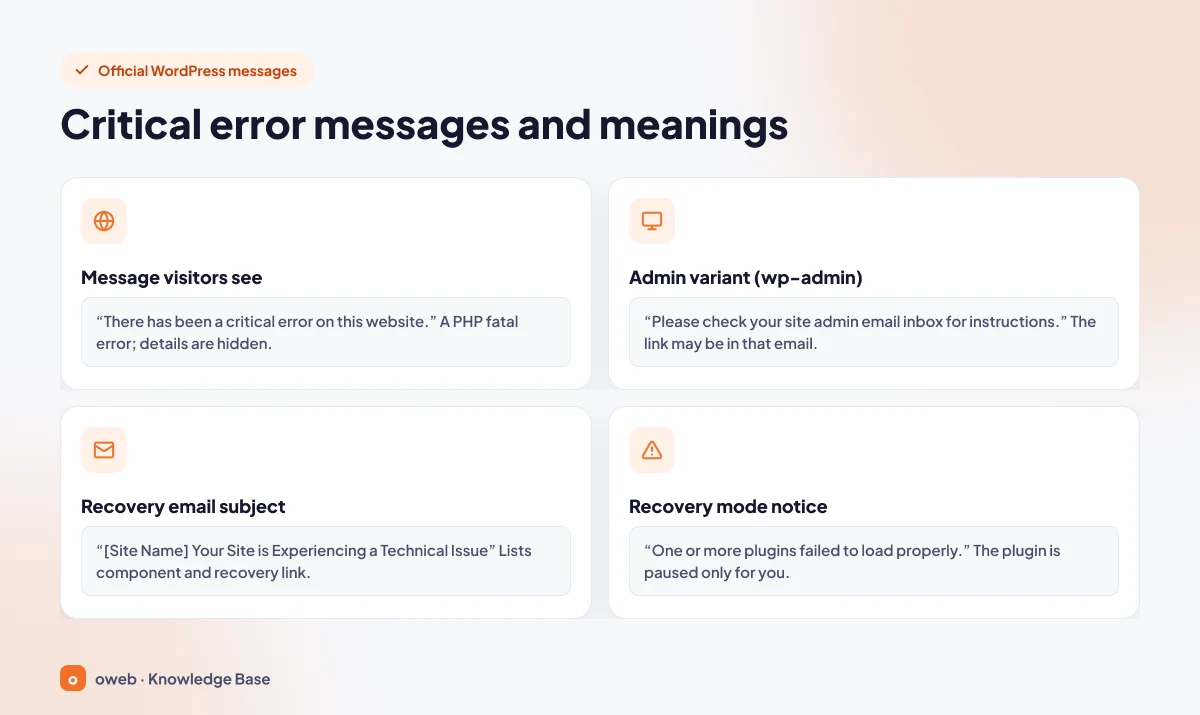
| Where it appears | Exact text | What it means |
|---|---|---|
| Front end (visitors) | There has been a critical error on this website. | The site has a PHP fatal error, and the details are hidden. |
| wp-admin, wp-login | There has been a critical error on this website. Please check your site admin email inbox for instructions. | You are asked to check your email for the recovery link. |
| Email subject | [Site Name] Your Site is Experiencing a Technical Issue | This email names the faulty plugin or theme and contains the recovery link. |
| Admin dashboard in recovery mode | One or more plugins failed to load properly. | The faulty plugin has been paused for your browser only. |
Most common causes of the critical error
The screen is always the same, but the cause varies. If you remember what you did right before the error appeared, you can usually find the responsible component quickly.
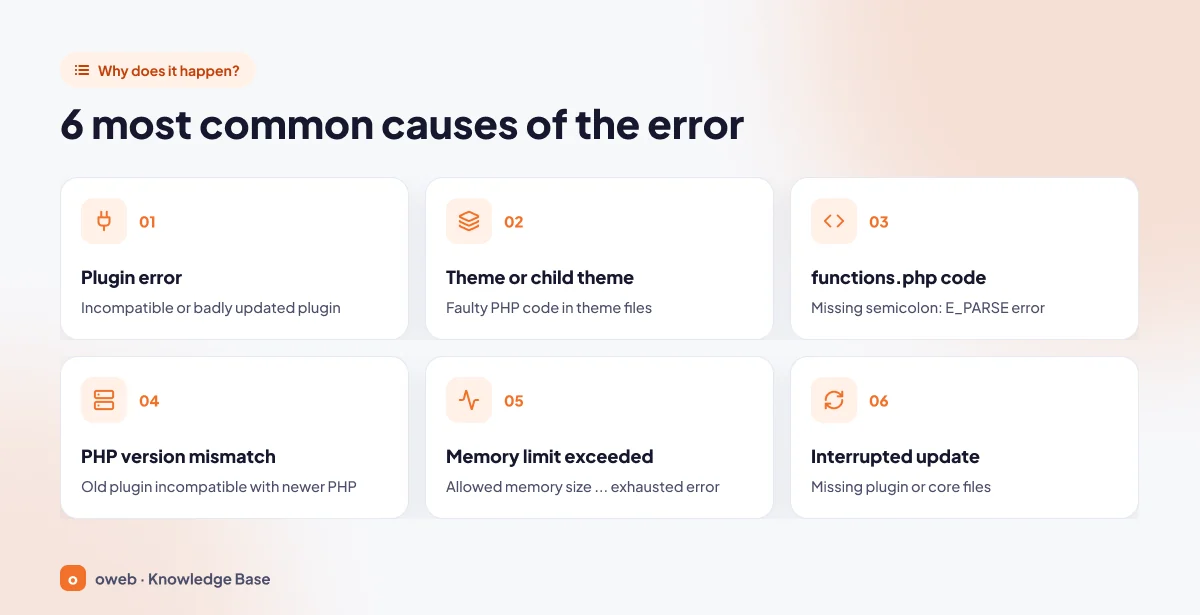
- PHP fatal error caused by a plugin: A newly installed or updated plugin may be incompatible with your WordPress version, your PHP version or another plugin. This is the first scenario to consider with WordPress plugin errors.
- Theme error: Faulty code in the parent theme or child theme files can affect every page on the site.
- Broken code added to functions.php: A missing semicolon or bracket in a snippet copied from the internet produces an
E_PARSEsyntax error. The moment you save the file via FTP or the hosting file manager, the site stops loading. The built-in WordPress theme file editor, on the other hand, checks for fatal errors after saving and rolls back the change if it finds one. - PHP version incompatibility: After a PHP upgrade, an old plugin may call a function that has been removed. Conversely, a very old PHP version cannot run newer plugins.
- Memory limit: If the log shows “Allowed memory size of ... bytes exhausted”, the memory allocated to PHP was not enough for that process.
- Incomplete update or corrupted files: If the connection drops during an update, the plugin folder or core files may be left incomplete.
How to fix the critical error with WordPress recovery mode
If the error comes from a plugin or theme and occurred while the admin dashboard or login page was loading, WordPress sends an email that names the faulty component. This email is the key to WordPress recovery mode and the least invasive way to fix the problem.
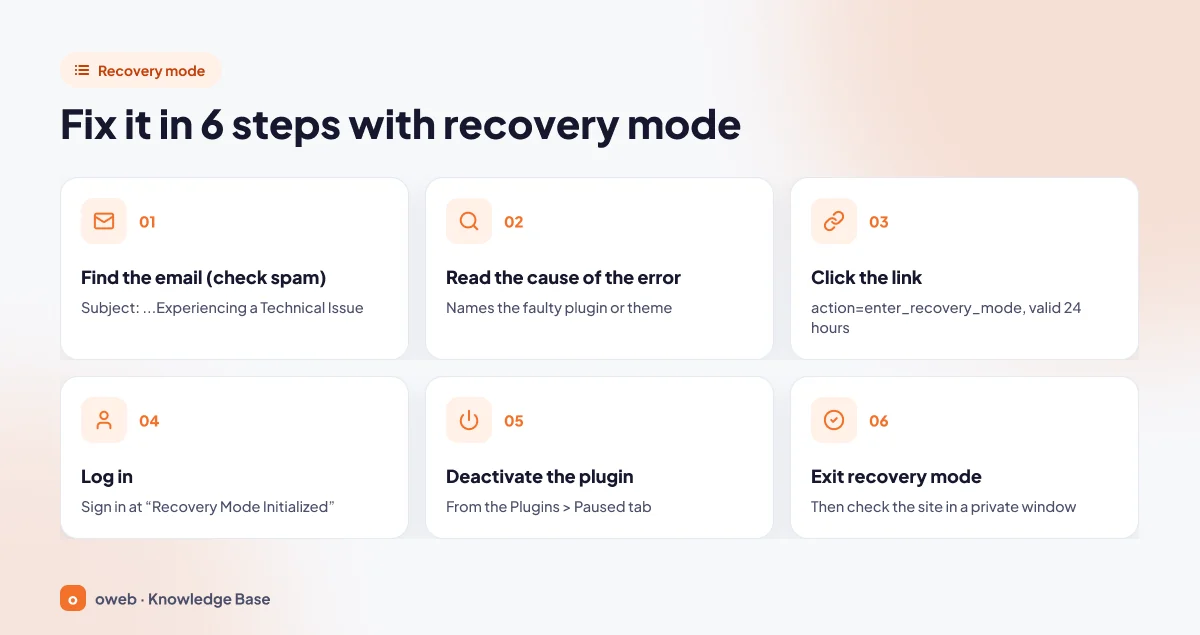
- Open the inbox of the Administration Email Address listed under Settings > General. If
RECOVERY_MODE_EMAILis defined inwp-config.php, check that address instead. Check the Spam or Junk folder too. The subject line looks like “[Site Name] Your Site is Experiencing a Technical Issue”. - Read the explanation in the email. The sentence “In this case, WordPress caught an error with one of your plugins” or “In this case, WordPress caught an error with your theme” is followed by the name of the faulty component. At the end of the email you will also find error details, including the file and line number.
- Click the recovery mode link in the email. The link address contains
wp-login.php?action=enter_recovery_modeand a unique key. By default, the link is valid for 24 hours. - On the “Recovery Mode Initialized. Please log in to continue.” screen, log in with your username and password. The link only sets a cookie in your browser; you still need to log in yourself.
- In the WordPress admin dashboard you will see a red notice: “One or more plugins failed to load properly.” Use the “Go to the Plugins screen” link and switch to the “Paused” tab in the list. Deactivate the plugin marked “This plugin failed to load properly and is paused during recovery mode.” If the problem is the theme, activate a different theme under Appearance > Themes.
- Click the “Exit Recovery Mode” button in the admin bar. Then open the site in an incognito (private) window to confirm that visitors can access it without problems.
Recovery mode only hides the problem in your browser. Unless you deactivate or update the plugin, visitors will keep seeing the error screen. If you try a paused plugin again with “Resume” and the error persists, WordPress shows the message “Plugin could not be resumed because it triggered a fatal error.”
Some sources claim that typing /wp-login.php?action=entered_recovery_mode in the address bar turns on recovery mode. This is not true. In WordPress core, this address is just an information screen you are redirected to after the key has been verified. Without the key and the cookie, recovery mode does not start and the WordPress admin dashboard still throws the error. You need the link from the email for it to work.
Why doesn't the recovery email arrive?
The main reasons the email does not arrive are:
- WordPress only prepares this email when the error occurs in the admin dashboard or on the login page. If you have only seen the error on visitor-facing pages so far, open
yourdomain.com/wp-admin/once. If the error occurs there too, the email is triggered at that point. If the dashboard loads, you can deactivate the problematic plugin directly from the Plugins screen. - If the error does not come from a plugin or theme folder, no email is sent at all. Core files,
wp-config.php, thewp-content/mu-pluginsfolder and drop-in files such asobject-cache.phpare examples. On multisite, network-activated plugins also fall into this category. In that case, go straight to the error log. - The admin email under Settings > General may be an old address or one that is no longer in use.
- WordPress sends the email through the server's mail system. If the server cannot send mail, or the message is flagged as spam, it will not reach you.
- By default, WordPress sends this email at most once a day. If the error first occurred within the last 24 hours, the email may already have been sent at that time, so search your inbox around that date. If the error occurs in the admin dashboard again after the link has expired, a new link is sent.
If you want future recovery emails to go to the right address, you can add the RECOVERY_MODE_EMAIL constant to wp-config.php. Back up the file first. Then add the line above the “That's all, stop editing!” line, or, if you cannot find that line, above the require_once ABSPATH . 'wp-settings.php'; line. If this constant is defined and contains a valid email address, the email goes to this address instead of the admin address:
define( 'RECOVERY_MODE_EMAIL', '[email protected]' );Adding the constant does not immediately re-send an email that was already sent within the last 24 hours. In an emergency, switching to the manual methods below is faster.
No email? Find the error in the log
Instead of trying random fixes, find out where the error comes from first. Debug mode configured as shown below writes the error to a file without displaying it to visitors. WP_DEBUG is false by default. Using the file manager or FTP, back up the wp-config.php file in the site root and open it. If there is an existing WP_DEBUG line, remove it, then add the following block above the “That's all, stop editing!” comment line. In some localized installations this comment may be translated. If you cannot find it, add the block above the require_once ABSPATH . 'wp-settings.php'; line.
define( 'WP_DEBUG', true );
define( 'WP_DEBUG_LOG', true );
define( 'WP_DEBUG_DISPLAY', false );
@ini_set( 'display_errors', 0 );
With these settings, errors are not shown on screen but written to the wp-content/debug.log file. Reload the site once in your browser. Then open this file and find the last “PHP Fatal error” or “PHP Parse error” line at the bottom. A sample entry looks like this:
[25-Nov-2026 10:14:03 UTC] PHP Fatal error: Uncaught Error: Call to undefined function ornek_fonksiyon() in /home/username/public_html/wp-content/plugins/example-plugin/example-plugin.php:42The file path in the line tells you where the problem is. If the path is inside wp-content/plugins/example-plugin/, the responsible component is the example-plugin plugin. If the path is inside wp-content/themes/, the problem is in the theme. The number at the end of the line (:42) is the line where the error occurred. If the error is in functions.php, this number shows where the code you added is. With syntax errors, the actual mistake is often on the line just above the one reported.
| Text in the log | Likely meaning | First thing to do |
|---|---|---|
| Allowed memory size of ... bytes exhausted | The PHP memory limit was not enough | Increase the memory limit and review heavy plugins |
| PHP Parse error: syntax error, unexpected ... | The file contains a syntax error | Revert the most recent code added to the reported file |
| Call to undefined function ... | The function does not exist or was removed in your PHP version | Update the plugin or check the PHP version |
| Class ... not found | A file is missing, or another plugin the plugin depends on is inactive | Reinstall the plugin and activate the required plugin |
Do not leave debugging tools permanently enabled on a live site. By default, debug.log is created in the wp-content folder and may be accessible from a browser. It contains server paths. Once the issue is fixed, set WP_DEBUG to false and delete the debug.log file. If you want the log written outside the web root, you can give the WP_DEBUG_LOG constant a file path instead of true.
If no log file was created, also check the error logs in your hosting panel. The server-side PHP error log often contains the same line. All settings are covered in the official WordPress Debugging in WordPress documentation.
Disabling the error handler (WP_DISABLE_FATAL_ERROR_HANDLER)
Developers who want to see the raw PHP error instead of the error screen can add the following line to wp-config.php:
define( 'WP_DISABLE_FATAL_ERROR_HANDLER', true );This constant completely disables the critical error screen and recovery mode. Do not use it on a live site: visitors will see a blank page or a detailed error, and you will not receive recovery emails. It is recommended for test environments only.
How to fix the WordPress critical error (from basic to advanced)
Apply the methods below in order. After each step, check the site again in an incognito window. If the problem is solved, do not move on to the next step.
1. Deactivate the faulty plugin
If the log points to a plugin, disable only that plugin. If it is not clear which plugin is responsible, disable them all at once, then re-enable them one by one to find the culprit. If you cannot reach the WordPress admin dashboard at all, our guide to fixing WordPress admin login problems covers additional checks.
Using the file manager or FTP
- If you use cPanel, open File Manager in the Files section. If you use Plesk or another hosting panel, use the panel's own file manager; if you are connecting from your computer, use an FTP client.
- Go to the
public_html/wp-content/plugins/folder. - Rename the folder of the problematic plugin. For example, rename the
example-pluginfolder toexample-plugin_disabled. In cPanel File Manager, you do this with the Rename button in the toolbar. - Reload the site. If the problem was in this plugin, WordPress cannot load it and the site opens.
- If you do not know which plugin is causing the problem, rename the
pluginsfolder toplugins_old. This disables all plugins. If the site opens, log in to the WordPress admin dashboard and open the Plugins screen (yourdomain.com/wp-admin/plugins.php) once. On this screen, WordPress deactivates plugins whose files it cannot find and shows a notice about it. Only after that, rename the folder back toplugins. The plugins stay deactivated. Activate them one at a time, checking the site each time, to find the plugin that brings the error back.
If the error persists while all plugins are disabled, check the wp-content/mu-plugins folder. Must-use plugins in this folder are not affected by renaming the plugins folder. The same applies to drop-in files inside wp-content such as object-cache.php or advanced-cache.php.
Using WP-CLI if you have SSH access
If you have SSH access and WP-CLI is installed on the server (that is, the wp --info command shows version information), WP-CLI is the fastest route, because it changes the status of plugins without touching any folders. Run the commands in the WordPress root directory. If the faulty plugin crashes WP-CLI as well, you can run the command without loading plugins and themes by adding the --skip-plugins and --skip-themes flags.
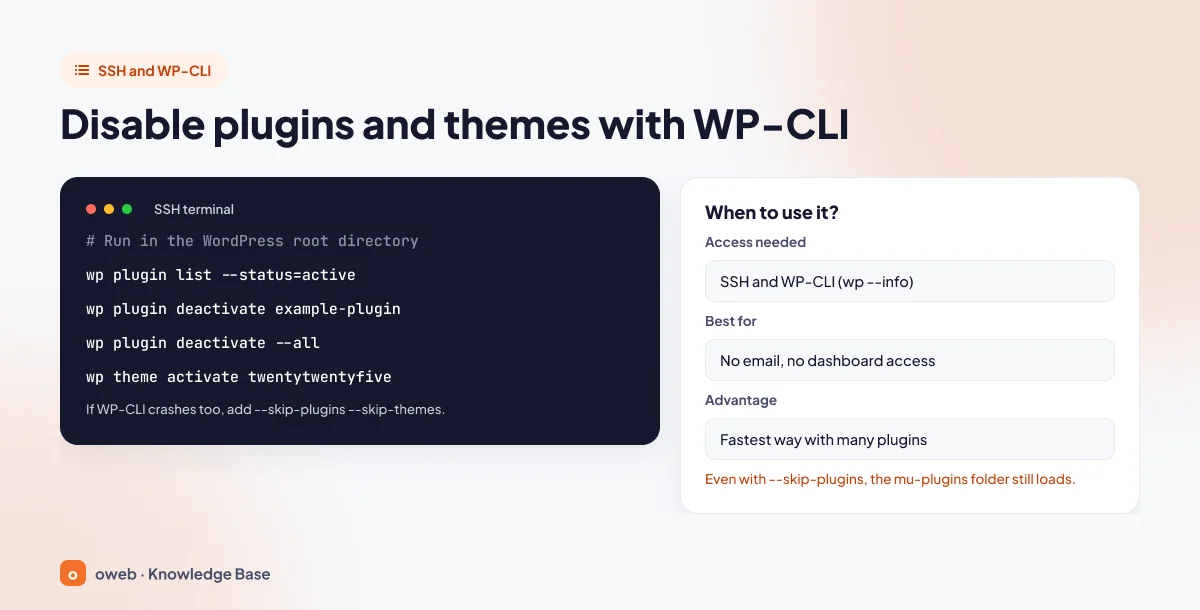
# Aktif eklentileri listele
wp plugin list --status=active --skip-plugins --skip-themes

# Deactivate a single plugin
wp plugin deactivate example-plugin --skip-plugins --skip-themes

# Deactivate all plugins
wp plugin deactivate --all --skip-plugins --skip-themes

# Switch to a default theme
wp theme activate twentytwentyfive --skip-plugins --skip-themes
The commands above, in order: list active plugins, deactivate a single plugin, deactivate all plugins and switch to the default theme. If Twenty Twenty-Five is not installed, install it first with the wp theme install twentytwentyfive command. A successful run produces output such as “Plugin 'example-plugin' deactivated.” and “Success: Deactivated 1 of 1 plugins.” Even with --skip-plugins, plugins in the mu-plugins folder are still loaded. All command options are listed in the official wp plugin deactivate documentation.
2. Switch back to a default theme
If the log points to the wp-content/themes/ folder, or the error persists with plugins disabled, the problem is most likely in the theme. If you cannot access the WordPress admin dashboard, rename only the active theme's folder inside wp-content/themes/. WordPress then falls back to an installed default theme. You do not need to delete the other theme folders.
For this method to work, a default WordPress theme must be present in the folder. As of November 2026, the latest default theme is Twenty Twenty-Five, and its folder name is twentytwentyfive. If no default theme is available, download one from WordPress.org and upload it to the themes folder. When you switch to a default theme, page builder templates, shortcodes, widgets, menu locations and Customizer settings may temporarily look different. Most of these settings come back when you return to your original theme.
If you use a child theme
On sites that use a child theme, the error is often in the child theme's functions.php file. If the log points to the child theme, restore the code you added most recently from a backup. If it points to the parent theme, update the parent theme or upload a clean copy of it.
3. Check and fix the PHP version
The PHP version can be both the cause of and the fix for a critical error, so first decide whether you need to upgrade or downgrade. As of November 2026, WordPress.org recommends PHP 8.3 or higher on its official requirements page. The minimum requirement for the current WordPress version is PHP 7.4.
If the error started after changing the PHP version
If you get the error right after an upgrade, a plugin or theme is not compatible with the new version. Temporarily switch back to the previous PHP version, update your plugins and theme, then upgrade again. Find an alternative for any plugin that is no longer updated.
If you are using a very old PHP version
A new plugin or WordPress update may require newer PHP features. According to the php.net supported versions table, PHP 8.1 and earlier are no longer supported as of November 2026, and security support for PHP 8.2 ends on December 31, 2026. If an old version is the cause, first check that your plugins and themes are compatible. Moving to PHP 8.3 or 8.4 can then resolve the issue and reduce security risks. If an error appears after the switch, go back to the previous version.
In cPanel, you change the version with the MultiPHP Manager tool in the Software section. Select the checkbox for your domain, choose the version from the PHP Version menu and click Apply. Some hosting providers may have disabled this tool. Details are available in the cPanel documentation and in our guide to changing the WordPress PHP version.
4. Increase the memory limit
If the log contains “Allowed memory size ... exhausted”, the memory allocated for the task WordPress was trying to perform was not enough. By default, WordPress tries to raise PHP memory to 40 MB on a single site and 64 MB on multisite. If you need more, back up the wp-config.php file. Then add the following line to the file before wp-settings.php is included:
define( 'WP_MEMORY_LIMIT', '256M' );There is a separate constant for admin dashboard tasks: WP_MAX_MEMORY_LIMIT. Its default value is 256M. Both constants only take effect if the server allows the PHP memory_limit value to be changed at runtime. If it does not, WordPress uses the server value and the constant has no effect. In that case, raise the PHP memory setting from your hosting panel. In cPanel, PHP settings are found in the MultiPHP INI Editor tool in the Software section. The available settings may vary by PHP version. If you cannot find the setting, contact your hosting provider for support or track down the plugin that is using up the memory.
5. Clean up an incomplete update
During an update, WordPress places a temporary .maintenance file in the site root. If the update is interrupted, this file may not be removed and the message “Briefly unavailable for scheduled maintenance. Check back in a minute.” appears. WordPress ignores a .maintenance file older than 10 minutes, but deleting the file is faster than waiting. If the update also left plugin files incomplete, you may see the critical error.
- In cPanel File Manager, open the Settings menu. Select the Show Hidden Files (dotfiles) option and click Save. Files that start with a dot are hidden by default.
- Delete the
.maintenancefile in the site root. - Download the plugin whose update was interrupted from WordPress.org and re-upload its folder, or reinstall it from the admin dashboard. Then run the update again.
6. Verify and reinstall core files
If the log points to a file inside wp-admin or wp-includes, one of the core files may be corrupted. If you have SSH access, verify the files first:
wp core verify-checksumsThis command compares the installed files with the checksums on WordPress.org. If everything is fine, it returns “Success: WordPress installation verifies against checksums.” If any files do not match, or you do not have SSH access, download a clean WordPress package of the same version. Upload the wp-admin and wp-includes folders and the individual core files in the root directory (such as index.php, wp-settings.php, wp-load.php and wp-login.php) from that clean package over the existing files. Do not upload the wp-content folder from the package, and do not touch the wp-content folder on the server, the wp-config.php file or a .htaccess file containing custom rules.
7. Last resort: restore from a backup
If none of the steps worked, go back to a clean backup from before the error. Before restoring, take a backup of the site's current state as well. Be careful with WooCommerce sites: if you restore the database, orders and memberships created after the backup will be lost. If the problem is in the files, it is safer to restore only the files and leave the database as it is.
Which method for which situation?
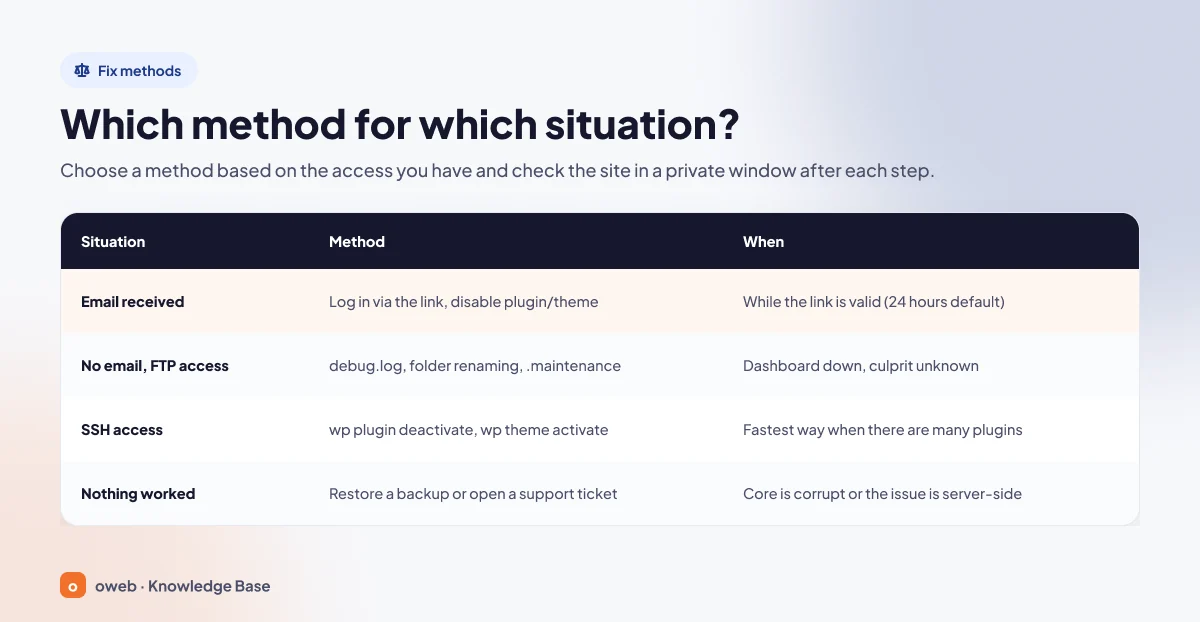
| Situation | Method | When |
|---|---|---|
| The recovery email arrived | Log in with the link and deactivate the paused plugin or theme | While the link is valid (24 hours by default) |
| No email, but you have FTP or file manager access | Log with WP_DEBUG_LOG, rename the plugin or theme folder, delete .maintenance, fix the PHP version | When you cannot access the WordPress admin dashboard and the responsible component is unknown |
| You have SSH access | wp plugin deactivate, wp theme activate, wp core verify-checksums (with --skip-plugins --skip-themes) | The fastest route when there are many plugins |
| Nothing worked | Restore from a backup or open a support ticket | When core files are corrupted or the problem is on the server side |
What to do after the problem is fixed
- Set
WP_DEBUGtofalsein thewp-config.phpfile and delete thedebug.logfile. - Clear the plugin, server and, if you use one, CDN cache. If the error screen still appears after the fix, the cache may be serving the old page.
- Replace the renamed
_disabledfolders with an updated version of the plugin, or delete them. If you forgot to renameplugins_old, change the folder name back toplugins. - If you are still in recovery mode, click the “Exit Recovery Mode” button in the admin bar.
- Check the site in an incognito window and, if possible, from another device.
How is it different from the white screen and the 500 error?
All three problems are usually caused by a PHP error. The difference is how the error is displayed on screen.
| Symptom | Usually seen when | Where to look first |
|---|---|---|
| Critical error screen | WordPress 5.2+ catches a PHP fatal error | Recovery email, debug.log |
| White screen | On older versions or when the error handler is disabled | debug.log, plugins and theme |
| 500 Internal Server Error | The error occurs at server level before WordPress runs (for example, .htaccess) | Server error logs |
The critical error screen itself also returns an HTTP 500 code, but it contains a WordPress message. If you see the server's own 500 page, see our 500 Internal Server Error guide. If you see a completely blank page, our WordPress white screen of death guide will help you.
How to prevent the critical error from happening again
- Take a backup before major plugin, theme and PHP updates, so you can quickly roll back if something goes wrong.
- Try major changes first on a copy of your site, in other words a staging environment. If nothing breaks, apply them to the live site.
- Update components one at a time. Bulk updates make it harder to find the problematic component. Check the site after each update.
- Do not edit the parent theme's
functions.phpfile directly. Keep custom code in the child theme'sfunctions.phpfile or in a trusted code snippets plugin. Back up the file before saving. - Before upgrading PHP, check that your plugins and themes support the new version.
- Make sure the admin email under Settings > General works, or define your technical team's address with
RECOVERY_MODE_EMAIL. - Stay away from pirated (nulled) themes and plugins. These files do not receive updates and may contain malicious code.
If you are going to open a support ticket, include the following: the time the error started, the address where the problem appears, the last change you made and the “PHP Fatal error” line from the debug.log file. This information helps the support team find the problem faster. If you are an Oweb customer, you can add these details to your support ticket.
Frequently Asked Questions
What does “There has been a critical error on this website” mean?
It means the PHP code running on your site stopped at some point, and WordPress caught it and displayed an error screen instead of the page. Visitors see the sentence “There has been a critical error on this website.” The cause is usually a plugin, theme or custom code.
Will the critical error delete my content?
No. The error only prevents the page from being generated. Your posts and database remain intact. Still, take a backup before making any changes.
I didn't receive the WordPress recovery mode email. What should I do?
First check the spam folder and the address under Settings > General. Then open yourdomain.com/wp-admin/ once, because the email is only prepared for errors that occur in the admin dashboard or on the login page. If the email still does not arrive, enable the error log with WP_DEBUG_LOG and disable the problematic plugin using the file manager, FTP or WP-CLI.
How long is the WordPress recovery mode link valid?
The default validity period is 24 hours, and by default the email is sent at most once a day. If the error occurs in the admin dashboard again after the link expires, WordPress sends a new link.
Which address does the recovery email go to, and how do I change it?
If the RECOVERY_MODE_EMAIL constant is defined and contains a valid address, the email goes to that address. Otherwise, it is sent to the admin email under Settings > General. To change the address, either update this setting or, after taking a backup, add the constant to the wp-config.php file. A new address entered under Settings > General is not used until you confirm it through the confirmation email sent to it.
How do I exit WordPress recovery mode?
Click the “Exit Recovery Mode” button in the admin bar. The button deletes the recovery cookie. If you exit without deactivating the faulty plugin, the error appears again.
My site won't load after editing functions.php. What should I do?
Open your theme's functions.php file using the file manager or FTP. Delete the code you added most recently, or replace the file with the version from your backup. If the log shows “Parse error”, check the reported line and the line directly above it for a missing semicolon or bracket.
Is the critical error a sign of a hack?
Usually not. The most likely cause is an incompatible update. However, if wp core verify-checksums reports modified core files, or there are administrator accounts you do not recognize, consider the possibility that the site has been compromised.
Conclusion
The “There has been a critical error on this website” message may look alarming, but in most cases it is the result of a single plugin, theme or line of code, and your data remains intact. Take a backup first, then use the recovery mode link in the admin email. If no email arrived, use WP_DEBUG_LOG to write the error to the log. Based on the file path in the log, fix the plugin, theme, PHP version or memory limit. When you are done, remember to turn off debugging and delete the debug.log file.
If you would like to evaluate your hosting infrastructure, take a look at the Oweb WordPress hosting page. You can also find more information in the official WordPress Common WordPress Errors documentation.