


The WordPress database connection error ("Error establishing a database connection") means WordPress cannot connect to the MySQL or MariaDB server using the details in your wp-config.php file. Fixing it usually comes down to three checks: match the four database settings against the values in your hosting control panel, confirm the user has privileges on the database, and make sure the database server is running.
Quick summary
- What it means: WordPress cannot reach the database server; the error on its own does not mean your content has been deleted.
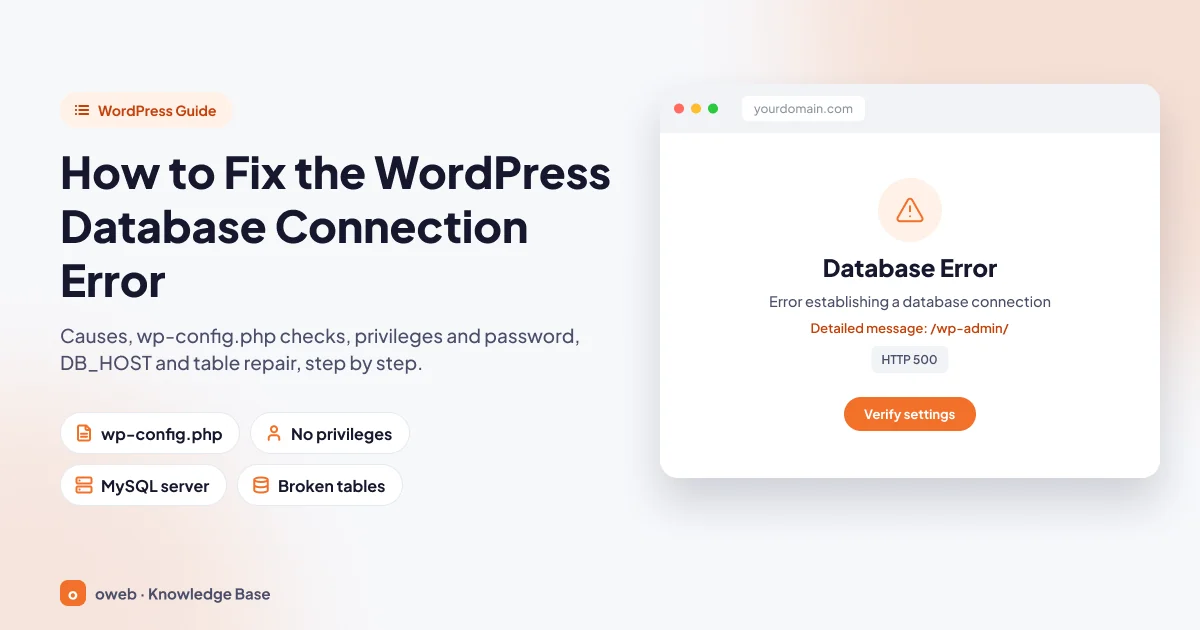
- Exact wording: "Error establishing a database connection"; the browser tab title reads "Database Error". Sites running in another language show a translated version of the same message.
- Most common cause: a wrong database name, username, password or hostname in
wp-config.php. - First diagnosis: open
yourdomain.com/wp-admin/; the admin area shows a more detailed message. - Repair:
WP_ALLOW_REPAIRonly helps with corrupted tables and cannot repair InnoDB tables; it also does not fix missing tables, a wrong table prefix or missing privileges. - Status code: the error page is served with an HTTP 500 status code.
- Support: if the server is down, the quota is full or the connection limit has been reached, the fix lies with your hosting provider.
What is the WordPress database connection error?
WordPress stores posts, pages, users and settings in a MySQL or MariaDB database, not in files. On every page request it connects to the database server using four values from wp-config.php (database name, username, password and hostname). If the connection fails, the content cannot be read and an error page is shown instead.
WordPress's official documentation on common errors groups the causes into three categories: incorrect details in wp-config.php, problems on the hosting side (a full quota, a server that is down) and a compromised site. According to the documentation, the error usually comes from the first group, so that is where troubleshooting should start.
If your WordPress site uses a language other than English, the same error appears in translation. For example, the Turkish interface shows "Veri tabanı bağlantısı kurulurken sorun çıktı". The meaning and the fix are identical, so this guide uses the original English messages throughout.
What does "Error establishing a database connection" mean and what does it look like?
The Error establishing a database connection message means WordPress could not connect to the database server with the details in wp-config.php; the front end shows only a short heading, while /wp-admin/ shows the details.
What visitors see: "Error establishing a database connection"
The front end displays a single line in bold: "Error establishing a database connection". The browser tab title reads "Database Error". WordPress sends this page with an HTTP 500 status code so that search engines do not index the error message.
If the screen is completely blank, the problem is most likely a PHP error; this is known as the WordPress white screen of death and needs a different fix.
The detailed message in the admin area
At yourdomain.com/wp-admin/ WordPress is more descriptive. If the connection failed, three questions appear below the heading, summarising what you need to check:
- "Are you sure you have the correct username and password?"
- "Are you sure you have typed the correct hostname?"
- "Are you sure the database server is running?"
The "One or more database tables are unavailable" warning
If the admin area says "One or more database tables are unavailable. The database may need to be repaired.", you are dealing with a different situation.
This warning means the connection was established but WordPress could not read the options table (wp_options); visitors still see only the short heading. The cause may be a corrupted table, but it can also be an incompletely imported backup, a $table_prefix that matches only some tables, or a user without read privileges. First run the WordPress database repair check in Step 6; if the tables look healthy, check the privileges and table prefix in Step 3 and whether the backup was imported completely.
Related messages and what they mean
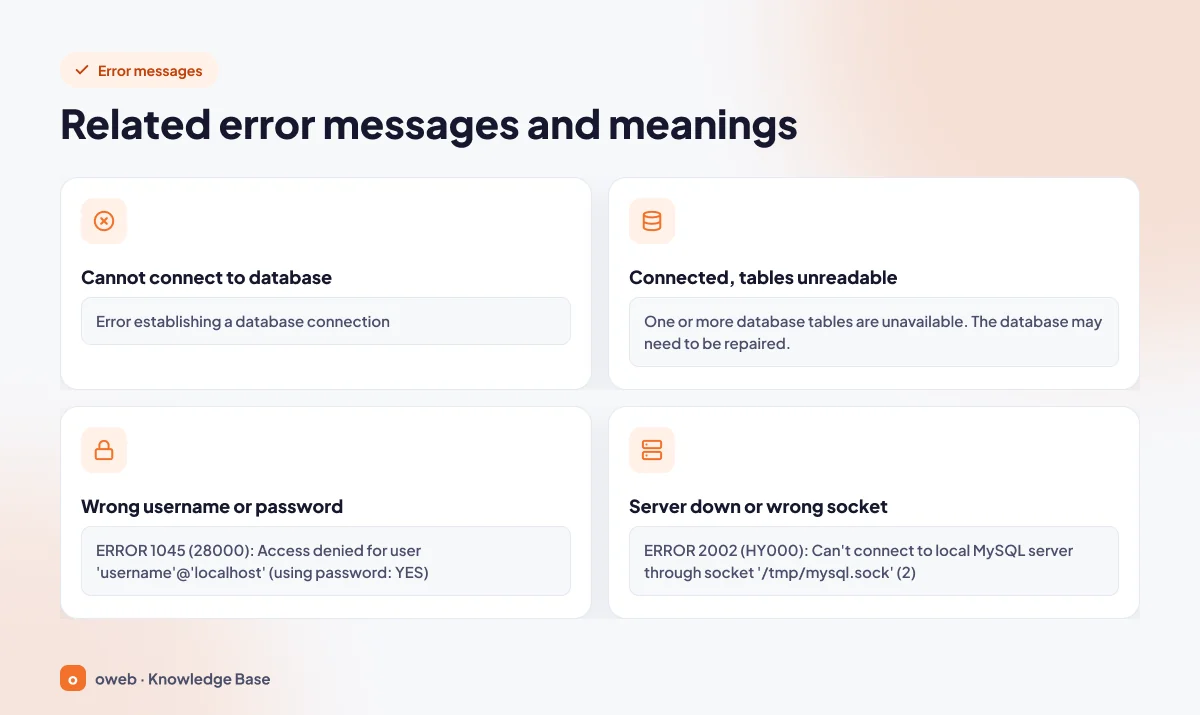
Each of the messages below points to a different cause; the table shows which step to go to.
| Message | What it means | Where to look |
|---|---|---|
| Error establishing a database connection | WordPress cannot connect to the database server with the details in wp-config.php. | Steps 2, 4 and 5 |
| Cannot select database | The username and password were accepted, but the database name is wrong or the user lacks privileges. Shown only in the admin area. | Steps 2 and 3 |
| One or more database tables are unavailable. The database may need to be repaired. | The connection works, but the options table cannot be read; shown only in the admin area. | Step 6, then Step 3 |
| ERROR 1045 (28000): Access denied for user 'username'@'localhost' (using password: YES) | The server was reached, but the username or password is wrong (MySQL command-line output). | Steps 2 and 4 |
| ERROR 2002 (HY000): Can't connect to local MySQL server through socket '/tmp/mysql.sock' (2) | The MySQL server is not running or the socket/port is wrong (MySQL command-line output). | Step 5, "If you use a VPS/VDS" section |
Numbered MySQL messages are not shown in the browser with default settings; they appear in the debug log or in command-line output. The last two rows of the table are in the format used by the mysql command-line client; the wording in the PHP log may differ, so go by the error number rather than the text.
What causes the WordPress database connection error?
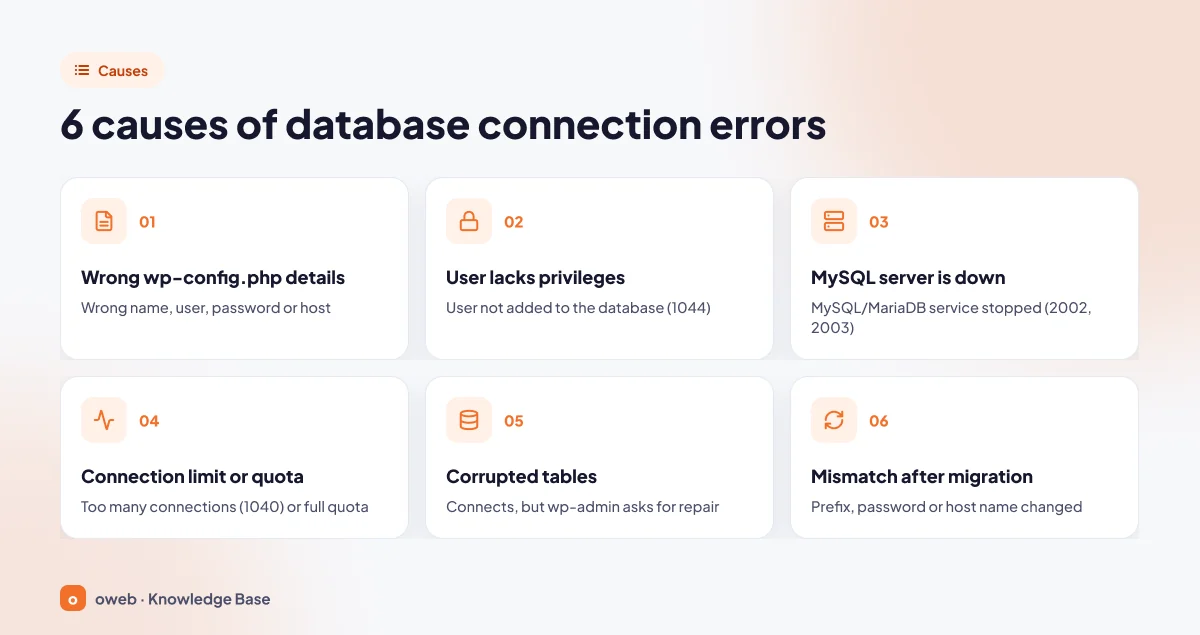
The causes of the database connection error fall into six groups: incorrect details in wp-config.php, a user without privileges on the database, a database server that is not running, a reached connection limit or full quota, corrupted tables, and outdated details after a site migration. The first is by far the most common.
1. Incorrect wp-config.php details
This is the most frequent cause. If any of DB_NAME, DB_USER, DB_PASSWORD or DB_HOST does not match the actual value in the control panel, the server rejects the connection. Even an extra space, or a password changed in the panel but not updated in the file, triggers the error; MySQL reports this with code 1045.
2. The user has no privileges on the database
Even with correct details, WordPress cannot select the database if the user was never added to it or its privileges were removed. Visitors still see the short connection error heading, while /wp-admin/ shows the "Cannot select database" heading. On the MySQL side this corresponds to error 1044 (access denied) or 1049 (unknown database).
3. The database server is down or unreachable
If the MySQL/MariaDB service has stopped, or DB_HOST points to the wrong address, no connection can be made at all (MySQL 2002 and 2003). The clearest sign is that every site on the same account fails at once.
4. High load, connection limit or full quota
The server accepts only a limited number of simultaneous connections; once the limit is reached, new requests are rejected with "Too many connections" (MySQL 1040). The WordPress documentation also notes that the database may have been shut down because its quota was exceeded.
5. Corrupted tables
A sudden server shutdown or a full disk can leave tables unreadable. The connection is established, but a repair warning appears in the admin area.
6. Mismatched details after a migration
When a site is moved to another account or server, the database name, the username prefix, the password and the hostname usually change; the old wp-config.php is no longer valid in the new environment.
Before you start: take a backup and narrow down the scope
Most steps involve changing files and the database, so prepare a way back first:
- Download
wp-config.phpto your computer. Do not leave a copy such aswp-config.php.bakon the server; a file with that extension is not executed as PHP, so its contents, including your password, can be read in a browser. - If you can access the database, take a backup with your control panel's backup tool or phpMyAdmin's "Export" tab; if you have SSH access,
wp db exportdoes the same job. - Write down what has changed recently: password, migration, PHP version, updates.
Do not repair tables or edit files without a backup. Do not leave the database backup in your web directory.
Next, determine the scope of the error:
| What you see | Likely cause | Where to start |
|---|---|---|
| Only this site is down; other sites on the same account work | Incorrect wp-config.php details or missing privileges | Steps 2, 3 and 4 |
| All sites on the same account show errors | The server is down or an account limit has been reached | Hosting support, "If you use a VPS/VDS" section |
| The error started after a migration or password change | Mismatched details | Steps 2 and 4, "After migrating a site" section |
| The error appears at peak times and clears on its own | Load or connection limit | "If the error comes and goes" section |
The front end shows the error, /wp-admin/ shows a repair warning | The options table cannot be read | Step 6 |
The interface names and commands in this guide have been verified against the WordPress 7.1, cPanel 132 and MySQL 8.4 documentation as of November 2026.
How to fix the WordPress database connection error: step by step
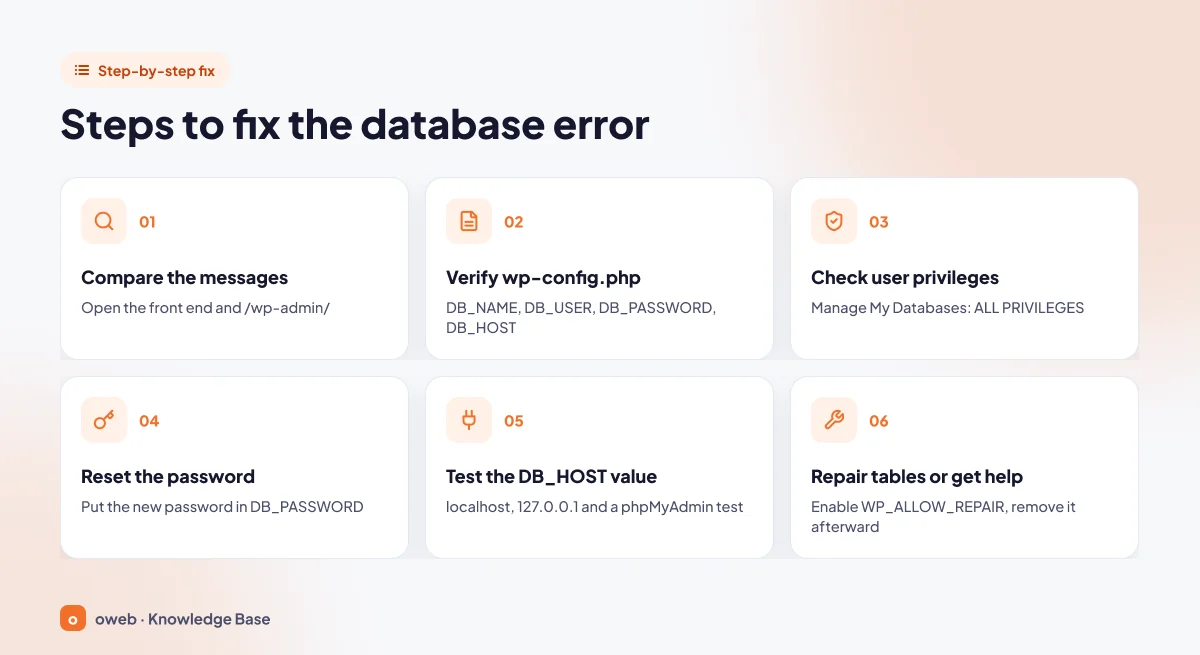
The steps are ordered from the simplest and safest to the more advanced. Reload the site after each step; if the error is gone, you do not need to continue.
- Compare the messages.
- Verify the wp-config.php details.
- Check the database and privileges in the control panel.
- Reset the password.
- Test the DB_HOST value and the connection.
- Repair the tables, and contact support if needed.
Step 1: Compare the message on the front end and at /wp-admin/
Open the home page and yourdomain.com/wp-admin/. The three-question message points you to Steps 2-5, "Cannot select database" to Steps 2 and 3, and the table warning to Step 6. If you have other sites on the same account, check whether they load too.
Step 2: Verify the database details in wp-config.php
The database details in wp-config.php consist of four lines:
// ** Database settings - You can get this info from your web host ** //
define( 'DB_NAME', 'database_name' );
define( 'DB_USER', 'db_user' );
define( 'DB_PASSWORD', 'password' );
define( 'DB_HOST', 'localhost' );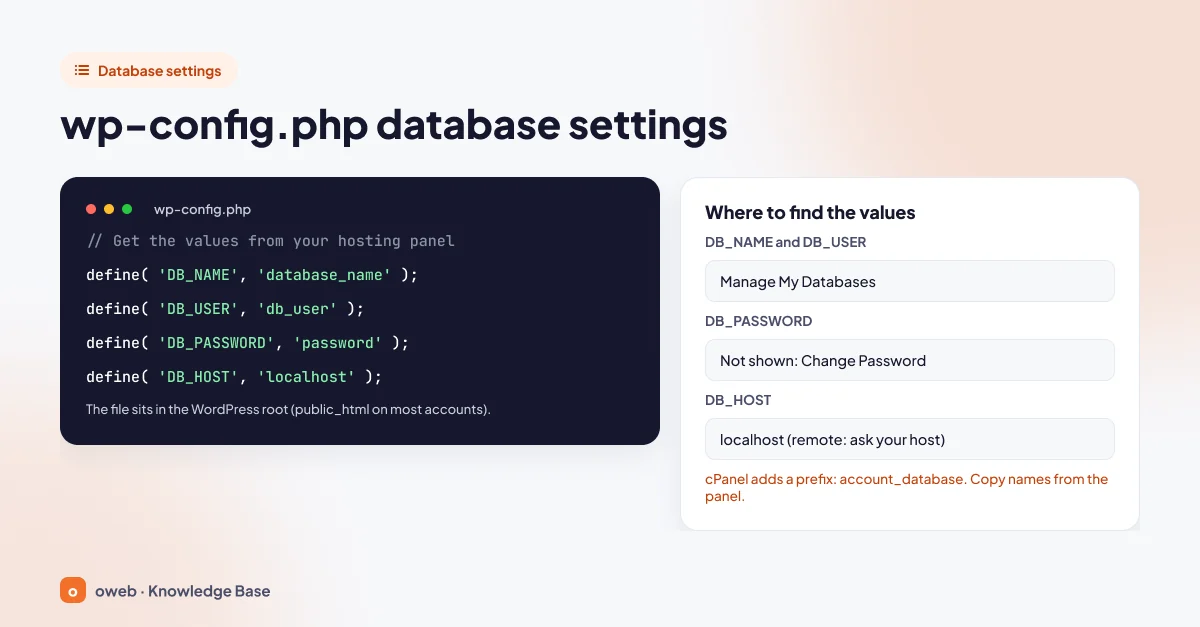
Compare each value character by character with its counterpart in the control panel. If prefixing is enabled in cPanel, database and usernames start with a prefix based on your account name followed by an underscore; the value is accountname_database, not database. Copy names from the panel instead of typing them. The constants are explained in WordPress's wp-config.php documentation.
Finding and opening the file
The file is in the WordPress root directory (public_html on most accounts); on some installations it has been moved one level up. Open it with cPanel's File Manager or an FTP client, and use a plain text editor rather than a word processor such as Word.
Common mistakes when editing
- A leading or trailing space in a value.
- Curly quotes pasted from a word processor instead of straight quotes (').
- A single quote or backslash in the password; PHP treats these as special characters. Generate a password that does not contain them.
- The same constant defined twice; the first definition wins.
- Editing the wrong copy, such as a file from an old backup.
If you use SSH and WP-CLI, you can read the values without opening the file:
wp config get DB_NAME
wp config get DB_USER
wp config get DB_HOST
Step 3: Check the database, user and privileges in the control panel
If the values in the file have no counterpart in the panel, the connection cannot be made. Answer three questions: Does the database exist? Does the user exist? Does the user have privileges on this database?
cPanel
- In the cPanel control panel, open the Manage My Databases interface in the Databases section. In cPanel 118 and earlier it was called "MySQL Databases".
- In the "Current Databases" table, confirm there is a database with exactly the same name as your
DB_NAMEvalue. - Look for your
DB_USERvalue in the "Privileged Users" column of the same row. - If the user does not appear there, go to the "Add User To Database" section, select the user and the database, click "Add", tick the "ALL PRIVILEGES" box and save with "Make Changes".
Details are in cPanel's Manage My Databases documentation. If the database or user does not exist at all, you can create it again in the same interface; however, a new database is empty, and you will need to import a backup to restore your content.
Plesk
Databases are listed under Websites & Domains > Databases; users are managed through the "User Management" link on the same page. The default role is "Read and Write"; if "Read Only" is selected, WordPress cannot write to the database. Details are in Plesk's documentation on database user accounts.
The WordPress installation guide tells you to grant the user all privileges on the database. The WordPress hardening documentation notes that SELECT, INSERT, UPDATE and DELETE are enough for day-to-day use, but some plugins, themes and major version updates change the table structure. If you have restricted privileges, you will need to widen them temporarily before updating; if in doubt, stick with ALL PRIVILEGES.
Step 4: Reset the database user's password
Control panels do not show the current password; the only way to be sure is to set a new one and enter the same value both in the panel and in wp-config.php.
- In the "Current Users" table of the Manage My Databases interface, click the "Change Password" link in the user's row.
- Enter and confirm a new, strong password (you can use the password generator button if one is shown), copy it and save with the "Change Password" button.
- Immediately paste the same password into the
DB_PASSWORDline, between the single quotes, and save the file.
If other sites or applications use the same database user, they will all show connection errors once the password changes; update their configuration files at the same time.
Step 5: Check the DB_HOST value and test the connection
In WordPress, the DB_HOST value is the address of the database server. According to the official documentation, you probably will not need to change it; localhost is correct on most hosting accounts. Some providers, however, use a separate database server, a different port or a socket path.
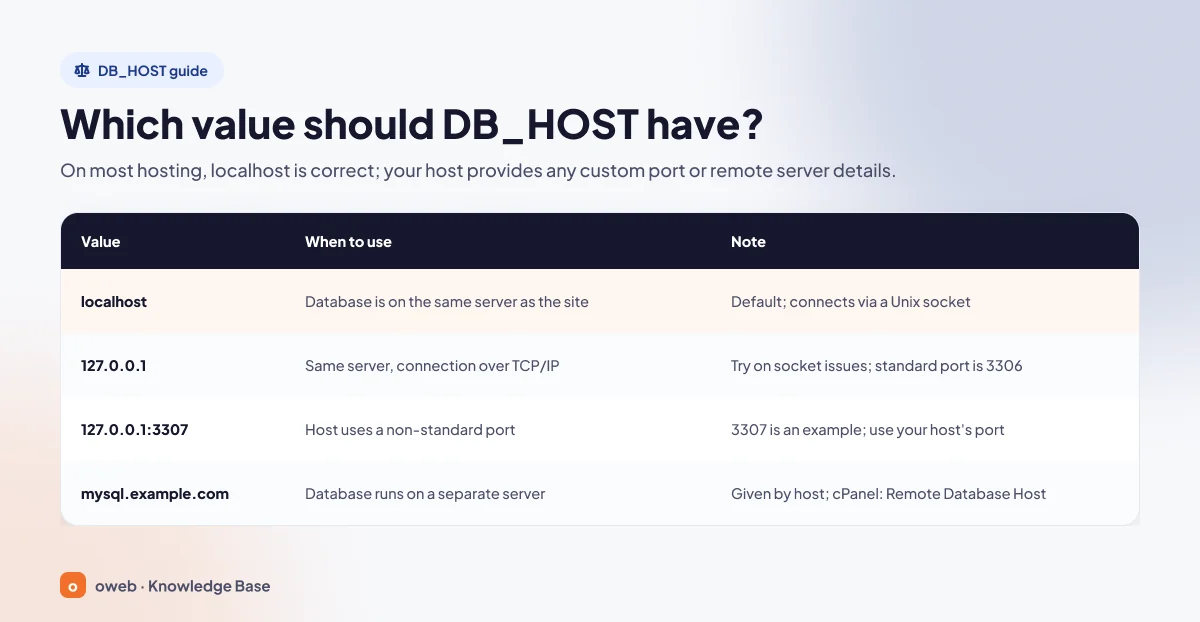
| Value | When to use it | Note |
|---|---|---|
localhost | The database is on the same server as the site (default) | With this name, PHP connects through a Unix socket. |
127.0.0.1 | Same server, but the connection should use TCP/IP | Worth trying for socket path problems; the default port is 3306. |
127.0.0.1:3307 or localhost:3307 | The hosting provider uses a non-standard port | 3307 is an example; use the port your provider gives you. |
mysql.example.com (remote hostname) | The database is on a separate server | Your hosting provider supplies the address; in cPanel it appears under "Remote Database Host". |
A line with a port is written as define( 'DB_HOST', '127.0.0.1:3307' );; the localhost:/var/run/mysqld/mysqld.sock format is also documented for a socket path. According to PHP's mysqli connection documentation, localhost uses a Unix socket and 127.0.0.1 uses TCP/IP. On a server with socket path problems, trying these two values in turn is a valid test. If the change does not help, or you now get error 1045, revert to the original value and ask your hosting provider for the correct address.
Testing the connection with phpMyAdmin
Open phpMyAdmin from the control panel. If your database and its tables are listed, the server is running; the problem lies in the credentials or hostname WordPress uses. Also check that the table prefix matches the $table_prefix value (default wp_). If the prefix matches no tables at all, WordPress opens the installation screen instead of showing the connection error; do not start the installation there, but correct the prefix in wp-config.php. If the prefix matches only some tables, the admin area shows the table warning.
Testing the connection with WP-CLI
wp db checkThe wp db check command connects using the details in wp-config.php and checks the tables; because it runs without loading WordPress, you can use it while the site is down. A successful run prints "Success: Database checked."
Seeing the actual MySQL error
If the cause is unclear, turn on the debug log briefly. If a WP_DEBUG line already exists in the file, change it; otherwise add the following lines above the "That's all, stop editing!" comment:
define( 'WP_DEBUG', true );
define( 'WP_DEBUG_LOG', true );
define( 'WP_DEBUG_DISPLAY', false );
After you load the site once, a PHP warning is written to wp-content/debug.log. The warning comes from the mysqli_real_connect() function and contains the real error number, such as 1045, 2002 or 1040. For error 2002, PHP often logs the operating system's message rather than the MySQL client's sentence, for example "No such file or directory" (socket not found) or "Connection refused". That is why you should go by the number, not the text.
Then restore the values and delete the log file; the WordPress debugging documentation advises against leaving these tools enabled on a live site.
Step 6: Check and repair the tables
This step only makes sense if you saw the table warning or a check found problems; it does not fix credential or server issues. Take a backup first. If the check shows all tables as healthy but the warning persists, the problem is not corruption; look for missing tables, a wrong prefix or missing privileges.
The WordPress repair screen (WP_ALLOW_REPAIR)
Add the following line to wp-config.php above the "That's all, stop editing!" comment:
define( 'WP_ALLOW_REPAIR', true );- Open
yourdomain.com/wp-admin/maint/repair.phpin your browser. - Click the "Repair Database" button. "Repair and Optimize Database" takes longer and locks the database while it runs.
- Read the results and remove the line you added from the file.
The screen runs CHECK TABLE on every WordPress table and attempts REPAIR TABLE only on those that appear faulty. According to WordPress's wp-config documentation, while WP_ALLOW_REPAIR is enabled the page can be used without logging in; anyone who knows the address can run it. Finish in one go and remove the line straight away.
cPanel: Check Database and Repair Database
In the "Modify Databases" section of the Manage My Databases interface, select the database and run "Check Database". "Check Complete" means no problems were found; if a table is corrupted, its name is displayed. "Repair Database" attempts a repair and shows "Repair Complete" if it succeeds.
phpMyAdmin
Select the tables and choose "Check table" from the drop-down menu below the list, then "Repair table" if needed.
WP-CLI: wp db check and wp db repair
wp db check
wp db repair
The first command checks the tables and the second attempts a repair; both use the mysqlcheck tool. A successful repair prints "Success: Database repaired."
According to MySQL's REPAIR TABLE documentation, this statement works only on MyISAM, ARCHIVE and CSV tables (and also Aria on MariaDB), and in some circumstances it can cause data loss. On current installations, tables are mostly InnoDB; methods based on REPAIR TABLE can run a check on InnoDB, but because REPAIR TABLE does not support InnoDB, they may not fix the corruption. In that case the solution is to restore a backup or have your hosting provider step in.
What not to do: run a repair without a backup, delete ibdata1 or the InnoDB log files on the server, change the table prefix at random, drop the database, or reinstall WordPress from scratch.
If you use a VPS/VDS: is the MySQL server running?
On shared hosting, the hosting provider manages the database service. On your own server, you can check its status over SSH; the service name depends on the distribution and software:
systemctl status mysql
systemctl status mysqld
systemctl status mariadb
The first line is for MySQL on Debian and Ubuntu, the second for MySQL on RHEL-based systems, and the third for MariaDB. If the output shows the MySQL server is not running, find the cause before restarting the service:
- Disk: check usage with
df -h; if there is no space left, the database server cannot write to disk and the service may not start. - Error log: the log location is stored in the
log_errorvariable. On servers with cPanel, current versions use/var/log/mysqld.log; Debian packages use the/var/log/mysql/directory. - Memory: on small servers the database process can be killed when memory runs out.
Once the cause is fixed, start the service by the same name with root privileges (run only the line that matches your distribution):
systemctl start mysql
systemctl start mysqld
systemctl start mariadb
On servers running cPanel/WHM, restart the service from the "SQL Server (MySQL)" entry under Restart Services in WHM; a stopped service is started from WHM > Service Configuration > Service Manager.
On servers running cPanel or Plesk, manage users, privileges and passwords through the panel; changes made outside the panel may not match the panel's records. On a server without a panel, you can use the MySQL console (for example wp db cli, or mysql with an administrator account). Back up the database first:
SHOW GRANTS FOR 'db_user'@'localhost';
ALTER USER 'db_user'@'localhost' IDENTIFIED BY 'new_password';
GRANT ALL ON database_name.* TO 'db_user'@'localhost';
If you changed the password, enter the same value in the DB_PASSWORD line straight away.
The server's error log shows why the service stopped. The error number WordPress receives appears in debug.log or in the output of wp db check and mysql, and points directly to the cause; details are in the MySQL documentation on connection problems. Besides 1045 and 2002, these codes are common:
| Code | Message | What it means for WordPress |
|---|---|---|
| 1044 | Access denied for user ... to database | The user has no privileges on the database |
| 1049 | Unknown database | No database matches DB_NAME |
| 2003 | Can't connect to MySQL server on ... | Connection refused: service, port or firewall |
| 1040 | Too many connections | The server has reached its connection limit |
| 1203, 1226 | User ... already has more than 'max_user_connections' active connections; User ... has exceeded the ... resource | The connection or resource limit set for your account has been exceeded |
Less common causes: core files, version changes and security
Corrupted core files
The WordPress documentation does not list corrupted core files as a cause of this error. Still, if the previous steps have not helped, first back up the existing files, then download a clean copy of the same version from wordpress.org and re-upload only the wp-admin and wp-includes folders to the server; do not touch the wp-content folder or the wp-config.php file.
PHP and database version changes
If you see "Your PHP installation appears to be missing the MySQL extension which is required by WordPress." after changing the PHP version, the problem is not the connection but a disabled mysqli PHP extension; enable it in your control panel's PHP settings.
In MySQL 8.4 the mysql_native_password authentication plugin is disabled by default; a user defined with the old method may be unable to connect after a server upgrade. As of November 2026, the WordPress requirements page recommends PHP 8.3 or later and, for the database, MySQL 8.4 or later or MariaDB 10.11 or later.
The site may have been compromised
If the details are correct and your hosting provider sees no problem, the official documentation reminds you that the site may have been compromised. Check the modification date of wp-config.php and look for files you do not recognise; if in doubt, restore a clean backup and change all passwords.
If you get the error after migrating a site
An "Error establishing a database connection" message after a migration is usually caused by old environment details left in wp-config.php. Check the following in order:
- Was the database created on the new account and the backup imported completely?
- Was the user created and added to the database with all privileges?
- Do
DB_NAMEandDB_USERcarry the new account's prefix? - Are
DB_PASSWORDandDB_HOSTthe new environment's values? - Does
$table_prefixmatch the prefix of the imported tables? If it matches none, the installation screen opens; correct the prefix without starting the installation. - Does the domain actually point to the new server? If the DNS records still point to the old server, the error you see belongs to the old environment.
If the error comes and goes
An intermittent error is usually caused by load or a limit. The server caps simultaneous connections with the max_connections variable (151 by default in MySQL); once the limit is reached, new requests get the "Too many connections" error. Shared hosting may also enforce a per-account connection limit.
WordPress tries to re-establish a dropped connection several times; if it fails, it shows the "Error reconnecting to the database" message.
What you can do:
- Reduce requests to the database with page caching.
- Find bots sending heavy traffic in your access logs and limit them.
- Check your disk and database quota; when the quota is full, new data may not be written to the database, or the hosting provider may shut the database down.
- If the limits are exceeded regularly, talk to your hosting provider; customers cannot change these values.
When should you contact hosting support?
Some problems can only be solved by the team that manages the server. Ask for support if:
- All sites on the same account show errors, or phpMyAdmin will not open either.
- The log contains "Too many connections" or account limit errors.
- You are not sure about the
DB_HOST, port or socket value. - A check shows corruption in InnoDB tables, or the repair in the control panel fails.
In your request, include the domain name, the time the error started, the exact message you see, the MySQL error number if you have one and the steps you have tried; do not include your password. If you are an Oweb customer, you can open a support ticket with this information.
How to prevent the WordPress database connection error
- Back up your database regularly and test that the backups can be restored.
- Whenever you change the password in the control panel, update the
DB_PASSWORDline at the same time. - Use a separate database and a separate user for each site.
- Remove the
WP_ALLOW_REPAIRand debugging lines when you are done. - Keep PHP and the database software on supported versions.
- Track downtime with a monitoring tool.
- Optionally, create a
wp-content/db-error.phpfile; WordPress loads it instead of the default error page. This file should also send a 500 status code.
Frequently asked questions
Does the database connection error mean my data has been deleted?
No. The Error establishing a database connection message only says that WordPress cannot reach the database; in most cases the site works as before once the details are corrected. Still, take a backup before any repair.
Will the error fix itself?
If it was caused by a temporary load spike or a brief service restart, it may clear within a few minutes. Wrong details, missing privileges or corrupted tables will not fix themselves without intervention.
Does WP_ALLOW_REPAIR delete content from the database?
The repair screen runs CHECK TABLE on the tables and REPAIR TABLE only when needed; it is not designed to delete content. However, the MySQL documentation states that repairs can cause data loss in some circumstances. So take a backup first and remove the line when you are done.
Should DB_HOST be localhost or 127.0.0.1?
Use localhost unless your hosting provider has given you a different value. 127.0.0.1 connects over TCP/IP and is worth trying for socket path problems; if it does not help, go back to the original value.
What does the MySQL 1045 Access denied error mean?
The server was reached, but the username or password was rejected. "using password: YES" means a password was sent but not accepted; "using password: NO" means no password was sent at all. Check the DB_USER and DB_PASSWORD lines.
Why did the error appear after changing the PHP version?
If the mysqli extension is not enabled in the new PHP version, WordPress shows a separate message saying the MySQL extension is missing. This is not a connection error; enable the extension in your control panel's PHP settings.
Does the database connection error affect SEO?
WordPress serves this page with an HTTP 500 code. According to Google's documentation on HTTP status codes and network errors, server errors temporarily slow down crawling; if the error persists for a long time, URLs start being dropped from the index. Short outages usually leave no lasting effect.
Can plugins cause this error?
Plugins do not change your database details, but heavy queries can contribute to reaching the connection limit. You can disable a plugin you suspect by renaming its folder in the file manager.
The error is fixed but I cannot log in to the admin area. What should I do?
If the login screen loads but you cannot sign in, the problem is no longer the database connection; treat it as a separate login issue.
Conclusion
When WordPress cannot connect to the database, there is usually a single wrong value behind it. Read the message at /wp-admin/, compare the four details in wp-config.php with your control panel, verify the privileges and password, then check the DB_HOST value and the tables. This is the fastest and safest order for fixing the database connection error.
For server-side problems, contact your hosting provider. If you would like to review your infrastructure, take a look at Oweb's WordPress hosting page.
