


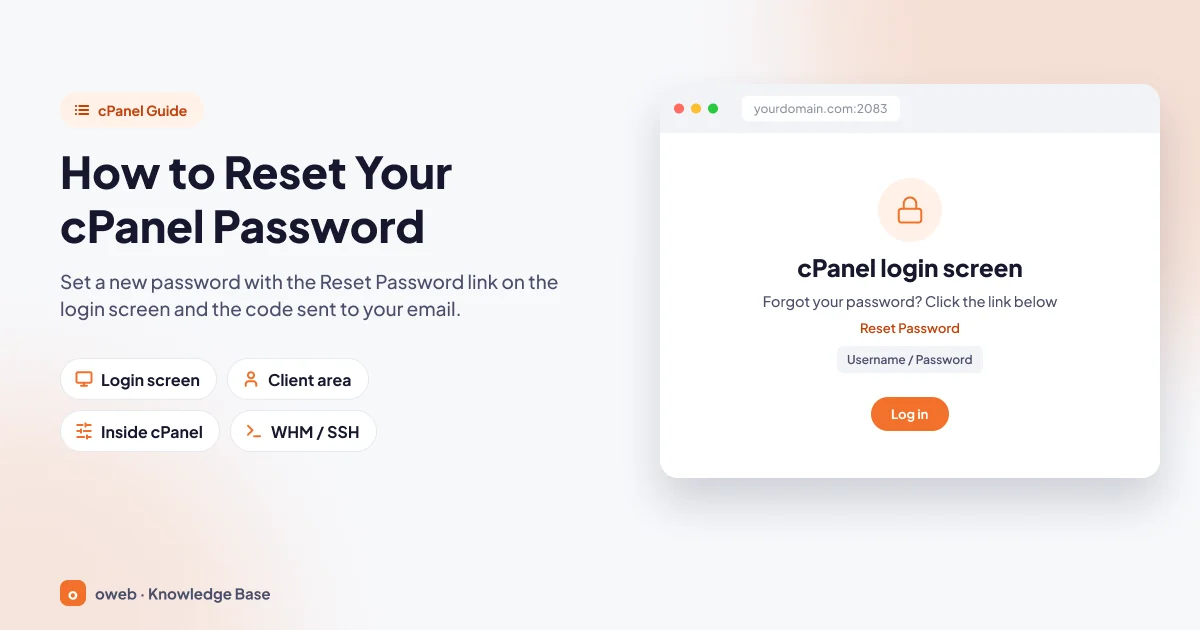
To reset your cPanel password, click the "Reset Password" link on the login screen at https://yourdomain.com:2083, enter your username and the contact email address registered on your account, type in the security code sent to your inbox and set a new password. If the link does not appear, you can change the password from your hosting provider's client area or ask their support team for help.
In short: how do you reset a cPanel password?
- cPanel and WHM never display your current password; a forgotten password cannot be recovered, only replaced with a new one.
- Resetting from the login screen depends on two conditions: the "Reset Password for cPanel accounts" setting must be enabled on the server, and a contact email address must be registered on your account.
- If you know your password, you change it in cPanel's Password & Security interface (and also in Account Preferences in cPanel & WHM version 130 and later); this method asks for your current password.
- Server administrators and resellers can set a new password without the old one through WHM's Password Modification or List Accounts interface, while the root user can use the
whmapi1 passwdcommand. - The new password also applies to the main FTP account and to SSH/SFTP logins; passwords for email accounts, additional FTP accounts and separate database users stay the same.
- If you see "The login is invalid." even with the correct password, your IP address may have been blocked by cPHulk.
What is the cPanel password, and which passwords is it confused with?
As explained in our what is cPanel article, cPanel is the control panel where you manage the files, databases, domains and email accounts in your hosting account. The cPanel login password is the key to this panel and therefore to the entire account. You usually access the panel at https://yourdomain.com:2083.
A hosting service involves several different passwords. Pinning down exactly which one you forgot saves you from wasting time on the wrong screen.
| Password | What does it give access to? | Where is it changed? |
|---|---|---|
| Client area password | Your account with the hosting provider: invoices, orders, list of services | The client area on the provider's own website |
| cPanel password | The control panel (port 2083), the main FTP account and, if enabled, SSH/SFTP | One of the four methods in this guide |
| WHM password | The management interface used by the server administrator (root) or a reseller account (port 2087) | Within WHM or through the company that provides the server |
| Email account password | A single mailbox: Webmail (port 2096) and email clients | cPanel » Email » Email Accounts » Manage |
| Additional FTP account password | Only the directory assigned to that FTP account | cPanel » Files » FTP Accounts » Change Password |
| Database user password | Your website's database connection (e.g. the value in wp-config.php) | cPanel » Databases » Manage My Databases (MySQL Databases in versions before 120) » Current Users » Change Password |
The pair most often mixed up is the email account password and the cPanel password. An email password opens only one mailbox; the cPanel password belongs to the account itself, which can create and delete those mailboxes and change their passwords. Changing one does not affect the other.
If your hosting account is managed with Plesk instead of cPanel, the menus here do not apply; if you are not sure which panel you use, take a look at our what is Plesk article.
The menu paths in this guide are based on cPanel's Jupiter interface and use the official English labels. As of November 2026, menu locations and names may look different on accounts that use cPanel's new optional Meridian interface or when a language other than English is selected for the interface.
cPanel password reset methods: which one is right for you?
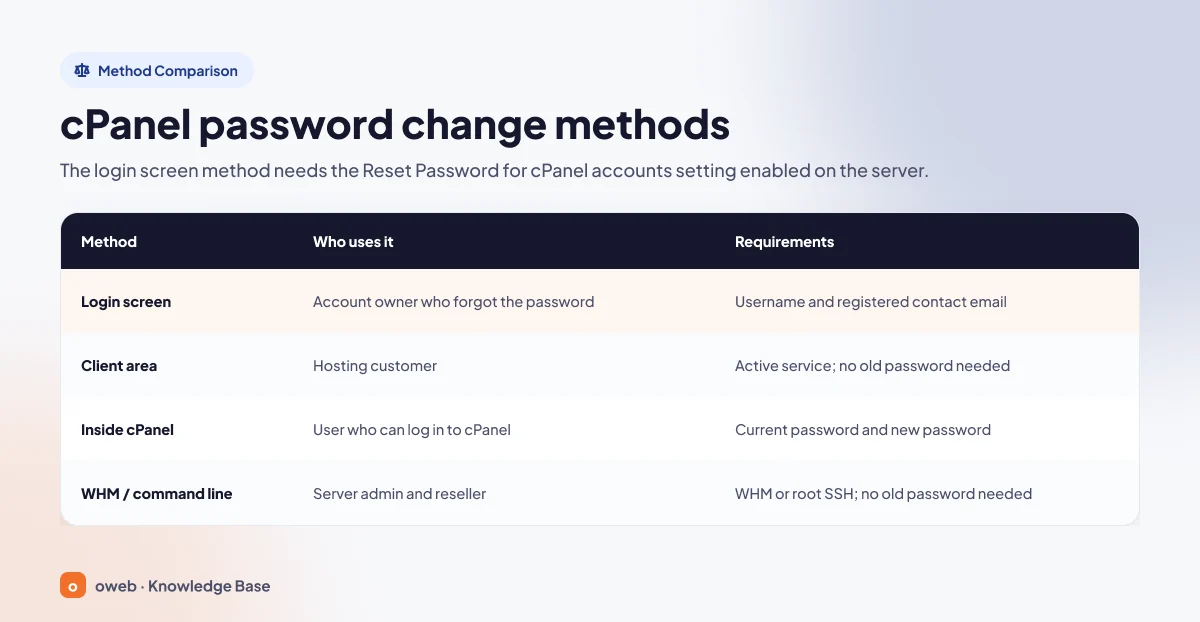
Which method you use to reset your cPanel password depends on two questions: do you know your current password, and with what level of access do you reach the account? The table below is ordered from the simplest and safest route to the most advanced one.
| Method | Who uses it? | Requirements |
|---|---|---|
| Reset from the login screen (Reset Password) | Account owner who forgot the password | cPanel username and registered contact email; the "Reset Password for cPanel accounts" setting must be enabled on the server |
| Hosting client area (change password option in the service details) | Hosting customer | Client area login; the service must be active; the old cPanel password is not required |
| From within cPanel (Password & Security / Account Preferences) | User who can log in to cPanel | Current password and new password |
| WHM / command line (Password Modification, List Accounts, whmapi1 passwd) | Server administrator and reseller | WHM or root SSH access; the old password is not required |
Forgot your cPanel password? Reset it from the login screen
This route is the Reset Password flow that cPanel offers on its login screen, allowing you to reset your password on your own. You prove your identity by showing that you can access the contact email registered on your account; the system does not send you a ready-made password, you choose the new password yourself. The steps follow the order in cPanel's official password reset documentation.
- Login page: Type
https://yourdomain.com:2083into your browser's address bar, replacing yourdomain.com with your own domain name. - Reset Password link: Click the "Reset Password" link on the login form.
- Username: Enter your cPanel username in the "Username" field and click the "Reset Password" button.
- Contact email: Type the contact email registered on the account into the "Contact Email Address" field and click "Send Security Code".
- Security code: Enter the code you received by email into the "Security Code" field and click "Submit". If the code did not arrive, request it again with "Send Security Code Again".
- New password: Type your new password into the "New Password" field, repeat it in the confirmation field and click "Set Password". Then click "Log In" to access the panel.
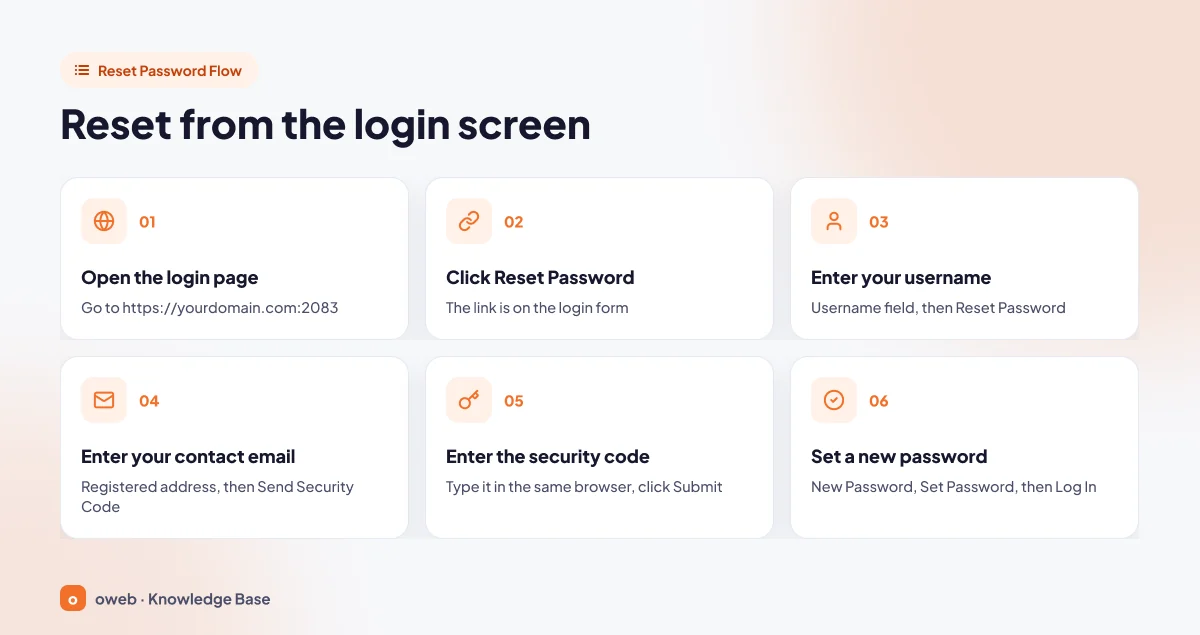
You must enter the security code in the same browser session in which you started the reset request. You can read the email on another device, but do not close the tab where you will enter the code and do not switch to a different browser.
One more detail: if no contact email is set on the account, cPanel shows a fake address hint on the screen to protect the account details. In other words, seeing an email hint on the screen does not mean that an address is actually registered.
What to do if the "Reset Password" link is missing or the email never arrives
If the link does not appear, the feature has been disabled on the server; if the code does not arrive, the problem usually lies with the registered contact email. In both cases, the final solution is the client area or your hosting provider's support team.
Why is the "Reset Password" link not showing?
Whether the link appears depends on the "Reset Password for cPanel accounts" setting in the System section of WHM's Tweak Settings interface. This setting is enabled by default when cPanel is installed, but the server administrator may disable it for security reasons. If it is disabled, the link does not appear on the login screen at all.
Only the server administrator with root access can change this setting. If you are a shared hosting customer, you cannot change it yourself; use the change password option in your client area or contact your hosting provider's support team. If you manage your own server, the setting is located under WHM » Server Configuration » Tweak Settings.
If the security code email does not arrive
If the cPanel password reset email is not arriving, the cause is usually one of the following. Start with the simplest check:
- Spam folder: If the email is not in your inbox, check your spam (junk) folder as well.
- Browser session: If you continued the process in a different browser or session, go back to the first tab and request a new code with "Send Security Code Again".
- Wrong or outdated address: The system expects the contact email registered on the account; this may be an old address set up years ago.
- Mailbox on the same hosting account: If the registered address is hosted on this same hosting account and its quota is full, or your email service is down at that moment, the code cannot reach you. That is why cPanel recommends using an external address that is not hosted on the same hosting account.
- No contact email set: If no address has been set on the account at all, the address hint on the screen is fake and no usable code email will arrive.
If you no longer have access to the contact email
If the registered address has been closed or no longer belongs to you, the reset from the login screen cannot be completed. At this point the only route is your hosting provider: the server administrator can update the account's contact email with "Change Contact Email" in WHM's List Accounts interface, or set a new password on the account directly. If you are an Oweb customer, you can start the process by opening a support ticket from your client area; opening the ticket from your own account as the account holder makes identity verification easier.
Keep your contact email up to date now
While you still have access to the panel, open the cPanel » Preferences » Contact Information interface and check your address. You will be asked to enter your cPanel password to change the address. In cPanel & WHM version 130 and later, the same settings are also available in the Account Preferences interface as the "Primary Email Address" and "Secondary Email Address" fields; type your password into the "Account Password" field and click "Save Changes". If you add a second address, account notifications are sent there as well; still, your main safeguard for resets is that the primary address is one you can access and that is not hosted on this hosting account.
How to change your cPanel password from the client area
Many hosting providers let you set a new password for your cPanel account from the client area where you manage your services. This method does not ask for the old cPanel password, because your identity is already verified when you log in to the client area, and the provider's system sends the new password to the server. This is usually what people mean by a hosting password reset.
For example, at providers that use the WHMCS platform, "Change Password" is among the functions supported by the WHMCS cPanel module. In WHMCS, this option appears only for services with an active status; it does not appear for suspended, pending or terminated services. Menu names vary depending on the provider's theme and language; the general flow is as follows:
- Log in to your hosting provider's client area.
- Open the relevant hosting package from your list of services.
- If there is a change password option on the service details page, type the new password and save it.
- Try logging in with the new password at
https://yourdomain.com:2083.
Oweb customers can use this route if the change password option appears on the service details page; if it does not, they can contact the support team.
No support team ever needs your current password. Do not share your password with anyone by email, support ticket or messaging app. Instead of clicking links in emails such as "Your cPanel password is expiring", type the login address into your browser yourself and check the domain name in the address bar.
How to change your cPanel password (Password & Security)
If you know your password, the quickest way to renew it is to change it from within the panel. Because this method also asks for your current password, it does not help with forgotten passwords; this is the key difference between a cPanel password change and a reset.
- Log in to cPanel.
- Open the Password & Security interface in the Preferences section. The account menu at the top of the page also contains a link to change your password.
- Enter your current password and your new password in the corresponding fields.
- Click the "Change your password now!" button.
Changing it with Account Preferences (version 130 and later)
Starting with cPanel & WHM version 130, the password can also be changed in the "Change Password" section of the cPanel » Preferences » Account Preferences interface: you enter your current and new password, or generate one with "Generate", and then click "Save Password". Which screen you see depends on the version on the server and the features your hosting provider has enabled. If neither appears, the provider may have disabled the password change interface; in that case, use the client area.
Creating a strong password with Password Generator
Next to its password fields, cPanel offers a Password Generator that creates secure passwords that are hard to guess; you can use this tool in every interface where it appears. With "Generate Password" you can keep regenerating until you get a password you like, and under "Advanced Options" you can choose the length and whether to use uppercase letters, lowercase letters, numbers and symbols. After saving the password somewhere safe, check the "I have copied this password in a safe place" box and click "Use Password". Passwords generated by the system are at most 18 characters long; there is no character limit for passwords you type yourself.
How to reset a cPanel password with WHM
WHM is the server management interface where cPanel accounts are created and managed. This route is used by people who manage their own virtual or physical server (see what is a server) and by reseller account holders. Changing a cPanel password with WHM does not require the old password. Shared hosting customers usually do not have WHM access.
Changing the password from the WHM interface
WHM offers two interfaces for the same task; both set a new password on the account without asking for the old one.
Password Modification interface
- Log in to WHM at
https://yourdomain.com:2087. - Open the Account Functions » Password Modification interface.
- Select the account whose password you want to change from the list.
- Enter the new password and repeat it in the confirmation field.
- Click the "Change Password" button.
The "Enable Digest Authentication" checkbox on the screen is only required for Windows Vista, 7, 8 and 10 users who access Web Disk over an unencrypted connection; otherwise it is optional. Resellers see this interface only if their provider has granted the relevant privilege.
List Accounts interface
- Open the Account Information » List Accounts interface.
- Search for the account by domain name or username and click the plus icon next to the account.
- Type the new password under "Change Password".
- If necessary, select the "Synchronize MySQL password with account password" option. This option only applies to users who have a
.my.cnffile in their account. - Click the "Change" button.
The same section also contains "Change Contact Email", which updates the account's contact email. For the user to be able to reset their own password later, this address must be set and up to date.
Resetting from the command line: whmapi1 passwd
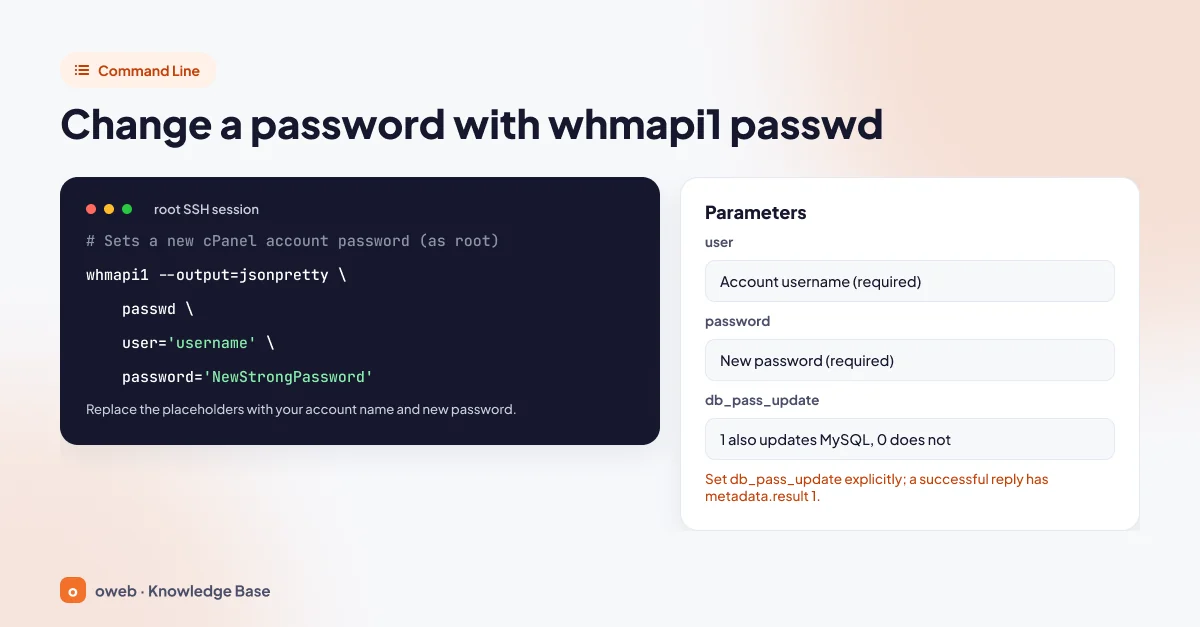
Administrators who can connect to the server over SSH with root privileges can call the passwd function of WHM API 1 from the command line. The function changes the password of a cPanel or reseller account:
whmapi1 --output=jsonpretty \
  passwd \
  user='username' \
  password='NewStrongPassword'
In the example, username (username) and NewStrongPassword (new strong password) are placeholders; replace them with your own account name and a newly generated password, and never use the sample password as is.
What do the parameters mean?
whmapi1: The command-line tool for WHM API 1.--output=jsonpretty: Returns the output as indented JSON; if omitted, the output is in YAML format.user: The username of the account whose password will change (required).password: The new password (required).db_pass_update: A value of 1 also sets the account's MySQL password to the new password, while 0 leaves the MySQL password untouched. The default value in the API definition is 1.enabledigest: Enables or disables Digest Authentication with a value of 1 or 0; if omitted, the current setting is kept.
If the operation succeeds, the metadata.result value in the response is 1, the reason field contains "Password changed for user", and the services whose passwords were updated (for example ftp) are listed under data.app.
Things to watch out for when using the command
- Wrap values that contain special characters in single quotes, as in the example; otherwise the shell will interpret those characters.
- In cPanel's official command-line examples, values are written with URI encoding (for example
%2Binstead of + and%20instead of a space). If the password contains % or +, encode these characters or avoid them in the temporary password; after the operation, verify it by logging in with the new password. - On servers running CloudLinux, use the full path of the tool:
/usr/local/cpanel/bin/whmapi1. - If you do not want the account's MySQL password to change, add
db_pass_update=0to the command. - A password typed on the command line may remain in the shell history. It is safer to assign a temporary password and use WHM's Force Password Change feature so the user sets their own password at first login.
- If the function is run for the root user, it only updates the system root password and does not change the MySQL root password.
For cPanel accounts, use whmapi1 instead of Linux's standard passwd command; the API lists the services whose passwords it updated in its response.
What is affected when the cPanel password changes?
Problems such as "FTP won't connect" or "the backup transfer stopped" after a password change happen because the password has also changed for services that use the same password. Knowing which logins changed shows you what you need to fix afterwards.
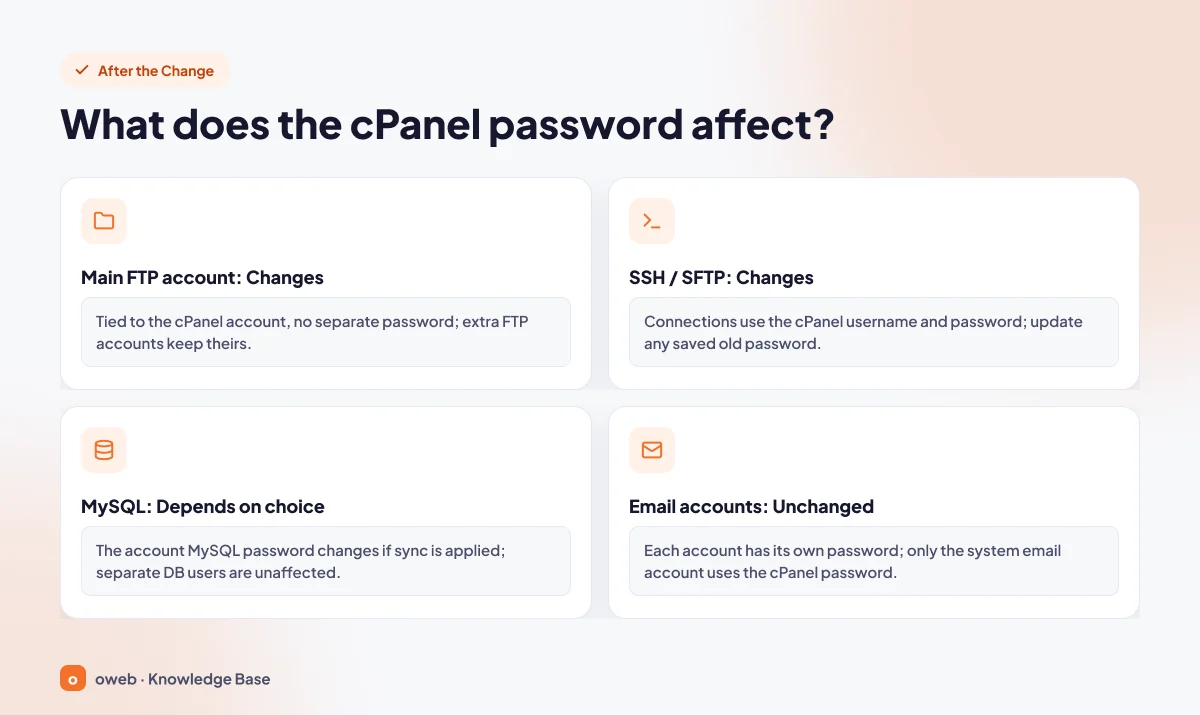
| Item | Status | Explanation |
|---|---|---|
| Main (primary) FTP account | Changes | It is tied to the cPanel account and has no separate password. |
| SSH / SFTP | Changes | The cPanel username and password are used to connect (if the hosting provider allows shell access). |
| The cPanel user's MySQL password | Depends on your choice | It changes if synchronization is applied: if the "Synchronize MySQL password with account password" box is checked in WHM List Accounts, or with the whmapi1 passwd command unless db_pass_update=0 is specified (default 1). The synchronization option in cPanel's own API (enablemysql) is disabled by default. |
| Separate database users | Does not change | The passwords of database users defined in files such as wp-config.php stay the same. |
| Email accounts | Does not change | Each account has its own password; only the system (default) email account uses the cPanel password. |
| Additional FTP accounts | Does not change | They are managed with their own passwords in the FTP Accounts interface. |
| API tokens | Does not change | Tokens are managed separately from the password and revoked in a separate step; if a breach is suspected, they should be revoked and recreated. |
| Client area password | Does not change | It belongs to your account with the hosting provider and is independent of cPanel. |
| WordPress admin password | Does not change | It is stored in the site's database and is independent of the cPanel password. |
The distinction on the MySQL side matters. The MySQL login that shares its name with the cPanel user receives the new password when synchronization is applied. The database users your site uses, which you defined when you created the MySQL database, are independent. That is why a WordPress site that runs with a separate database user does not throw a connection error just because the cPanel password changed.
The reverse can also happen: if your site's configuration file connects to the database directly with the cPanel username and the MySQL password was synchronized, you will get a database connection error. In that case, update the password in the file with the new password or create a separate database user for the site.
Run these checks right after the change:
- Update the old password saved in your FTP, SFTP and SSH clients.
- Review backup tools and scripts that connect with the main account credentials.
- If a breach is suspected, revoke and recreate your API tokens.
- You do not need to touch your email clients; mailbox passwords have not changed.
If your account was compromised, in what order should you change passwords?
If you suspect a security breach, renewing only the cPanel password is not enough; because the other passwords have not changed, access may continue through another door. Follow this order:
- Change your client area password at your hosting provider and the password of the email address linked to that account; resetting every other password goes through these two.
- Change the cPanel password; this also renews the main FTP and SSH/SFTP logins.
- Renew the passwords of additional FTP accounts in the FTP Accounts interface.
- Change email account passwords with "Manage" in the Email Accounts interface.
- Renew database user passwords. First back up the site's configuration file (e.g. wp-config.php); after changing the password with "Change Password" in the Current Users section of the Manage My Databases interface (formerly MySQL Databases), update the value in the file with the same password.
- Revoke and recreate your API tokens.
- Check that the contact email in Contact Information has not been changed without your knowledge.
- Enable two-factor authentication.
Forgot your cPanel username? Where to find it
Because the reset flow asks for your username, you need to find it first. Your cPanel username is not your email address or your domain name; it is at most 16 characters long, contains only lowercase letters and numbers, and does not start with a number. Check these sources:
- The account information email sent when your hosting account was created.
- The service details page in your hosting provider's client area.
- If you can log in to the panel, the "Current User" line in the General Information section.
- Your hosting provider's support team; the server administrator can find the username by searching for your domain in WHM's List Accounts interface.
Too many failed logins: what is a cPHulk IP block and how do you remove it?
cPHulk is the system that protects cPanel servers against brute force attacks. It monitors cPanel and WHM logins, email services, FTP and SSH; when it sees many failed attempts in a short time, it temporarily blocks the IP address or account involved. It does not say so explicitly when it applies a block: even if your password is correct, the login screen only shows the message "The login is invalid."
With the default settings in cPanel's cPHulk documentation, at most 5 failed attempts are allowed per IP address and at most 15 per account within a 5-minute period; if 30 failed attempts come from the same IP address, a one-day block is applied.
| Setting | Default value |
|---|---|
| Failed attempt limit per IP address (Maximum Failures per IP Address) | 5 |
| Failed attempt limit per account (Maximum Failures by Account) | 15 |
| Period in which attempts are counted (Brute Force Protection Period) | 5 minutes |
| Failed attempts from the same IP address that trigger a one-day block | 30 |
Hosting providers can change all of these values, so treat these numbers as defaults rather than fixed values.
A block usually occurs when different passwords are tried in a row while trying to remember the password. Programs that keep connecting with the old password after the password has changed (an FTP client with a saved password, an automated backup tool) also generate failed logins. cPHulk does not count repeated attempts with the same IP, username and password within six hours as separate failures; still, update those saved credentials. Do the following:
- Stop guessing with different passwords; every new failed attempt is added to the counter.
- Close all programs that use the saved old password, or update the password in those programs.
- Wait for the block to expire, or try from a different internet connection (for example mobile data).
- If you do not want to wait, ask your hosting provider to remove the block by sending them your IP address.
Only the server administrator can remove a block before it expires. If you are the administrator, open the "Blocked IP Addresses" or "One-day Blocks" report in the "History Reports" tab of the WHM » Security Center » cPHulk Brute Force Protection interface and use the "Remove Block" option, or delete the IP's login history records and temporary block from the command line:
whmapi1 --output=jsonpretty flush_cphulk_login_history_for_ips ip='192.0.2.10'Strong passwords and two-factor authentication (2FA)
After resetting your password, apply these six steps, based on the security recommendations in cPanel's documentation and general best practices, to protect your account.
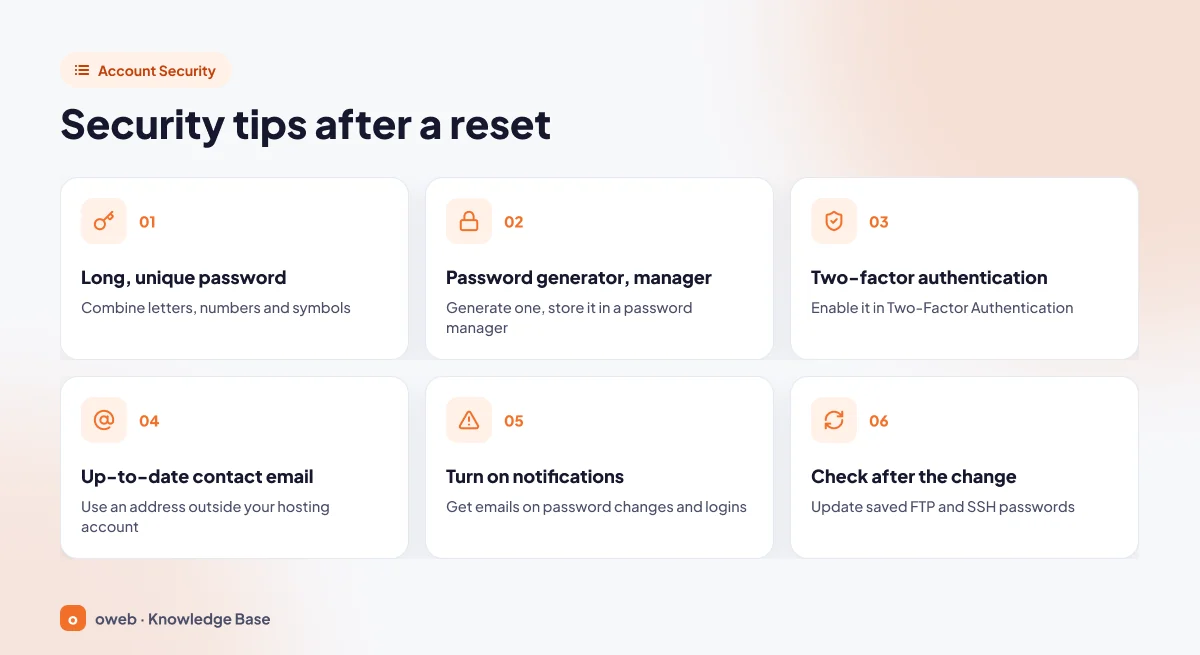
- Long and unique password: Use letters, numbers and symbols together, and set a different password for every important account.
- Password generator and password manager: Generate the password with Password Generator and store it in a secure password manager; you do not need to memorize a long, random password.
- Two-factor authentication (2FA): Enable it in the cPanel » Security » Two-Factor Authentication interface; the steps are below.
- Up-to-date contact email: Keep the address in Contact Information current and outside this hosting account.
- Notifications: The "My account's password changes." and "Someone logs in to my account." options in your contact preferences alert you by email when something happens without your knowledge. The second one requires your hosting provider to have enabled cPHulk on the server.
- Post-change check: Update the saved password in your FTP, SFTP and SSH clients and renew your API tokens.
What makes a strong cPanel password?
cPanel rates password strength on a scale from 0 to 100. Passwords made of sequential characters such as 12345678 or that are easy to guess receive a low score. Avoid predictable patterns and do not reuse the same password on another account.
Hosting providers may set a minimum password strength requirement on the server. If your new password is rejected, it is usually because it falls below this threshold; try a longer and more complex password.
How do you enable cPanel two-factor authentication?
With cPanel two-factor authentication enabled, no one can log in to the cPanel interface without the one-time code on your phone, even if your password is stolen. 2FA is a security measure for the cPanel login interface; the documentation does not state that it covers main FTP and SSH/SFTP connections made with the same password. If you suspect your password has been compromised, change it immediately even if 2FA is enabled. Your hosting provider must first have enabled the feature on the server.
- Open the cPanel » Security » Two-Factor Authentication interface.
- Click the "Set Up Two-Factor Authentication" button.
- Scan the QR code on the screen with the authenticator app on your phone, or enter the account and key details manually.
- Type the six-digit code generated by the app into the "Security Code" field before it expires. The code refreshes every 30 seconds.
- Click the "Configure Two-Factor Authentication" button.
If you lose your phone
If you no longer have access to the authenticator app, you cannot log in to the panel and cannot resolve this on your own. Contact your hosting provider: the server administrator disables 2FA for your account from the "Manage Users" tab of WHM's Two-Factor Authentication interface, and you then set it up again from scratch with your new phone.
Frequently asked questions
Can I find out my current cPanel password?
No. cPanel and WHM do not display the stored password; a forgotten password cannot be recovered and is replaced with a new one instead.
Will my website go down if the cPanel password changes?
In most cases, no. A password change does not affect live files or domain settings. WordPress and similar sites that run with a separate database user are not affected either. What is affected are the FTP, SFTP and SSH clients that connect with the main account password. The exception: if your site's configuration file uses the cPanel username itself as the database user and the password was changed through MySQL synchronization, you also need to update the password in the file.
Does changing the cPanel password also change the FTP password?
The main FTP account is tied to the cPanel account, so it works with the new password. The passwords of additional FTP accounts you created later in the FTP Accounts interface do not change.
Are the cPanel password and the email password the same?
No. Each email account has its own password, which is changed with "Manage" next to the relevant account in the cPanel » Email » Email Accounts interface. The only exception is the system (default) email account, whose username and password are the same as the cPanel account's.
Which email address is the security code sent to?
It is sent to the contact email registered in the Contact Information section of the cPanel account. If this address is not set or you cannot access it, the reset cannot be completed; your hosting provider can update the address.
The cPanel password reset email is not arriving. What should I do?
First check your spam folder, request a new code with "Send Security Code Again" in the browser tab where you started the request, and make sure the address you entered is the contact email registered on the account. If that does not work, your hosting provider can update the contact email or set a new password on the account.
How often should the cPanel password be changed?
Mandatory, calendar-based changes are not recommended by current security guidelines (for example NIST SP 800-63B). Use a long, unique password and two-factor authentication, and change the password when a breach is suspected, when someone who knows the password leaves the team, or when you realize you use the same password elsewhere. If your hosting provider applies a password age policy or has set up a forced password change, the panel will ask you for a new password at login.
How does a reseller reset a customer's cPanel password?
If their provider has granted the relevant privilege, the reseller sets a new password on the customer's account from the Password Modification or List Accounts interface in their own WHM account. The old password is not required.
I am typing the correct password but cannot log in to cPanel. Why?
Common causes include an old password autofilled by the browser, typing an email address instead of the cPanel username, and a cPHulk IP block. Type the password manually and verify your username; if the problem persists, wait a while and try from a different internet connection.
Conclusion
Resetting your cPanel password takes only a few minutes once you know which door is open to you: if you know the password, change it from within the panel; if you forgot it, use the "Reset Password" link on the login screen or the client area; and if you manage a server, go through WHM or use the whmapi1 passwd command. When you are done, remember to update saved FTP and SSH passwords, check your contact email and enable two-factor authentication.
If the link does not appear on the login screen, the security code does not arrive or the IP block is not lifted, the solution lies with the server administrator. Oweb web hosting customers can get help in these situations by opening a support ticket from the client area.
