


Localhost is a special name that points to your own computer: when you type http://localhost into a browser, the request never goes out to the network or the internet and is delivered to a server running on the same machine. It corresponds to the loopback address 127.0.0.1 in IPv4 and ::1 in IPv6, and it is used to test websites safely before they go live.
In short
- What localhost means: "The local host", in other words the computer you are using right now.
- What 127.0.0.1 is: The IPv4 loopback address. The entire 127.0.0.0/8 block is reserved for this purpose; its IPv6 equivalent is
::1. - Traffic stays inside: Packets sent to loopback addresses never leave the computer and are not forwarded by modems or routers.
- It does not serve pages on its own: For the address to work, a server such as Apache, Nginx or Node.js must be listening on the relevant port.
- Setup: XAMPP is one of the most common options and is easy to install on Windows. WampServer, Laragon, MAMP, Local and Docker are the main alternatives.
- Ports: Ports 80 and 443 are used for the web and 3306 for MySQL/MariaDB; 8080, 3000 and 5173 are alternative and development server ports (e.g.
localhost:8080). - Others cannot see it: Only you can see a site running on localhost. To publish it, you need a domain name and hosting; the files and database are then moved to a live server.
What is localhost and what does it mean?
Formed from the words "local" and "host" (a host being a computer on a network), localhost means "this computer" in networking. When a program connects to localhost, the operating system does not send the request out; it delivers it internally to another program waiting on the same machine. That is why localhost is not a remote connection but an entirely local one.
The word is used in two senses in everyday speech. In the narrow sense, it is the name localhost typed into a browser or a configuration file. In the broader sense, it refers to a local development environment: someone who says "I'm building the site on localhost" means the web server, PHP and database setup installed on their own computer.
Localhost is not a program and is not installed separately. What you install is the server software that responds at this address (for example, Apache inside XAMPP). While the server is stopped, http://localhost will not open and the browser shows a "connection refused" error.
What is localhost used for?
The main purpose is to try things out quickly and without risk before making them public. The main use cases are:
- Web development: Seeing a site written in PHP, Node.js or Python instantly, without uploading it to a server after every change.
- Safe testing: Trying theme, plugin and version updates without putting the live site at risk.
- WordPress experiments: Installing WordPress without buying hosting, learning the admin dashboard and preparing a new design.
- Database work: Writing queries on MySQL, MariaDB or PostgreSQL and practicing restores from a backup.
- API development: Running and testing the API a mobile app will connect to locally first.
Browsers also treat http://localhost as a "secure context" even without HTTPS. This lets you try features that normally require HTTPS, such as service workers or camera access, without installing a certificate (MDN).
Localhost and 127.0.0.1: what is a loopback address?
Loopback is a virtual network interface that lets a computer send packets to itself. It is not tied to a physical network card, so it works even with no cable plugged in or with Wi-Fi turned off. The name localhost resolves to this interface's address.
What is 127.0.0.1? The 127.0.0.0/8 block
In IPv4, an entire block rather than a single address is reserved for loopback: 127.0.0.0 through 127.255.255.255. RFC 1122 states that addresses beginning with 127 must never appear outside a host. The IANA registry also marks this block as not forwardable and not globally reachable. In practice, 127.0.0.1 is almost always the address used, which is why 127.0.0.1 and localhost are often treated as synonyms.
What is ::1? The IPv6 loopback address
IPv6 has a single loopback address: ::1 (written in full as 0:0:0:0:0:0:0:1). According to RFC 4291, this address cannot be assigned to a physical interface, and packets destined for ::1 never leave the device. Because modern operating systems run IPv4 and IPv6 side by side, localhost can resolve to either address; for example, ping localhost on Windows 11 usually gets a reply from ::1.
Why is "localhost" a special name?
RFC 6761 defines the name "localhost" and all names ending in .localhost as special-use names. Under the standard, address queries for these names should not be sent to DNS servers; the device itself should always answer with a loopback address. The RFC words this as a strong recommendation (SHOULD), while current browsers pin localhost directly to the loopback address themselves. Registrars cannot allocate these names to anyone either. In short, localhost is not a domain name you can buy, and 127.0.0.1 is not an IP address that belongs to any website.
The hosts file and localhost
When your computer translates a name into an IP address, it checks the hosts file before asking DNS. The file is located at C:\Windows\System32\drivers\etc\hosts on Windows and at /etc/hosts on macOS and Linux; editing it requires administrator rights. On Windows 10 and 11, the localhost lines in it are commented out (#) by default, because the system handles this resolution itself. Developers can add their own local names here:
127.0.0.1   myproject.test
::1         myproject.test
Use the .test or .localhost top-level domains for local names; they are reserved for testing and local use. Browsers open .dev, which is a real top-level domain, only over HTTPS, and .local can clash with device discovery on the network (mDNS). The often-repeated tip that "you can block sites with localhost" is really about the hosts file: when you point a domain name to 127.0.0.1 or 0.0.0.0, the browser can no longer reach that site.
How does localhost work?
From the moment you type http://localhost into the browser and press Enter until the page opens, these four steps take place:
- The browser starts the request. Since no port is specified, 80 is assumed for HTTP and 443 for HTTPS.
- The name is resolved. The operating system translates the name localhost into 127.0.0.1 or
::1without asking DNS. - The packet goes to the loopback interface. The data never reaches the network card, the modem or the internet; it loops back inside the operating system.
- The local server responds. If a server such as Apache, Nginx or Node.js is listening on that port, it generates the page and sends it back. If no program is listening, the connection is refused.
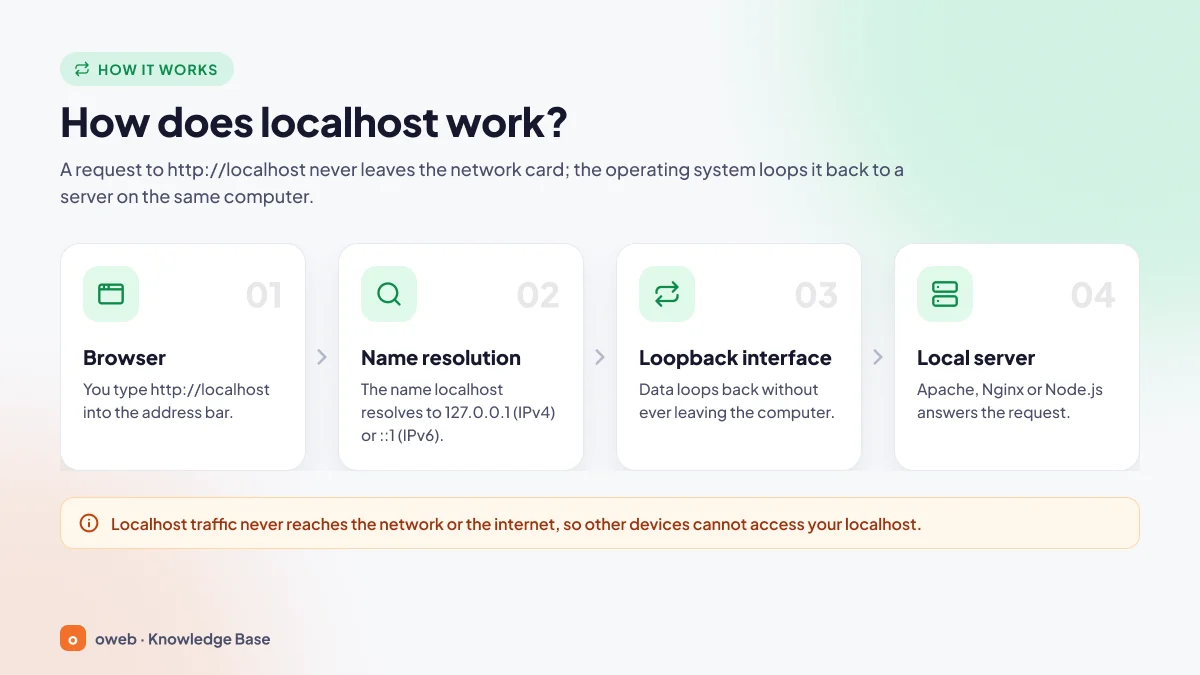
Because there is no network latency, pages opened locally appear much faster than what real visitors experience on the live site.
Localhost vs 127.0.0.1: IPv6, the MySQL socket and cookies
In most cases, both open the same page. However, localhost is a name that has to be resolved first, while 127.0.0.1 is a direct IPv4 address. The difference shows up in three places:
- IPv6 preference: Localhost may resolve to
::1first. Browsers fall back to 127.0.0.1 if::1is refused, but some command-line tools do not. If the server listens only on 127.0.0.1, the connection is refused in those tools; this is the cause of theECONNREFUSED ::1error seen especially in Node.js 17 to 19 (since Node.js 20, client connections try both addresses). The reverse also happens: a development server that listens only on::1(e.g. Vite) will not open athttp://127.0.0.1. - MySQL connections: On Linux and macOS, MySQL/MariaDB clients use the Unix socket when you specify "localhost" and a TCP connection when you specify "127.0.0.1".
- Cookies: The browser treats the two as different origins; a session you start on one is not visible on the other.
What is the difference between 127.0.0.1, 0.0.0.0 and a local IP address?
Addresses are the most commonly confused topic when setting up a local server. The table below summarizes what each address means and who can reach it.
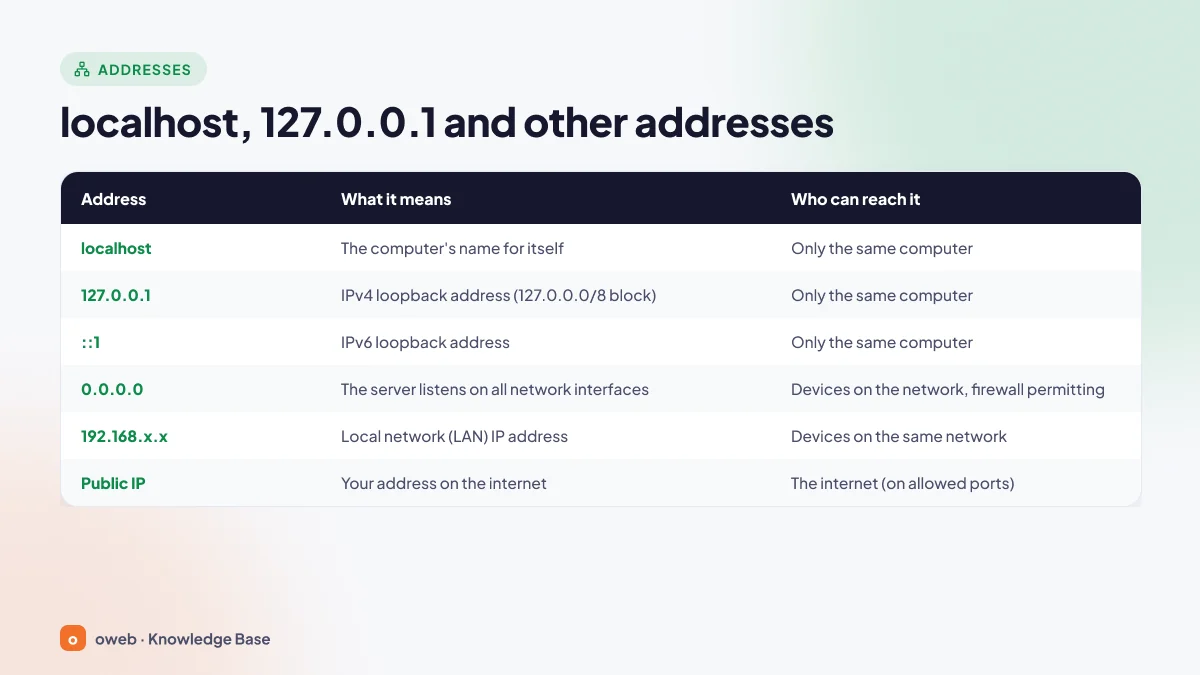
| Address | What it means | Who can access it |
|---|---|---|
| localhost | The computer itself (special name) | Only the same computer |
| 127.0.0.1 | IPv4 loopback (127.0.0.0/8 block) | Only the same computer |
| ::1 | IPv6 loopback | Only the same computer |
| 0.0.0.0 | The server listens on all network interfaces; not a browser address | The same computer; devices on the same network too, if the firewall allows it |
| 192.168.x.x, 10.x.x.x, 172.16-31.x.x | Private (local network) IP address | Devices on the same network |
| Public IP | The address visible from the internet | Anyone on the internet (if the port is open) |
In homes and offices, the public IP usually belongs to the modem or router; your computer works behind it with a private IP. Because some internet service providers use CGNAT, even the modem itself may not get a public IP. To make a local server reachable from the internet, you have to set up port forwarding on the modem or use a tunneling service such as ngrok or Cloudflare Tunnel; on connections behind CGNAT, port forwarding often does not work. Because of the security risks, exposing a local server to the internet is generally not recommended.
What does 0.0.0.0 mean?
In the standards, 0.0.0.0 is a special address that should not be used as a destination address. In server software, however, it means "accept connections on all network interfaces"; its IPv6 equivalent is ::. For example, the Listen 80 line in Apache listens on all interfaces, while Listen 127.0.0.1:80 listens only on loopback (Apache documentation). In Node.js, if no address is passed to server.listen(), the server listens on :: or 0.0.0.0. Type localhost into your browser instead of 0.0.0.0; some browsers restrict access to that address for security reasons.
Accessing localhost from a phone or another computer
By definition, localhost can only be reached from the same computer. To view the site on a phone connected to the same network:
- Find the computer's local IP:
ipconfigon Windows,ipconfig getifaddr en0on macOS (it may been1depending on your connection) andip addron Linux. - Make sure the server also listens on this IP; for Vite, for example, run
npm run dev -- --host. - Allow the port in the firewall for private networks only, then open an address such as
http://192.168.1.25:5173on the phone.
Do not expose your local server to the internet by forwarding ports on your modem. Packages such as XAMPP are built for convenience; for example, the MySQL root user has no password by default. If you need to give a client a lasting preview, move the site to a hosting account or a password-protected staging environment.
How to set up localhost: step by step with XAMPP
The answer to "How do I open localhost?" is to install and run a local server package on your computer. The most common option for Windows is XAMPP, a free package from Apache Friends: it brings Apache, MariaDB, PHP, Perl and phpMyAdmin together in a single installation.
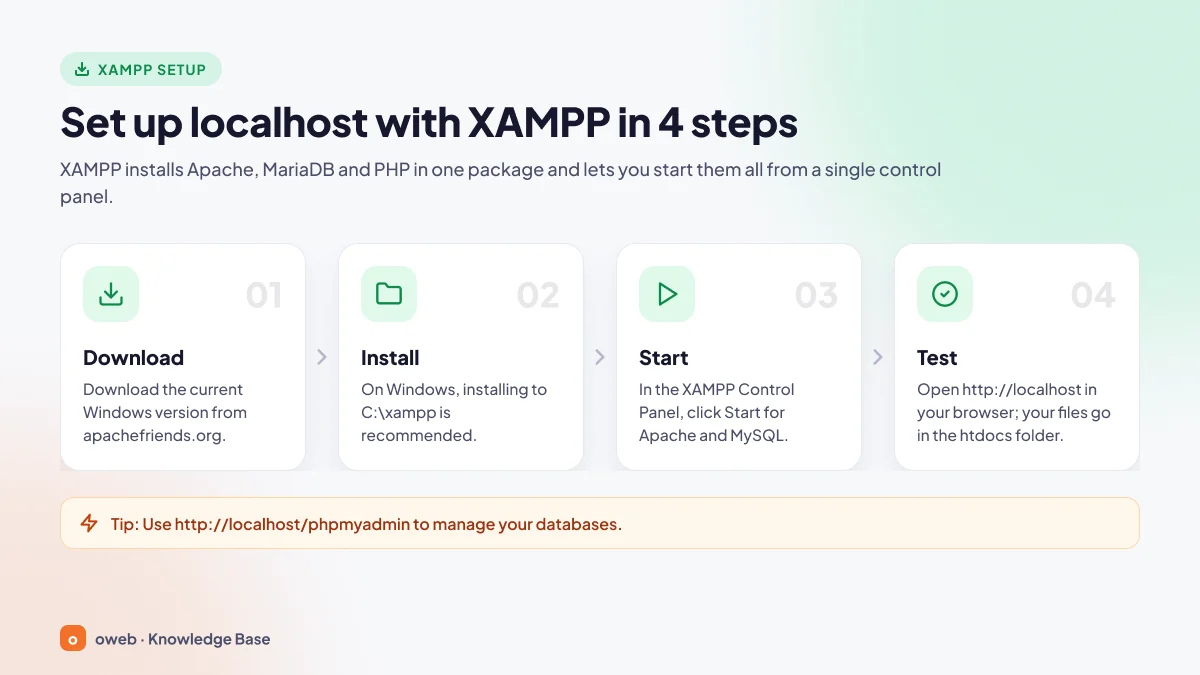
1. Download XAMPP
Download XAMPP only from the official site, apachefriends.org. As of October 2026, the page lists three 64-bit Windows packages based on PHP 8.3, 8.4 and 8.5. Since WordPress recommends PHP 8.3 or later, all three are suitable; choosing the one closest to the PHP version on your live server reduces incompatibilities later on.
2. Run the installer
Leave Apache, MySQL, PHP and phpMyAdmin selected in the installer; if you do not need Tomcat, Mercury Mail or FileZilla, deselect those components. Keep the default C:\xampp path as the installation folder. The installer advises against installing under C:\Program Files because of User Account Control (UAC), as write permission problems can occur there.
3. Start Apache and MySQL
Open the XAMPP Control Panel and click the Start buttons on the Apache and MySQL rows. The module names turn green, and their PIDs and port numbers (80, 443, 3306) appear next to them. Although the panel says "MySQL", the database is actually MariaDB, which is MySQL-compatible. On first launch, Windows Firewall may ask for access. If you will only use the site on this computer, you usually do not need to allow it, because Windows Firewall does not block localhost traffic in most cases; third-party firewalls and antivirus software may behave differently. If you plan to access the site from your phone, select private networks only and clear the public networks option.
4. Test the installation
Open http://localhost in your browser; if the XAMPP welcome page appears, the installation is complete. Your web files go in the C:\xampp\htdocs folder. To test PHP, create a file named test.php there containing the following:
<?php phpinfo();PHP information should be listed at http://localhost/test.php; delete the file once you have checked it. phpMyAdmin is available at http://localhost/phpmyadmin.
The checkboxes in the Control Panel's "Service" column install Apache and MySQL as Windows services that start automatically when the computer boots. To use them, you must run the panel as administrator. If you only develop occasionally, clicking Start when you need it puts less load on your system.
Setting up localhost on macOS and Linux
Current XAMPP installers are released for Windows only. The last version for Linux is 8.2.12 (November 2023), and the last one for macOS is 8.2.4 (April 2023). Because the PHP, Apache and MariaDB in these packages have not been updated since 2023, they lack the security fixes released since then; security support for the PHP 8.2 branch also ends on December 31, 2026. For that reason:
- macOS: Use MAMP, Local or Docker Desktop, or install the components individually with Homebrew.
- Linux: Installing Apache or Nginx, PHP and MariaDB with the package manager gives you the environment closest to a live server. If you are using an old XAMPP, the package is located under
/opt/lamppand starts withsudo /opt/lampp/lampp start.
On Ubuntu and Debian, these commands are enough for a basic setup:
sudo apt update
sudo apt install apache2 mariadb-server php libapache2-mod-php php-mysql
Web files are kept in the /var/www/html folder.
Comparison of localhost setup tools
The right tool for you depends on your operating system, the language you work in and whether you work as part of a team. When choosing, keep in mind that current XAMPP installers are released only for Windows, while the macOS and Linux packages are stuck at 8.2 versions from 2023.
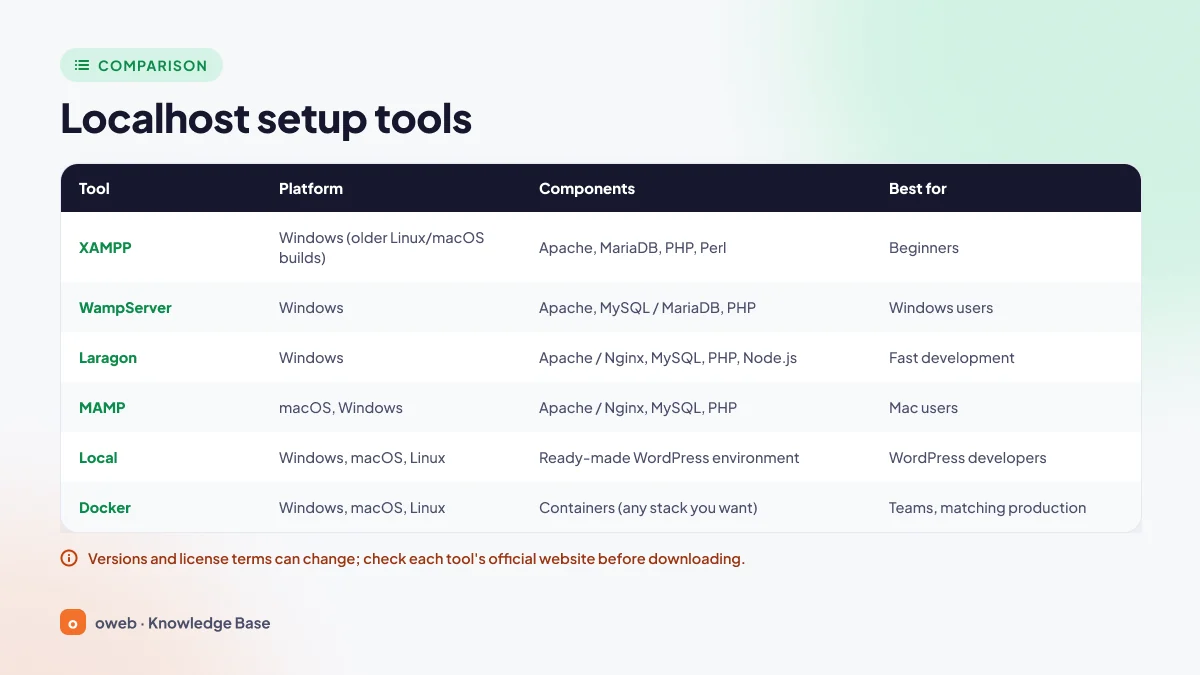
| Tool | Platform (October 2026) | Components | Best for |
|---|---|---|---|
| XAMPP | Windows (only old 8.2 versions for Linux and macOS) | Apache, MariaDB, PHP, Perl, phpMyAdmin | Beginners |
| WampServer | Windows (64-bit) | Apache, MySQL or MariaDB (or both together), PHP | Windows users |
| Laragon | Windows | Apache or Nginx, MySQL, PostgreSQL, PHP, Node.js | Fast development |
| MAMP | macOS, Windows | Apache or Nginx, MySQL, PHP | Mac users |
| Local | Windows, macOS, Linux | Ready-made WordPress environment | WordPress developers |
| Docker | Windows, macOS, Linux | Containers | Teams and environments identical to production |
WampServer
It runs only on 64-bit Windows and installs Apache, PHP, MySQL or MariaDB, phpMyAdmin and Adminer. You can easily switch between PHP and database versions from the system tray menu. It requires the Microsoft Visual C++ Redistributable packages and keeps web files in the C:\wamp64\www folder.
Laragon
A portable, fast-starting environment for Windows that offers Apache or Nginx, MySQL, PostgreSQL, PHP, Node.js and Python in one place. It automatically gives each project folder an address such as project.test, so you do not need to edit the hosts file by hand. For non-commercial use, it can be used free of charge without a license (a license reminder appears at startup and there are no automatic updates); commercial use requires a paid license.
MAMP
A free package for macOS and Windows; advanced features are in the paid MAMP PRO. The Mac version uses port 8888 for Apache and 8889 for MySQL by default, so the site opens at http://localhost:8888. You can switch to ports 80 and 3306 with a single click in the settings. In the Windows version, web files live in the C:\MAMP\htdocs folder.
Local
A free application built for WordPress that installs the server, PHP, the database and WordPress together in a few clicks. It runs on Windows 10/11 (64-bit), macOS and Linux and requires at least 4 GB of RAM.
Docker
Docker runs the application and its dependencies in containers. Because you can replicate the software versions on your live server exactly, it reduces the "it worked on my machine" problem in team projects, but it is harder to learn. Docker Desktop is free for personal use, education and non-commercial open source projects, as well as for companies with fewer than 250 employees and less than $10 million in annual revenue. Larger companies and government organizations need a paid subscription, while Docker Engine used on Linux without Docker Desktop is free.
Be careful when publishing ports: the -p 8080:80 parameter exposes the port on all of the computer's network addresses. To allow access only from your own computer, specify the address as well (Docker documentation):
docker run -d -p 127.0.0.1:8080:80 nginxKeep Docker Engine up to date too: in versions older than 28.0.0, machines on the same local network could, in some cases, reach ports published to 127.0.0.1.
Which one should I choose?
- If you are trying PHP or WordPress on Windows for the first time: XAMPP.
- If you switch between PHP versions often: WampServer or Laragon.
- If you use a Mac: MAMP or Local.
- If you only develop WordPress sites: Local.
- If you work in a team and want an environment identical to your live server: Docker.
Localhost ports: what do localhost:8080, 3000 and 5173 mean?
A port is a numbered door that lets services on the same computer accept connections without getting mixed up. http://localhost:8080 means "connect to the server listening on port 8080 on this computer". If no port is specified, the browser uses 80 for HTTP and 443 for HTTPS.
| Port | Use | Example address |
|---|---|---|
| 80 / 443 | HTTP and HTTPS default (Apache, Nginx, IIS) | http://localhost |
| 3306 | MySQL and MariaDB | Database connection (does not open in a browser) |
| 5432 | PostgreSQL | Database connection |
| 8080 | Alternative HTTP port (IANA: "HTTP Alternate"), Tomcat's default | http://localhost:8080 |
| 8000 | Commonly used by the built-in PHP and Python servers | http://localhost:8000 |
| 3000 | Default for Next.js and many Node.js apps | http://localhost:3000 |
| 5173 | Default for the Vite development server | http://localhost:5173 |
3000 and 5173 are not official web ports but defaults chosen by development tools. If 5173 is taken, Vite tries the next free port, so always use the address shown in the terminal.
Changing the Apache port to 8080
- In the XAMPP Control Panel, open the
httpd.conffile using the Config button on the Apache row. - Change the
Listen 80line toListen 8080and theServerName localhost:80line toServerName localhost:8080, then save the file. - Open the Service and Port Settings window from the Config button in the top right corner of the Control Panel, set the Main Port value in the Apache section to 8080 and click Save. If you skip this step, the panel keeps checking port 80 and continues to show a warning.
- Restart Apache and open the site at
http://localhost:8080.
If the conflict is on 443, replace 443 in the Listen 443, <VirtualHost _default_:443> and ServerName ...:443 lines of the apache\conf\extra\httpd-ssl.conf file with a free port other than 8080 (e.g. 4433), and enter the same value in the panel's SSL Port field. The site will then open at https://localhost:4433.
Running a development server without a bundled package
If PHP, Python or Node.js is installed on your computer, you can start a local server without installing a separate package:
# PHP's built-in server
php -S localhost:8000

# Serve a folder with Python, on this computer only
# (python or py on Windows, python3 on macOS and Linux)
python3 -m http.server 8000 --bind 127.0.0.1

# Vite, React or Vue project
npm run dev
You can check whether a port on your live server is open to the outside world with the port scanner tool. Localhost ports, on the other hand, are only visible from inside the computer, so they do not show up in external scans.
How to install WordPress on localhost
If Apache and MySQL are running in XAMPP, a WordPress installation on localhost takes only a few steps. MariaDB 10.11, included in the current XAMPP packages for Windows, meets WordPress's recommended "MariaDB 10.11 or later" requirement (WordPress requirements). If you want to use a local domain name such as wpdemo.test, set up the virtual host described below before installing.
- Create a database. At
http://localhost/phpmyadmin, open the Databases tab, enterwpdemoas the name, selectutf8mb4_unicode_cias the collation and click Create. - Download WordPress. Get the package from wordpress.org. XAMPP, WampServer and MAMP, by contrast, are downloaded from their own developers' websites, not from WordPress.
- Place the files. Copy the
wordpressfolder from the ZIP file intoC:\xampp\htdocsand rename it towpdemo. - Start the installation. Open
http://localhost/wpdemo, choose a language and enter the details: databasewpdemo, usernameroot, password empty (or your own password if you have set one), hostlocalhost. - Install the site. Enter the site title, an admin username, a strong password and your email address, click the install button, then log in at
/wp-admin.
The generated wp-config.php file stores the database details as shown below; when you move the site live, you will update these lines with your hosting details:
define( 'DB_NAME', 'wpdemo' );
define( 'DB_USER', 'root' );
define( 'DB_PASSWORD', '' );
define( 'DB_HOST', 'localhost' );
Working with a local domain name (virtual host)
To use an address such as wpdemo.test instead of localhost/wpdemo, add the following two lines to the hosts file:
127.0.0.1   wpdemo.test
::1         wpdemo.test
Then add these blocks to the apache\conf\extra\httpd-vhosts.conf file (if you moved Apache to 8080, use *:8080 instead of *:80):
<VirtualHost *:80>
    ServerName localhost
    DocumentRoot "C:/xampp/htdocs"
</VirtualHost>

<VirtualHost *:80>
    ServerName wpdemo.test
    DocumentRoot "C:/xampp/htdocs/wpdemo"
</VirtualHost>
The first block keeps localhost working as before, because Apache sends requests that match no other host to the first virtual host. Restart Apache after making the change. If you previously installed WordPress at localhost/wpdemo, update the WordPress Address and Site Address fields under Settings > General to http://wpdemo.test; otherwise, the new address will redirect you to the old one. Laragon configures this for every project automatically.
Common localhost errors and how to fix them
Most problems come from one of three sources: the server is not running, the port is being used by another program, or the file is in the wrong place.
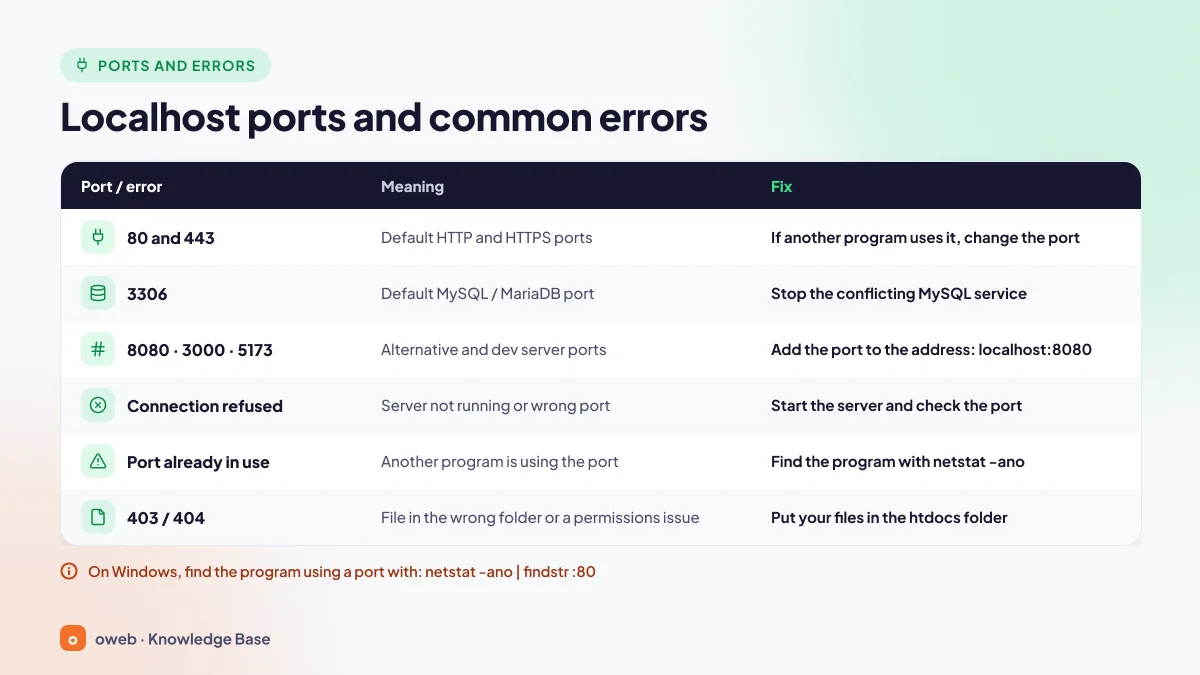
"localhost refused to connect" (ERR_CONNECTION_REFUSED)
The browser shows this error when it cannot find a server waiting on that port; in Chrome, it appears under the heading "This site can't be reached". Check the following in order:
- Make sure Apache is running in the XAMPP Control Panel.
- Enter the port correctly: if Apache is on 8080, the address must be
http://localhost:8080. - If you are using Node.js or Vite, check that the server in the terminal is still running; closing the terminal stops the server.
- Try
http://127.0.0.1andhttp://[::1]separately (including the port if you use one, e.g.http://[::1]:5173). If one opens and the other does not, the server is listening on only one IP version; configure the server to listen on both addresses or use the one that works. Also check that the localhost lines in the hosts file have not been modified.
You can test the loopback interface with the ping localhost, ping 127.0.0.1 and ping ::1 commands (on macOS, use ping6 ::1 for IPv6). If you get replies, the problem lies in the server software.
XAMPP Apache won't start: port 80 in use
If port 80 or 443 is taken, the Control Panel log reports that the port is in use by another process, and Apache stops within a few seconds. Find out which program is using the port in Command Prompt (cmd):
netstat -ano | findstr /C:":80 "
tasklist /FI "PID eq 1234"
In the output of the first command, look for the line whose Local Address column ends in :80 and whose state is LISTENING; the rightmost column shows the process ID (PID). Connections your browser has opened to external websites may also appear in the list; ignore them. The second command returns the program's name when you replace 1234 with that number (netstat documentation). In PowerShell, the Get-NetTCPConnection -LocalPort 80 -State Listen command gives you the same information directly. Common causes:
- IIS (World Wide Web Publishing Service, W3SVC): It appears as PID 4 (System). Stop this service in
services.mscand set its startup type to "Manual", or, if you do not use IIS, remove it via Windows Features. - Other services that use HTTP.sys: Services such as the Web Deployment Agent Service or SQL Server Reporting Services can also hold the port and likewise appear as PID 4.
- Docker or a second web server: A container that publishes 80/443, a separately installed Nginx, or WampServer, Laragon or another Apache instance running at the same time.
- Virtualization software: The Shared VMs service in older versions of VMware Workstation can use port 443.
Skype, often mentioned in older guides, is no longer a likely cause, since Microsoft shut it down in May 2025. If you cannot close the program, move Apache to 8080 using the steps above. On macOS, the same check is done with sudo lsof -nP -iTCP:80 -sTCP:LISTEN, and on Linux with sudo ss -ltnp.
XAMPP MySQL won't start
If the log says "MySQL shutdown unexpectedly", two possibilities stand out:
- Port 3306 is in use: A separately installed MySQL or MariaDB service may be running. Check with
netstat -ano | findstr :3306and stop the other service. If you need to change the port, update the port value in both the[mysqld]and[client]sections ofC:\xampp\mysql\bin\my.ini, the$cfg['Servers'][$i]['port']line inphpMyAdmin\config.inc.php, and the Service and Port Settings screen in the Control Panel. - Damaged data files: This is common after sudden shutdowns. Read the
mysql_error.logfile via the Logs button and back up the entireC:\xampp\mysql\datafolder before attempting any repair. Follow the error message in the log; if the problem persists, reinstall XAMPP and restore your own SQL backup through phpMyAdmin. Do not delete files such asibdata1at random.
403 Forbidden and 404 Not Found
- 404: The file or path does not exist. Check that the file is inside htdocs (www in WampServer) and that you typed the address correctly. Windows is not case-sensitive, but Linux servers are: a
Projectfolder that opens at/projectlocally will only open at/Projecton the live server. - 403: The file exists, but access is blocked. Usually an Apache
Requirerule is restricting access, or the folder has noindex.phporindex.htmland directory listing is disabled. Since directory listing is enabled by default for htdocs in XAMPP, this second case causes 403 errors more often on live hosting.
localhost/phpmyadmin won't open
- The page does not load: Apache is stopped or the port has changed (on 8080, the address becomes
http://localhost:8080/phpmyadmin). - "Access forbidden": By default, XAMPP allows access to phpMyAdmin only from the same computer. If you are connecting from another device, this is the expected and secure behavior.
- #1045 Access denied for user 'root'@'localhost': If you have set a password for the root user, update the
passwordvalue inphpMyAdmin\config.inc.php, or changeauth_typetocookieand use the login screen.
How do you move a localhost site to a live server?
For other people to see your site, you need a domain name and a web hosting account to host your files and database. For WordPress sites, a WordPress hosting plan with PHP and database settings tuned for the platform makes the job easier. If the concept of a server is new to you, take a look at our what is a server guide first.
Before you begin, take a full backup of your localhost files and database and store it in a separate location. If something goes wrong at any step, this backup is the only safe point you can go back to.
Steps to move a WordPress site from localhost to hosting
- Export the database. In phpMyAdmin, select the database and download it as an SQL file from the Export tab.
- Package the files. Select all the files and folders inside the
htdocs\wpdemofolder and compress them into a ZIP file (not the folder itself). - Create a database on your hosting. In your control panel, such as cPanel or Plesk, create a new database and user, and grant the user all privileges on that database. In cPanel, your account name is added as a prefix to database and user names (e.g.
account_wpdemo); enter this full name in the wp-config.php file. If you are using cPanel for the first time, our what is cPanel guide will help. - Upload the files. Upload the ZIP file to the
public_htmlfolder (httpdocsin Plesk) using File Manager and extract it. The files must sit directly inside this folder; if they were extracted into a subfolder, move them to the root. You can also use FTP if you prefer. - Import the database. In phpMyAdmin on your hosting, upload the SQL file from the Import tab.
- Update the wp-config.php file. Replace the
DB_NAME,DB_USERandDB_PASSWORDvalues with the new details. Because the database is on the same server,DB_HOSTstayslocalhoston most shared hosting; here, localhost refers to the hosting server itself. - Replace the URLs. Replace the
http://localhost/wpdemoURLs not with a plain-text find and replace but with a tool that does not break serialized data. If SSH and WP-CLI are available, thesearch-replacecommand below updates every URL in one go. Without WP-CLI, first change thesiteurlandhomevalues in thewp_optionstable to the new address in phpMyAdmin (or temporarily defineWP_HOMEandWP_SITEURLin wp-config.php); once you can log in to the dashboard, replace the remaining URLs with a plugin such as Better Search Replace. - Point the domain and enable SSL. Point the DNS records to your hosting, enable SSL and click Save Changes once on the Settings > Permalinks page.
If you would rather export the database from the command line, you can run XAMPP's mysqldump tool in Command Prompt (cmd) as follows. The --result-file parameter writes the file with the correct character encoding without using redirection (>):
"C:\xampp\mysql\bin\mysqldump.exe" -u root -p --default-character-set=utf8mb4 --result-file=wpdemo.sql wpdemoIf you are using PowerShell, add & followed by a space at the beginning of the command. If there is no mysqldump.exe in the folder, use mariadb-dump.exe, its newer name in MariaDB. When prompted for a password, press Enter if your root user has none. If SSH and WP-CLI are available on your hosting, you can replace the URLs with this command:
wp search-replace 'http://localhost/wpdemo' 'https://www.yourdomain.com' --skip-columns=guid --dry-run-dry-runshows how many records would be affected without changing anything; if the result looks right, run the command again without this parameter. WordPress's official migration guide also recommends leaving the GUID column untouched.
Post-migration checklist
- Search the page source for "localhost"; if any links remain, the URL replacement is incomplete.
- Test your contact forms; on the live site, you may need SMTP settings for email.
- Make sure the Search engine visibility box on the Settings > Reading page is unchecked.
- Confirm that the PHP version on your hosting is compatible with your local one.
What are the limitations of localhost?
- Speed tests are misleading: On localhost, there is no network latency and no real server load. For rankings, Google uses Core Web Vitals data (LCP, INP, CLS) collected from real users; measure these on the live URL with PageSpeed Insights and Search Console.
- Environment differences: If your local PHP version and PHP extensions differ from those on the live server, incompatibilities can arise; on Linux servers,
Logo.pngandlogo.pngare two separate files. - Email and scheduled tasks: A local server does not send email by default, and cron jobs do not run while the computer is turned off.
| Environment | Who can access it | What it is for | Keep in mind |
|---|---|---|---|
| Localhost | Only your own computer | Writing code, testing, learning | SSL, email and cron work differently than on the live site |
| Staging (test server) | You, your team and your client, behind a password or IP restriction | Pre-launch checks, client approval | Should be hidden from search engines |
| Live hosting | Anyone on the internet | Serving real visitors | Try changes on localhost or staging first |
Is localhost safe?
Localhost itself is safe: loopback traffic never leaves the computer. The risk comes from two directions: the local server being accidentally exposed to the network, and a website you visit sending requests to services on localhost through your browser. The following measures prevent most problems:
- Set a password for the MySQL root user and then update the phpMyAdmin configuration.
- Make servers listen only on 127.0.0.1:
Listen 127.0.0.1:80in Apache,bind-address=127.0.0.1in the[mysqld]section of themy.inifile for MariaDB/MySQL,-p 127.0.0.1:8080:80in Docker and--bind 127.0.0.1in Python. - Do not allow public networks in the firewall. On café or hotel Wi-Fi, a server listening on all interfaces may be visible to others. On Linux, ports published by Docker bypass ufw rules, so publish ports on 127.0.0.1.
- Pay attention to browser permissions. A website you visit can send requests to services on localhost through your browser. Since version 142, Chrome asks for local network access permission for such requests; do not grant this permission to sites you do not recognize.
- Keep packages up to date. PHP 8.1 and earlier no longer receive security support, and security support for 8.2 also ends on December 31, 2026.
- Anonymize real customer data. If you work with a copy of the live database, mask personal data; a lost laptop is also a risk under data protection laws such as the GDPR or Turkey's KVKK (Personal Data Protection Law).
Frequently asked questions
Are localhost and 127.0.0.1 the same thing?
Almost. Localhost is a name that resolves to 127.0.0.1 (IPv4) or ::1 (IPv6), while 127.0.0.1 is the IPv4 loopback address itself.
What does localhost:8080 mean?
It means connecting to the server listening on port 8080 on your computer. It is Tomcat's default port and is also used when Apache is moved off port 80.
Which port does localhost use?
Localhost has no port of its own. If no port is specified, the web server uses port 80 for HTTP and 443 for HTTPS; MySQL and MariaDB listen on 3306 by default. Development tools pick ports such as 8080, 3000 or 5173.
Can other people see my localhost?
No, localhost can only be accessed from the same computer. Devices on the same network can connect through your local IP only if the server listens on all interfaces and the firewall allows it.
How do I open localhost?
Install a local server package such as XAMPP, start Apache and type http://localhost into your browser.
What is the XAMPP phpMyAdmin password?
The default username is root and the password is empty. For security, set a password for the root user and update the config.inc.php file.
Where is the htdocs folder?
It is C:\xampp\htdocs in XAMPP, C:\wamp64\www in WampServer, /Applications/MAMP/htdocs in MAMP on a Mac and C:\MAMP\htdocs in MAMP on Windows.
Does XAMPP work on a Mac?
An old version does, but it is not recommended: the last XAMPP release for macOS is 8.2.4 from April 2023, and it has not been updated since. MAMP, Local and Docker are more up-to-date options on a Mac.
Is Laragon free?
For non-commercial use, it can be used free of charge without a license; in that case, a license reminder appears at startup. Commercial use requires a paid license.
Does localhost work without an internet connection?
Yes. The loopback interface does not need a network connection; the internet is only needed to download packages, plugins or updates.
The version, port and licensing information in this guide reflects the situation at the time of writing and may change over time. We recommend checking the official website of the relevant software before installing.