


WhatsApp Web is the official web version of WhatsApp that lets you use your WhatsApp account in your computer's browser without installing any software. To use it, open web.whatsapp.com and scan the QR code on the screen with your phone, or enter your phone number and type the 8-character code that appears on your computer into WhatsApp on your phone.
Last reviewed: October 24, 2026. Menu names, limits and steps have been checked against the current pages of the WhatsApp Help Center.
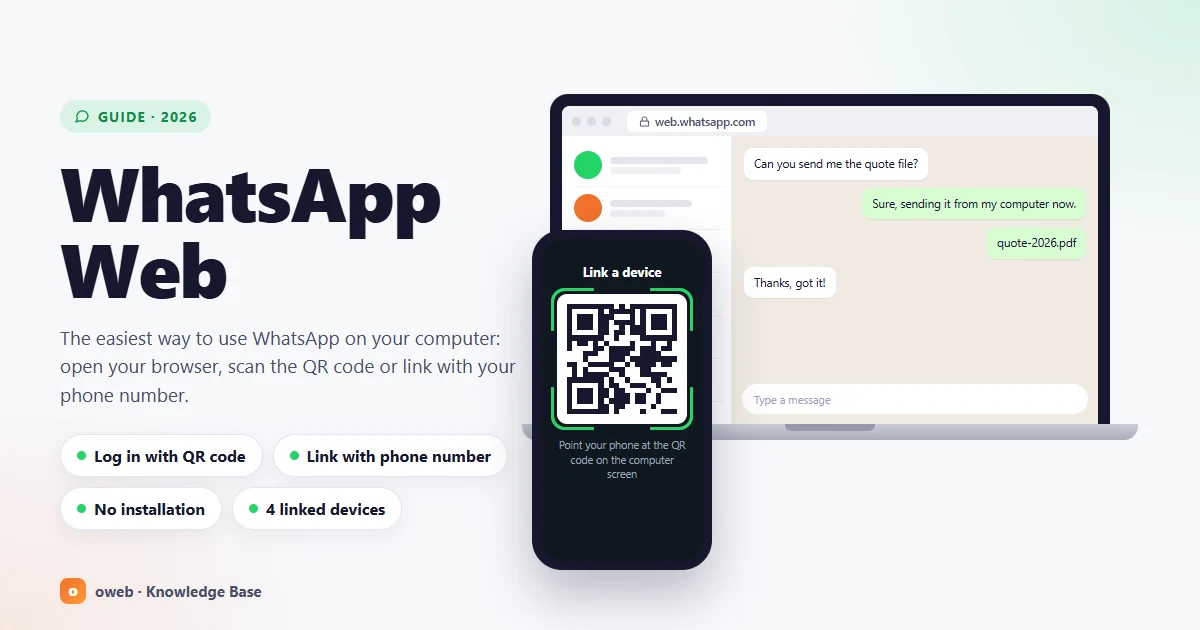
WhatsApp Web at a glance
- Official address: The only official address of WhatsApp Web is web.whatsapp.com; you do not need to download any software.
- Login methods: You connect either by scanning a QR code or by entering your phone number and typing the 8-character code shown on your computer into your phone.
- Device limit: Up to four linked devices (WhatsApp Web, the desktop app, a tablet and so on) can be connected to one phone at the same time.
- Your phone does not need to stay on: Once the connection is set up, WhatsApp Web keeps working even when your phone is turned off or offline.
- The 14-day and 30-day rules: If WhatsApp is not used on your main (primary) phone for more than 14 days, your linked devices are logged out; a linked device that is not used at all for 30 days is also unlinked automatically.
- Browsers: Chrome 100, Edge 100, Firefox 115, Safari 15, Opera 86 and later are supported; Internet Explorer is not supported.
- Calls: One-to-one and group voice and video calls from the browser have been rolling out gradually since July 2026.
- Security: Your personal messages, media and calls remain end-to-end encrypted on linked devices as well.
What is WhatsApp Web and how does it work?
WhatsApp Web is a "linked device" that connects to the WhatsApp account on your phone and opens in your computer's browser. Because your chats, groups and contacts come from the same account, a message you type on your phone shows up on your computer, and a message you type on your computer shows up on your phone.
When the service launched in 2015, the web version was simply a mirror of the phone; if the phone lost its internet connection, the web session dropped too. The multi-device architecture that became widely available from 2021 onward removed this dependency.
How does multi-device work?
Today, every linked device connects to WhatsApp's servers on its own and uses its own encryption keys. That is why you can send and receive messages on your computer even while your phone is turned off, with the same level of privacy and security as on your phone.
Right after you link a device, your phone sends an end-to-end encrypted copy of your recent message history to the new device, where it is stored locally. This transfer can take a few minutes. Your full history is not transferred; the complete archive stays on your phone. Messages you delete on one device are also deleted on your other devices that are online.
Outdated information vs. the current situation (October 2026)
Some of the WhatsApp Web guides circulating online contain information that is no longer accurate. Here are the most common outdated claims and what is true today:
| Outdated information | Current situation (October 2026) |
|---|---|
| Your phone must be on and connected to the internet | Not required; opening WhatsApp on your main phone at least once every 14 days is enough |
| WhatsApp Web can only be open on one computer at a time | Up to four linked devices can be used at the same time |
| You cannot make calls from WhatsApp Web | One-to-one and group calls have been rolling out gradually since July 2026 |
| The document size limit is 100 MB | The limit for documents is 2 GB |
| The new chat shortcut is Ctrl + N | In the browser it is Ctrl + Alt + N (Cmd + Ctrl + N on Mac) |
Which browsers and operating systems does it work on?
WhatsApp Web works on Windows, macOS and Linux computers with the browsers below. On an older version, instead of your chats you will see a message asking you to update your browser.
| Browser | Minimum supported version |
|---|---|
| Google Chrome | 100 |
| Microsoft Edge | 100 |
| Mozilla Firefox | 115 |
| Safari (macOS) | 15 |
| Opera | 86 |
| Internet Explorer | Not supported |
What can you do with WhatsApp Web?
- Write, reply to, forward and delete messages in individual and group chats
- Send photos, videos, documents and voice messages, and share up to 100 photos or videos at once
- Pin, archive and mute chats, and search within your chats
- Use emoji, GIFs and stickers
- View your contacts' status updates and the channels you follow
- Make voice and video calls from the browser (not yet available on every account)
- Use app lock, chat lock and the dark theme
Some features, however, are currently available only on the phone. According to the WhatsApp Help Center's linked devices page, the following are not supported on these devices:
- Viewing live location
- Creating and viewing broadcast lists
- Interacting with businesses through WhatsApp Flows
In addition, account switching, meaning moving between two WhatsApp accounts, is available only in the phone app; you cannot add a second account to WhatsApp Web.
Logging in to WhatsApp Web: connecting step by step with a QR code
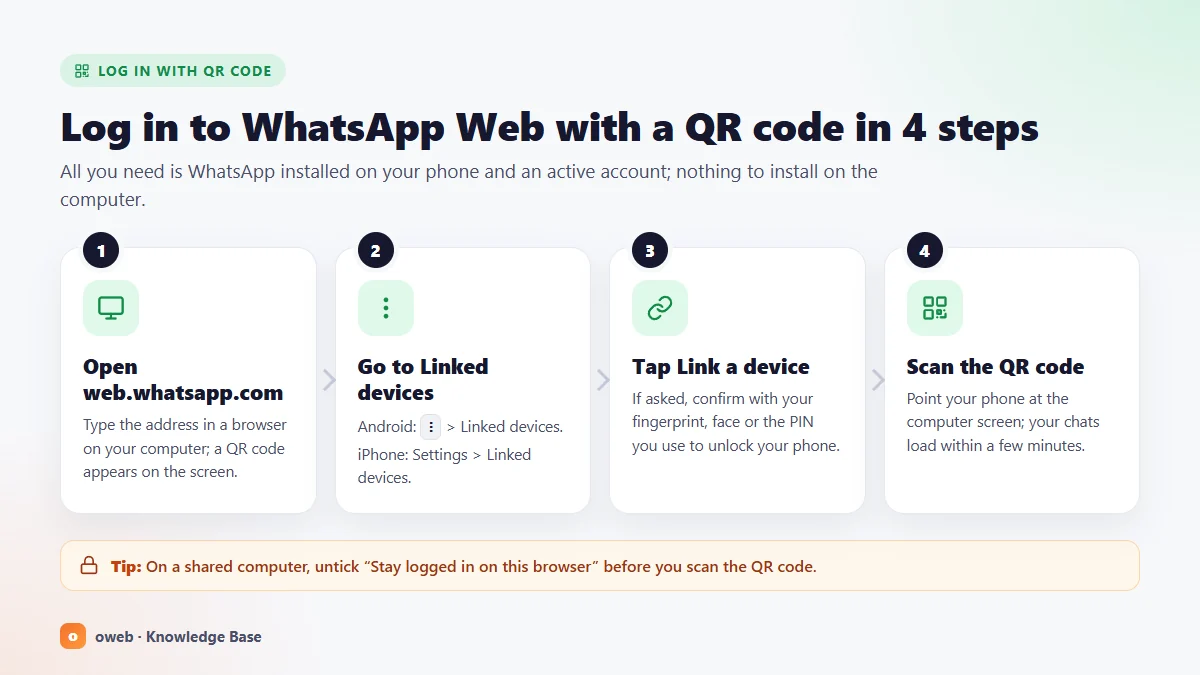
The fastest way to log in to WhatsApp Web is with a QR code. As soon as you scan the code shown on your computer from the Linked devices screen on your phone, the session opens; loading your message history can take a few minutes. In short, the process takes four steps:
- Open web.whatsapp.com on your computer.
- Open WhatsApp on your phone and go to the Linked devices menu.
- Tap Link a device.
- Scan the QR code on your computer screen.
Display the QR code on your computer
- Open a supported browser on your computer and type web.whatsapp.com into the address bar. Typing the address directly, rather than clicking lookalike sites, is the safest approach.
- A QR code appears on the screen. If you are on a shared computer, uncheck Stay logged in on this browser before scanning the code; this way the session ends automatically when you close the tab or the browser.
- Follow the method below that matches your phone.
Scanning the QR code on an Android phone
- Open WhatsApp on your phone.
- Tap the More options (⋮) icon in the top right and select Linked devices.
- Tap the Link a device button.
- If prompted, verify your identity with the fingerprint, face unlock or PIN you use to unlock your phone.
- Point your phone at the QR code on your computer screen. Once the code is scanned, your chats start loading on the computer.
Scanning the QR code on an iPhone
- Open WhatsApp and tap the Settings tab at the bottom or your profile picture.
- Go to Linked devices > Link a device.
- Verify your identity with Face ID or Touch ID; if biometric authentication is turned off, you will be asked for your phone's passcode.
- Point your phone at the QR code on your computer screen and scan it.
Extra verification: unrecognized device warning and passkey
If WhatsApp does not recognize the device you are trying to link, it shows a confirmation screen on your phone. If you started the linking yourself, tap Link device; if you did not, tap Don't link.
As an extra security measure, WhatsApp may also ask for a passkey. This verification works on iPhones running iOS 16 or later and on Android phones running Android 9 or later with Google Play Services installed. Supported browsers are Chrome 109, Edge 109, Safari 16, Firefox 122 and later. If your passkey is not synced, you may be asked to scan an additional QR code.
For security reasons, the QR code changes at regular intervals. If scanning fails, click the reload option on the screen or refresh the page; do not try to scan a screenshot of an old code.
Logging in to WhatsApp Web with your phone number (without a QR code)
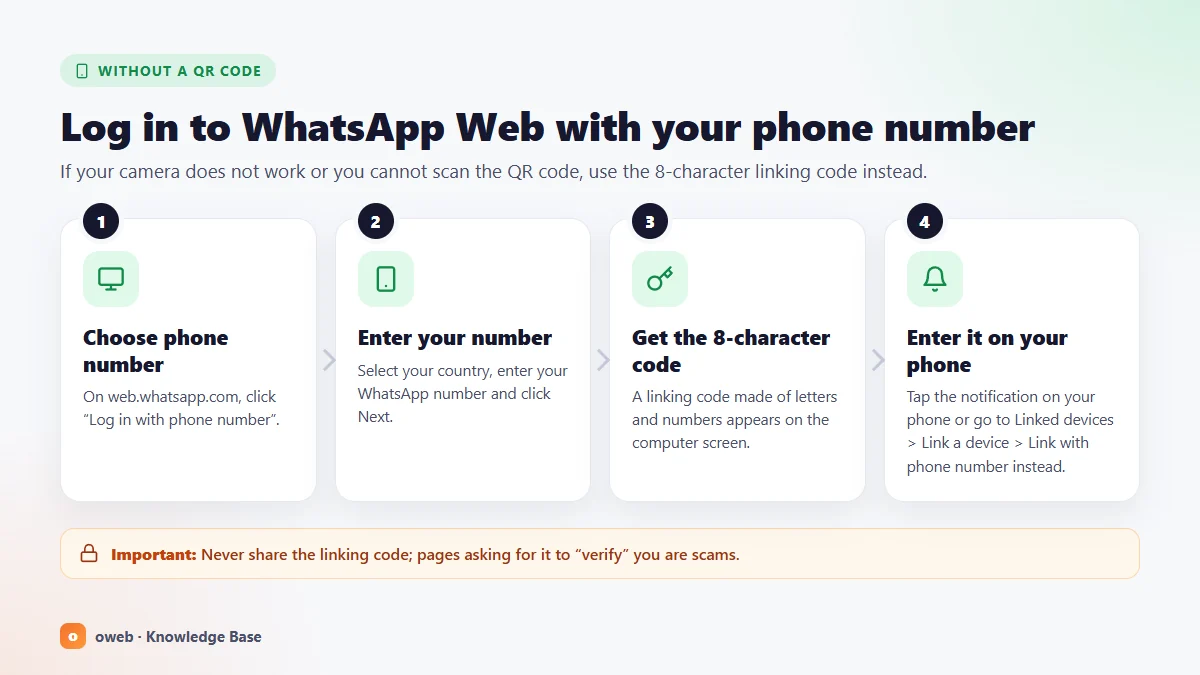
If your phone's camera is broken or the QR code simply will not scan, you can also connect to WhatsApp Web with your phone number. With this method, instead of a QR code, an 8-character code appears on your computer screen and you enter that code into WhatsApp on your phone. Linking with a phone number is currently available only on WhatsApp Web and in the WhatsApp app for Windows; the Mac app does not offer this option.
Starting from your computer
- Open web.whatsapp.com and click the Log in with phone number link on the login screen. In some versions this option appears as Link with phone number instead.
- Select your country, type the phone number you use for WhatsApp and click Next.
- An 8-character pairing code appears on the screen. The code may contain both letters and numbers; do not close this page.
- Tap the WhatsApp notification on your phone that asks you to enter a code to link a new device.
- Check the device name and location shown on your phone. If the details match your own computer, tap Confirm.
- Verify your identity and type the 8-character code from your computer into your phone. When the connection is complete, your chats start loading.
If no notification arrives: entering the code from your phone
- First open web.whatsapp.com on your computer, use the Log in with phone number option to enter your number and click Next; an 8-character code appears on the screen.
- On your phone, go to ⋮ > Linked devices > Link a device on Android, or Settings > Linked devices > Link a device on iPhone. On the QR code scanning screen, tap Link with phone number instead and enter the 8-character code from your computer.
For the official description of these steps, you can also check the linking a device with a phone number page in the WhatsApp Help Center.
Only enter an 8-character code on your phone for a linking process that you started yourself, on your own computer, at web.whatsapp.com. Never enter your number or a code on a page that opens from a link in a message and says "verify your account". The GhostPairing scam reported by security companies in December 2025 uses a fake verification page to trick victims into approving a pairing code on their own phone, which adds the attacker's browser to the account as a hidden linked device.
Can you use WhatsApp Web without your phone? Multi-device rules
Once the connection is set up, yes: WhatsApp Web works independently of your phone. You can keep messaging even while your phone is turned off or offline. However, your main phone is still required to create the account and to link new devices; WhatsApp Web, the desktop apps and the iPad cannot be used as the main device.
The 14-day and 30-day rules
Whether sessions on linked devices stay active depends on two separate rules that are often confused:
- The 14-day rule (main phone): If WhatsApp is not used on your main phone for more than 14 days, all linked devices are logged out. To prevent this, simply open WhatsApp on your phone at least once every 14 days.
- The 30-day rule (linked device): A linked device that is not used at all for 30 days is unlinked automatically by WhatsApp. This rule affects only that device.
That is why the question "How long does WhatsApp Web stay logged in?" has no fixed answer: as long as you use both your phone and WhatsApp Web regularly, the session stays open until you log out.
How many devices can use WhatsApp Web?
You can link up to four devices to one phone at the same time. These devices can be of different types, such as WhatsApp Web, the Windows or Mac app, an Android tablet, an iPad or a companion phone. So, as long as you stay within the overall limit, you can keep WhatsApp Web open on your work and home computers at the same time.
The "5 devices" figure in some sources also counts the main phone; according to WhatsApp's official explanation, up to four devices can be linked to one main phone. If the four-device limit is reached, first log out of a session you no longer use from the Linked devices list.
Using it on a tablet, iPad or companion phone
On tablets, the official apps are used instead of the browser; when added as linked devices, they also count toward the four-device limit:
- iPad: WhatsApp's iPad app (iPadOS 15.1 or later) links to your phone with a QR code and syncs up to one year of chat history.
- Android tablet: A tablet can be added as a linked device by scanning the QR code on its screen with your phone, or it can be registered as the main device of a separate account. When added as a linked device, up to two years of history is synced.
- Companion phone (Android): It is added by choosing the option to link it as a companion device during WhatsApp setup; live location is not supported on companion phones.
WhatsApp's official help pages describe WhatsApp Web for desktop browsers; opening it in "desktop site" mode in a phone or tablet browser is not an officially documented method. Use the official app on tablets and the iPad.
How to use WhatsApp Web: first steps and basic tasks
Once you are connected, the chat list appears on the left side of the screen and the open chat on the right. You can switch between chats, calls, status updates, channels and settings from the menu on the left edge.
Sending messages, starting a new chat and creating a group
- Click the new chat icon above the chat list, or use the shortcut Ctrl + Alt + N on Windows or Cmd + Ctrl + N on Mac.
- Search for the contact's name or number and select it.
- Type your message in the text box at the bottom and press Enter to send it.
- To create a group, use the New group option in the new chat menu, or press Ctrl + Alt + Shift + N on Windows or Cmd + Ctrl + Shift + N on Mac.
Sending photos, videos and files
You can drag and drop a file into the chat window, or choose a photo, video or document from the attach icon next to the message box. The following limits apply on WhatsApp Web:
- You can send up to 100 photos or videos at once.
- The file size limit for documents is 2 GB.
- By default, videos are sent with a limit of 100 MB and 720p on fast connections and 64 MB and 480p on slow connections.
- Supported video formats are 3GP, AVI, FLV, MKV, MOV and MP4.
- You can preview PDF files within the app and add notes to them.
Sending voice messages
When the message box is empty, click the microphone icon on the right. The browser asks for microphone permission the first time; once you allow it, recording starts. When you finish recording, click the send icon. If you denied the permission by mistake, you can grant microphone access again from the site settings in the address bar.
Voice and video calls
On July 28, 2026, WhatsApp announced that voice and video calls can now be made directly from WhatsApp Web. Along with one-to-one and group calls, the update also brought a Calls tab that shows your call history and favorites. Web calls are end-to-end encrypted, free of charge and have no time limit.
Because the feature is rolling out gradually, the call button may not yet appear on every account. Group video calls on WhatsApp Web support up to 32 participants. Screen sharing, which was also announced, has not yet reached every account in the browser.
People without a WhatsApp account can also join a group video call as guests from a desktop browser using a call link. The same announcement introduced the ability to move an active group call between your phone, tablet and computer without hanging up, as well as noise suppression.
- Open the chat of the person or group you want to call.
- Click the call icon in the chat header and choose a voice or video call.
- If the browser asks for microphone and camera permission, allow it.
Using a separate microphone and speaker can cause echo, so wearing headphones is recommended. Web calls work best in Chrome, Edge, Firefox and Safari.
Turning on and managing notifications
You manage WhatsApp Web notifications under Settings > Notifications. From there you can separately turn message notifications, previews, reaction notifications, background sync and incoming and outgoing message sounds on or off. To mute the notification sound, simply turn off the incoming message sound option.
Browser and operating system settings take priority over your WhatsApp preferences. Notifications stop when you close the WhatsApp Web tab or the browser, and lock screen notifications are not available on WhatsApp Web.
Dark mode and theme
- Click your profile picture and open Chats.
- Select Theme.
- Choose Dark, Light or System default and click OK.
What is the difference between WhatsApp Web and the desktop app?
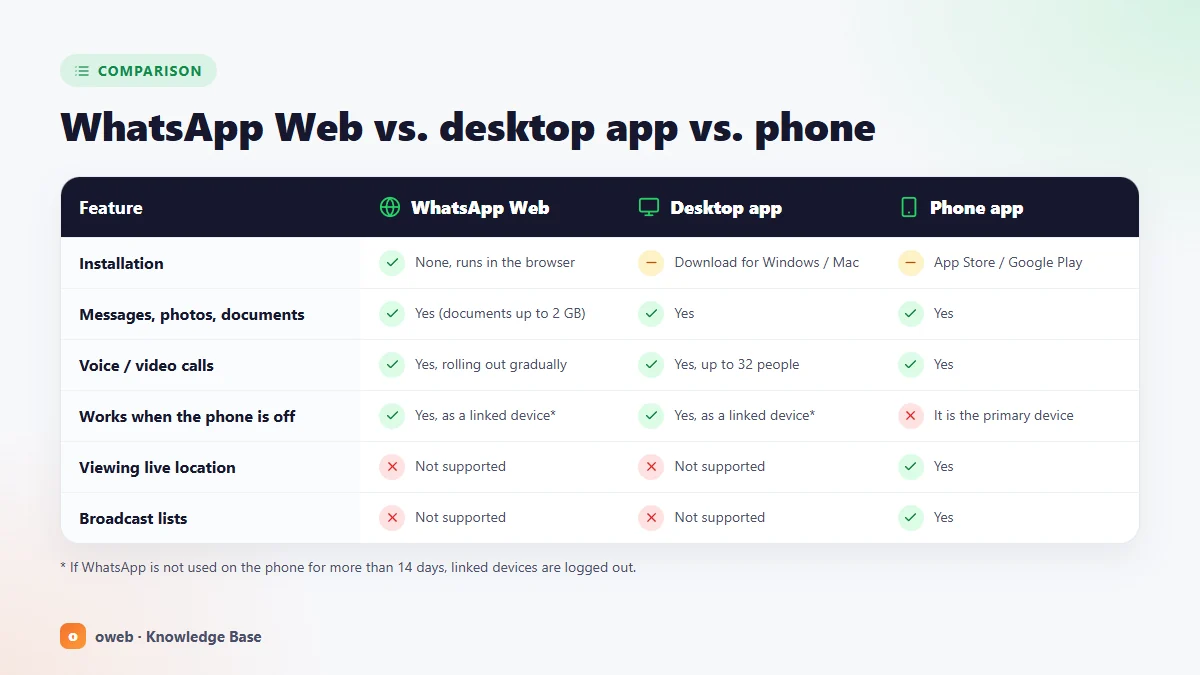
The short answer: WhatsApp Web opens on any computer without installation. The Windows and Mac apps, on the other hand, are installed on your computer, deliver notifications more reliably and sync more history. The phone app, as the account's main device, includes every feature.
| Feature | WhatsApp Web | Desktop app (Windows / Mac) | Phone app |
|---|---|---|---|
| Installation | Not required; opens in the browser | Required: WhatsApp download page, Microsoft Store or Mac App Store | Required: Google Play or App Store |
| Connection method | QR code or phone number | QR code; linking with a phone number on Windows only | Account registration with a phone number |
| Can it be the main device? | No | No | Yes |
| Voice and video calls | One-to-one and group; rolling out gradually | Available, up to 32 participants | Available |
| Screen sharing | Rolling out gradually | Available in video calls | Available |
| Notifications | Arrive while the WhatsApp Web tab is open; stop when the tab is closed | On Windows, arrive even when the phone is offline; on Mac, call notifications arrive even when the app is closed | Arrive, including on the lock screen |
| Message history | Part of your recent messages | More than WhatsApp Web (up to three years on Mac) | Full history |
| Live location and broadcast lists | Not supported | Not supported | Supported |
| System requirements | Chrome or Edge 100+, Firefox 115+, Safari 15+, Opera 86+ | Windows 10 64-bit (version 1903 or later) / macOS 12.1 or later | A current Android or iOS version |
You can get the desktop app from WhatsApp's official download page, the Microsoft Store or the Mac App Store. It was reported that the beta version of the Windows app switched in July 2025 to a structure built on WhatsApp Web technology (Microsoft Edge WebView2); Meta has not officially stated when this change reached all users.
If you use WhatsApp all day on your own computer, the desktop app is the better choice; on a shared computer or a device where you are not allowed to install software, WhatsApp Web is more practical.
WhatsApp Web keyboard shortcuts
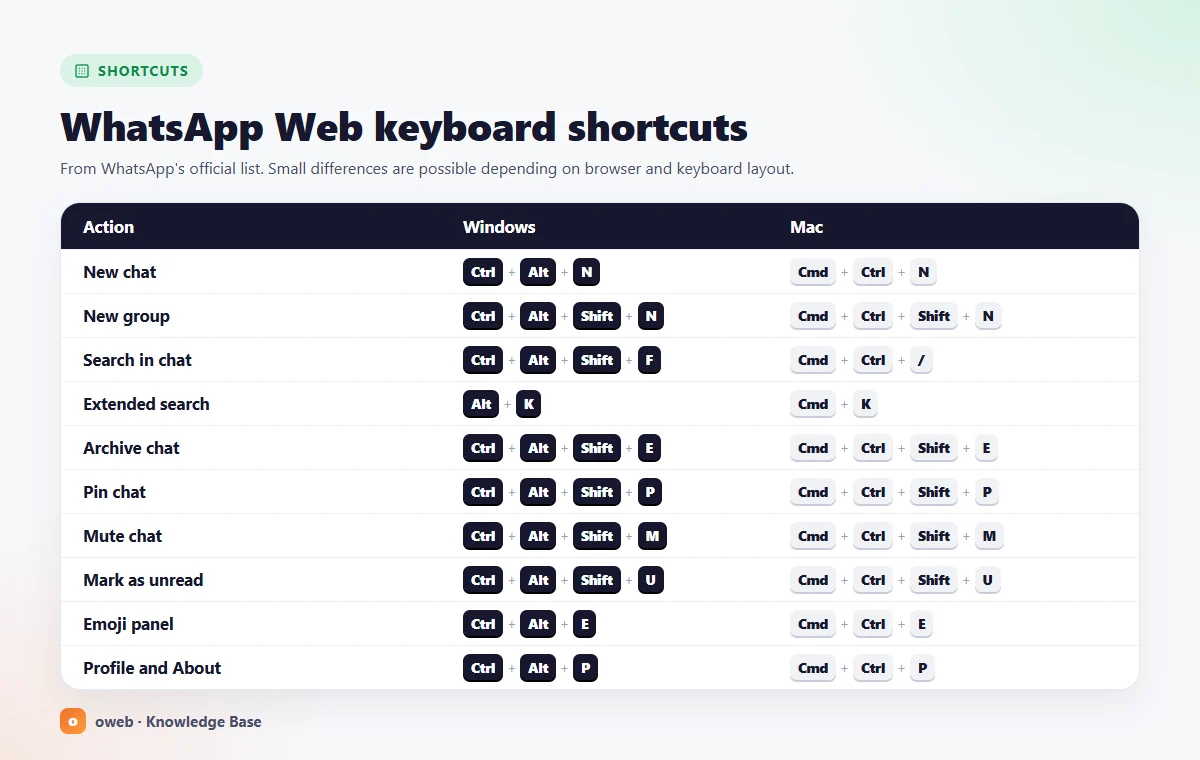
To work on WhatsApp Web without reaching for the mouse, you can use the official shortcuts below. On Windows, shortcuts usually start with Ctrl + Alt, and on Mac with Cmd + Ctrl; some also add Shift.
| Action | Windows | Mac |
|---|---|---|
| New chat | Ctrl + Alt + N | Cmd + Ctrl + N |
| New group | Ctrl + Alt + Shift + N | Cmd + Ctrl + Shift + N |
| Close chat | Esc | Esc |
| Search chats | Ctrl + Alt + Shift + F | Cmd + Ctrl + / |
| Extended search | Alt + K | Cmd + K |
| Mark as unread | Ctrl + Alt + Shift + U | Cmd + Ctrl + Shift + U |
| Mute chat | Ctrl + Alt + Shift + M | Cmd + Ctrl + Shift + M |
| Archive chat | Ctrl + Alt + Shift + E | Cmd + Ctrl + Shift + E |
| Pin chat | Ctrl + Alt + Shift + P | Cmd + Ctrl + Shift + P |
| Profile and About | Ctrl + Alt + P | Cmd + Ctrl + P |
| Emoji panel | Ctrl + Alt + E | Cmd + Ctrl + E |
| GIF panel | Ctrl + Alt + G | Cmd + Ctrl + G |
| Sticker panel | Ctrl + Alt + S | Cmd + Ctrl + S |
| Lock app (when app lock is on) | Ctrl + Alt + L | Cmd + Ctrl + L |
The shortcuts are taken from the official shortcuts table in the WhatsApp Help Center; since keys may change between versions, you can also check the keyboard shortcuts list inside WhatsApp Web.
Shortcuts such as Ctrl + N or Ctrl + E found in older lists belong to the desktop app or to older versions. In the browser, these keys usually trigger the browser's own commands; for example, Ctrl + N opens a new window.
Is WhatsApp Web safe? Security and privacy guide
Yes, WhatsApp Web is safe when used from the official address: your personal messages, media and calls are end-to-end encrypted on linked devices as well, and every device has the same level of security. The risks usually come not from the encryption but from sessions left open, fake websites and scams that trick you into sharing a code.
Check your linked devices regularly
WhatsApp cannot show you who accessed your account, when or from where. That is why the most reliable way to check is the Linked devices list on your phone. If you see a browser or computer you do not recognize, tap it and end the session immediately with Log out.
If push notifications are turned on on your phone, you can tap the new device notification to review the device and remove it if you do not recognize it. For extra protection, also turn on two-step verification.
App lock and chat lock
App lock locks WhatsApp Web with a password after the period you choose. To enable it:
- Go to Settings > Privacy > App lock.
- Set a password between 6 and 128 characters long.
- Set the auto-lock time to 1 minute, 15 minutes, 1 hour or 8 hours.
Notifications are not shown while the lock is active. To lock the app right away without waiting, you can use the shortcut Ctrl + Alt + L on Windows or Cmd + Ctrl + L on Mac.
For chat lock, right-click a chat on WhatsApp Web and use the Lock chat option. Locked chats open with the secret code you created on your phone, and the contact name and content are hidden in their notifications.
Fake websites, QR and code scams
The only official WhatsApp Web address is web.whatsapp.com. Lookalike sites that appear in search engines for queries such as "web whatsapp com tr", clone apps and unknown extensions can be used to take over your account. WhatsApp states that users who connect their account to an unofficial app or website may be temporarily or permanently banned.
- Never scan a QR code that someone else sends you from the Linked devices > Link a device screen; doing so links that person's browser to your account. Only use this screen to scan the QR code you see on your own computer at web.whatsapp.com.
- If a message or page asks you to enter your phone number and confirm an 8-character code, stop immediately.
- The padlock or site information icon in the address bar is not a guarantee on its own. An SSL certificate shows that the connection is encrypted, not that the site actually belongs to WhatsApp; check the domain name letter by letter.
- The official Code Verify extension for Chrome, Firefox and Edge checks that the WhatsApp Web code has not been tampered with: a green check mark means the code has been verified, an orange question mark indicates a network timeout or a possible risk caused by another extension, and a red exclamation mark means verification has failed.
What to watch out for on shared and work computers
On a computer in a café, library or shared office, leave Stay logged in on this browser unchecked and log out when you are done. Keep in mind that on computers managed by your company, monitoring software may be able to see your screen.
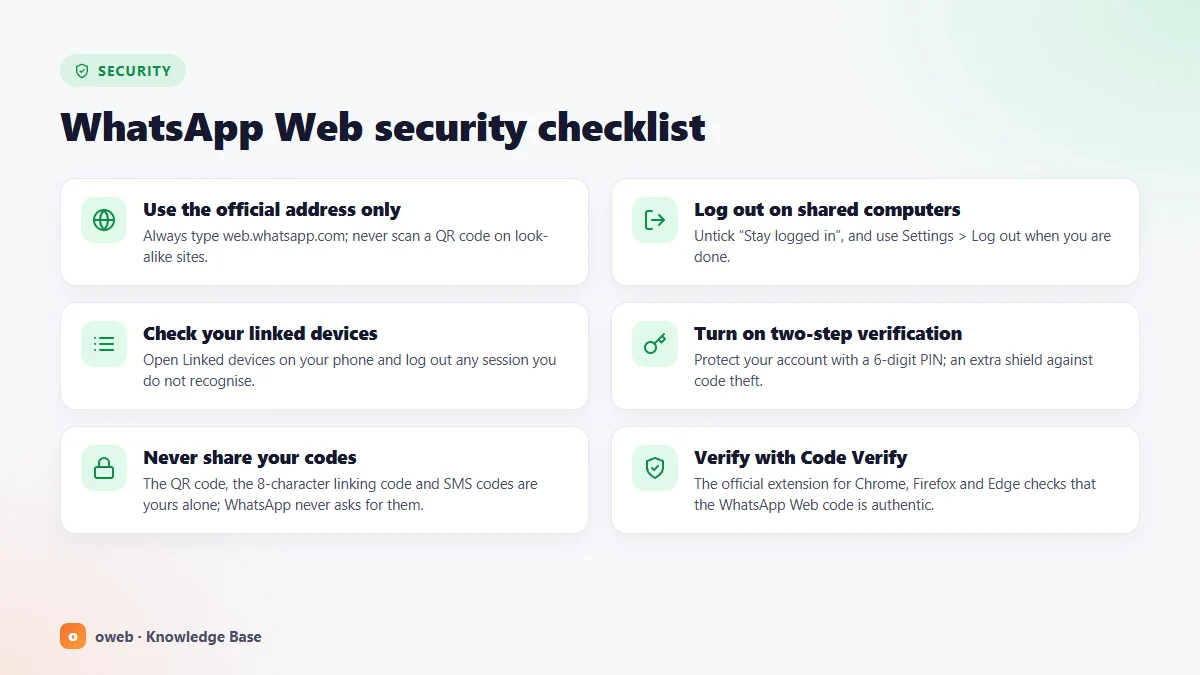
Quick security checklist:
- Use only the web.whatsapp.com address.
- Review your Linked devices list at least once a month.
- Turn on two-step verification.
- Enable app lock.
- Never share the QR code or the 8-character pairing code with anyone.
- Do not leave your session open on shared computers.
- Keep your browser and the WhatsApp app on your phone up to date.
Logging out of WhatsApp Web: ways to end your session
You can end your WhatsApp Web session from the computer or remotely from your phone. You cannot log out other linked devices from WhatsApp Web; for that, you need to use your main phone.
Logging out from the computer
- Open Settings on WhatsApp Web.
- Click Log out.
- In the confirmation window that opens, select Log out again.
Logging out remotely from an Android phone
- In WhatsApp, tap the More options (⋮) icon and open Linked devices.
- Tap the device you want to log out.
- Tap Log out.
Logging out remotely from an iPhone
- Tap the Settings tab or your profile picture, then open Linked devices.
- Tap the relevant device.
- Tap Log out, then select Log out again on the confirmation screen.
To end all sessions, repeat these steps for each device in the list. The official steps are also available on the WhatsApp Help Center's logging out of linked devices page.
If you forgot to log out on a computer, the session ends as soon as you log out of that device from your phone. Logging out does not delete the chats on your phone.
WhatsApp Web problems and solutions
Most of the solutions below are based on WhatsApp Help Center recommendations; the items about extensions, cameras and operating system notification settings are general troubleshooting steps. Under each heading, start with the first step and work through them in order.
WhatsApp Web will not open or the QR code does not load
- Refresh the page and check your internet connection.
- Make sure your browser is a supported version. On older versions, a warning such as "Update Google Chrome" appears instead of your chats.
- Temporarily turn off ad blockers, VPNs and privacy extensions.
- Clear your browser's cache and cookies.
- Try another browser or connect to a different network, such as your phone's mobile hotspot.
The phone will not scan the QR code
- Increase your computer screen's brightness, wipe the camera lens and fit the entire QR code inside the frame.
- If the code has refreshed, scan the new code.
- Update WhatsApp on your phone.
- If it still will not scan, use the phone number linking method.
"Computer not connected" warning and dropped connections
If you see a "Computer not connected" warning with a yellow icon on WhatsApp Web, the problem is usually your computer's internet connection. Try the following in order:
- Refresh the page.
- Clear your browser's cache and cookies.
- Log out of WhatsApp Web and connect again.
- Shut down your computer, wait about 30 seconds and turn it back on.
- Try another Wi-Fi network or your phone's mobile hotspot. Office, school and campus networks may block WhatsApp.
- If you are on a corporate network, ask your IT team to exempt web.whatsapp.com and .whatsapp.net addresses from the network filter.
For more detailed steps, see the connection issues page in the WhatsApp Help Center.
WhatsApp Web keeps logging out
- The main phone has not been used for more than 14 days: Open WhatsApp on your phone and link the device again.
- The session in this browser has not been used for 30 days: It has been unlinked automatically; reconnect with the QR code.
- "Stay logged in on this browser" is unchecked: The session ends when the tab or browser closes. On your own computer, leave this option checked.
- Browser data is being cleared: If you use a setting that clears cookies and site data when the browser closes, a cleaning program or a private window, the session ends every time.
- The session was ended from the phone: Check your Linked devices list; if you did not end the session yourself, turn on two-step verification.
Messages do not load or older chats are missing
Missing older messages on a newly linked device are usually normal: WhatsApp Web receives an encrypted copy of your recent messages rather than your entire history, and this can take a few minutes. Keep your phone connected to the internet during the transfer.
As of October 2026, WhatsApp states that, due to a known issue, up to one year of chat history may not appear on some linked devices. The company is working on the issue and recommends keeping the app up to date. For a longer history, you can try the desktop app.
Notifications are not arriving
- On WhatsApp Web, check that message notifications are turned on under Settings > Notifications.
- If you see a green banner above the chat list suggesting that you turn on desktop notifications, click the link in the banner to turn them on; if the banner does not appear, refresh the page.
- In Chrome, go to Settings > Privacy and security > Site settings > Notifications, make sure sites can ask to send notifications, and if web.whatsapp.com is in the list of sites not allowed, move it to the allowed list. The official steps are on the Chrome notification issues page.
- If you use Edge, Firefox, Opera or Safari, grant the same permission from that browser's site and notification settings; the WhatsApp Help Center has a separate guide for each browser.
- Check that Do not disturb on Windows or Focus modes on Mac are not blocking notifications. Notifications do not arrive while the WhatsApp Web tab or the browser is closed.
The call button is missing or the microphone does not work
- Web calls have not yet reached every account, so they may not be enabled on yours; refresh the page and update your browser.
- Check the microphone and camera permissions for web.whatsapp.com in the site settings in the address bar.
- Make sure no other application, such as meeting software, is using the camera or microphone.
- If there is echo, use headphones.
- If the problem persists, make the call from the desktop app or your phone.
Cannot link with a passkey
- Update WhatsApp on your phone and your browser.
- Turn on Bluetooth on both your phone and your computer.
- Use the same Google account in Chrome and on Android, or the same Apple Account on your Mac and iPhone.
- Install your password manager's browser extension.
- Do not use an incognito (private) window; make sure JavaScript and WebAuthn are enabled in a supported browser.
- WebAuthn may be blocked in company-managed browsers, so consult your IT team if necessary, and do not use unofficial WhatsApp websites.
How to use WhatsApp Business on the web
You connect your WhatsApp Business account through web.whatsapp.com in the same way, using the Linked devices menu in the Business app. The rules are the same as for a personal account: one phone and up to four linked devices, the 14-day rule, and automatic unlinking of a device that has not been used for 30 days.
Four linked devices allow a small team to reply to customer messages from different computers. According to the WhatsApp Business help page, live location, broadcast lists and adding or deleting status updates are not supported on linked devices; you need to do these from the phone.
For setups where more agents work at the same time or automation is needed, WhatsApp Business Platform (API) solutions are worth considering. To keep official correspondence such as quotes, invoices and contracts on record, a corporate email address on your own domain or a Google Workspace account both builds trust and makes archiving easier.
Frequently asked questions
Is WhatsApp Web free?
Yes, WhatsApp Web is free. The only cost is the data charge of the internet connection you use. According to WhatsApp's announcement, voice and video calls made from WhatsApp Web are also free and have no time limit.
Do I need to download a program for WhatsApp Web?
No, opening web.whatsapp.com is enough. If you prefer an installed app, you can download the official desktop app for Windows or Mac.
Can I log in to WhatsApp Web without a QR code?
Yes. Using the Log in with phone number option on the login screen, you type your number and then enter the 8-character code that appears on the screen into WhatsApp on your phone. This method is available on WhatsApp Web and in the Windows app.
Does WhatsApp Web work when my phone is off?
Yes, once the connection is set up, WhatsApp Web works even when your phone is turned off or offline. All you need to do is open WhatsApp on your main phone at least once every 14 days; otherwise, your linked devices are logged out.
How long does WhatsApp Web stay logged in?
There is no fixed time limit; the session can stay open until you log out. The session ends if the main phone is not used for more than 14 days, if the WhatsApp Web session in that browser is not used at all for 30 days, or if the tab or browser is closed while Stay logged in on this browser is unchecked.
Can I use WhatsApp Web on two computers at the same time?
Yes. Since up to four devices can be linked to one phone, you can keep WhatsApp Web open on more than one computer at the same time as long as you do not exceed four devices in total.
Does WhatsApp Web open on a tablet or iPad?
On tablets, the official app is used instead of the browser. You can link your account by installing WhatsApp's iPad app on an iPad, or the WhatsApp app on an Android tablet, and scanning the QR code on its screen from the Linked devices screen on your phone.
Why does WhatsApp Web ask for a passkey?
A passkey is an extra security step WhatsApp can use when a new browser is being linked, and it confirms that you are really the one approving the connection. This step requires an iPhone running iOS 16 or later, or an Android phone running Android 9 or later with Google Play Services installed, together with Chrome 109, Edge 109, Safari 16, Firefox 122 or a later browser.
Can I add a second account to WhatsApp Web?
No, account switching is available only in the phone app. As a practical workaround, you can open the second account in a separate browser profile: switch to that account on your phone (or use the phone that account is registered on) and scan the QR code from the Linked devices screen.
Can I make voice or video calls from WhatsApp Web?
Yes. In July 2026, WhatsApp announced that one-to-one and group voice and video calls can be made from WhatsApp Web. Because the feature is rolling out gradually, the call icon may not appear on your account yet; in that case, keep your browser up to date and use the desktop app for calls in the meantime.
How can I tell if someone is using my WhatsApp Web?
Open the Linked devices list on your phone; any session you do not recognize may belong to someone else. Log out of that session immediately and turn on two-step verification. Since WhatsApp does not show who logged in, checking the list regularly is the most effective method.
What happens if I forget to log out of WhatsApp Web?
The session stays open on that computer, and anyone who uses it may be able to see your messages. When you open the Linked devices screen on your phone, tap the relevant device and select Log out, the session is closed remotely.
What is the maximum file size I can send from WhatsApp Web?
The limit for documents is 2 GB. By default, videos are sent with a limit of 100 MB and 720p on a fast connection and 64 MB and 480p on a slow connection. You can share up to 100 photos or videos at once.
Does WhatsApp Web have a local or alternative address?
No. The only official address of WhatsApp Web is web.whatsapp.com, and the interface is available in many languages, including English and Turkish. Addresses with different domain extensions or similar spellings are not official; scanning a QR code or entering a code on these sites puts your account at risk.
Conclusion
Open WhatsApp Web only from the official address, check your linked devices regularly, use app lock and log out on shared computers. As long as you keep the 14-day and 30-day rules in mind, you can continue your chats on your computer without interruption. For more guides on domain names, email and website management, browse the Oweb Knowledge Base.